
Track Products
Monitor key data from Amazon and Walmart product pages including ratings, sales rank, sales, and buy box ownership.
Product tracking monitors key data from Amazon and Walmart product pages, ratings, sales rank, sales, buy box ownership, and dozens of other attributes, so you can track performance, detect changes, and make informed decisions. Each tracked product produces a daily snapshot that feeds dashboards, Alerts, and Sherlock downstream.
By combining it with Keywords Tracking, you can monitor the changes in the rankings of your tracked products.
DataHawk Product Tracking Capabilities
What data does DataHawk collect?
For each tracked product, DataHawk captures a daily snapshot of dozens of attributes. The fields vary slightly between marketplaces. Pick your platform.
- brand
- title
- description
- bullet items
- product image
- number of media
- the product's price
- stars rating
- number of ratings
- the number of Sellers competing for the Buy Box
- displayed categories and corresponding best seller ranks
- its group ASIN
- number of variations
- A+ status
- out-of-stock status
- and many more.
Plus these computed metrics:
- Estimated Monthly Sales
- Competitiveness Score
- Listing Quality Score
- brand
- title
- description
- bullet items
- product image
- number of media
- the product's price
- stars rating
- number of ratings, including reviews
- the number of Sellers competing for the Buy Box
- displayed categories and corresponding best seller ranks
- its group Item ID
- number of variations
- Walmart+ status
- activated product-page features, including About the Brand when the marketing module is active
- out-of-stock status
- and many more.
Supported regions
DataHawk integration works for tracked products in all Amazon regions:
- North America: US, Canada, Mexico, and Brazil.
- Europe: UK, Germany, Italy, France, Spain, Netherlands, UAE, Sweden, India, and Poland.
- Far East: Japan, Singapore, and Australia.
Product tracking is country-specific. If you track the same product in multiple marketplaces, each marketplace is counted as a separate tracked product.
Automated Data Sync & Backup
Once you add a product for tracking, we collect data automatically from that point forward (it may take up to 24-hours to have complete data). No historical data possible.
We then securely store and back up all your data every day, enabling more comprehensive reporting with extended historical context.
Refresh Frequency
Data is updated daily. There may be a delay in updating the data from the last 24-hours.
How to track a Product
After adding a product, it may take up to 24 hours for data to sync. Data is collected automatically from that point forward. Historical data availability depends on the data source.
Go to the Sources Page
Go to the Sources Page.
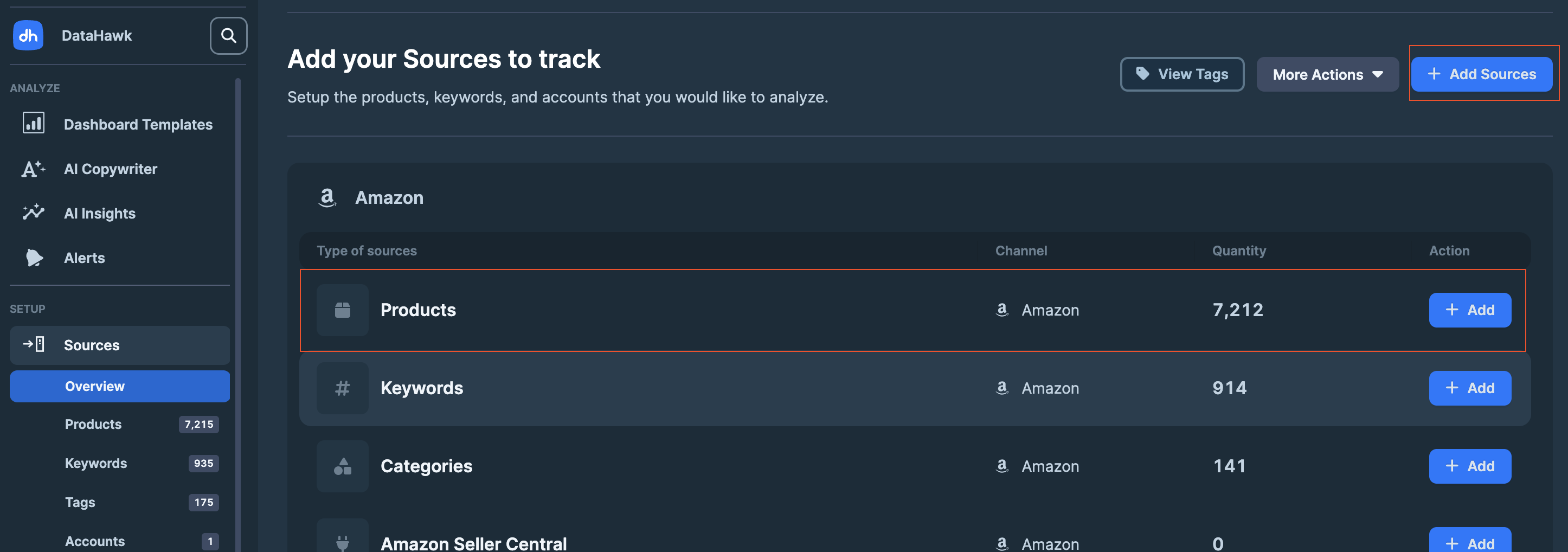
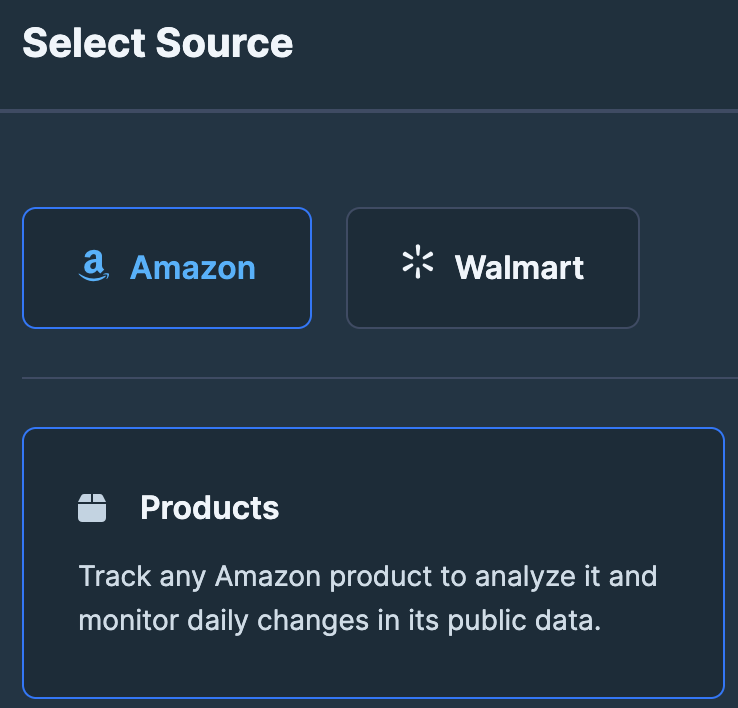
Choose your preferred method
DataHawk supports four ways to add products. Pick the tab that matches your input.
If you choose to track variations, DataHawk will automatically monitor all discovered variations linked to the parent product.
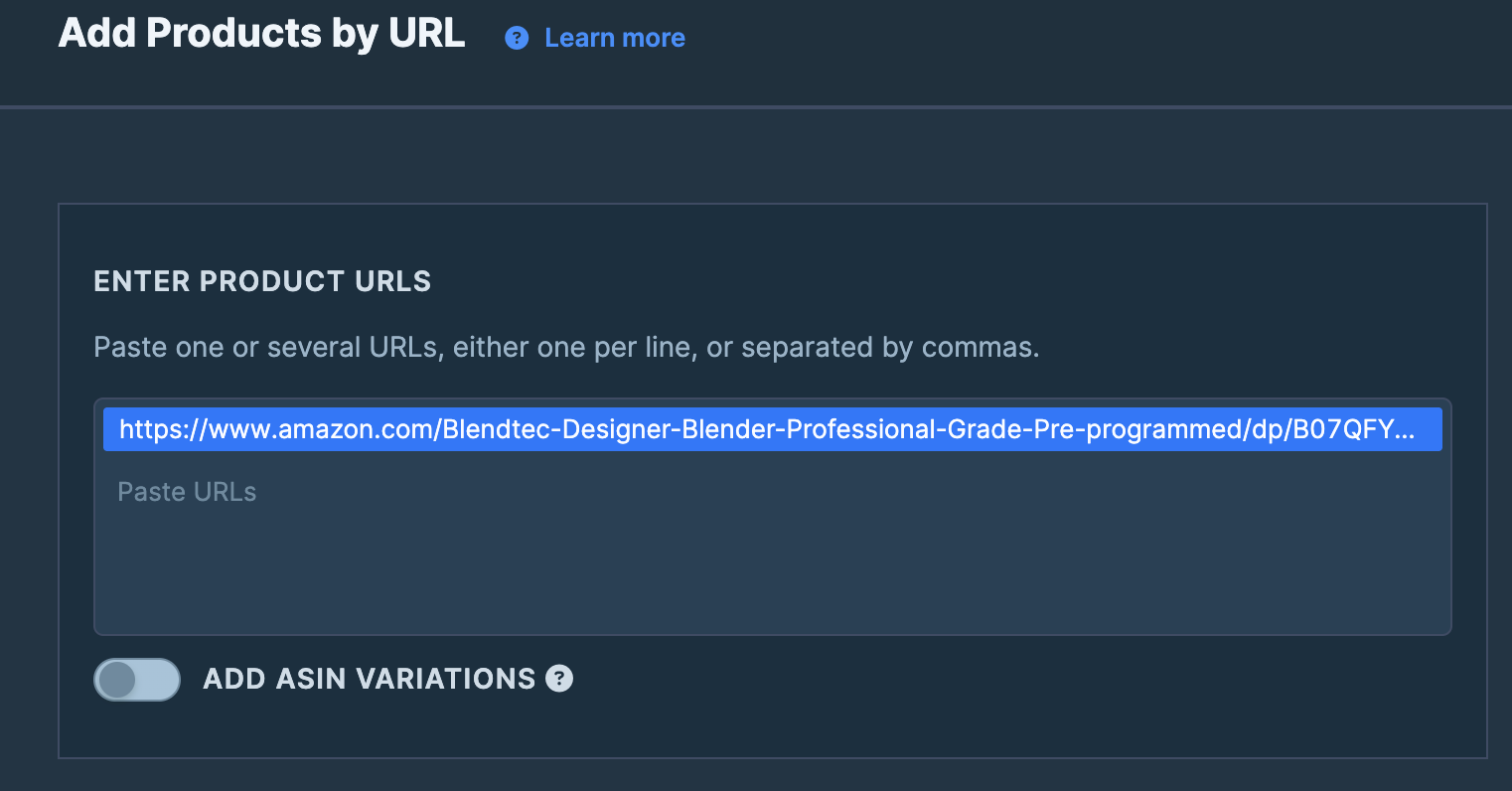
Best for adding a handful of products from links you already have.
-
Enter or paste the product URLs.
-
(Optional) Toggle to add all associated variations.

-
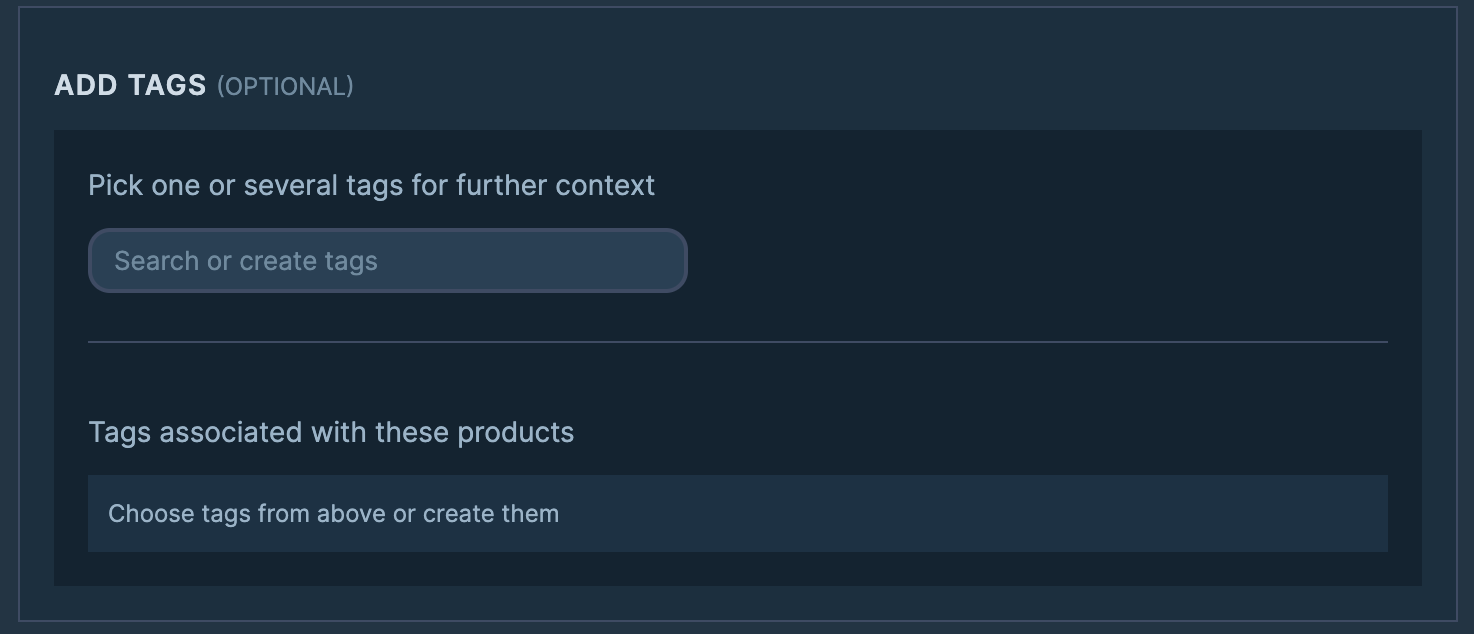
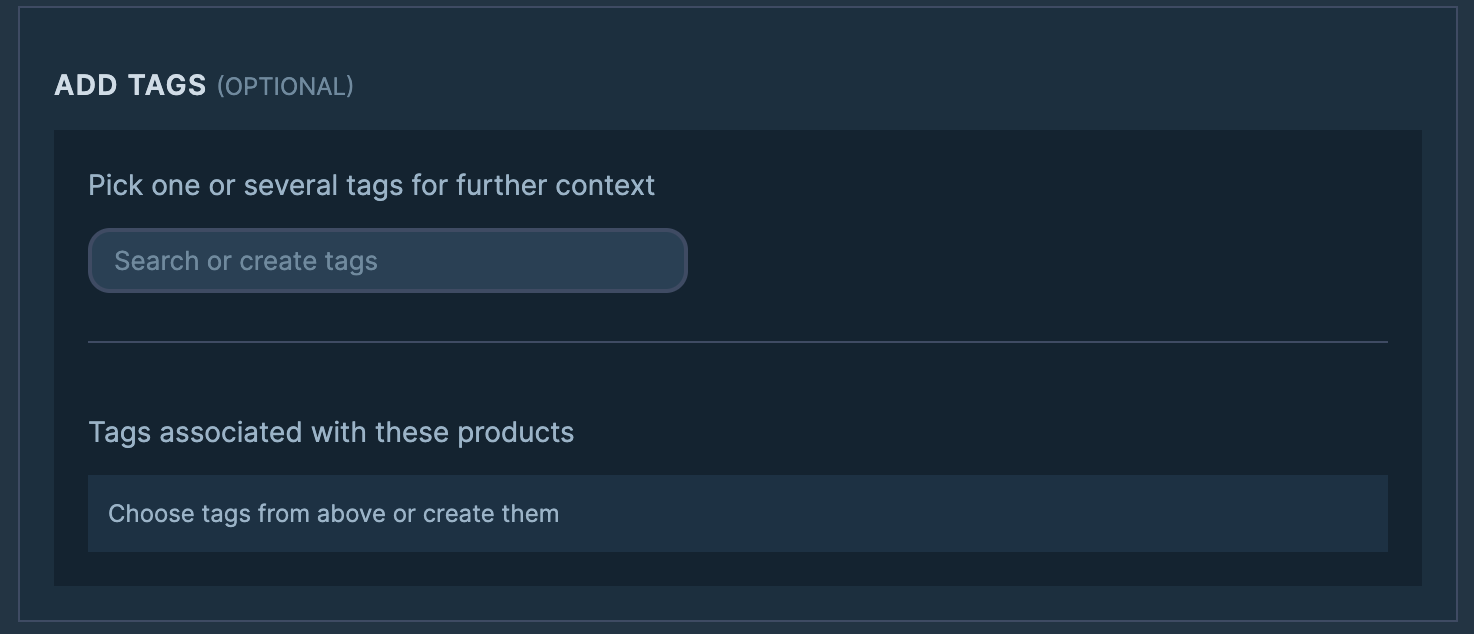
(Optional) Assign tags for better organization.
-
Click Add Products (bottom right) to finish.
Best when you already have the identifiers in a list.
-
Select the marketplace.

-
Enter or paste the product ASINs (or Walmart IDs).
-
(Optional) Toggle to add all associated variations.
-
(Optional) Assign tags for better organization.
-
Click Add Products (bottom right) to finish.
Recommended for more than 500 products. Lets you set tags and variation rules per row in a spreadsheet.
- Download the CSV template.
- Fill in the template with:
- Marketplace: Domain name (Amazon/Walmart marketplace).
- Product ID: ASIN (Amazon) or Product ID (Walmart).
- Include Variations:
Trueto include variations,Falseto exclude. - Tags (optional): Separate multiple tags with semicolons (
;).
- Save the file in CSV UTF-8 format.
- Click on
Choose CSV file, select your local file in CSV UTF-8 format. - Map your columns to the template fields. Click
Continue. - Datahawk will make a first review of your document and point out all the errors it notices. Review and correct any errors on your side. Click
Validation summary. - You will see a summary of the errors and warnings found in your document. You will be able to
Complete importif there are only warnings, but you will have to fix the errors before being able to complete the import.
This method is coming soon. In the meantime, contact our team if you'd like early access or help adding a whole brand catalog.
How to archive a tracked product
Archiving stops collecting new data for a product but keeps its history intact. Use it when you no longer need fresh snapshots for a SKU you used to track.
Open your tracked products list
In the DataHawk App, go to Sources → Products.
Find the products you want to archive
Use the search to locate a specific product, or scroll the list to pick several.
Select the products
Tick the box next to each product you want to archive.
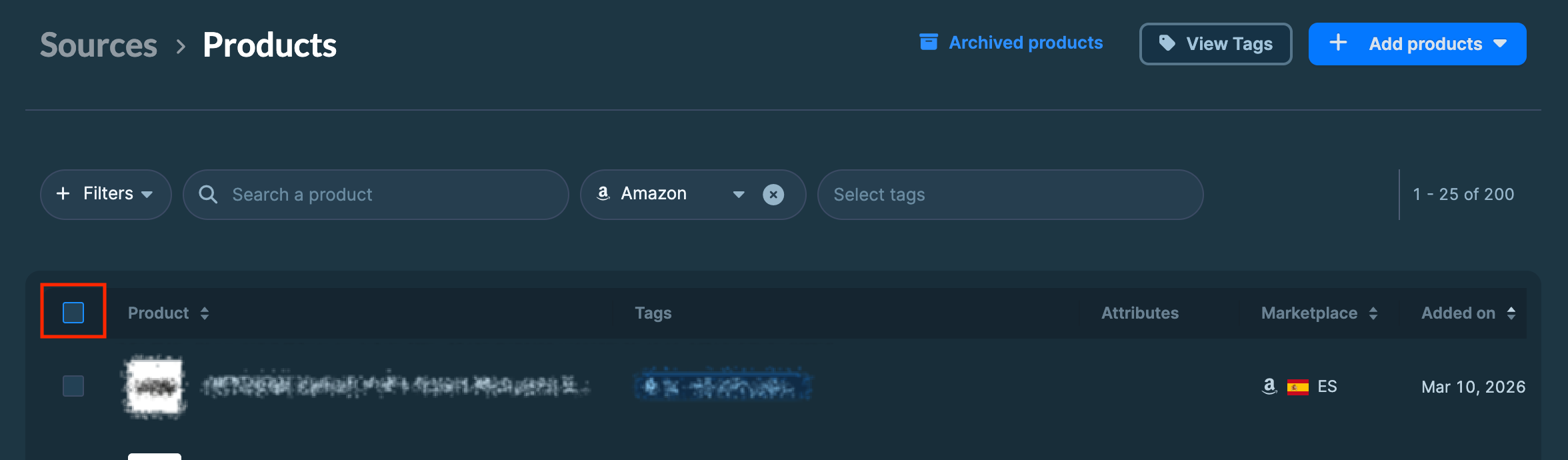
To archive everything you currently track, click Select all products instead.
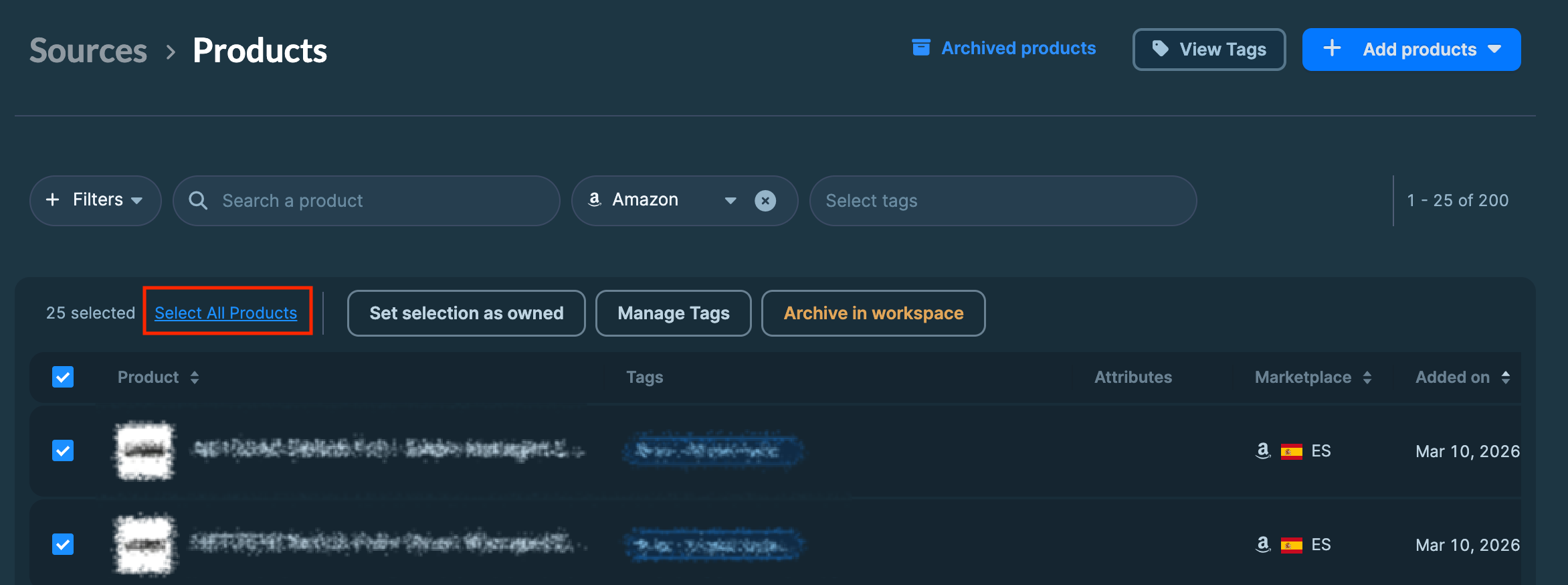
Archive
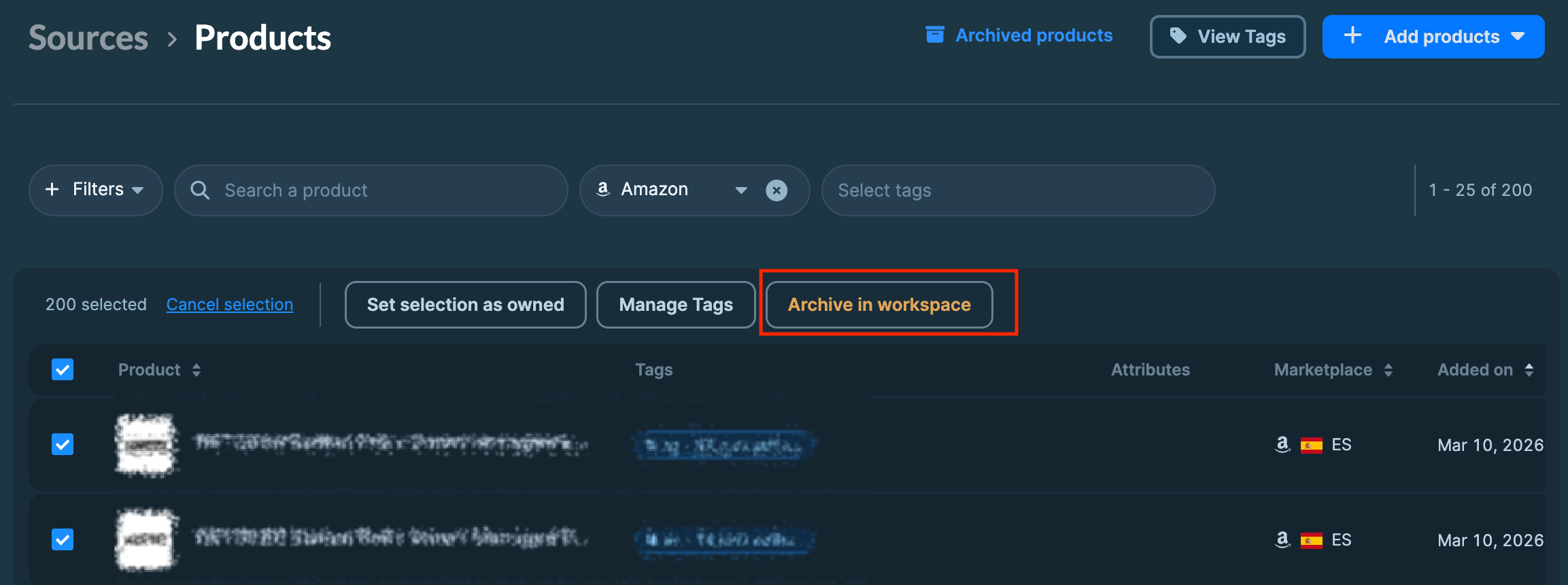
Click Archive in Workspace. The selected products stop receiving new daily snapshots immediately.
Connect a Walmart Connect Account
Connect your Walmart Connect advertising account to DataHawk to pull daily ad performance alongside Marketplace sales and search data.
Track Keywords
Monitor the first 5 pages of Amazon search results daily to track changes in organic rank and editorial recommendations.