
Track Categories (Amazon only)
Track an Amazon category to monitor the top 100 products daily and follow their sales rank with a simplified set of product metrics.
Category tracking is how you monitor the competitive landscape around your own products: which competitors rank where, how those rankings shift over time, and what categories are heating up. For each tracked category, DataHawk keeps a daily snapshot of the top 100 products with their sales rank, price, rating, and key metadata.
Only available for Amazon
DataHawk Product Tracking Capabilities
What data does DataHawk collect?
For each category you track, DataHawk will provide you with a daily snapshot of these primary product attributes:
- category name
- category path
- top 100 products
- bestseller rank
- product price
- title
- star rating
- numbers of ratings, including reviews
- A+ status
- product image URL
- estimated Sales
Supported regions
DataHawk integration works for tracked products in all Amazon regions:
- North America: US, Canada, Mexico, and Brazil.
- Europe: UK, Germany, Italy, France, Spain, Netherlands, UAE, Sweden, India, and Poland.
- Far East: Japan, Singapore, and Australia.
Category tracking is country-specific. If you track the same category in multiple marketplaces, each marketplace is counted as a separate tracked category.
Automated Data Sync & Backup
Once you add a product for tracking, we collect data automatically from that point forward (it may take up to 24-hours to have complete data). No historical data possible.
We then securely store and back up all your data every day, enabling more comprehensive reporting with extended historical context.
Refresh Frequency
Data is updated daily. There may be a delay in updating the data from the last 24-hours.
How to Add Categories
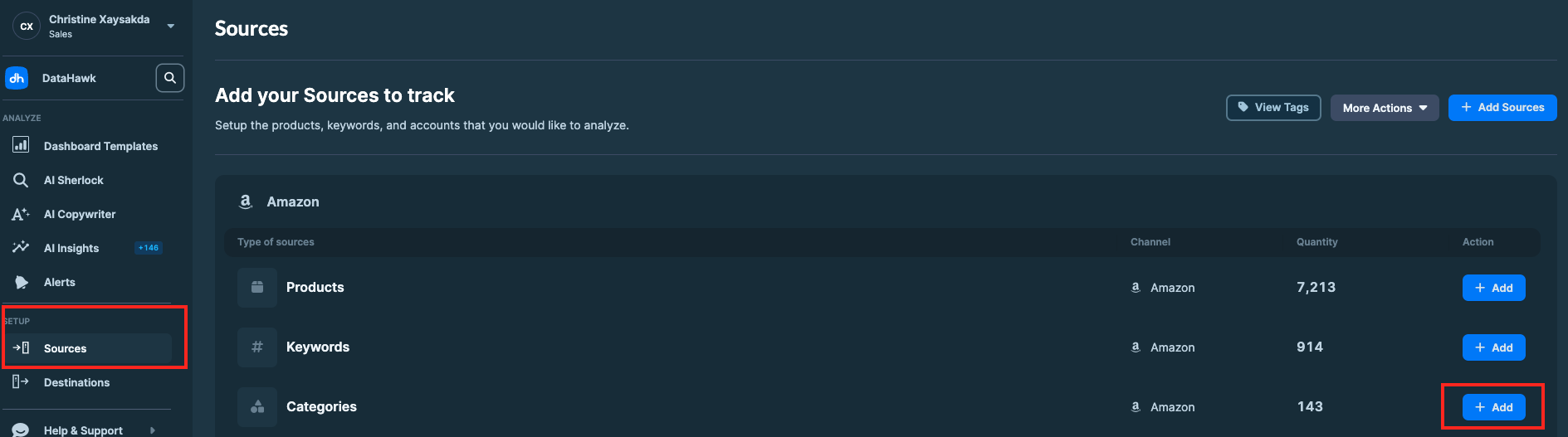
Go to the Sources Page
Go to the Sources Page.
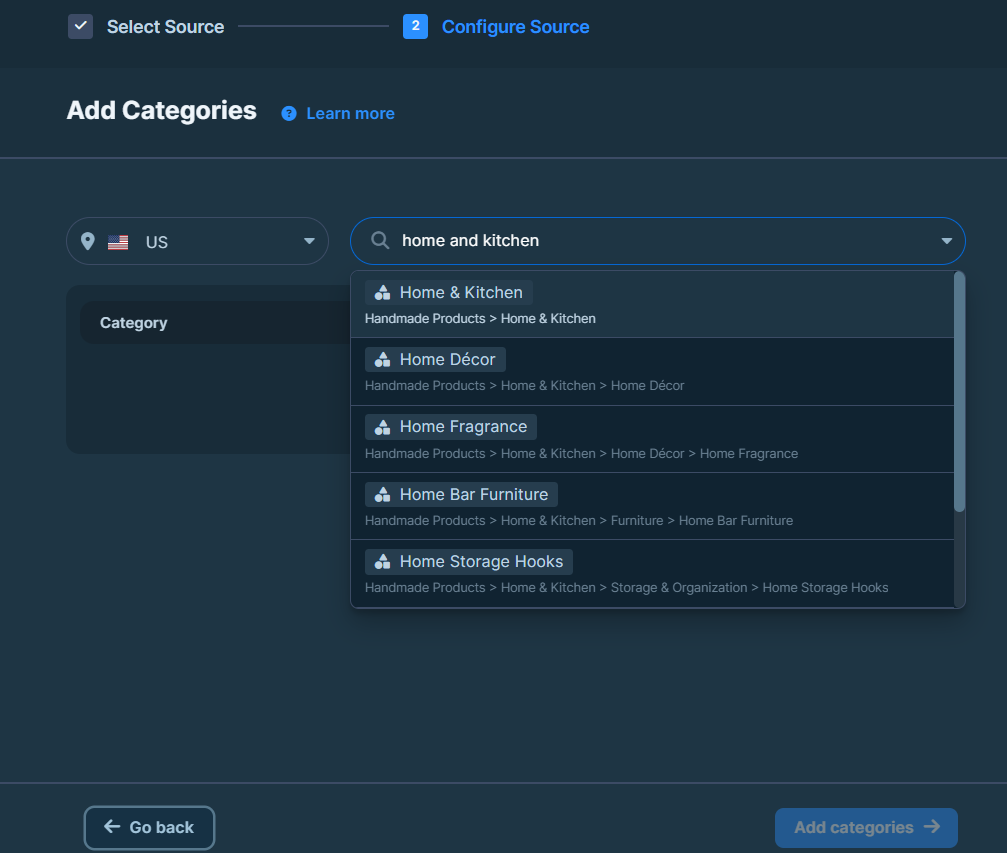
Search for a category
Search for the top-level category you want to add.
Then sellect Add Categories ->
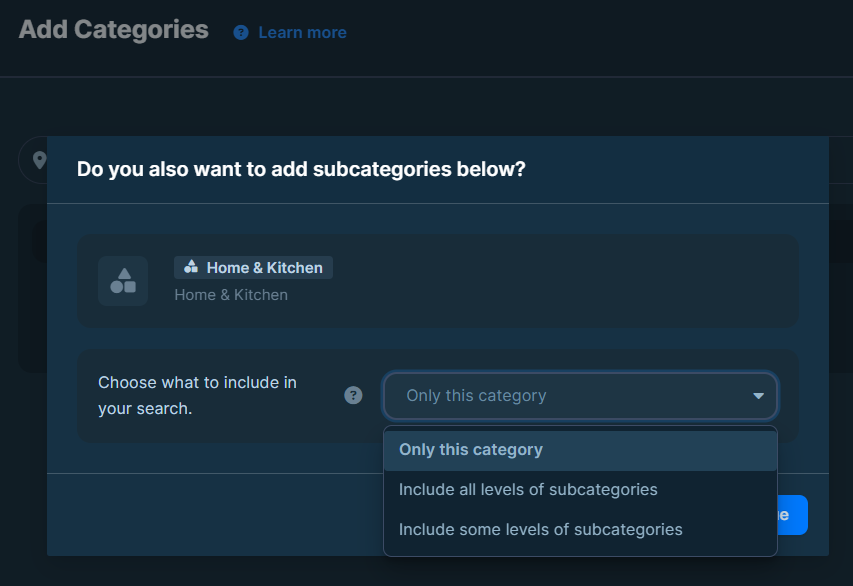
Choose tracking scope
Choose:
- A single category.
- All subcategories below the selected level.
- A specific number of subcategory levels.
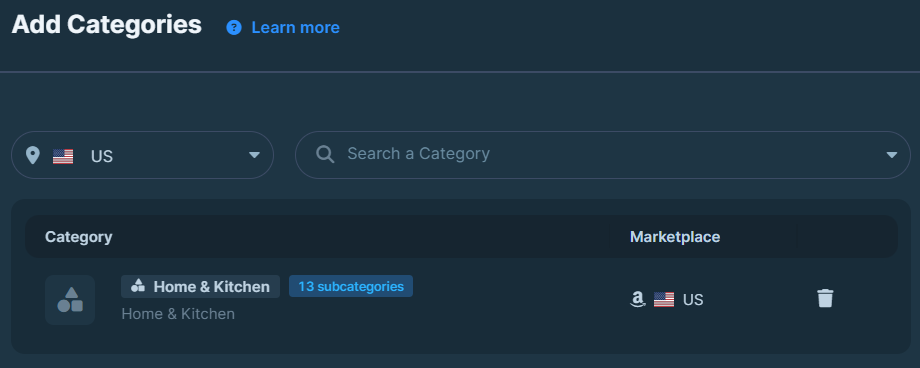
Confirm
Click Continue to confirm and finish adding.