
Upload Amazon Product Expenses (COGS)
Add Amazon product expenses as a Source to make daily unit costs available in your database and profit analyses.
Adding an Amazon Product Expense as a Source will make daily unit expenses available on your managed database. It will also add product expense reporting to your profit and loss analyses.
Where Product Expenses Data Appears
Datasets: your product expenses (COGS) are surfaced in the following tables:
FINANCE.FINANCE_PROFIT: Aggregated daily COGS used for overall profit calculations.FINANCE.FINANCE_PROFIT_LEDGER: COGS represented as transactional events:- Negative COGS (-COGS) when a sale occurs
- Positive COGS (+COGS) when a return is processed
FINANCE.FINANCE_PROFIT_METRICS: Used to compute profit metrics such as:- Gross Profit
- Operating Profit
- Net Profit
FINANCE.FINANCE_COGS: Provides detailed daily COGS data per product/channel.FINANCE.FINANCE_COGS_SKU: SKU-level breakdown of daily COGS for deeper product-level analysis.FINANCE.FINANCE_PROFIT_LOSS(Deprecated): Previously used for profit/loss reporting. Superseded by the tables above.
In the Dashboards:
- Templates:
- Seller Finances and Supply Chain on Power BI: Product expenses data will be included in profit and loss reporting.
- Analytics Essentials on Looker: Product expenses data will be included in profit and loss reporting.
- Any custom dashboard built on top of the tables above
Uploading Product Expenses
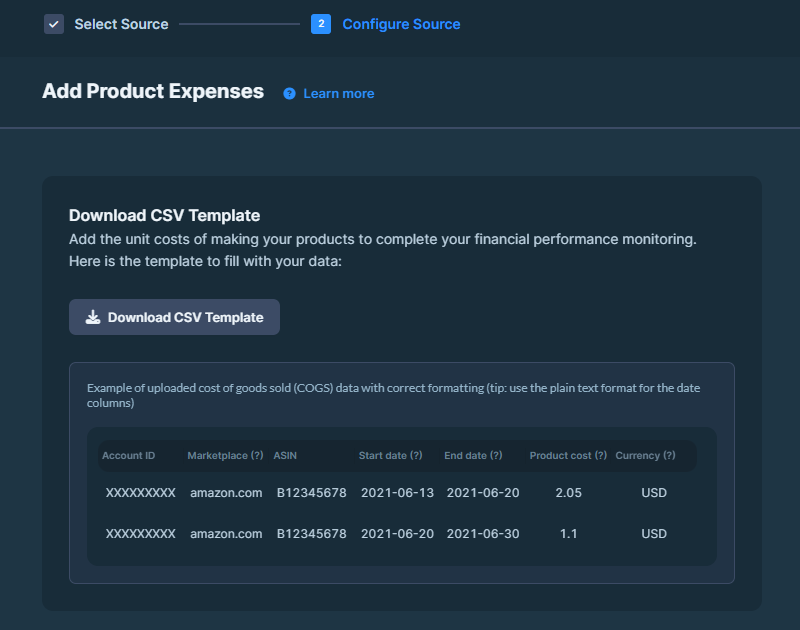
Fill in the template
Fill in the template with:
- Account ID: Seller Central Account ID.
- Marketplace: Domain name.
- ASIN: Product identifier.
- Start/End Date: Duration the cost applies. You can upload COGS data for dates up to 5 years in the past or 1 year in the future.
- Product Cost: Per-unit cost of goods sold.
- Currency: Currency for the cost.
Save in CSV UTF-8 format.
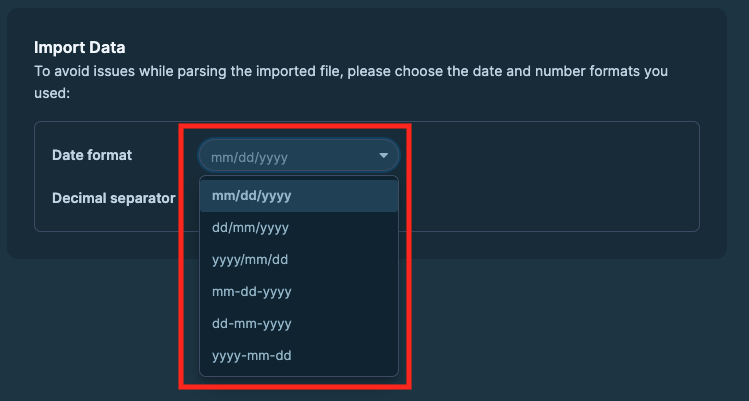
Number Format
To avoid issues while parsing the imported file, please choose the number (decimal seperator) format you used:
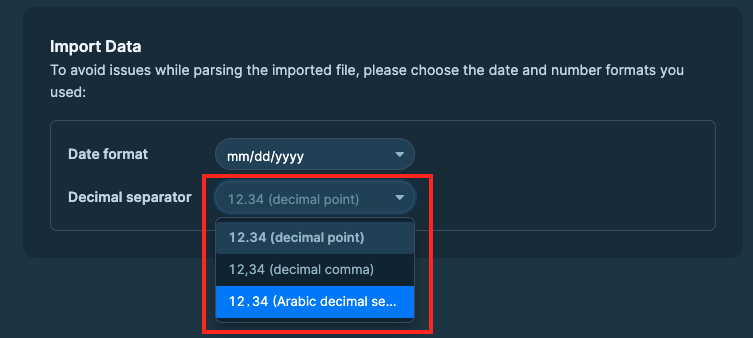
Once it is done, you can continue with Add Product Expenses button on the bottom right.
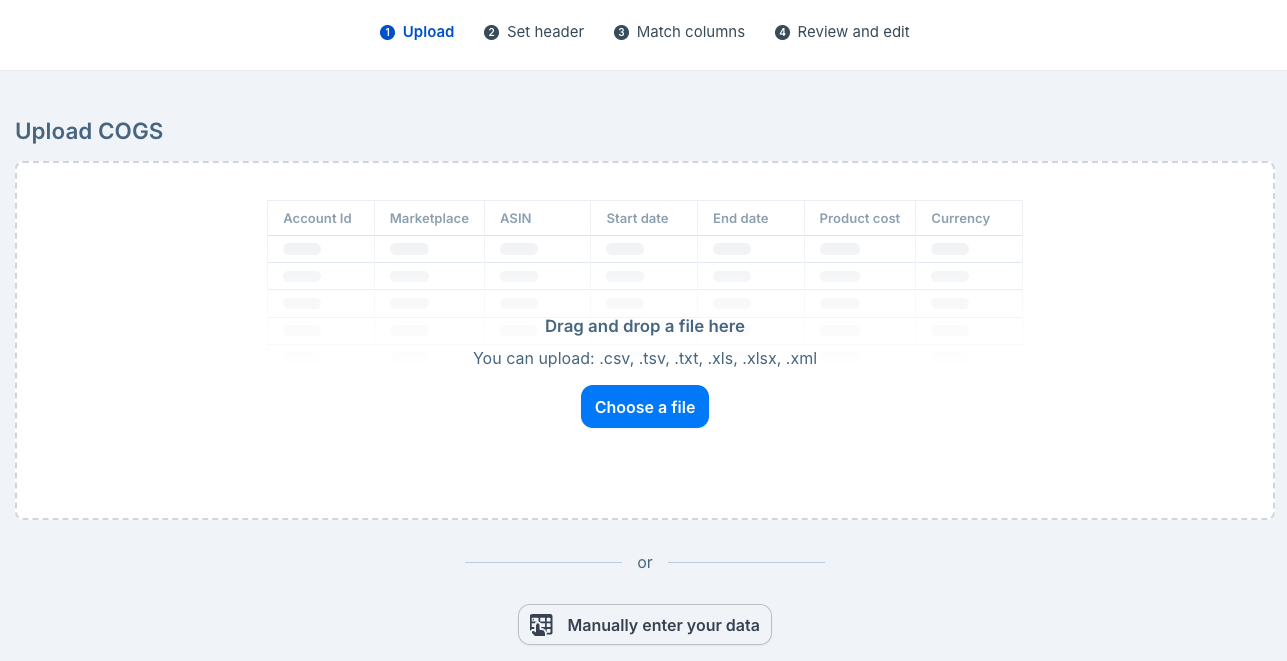
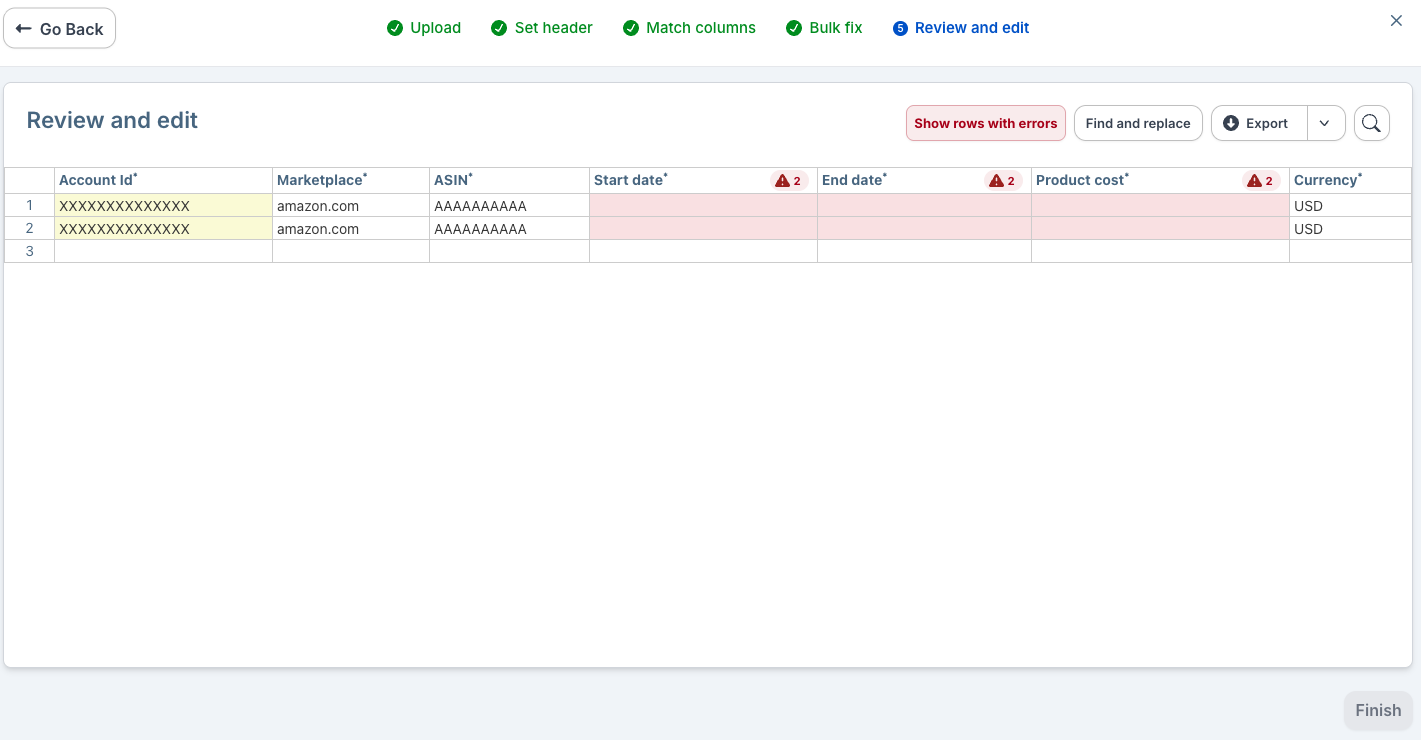
Review and Validate
Datahawk will make a first review of your document and point out all the errors it notices
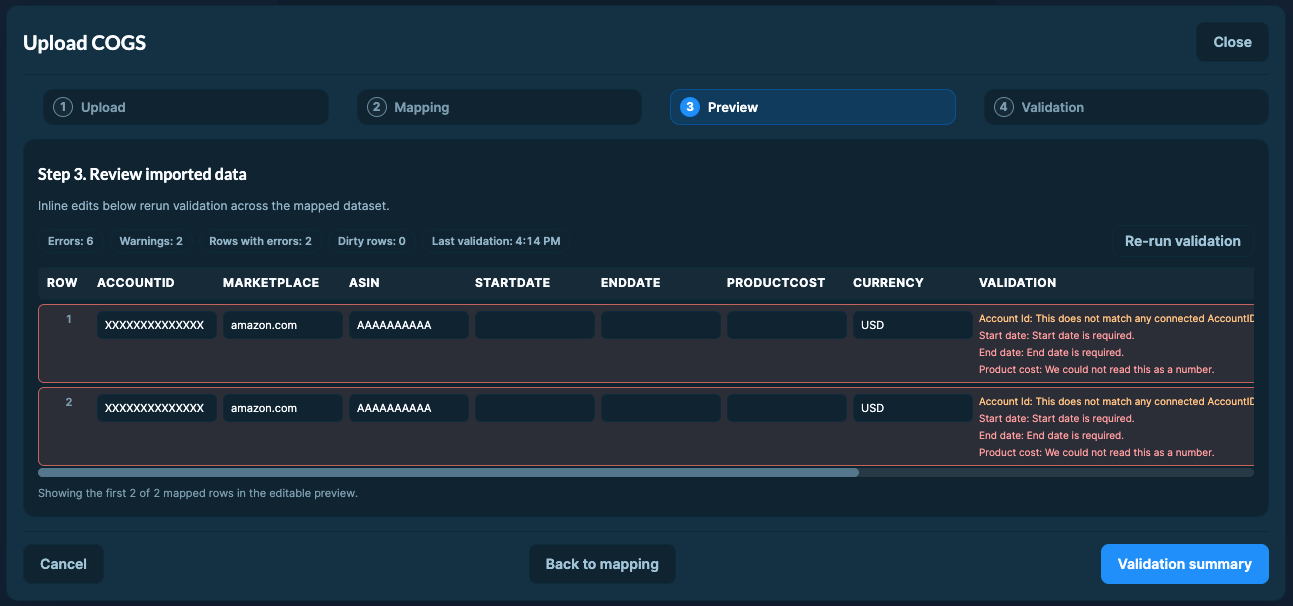
Review and correct any errors on your side.
Click Validation summary.
You will see a summary of the errors and warnings found in your document. You will be able to Complete import if there are only warnings, but you will have to fix the errors before being able to complete the import.
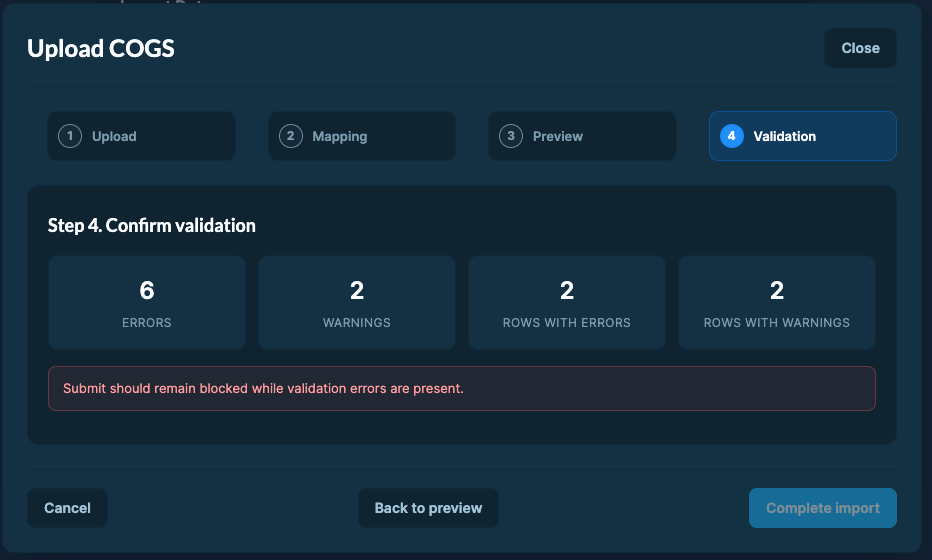
The system always uses the most recent upload to calculate final product expenses.
To Edit Previously Uploaded Data:
- Re-upload the updated values for the affected products and date range.
- The system will automatically overwrite the old data with your new submission.
Updates take up to 24 hours. You can upload COGS data for dates up to 5 years in the past or 1 year in the future.
Amazon Private Data - Advertising Account
Connect your Amazon Advertising account to DataHawk to automatically collect and centralize your advertising data for structured reporting and analysis.
Track Categories (Amazon only)
Track an Amazon category to monitor the top 100 products daily and follow their sales rank with a simplified set of product metrics.