
Track Keywords
Monitor the first 5 pages of Amazon search results daily to track changes in organic rank and editorial recommendations.
Keyword tracking shows which products appear in search results for a keyword, and in what position. It's the foundation of both SEO and PPC analysis. Each day, DataHawk collects the first 5 pages of results for every tracked keyword: roughly 200 products, yours and your competitors'. You get a history of organic rank movements, content recommendations and, with Premium Keywords, sponsored rank.
Keyword tracking is the only source of search rank in DataHawk. You don't need to track a product to see where it ranks: tracking the keyword is enough.
DataHawk Keyword Tracking Capabilities
What data does DataHawk collect?
For each keyword you track, DataHawk records a daily snapshot of search ranks plus basic info on every product that shows up in the results, tracked or not. This is the data visible on the search results page. For full product page details (bullets, sales rank, Buy Box, A+, variations), track the product. Available fields differ slightly between Amazon and Walmart. Pick your platform.
Primary attributes:
- organic search rank
- organic page rank
- sponsored page rank (requires Amazon Premium Keywords)
- content recommendations
Per-product info:
- title
- product image
- brand (added by DataHawk)
- price
- stars rating
- number of ratings, including reviews
Primary attributes:
- organic search rank
- organic page rank
- sponsored page rank
- editorial recommendations
Per-product info:
- title
- price
- stars rating
- number of ratings, including reviews
- A+ status
- product image
Supported regions
Keyword tracking works in all Amazon regions:
- North America: US, Canada, Mexico, and Brazil.
- Europe: UK, Germany, Italy, France, Spain, Netherlands, UAE, Sweden, India, and Poland.
- Far East: Japan, Singapore, and Australia.
Keyword tracking is country-specific. If you track the same keyword in multiple marketplaces, each marketplace is counted as a separate tracked keyword.
Automated Data Sync & Backup
Once you add a keyword for tracking, we collect data automatically from that point forward (it may take up to 24 hours to have complete data). We can't collect data from before you started tracking.
We then securely store and back up all your data every day, enabling more comprehensive reporting with extended historical context.
Refresh Frequency
Data is updated daily. Data from the last 24 hours may be delayed.
Products or keywords: which should you track?
Product tracking and keyword tracking collect different data. They complement each other, but you don't need both for every goal.
| You want to… | Track |
|---|---|
| See the organic rank of any product, yours or a competitor's | Keyword |
| See basic info on every product ranking for a keyword (title, image, price, rating, brand) | Keyword |
| Get full product page details (bullets, sales rank, Buy Box, A+, variations, sales estimates) | Product |
| Get Alerts and Sherlock signals on a specific ASIN | Product |
| Find the keywords a product ranks for (Keyword Lookup) | Product and keyword |
If you only need search rank, you can archive tracked products and use those units to track competitors instead. Keyword Lookup is the exception: it needs the product tracked. See Keyword research.
How to track a keyword
Go to the Sources Page
Go to the Sources Page.
Add Source
Click Add Source.
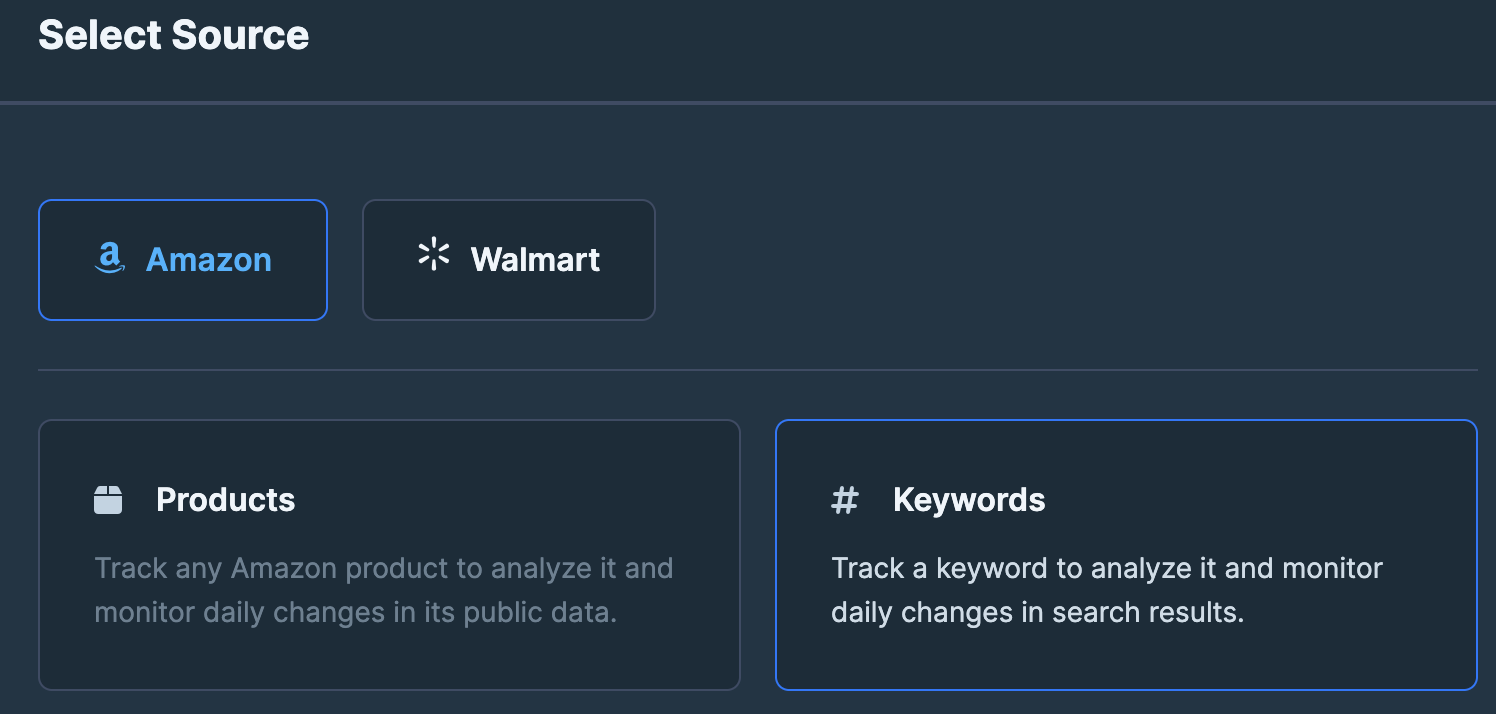
Choose your preferred method
DataHawk supports two ways to add keywords. Pick the tab that matches your input.
Best for adding a handful of keywords you can type or paste directly.
- Click Enter Keywords.
- Select the marketplace.
- Enter or paste the keywords.
- (Optional) Assign tags for better organization.
- Click Add Keywords to finish.
Recommended for more than 500 keywords. Lets you set tags per row in a spreadsheet.
-
Download the CSV template.
-
Fill in the template with:
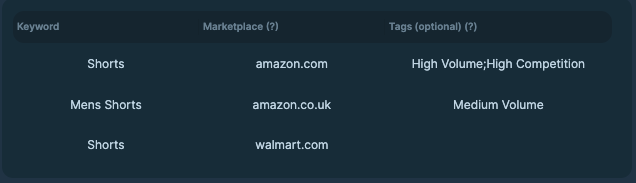
- Marketplace: Domain name.
- Keyword: The search term you want to track.
- Tags (optional): Separate multiple tags with semicolons (
;). See tagging for the conventions.
-
Save the file in CSV UTF-8 format.
-
Click on
Choose CSV file, select your local file in CSV UTF-8 format. -
Map your columns to the template fields. Click
Continue. -
Datahawk will make a first review of your document and point out all the errors it notices. Review and correct any errors on your side. Click
Validation summary. -
You will see a summary of the errors and warnings found in your document. You will be able to
Complete importif there are only warnings, but you will have to fix the errors before being able to complete the import.
How to archive a tracked keyword
Archiving stops collecting new data for a keyword but keeps its history.
Open your tracked keywords list
In the DataHawk App, go to Sources → Keywords.
Select the keywords
Search for the keyword and tick the box next to it.
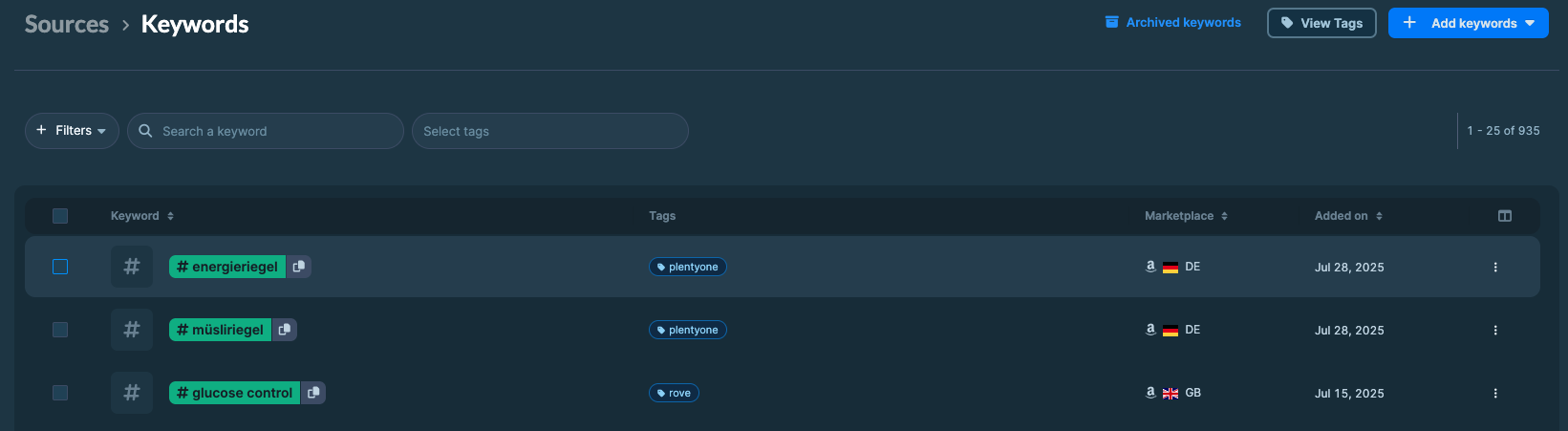
To archive every tracked keyword, click Select all keywords.

Archive
Click Archive in Workspace.