
Connect to Power BI
Connect DataHawk to Power BI using pre-built templates on your Snowflake database; get up and running in under 5 minutes.
Power BI is DataHawk's recommended dashboarding tool. DataHawk provides ready-to-use Power BI templates built on top of your Snowflake database. You can chose to use a template or build your own reports from scratch.
You can be up and running in under 5 minutes.
Prerequisites
Before connecting Power BI, make sure you have:
- Data sources connected: Your Amazon and/or Walmart accounts are connected and collecting data. If not yet, see Set up data first.
- A DataHawk Snowflake database: Activated and showing Enabled in your DataHawk App. Provisioning can take up to 4 hours. See Send data to your tool if you haven't set one up.
- Your Snowflake credentials: Available from Settings → Destinations → Snowflake → See Credentials in the DataHawk App.
Get your Snowflake credentials handy
Before we start, make sure you have your Snowflake credentials ready. You can find them in the DataHawk App under Settings → Destinations → Snowflake → See Credentials.
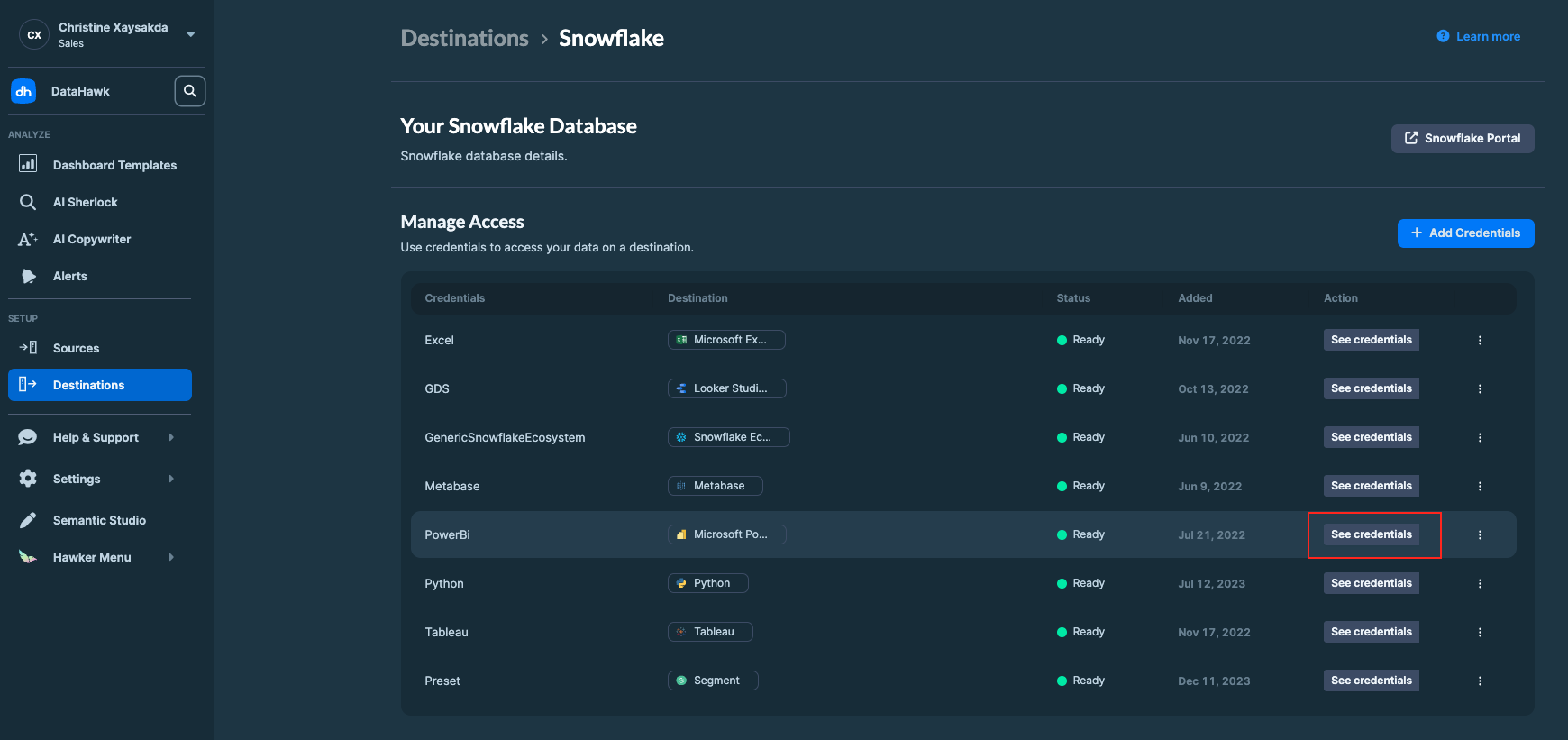
When it will be asked to enter your Snowflake credentials, copy by clicking the Copy icon next to each field, and paste them into Power BI when prompted.
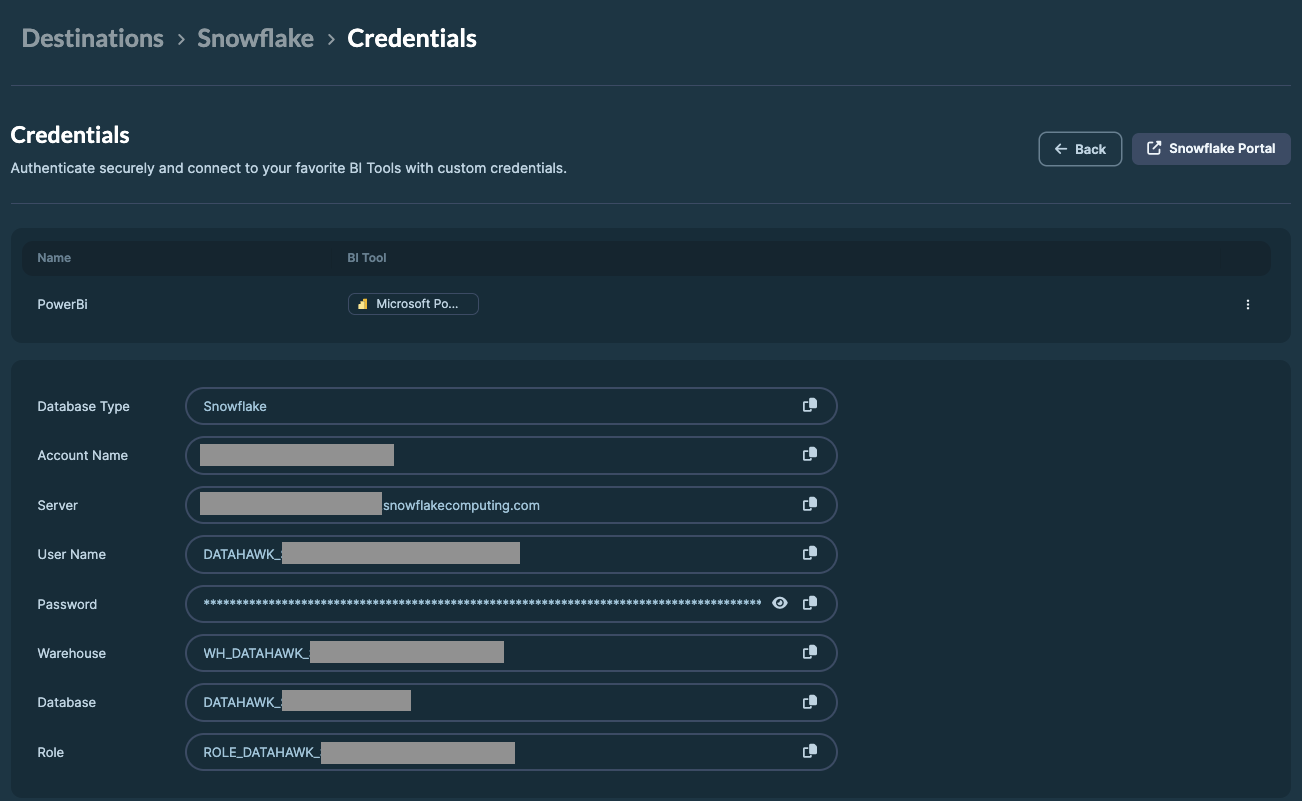
If you don't see anything in Destination page then it means you don't have a Snowflake database yet. See Send data to your tool to set one up. Provisioning can take up to 4 hours.
Option 1 — Use a DataHawk template
DataHawk provides pre-built Power BI templates in .pbix format. See Download Power BI Templates for the full catalog and download links.
| Template | What it covers |
|---|---|
| Seller Finances & Supply Chain | SKU-level profit, orders, unit economics, replenishment |
| Product | Ratings, BSR, price, LQS, sales, estimates, buy box |
| Search | Share of voice, search ranks, keyword research |
| Advertising | Account, campaign, product, and keyword ads |
| Market Intelligence | Top-selling products, category analysis, market size and share |
| Master Vendor | Revenue, COGS, inventory, ads, share of voice |
| DSP Ads | Advertiser, order, line item, and creative ads |
Set up on Power BI Desktop
Not recommended for MacOS users the PowerBI Desktop app. If you are using MacOS, we recommend connecting via Power BI Online instead.
Estimated time: under 5 minutes.
Open the template
Open the .pbix template file in Power BI Desktop.
Open the Power Query Editor
In the Home tab, click Transform data.
Open Manage Parameters
Click Manage Parameters.
Paste your Snowflake credentials
Replace the values for Database, Server, and Warehouse with your DataHawk Snowflake credentials.
Apply
Click Close & Apply.
Sign in to Snowflake
Enter your Snowflake username and password when prompted.
Wait for the refresh
Data will begin refreshing. This can take up to 30 minutes depending on your data volume.
If you run into a refresh error, try closing and re-applying the parameters once or twice, then contact the DataHawk team if the issue persists.
Publish to Power BI Online (for sharing and scheduled refresh)
Estimated time: under 5 minutes.
One-time admin step required: Before publishing templates to Power BI Online, a Power BI administrator must enable Snowflake SSO in your tenant.
Only if you have an account under your organization's Power BI instance. If you have a personal Power BI account, you can skip this step.
- Go to app.powerbi.com/admin-portal
- Navigate to Tenant Settings
- Find Snowflake SSO, expand it, and enable the toggle
- Allow a few hours for the change to propagate across your organization
Once SSO is enabled:
Open a Power BI workspace
Go to app.powerbi.com and navigate to my workspace (or create a new one).
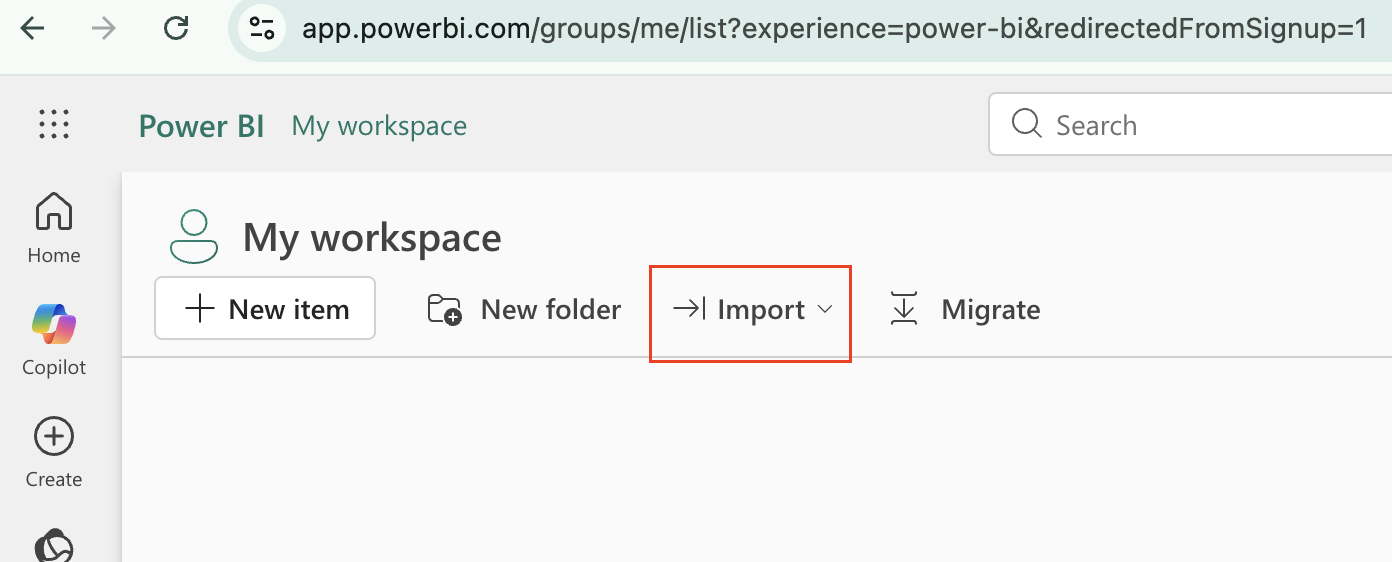
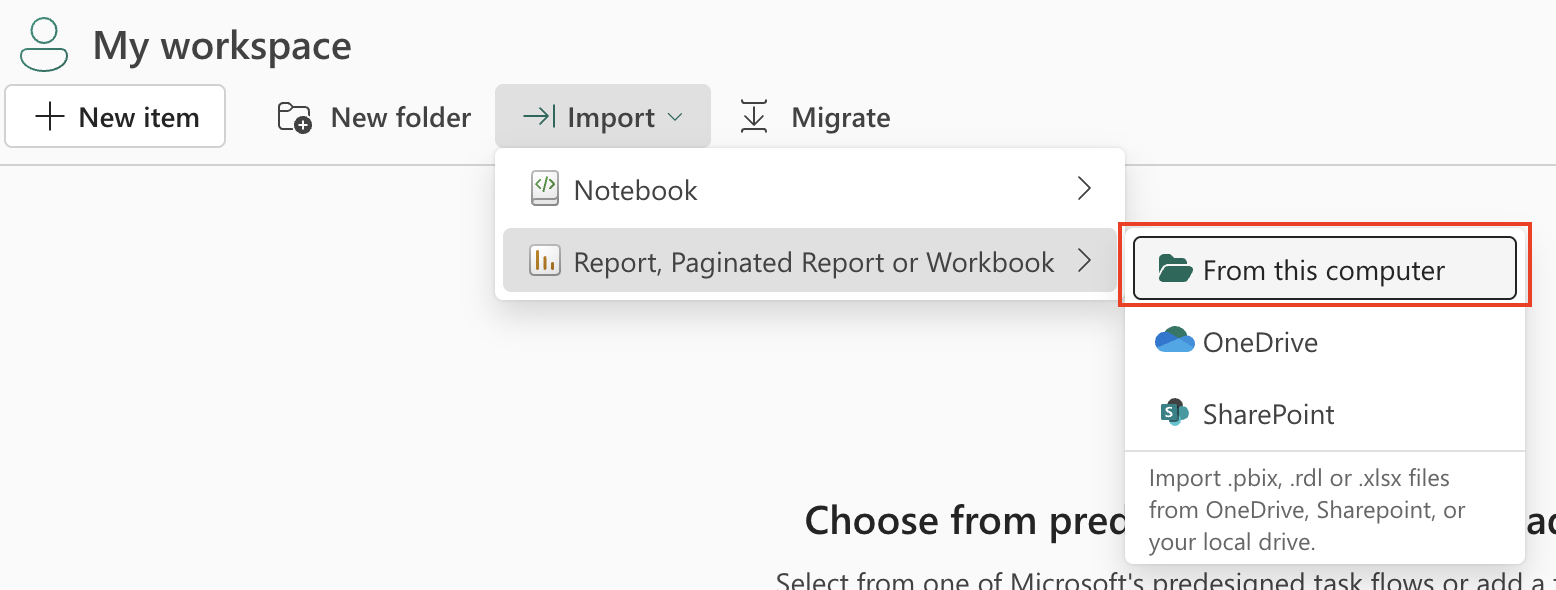
Upload the template that you just downloaded
Click Upload → Browse and select your .pbix template file.
Open the dataset settings
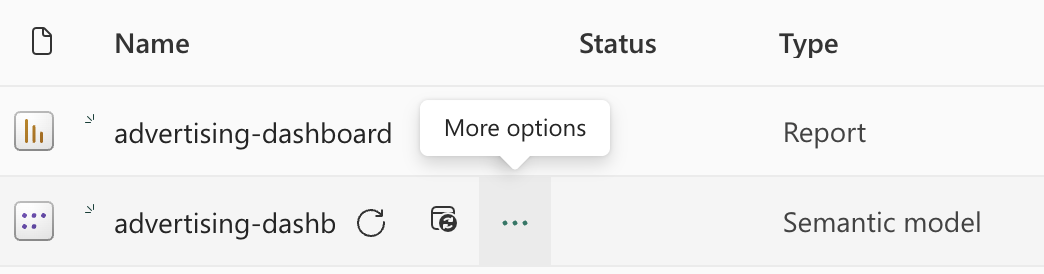
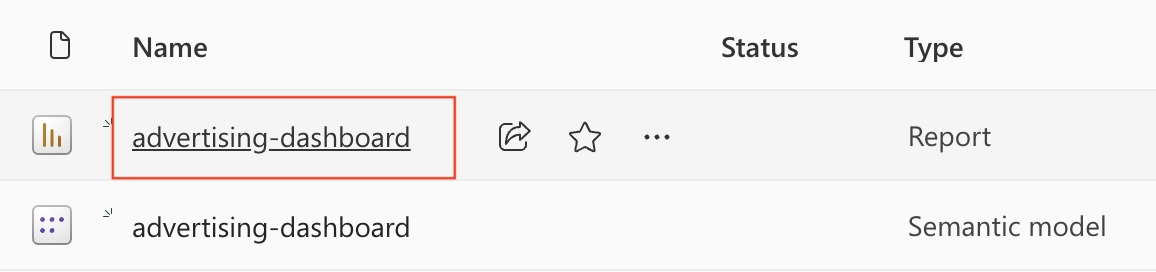
You will now see 2 objects in your workspace. One with a type called "Report" and the other with a type called "Semantic Model".
Hover over the semantic model type, click the ⋯ "More options", and select Settings.
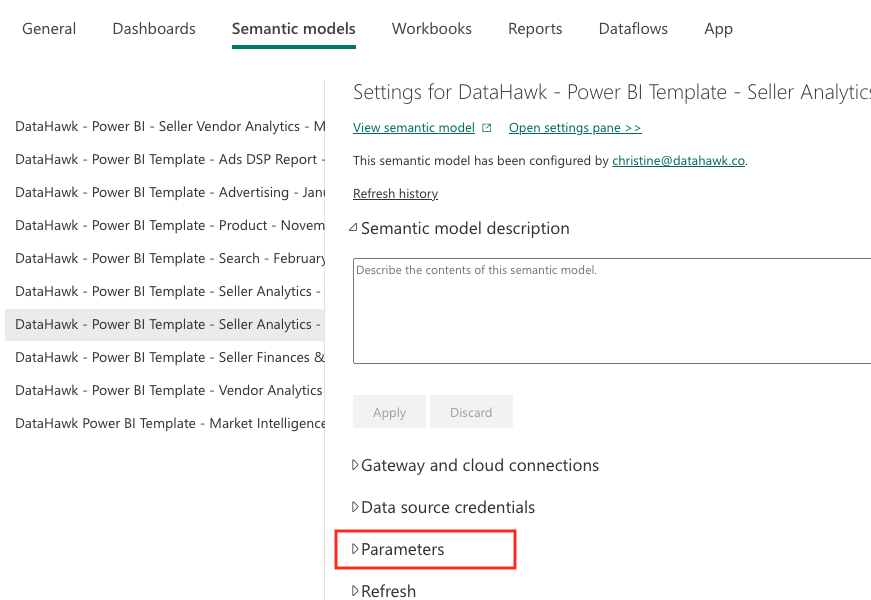
Go to the parameters section
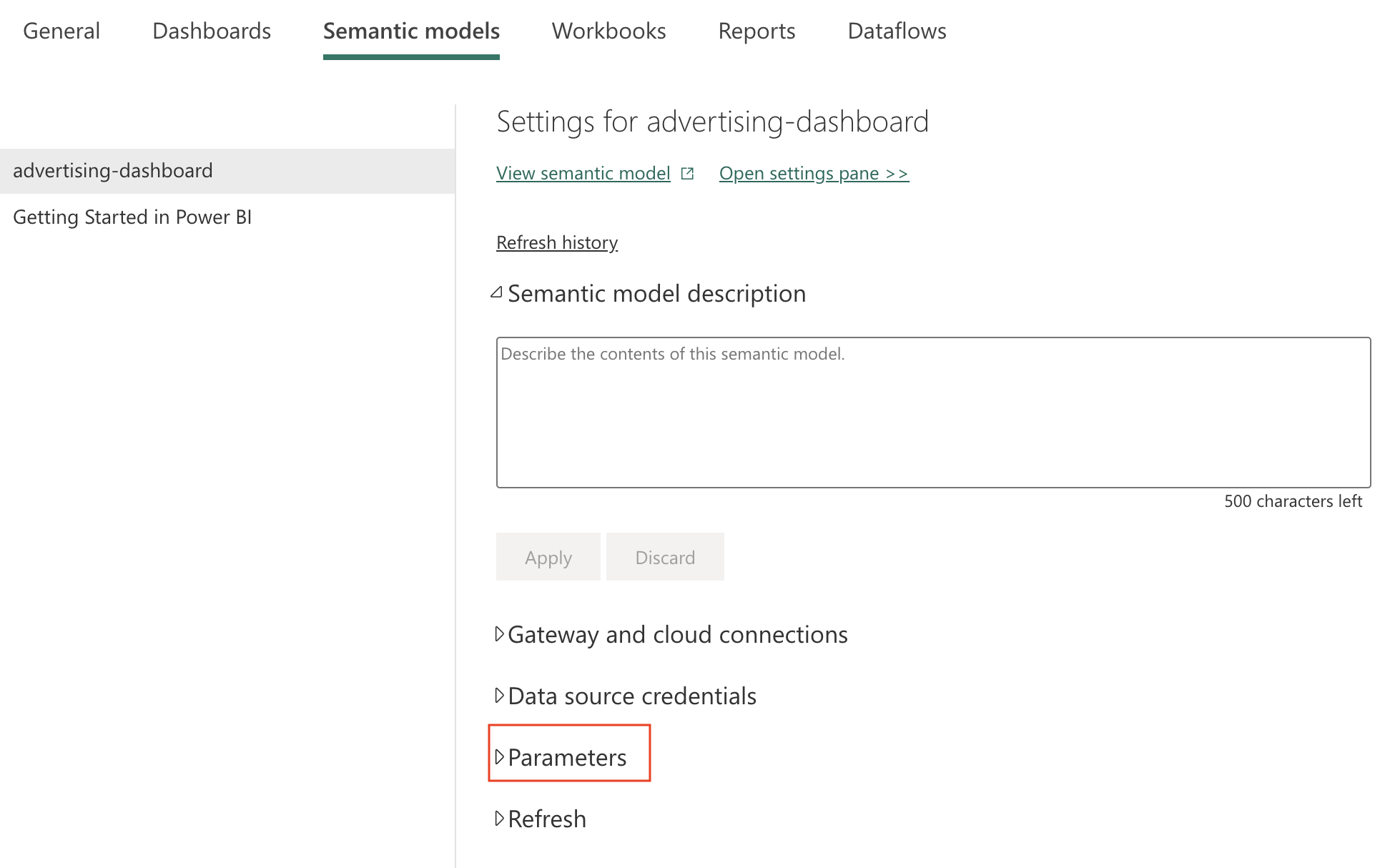
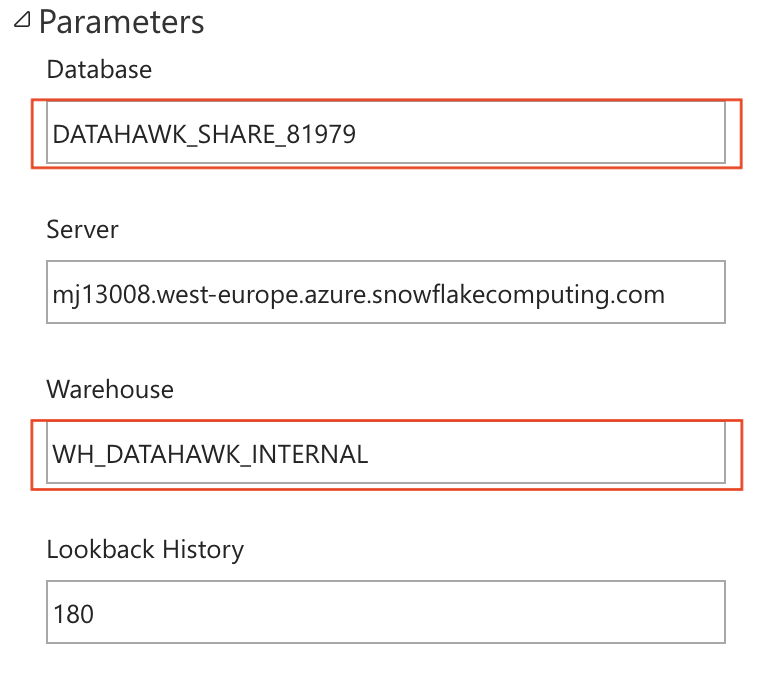
Under Parameters, replace Database and Warehouse with your DataHawk Snowflake credentials (that you have handy). And click Apply.
Sign in to Snowflake
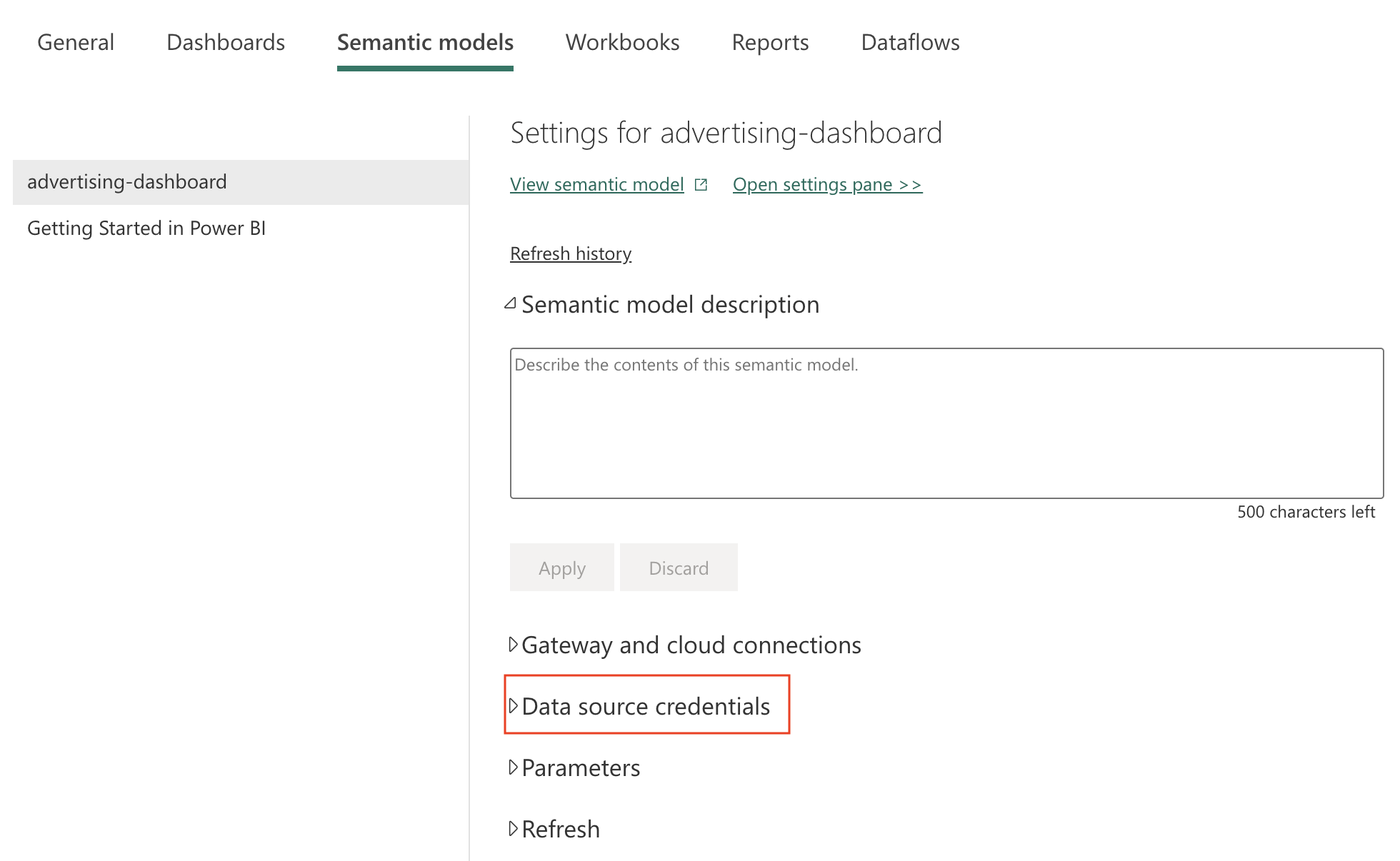
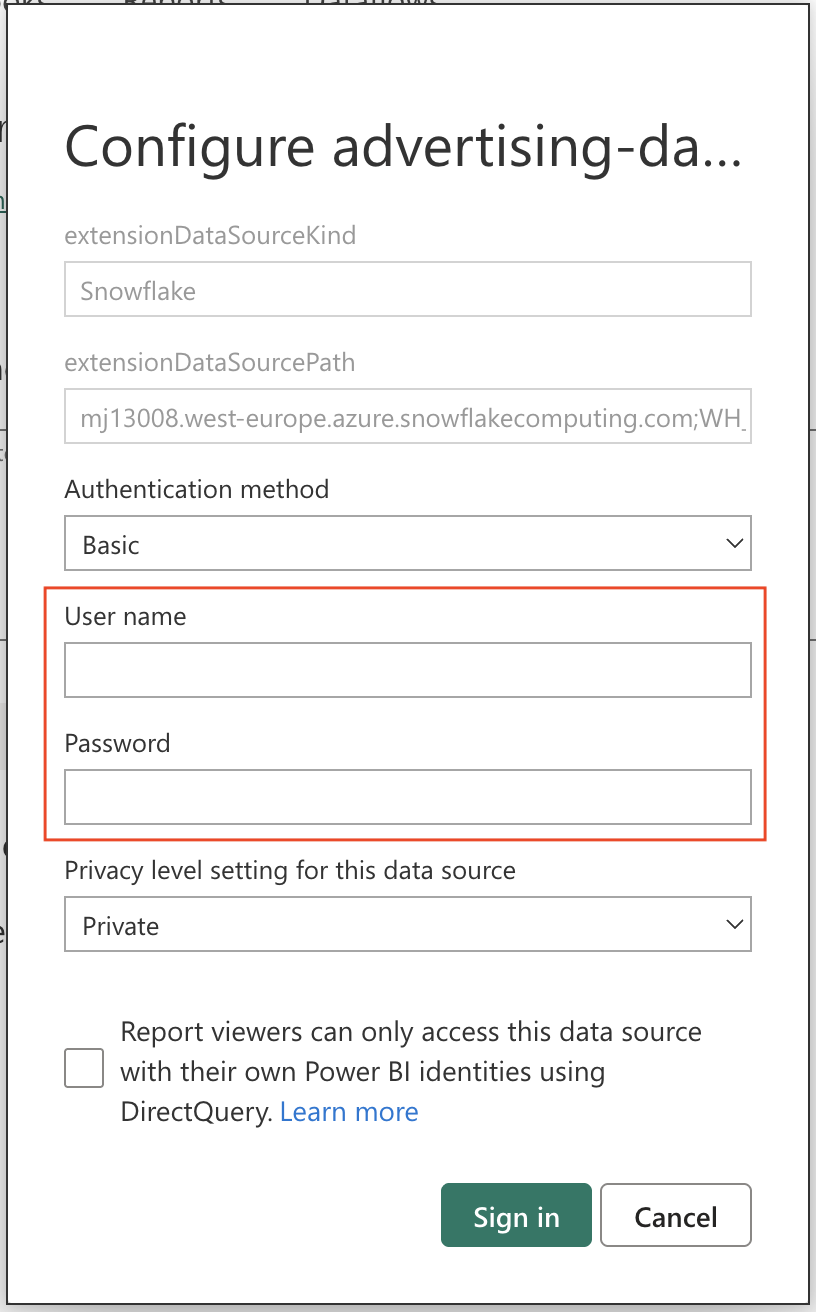
Under Data source credentials, click Edit credentials and enter your Snowflake username and password with your DataHawk Snowflake credentials (that you have handy). And click Apply.
Enable scheduled refresh
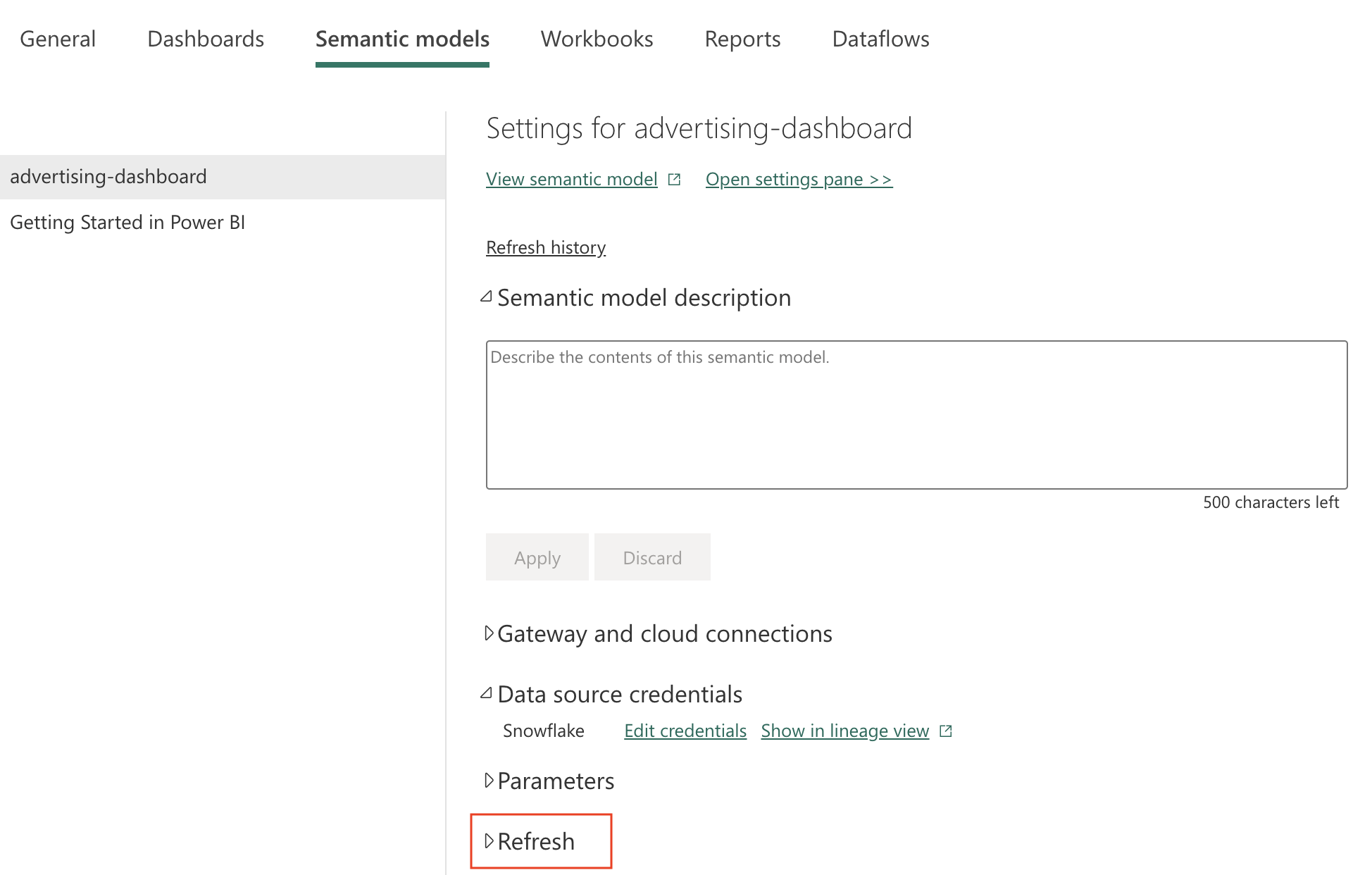
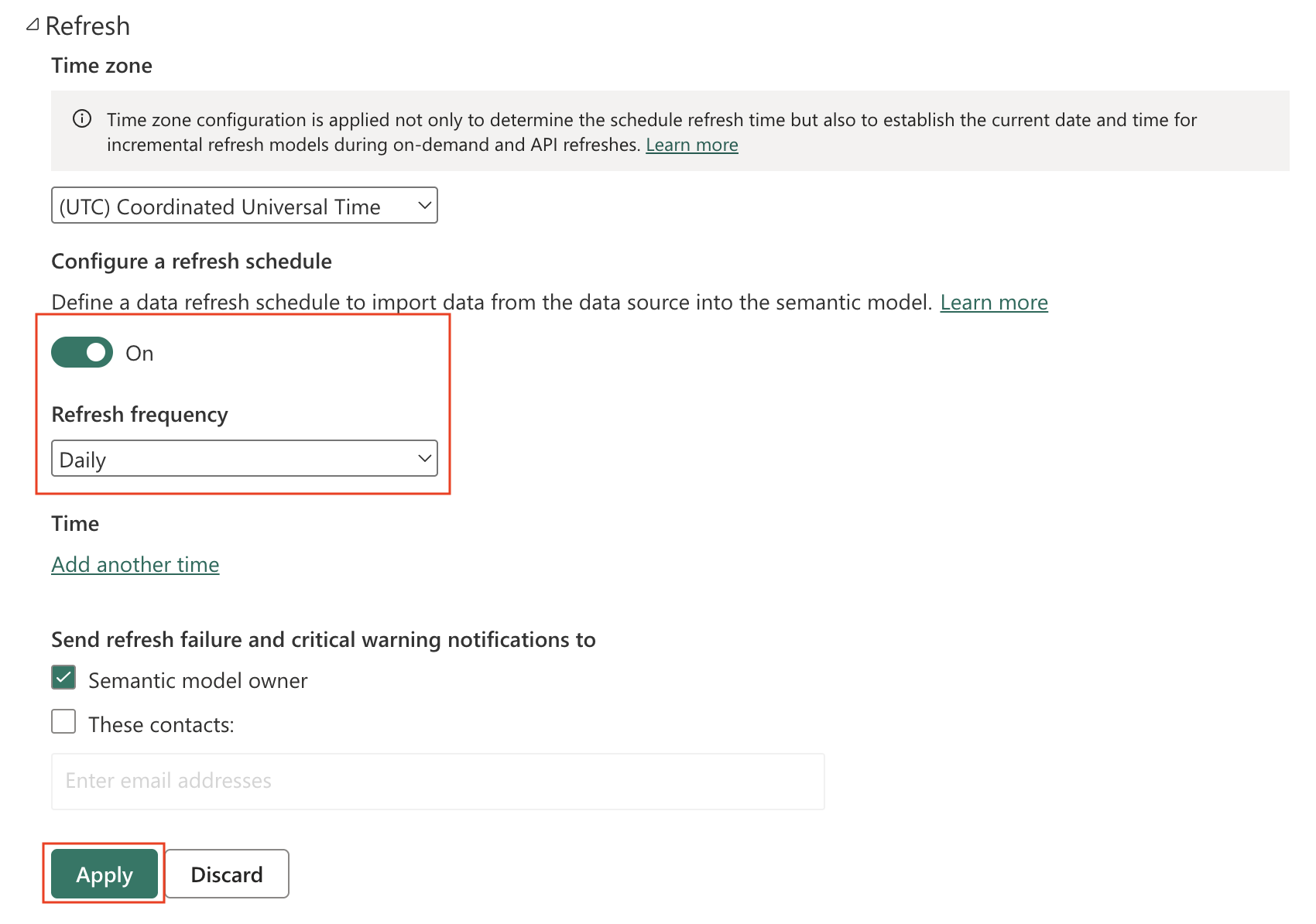
Under Refresh, enable the auto-refresh toggle and set it to run daily. Click Apply to save your changes.
Refresh the data only once
Now that you have scheduled a daily refresh, you won't need to refresh manually except for now (first time you set it up).
Go back to your workspace to view the report and semantic model. On the semantic model, hover over it and select Refresh now.
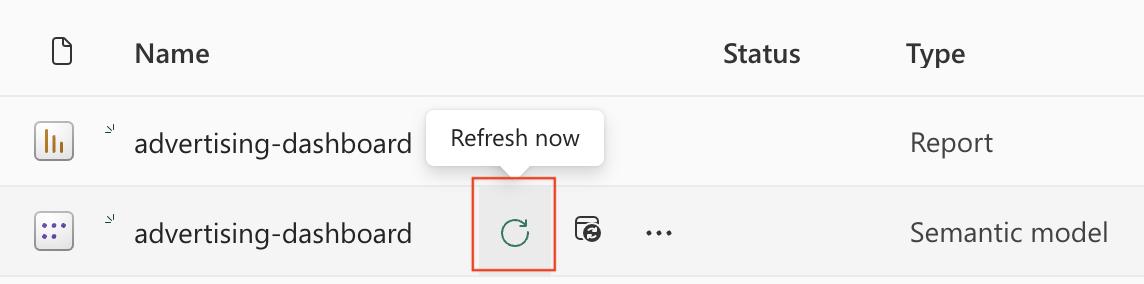
Data will begin refreshing. This can take up to 30 minutes.
Changing the historical lookback window
Most DataHawk Power BI templates cap how much history a tab loads by default, both to keep the report fast and because that default isn't right for everyone. If a tab shows less history than you expected (BSR ranking limited to the last 12 months is a common example), you can usually extend it yourself, without needing raw database access.
This only controls how much of your existing data the dashboard displays — it can't show more history than DataHawk has actually collected for your account. See Historical data storage for how far back your data goes.
If you're working from the published report in Power BI Service (the setup used in Option 1 above):
Open the semantic model settings
In your Power BI workspace, hover over the semantic model (not the report), click ⋯ More options, and select Settings.

Go to Parameters
Expand Parameters and find the history/lookback parameter [TO CONFIRM: exact parameter name(s), they can vary by template].
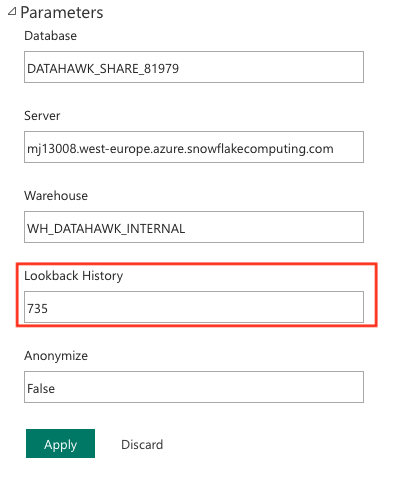
Enter the value you want and apply
Enter the number of days (or months, depending on the template) you want, then click Apply.
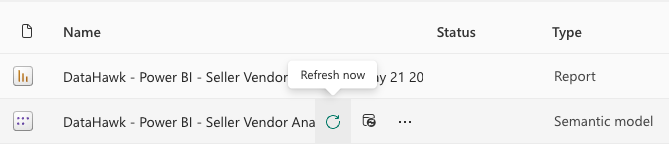
Refresh the semantic model
Hover over the semantic model again and select Refresh now. This can take up to 30 minutes depending on your data volume.
If you're working from Power BI Desktop (the .pbix file itself): open Transform data > Manage Parameters instead, update the same parameter, and click Close & Apply.
Default lookback by template
Each template ships with its own default, chosen to keep the report fast. If your tab's history looks capped, check this table before assuming data is missing or a bug:
| Template | Default lookback |
|---|---|
| Seller Analytics | 730 days (2 years) |
| Vendor Analytics | 730 days (2 years) |
| Seller + Vendor Analytics | 730 days (2 years) |
| Market Intelligence | 365 days (1 year) |
| Ads DSP | 365 days (1 year) |
| Advertising | 180 days |
| Search | 180 days [TO CONFIRM: this template has no dedicated reference page yet — see note below] |
| Product | 90 days |
The Search dashboard is referenced in Dashboard issues as a shipped template but doesn't have its own guide on this site yet. [TO CONFIRM: confirm this is a gap to fill, not a template being retired]
Option 2 — Build your own reports
If you prefer to build from scratch or connect an existing Power BI file to your DataHawk data, Learn how to connect to Snowflake in the power bi documentation.
DataHawk's Power BI templates use DirectQuery mode. If you plan to build your own reports, the same mode is recommended to ensure your data stays live.
Should you have dificulties connecting to Snowflake, please reach out to your DataHawk representative for assistance.
Going deeper
Once connected, head to the dashboard guides for help using and interpreting what you see.
Seller Analytics Dashboard
SKU-level sales, traffic, profit, and unit economics for Seller accounts.
Advertising Dashboard
Account, campaign, product, and keyword performance for Amazon Ads.
Vendor Analytics Dashboard
Revenue, COGS, inventory, and ads for Vendor accounts.
Market Intelligence Dashboard
Top-selling products, category analysis, market size and share.
Product Dashboard
Ratings, BSR, price, listing quality, sales estimates, and Buy Box per product.
Ads DSP Dashboard
Advertiser, order, line item, and creative performance for DSP.