
Navigating the platform
How to navigate through DataHawk App, then explore dedicated pages to know more about each topic and understand how to navigate it.
A few moves repeat everywhere in DataHawk; switching workspace, using global search, and jumping between the Analyze, Apps, and Sources sections. Get comfortable with them first, then follow the cards below to the dedicated pages for the area you need.
General across platform
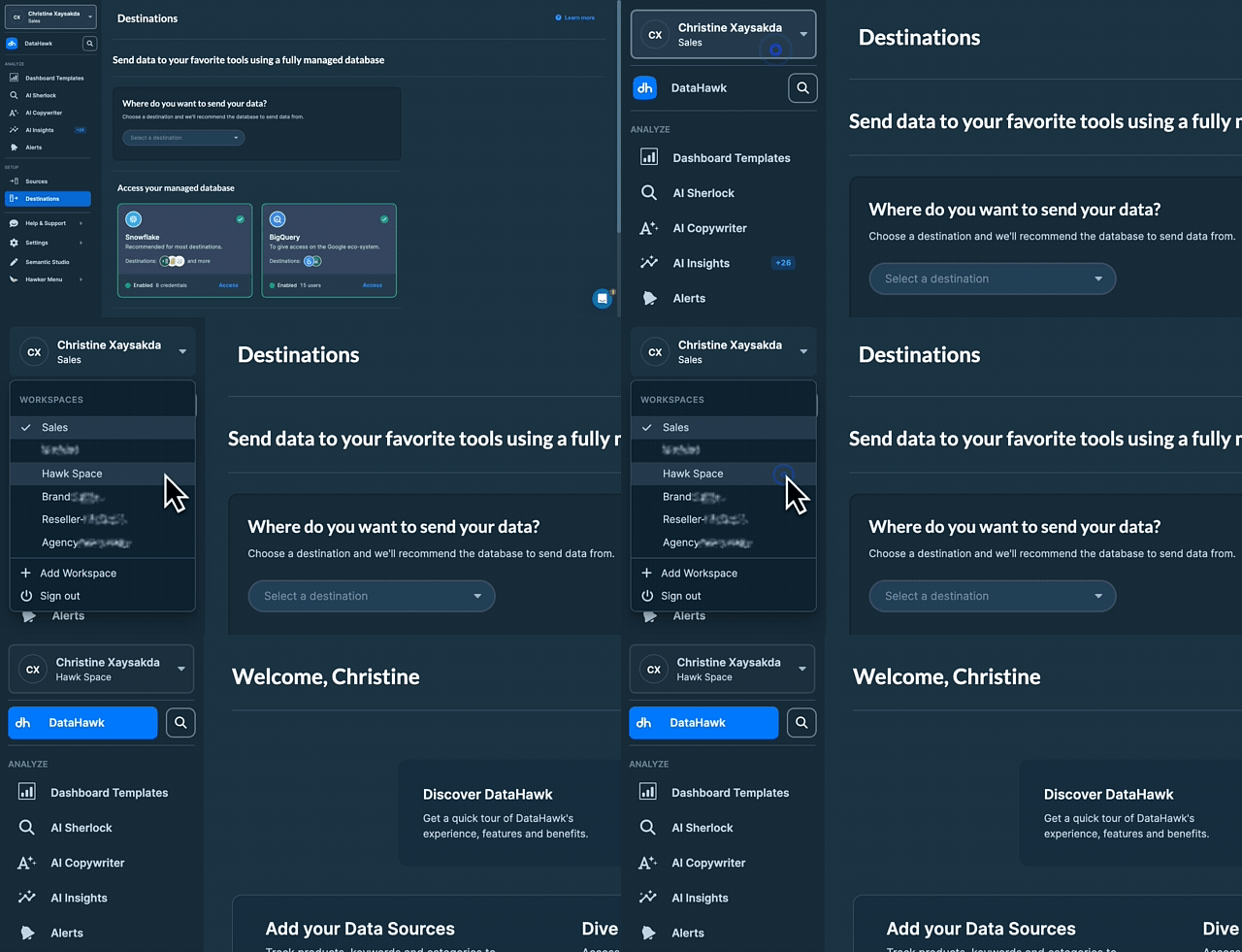
- Change workspace: Click on your current workspace to see the list and select the next workspace you want to investigate
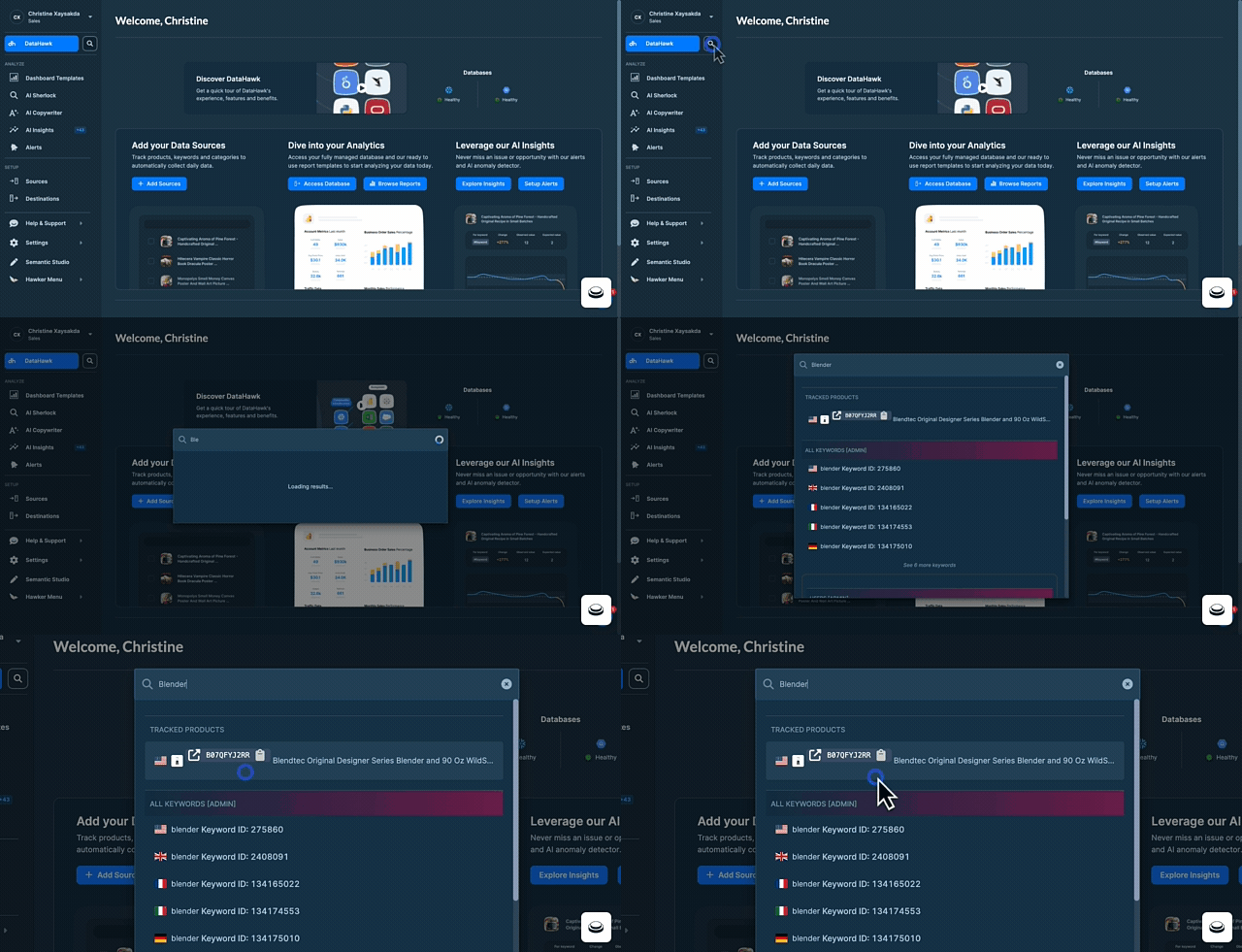
- Search through the platform: Use the search to find what you need among your products, keywords, projects, reports or even in the help center.
Analyze section
Dashboard Templates
For Power BI (Microsoft environment).
Dashboard Templates
For Looker Studio (Google environment).
AI Sherlock
Diagnoses performance issues using AI.
AI Copywriter
Generates optimized product listings.
Alerts
Sends notifications for important product changes.
Setup section
Connect your data
Connect your accounts and track product, keyword, or categories.
Settings section
Manage your account
Rename your account, update your email, change password, and delete your account.
Create a workspace
Create an isolated environment for a brand, client, or business unit.
Manage members
If you are admin, you can give access level to your team members.
API References
Connect and manage to your DataHawk WebApp through API.