
Stripe Subscription Management
View and manage your DataHawk subscription, billing information, payment methods, and invoices via the Stripe portal.
This page applies only to customers with a Stripe subscription. Enterprise customers with a custom contract manage billing directly with our team.
DataHawk uses Stripe to handle subscriptions, invoices, and payments. From Settings → Manage Subscription in the web app, you're redirected to the Stripe customer portal where you can review billing details, update payment methods, and pay outstanding invoices.
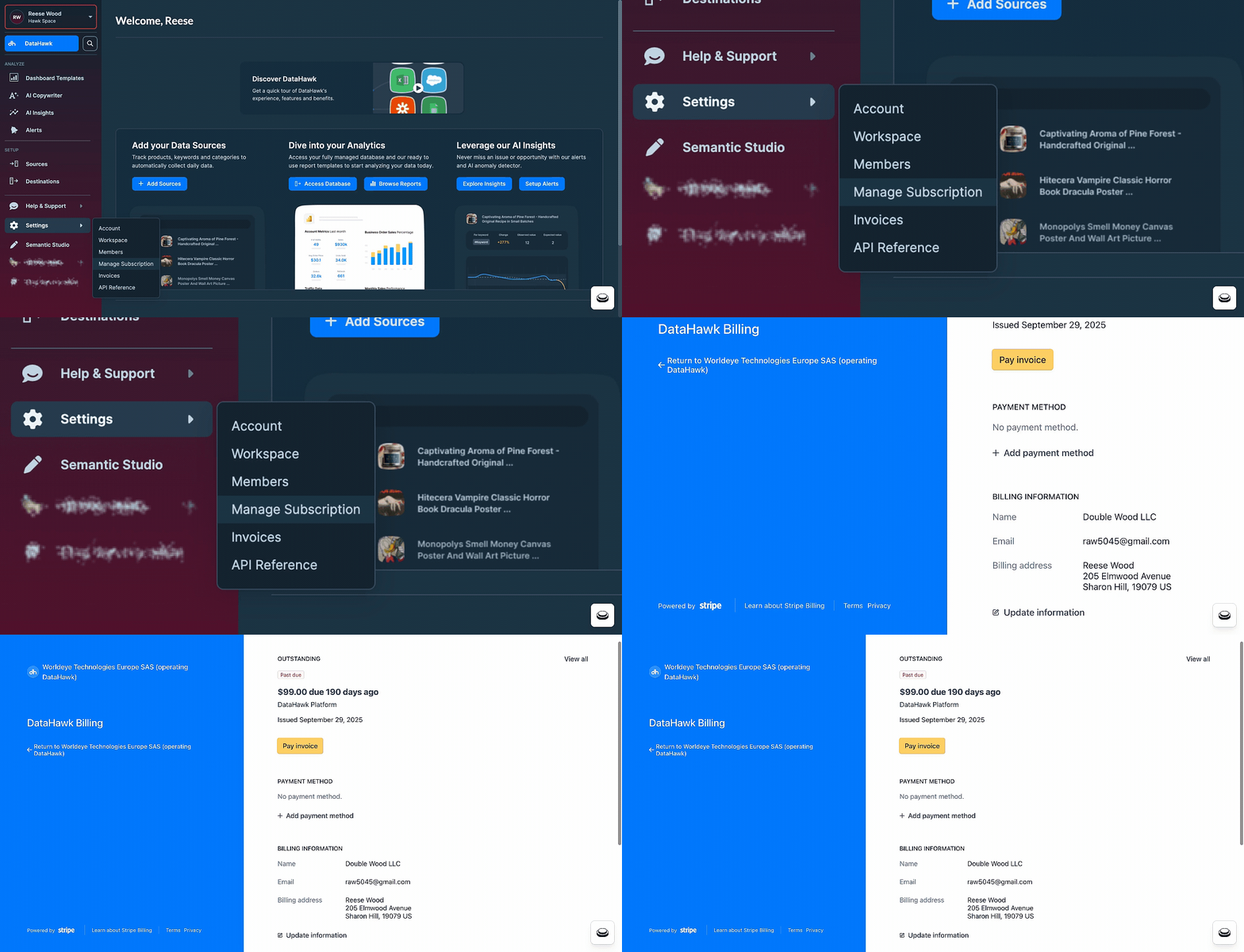
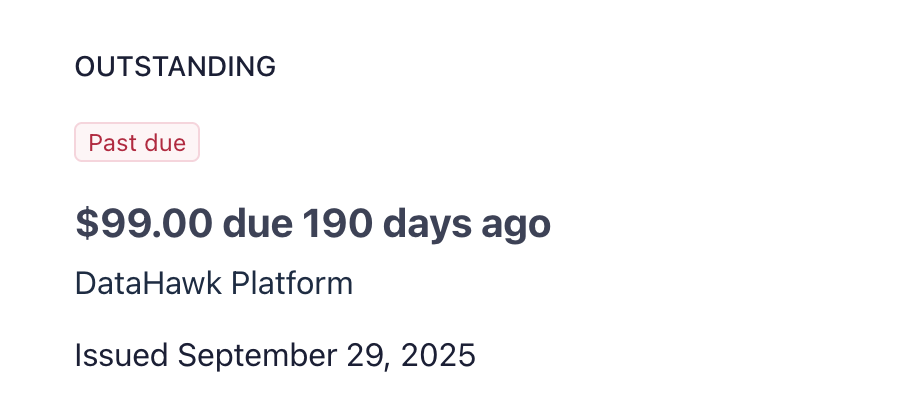
Subscription payment status
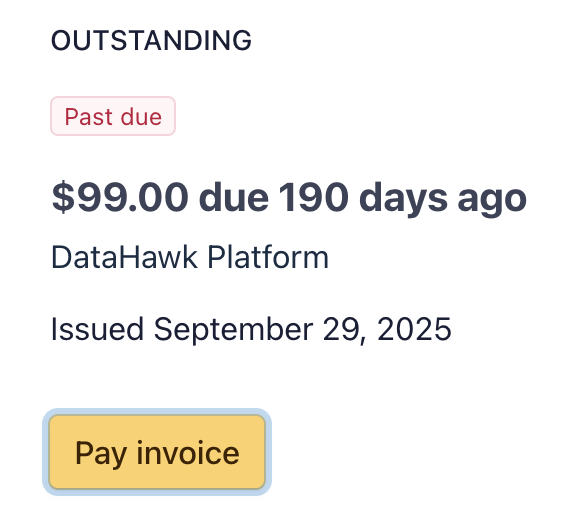
In the Stripe portal you'll see:
- Whether you have an outstanding payment
- Since when the payment has been outstanding
- The amount of the outstanding payment
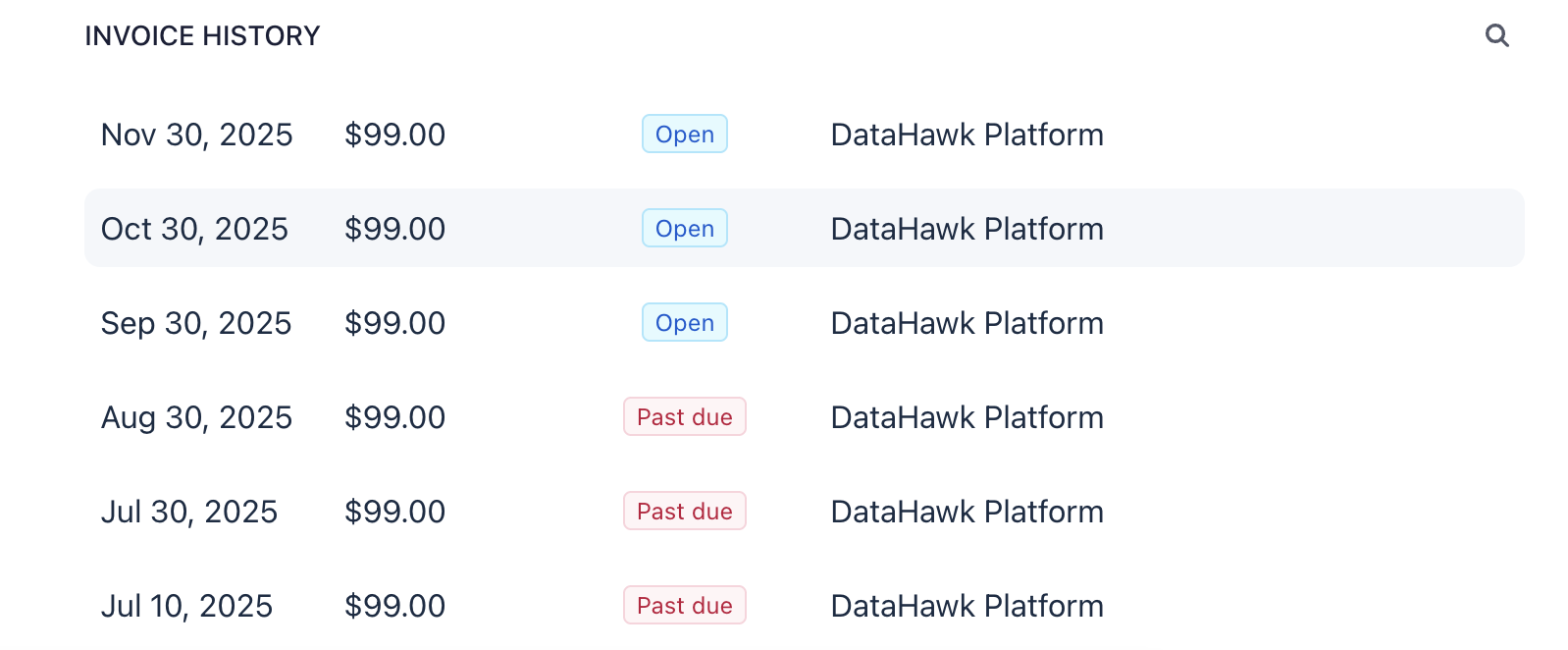
View invoice history
Scroll down in the Stripe portal to see your full invoice history. Click any invoice row to view or download its details.
Update your payment method
Locate the payment-method section
Your current payment method is displayed in the Stripe portal.

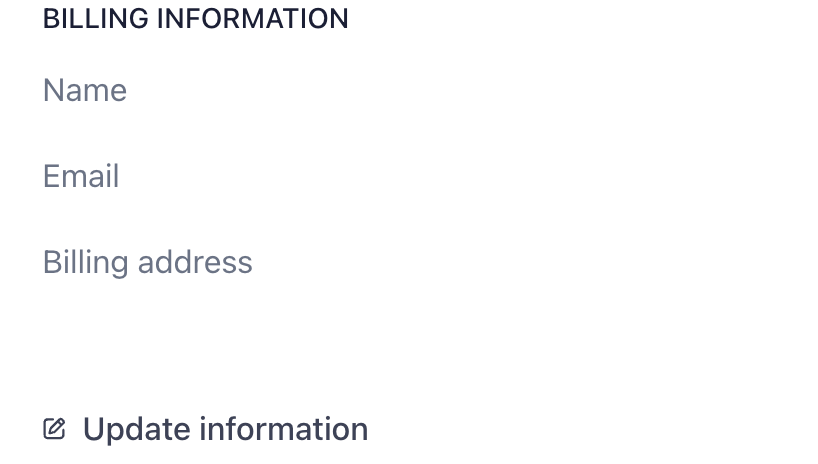
Update billing information
Locate the billing-information section
Your current billing information is displayed in the Stripe portal.
Pay a pending invoice
Confirm payment on the next screen
Stripe takes you to a confirmation page where you can review and confirm the payment.

Download the invoice
After confirming, you can download a copy of the invoice for your records.