
Manage members
Invite members, change access levels, and remove members from a workspace.
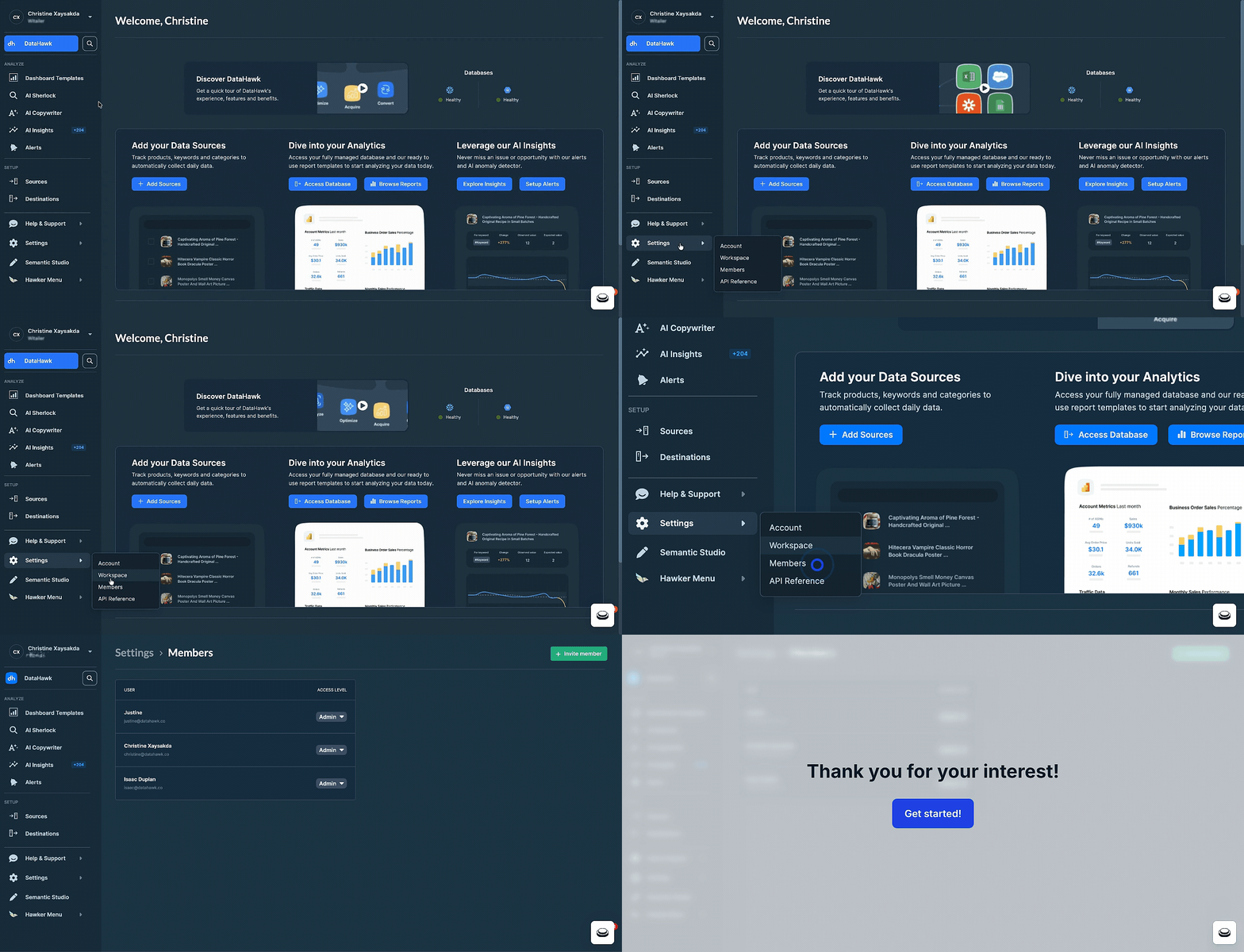
A workspace can have several users. Use Settings → Members to invite new ones, change their access level, or remove them. You must be an admin to manage members.
Invite members
Add teammates to the workspace so they can collaborate on the same data and dashboards.
Open the invite dialog
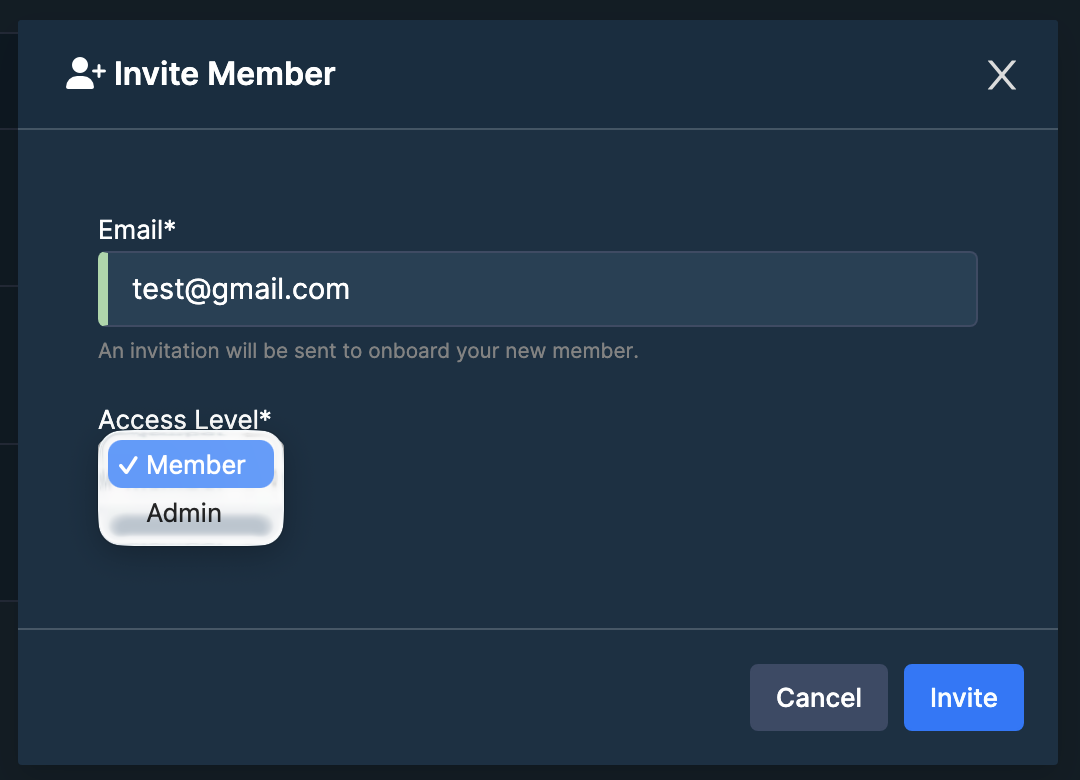
Click + Invite member. A pop-up opens.
Pick the access level
Choose one of:
- Member: Cannot access billing information and cannot invite new members.
- Admin: Can access billing information and add new members.
Change a member's access level
Only an admin can change another member's access level.
Open their access-level menu
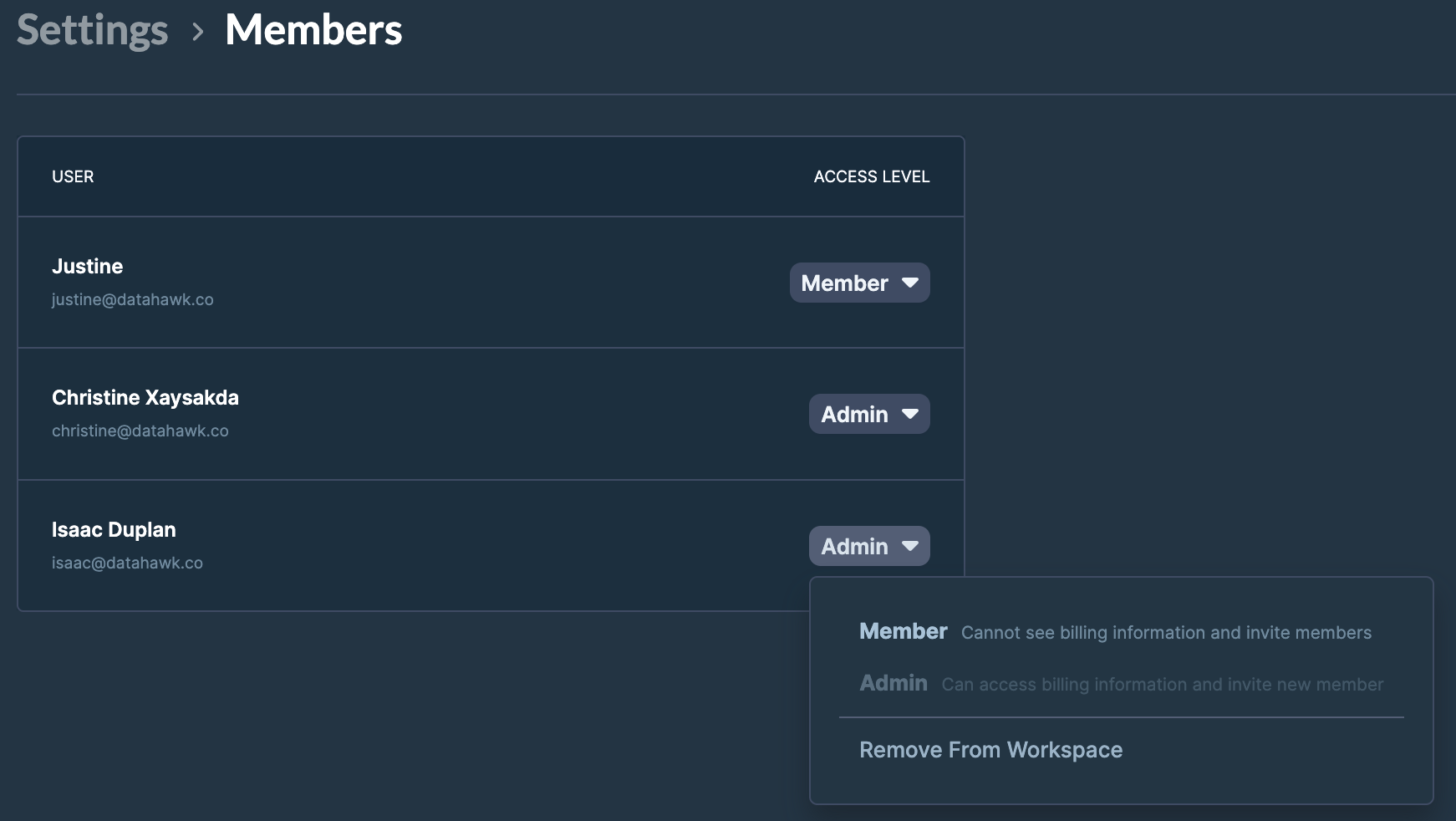
Click the current access level (Admin or Member) next to their name.
Pick the new access level
Select Admin or Member from the options.
Remove a member from a workspace
Find the member
Locate the user in the member list.
Open their menu
Click the current access level (Admin or Member) next to their name.
Remove them
Select Remove From Workspace. The member loses access immediately.