
Create your first alert
Walkthrough to create your first DataHawk alert, from picking a product to receiving the email.
It takes about 5 minutes.
Before you start
Make sure you've already:
- Added at least one product to track in your workspace
Create your alert
Open the Alerts module
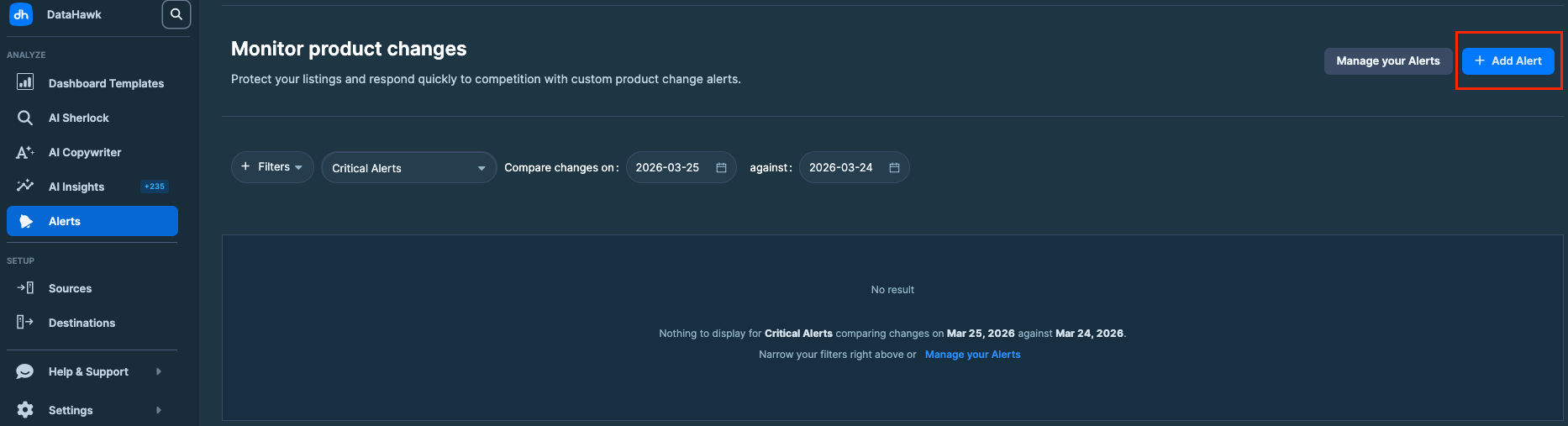
From the left navigation, go to Apps → Alerts. If this is your first time, you'll see an empty Alerts list and a Create alert button at the top right.
Pick what you want to be alerted on
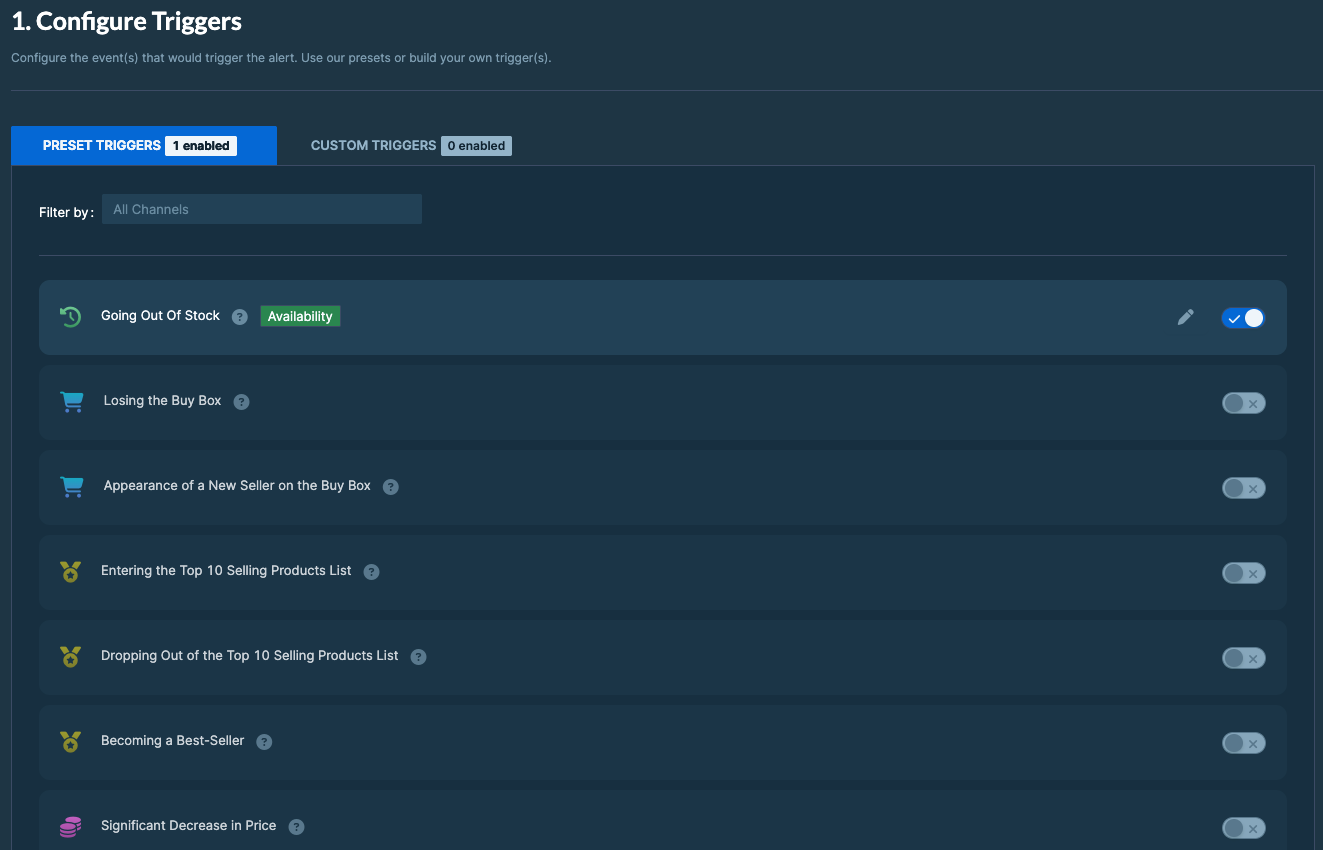
Click Create alert. You'll be offered two paths:
Preset triggers: DataHawk's most-used templates. Good if you want to get going fast. Examples:
- Going out of stock
- Losing the Buy Box
- Significant price decrease (10%+)
- Becoming a best seller
- Changes in star ratings
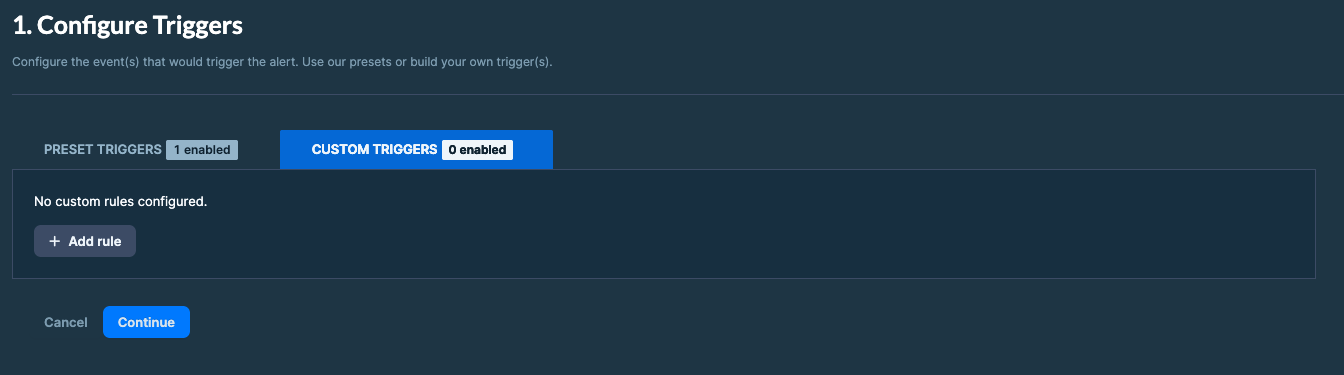
Custom triggers: For when you need a specific rule. You'll pick a property, an operator, and a value. See Custom triggers for details.
For your first alert, start with a preset. We recommend Losing the Buy Box: It's the one most customers find immediate value in.
Choose the product (or tag)
Select which product or group of products this alert applies to. Options:
- A specific product: Paste an ASIN or pick from your tracked list
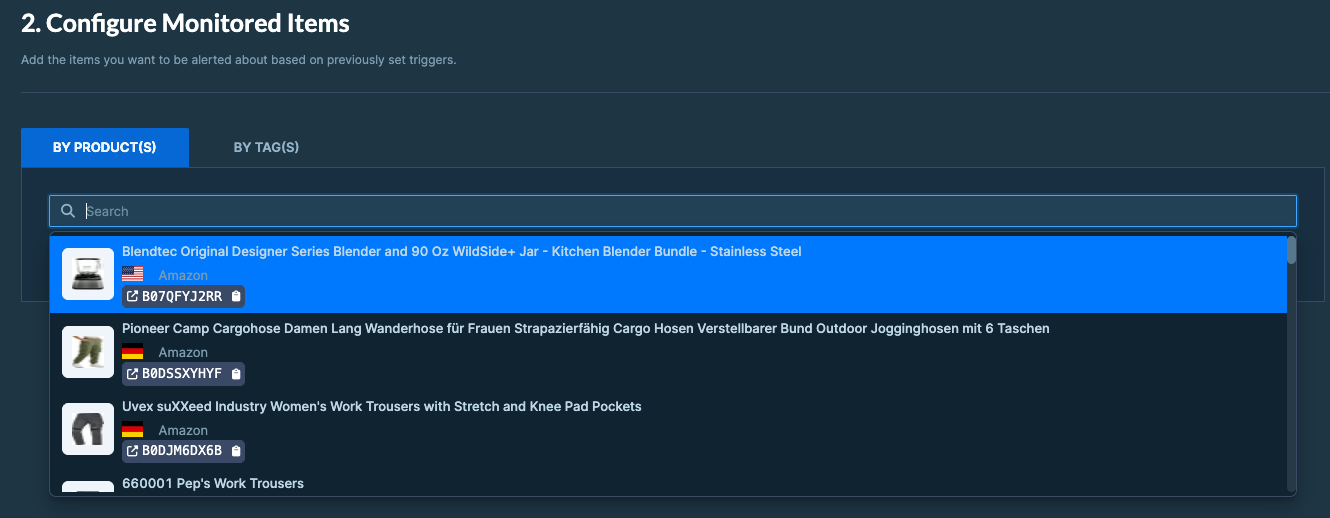
- All products with a tag: E.g. "Top sellers" or "Hero ASINs"
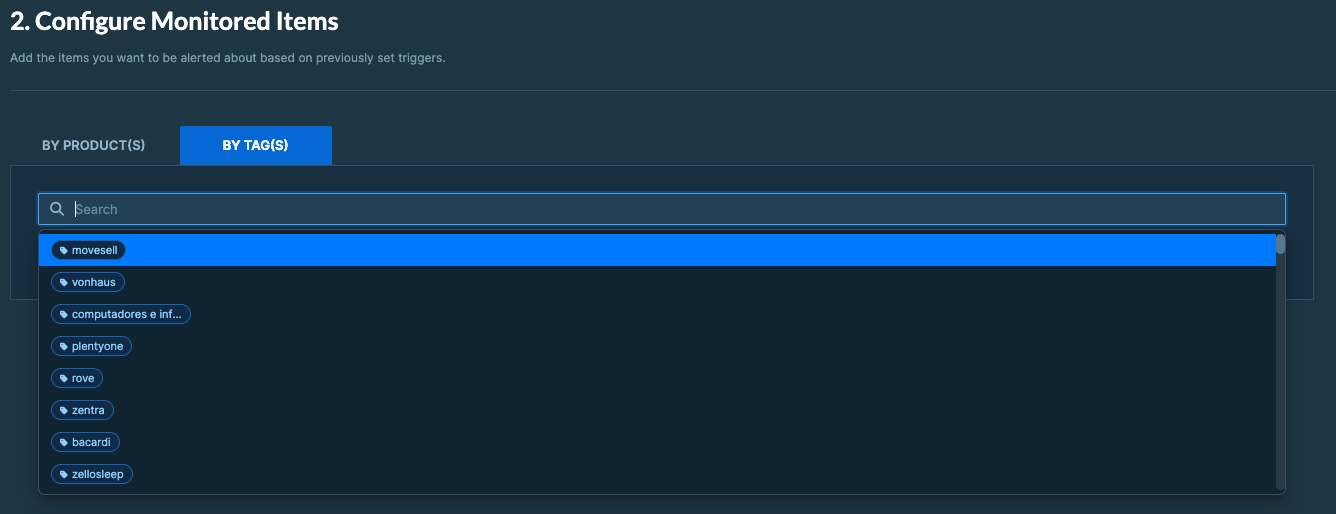
Tags are useful when you want one rule to cover many products. See Using Tags.
Set up the recipient group
Recipient groups decide who gets the email. You can:
- Use yourself: Your DataHawk login email, by default
- Create a group: Add team members and reuse it for other alerts
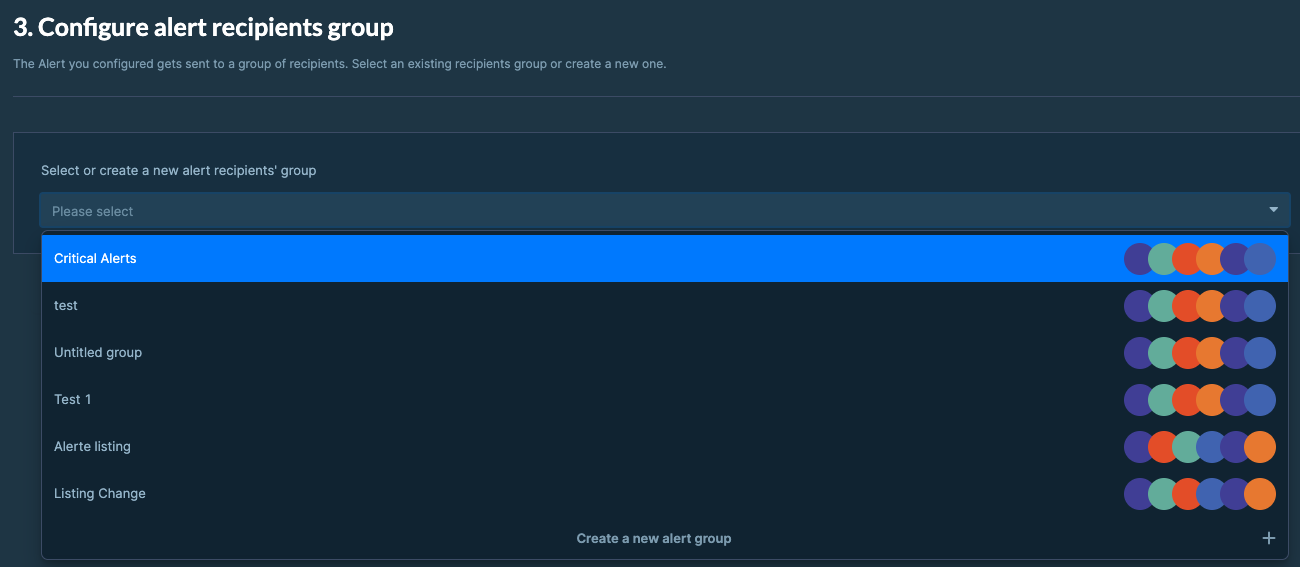
Create one called "My team" if you'll share alerts with colleagues. It saves time later.
Name and save your alert
Give a name to your alert, then click Create my Alert. Your alert is now live.
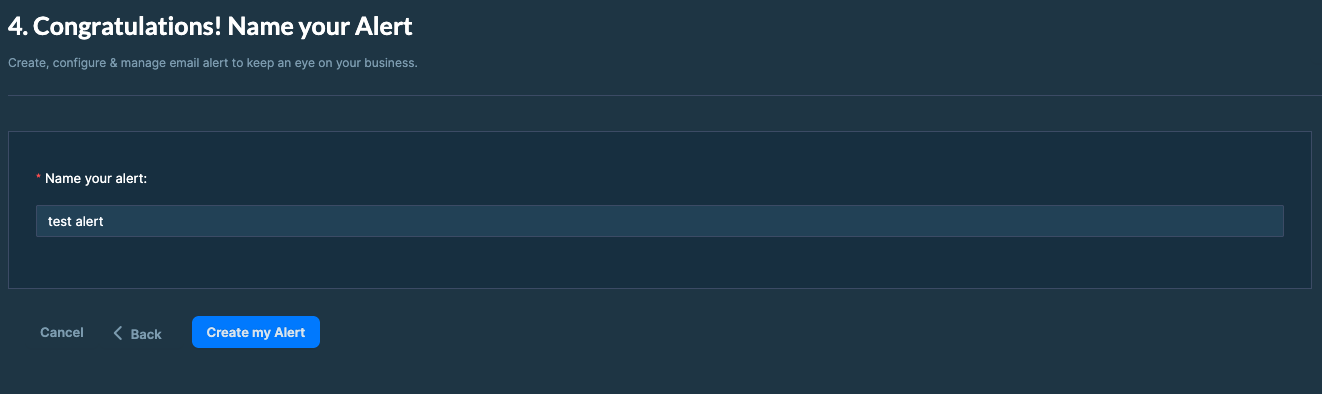
DataHawk checks the conditions daily and sends an email when something matches.
What's next
Manage your alerts
Find, edit, pause, or delete the alerts you've already created.
Triggers & properties
Full reference of what you can monitor with an alert.
Custom triggers
Build your own rules when the presets don't fit.
Recipient groups & email setup
Manage who receives each alert.
Alerts FAQ & troubleshooting
Not receiving the emails you expect? Start here.