
Creating Power BI Alerts in Power Automate
How to create and use Power BI alerts with Power Automate; dashboard card alerts, data-driven alerts, and scorecard goal alerts.
This guide explains how to create and use Power BI alerts with Power Automate. It covers different trigger types, scenarios, and licensing requirements.
Examples of alerts you can create
- Get notified when a key metric (like sales, page views, or ad spend) goes above or below a target.
- Automatically inform your team in Slack, Teams or email when important thresholds are reached.
- Send a summary email with the latest numbers after the dataset finishes refreshing.
- Monitor business goals or KPIs in scorecards and trigger actions when progress updates.
This guide is for you if…
- You already use Power BI Online and know how to upload a
.pbixfile. - You have access to Power Automate in your organization.
- You're comfortable with basic Power BI terms (report, dataset, dashboard).
- You know whether your workspace is Pro only or in Premium/Fabric capacity, since some features depend on this.
By the end, you'll know which type of alert to use, how to connect it to Power Automate, and how to deliver notifications by email, Slack, or report attachments.
Licensing Notes
Power BI Pro
- You can create personal alerts (card/KPI/gauge on dashboards → email notification to yourself).
- Some types of Power Automate flow
Premium / Premium per User (PPU) / Fabric capacity
- Required for:
- Using Power Automate triggers for Power BI data alerts.
- Export to file (PDF, PowerPoint, Excel) and Export paginated reports actions.
When you upload a .pbix file to Power BI Online, three entities are created automatically: the report, the dataset (semantic model), and the dashboard.
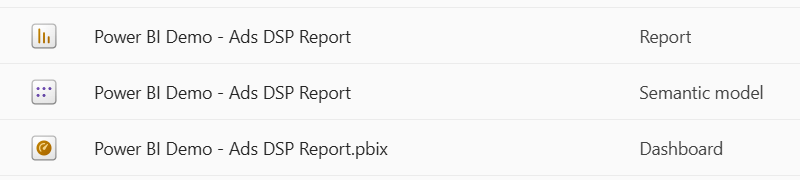
- The report contains the visuals and interactive charts you created.
- The dataset is the underlying data with tables, relationships, and measures.
- The dashboard is a single-page view where visuals from reports can be pinned, and it's where alerts can be set.
Types of Alerts in Power BI
1. Dashboard Card Alerts
- Works with cards, KPIs, or gauges pinned to dashboards.
- You can create an alert that notifies you when a measure crosses a threshold.
- Limitations: Only you (the alert creator) get the alert email. Useful for personal monitoring.
How to set up:
Pin a visual to the dashboard
Open your report in Power BI Service, click edit, choose card / KPI / gauge that you'd want to follow, and click Pin to the dashboard. For the simplicity choose the dashboard with the same name.
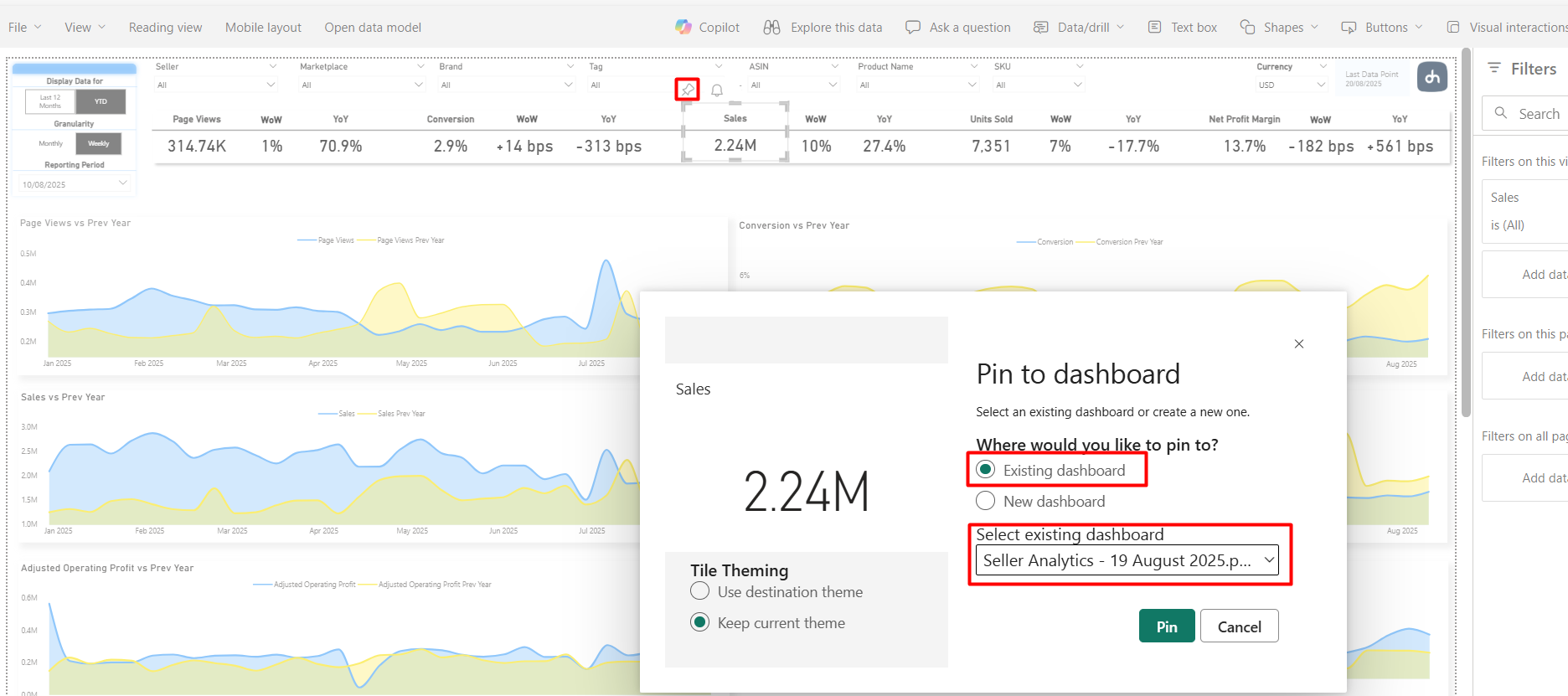
Note: if you'll click the bell icon on this stage, Power BI will either subscribe you to a trial of Fabric capacity, or will show you that you have no workspaces with Fabric licenses to create an alert.
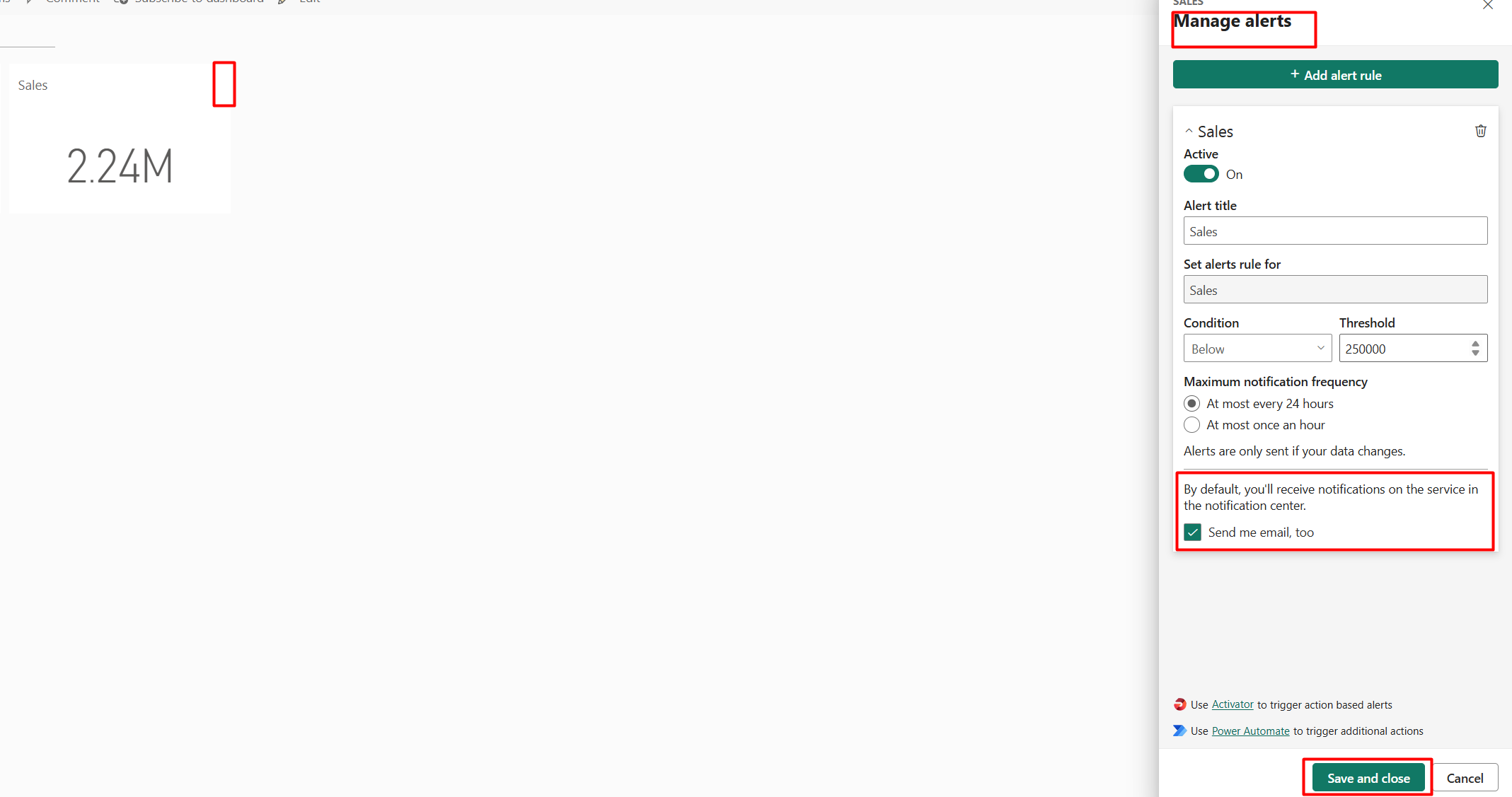
Configure alert conditions
Here you can activate the alert, configure alert conditions (above/below a threshold, frequency). Tick "Send me email too" if you want to also get the emails, aside from notifications on Power BI Online.
Tip: To notify others, you'll need to connect the alert to Power Automate.
2. Data-Driven Alerts via Power Automate
- Trigger a flow when a Power BI data alert is activated.
- Unlike dashboard alerts, Power Automate lets you:
- Send alerts to distribution lists.
- Post alerts to Slack or Teams.
- Attach/export a paginated report with the latest data (requires Premium License).
How to set up:
Open Power Automate from the dashboard
From the same menu of managing alerts in the dashboard, click Use Power Automate.
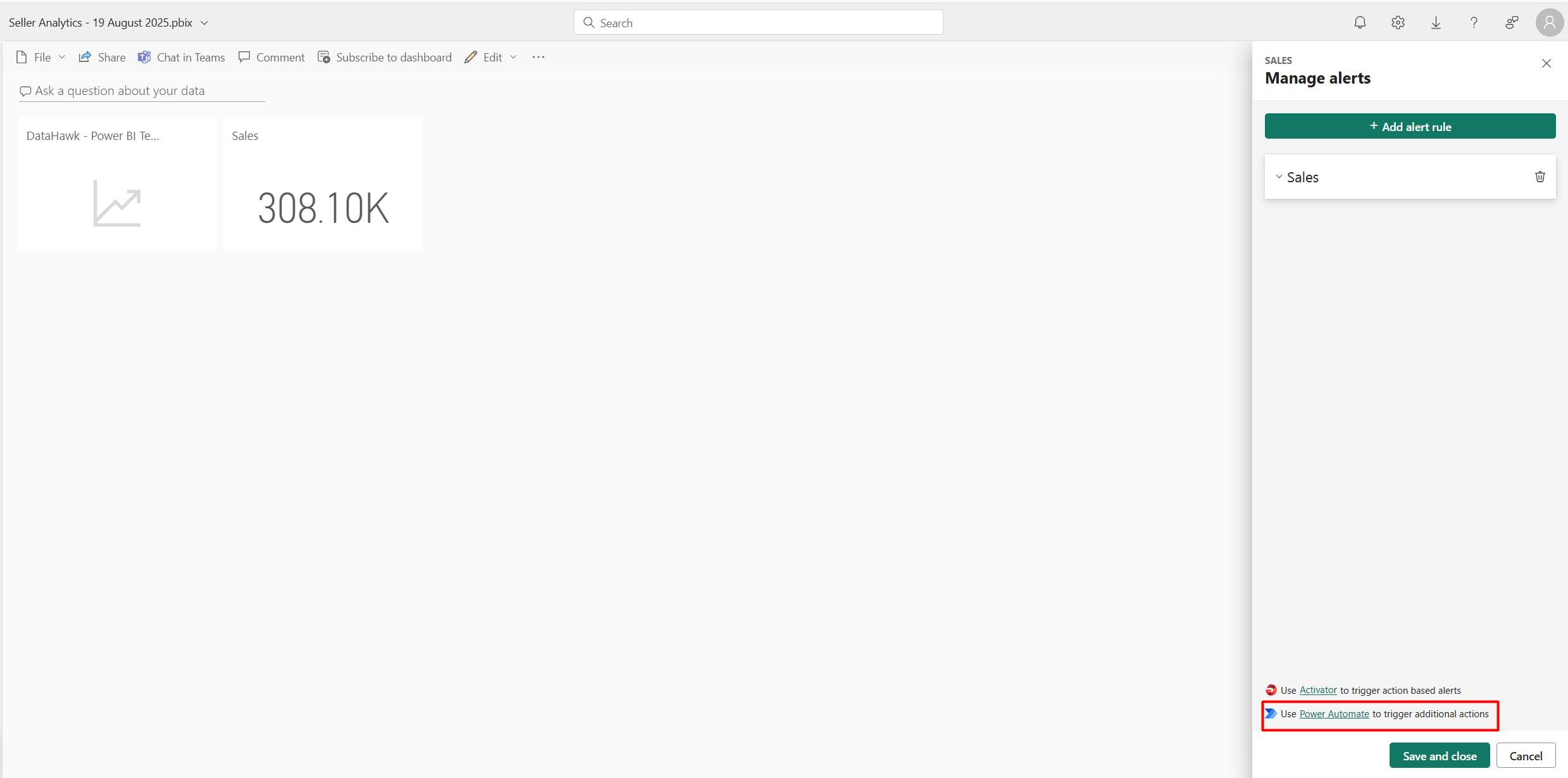
It will take you to the Power Automate website, where the new flow will be automatically created. Click the first block to open the menu on the left, which will allow you to choose the alert ID to track.
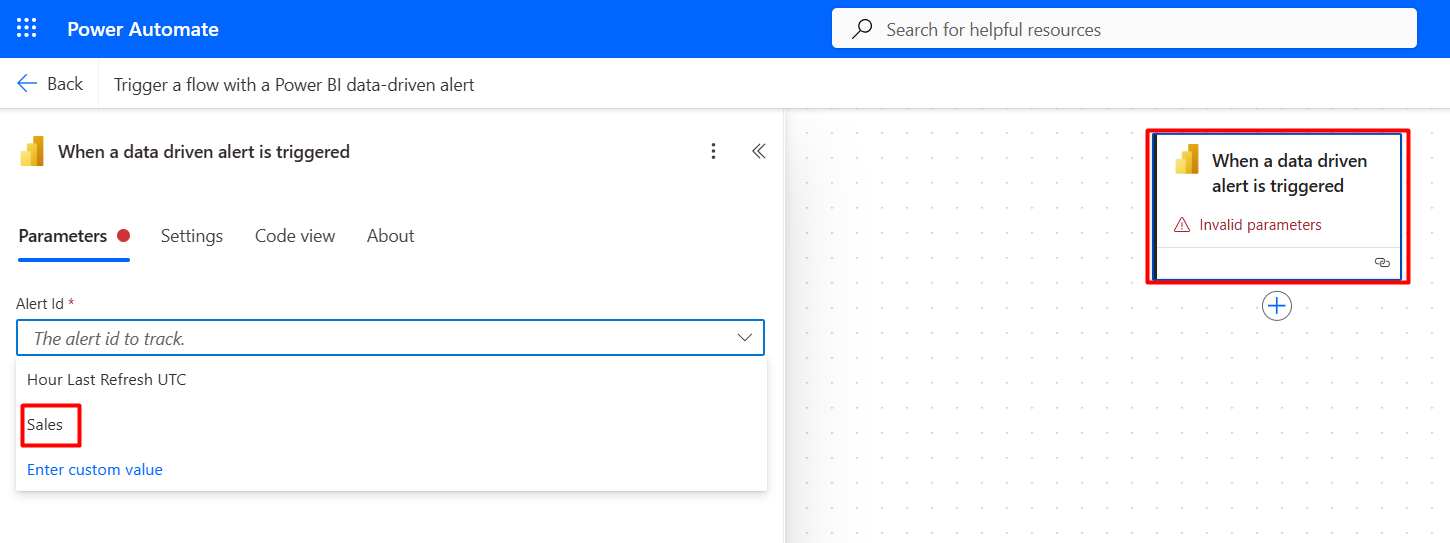
Alternatively: In Power Automate, create a new flow.
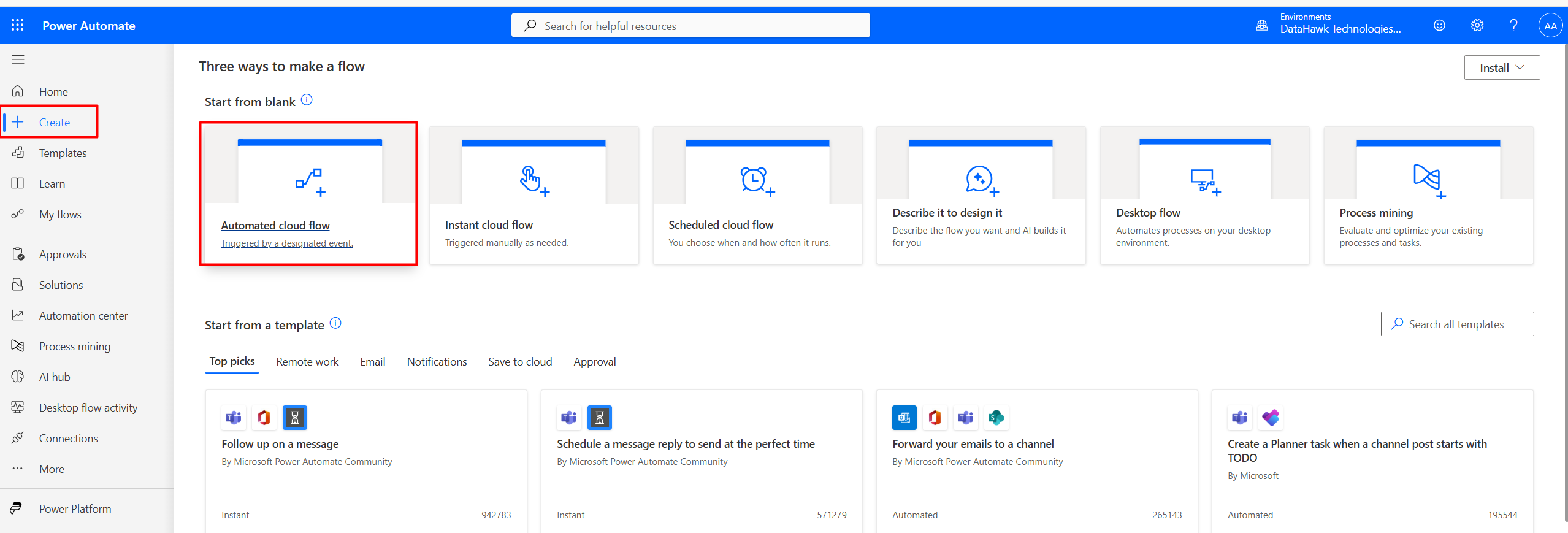
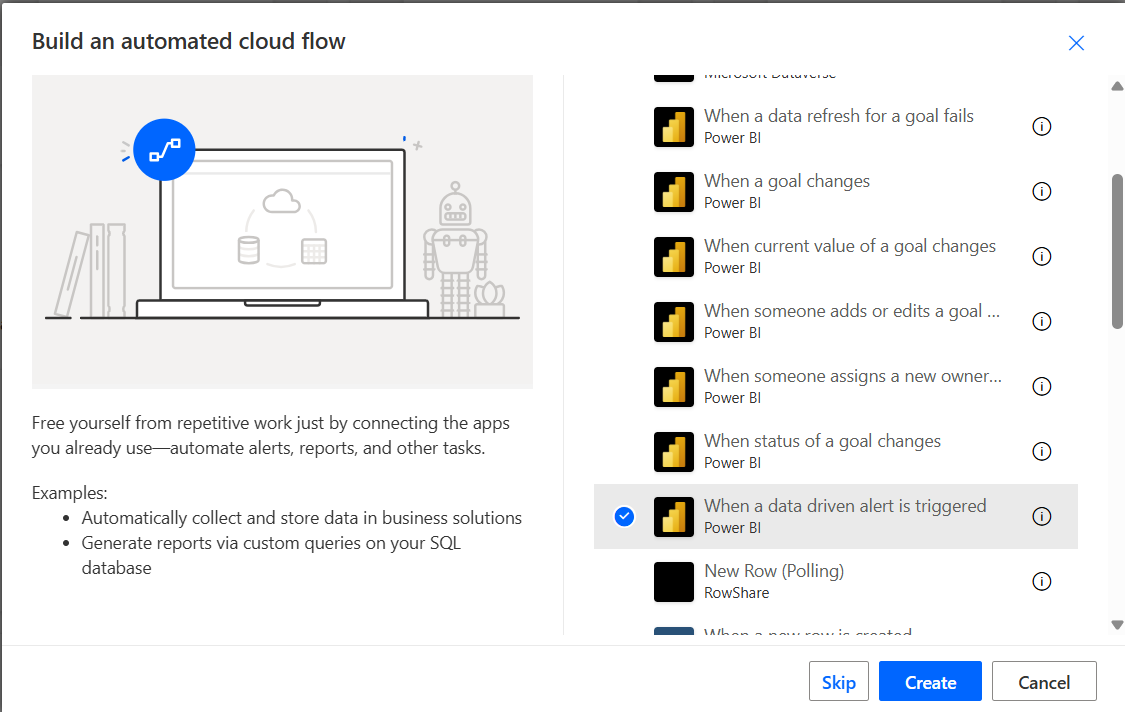
Use trigger: Power BI → When a data-driven alert is triggered.
Add an action
Add an action, e.g.:
- Send an email (Outlook) → to a list of recipients.
- Post message in Slack → send to a channel.
- Export & send a paginated report → requires Premium.
Example of the email flow:
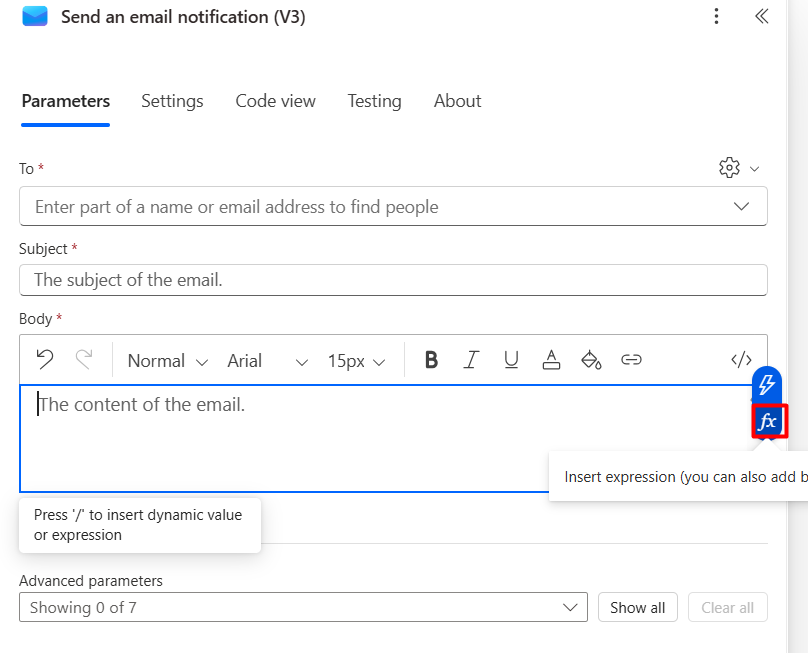
- Click Add action, choose Mail.
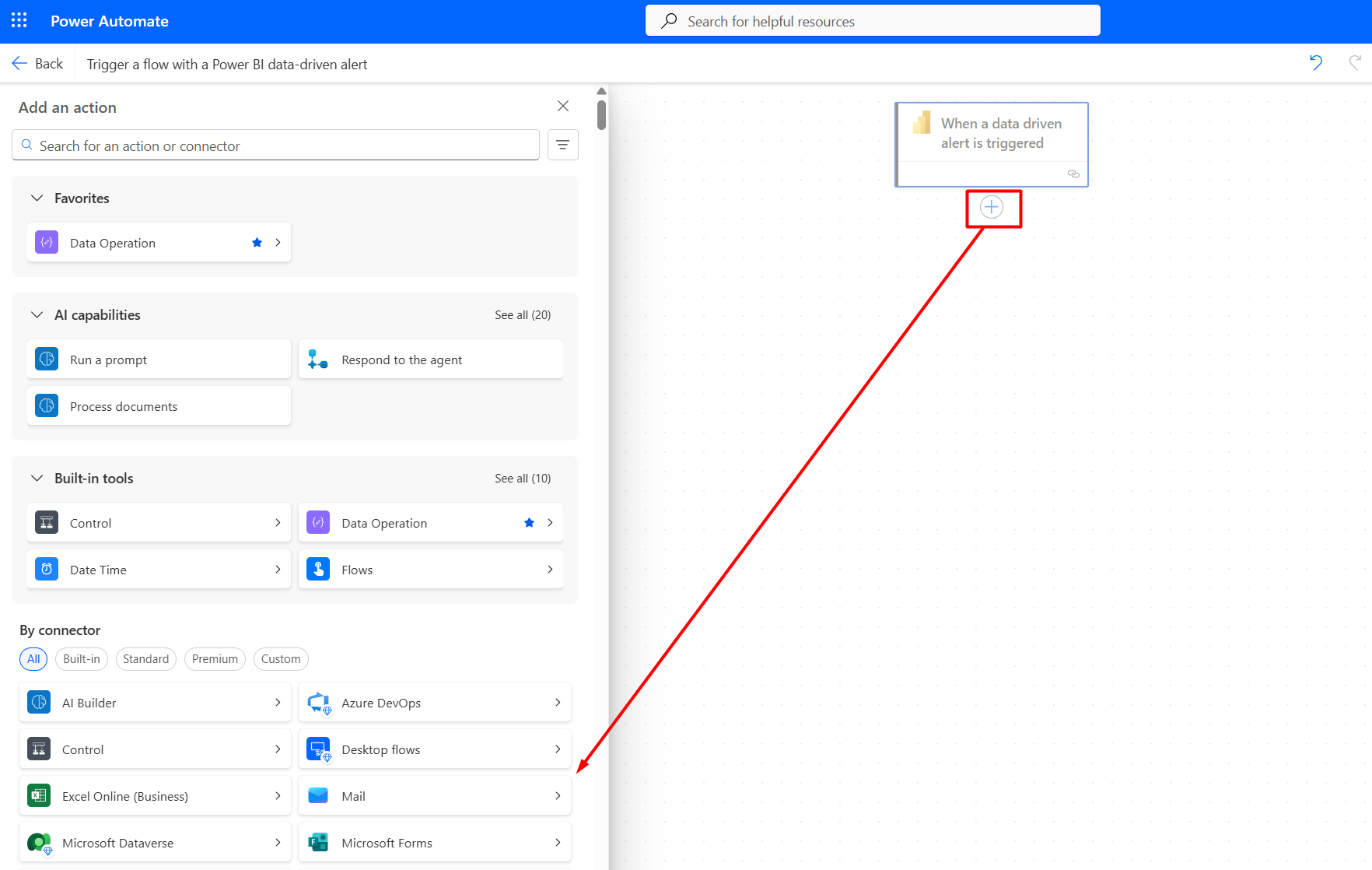
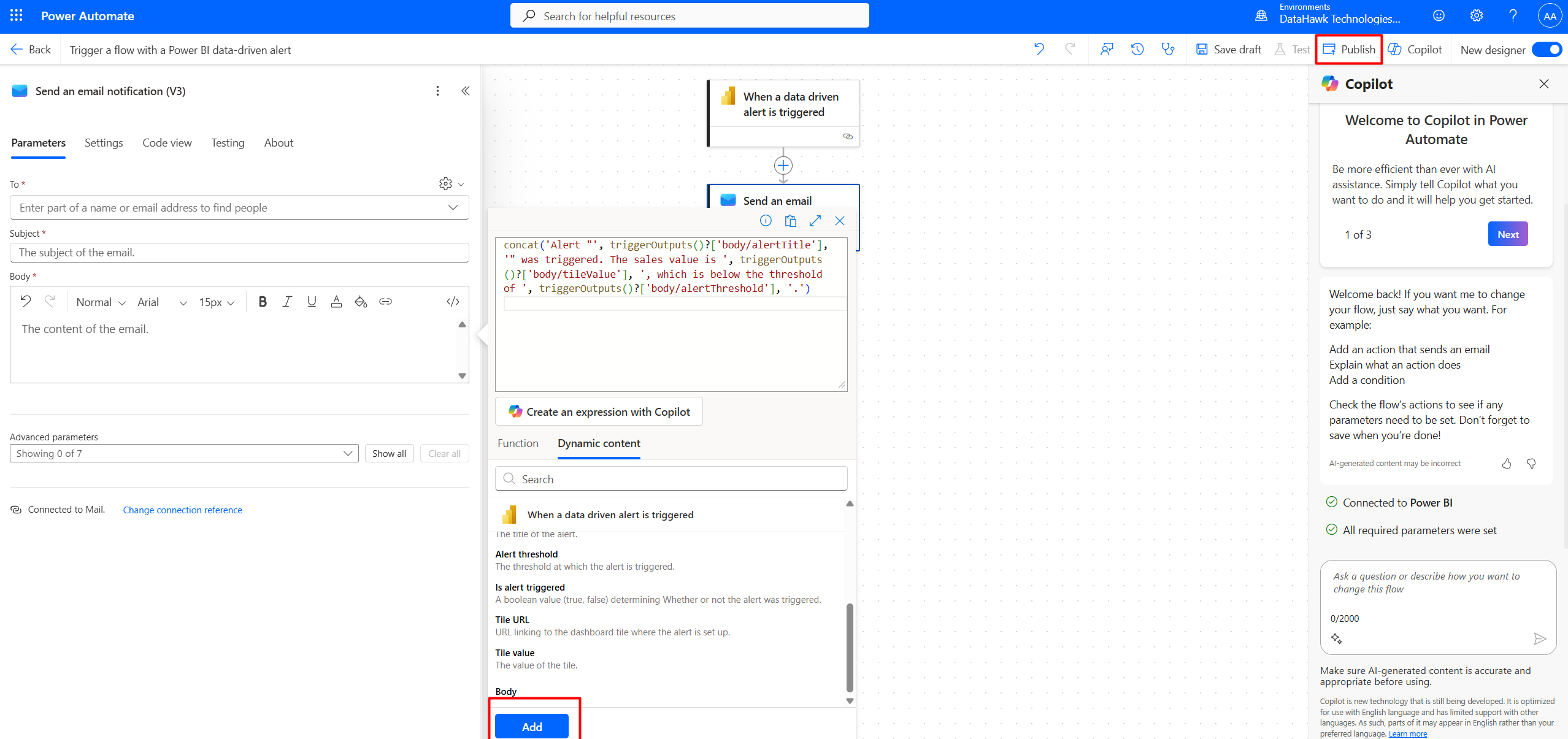
- Put in the list of recipients, the topic, and for the message, click function and use
concatto combine words with dynamic content.
Example message:
concat('Alert "', triggerOutputs()?['body/alertTitle'], '" was triggered. The sales value is ', triggerOutputs()?['body/tileValue'], ', which is below the threshold of ', triggerOutputs()?['body/alertThreshold'], '.')- Click Add. Publish the flow, and your alert is set.
3. Scorecards / Goals Alerts (Metrics)
- You can track progress against a measure and create alerts when a goal value changes.
- Trigger: Power BI → When a goal value changes in Power Automate.
If you manually trigger a change to test, you may see: "Flow run timed out because the starting action was not performed." This happens if the system doesn't detect the goal update as a valid trigger. Sometimes resolved only with real data refresh updates.
How to set up:

Configure the goal
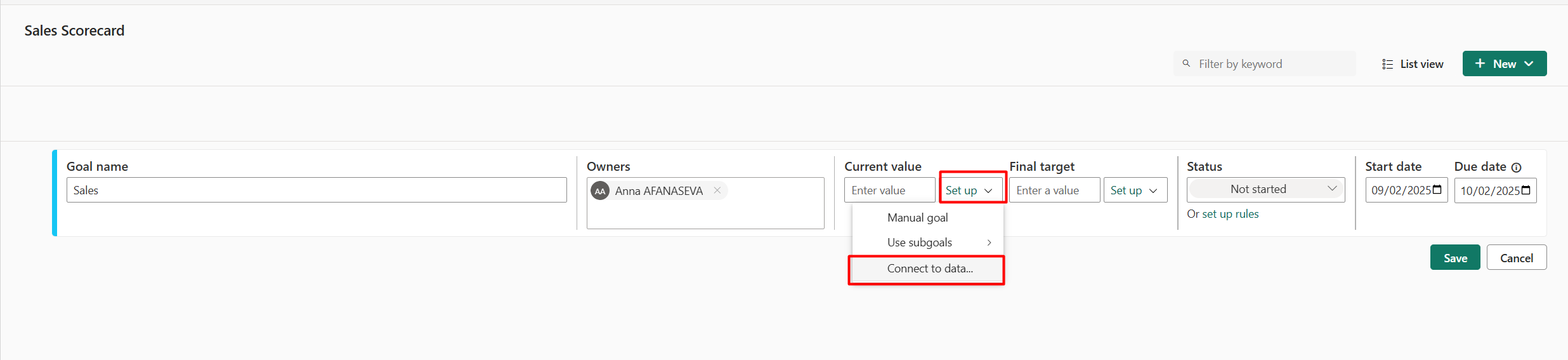
Change the name of the scorecard on top left as well as goal name.
For current value click Set up → Connect to data.
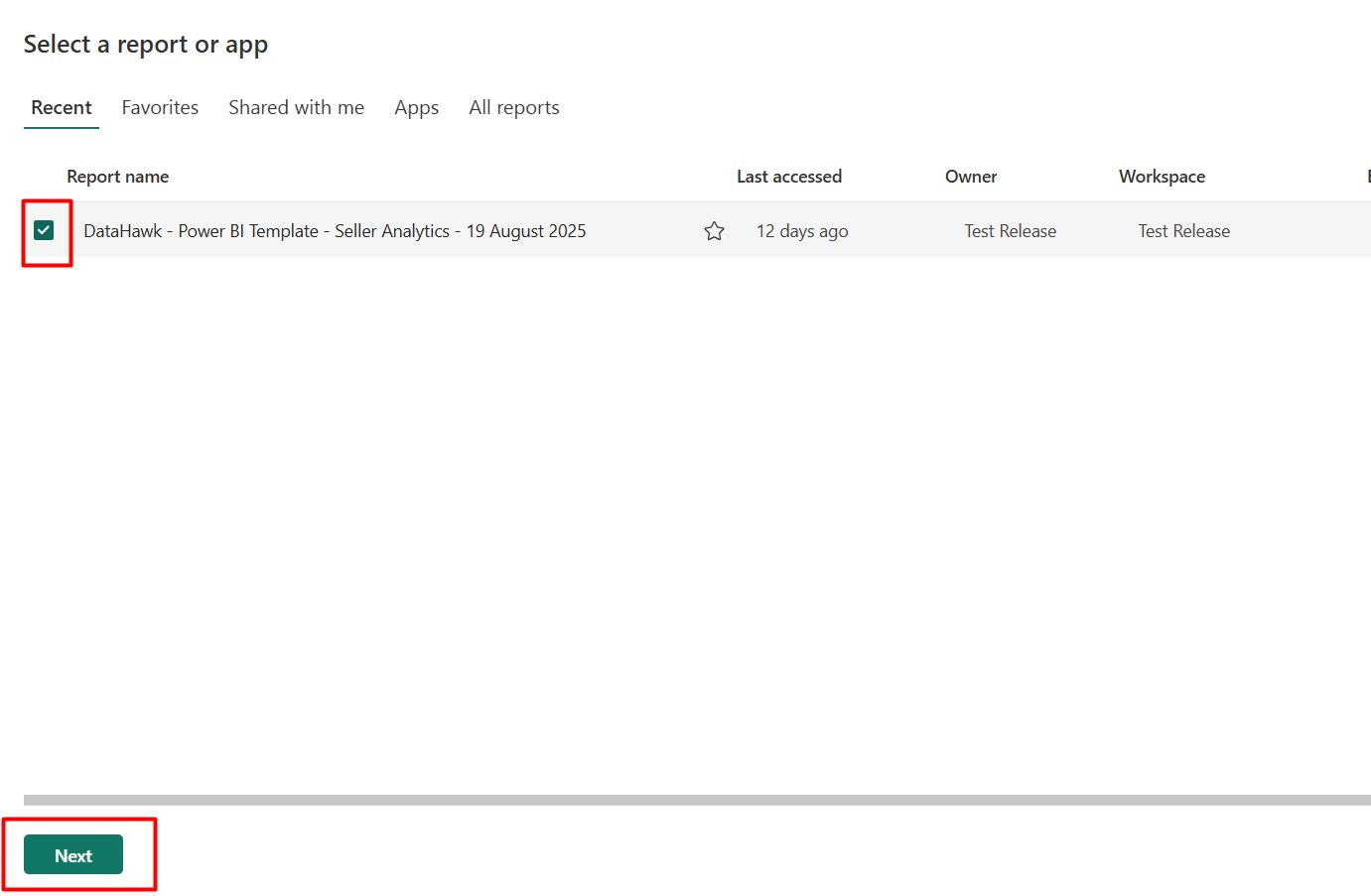
Select the report, and the card / KPI / gauge that you want to follow. In the scorecard also set up the goal, due date, and you also have an ability to set up rules for the status change.
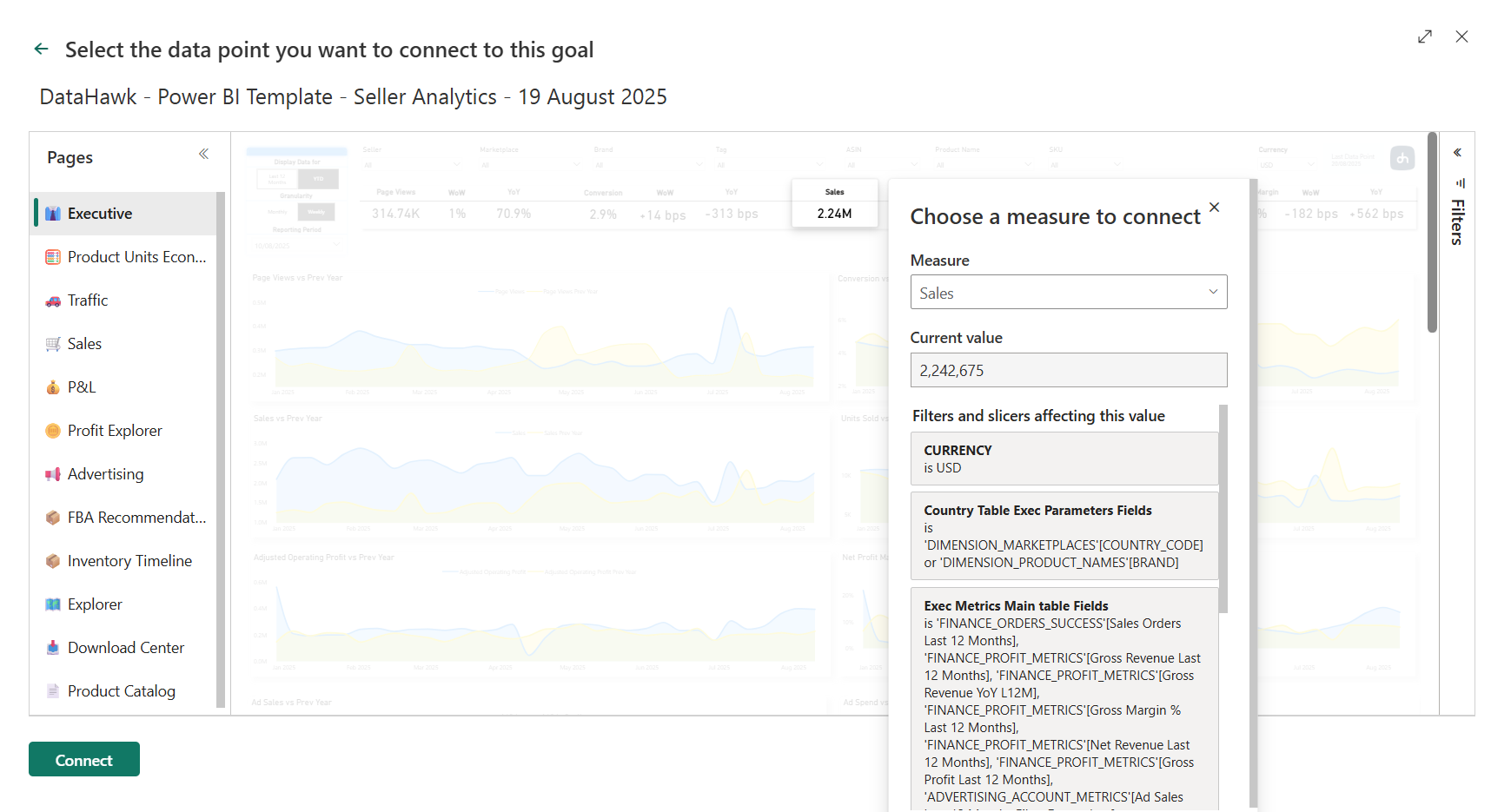

Configure the Power Automate trigger
On Power Automate website click "When current value of a goal changes". Depending on your desired outcome, you might want to choose when the goal changes, or when status of a goal changes.
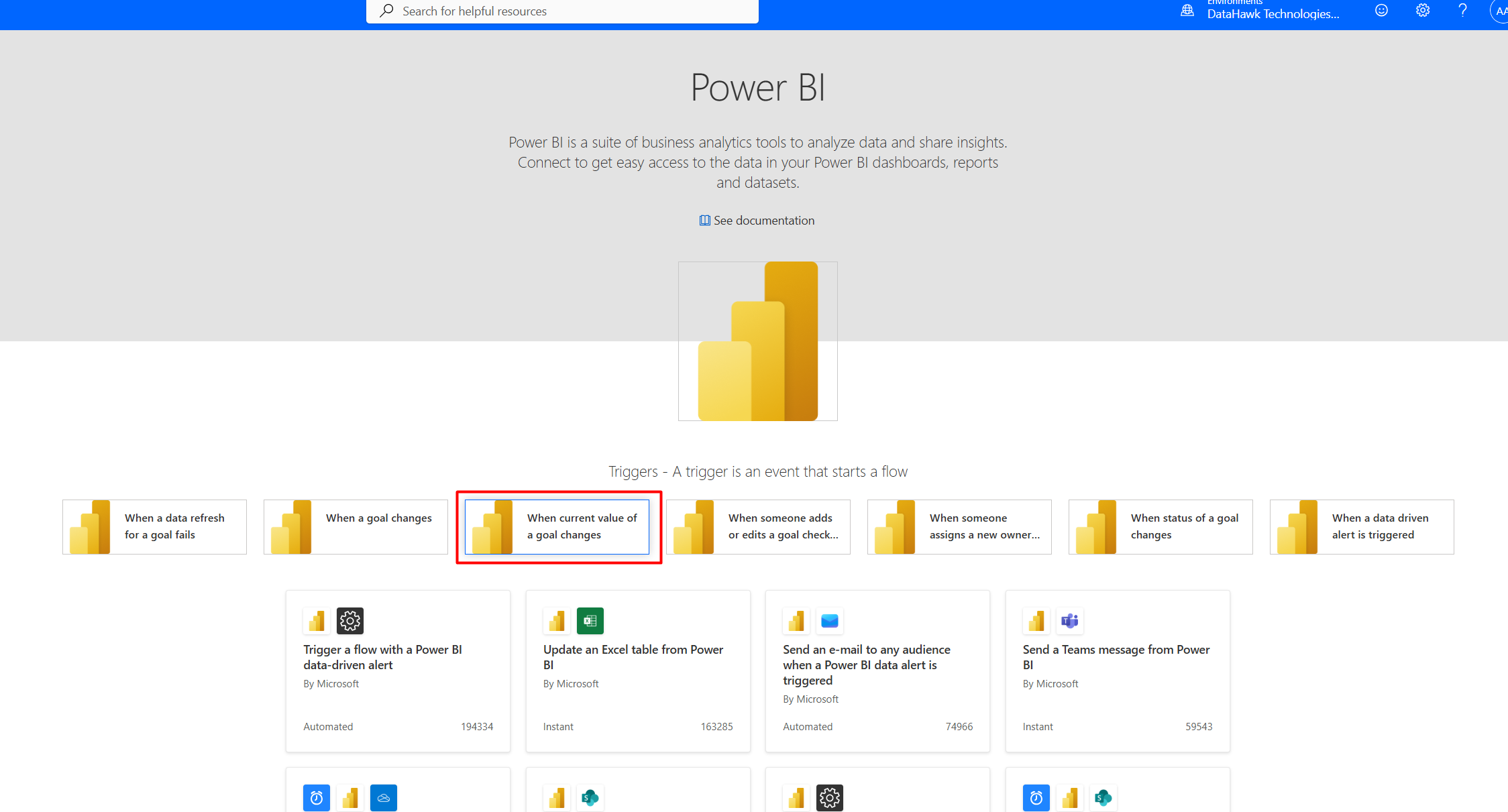
Set up the trigger details
Click the first block that appeared, and choose the workspace, scorecard ID and goal ID.
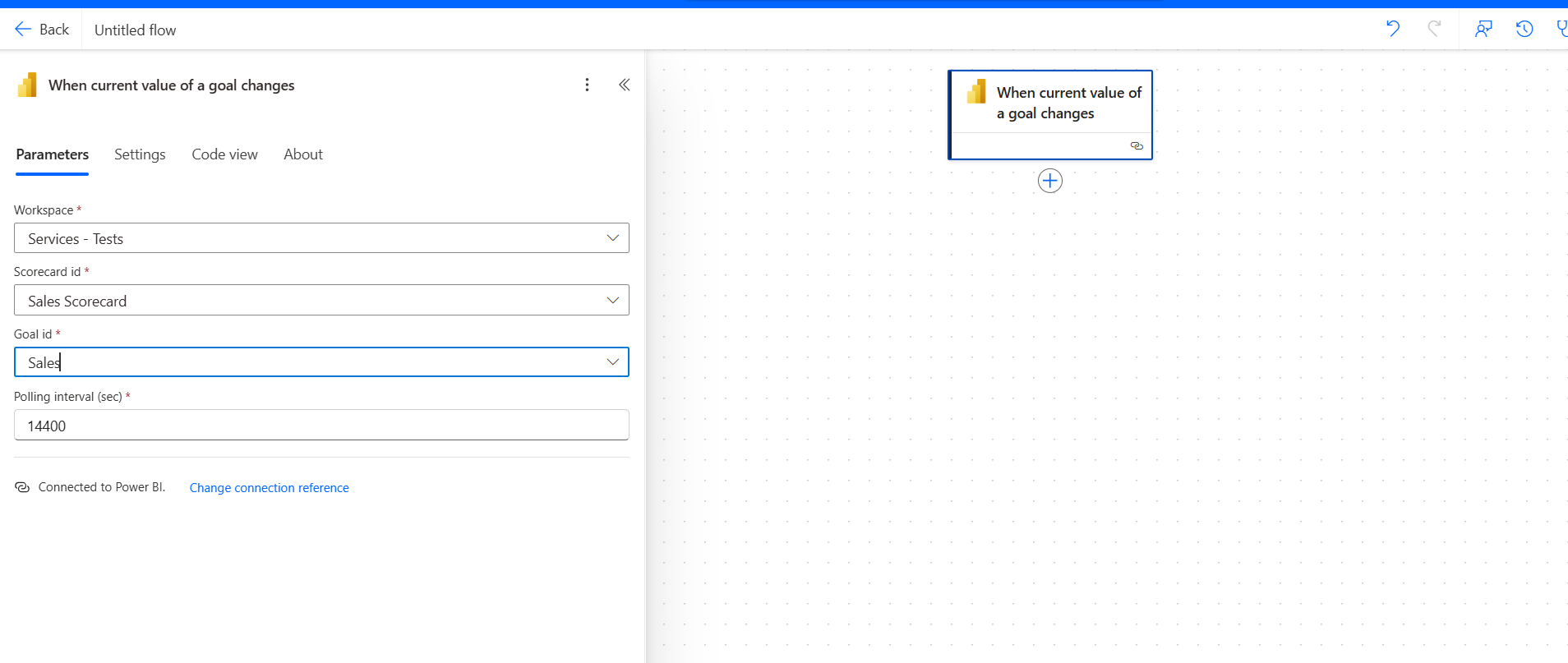
Add action — email or Slack
As next step you can connect it to email sending, or posting a Slack message.
Click Add an action and find Slack: Post message.
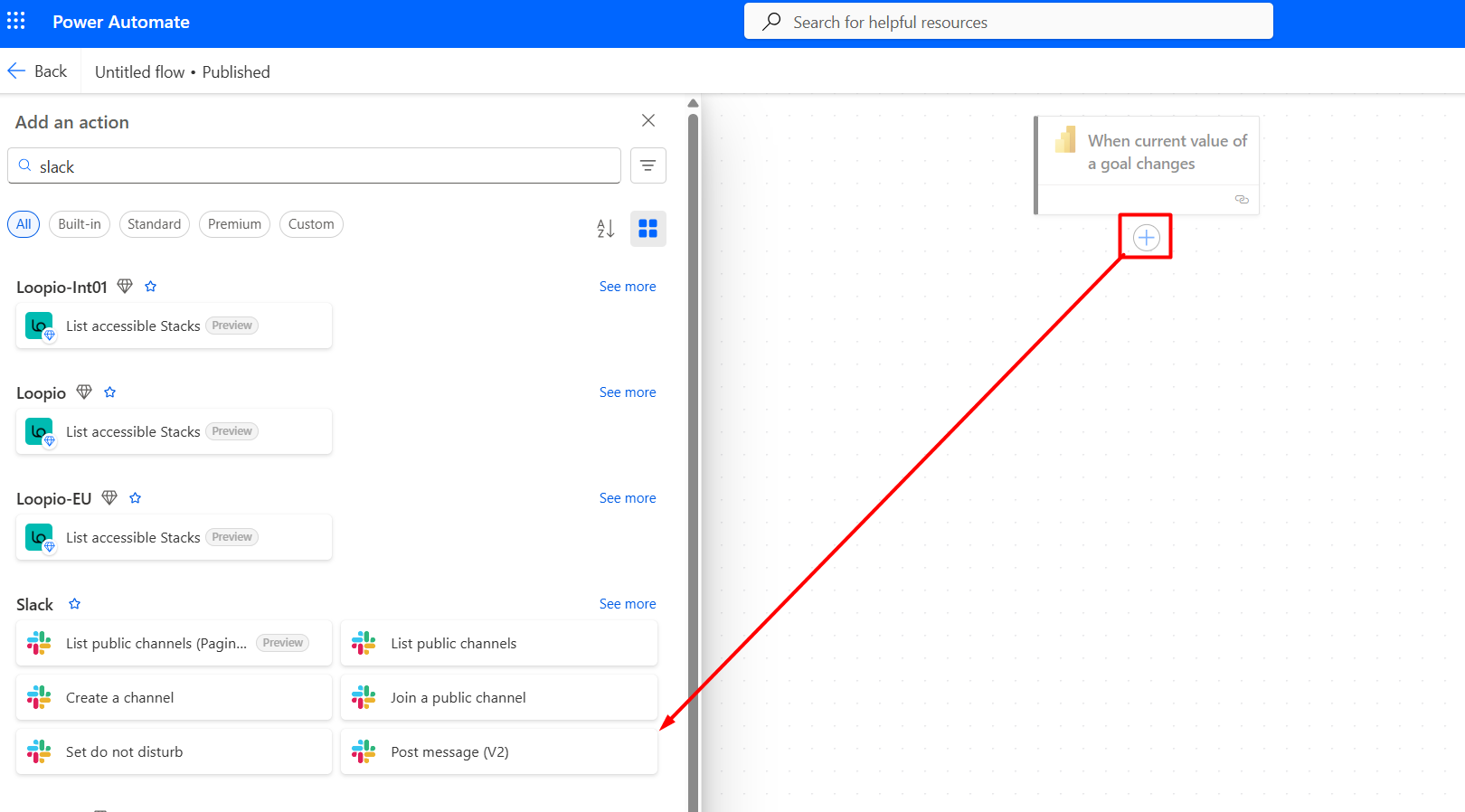
You'll have to sign in to Slack and allow Microsoft access to your Slack Workspace. You might need to ask your admin to grant permissions.
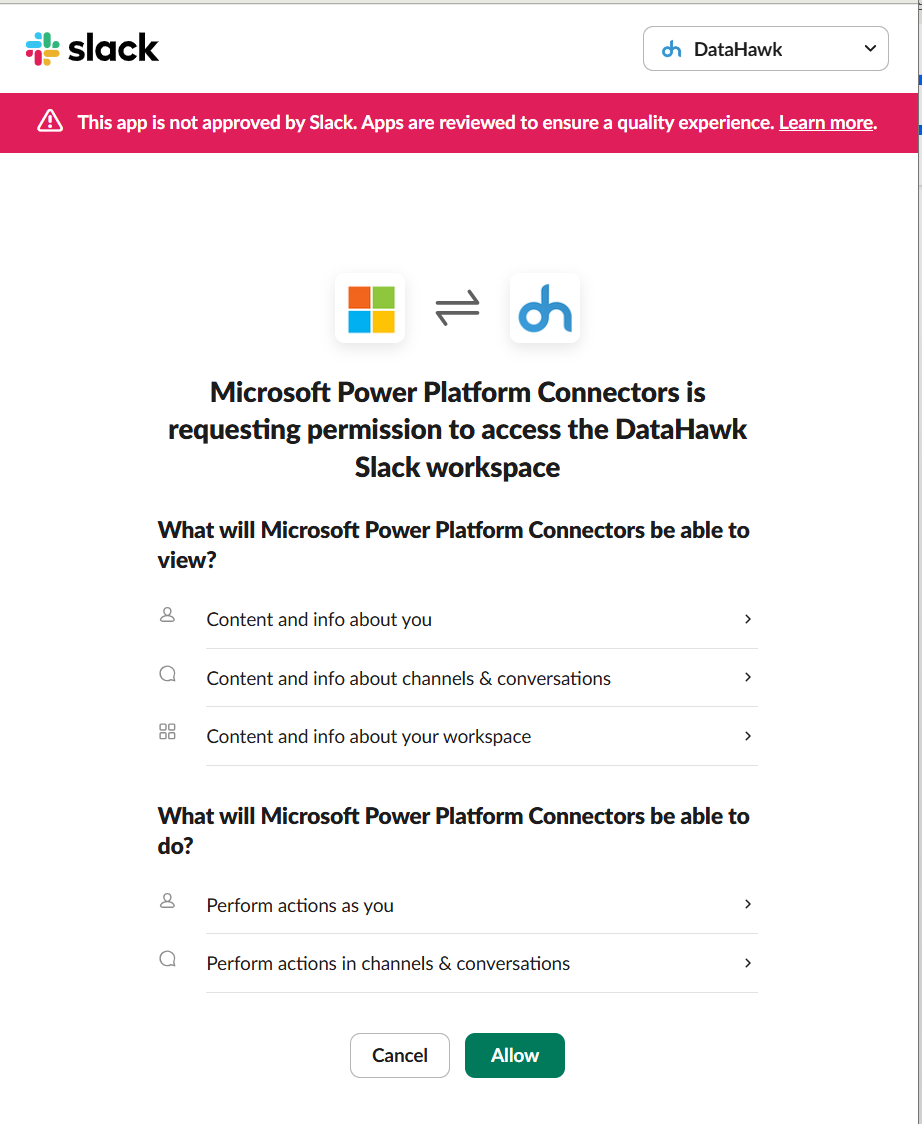
Fill in the channel where you want to post a message. For the message you might use this example:
concat('The sales have changed from ', triggerOutputs()?['body/oldCurrentValue'], ' to ', triggerOutputs()?['body/newCurrentValue'])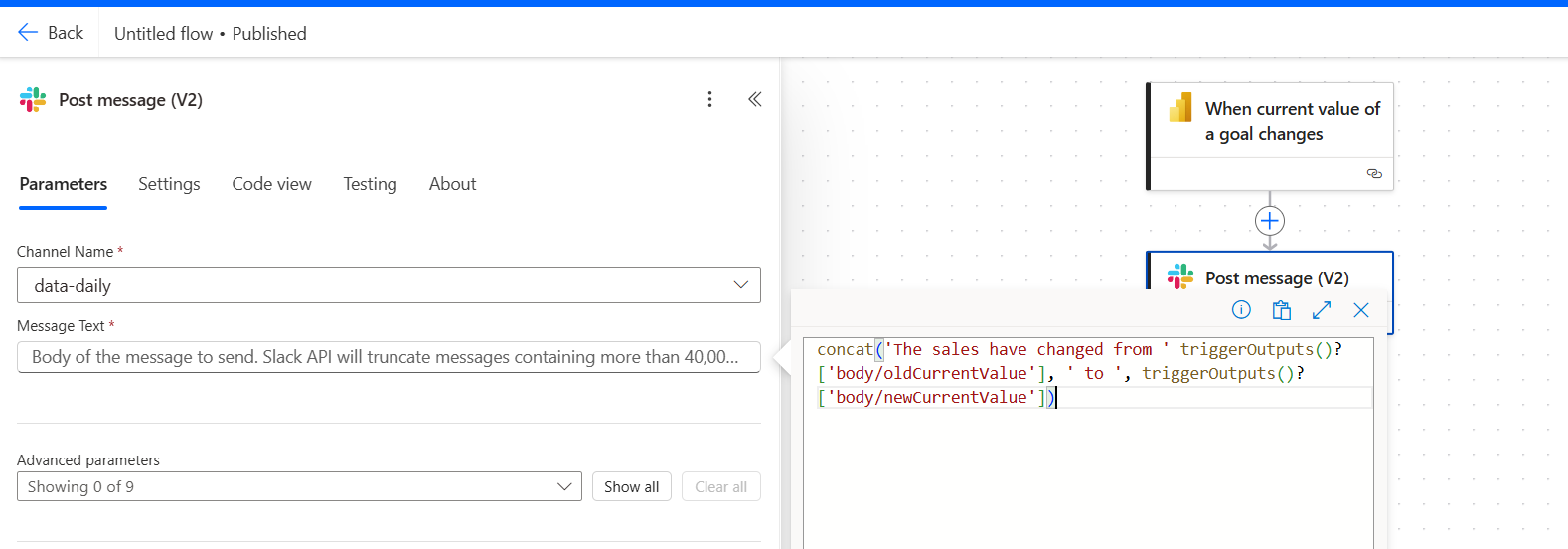
You might want to explore other options provided in the Power BI part of Power Automate such as Send whole report (paginated) by email:
- Trigger: Data refresh or Data-driven alert.
- Action: Export paginated report → Send email with attachment.
- Requires Premium.
Summary
- For personal alerts → use dashboard card alerts.
- For team notifications → use Power Automate with data-driven alerts.
- For OKR/KPI tracking → use goal/scorecard alerts.
- For sending reports → use Power Automate with paginated reports (Premium required).
Tips & Tricks Overview
Advanced use cases and guides for getting more out of DataHawk, including Power BI alerts, automation, and custom integrations.
Build Something New
Options for building customized eCommerce reporting solutions on top of DataHawk data, from adapting templates to professional services.