
Switch from a password to a key pair
Replace your Snowflake password with a key pair to keep your tools and dashboards connected.
Snowflake is ending password-based connections for tools and dashboards. To keep them connected to your data, DataHawk now lets you use a key pair instead of a password.
A password is a secret you enter to connect. A key pair has two matching parts. DataHawk sends the public part to Snowflake, and you download the private part as a file for your tool to use. A passphrase protects that private file, like a password protecting a document. Your tool uses the file and passphrase together instead of your current password.
What are the impacts?
From January 31, 2027, tools and dashboards still using a Password to connect to your DataHawk Snowflake account will no longer connect or refresh. Update them before this date. Your data and access permissions stay the same.
What should I do?
Ask an Admin of your DataHawk workspace to:
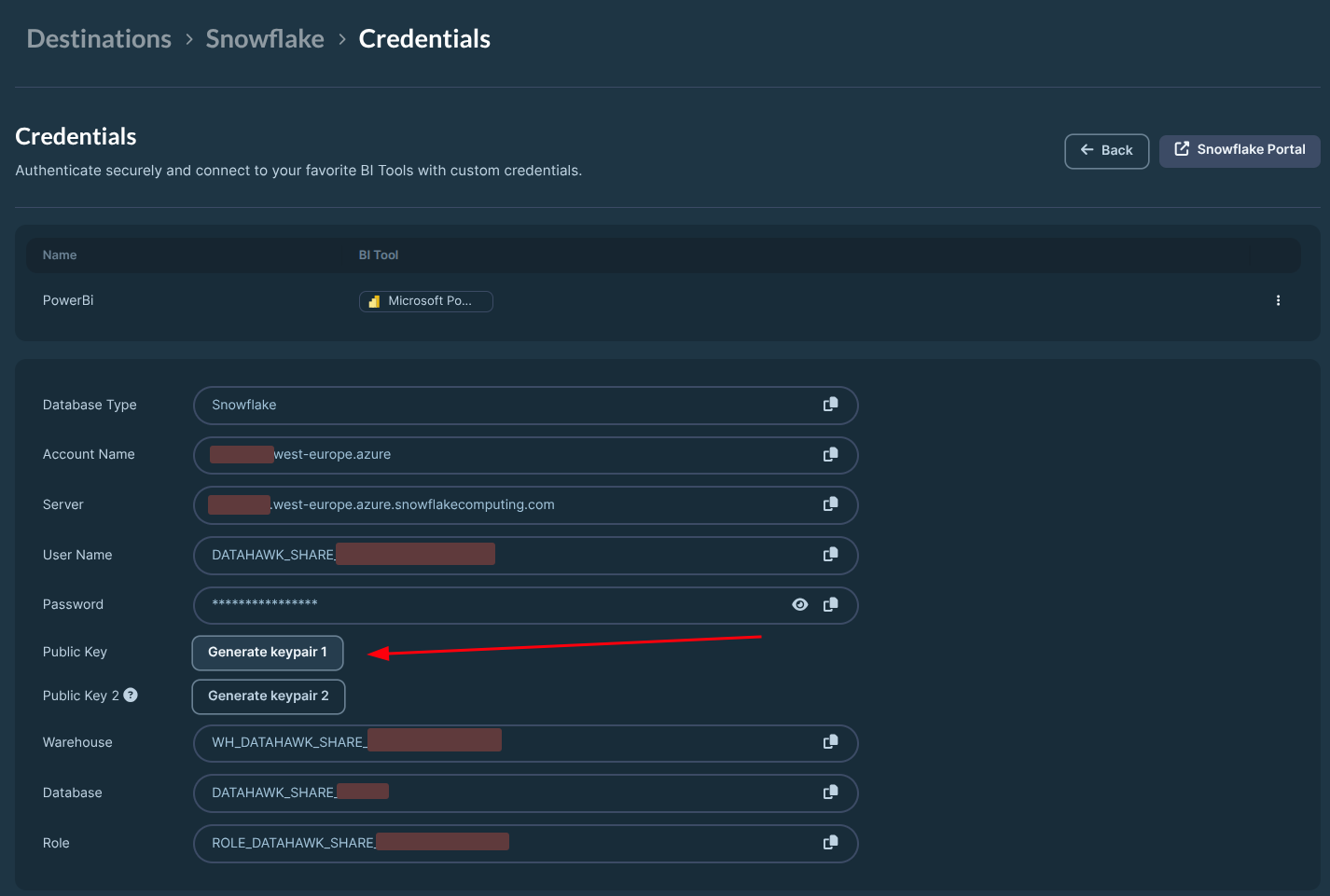
- Open Setup > Destinations > Snowflake > See Credentials and choose the connection used by your tool.
- Under Public Key, click Generate keypair 1.
- Choose and confirm a passphrase of at least eight characters, then click Generate and download.
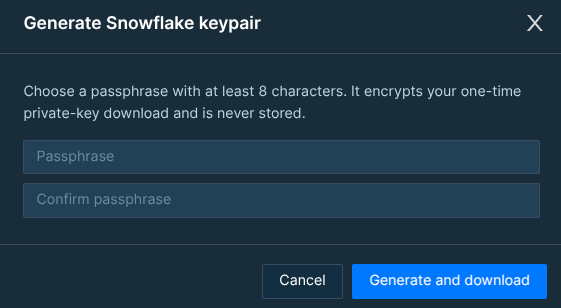
- Keep the downloaded private-key file and its passphrase somewhere safe. You cannot download the same private key again.
If a key already exists, check with your team before regenerating it. Replacing it stops connections that use the previous private key from working once the new key is active.
Use the key pair in your tool or dashboard
Open your tool's Snowflake connection settings. Choose key-pair authentication, then provide the downloaded private-key file and its passphrase. Keep your other connection settings unchanged.
Update every tool and dashboard using this connection, including automatic refreshes. Test that each one connects and refreshes successfully. Generating a key in DataHawk does not update your tools automatically, and the new key may take a little time to become active.
If the private key or passphrase is lost
Ask your DataHawk workspace Admin to generate a replacement, then update your connected tools with the new file and passphrase. The original download cannot be recovered through DataHawk.
Problems?
If you have connectivity issues or need assistance, feel free to contact support. Do not send your private key or passphrase.