---
title: Enterprise pricing
description: "How Enterprise pricing works: a platform fee, plus account analytics and digital shelf analytics based on your data volume."
---
This page covers Enterprise plans only. Standard and Growth have fixed monthly prices, listed on [Upgrade your DataHawk plan](/welcome/upgrade). Enterprise pricing is custom: it's built from three parts, a platform fee plus usage-based fees for Account Analytics and Digital Shelf Analytics. Use this page to get oriented before you talk plan details with your DataHawk contact.
## 1. Platform fee
A flat base fee that covers the database credits you need. The standard amount is 20 credits per month.
## 2. Account Analytics
Account Analytics covers sales, ads, listings, inventory, and day-to-day account health.
Its price depends on how much data your connected accounts produce:
- **Seller accounts:** units sold or orders per year
- **Vendor accounts:** catalog size
- **Advertising accounts:** ad spend per year
## 3. Digital Shelf Analytics
Digital Shelf Analytics is DataHawk's market and competitive intelligence layer. It shows how products look and compete in a category: best sellers, keyword ranks, new entrants, price trends, product page changes, and more.
Its price depends on how many products, keywords, and categories you track per Marketplace:
| You track | What data you get |
|---|---|
| Product | Listing details, sales ranks, attributes, pricing, offers, Buy Box, rating, and rating count |
| Keyword | Organic ranks and SEO visibility |
| Premium Keyword | Organic ranks plus sponsored ranks, for deeper keyword visibility. See [Premium Keywords](/help-center/data-setup/premium-keywords-tracking). |
| Category | Top 100 products, market share, brand performance |
Tracking a product doesn't include its keyword or SEO data. You need keyword tracking for that. Volume discounts apply based on total contract size.
---
title: Welcome to DataHawk
description: DataHawk manages and delivers data for your strategic and daily decisions.
---
Start here to understand how DataHawk turns marketplace, advertising, and product data into dashboards and hosted datasets your team can use from day one.
**Need something else...**
Need help? Reach out to your DataHawk contact or [Get in Touch](mailto:support@datahawk.co).
---
title: Upgrade your DataHawk plan
description: Pick a package and email us to keep using DataHawk after your free trial.
---
Thanks for trying DataHawk! Your free trial runs 14 days and includes one account of each type (Amazon Seller Central, Vendor Central, and Advertising; Walmart Marketplace and Connect), plus 50 tracked products, 50 organic keywords, and 5 categories. To keep going after that, pick a package. Each one sets limits on how much data you collect and who can use it. Send us an email and we'll set up your subscription for you.
The days left in your trial show in the navigation bar of the DataHawk app. When the trial ends, your access is reduced, but your workspace and data aren't deleted. Upgrade any time to pick up where you left off.
## Compare packages
| | Standard | Growth | Enterprise |
|---|---|---|---|
| **Price** | $299/month | $599/month | Custom |
| **Best for** | Starting brands & agencies | Scaling ecommerce teams | Enterprise retailers & global brands |
| **Annual Units Sold (Seller Central)** | Up to 100K | Up to 500K | Custom |
| **Catalog Size (Vendor Central)** | Up to 500 products | Up to 1,000 products | Custom |
| **Annual Ad Spend** | Up to $300K | Up to $1.5M | Custom |
| **Tracked Products** | 50 | 200 | Custom |
| **Organic Keywords** | 50 | 200 | Custom |
| **Categories** | 5 | 10 | Custom |
| **Users** | 3 | 10 | Unlimited |
| **Historical Data** | 12 months | 18 months | Full history |
| **Onboarding** | Self-serve | Guided | White-glove |
| **Support** | Self-serve | Email | Dedicated CSM & Slack channel |
Every package includes:
- [Alerts](/help-center/modules/alerts)
- [AI Copywriter](/help-center/modules/ai-copywriter)
- [Sherlock AI agent](/help-center/modules/sherlock)
- [DataHawk MCP](/help-center/modules/datahawkmcp) to use your data in Claude and ChatGPT
- [Dashboard templates](/help-center/dashboard-templates)
- [Direct database access](/help-center/connect-tools)
Tracking limits apply per Marketplace. One product tracked on Amazon US and Amazon UK counts as 2 products.
## How to upgrade
### Pick a package
Use the table above. Need more than Growth offers? Go Enterprise: see [what to send us](#going-enterprise-tell-us-what-you-need).
### Email us
Email [sales@datahawk.co](mailto:sales@datahawk.co) with the package you want. One line is enough, for example: "I want to upgrade to the Standard plan."
### Confirm your subscription
We'll reply with a payment link within 1 business day. Once you pay, your workspace keeps running with no break in data.
Standard and Growth are billed through Stripe. To see invoices or update your card later, read [Stripe Subscription Management](/help-center/datahawk-app/subscription-management).
## Going Enterprise? Tell us what you need
Enterprise plans have a custom price based on how much data you collect. Add these numbers to your email, totaled across every account you plan to connect:
- **Tracking:** number of products, keywords, and categories. For keywords, say if you need organic ranks only or [Premium Keywords](/help-center/data-setup/premium-keywords-tracking) (organic + sponsored ranks).
- **Seller Central:** units sold per year
- **Vendor Central:** catalog size (products sold in the last 12 months)
- **Advertising:** ad spend per year
Want to know how these numbers shape your price? Read [Enterprise pricing](/welcome/enterprise-pricing), or try the [pricing simulator](https://pricing.datahawk.co/).
---
title: AI-powered strategy
description: Our AI agent analyzes your performance and delivers clear, prioritized recommendations on what to do next.
---
DataHawk uses AI to help teams move from dashboards to decisions. Instead of asking analysts to explain every revenue drop, stockout, ranking shift, or campaign spike from scratch, DataHawk helps identify what changed and what to investigate next.
## What you can achieve with DataHawk
- Diagnose revenue, conversion, ranking, inventory, advertising, and Buy Box changes faster.
- Ask performance questions in plain language through supported AI workflows.
- Turn marketplace signals into a prioritized list of actions.
- Combine alerts, Sherlock diagnostics, and connected data to understand root causes.
- Bring DataHawk data into AI assistants and automations through MCP.
## Business outcomes
| Outcome | How DataHawk helps |
|---|---|
| Shorten analysis cycles | AI-assisted diagnostics point teams toward the likely drivers of performance changes |
| Prioritize work | DataHawk highlights the products, keywords, accounts, or issues with the clearest business impact |
| Scale expertise | Teams can ask natural-language questions instead of waiting for every custom analysis |
| Automate reporting | MCP connects DataHawk data to AI assistants, workflow tools, and recurring summaries |
## Where this creates value
AI is most useful when it is grounded in clean, current business data. DataHawk gives AI workflows direct access to structured marketplace, advertising, finance, inventory, search, and product data, so recommendations are tied to the performance signals your team already trusts.
## Get started now
Ready to connect your AI assistant? See [Use AI with your DataHawk data](/help-center/connect-tools/ai-assistants) to pick between DataHawk MCP and Snowflake MCP.
Ready to turn connected data into clearer decisions and next actions? [Get started now](/welcome/getting-started).
---
title: Dominate your category
description: Market share evolution, competitor sales estimates, and new entrant detection across any category.
---
DataHawk helps you see your category like a market map, not just a list of products. You can track leaders, challengers, prices, estimated sales, ranking movement, and new entrants so category decisions are based on evidence.
## What you can achieve with DataHawk
- Measure your estimated market share and how it evolves over time.
- Track the top products and brands in any Amazon category.
- Compare competitor sales estimates, price positioning, BSR movement, and review momentum.
- Identify emerging brands before they become obvious threats.
- Find category opportunities by demand, competition, pricing, and assortment gaps.
## Business outcomes
| Outcome | How DataHawk helps |
|---|---|
| Understand the market | Market Intelligence views show the top 100 products, leading brands, price distribution, and estimated sales |
| Track competitive movement | Sales estimates and BSR trends show whether competitors are gaining or losing ground |
| Plan category strategy | Use demand, price, ranking, and brand-share data to decide where to defend, invest, or launch |
| Spot new threats early | Monitor rising brands and products before they show up in your internal sales reports |
## Where this creates value
Category growth requires more than your own sales data. DataHawk shows the market around you, so you can explain whether performance changed because your brand moved, competitors moved, or the category itself shifted.
## Get started now
Ready to understand and grow your category position? [Get started now](/welcome/getting-started).
---
title: Full account visibility
description: Sales, P&L, traffic, inventory health, and advertising performance across all your Seller and Vendor accounts.
---
DataHawk gives leadership, ecommerce, finance, and operations teams one connected view of marketplace performance. You can see what is growing, what is losing momentum, and which accounts, products, brands, or markets need attention.
## What you can achieve with DataHawk
- See sales, traffic, profit, inventory, and advertising performance in one place.
- Compare Seller, Vendor, Advertising, and marketplace data without rebuilding exports by hand.
- Identify which products are driving revenue, margin, traffic, or operational risk.
- Understand whether growth is profitable after Amazon fees, returns, advertising spend, and uploaded COGS.
- Spot disconnects between account-level performance and product-level performance before they become planning mistakes.
## Business outcomes
| Outcome | How DataHawk helps |
|---|---|
| Know what changed | Dashboards surface revenue, traffic, inventory, ad, and profit movement by product, brand, account, and marketplace |
| Protect margin | P&L views connect revenue with fees, COGS, returns, and marketing spend |
| Prioritize action | Product-level views show where performance drops, stock risk, or fee burden deserve attention first |
| Align teams | Finance, operations, ecommerce, and advertising teams work from the same refreshed data foundation |
## Where this creates value
For executives, DataHawk turns disconnected marketplace signals into an account-level performance story. For operators, it narrows the weekly question from "what happened?" to "which products do we fix first?"
You can start with pre-built dashboards, then go deeper through Snowflake, BigQuery, Power BI, Looker Studio, Excel, Google Sheets, or your own reporting stack.
## Get started now
Ready to see full account visibility across your own Amazon and Walmart data? [Get started now](/welcome/getting-started).
---
title: Explore DataHawk
description: See what DataHawk helps ecommerce teams achieve across visibility, search, category intelligence, alerts, AI guidance, and data ownership.
---
DataHawk turns marketplace data into decisions your team can act on. Instead of switching between Seller Central, Vendor Central, Ads Console, spreadsheets, and BI exports, you get one connected view of performance, risk, and opportunity.
## What you can achieve with DataHawk
DataHawk is built for teams that want to grow faster with clearer data. Pick the outcome that matches your priority.
## Why teams choose DataHawk
| Need | What DataHawk gives you |
|---|---|
| Faster decisions | Ready-to-use dashboards and structured data instead of manual report stitching |
| Better prioritization | Product, keyword, category, profit, inventory, and ad signals in one place |
| More control | Data delivered to tools like Power BI, Looker Studio, Snowflake, BigQuery, Excel, and Google Sheets |
| Scalable workflows | Alerts, AI modules, and database access that work across teams and catalogs |
## Get started now
Ready to see what DataHawk can do with your own accounts and markets? [Get started now](/welcome/getting-started).
---
title: Own your search visibility
description: Organic and paid share of voice, keyword ranks, and competitor search performance by market.
---
Search is where shoppers discover products and where competitors quietly win demand. DataHawk helps you understand how visible your products are, which keywords matter, and where organic and paid performance should improve.
## What you can achieve with DataHawk
- Track organic and sponsored rank movement for the keywords that matter to your catalog.
- Understand your share of voice by keyword, product, brand, and marketplace.
- Find high-potential keywords from search volume, keyword suggestions, and ranking data.
- See which competitors are gaining visibility on terms you care about.
- Connect search visibility with listing quality, advertising performance, and sales outcomes.
## Business outcomes
| Outcome | How DataHawk helps |
|---|---|
| Protect priority keywords | Monitor organic and paid placement so you can react when visibility drops |
| Find new growth terms | Use keyword suggestions, lookup, and search volume to discover demand you are not capturing yet |
| Improve SEO and ads together | Compare organic rank, sponsored visibility, search volume, and ad performance in the same workflow |
| Benchmark competitors | See which competing products and brands are moving up across your tracked search terms |
## Where this creates value
Search visibility work often gets split between SEO, advertising, and content teams. DataHawk brings those signals together so you can decide whether the next move is a bid change, a listing update, a new keyword target, or a broader category push.
## Get started now
Ready to own more of the search results that drive your market? [Get started now](/welcome/getting-started).
---
title: Power your own stack
description: Connect DataHawk directly to your own tools, models, or third-party solutions and fuel your in-house analytics with reliable marketplace data.
---
DataHawk gives your team ownership of clean marketplace data, not just screenshots and exported reports. You can use pre-built dashboards, connect BI tools, query the database, or feed your own models and workflows.
## What you can achieve with DataHawk
- Deliver curated Amazon and Walmart data into Snowflake, BigQuery, Power BI, Looker Studio, Excel, Google Sheets, and other tools.
- Replace manual exports with refreshed, structured datasets.
- Combine marketplace data with internal finance, operations, forecasting, or CRM data.
- Build custom dashboards, automated reports, AI workflows, and third-party integrations.
- Give analysts direct access to product, sales, profit, advertising, inventory, search, and category data.
## Business outcomes
| Outcome | How DataHawk helps |
|---|---|
| Own your data | DataHawk hosts and refreshes a structured database dedicated to your workspace |
| Move faster in BI | Start with templates, then customize reports in your preferred tools |
| Support advanced analytics | Query clean tables for forecasting, attribution, category intelligence, and executive reporting |
| Reduce tool lock-in | Use DataHawk as the marketplace data foundation behind your existing stack |
## Where this creates value
Growing ecommerce teams eventually outgrow manual exports. DataHawk gives analysts and business teams the same reliable data layer, so you can move from ad hoc reporting to repeatable systems that scale with your catalog and markets.
## Get started now
Ready to power your own analytics stack with DataHawk data? [Get started now](/welcome/getting-started).
---
title: Stay one step ahead
description: Instant alerts on pricing changes, Buy Box shifts, content edits, and key performance drops.
---
DataHawk helps teams catch important marketplace changes before they turn into lost sales, wasted spend, or reporting surprises. You can monitor the signals that matter and react while there is still time to protect performance.
## What you can achieve with DataHawk
- Get alerted when prices, availability, ratings, reviews, content, or Buy Box ownership changes.
- Monitor stock risk, traffic drops, ranking shifts, and advertising performance changes.
- Detect competitor moves that could affect conversion, pricing, or share of voice.
- Keep teams aligned with automated checks instead of manual marketplace watching.
- Turn daily changes into prioritized follow-up instead of noise.
## Business outcomes
| Outcome | How DataHawk helps |
|---|---|
| Protect revenue | Catch Buy Box loss, stock risk, price changes, and ranking drops before they compound |
| Reduce manual monitoring | Alerts watch your tracked products and notify teams when key conditions change |
| React faster | Connect each alert to the product, marketplace, and signal that needs attention |
| Focus on impact | Combine alerts with dashboards and AI diagnostics to decide which issues matter most |
## Where this creates value
Marketplace performance can change overnight. DataHawk gives your team a monitoring layer that keeps watch across products, competitors, and accounts, so problems are found by the system before they are found in missed revenue.
## Get started now
Ready to catch the signals that matter before they cost you? [Get started now](/welcome/getting-started).
---
title: Before starting
description: Checklist of access, tracking choices, COGS, BI tools, and timing expectations before connecting DataHawk sources.
---
Before connecting sources, confirm the account access, files, and tools your team needs. This checklist helps avoid setup delays and makes the Quick Start easier to follow.
## You need a DataHawk account
There are two ways in:
- **Starting on your own:** [sign up](http://analytics.datahawk.co/signup) with your email or Google account. You get a 14-day free trial. See [Start your free trial](/welcome/getting-started/start-free-trial).
- **Joining an existing workspace:** a teammate or your DataHawk contact sends you an **invitation email**. Click the link inside to sign in. Can't find it? Check your **spam folder**.
## Choose Your First Data Source
You do not need every DataHawk source connected before you can start. A new workspace needs **at least one source** to begin collecting data, but that source can be a private account connection, a tracked product, a tracked keyword, or a tracked category. Start with the data source that matches your first use case; the more sources you add, the richer your dashboards, reports, Alerts, and Sherlock analyses become.
## Private Account Connections
Private account connections pull data from accounts your business owns or manages. Use these sources when you want DataHawk to collect sales, finance, inventory, traffic, or advertising data directly from Amazon or Walmart.
### Amazon Accounts
DataHawk connects to Amazon through the accounts you have access to. Depending on your business, you may connect one or several of the following:
- **Amazon Seller Central**: Required if you sell directly on Amazon as a third-party seller (3P). You'll need **admin-level access** to your Seller Central account to authorize the connection.
- **Amazon Vendor Central**: Required if you sell to Amazon as a first-party supplier (1P). You'll need **admin-level access** to your Vendor Central account.
- **Amazon Advertising**: Required to see advertising performance data (Sponsored Products, Sponsored Brands, Sponsored Display, DSP). This is a **separate account** from Seller or Vendor Central. You'll need access to the Amazon Advertising console.
You do not need all three. Connect only the accounts that apply to your business. If you are both a Seller and a Vendor, you can connect both.
### Walmart Accounts
- **Walmart Seller (Marketplace)**: Required if you sell on Walmart.com as a third-party seller. Connect via Walmart Marketplace credentials.
- **Walmart Connect**: Required for Walmart advertising data.
## Product, Keyword, and Category Tracking
Not every DataHawk source requires private account credentials. You can also add marketplace objects for DataHawk to monitor daily. These tracked sources are useful for competitive monitoring, search visibility, assortment analysis, and market intelligence.
- **Product Tracking**: Track Amazon or Walmart products to capture daily snapshots of price, ratings, sales rank, availability, content, and Buy Box signals.
- **Keyword Tracking**: Track Amazon or Walmart keywords to monitor organic search visibility, rank movements, and the products appearing in search results.
- **Premium Keywords**: Add Amazon sponsored rank visibility so you can compare paid and organic placement for your most important keywords.
- **Category Tracking**: Track Amazon categories to monitor the top 100 products, competitor movement, and sales-rank trends in a category.
You can start with only product, keyword, or category tracking if that is your immediate need. Adding private account connections later gives DataHawk more context, such as sales, ads, inventory, and profitability.
## For Profit & Loss Reporting
If you want to use the **P&L features** (Gross Profit, Operating Profit, Net Profit), you'll need to upload your **Cost of Goods Sold (COGS)** data. DataHawk cannot calculate profit without this, as COGS is not available from Amazon.
You can upload COGS at any time after setup. It does not block you from connecting your account, but without it, profit metrics will not be populated. See [Upload Amazon Product Expenses](/help-center/data-setup/cogs-amz-upload) for instructions.
## For Power BI Dashboards
If you plan to use DataHawk's Power BI dashboard templates, you'll need:
- **Power BI Desktop** (free) to open and customize the templates locally, OR
- **Power BI Pro or Premium license** if you want to publish and share dashboards with your team
If your team already uses Power BI, you likely have the right license. If you are unsure, check with your IT or BI team.
## A Note on Timing
Once you connect a data source, DataHawk needs approximately **24 hours** to retrieve and process your historical data. You will not see data immediately after connecting.
Plan your setup session accordingly. Connecting on a Friday means your data will typically be ready by Monday.
Data is then refreshed **automatically** on an ongoing basis, so you don't need to do anything after the initial connection.
This 24-hour wait is separate from how far back your historical data goes once it appears; that depends on the channel. See [Data history and refresh by channel](/help-center/data-reference/source-systems-freshness#data-history-and-refresh-by-channel) for the specifics on Seller, Vendor, and Advertising.
## Summary Checklist
Before moving on to the Quick Start Guide, make sure you have:
- DataHawk account created, or invitation email received
- At least one source ready to add:
- Admin access to your **Amazon Seller Central** account (if applicable)
- Admin access to your **Amazon Vendor Central** account (if applicable)
- Access to your **Amazon Advertising** account (if applicable)
- Access to your **Walmart accounts** (if applicable)
- Product, keyword, or category lists prepared (if you plan to start with tracking)
- **COGS file prepared** (if you want P&L reporting)
- **Power BI license confirmed** (if you plan to use Power BI dashboards)
Once you have ticked these off, head to the [Quick Start Guide](/welcome/getting-started/quick-start) to begin your setup.
---
title: Getting Started
description: Get from first sign-in to your first report. Active setup time is around 30 minutes.
---
DataHawk connects your Amazon and Walmart accounts, structures your data, and delivers it through dashboards and databases so you can analyze performance, track advertising, manage inventory, and understand your market: all in one place.
This section gets you from sign-up to your first report, whether you start a free trial on your own or join a workspace your team already set up.
Active setup time is around 30 minutes, plus a 24-hour wait while your data is being processed.
## Setup path
If you're looking for in-depth guides on dashboards, data models, or specific features, head to the [Help Center](/help-center).
---
title: Quick Start Guide
description: A step-by-step walkthrough from first sign-in to your first report. Takes about 30 minutes of active setup time, plus a 24-hour data sync.
---
Use this walkthrough to move from your first sign-in to connected data sources and dashboard access. Most steps take about 30 minutes of active work, followed by an initial data sync.
## Step 1: Sign In
How you sign in depends on how you joined DataHawk.
[Sign up](http://analytics.datahawk.co/signup) with your email or Google account, answer the short company survey, and your workspace is ready. See [Start your free trial](/welcome/getting-started/start-free-trial) for the details.
Open the invitation email from your teammate or from DataHawk and click the sign-in link. It takes you straight to your workspace.
Can't find the email? Check your spam folder, then ask the person who invited you to send it again.
**First time here?** Take a moment to read [Before Starting](/welcome/getting-started/before-starting) to make sure you have everything you need before proceeding.
## Step 2: Get Familiar with the Platform
Once signed in, you'll land on the DataHawk web app. Here's a quick orientation:
- **Workspace**: Your data is organized into workspaces. A workspace is an isolated environment for a brand, client, or business segment. If you manage multiple brands or clients, each one can have its own workspace with its own data and configuration.
- **Sources**: This is where you connect your Amazon and Walmart accounts. No data flows into DataHawk until you add a source.
- **Apps**: DataHawk's built-in tools (Sherlock, Alerts, and AI Copywriter) live here. You can explore these once your data is connected.
- **Destinations**: If you want to access your data in Power BI, Google Sheets, Snowflake, or another external tool, you set that up here.
## Step 3: Connect Your Data Sources
This is the most important step. Go to **Sources** in the left sidebar and connect at **least one account or trackin sources** that apply to your business.
You don't need to add all of these. Start with the accounts and tracking sources that are relevant to your business.
Once you have connected a standard source, DataHawk will start retrieving your data.
This takes approximately **24 hours**. You will not see data in your reports until this initial sync is complete.
## Step 4: Upload Your Cost of Goods (Optional)
If you want to use DataHawk's profit reporting (P&L, Gross Profit, Net Profit), you need to provide your **Cost of Goods Sold (COGS)** data. Amazon doesn't supply this, so DataHawk cannot calculate profit without it.
You can upload a COGS file at any time. See [Upload Amazon Product Expenses](/help-center/data-setup/cogs-amz-upload) for the format and instructions.
If you skip this step now, your revenue and traffic data will still be available. Only profit metrics will be missing.
## Step 5: Connect to your tool of choice
If you want to access your data in an external tool, Power BI, Google Sheets, Snowflake, BigQuery, or Excel, you need to add a **Destination**.
Go to **Destinations** in the left sidebar and click **Add Destination**. DataHawk will build a database for you, pre-filled with your data, that you can connect to your tool of choice.
See [Connect to your tools](/help-center/connect-tools) for a full explanation of how this works, and the individual destination pages for step-by-step connection guides.
## Step 6: Access Your Dashboards
Once your data has loaded (after the 24-hour sync), you're ready to start analyzing.
### Power BI dashboards
Download the DataHawk dashboard templates and connect them to your destination database. Available templates include:
- [Seller Analytics Dashboard](/help-center/dashboard-templates/power-bi/seller-analytics-dashboard)
- [Vendor Analytics Dashboard](/help-center/dashboard-templates/power-bi/vendor-analytics-dashboard)
- [Seller Vendor Analytics Dashboard](/help-center/dashboard-templates/power-bi/seller-vendor-analytics-dashboard)
- [Market Intelligence Dashboard](/help-center/dashboard-templates/power-bi/market-intelligence-dashboard)
- [Advertising Dashboard](/help-center/dashboard-templates/power-bi/advertising-dashboard)
- [Product Dashboard](/help-center/dashboard-templates/power-bi/product-dashboard)
- [Ads DSP Dashboard](/help-center/dashboard-templates/power-bi/ads-dsp-dashboard)
See [Download Power BI Templates](/help-center/connect-tools/powerbi-templates-library) to get started.
### Looker Studio
A Looker Studio template is also available. See [Looker Studio Templates](/help-center/dashboard-templates/looker-studio).
## Step 7: Explore the Modules
With data flowing, you can start using DataHawk's built-in tools:
| Module | What it does | Best for |
|---|---|---|
| **[Alerts](/help-center/modules/alerts)** | Notifies you when something changes on your tracked products | Monitoring & reacting quickly |
| **[AI Copywriter](/help-center/modules/ai-copywriter)** | Generates and optimizes Amazon listing content using AI | Writing and improving product listings |
| 🆕 **[Sherlock](/help-center/modules/sherlock)** | Diagnoses *why* your performance changed and guides you to root causes | Understanding what happened and what to do |
| 🆕 **[MCP](/help-center/modules/datahawkmcp)** | Connects DataHawk to your favorite AI assistant (Claude, ChatGPT, n8n, and more) | Asking questions and automating workflows in the tools you already use |
---
## Where to Go Next
Once you're set up, these are the most useful places to continue learning:
If you get stuck at any point, reach out via [Get in Touch](mailto:support@datahawk.co).
---
title: Start your free trial
description: Create your DataHawk account, set up your workspace, and get 14 days to try the platform. No credit card needed.
---
You can try DataHawk on your own now. Signing up creates your account and your first workspace, the space where your data, sources, and teammates live. Your 14-day trial starts the moment that workspace exists.
Got an invitation from a teammate instead? Skip this page. Open the invitation email and follow [Quick Start Guide](/welcome/getting-started/quick-start) from Step 2.
## Create your account
### Sign up
Go to the [DataHawk sign-up page](http://analytics.datahawk.co/signup) and pick one option:
- **Email:** enter your email and a password. We'll send you a verification email. Click the link inside, then click **Continue to workspace**.
- **Google:** sign in with your Google account. No separate password needed.
### Tell us about your company
Answer a short survey. It takes about a minute and helps us tailor your setup:
- Company information: name, website, and country
- Company type: brand, seller, agency, SaaS, or other
- Yearly marketplace revenue, in USD. Agencies enter the revenue they manage for clients. Pre-revenue is a valid answer.
- What you want to do with DataHawk, such as Seller Central analytics, advertising, or Buy Box monitoring. Pick at least one.
Accept the terms of service, then submit.
### Land in your workspace
DataHawk creates your workspace and starts your trial. A welcome screen shows your trial dates, what's included, and links to connect your first data sources. Close it whenever you're ready. It won't show up again.
While you explore, DataHawk prepares your database in the background. You can start connecting sources right away. Your database may take a little longer before it shows as ready for tools like Power BI.
## What your trial includes
Your trial lasts 14 days from the moment your workspace is created. It includes:
| | Trial limit |
|---|---|
| **Amazon Seller Central accounts** | 1 |
| **Amazon Vendor Central accounts** | 1 |
| **Amazon Advertising accounts** | 1 |
| **Walmart Marketplace accounts** | 1 |
| **Walmart Connect accounts** | 1 |
| **Tracked products** | 50 |
| **Organic keywords** | 50 |
| **Categories** | 5 |
You also get the full platform: [Alerts](/help-center/modules/alerts), [AI Copywriter](/help-center/modules/ai-copywriter), [Sherlock](/help-center/modules/sherlock), dashboard templates, and direct database access.
Tracking limits apply per Marketplace. One product tracked on Amazon US and Amazon UK counts as 2 products.
## Keep track of your trial
The navigation bar shows how many days you have left. Click **Upgrade** there to compare plans. Clicking it doesn't charge you or change anything in your workspace.
## Common questions
Your access is reduced, but your workspace and data aren't deleted. Upgrade any time to pick up where you left off. See [Upgrade your DataHawk plan](/welcome/upgrade).
Yes. Invite them from **Settings → Members**. They join your workspace and share your trial. Joining doesn't restart it. See [Members Management](/help-center/datahawk-app/members-management).
No. If you submit the form more than once, DataHawk keeps a single workspace.
---
## Where to go next
---
title: Contact DataHawk
description: How to reach DataHawk; request a demo, ask account questions, get technical support, or share feedback with the team.
---
We want to make it easy for you to reach the right person. Account inquiries, technical support, and pre-sales conversations each have a dedicated channel, and we read every piece of feedback that comes in. Pick the option below that fits your need.
## Reach the right team
## What to include when contacting support
The faster we can identify your account and reproduce the issue, the faster we can help. When emailing `support@datahawk.co`, include:
- Your WSID: Find it in the DataHawk app under **Setup → Workspace**
- The exact area of the product where the issue occurs (module, page, dashboard tab)
- A short description of what you did, what you expected, and what actually happened
- A screenshot or screen recording if the issue is visual
- For data discrepancies: The date range, ASIN or SKU, and a link to the source report you're comparing against
## Share your feedback
Your feedback shapes the product roadmap. If you have suggestions, feature requests, or want to brainstorm a use case with us, email `cs@datahawk.co` or send a thumbs-down on any docs page using the feedback widget at the bottom; comments come straight to the team.
Looking for self-serve answers first? Browse the [Help Center](/help-center) or check the [Troubleshooting](/troubleshooting) guides. Most common issues already have a walkthrough.
---
title: Glossary
description: Definitions for every Amazon, Walmart, advertising, finance, and DataHawk-specific term used across this documentation.
---
Quick reference for terms you'll see across DataHawk docs, dashboards, datasets, and support conversations. Use `⌘ + F` (Mac) or `Ctrl + F` (Windows) to jump to a specific term.
This glossary covers the terms that come up most often. If you encounter one that's not here, [email support](mailto:support@datahawk.co) and we'll add it.
**Terms vs metrics.** This glossary defines **terms**, industry acronyms, concepts, platform names, attribution rules, and DataHawk-specific words. For **metrics** (anything defined by a formula such as ACoS, RoAS, CTR, ASP), the acronym and concept-level definition live here, but the formula lives on the dashboard page where the metric is used. Formulas vary by context (Seller vs Vendor, attribution window, scope), keeping them on each dashboard ensures you see the right one for the view you're reading.
## Amazon platform
### ASIN: Amazon Standard Identification Number
The unique 10-character identifier Amazon assigns to every product. For books, it's typically the ISBN. **ASINs are marketplace-specific**: The same physical product sold on Amazon.com (US) and Amazon.co.uk (UK) has a different ASIN in each country. For a deeper explanation including how DataHawk uses ASINs across datasets, see [DataHawk Data Concepts → ASIN](/help-center/data-metrics-guides/foundation/key-concepts#asin-what-it-is-and-why-it-matters).
### Parent ASIN / Child ASIN
The top-level ASIN that groups multiple variations (different colors, sizes, packs) is the **parent**. Each variation is a **child** ASIN. Sales, ranks, and reviews can be reported at either level.
### SKU: Stock Keeping Unit
Your internal product identifier. Each ASIN can have multiple SKUs (across sellers or fulfillment channels); each SKU belongs to exactly one ASIN.
### FNSKU: Fulfillment Network SKU
Amazon's internal identifier used within FBA warehouses. Generated when you create an FBA shipment. Helps Amazon track your inventory through their network.
### Seller Central
Amazon's platform for third-party (3P) sellers; independent merchants selling directly to consumers on Amazon. Most Amazon retailers operate here.
### Vendor Central
Amazon's platform for first-party (1P) vendors; wholesalers who sell directly to Amazon. Amazon then resells those products to consumers at prices Amazon controls.
### Marketplace
A regional Amazon storefront (Amazon US, Amazon UK, Amazon DE, Amazon JP, etc.). Each marketplace has its own catalog, currency, language, advertising rules, and tax treatment.
### Sourcing vs Manufacturing (Vendor accounts)
Two views Amazon gives Vendor accounts:
- **Manufacturing view**: You're the manufacturer of the products. DataHawk sees full sales, traffic, and inventory data.
- **Sourcing view**: Amazon sources your products but you're not their manufacturer. DataHawk sees partial data because Amazon limits what it shares.
For the full explanation including which datasets are affected, see [DataHawk Data Concepts](/help-center/data-metrics-guides/foundation/key-concepts#amazon-vendor-views-sourcing-vs-manufacturing). The most common related ticket: [I can't see data in Manufacturing views, but I see it in Sourcing](/troubleshooting/data-discrepancies/manufacturing-vs-sourcing-views).
## Walmart platform
### Walmart Marketplace
Walmart's third-party seller platform: the equivalent of Amazon Seller Central.
### WMT (in dataset names)
The Walmart prefix in DataHawk's table names. Tables starting with `WMT_` or `wmt_` contain Walmart-specific data (e.g., `advertising.wmt_ad_item`).
### 1P / 3P
**1P (first-party)**: Vendor model. You sell wholesale to the marketplace, they resell to consumers.
**3P (third-party)**: Seller model. You sell directly to consumers using the marketplace as a platform.
## Advertising
### ACoS: Advertising Cost of Sales
A metric that measures advertising efficiency by comparing ad spend to ad-attributed revenue. Used to evaluate the success of ad campaigns. Lower ACoS means more efficient ads; industry benchmarks vary by category, but 15–25% is typical for healthy ad performance. See the dashboard page where ACoS appears for the formula used in that specific view.
### TACoS: Total Advertising Cost of Sales
A metric that measures advertising spend against total revenue (both organic and ad-attributed). Used to gauge advertising's overall impact on the business, useful for evaluating whether ad spending is sustainable. See the dashboard page where TACoS appears for the formula (the definition of "total revenue" changes depending on whether you're looking at Seller, Vendor, or combined views).
### ROAS: Return on Ad Spend
A metric that measures ad-attributed revenue per dollar of ad spend. The inverse of ACoS. Higher is better. Used to evaluate ad campaign profitability. See the dashboard page where ROAS appears for the formula used in that specific view.
### Sponsored Products (SP)
Amazon's PPC ad type targeting individual keywords or products. The most common ad type; appears in search results and on product detail pages.
### Sponsored Brands (SB)
Brand-builder ad type with a headline, logo, and product carousel at the top of search results. Requires brand registry.
### Sponsored Display (SD)
Display ad type that appears on product detail pages and off-Amazon (programmatic).
### Sponsored Brand Video (SBV)
Video variation of Sponsored Brands. Appears in search results with autoplay video.
### DSP: Demand Side Platform
Amazon's programmatic advertising platform for display, video, and audio ads. Different from Sponsored Ads (which are CPC). DSP is typically managed-service or accessed via larger agencies.
### DPV: Detail Page View
A view of a product's detail page on Amazon. A core conversion-funnel metric. Attribution rules vary by context. The Ads DSP Dashboard counts a DPV when it occurs within 14 days of an ad view or click. Other dashboards may use a different window. See the dashboard page for the specific attribution.
### DPVR - Detail Page View Rate
The number of detail page views relative to the number of impressions.
### NTB: New-to-Brand
Amazon's metric for first-time purchases of a brand within a rolling 12-month window. Used to measure brand-building effectiveness of campaigns.
### SoV: Share of Voice
Your brand's percentage of visibility for a given search query, product segment, or category. Can be measured at the organic level, sponsored level, or combined.
### Ad Spend
Total amount spent on advertising campaigns in a given time frame.
### Ad Sales
Total revenue generated from sales attributed to advertising campaigns. Because it includes sales of products other than the one advertised (see Ad Sales Other SKU below) and is attributed to the ad click date rather than the purchase date, it can be higher than Total Sales for the same product and period. See [why Ad Sales can exceed Total Sales](/troubleshooting/data-discrepancies#ad-spend-or-ad-sales-look-inflated-or-wrong) if you're seeing that.
### Ad Sales Same SKU
Revenue generated from advertising-attributed sales of the same product that was promoted in the ad.
### Ad Sales Other SKU
Revenue generated from advertising-attributed sales of products other than the one promoted in the ad (also called the halo effect).
### Impressions
Number of times an ad is displayed to users on a webpage, app, or platform.
### Clicks
Number of times users click on an ad.
### CTR: Click-Through Rate
A metric that measures how often viewers click an ad after seeing it. Used to evaluate ad creative quality and targeting relevance. See the dashboard page where CTR appears for the formula used in that view.
### CPC: Cost Per Click
A metric that measures the cost paid each time a user clicks on an ad. Used to compare ad cost efficiency across campaigns. See the dashboard page where CPC appears for the formula used in that view.
### CVR: Conversion Rate
A metric that measures how often ad clicks result in a purchase. Used to evaluate landing-page quality and product-market fit. See the dashboard page where CVR appears for the formula used in that view.
### New-to-Brand Sales
Revenue generated from purchases by first-time brand shoppers attributed to advertising. Available for Sponsored Brands, Sponsored Display, and DSP campaigns.
## Finance & Profit
### COGS: Cost of Goods Sold
The amount you paid to manufacture or buy the products you sold. Uploaded into DataHawk via CSV to enable accurate profit calculations. See [Upload COGS](/help-center/data-setup/cogs-amz-upload).
### Profit Ledger
DataHawk's canonical record of every financial event (sales, fees, refunds, taxes) per workspace. The source of truth for profit reconciliation. Stored in `FINANCE.FINANCE_PROFIT_LEDGER`. Always reconcile from the ledger, not from `FINANCE_EVENTS` or `FINANCE_PROFIT`.
### Accrual basis vs Recorded basis
Two accounting methodologies for recognizing revenue:
- **Accrual basis**: The date you earned the revenue (purchase / sale date). Use this for reporting aligned to marketing and sales activity.
- **Recorded basis**: The date Amazon paid you (settlement date). Use this when reconciling to Seller Central or your bank statement.
DataHawk supports both via the `accrual_date` and `recorded_date` columns in the Profit Ledger.
### Deferred transaction
A transaction Amazon hasn't released yet. Common reasons: B2B sales waiting on Net 30 terms, or "Delivery Date +7" holds for new sellers. DataHawk tags these with `transaction_status = 'DEFERRED'` in the ledger.
### Settlement
Amazon's regular (typically bi-weekly) disbursement of funds from sales minus fees. Each settlement has a unique `settlement_id` you can use to tie transactions to a payout.
### Featured Offer
The seller currently winning the Buy Box for a product. Available in DataHawk via `PRODUCT.AMZN_PRODUCT_FEATURED_OFFER` (released Nov 2025). Prefer this over `SELLER_INVENTORY_ALL_LISTINGS` for pricing and Buy Box data.
### Buy Box
The featured offer slot on a product detail page. The seller who appears by default when a customer clicks "Add to Cart". Winning the Buy Box typically captures 80–90% of sales for that product.
### VAT: Value Added Tax
A consumption tax used in the EU, UK, and several other regions. In some marketplaces (EU/UK) prices include VAT; in others (US/CA) tax is added at checkout. Affects how DataHawk reconciles sales with Amazon Seller Central reports. See [Profit data discrepancies](/troubleshooting/data-discrepancies).
### Sales vs Sales (Orders) vs Gross Revenue vs Sales Principal
These four terms sound interchangeable but aren't: each includes or excludes VAT and shipping differently, and each lives on a different page.
| Term | Where you'll find it | Includes VAT/tax? | Includes shipping? |
|---|---|---|---|
| **Sales** | Ledger category in `FINANCE.FINANCE_PROFIT_LEDGER` (technical reference) | Yes (except US marketplace) | Yes, plus giftwrap |
| **Gross Revenue** | P&L Report tab, Profit Explorer | Yes, including the US, no exception (see note below) | Yes, including shipping |
| **Sales (Orders)** | Seller Analytics dashboard, Sales Report tab (also the basis for ASP and AOV) | Yes (except US marketplace) | No |
| **Sales Principal** | Profit Explorer, grouped by Category → Subcategory, under Sales | No, this is Sales net of VAT | No, shipping and sales tax are broken out into separate subcategories |
Need a net-of-VAT sales figure? Use **Sales Principal** in Profit Explorer. See [Net Sales excluding VAT](/help-center/data-metrics-guides/finance/profitability-analysis) for the full walkthrough. For the full category/subcategory breakdown (including the Marketplace Facilitator VAT lines under Tax Expenses), see [Amazon Seller Profit Data](/help-center/data-reference/amz-seller-profit-data).
**Gross Revenue's tax handling is provisional (as of August 2026).** Unlike Sales and Sales (Orders), Gross Revenue doesn't carve out an exception for the US marketplace: it includes VAT/tax everywhere, because the P&L Report and Profit Explorer are still built on an older profit-metrics model that doesn't yet distinguish tax handling by marketplace. A new P&L is planned; Gross Revenue's definition will likely change once that ships and the dashboards are rewired.
### Adjustments (in Profit data)
Charges or credits applied to a seller's account to correct inventory, pricing, or transaction discrepancies. Includes refunds, restocking fees, missing or extra items, and similar sales corrections.
## Inventory & Fulfillment
### FBA: Fulfillment by Amazon
Amazon stores, picks, packs, and ships your inventory. You ship to Amazon warehouses. Amazon handles the rest. Most popular fulfillment model for 3P sellers at scale.
### FBM: Fulfillment by Merchant
You store and ship your own inventory directly to customers. Used for oversized items, slow movers, or sellers with their own logistics.
### MFN: Merchant Fulfilled Network
Amazon's official API term for FBM. Used in API and report names (e.g., `MFN_DELIVERY_SERVICE_FEE`).
### SnS: Subscribe & Save
Amazon's subscription program for recurring product purchases (typically every 1–6 months). Sellers offer a small discount in exchange for predictable repeat sales. Has dedicated DataHawk datasets: `SELLING_PARTNER.FBA_RESPLENISHMENT_SNS_PERFORMANCE` and `..._FORECAST`.
### Replenishment
The process of restocking inventory at Amazon's warehouses. DataHawk's replenishment data forecasts demand and suggests when and how much to ship in.
### Reserved inventory
FBA inventory currently allocated to pending customer orders. Distinct from "sellable" inventory which is available for new orders.
### FC: Fulfillment Center
Amazon's warehouses. Inventory moves between FCs based on demand forecasts ("FC transfer").
## Search & SEO
### Organic Rank
Where your product appears in Amazon's search results for a given keyword, excluding sponsored placements. Lower number = higher position = more traffic.
### Sponsored Rank
Where your product appears among sponsored placements for a given keyword (Sponsored Products, Sponsored Brands). DataHawk distinguishes two tracking modes for Amazon:
- **Standard Sponsored Rank: Retired July 8, 2025.** The original best-effort sponsored rank collection on Standard Keywords was retired because Amazon's evolving content policies and detection mechanisms made the data inconsistent. The `SEO.SEO_PRODUCT_SPONSORED_RANK` table no longer receives Amazon Standard data, and the Search Power BI Dashboard and Analytics Essentials Looker Studio sponsored views show no Amazon Standard rows.
- **Premium Sponsored Rank, current canonical source.** Available via the [Premium Keywords add-on](/help-center/data-setup/premium-keywords-tracking). Premium Keywords are the **only** way to access Amazon sponsored rank data going forward, Sponsored Products and Sponsored Brands, organic 5 pages plus sponsored 2 pages. The switch is at the workspace level (you cannot mix Standard and Premium in the same workspace).
**Walmart sponsored ranks are unaffected** by the Standard retirement.
### Search Query Performance (SQP)
Amazon's report showing how individual search queries contribute to product performance across the customer journey (impressions → clicks → cart adds → purchases). Available weekly and monthly in DataHawk. Brand-registry required.
### Keyword Volume
Estimated number of monthly searches for a specific keyword in a specific marketplace. Available via `SEO_KEYWORD_VOLUME_V3` for supported marketplaces (NA, EU subset, Far East subset).
### Search Term
A query a customer typed into Amazon. May or may not match the keywords you're actively bidding on in ads. Captured in Amazon's Search Term Report.
## Sales, traffic & conversion
### Page Views
Total number of times product detail pages are viewed during the selected period. Multiple views by the same user are counted. Available for Seller Central accounts.
### Glance Views
Number of views to a Vendor product detail page. Calculated at the ASIN level, and only when Retail is the featured seller. The Vendor-side equivalent of Page Views.
### Sessions
Number of unique visits to your Amazon listings within a 24-hour period. Multiple pages viewed by the same shopper count as a single session.
### ASP: Average Selling Price
A metric that measures the average price per unit sold over a period. Used to track pricing strategy and product-mix shifts. The basis changes the formula: Seller accounts use the price the customer paid; vendor accounts have two flavors, **ASP (Ordered Revenue basis)** at Amazon's retail price and **AWP (Average Wholesale Price)** at the wholesale price Amazon paid you. See the dashboard page for the formula used in that view.
### Ordered Revenue
A metric that measures the total retail value of consumer demand on Amazon, regardless of whether the products have shipped. On the Vendor side this reflects Amazon's retail price per unit (higher than Shipped COGS, which is at wholesale price). See the dashboard page for the formula used in that view.
### Return Rate
A metric that measures the proportion of sold products returned by customers. Used to evaluate product quality, listing accuracy, and customer satisfaction. See the dashboard page where Return Rate appears for the formula used in that view.
### Price Band
A price range bracket (e.g. $50–100, $100–150) used to segment the market for analysis. The step size for each band is configured in the dashboard Parameters settings alongside your warehouse connection. Used on the Market Intelligence dashboard for visuals like *Min/Max Price by Brand & Price Band* and *Total Category Market Share by Price Band*.
## DataHawk concepts
### Digital Shelf Analytics
DataHawk's market and competitive intelligence layer. It tracks how products look and compete across a category: best sellers, keyword rankings, new entrants, pricing trends, product detail page changes, and similar signals. In DataHawk pricing, Digital Shelf Analytics usage is measured by the number of tracked products, keywords, and categories.
### Account Analytics
DataHawk's performance and operational layer for a connected seller, vendor, or advertising account. It covers sales, ads, listings, inventory, and how well the account is running day to day. In DataHawk pricing, Account Analytics usage is measured by annual ad spend, Vendor catalog size, and/or Seller units sold per year.
### Workspace
Your isolated environment in DataHawk. Each workspace has its own data, settings, connected accounts, members, and capacity. Larger organizations often run multiple workspaces (one per brand, region, or business unit).
### Account (in DataHawk)
A connected data source: Amazon Seller, Amazon Vendor, Amazon Advertising, Amazon DSP, Walmart Marketplace, etc. Each workspace can have multiple accounts.
### Source
The data DataHawk collects: Amazon/Walmart accounts (private data) plus tracked products, keywords, and categories (public data).
### Tracking
Selecting specific products, keywords, or categories you want DataHawk to monitor and collect public data on. Tracked items count against your capacity.
### Module / App
DataHawk's feature areas that sit on top of your data:
- **Alerts**: Notifies you when tracked metrics change beyond thresholds
- **AI Copywriter**: Generates and optimizes Amazon listing copy
- **Sherlock**: AI diagnostic for performance changes
- **MCP**: Connects DataHawk to your AI assistant of choice
See [Modules](/help-center/modules).
### Sherlock
DataHawk's AI diagnostic module. Answers questions like *"why did sales on ASIN B07X drop last week?"* by tracing through your data and surfacing the most likely root cause.
### AI Copywriter
DataHawk's AI module that generates and optimizes Amazon listing copy (titles, bullets, descriptions) based on best practices and your product attributes.
### Alerts
DataHawk's notification module. Set thresholds on tracked metrics (Buy Box loss, price change, rank drop, etc.) and receive emails when they fire.
### MCP: Model Context Protocol
What's an[MCP](https://docs.replit.com/platforms/mcp-server)?
An open standard for connecting AI assistants (Claude, ChatGPT, n8n, custom agents) to your DataHawk data. Lets you ask your AI assistant questions like *"what was my US ROAS last week broken down by campaign?"* and have it query DataHawk directly. See [DataHawk MCP](/help-center/modules/datahawkmcp).
### Dashboard Template
A pre-built Power BI or Looker Studio dashboard that you customize for your account. DataHawk provides templates for Seller Analytics, Vendor Analytics, Advertising, Market Intelligence, Product, DSP, Search, and Supply Chain. See [Power BI dashboards](/help-center/dashboard-templates/power-bi).
### Capacity
Your subscription limit for tracked products, keywords, categories, or accounts. Set by your DataHawk plan. Exceeding capacity typically triggers a soft warning, not a hard block.
### Sales Estimates
DataHawk's modeled estimates of units and revenue for Amazon products, based on rank and price signals. These are estimates, not Amazon-reported sales. They won't exactly match Seller Central. See [Amazon Sales Estimates](/help-center/data-metrics-guides/competition/amz-sales-estimates) for the model details, accuracy expectations, and how to use them.
### LQS: Listing Quality Score
A 0-100 score reflecting how well an Amazon listing follows best practices for titles, images, bullets, and content. Computed daily by DataHawk from 25+ criteria. See [Listing Quality Analysis](/help-center/data-metrics-guides/content/listing-quality-analysis) for the scoring breakdown.
### Workspace ID (WSID)
A numeric identifier for your DataHawk workspace (e.g., `84497`). Always include your WSID in support tickets. It lets us locate your account instantly.
## Technical & Data
### Snowflake
A cloud data warehouse. DataHawk delivers your data into a Snowflake share you can query directly via SQL or connect to BI tools (Power BI, Tableau, Looker Studio).
### BigQuery
Google Cloud's data warehouse. DataHawk supports BigQuery delivery as an alternative to Snowflake.
### Power BI
Microsoft's business intelligence tool. DataHawk provides pre-built Power BI dashboard templates that connect to your Snowflake share.
### Looker Studio (formerly Google Data Studio)
Google's free BI tool. DataHawk provides Looker Studio templates that connect to your BigQuery or Snowflake.
### Tableau
Salesforce's BI tool. Connects to DataHawk via Snowflake or BigQuery.
### API: Application Programming Interface
DataHawk's REST API configures your **workspace**: adding, removing, or updating tracked products, keywords, and categories. It is not a data-retrieval mechanism, so features and metrics aren't necessarily exposed through it just because they exist in the app. To pull data programmatically instead, use [DataHawk MCP](/help-center/modules/datahawkmcp) or your Snowflake/BigQuery data share. See [API Reference](/api-reference) for what's covered today.
### SP-API: Selling Partner API
Amazon's modern API for Seller and Vendor data. Replaced the older MWS (Marketplace Web Service). Most of DataHawk's Amazon datasets come via SP-API.
### SQL: Structured Query Language
The language used to query Snowflake or BigQuery data. DataHawk's data lives in standard SQL-compatible tables. Examples are written in Snowflake SQL dialect.
### Dataset / Table
A discrete set of related data in your warehouse (e.g., `FINANCE.FINANCE_PROFIT_LEDGER`). DataHawk has 100+ datasets across Amazon Seller, Vendor, Advertising, DSP, Walmart, search, catalog, and inventory domains.
### Refresh
The process of pulling fresh data from a source. Each dataset has its own refresh cadence. Most Amazon Seller data refreshes multiple times daily, Vendor data updates weekly, SQP monthly.
### OAuth
The authentication protocol used to connect your Amazon, Walmart, or other accounts to DataHawk. Allows DataHawk to read your data on your behalf without you sharing passwords. Tokens periodically expire and require re-authorization.
### Marketplace key
DataHawk's standardized identifier for a marketplace (e.g., `Amazon-US`, `Amazon-DE`, `Walmart-US`). Used in `marketplace_key` columns across all datasets.
## Time and comparison
### bps: Basis Points
Absolute change in percentage points. `100 bps = 1 percentage point`. Used for ratio metrics like conversion rate or ACoS, where relative percentage changes can be misleading.
### PoP: Period over Period
Relative difference of a measure between two consecutive periods. Monthly view means Month over Month (MoM); weekly view means Week over Week (WoW). Can be expressed as absolute value (PoP Abs) or percentage (PoP %).
### YoY: Year over Year
Relative difference of a measure in the selected period vs the same period last year (e.g., January 2024 vs January 2023). Use to control for seasonality.
---
## Still confused by a term?
If you encounter a term that isn't defined here:
- Email **[support@datahawk.co](mailto:support@datahawk.co)** with the term and where you saw it
- Or ping your account manager
We'll add new terms here as they come up. Last updated June 2026.
---
title: Help Center
description: This space is designed to help you quickly find the answers you need, whether you're getting started or going deeper into your data.
---
**What would you like to know?**
Can't find what you need? Use the search bar or reach out [by email](mailto:support@datahawk.co).
---
title: Use AI with your DataHawk data
description: Connect Claude, ChatGPT, or another AI assistant to your DataHawk data with DataHawk MCP or Snowflake MCP, and pick the option that fits.
---
An AI assistant connected to your data can answer questions, build reports, and spot what changed, all in plain English. To connect one, you use an MCP server (Model Context Protocol): the open standard AI tools use to reach outside data. DataHawk gives you two of them. **DataHawk MCP** is native to DataHawk. **Snowflake MCP** is native to Snowflake and reaches your DataHawk Snowflake database directly.
Both are read-only: your AI can look at your data, but it can't change anything.
## Which option fits you?
| | DataHawk MCP | Snowflake MCP |
|---|---|---|
| **Native to** | DataHawk | Snowflake |
| **How it works** | Your AI asks DataHawk, which picks the right data and knows how to use it | Your AI writes SQL queries on your Snowflake tables |
| **Data covered** | A curated set of Amazon and Walmart datasets, with about 14 months of history | Every table in your DataHawk Snowflake database |
| **Combine with your own tables** | No | Yes, with your [writable database](/help-center/connect-tools/writable-database) |
| **Best for** | Quick questions, investigations, and automations | Full data access, custom dashboards, and joins with your own data |
| **Status** | Beta | Turned on by DataHawk on request |
| **Setup** | Add one link to your AI tool, in about 2 minutes | Ask DataHawk, then add the connection details to your AI tool |
**Not sure?** Start with DataHawk MCP. It's the fastest way to get answers. Move to Snowflake MCP when you need data it doesn't cover yet, or want to join DataHawk data with your own.
You can use both at the same time.
## DataHawk MCP
DataHawk MCP connects your AI to DataHawk's own data layer. Instead of writing SQL, your AI asks DataHawk for what it needs. DataHawk routes the question to the right data, checks the query, and returns real numbers. It also guides your AI through "why" questions, like a sudden revenue drop.
DataHawk MCP is in beta. It doesn't cover every dataset yet, and it goes back about 14 months.
Connect your data first. DataHawk MCP only answers from the accounts you've connected in DataHawk, and the first sync takes about 24 hours. Until it's done, your AI gets empty results. New to DataHawk? Follow the [Quick Start Guide](/welcome/getting-started/quick-start) first.
- **Get started:** [Set up DataHawk MCP](/help-center/modules/datahawkmcp/setup) in Claude, ChatGPT, or another AI tool.
- **Learn more:** see [what DataHawk MCP covers](/help-center/modules/datahawkmcp) and [ready-to-use prompts](/help-center/modules/datahawkmcp/ready-prompts).
## Snowflake MCP
Snowflake MCP connects your AI straight to your DataHawk Snowflake database. Snowflake runs the MCP server, so there's nothing to install or host. DataHawk turns it on for your account.
Your AI then queries the same data your dashboards use, so you get every table, not a curated set. Your team signs in through Snowflake's own login page (OAuth), so no password or key is shared with the AI.
It's a good fit when you want to:
- build your own dashboards and reports in your AI tool, refreshed on a schedule
- join DataHawk data with your own tables, like shipping costs or data from another system
- reach datasets or history that DataHawk MCP doesn't cover yet
### What to know before you ask
- **Read-only.** Your AI can query data, but it can't change it.
- **It uses your Snowflake credits.** Each query runs on your warehouse and counts against the same quota as your own queries. See [Snowflake credit monitoring](/help-center/data-reference/snowflake-credit-monitoring).
- **One connection per database.** The default connection covers your DataHawk database. If you also want your [writable database](/help-center/connect-tools/writable-database), say so when you ask: it needs its own connection.
- **Claude works out of the box.** For ChatGPT, also send DataHawk your ChatGPT callback URL. Other AI tools that support MCP, like Mistral Le Chat or Codex, can connect too.
### How to request it
### Contact DataHawk
Email [cs@datahawk.co](mailto:cs@datahawk.co) or your Account Manager. Say which AI tool you'll use and which databases you need: your DataHawk database, your writable database, or both.
### Get your connection details
DataHawk sends you, securely, the MCP server URL, a client ID, and a client secret.
### Add the connection in your AI tool
Add a custom MCP connector with those details, then sign in with your Snowflake account. For Claude, see Anthropic's [custom connector guide](https://support.claude.com/en/articles/11175166-get-started-with-custom-connectors-using-remote-mcp). For ChatGPT, see OpenAI's [apps in ChatGPT guide](https://help.openai.com/en/articles/11487775-apps-in-chatgpt).
For how Snowflake runs the MCP server, see Snowflake's [managed MCP server guide](https://docs.snowflake.com/en/user-guide/snowflake-cortex/cortex-agents-mcp).
{/* TODO: add links to the Mistral Le Chat and Codex guides for custom MCP connectors, and Claude setup screenshots for Snowflake MCP. */}
## FAQ
Yes. Many teams use DataHawk MCP for quick questions and Snowflake MCP for deeper analysis. Add both connectors to your AI tool and name them clearly, for example `DataHawk` and `DataHawk Snowflake`.
Yes. Queries run on your Snowflake warehouse, the same way as if you ran them yourself, and count against the same quota. Keep an eye on usage with [Snowflake credit monitoring](/help-center/data-reference/snowflake-credit-monitoring).
No. Both options are read-only.
Only the answers to your questions go to the AI tool you connected, when you ask. You choose which AI tool to connect, and you can disconnect it any time.
With Snowflake MCP, yes, if your own tables are in your [writable database](/help-center/connect-tools/writable-database) and you asked for that connection. DataHawk MCP only sees DataHawk data.
---
## Where to go next
---
title: BigQuery
description: Connect DataHawk to BigQuery, Google's cloud data warehouse, for use with Looker Studio, Google Sheets, Python, and other tools.
---
BigQuery is Google's cloud data warehouse; serverless, scalable, and natively integrated with Google's ecosystem (Looker Studio, Google Sheets, Python, etc.). DataHawk uses BigQuery as the hosted database for users who work primarily in Google's tools.
## Your DataHawk BigQuery database
When you set up a BigQuery destination, DataHawk creates and manages a dedicated database containing all your collected data. You don't need to configure or maintain anything. We handle it.
What's included:
- Daily updated datasets covering all your tracked data
- Analysis-ready views, cleaned and enriched by DataHawk
- Zero infrastructure management on your side
DataHawk refreshes your BigQuery database every day. Not all data arrives at the same time. Some datasets are populated later in the day depending on when Amazon's API makes them available. See the individual dataset pages in the Knowledge Hub for dataset-specific freshness details.
## Option 1: DataHawk-hosted BigQuery (recommended for most users)
This is the default setup. DataHawk creates and hosts the BigQuery database for you.
### How to find your credentials
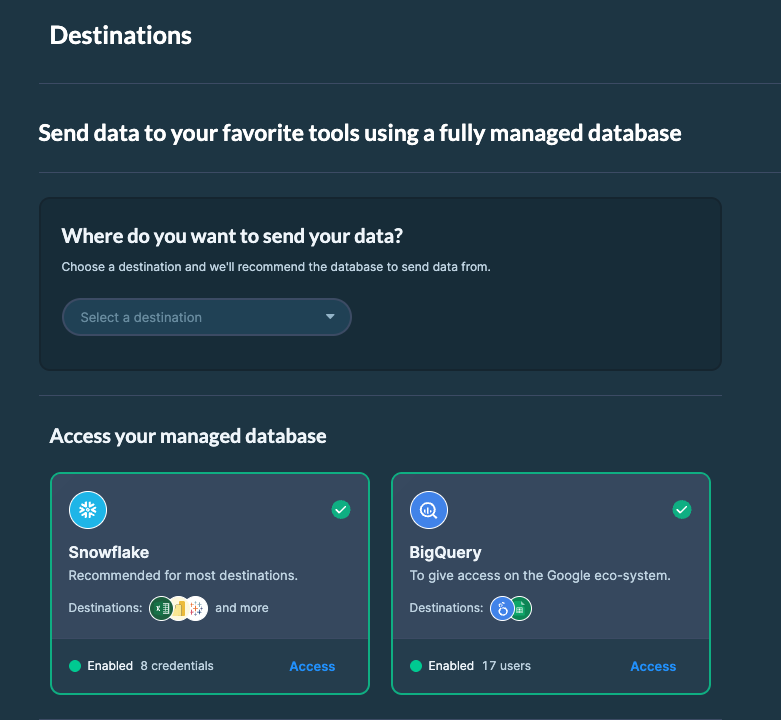 BigQuery credentials in DataHawk app
### Managing user access
Navigate to **Setup \> Destinations \> BigQuery \> Access**.
The database is accessible to the Google email addresses listed on this page. Each email must be added individually.
- **Ready**: The user has active access
- You can add or remove users at any time by clicking **Add User**
You can also connect via **Service Account** for automated workflows and integrations (advanced).
**The email needs to be a Google Account, but it doesn't need to be a `@gmail.com` address.** Any email, including a work email on your own company's domain, can be turned into a Google Account. If you try to add an email that isn't one yet, you'll see: "BigQuery only support Google Account. Please use a Google Account email instead."
#### Turning an existing email into a Google Account
If the email you want to grant access to isn't a Google Account yet:
### Go to the Google Account sign-up page
Open [accounts.google.com/signup](https://accounts.google.com/signup).
### Choose to use your current email instead of creating a new one
Google's sign-up form defaults to creating a new `@gmail.com` address. Look for an option to use an existing email address instead, and enter the work email you want to grant BigQuery access to.
### Verify the email and set a password
Google sends a verification code to that email address. Enter it, then set a password for signing in to Google with this account. Your day-to-day use of the email (inbox, sending mail, etc.) doesn't change.
### Add the email in DataHawk
Once the email is a Google Account, add it under **Setup \> Destinations \> BigQuery \> Access** as usual.
**Already sure this email is a Google Account and still getting the error?** This can happen even for genuine Google Accounts in rare cases. See [BigQuery access errors](/troubleshooting/connection-failures#snowflake--bigquery-warehouse-connections) in Troubleshooting, and contact [support@datahawk.co](mailto:support@datahawk.co) with your workspace ID rather than trying to recreate the account.
## Option 2: Self-hosted BigQuery (advanced)
If you already use Google Cloud Platform (GCP) and prefer to host the database yourself, you can connect your own BigQuery project to DataHawk. DataHawk will write your data into your project directly.
This option assumes you are already familiar with GCP and have an active project with billing enabled. If you are new to GCP, we recommend starting with the DataHawk-hosted option.
Before starting, contact your DataHawk representative to receive a dedicated service account in the form:
`@.iam.gserviceaccount.com`
### Create your Google Cloud Project
Go to [https://console.cloud.google.com/](https://console.cloud.google.com/) and sign in.
BigQuery credentials in DataHawk app
### Managing user access
Navigate to **Setup \> Destinations \> BigQuery \> Access**.
The database is accessible to the Google email addresses listed on this page. Each email must be added individually.
- **Ready**: The user has active access
- You can add or remove users at any time by clicking **Add User**
You can also connect via **Service Account** for automated workflows and integrations (advanced).
**The email needs to be a Google Account, but it doesn't need to be a `@gmail.com` address.** Any email, including a work email on your own company's domain, can be turned into a Google Account. If you try to add an email that isn't one yet, you'll see: "BigQuery only support Google Account. Please use a Google Account email instead."
#### Turning an existing email into a Google Account
If the email you want to grant access to isn't a Google Account yet:
### Go to the Google Account sign-up page
Open [accounts.google.com/signup](https://accounts.google.com/signup).
### Choose to use your current email instead of creating a new one
Google's sign-up form defaults to creating a new `@gmail.com` address. Look for an option to use an existing email address instead, and enter the work email you want to grant BigQuery access to.
### Verify the email and set a password
Google sends a verification code to that email address. Enter it, then set a password for signing in to Google with this account. Your day-to-day use of the email (inbox, sending mail, etc.) doesn't change.
### Add the email in DataHawk
Once the email is a Google Account, add it under **Setup \> Destinations \> BigQuery \> Access** as usual.
**Already sure this email is a Google Account and still getting the error?** This can happen even for genuine Google Accounts in rare cases. See [BigQuery access errors](/troubleshooting/connection-failures#snowflake--bigquery-warehouse-connections) in Troubleshooting, and contact [support@datahawk.co](mailto:support@datahawk.co) with your workspace ID rather than trying to recreate the account.
## Option 2: Self-hosted BigQuery (advanced)
If you already use Google Cloud Platform (GCP) and prefer to host the database yourself, you can connect your own BigQuery project to DataHawk. DataHawk will write your data into your project directly.
This option assumes you are already familiar with GCP and have an active project with billing enabled. If you are new to GCP, we recommend starting with the DataHawk-hosted option.
Before starting, contact your DataHawk representative to receive a dedicated service account in the form:
`@.iam.gserviceaccount.com`
### Create your Google Cloud Project
Go to [https://console.cloud.google.com/](https://console.cloud.google.com/) and sign in.
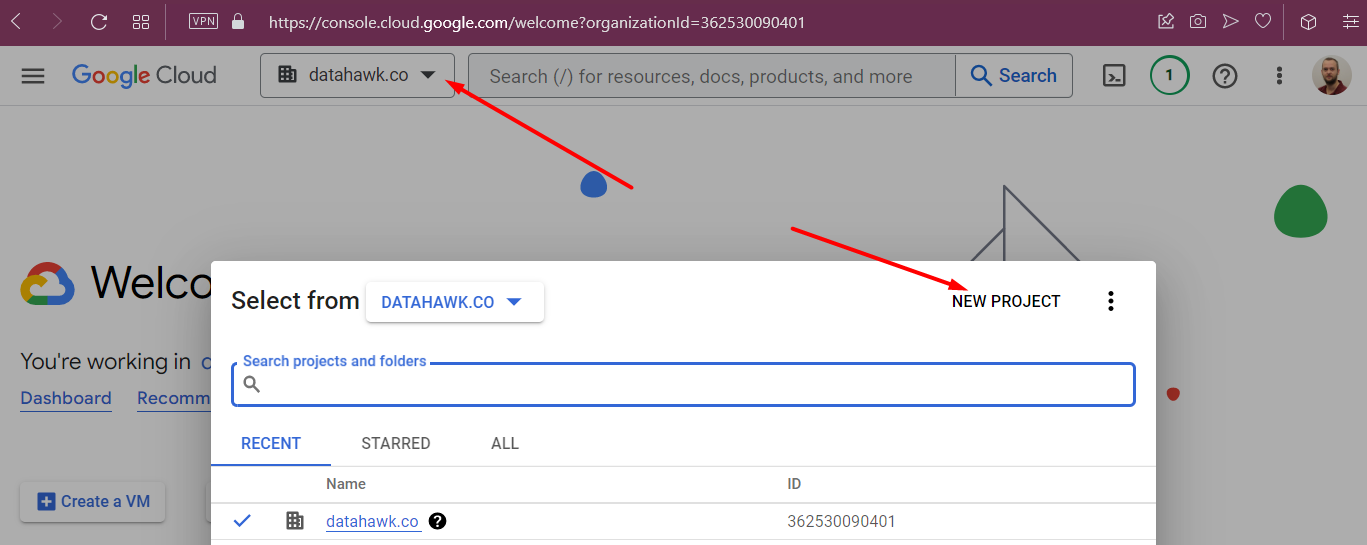 Click the project selector and choose **New Project**. Name it as you like. We suggest something like `-datahawk-bigquery`. Note that the Project ID may differ from the project name.
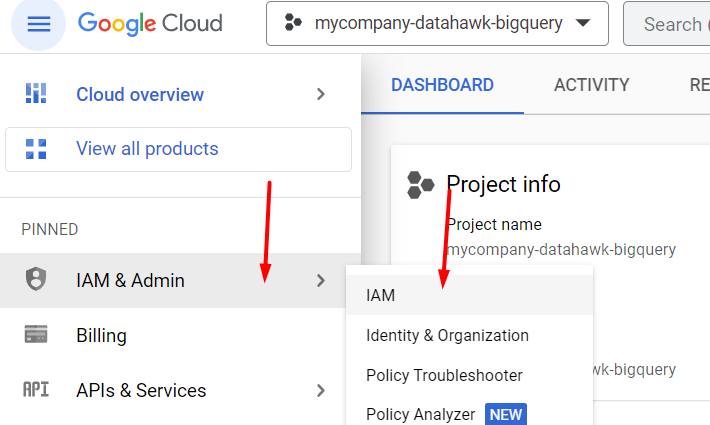
 ### Grant DataHawk access
In your project, navigate to **IAM & Admin \> IAM**.
### Grant DataHawk access
In your project, navigate to **IAM & Admin \> IAM**.
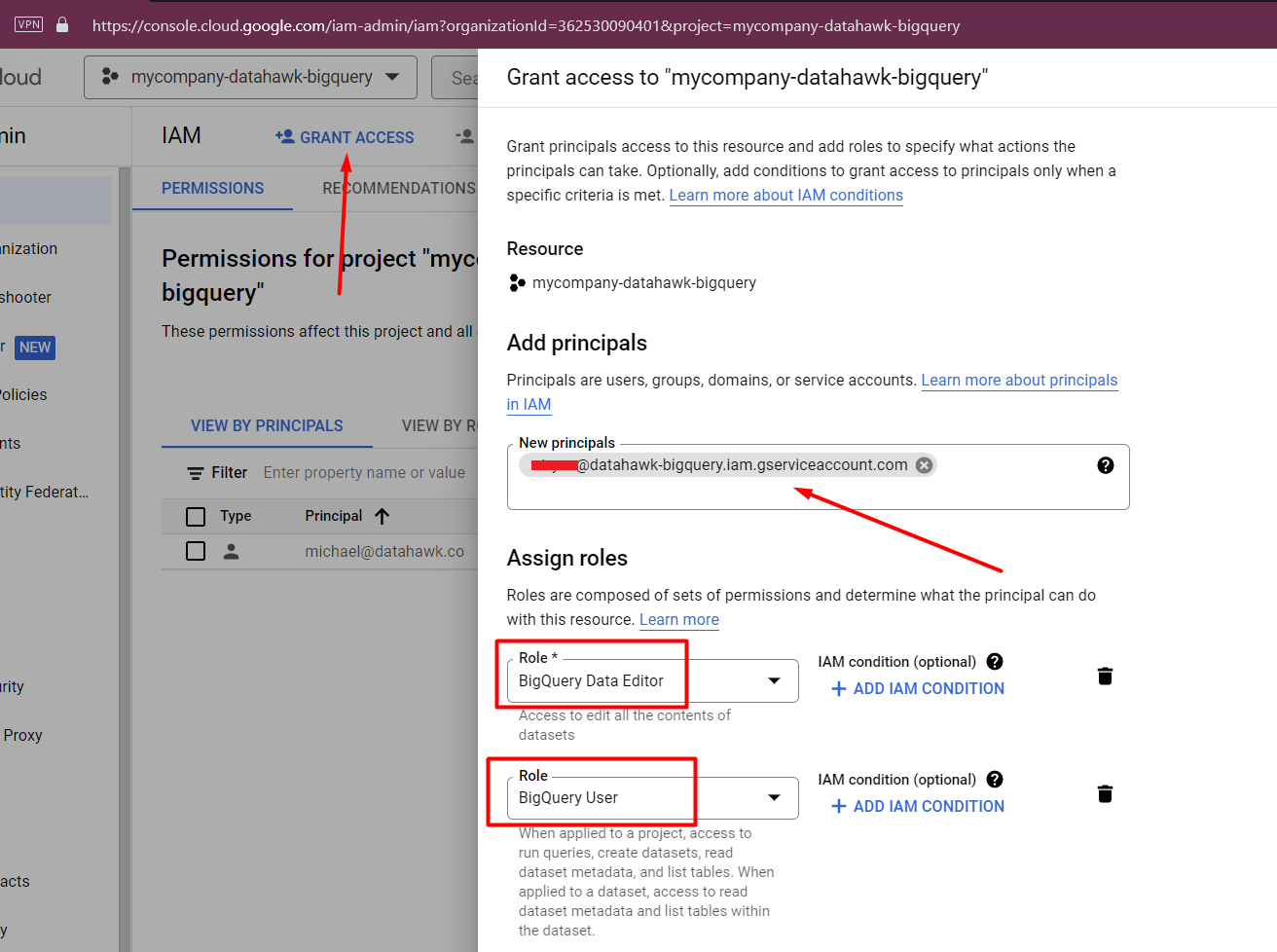
 Grant the following roles to the service account provided by your DataHawk representative:
- BigQuery Data Editor
- BigQuery User
### Share your project details with DataHawk
Grant the following roles to the service account provided by your DataHawk representative:
- BigQuery Data Editor
- BigQuery User
### Share your project details with DataHawk
 Send the following to your DataHawk representative:
- Project ID (differs from Project name)
- Preferred [GCP region](https://cloud.google.com/about/locations) (default: `europe-west4`)
- Email addresses to grant access to
## Compatible tools
BigQuery connects natively to most modern data tools. Common examples:
| Category | Tools |
|---|---|
| Business Intelligence | Looker Studio, Tableau, Google Sheets, Looker |
| Data Science & Analytics | Python (`google-cloud-bigquery`), R (`bigrquery`), Jupyter Notebooks, Apache Spark |
| ETL & Data Pipelines | Google Cloud Dataflow, Airflow, Fivetran, Stitch Data |
---
## Where to go next
Send the following to your DataHawk representative:
- Project ID (differs from Project name)
- Preferred [GCP region](https://cloud.google.com/about/locations) (default: `europe-west4`)
- Email addresses to grant access to
## Compatible tools
BigQuery connects natively to most modern data tools. Common examples:
| Category | Tools |
|---|---|
| Business Intelligence | Looker Studio, Tableau, Google Sheets, Looker |
| Data Science & Analytics | Python (`google-cloud-bigquery`), R (`bigrquery`), Jupyter Notebooks, Apache Spark |
| ETL & Data Pipelines | Google Cloud Dataflow, Airflow, Fivetran, Stitch Data |
---
## Where to go next
---
title: Connect to Excel
description: Connect your DataHawk Snowflake database to Excel via ODBC for automatically refreshed data. No manual exports needed.
---
Instead of exporting data manually, you can connect your DataHawk-powered Snowflake database directly to Excel. This gives you automatically refreshed data inside an Excel file using an ODBC connection.
Estimated setup time: **under 5 minutes.**
## Prerequisites
Before connecting Excel, make sure you have:
- **Data sources connected**: Your Amazon and/or Walmart accounts are connected and collecting data. If not yet, see [Set up data](/help-center/data-setup) first.
- **A DataHawk Snowflake database**: Activated and showing **Enabled** in your DataHawk App. Provisioning can take up to 4 hours. See [Send data to your tool](/help-center/connect-tools) if you haven't set one up.
- **Your Snowflake credentials**: Available from **Setup → Destinations → Snowflake → See Credentials** in the DataHawk App.
## Set up
### Install the Snowflake ODBC driver
Download and install the Snowflake ODBC driver for your operating system:
- [Windows 64-bit](https://sfc-repo.snowflakecomputing.com/odbc/win64/latest/index.html)
- [Windows 32-bit](https://sfc-repo.snowflakecomputing.com/odbc/win32/latest/index.html)
- [macOS](https://community.snowflake.com/s/article/How-to-configure-Excel-on-MacOS-to-use-Snowflake-using-ODBC-driver)
**On Windows, pick DSII when the installer asks.** Recent driver versions (4.x) ask which driver to install: **ODBC** or **DSII**. Choose **DSII**. If you choose ODBC, the connection test in the ODBC Administrator still passes, but Excel rejects your login.
{/* TODO: confirm with Isaac the exact installer wording and from which driver version the ODBC/DSII choice appears (case: Ben Rabinowitz, Oct 2026, driver 4.2) */}
### Configure the ODBC data source
Search for **ODBC** on your computer to open the **ODBC Data Source Administrator**. In the **User DSN** tab, click **Add \> SnowflakeDSIIDriver \> Finish**, then fill in the fields using your DataHawk Snowflake credentials:
| ODBC field | DataHawk credential |
|---|---|
| Data Source Name | Any name you choose (e.g. "DataHawk") |
| User | Your Snowflake username |
| Password | Your Snowflake password |
| Server | Your Snowflake server URL |
| Database | Your DataHawk database name |
| Warehouse | Your Snowflake warehouse |
{/* TODO: the credentials screen also shows Role and Account Name. Confirm with the data team whether Role should be filled in the DSN, and update this table and the Snowflake page. */}
### Connect Excel to your data source
In Excel, go to **Data \> Get Data \> From Other Sources \> From ODBC**. Select the data source you just created, re-enter your **User** and **Password** when prompted, then browse and select the tables you want to load.
If you want to load only part of a table (specific columns, a date range, or merged data), use **Transform Data** to open the Power Query Editor before loading. See the **Transform data with Power Query** section below.
### Schedule automatic refreshes
To keep your file up to date:
1. In the **Data** tab, click **Queries & Connections**.
2. Right-click on a query and select **Properties**.
3. Tick **Refresh data when opening the file**: This updates data every time you open Excel.
4. Optionally, tick **Refresh every 999 minutes** if you plan to keep the file open continuously.
**Why 999 minutes?** Excel's maximum scheduled refresh interval is 999 minutes (approximately 16 hours). Since DataHawk updates data once per day, refreshing when opening the file is sufficient for most users. The 999-minute option is only useful if you keep the file open across days.
## Transform data with Power Query
Rather than loading an entire table (which can contain thousands of rows) and then filtering in Excel, a better approach is to use **Power Query Editor** to shape the data before it loads.
To open Power Query Editor:
- When importing a table, click **Transform Data** before loading
- For an already-loaded table: go to **Data \> Queries & Connections**, then double-click a query
In Power Query Editor you can:
- Remove columns you don't need
- Add calculated columns
- Apply filters (e.g. last 30 days only)
- Merge multiple tables
- Write a custom SQL query
When finished, click **Close & Load**.
## Troubleshooting
Your credentials are fine. The Snowflake driver was most likely installed with the **ODBC** option instead of **DSII**, so Excel can't log in even though the test in the ODBC Administrator passes.
To fix it:
### Uninstall the Snowflake driver
Remove the Snowflake ODBC driver from your computer's installed apps.
### Reinstall it and choose DSII
Download the latest Windows 64-bit driver (link in the setup steps above). When the installer asks which driver to install, pick **DSII**.
### Recreate your data source
In the ODBC Data Source Administrator, add a new User DSN with **SnowflakeDSIIDriver** and fill in your DataHawk credentials again.
### Reconnect from Excel
Go to **Data \> Get Data \> From Other Sources \> From ODBC**, select your data source, choose **Database** as the credential type, and enter your **User** and **Password**.
Pick **Database**, then enter the **User** and **Password** from your DataHawk Snowflake credentials. Don't use your DataHawk App login.
## Limitations
Excel is not designed for large datasets. Keep the following in mind:
| Limit | Value |
|---|---|
| Maximum rows per worksheet | 1,048,576 |
| Maximum columns per worksheet | 16,384 |
These limits can be hit quickly if you load unfiltered large tables. Use Power Query filters or write a SQL query to limit your dataset to what you actually need. If you regularly need to analyze large volumes of data, consider using [Power BI](/help-center/connect-tools/powerbi) instead. DataHawk offers pre-built Power BI templates covering sales, advertising, keywords, and more.
---
title: Connect to Google Sheets
description: Connect your DataHawk BigQuery database directly to Google Sheets for automatically refreshed data. No manual exports needed.
---
Instead of exporting data manually, you can connect your DataHawk-powered BigQuery database directly to Google Sheets. This gives you automatically refreshed data inside a Google Sheets file. No downloads, no copy-pasting.
Estimated setup time: under 5 minutes.
## Prerequisites
Before connecting Google Sheets, make sure you have:
- **A DataHawk BigQuery database**: Activated in your DataHawk App. If you haven't set one up yet, see [Send data to your tool](/help-center/connect-tools).
- **Data sources connected**: Your Amazon and/or Walmart accounts are connected and collecting data. If not yet, see [Set up data](/help-center/data-setup) first.
- **Your Google email registered on the BigQuery access list**: Go to **Setup → Destinations → BigQuery → Access** in the DataHawk App and add your email. DataHawk uses this to share access to templates.
## Set up
Setting up Google Sheets takes three phases: connect your BigQuery data, create an Extract for the full results, then schedule automatic refreshes.
### 1. Connect your BigQuery database
### Open or create a Google Sheets file
### Open the BigQuery connector
In the navigation menu, click **Data → Data Connectors → Connect to BigQuery**.
### Select the BigQuery project
Choose the BigQuery project that DataHawk created for you.
### Select a schema
Pick the schema you want to access (e.g. `PRODUCT`, `SELLER`, `ADVERTISING`).
### Pick a table or write a query
Either select a table to load it entirely, or write a SQL query to load partial data.
### Connect
Click **Connect**, then **Create an Extract**.
**Case sensitivity in BigQuery queries:** when writing SQL in Google Sheets' BigQuery connector, follow these casing conventions:
- Project name: **lowercase** (e.g. `sales-datahawk-bigquery`)
- Schema: **UPPERCASE** (e.g. `PRODUCT`)
- Table name: **lowercase** (e.g. `product_sales_rank`)
- Surround the full path with backticks: `` `project.SCHEMA.table` ``
### 2. Create an Extract
After connecting, you'll see only a preview of the data. An **Extract** loads the full results, up to 25,000 rows, with optional column selection, filters, and sorting.
### Open the Extract editor
In your query results, click **Extract**.
### Choose where to insert it
Pick **New sheet** or **Existing sheet**.
### Select columns and apply filters
In the Extract Editor, choose the columns you need, add filters, and apply sorting.
### Apply
Click **Apply**. The Extract stays in sync with your query. Refresh it to pull fresh data.
### 3. Schedule automatic refreshes
Keep your file up to date without manual action.
### Open Schedule refresh
Click **Schedule refresh**.
### Set the interval
Choose **every 1 day** (recommended) or every 12 hours.
### Pick a time window
Set a preferred time of day for the refresh to run.
### Save
Click **Save**.
No need to refresh more frequently. DataHawk updates data once per day.
## SQL query examples
### Get Sales Rank (BSR) data
```sql
SELECT
OBSERVATION_DATE,
CHANNEL_PRODUCT_ID,
BROWSE_NODE_NAME,
RANK
FROM `your-project-id.PRODUCT.product_sales_rank`
WHERE OBSERVATION_DATE > CURRENT_DATE() - 30
ORDER BY OBSERVATION_DATE DESC
```
### Get keyword organic rankings
```sql
SELECT
OBSERVATION_DATE,
CHANNEL_PRODUCT_ID,
KEYWORD,
PAGE,
RANK
FROM `your-project-id.SEO.seo_product_organic_rank`
WHERE OBSERVATION_DATE > CURRENT_DATE() - 30
ORDER BY OBSERVATION_DATE DESC
```
This table can return a very large number of rows if unfiltered. Add enough filters (date range, specific products, or a join to tracked products only) to stay under the 25,000-row Extract limit.
### Limit results to tracked products only
```sql
SELECT
RANKS.OBSERVATION_DATE,
RANKS.CHANNEL_PRODUCT_ID,
RANKS.KEYWORD,
RANKS.PAGE,
RANKS.RANK
FROM `your-project-id.SEO.seo_product_organic_rank` AS RANKS
INNER JOIN `your-project-id.REFERENTIAL.referential_product_tracked` AS TRACKING
ON RANKS.PRODUCT_KEY = TRACKING.PRODUCT_KEY
WHERE RANKS.OBSERVATION_DATE > CURRENT_DATE() - 30
ORDER BY RANKS.OBSERVATION_DATE DESC
```
### Include product tags for segmentation
```sql
SELECT
RANKS.OBSERVATION_DATE,
RANKS.CHANNEL_PRODUCT_ID,
TAGS.TAG_NAME,
RANKS.KEYWORD,
RANKS.PAGE,
RANKS.RANK
FROM `your-project-id.SEO.seo_product_organic_rank` AS RANKS
INNER JOIN `your-project-id.REFERENTIAL.referential_product_tracked` AS TRACKING
ON RANKS.PRODUCT_KEY = TRACKING.PRODUCT_KEY
LEFT JOIN `your-project-id.REFERENTIAL.referential_product_tag` AS TAGS
ON TRACKING.PRODUCT_KEY = TAGS.PRODUCT_KEY
WHERE RANKS.OBSERVATION_DATE > CURRENT_DATE() - 30
ORDER BY RANKS.OBSERVATION_DATE DESC
```
## Limitations
Google Sheets is not designed for large datasets. Keep the following limits in mind:
| Limit | Value |
|---|---|
| Maximum Extract size | 25,000 rows or 10 MB |
| Maximum Pivot Table rows | 30,000 |
| Maximum total cells in a spreadsheet | 10 million |
The best way to stay within these limits is to use filters in your queries; date ranges, specific ASINs, or joins to tracked products only. Aim to keep your working dataset under 25,000 rows.
For larger datasets, consider using [BigQuery](/help-center/connect-tools/bigquery) directly with Looker Studio, or [Snowflake](/help-center/connect-tools/snowflake) with Power BI.
---
## Where to go next
---
title: Connecting Tools Overview
description: Connect DataHawk to your preferred BI tool or database, including Power BI, Looker Studio, Google Sheets, Excel, Snowflake, and BigQuery.
---
Destinations give you direct access to your DataHawk data inside the tools you already use. Instead of manually exporting files, DataHawk builds and maintains a dedicated database for you, filled with all your collected data and refreshed automatically every day.
## Which tool are you using?
## How it works
When you add a destination, DataHawk creates a dedicated database hosted on either **Snowflake** or **BigQuery** (depending on the tool you connect). This database is populated with all your DataHawk data and refreshed daily. No manual exports needed.
DataHawk refreshes your database **every day**, for both Snowflake and BigQuery. However, not all data is available at the same time. Some datasets are populated later in the day because Amazon's API does not deliver all data types on the same schedule. See the individual dataset pages in the Knowledge Hub for dataset-specific freshness details.
- **Snowflake** is the underlying database for Power BI, Excel, and SQL-based tools.
- **BigQuery** is the underlying database for Looker Studio and Google Sheets.
Each destination guide includes the database setup step inline. You don't need to set up the database separately before starting.
## What data is available?
All data you collect through your DataHawk workspace is available via the Destinations of your choice:
- **Product data**: Tracked products, listings, sales ranks, search rankings (organic and sponsored)
- **Seller Central data**: Orders, profit & loss, financial events, traffic
- **Vendor Central data**: Revenue, financial events, traffic
- **Advertising data**: Aggregated per account, campaign, or product
- **DataHawk KPIs**: Sales estimates, keyword search volume, and more
## How to add a destination
### Open Destinations
Open the DataHawk app and navigate to **Destinations** in the sidebar.
### Add Destination
Click **Add Destination**.
### Select your tool
Select the tool you want to connect (e.g. Google Sheets, Power BI). DataHawk will recommend the right hosted database for that tool: BigQuery or Snowflake.
### Confirm and provision
Confirm by clicking **Use BigQuery** or **Use Snowflake**. DataHawk will begin provisioning your database.
### Retrieve credentials
Once the status shows **Enabled**, click on the destination to retrieve your database credentials.
### Connect your tool
Follow the relevant guide above to connect your tool.
Once added BigQuery or Snowflake database to your DataHawk App, we will take up to 4 hours to get everything ready.
---
## Technical reference
For full schema documentation, supported integrations, and advanced setup (including self-hosted options):
- [BigQuery: Technical reference](/help-center/connect-tools/bigquery)
- [Snowflake: Technical reference](/help-center/connect-tools/snowflake)
---
title: Connect to Looker Studio
description: Connect DataHawk to Looker Studio via your BigQuery database for live reports and dashboards.
---
Looker Studio is Google's free dashboarding tool. DataHawk connects to Looker Studio via your BigQuery database, giving you a live link between your DataHawk data and your reports.
## Prerequisites
Before connecting Looker Studio, make sure you have:
- **A DataHawk BigQuery database**: Activated in your DataHawk App. If you haven't set one up yet, see [Send data to your tool](/help-center/connect-tools).
- **Data sources connected**: Your Amazon and/or Walmart accounts are connected and collecting data. If not yet, see [Set up data](/help-center/data-setup) first.
- **Your Google email registered on the BigQuery access list**: Go to **Setup → Destinations → BigQuery → Access** in the DataHawk App and add your email. DataHawk uses this to share access to templates.
## Option 1: Use a DataHawk template
DataHawk provides a ready-to-use Looker Studio template called **Analytics Essentials**, covering product, keywords, advertising, sales, finance, traffic, and inventory views; all pre-built and connected to your BigQuery data.
To request access:
### Open Report Templates
In the DataHawk app, go to [Report Templates](https://analytics.datahawk.co/app/report-templates).
### Request the template
Find the Looker Studio template and click **Request Access**.
### Wait for the share
A DataHawk team member will share the template to your Google email.
### Open the report
You will receive an email invitation. Accept it to open the report in Looker Studio.
See [Looker Studio Template](/help-center/dashboard-templates/looker-studio) for the full template guide.
## Option 2: Connect manually to BigQuery (for custom reports)
If you want to build your own Looker Studio reports from scratch, you can connect directly to your DataHawk BigQuery database using Looker Studio's native BigQuery connector.
### Open Looker Studio
Go to [lookerstudio.google.com](https://lookerstudio.google.com/) and create a new report or data source.
### Add a BigQuery data source
Click **Add data** and select **BigQuery**.
### Pick your DataHawk project
Select the DataHawk BigQuery project associated with your workspace.
### Choose a dataset or write a query
Choose a dataset (schema) and table, or write a custom SQL query.
### Connect
Click **Add** to connect.
Data in Looker Studio refreshes based on BigQuery's underlying data, which DataHawk updates daily.
---
## Going deeper
---
title: Power BI Templates Library
description: Download DataHawk Power BI templates for seller, vendor, advertising, product, search, and market intelligence reporting.
---
Each `.pbix` file is ready to connect to your DataHawk Snowflake database. Select a template name to start the download, open its user guide for dashboard details, then follow [Connect to Power BI](/help-center/connect-tools/powerbi) to add your credentials and refresh the report.
## Available templates
| Template | User guide | Content | Version | Changes |
|---|---|---|---|---|
| [Seller Analytics](https://github.com/datahawk-technologies/docs/releases/download/power-bi-templates/seller-analytics-dashboard.pbix) | [View guide](/help-center/dashboard-templates/power-bi/seller-analytics-dashboard) | SKU-level profit; Orders API and Finance API sales; unit economics; replenishment recommendations; account ads; campaign ads; product ads | May 21, 2026 | Fixed tax view filter calculations on the Profit Explorer tab. |
| [Product](https://github.com/datahawk-technologies/docs/releases/download/power-bi-templates/product-dashboard.pbix) | [View guide](/help-center/dashboard-templates/power-bi/product-dashboard) | Ratings; BSR; price; LQS; sales and units; estimates; sales share; active Buy Box percentage | November 1, 2025 | Migrated from obsolete tables. |
| [Search](https://github.com/datahawk-technologies/docs/releases/download/power-bi-templates/search-dashboard.pbix) | Not available | Share of voice; search ranks; keyword research; keyword insights | February 2, 2026 | Fixed month sorting. |
| [Advertising](https://github.com/datahawk-technologies/docs/releases/download/power-bi-templates/advertising-dashboard.pbix) | [View guide](/help-center/dashboard-templates/power-bi/advertising-dashboard) | Account ads; campaign ads; product ads; keyword ads | January 7, 2026 | Added Brand Store Overview and History tabs for brand-level insights.
Added a DSP Overview tab with DSP metrics, filters, and exploration tools.
Enabled custom filters in Campaign Overview and History.
Added new-to-brand metrics for Sponsored Brands and Sponsored Display campaigns.
Added new-to-brand DPV metrics for Sponsored Display. |
| [Market Intelligence](https://github.com/datahawk-technologies/docs/releases/download/power-bi-templates/market-intelligence-dashboard.pbix) | [View guide](/help-center/dashboard-templates/power-bi/market-intelligence-dashboard) | Top-selling products; category insights; estimated market size, share, and growth | May 20, 2026 | Added parent and child ASIN filters, a price range slider, a Price Bands slicer, and a Top N Brands by Market Share slicer.
Added five visuals to the Market Charts tab: minimum, median, and maximum prices by brand; minimum and maximum price by brand and price band; market share by price band; price segment share by brand; and a stacked price segment breakdown.
Added estimated market size and share metrics for categories and price segments, plus Rank Score (`1/BSR`) for aggregation and trend tracking. |
| [Vendor Analytics](https://github.com/datahawk-technologies/docs/releases/download/power-bi-templates/vendor-analytics-dashboard.pbix) | [View guide](/help-center/dashboard-templates/power-bi/vendor-analytics-dashboard) | Shipped and ordered revenue and units; shipped COGS; product page views; inventory; account ads; product ads; share of voice | October 9, 2025 | Added a quarters view.
Added the Ad Clicks Ratio metric. |
| [Seller Vendor Analytics](https://github.com/datahawk-technologies/docs/releases/download/power-bi-templates/seller-vendor-analytics-dashboard.pbix) | [View guide](/help-center/dashboard-templates/power-bi/seller-vendor-analytics-dashboard) | Combined Seller + Vendor view: Seller SKU-level profit and Orders/Finance API sales; Vendor shipped and ordered revenue, shipped COGS; inventory (Seller + Vendor); account ads; campaign ads; product ads | June 22, 2026 | Public release, combining the previous non-public version's Seller and Vendor reporting into one dashboard.
Reworked timeline logic: pick your own period (Last X Months/Weeks, etc.) instead of fixed presets, with metrics shown as both period totals and latest-period values.
Removed unused metrics and parameters left over from the timeline rework.
Both Shipped COGS and Ordered Revenue are available side by side as the Vendor revenue basis for combined metrics, so you're not locked into one.
Added Drill Down tables to the Executive Seller + Vendor tab.
Restored the Download Center.
Various visual polish. |
| [DSP Ads](https://github.com/datahawk-technologies/docs/releases/download/power-bi-templates/ads-dsp-dashboard.pbix) | [View guide](/help-center/dashboard-templates/power-bi/ads-dsp-dashboard) | Advertiser ads; order ads; line item ads; creative ads | April 2, 2026 | Corrected the relationship to handle duplicate line item names. |
| [Seller Finances & Supply Chain](https://github.com/datahawk-technologies/docs/releases/download/power-bi-templates/seller-finances-supply-chain-dashboard.pbix) | Not available | SKU-level profit; Orders API and Finance API sales; unit economics; replenishment recommendations | February 21, 2025 | Optimized the model's structure and size.
Added a lookback window parameter.
Fixed an inventory discrepancy between the Custom and Amazon recommendations tabs.
Added a marketplace filter to the Custom Restock Recommendations tab. |
---
title: Connect to Power BI
description: Connect DataHawk to Power BI using pre-built templates on your Snowflake database; get up and running in under 5 minutes.
---
Power BI is DataHawk's recommended dashboarding tool. DataHawk provides ready-to-use Power BI templates built on top of your Snowflake database. You can chose to use a template or build your own reports from scratch.
You can be up and running in under 5 minutes.
## Prerequisites
Before connecting Power BI, make sure you have:
- **Data sources connected**: Your Amazon and/or Walmart accounts are connected and collecting data. If not yet, see [Set up data](/help-center/data-setup) first.
- **A DataHawk Snowflake database**: Activated and showing **Enabled** in your DataHawk App. Provisioning can take up to 4 hours. See [Send data to your tool](/help-center/connect-tools) if you haven't set one up.
- **Your Snowflake credentials**: Available from **Settings → Destinations → Snowflake → See Credentials** in the DataHawk App.
## Get your Snowflake credentials handy
Before we start, make sure you have your Snowflake credentials ready. You can find them in the DataHawk App under **Settings → Destinations → Snowflake → See Credentials**.
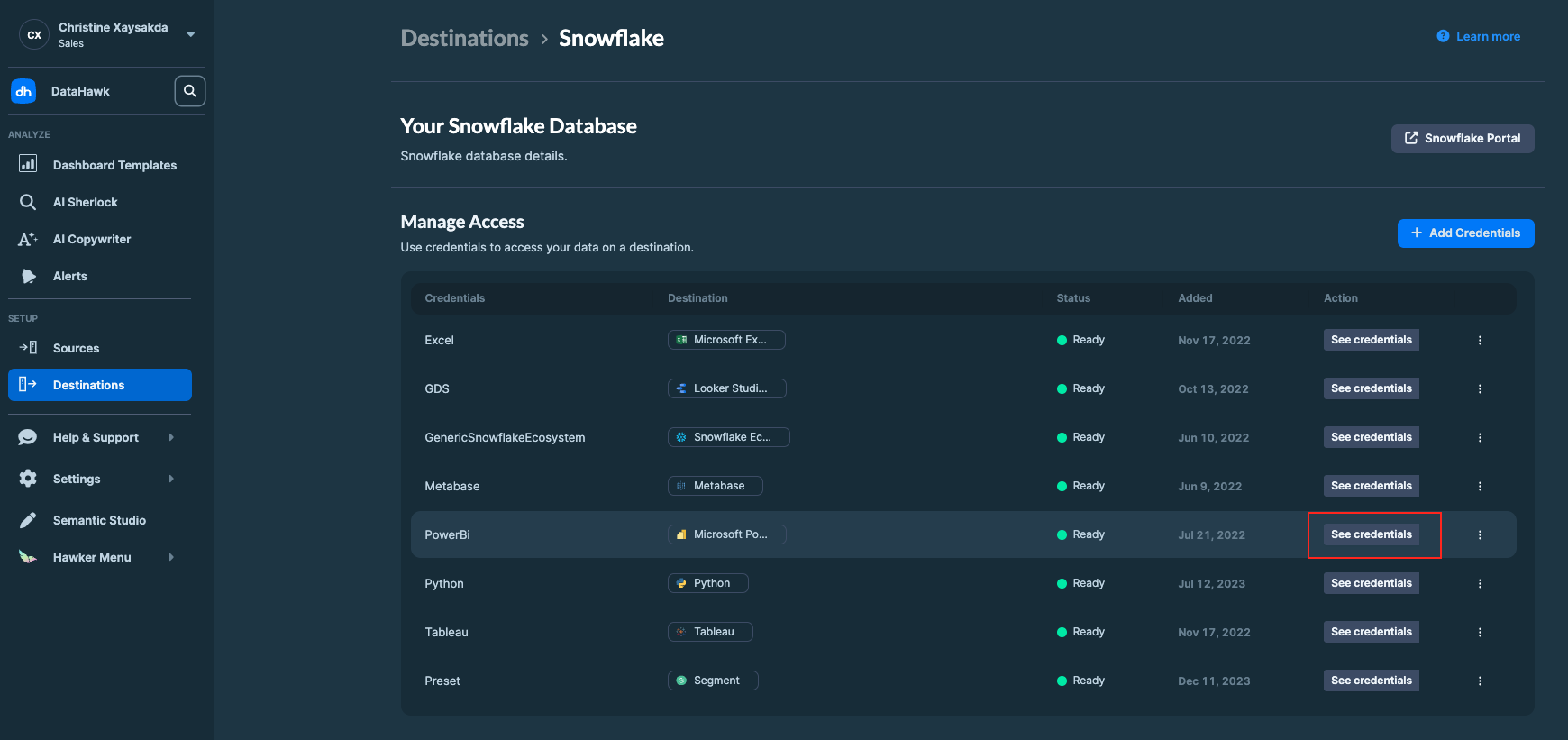 When it will be asked to enter your Snowflake credentials, copy by clicking the **Copy** icon next to each field, and paste them into Power BI when prompted.
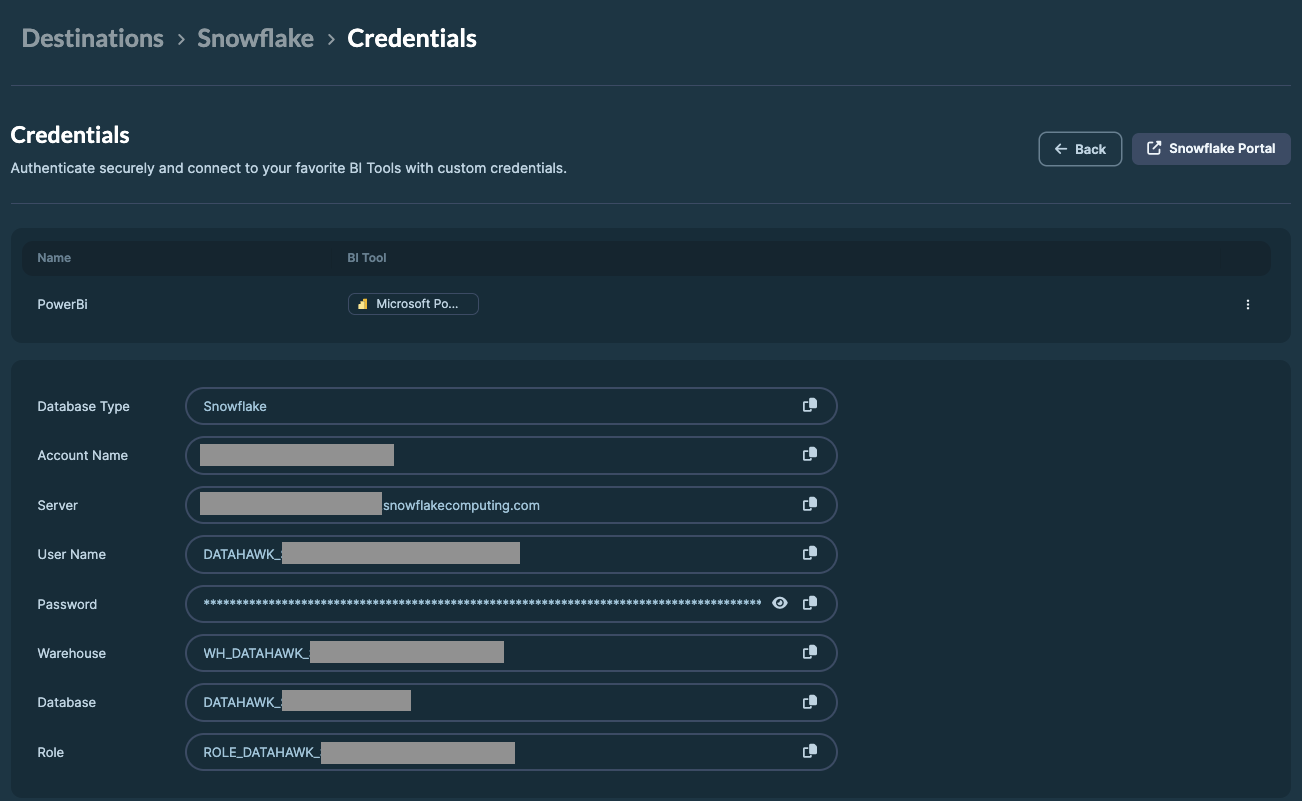 If you don't see anything in Destination page then it means you don't have a Snowflake database yet.
See [Send data to your tool](/help-center/connect-tools) to set one up. Provisioning can take up to 4 hours.
## Option 1: Use a DataHawk template
DataHawk provides pre-built Power BI templates in `.pbix` format. See [**Download Power BI Templates**](/help-center/connect-tools/powerbi-templates-library) for the full catalog and download links.
| Template | What it covers |
|---|---|
| Seller Finances & Supply Chain | SKU-level profit, orders, unit economics, replenishment |
| Product | Ratings, BSR, price, LQS, sales, estimates, buy box |
| Search | Share of voice, search ranks, keyword research |
| Advertising | Account, campaign, product, and keyword ads |
| Market Intelligence | Top-selling products, category analysis, market size and share |
| Master Vendor | Revenue, COGS, inventory, ads, share of voice |
| DSP Ads | Advertiser, order, line item, and creative ads |
### Set up on Power BI Desktop
Not recommended for MacOS users the PowerBI Desktop app. If you are using MacOS, we recommend connecting via Power BI Online instead.
**Estimated time: under 5 minutes.**
### Open the template
Open the `.pbix` template file in Power BI Desktop.
### Open the Power Query Editor
In the **Home** tab, click **Transform data**.
### Open Manage Parameters
Click **Manage Parameters**.
### Paste your Snowflake credentials
Replace the values for **Database**, **Server**, and **Warehouse** with your DataHawk Snowflake credentials.
### Apply
Click **Close & Apply**.
### Sign in to Snowflake
Enter your Snowflake **username** and **password** when prompted.
### Wait for the refresh
Data will begin refreshing. This can take up to 30 minutes depending on your data volume.
If you run into a refresh error, try closing and re-applying the parameters once or twice, then contact the DataHawk team if the issue persists.
### Publish to Power BI Online (for sharing and scheduled refresh)
**Estimated time: under 5 minutes.**
**One-time admin step required:** Before publishing templates to Power BI Online, a Power BI administrator must enable Snowflake SSO in your tenant.
Only if you have an account under your organization's Power BI instance. If you have a personal Power BI account, you can skip this step.
1. Go to [app.powerbi.com/admin-portal](https://app.powerbi.com/admin-portal)
2. Navigate to **Tenant Settings**
3. Find **Snowflake SSO**, expand it, and enable the toggle
4. Allow a few hours for the change to propagate across your organization
Once SSO is enabled:
### Open a Power BI workspace
Go to [app.powerbi.com](https://app.powerbi.com/) and navigate to my workspace (or create a new one).
### Upload the template that you just downloaded
Click **Upload → Browse** and select your `.pbix` template file.
If you don't see anything in Destination page then it means you don't have a Snowflake database yet.
See [Send data to your tool](/help-center/connect-tools) to set one up. Provisioning can take up to 4 hours.
## Option 1: Use a DataHawk template
DataHawk provides pre-built Power BI templates in `.pbix` format. See [**Download Power BI Templates**](/help-center/connect-tools/powerbi-templates-library) for the full catalog and download links.
| Template | What it covers |
|---|---|
| Seller Finances & Supply Chain | SKU-level profit, orders, unit economics, replenishment |
| Product | Ratings, BSR, price, LQS, sales, estimates, buy box |
| Search | Share of voice, search ranks, keyword research |
| Advertising | Account, campaign, product, and keyword ads |
| Market Intelligence | Top-selling products, category analysis, market size and share |
| Master Vendor | Revenue, COGS, inventory, ads, share of voice |
| DSP Ads | Advertiser, order, line item, and creative ads |
### Set up on Power BI Desktop
Not recommended for MacOS users the PowerBI Desktop app. If you are using MacOS, we recommend connecting via Power BI Online instead.
**Estimated time: under 5 minutes.**
### Open the template
Open the `.pbix` template file in Power BI Desktop.
### Open the Power Query Editor
In the **Home** tab, click **Transform data**.
### Open Manage Parameters
Click **Manage Parameters**.
### Paste your Snowflake credentials
Replace the values for **Database**, **Server**, and **Warehouse** with your DataHawk Snowflake credentials.
### Apply
Click **Close & Apply**.
### Sign in to Snowflake
Enter your Snowflake **username** and **password** when prompted.
### Wait for the refresh
Data will begin refreshing. This can take up to 30 minutes depending on your data volume.
If you run into a refresh error, try closing and re-applying the parameters once or twice, then contact the DataHawk team if the issue persists.
### Publish to Power BI Online (for sharing and scheduled refresh)
**Estimated time: under 5 minutes.**
**One-time admin step required:** Before publishing templates to Power BI Online, a Power BI administrator must enable Snowflake SSO in your tenant.
Only if you have an account under your organization's Power BI instance. If you have a personal Power BI account, you can skip this step.
1. Go to [app.powerbi.com/admin-portal](https://app.powerbi.com/admin-portal)
2. Navigate to **Tenant Settings**
3. Find **Snowflake SSO**, expand it, and enable the toggle
4. Allow a few hours for the change to propagate across your organization
Once SSO is enabled:
### Open a Power BI workspace
Go to [app.powerbi.com](https://app.powerbi.com/) and navigate to my workspace (or create a new one).
### Upload the template that you just downloaded
Click **Upload → Browse** and select your `.pbix` template file.
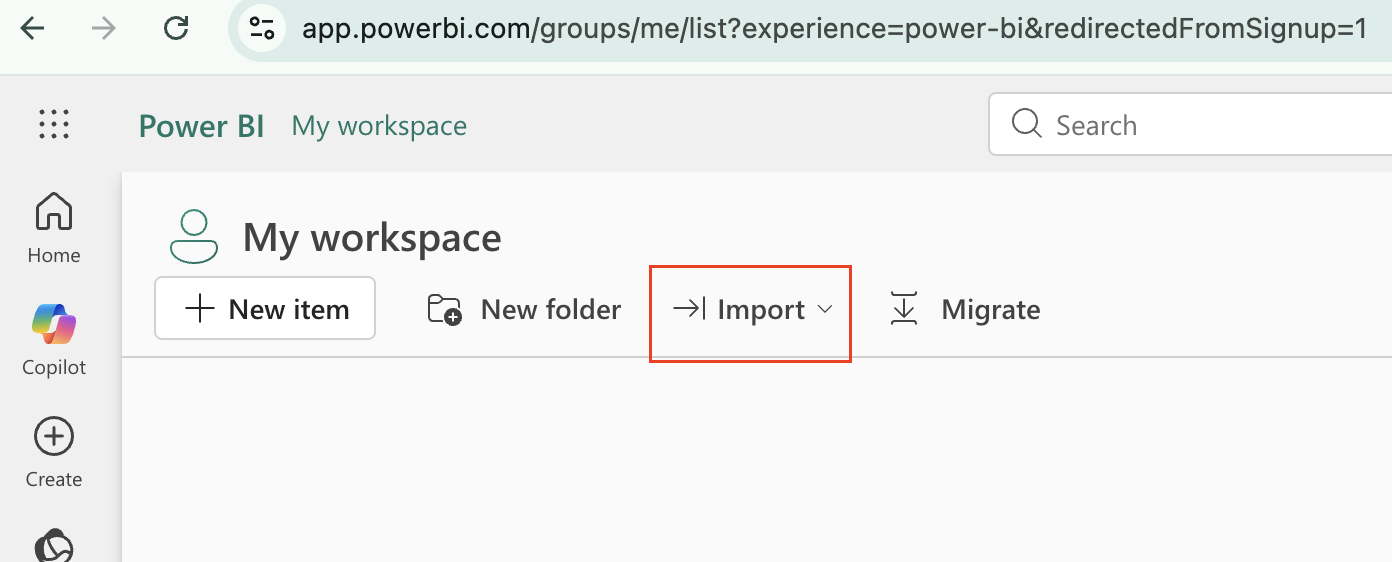
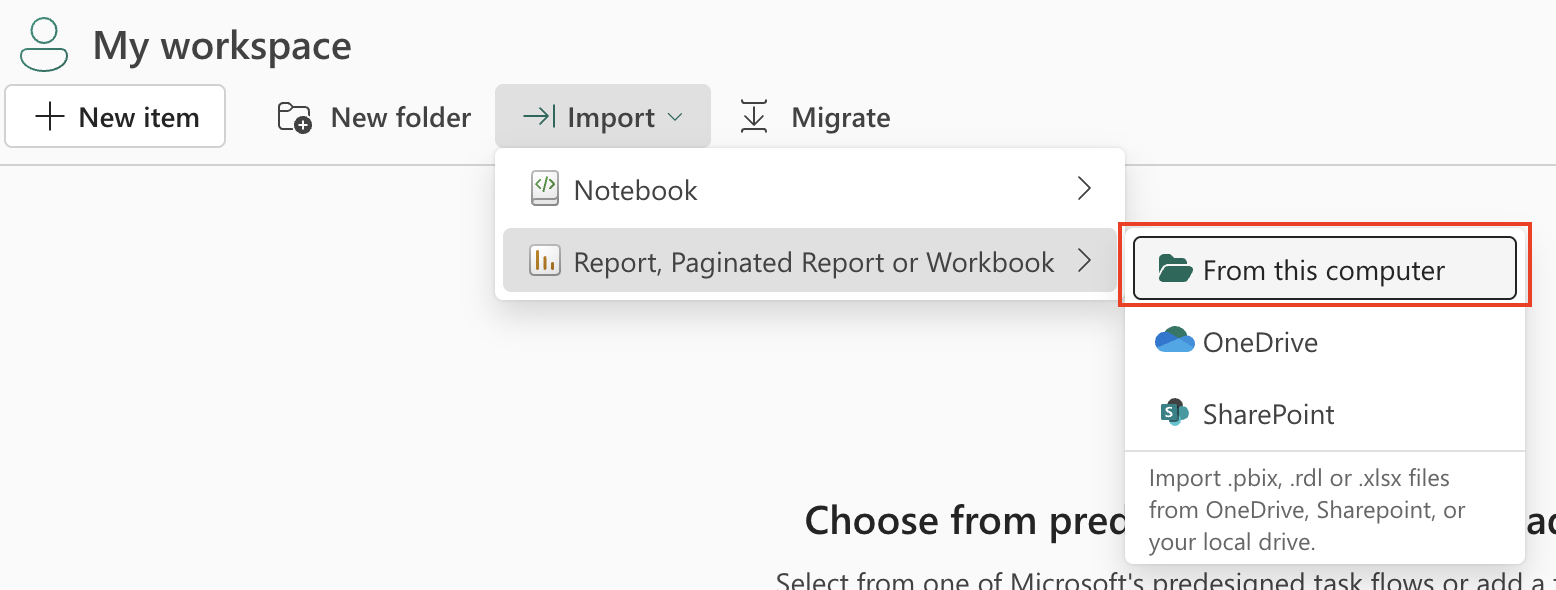 ### Open the dataset settings
You will now see 2 objects in your workspace. One with a type called "Report" and the other with a type called "Semantic Model".
Hover over the semantic model type, click the **⋯** "More options", and select **Settings**.
### Open the dataset settings
You will now see 2 objects in your workspace. One with a type called "Report" and the other with a type called "Semantic Model".
Hover over the semantic model type, click the **⋯** "More options", and select **Settings**.
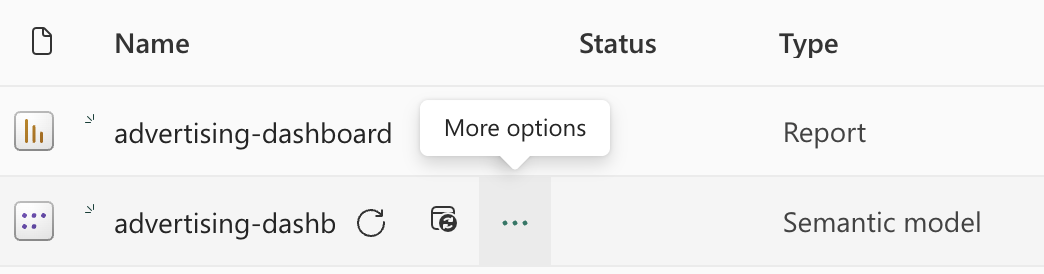 ### Go to the parameters section
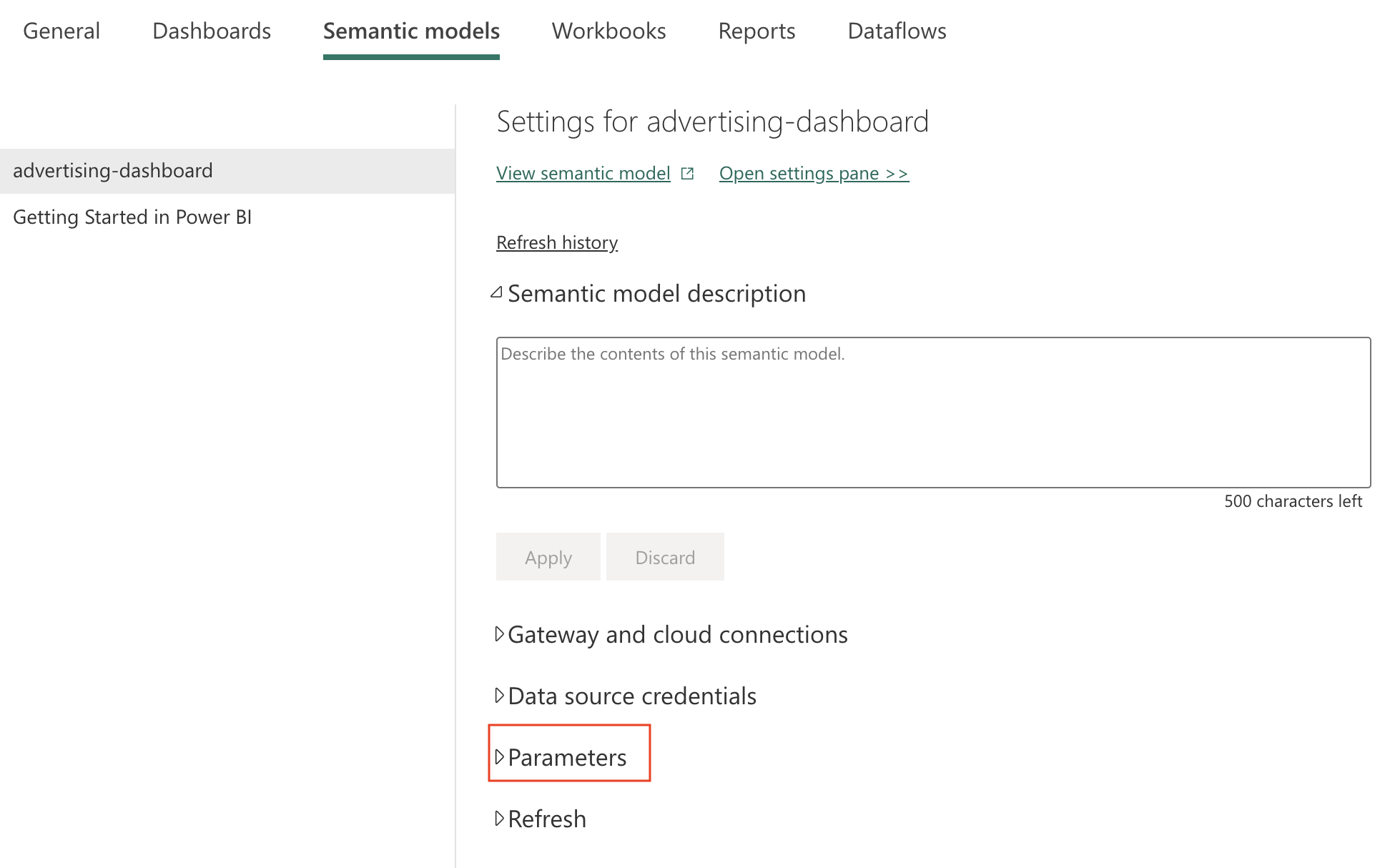 Under **Parameters**, replace **Database** and **Warehouse** with your DataHawk Snowflake credentials ([that you have handy](#get-your-snowflake-credentials-handy)). And click **Apply**.
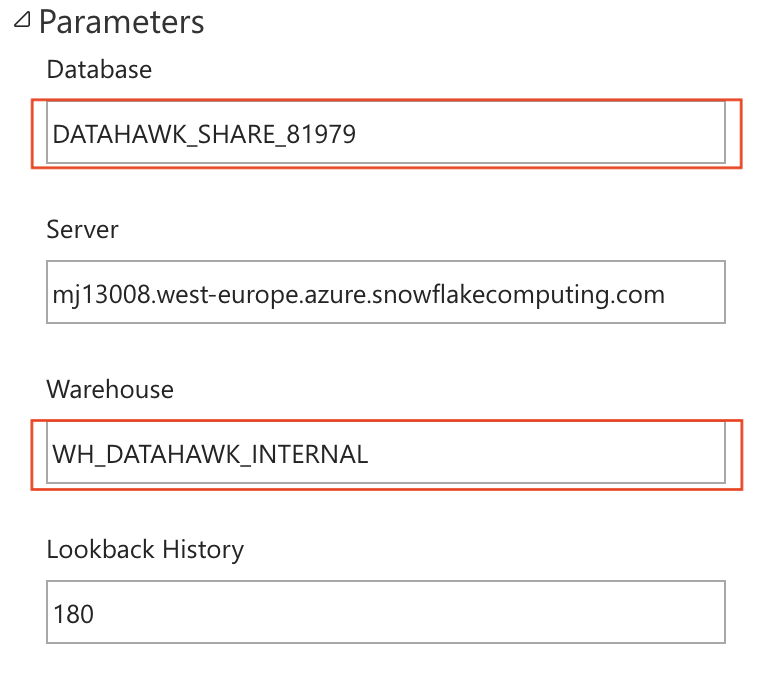 ### Sign in to Snowflake
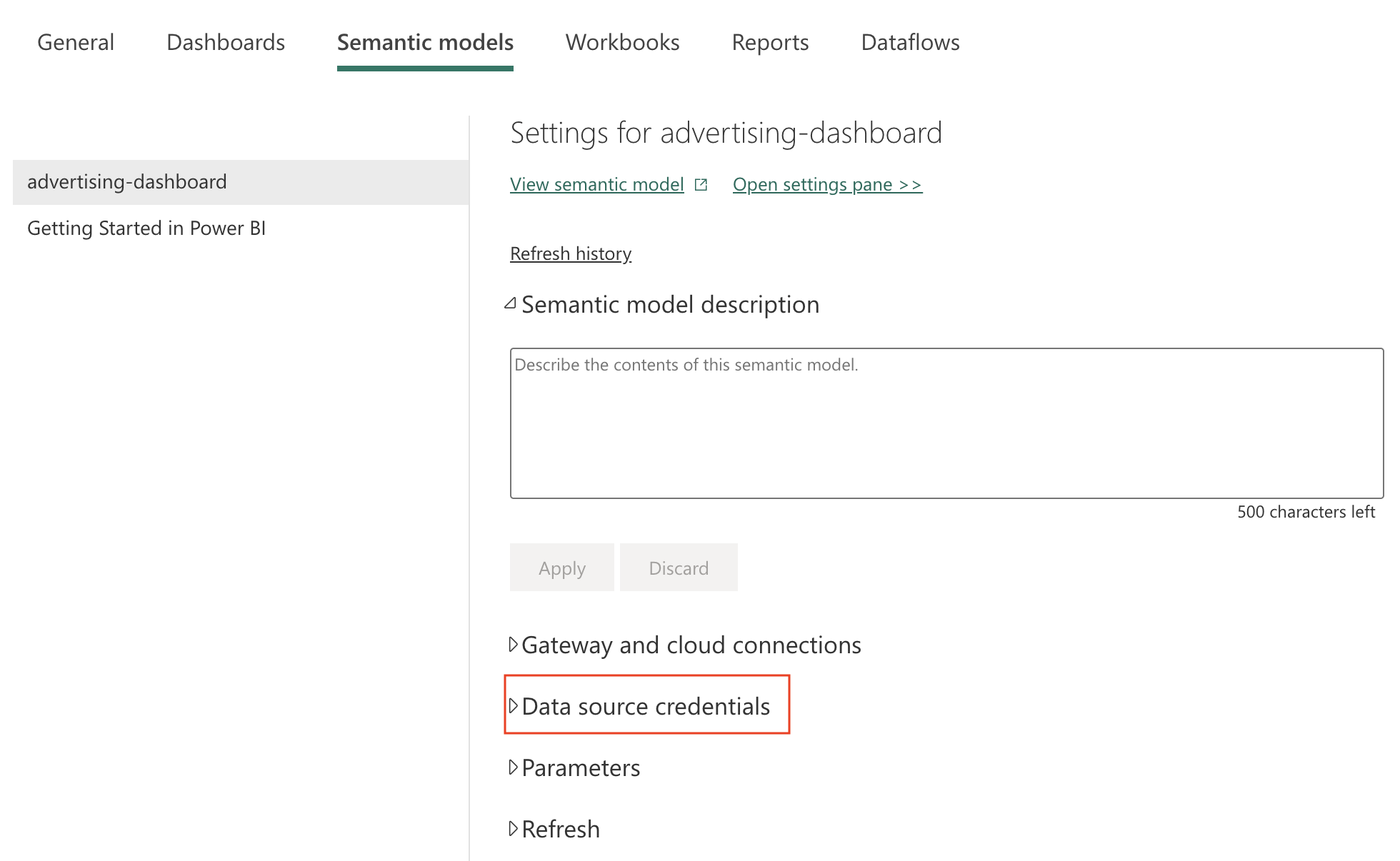 Under **Data source credentials**, click **Edit credentials** and enter your Snowflake **username** and **password** with your DataHawk Snowflake credentials ([that you have handy](#get-your-snowflake-credentials-handy)). And click **Apply**.
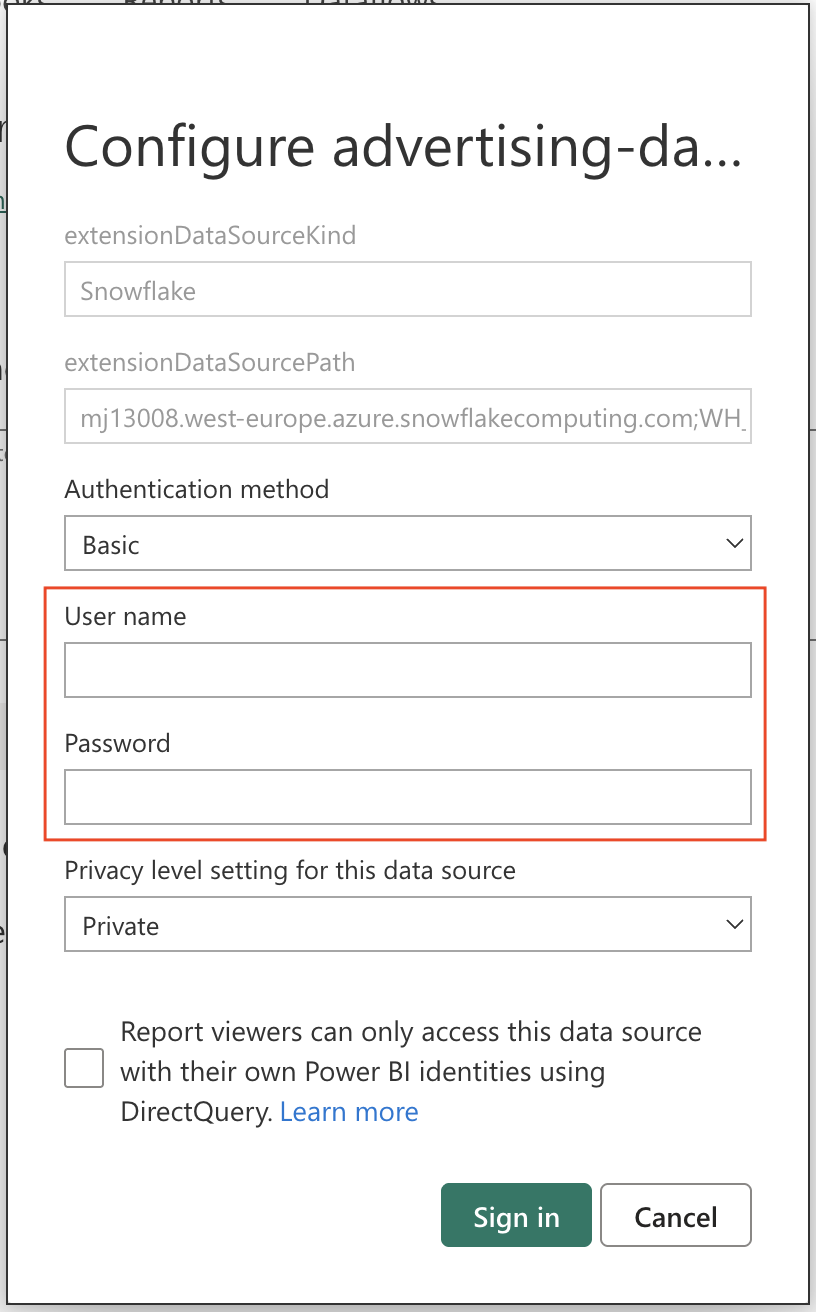 ### Enable scheduled refresh
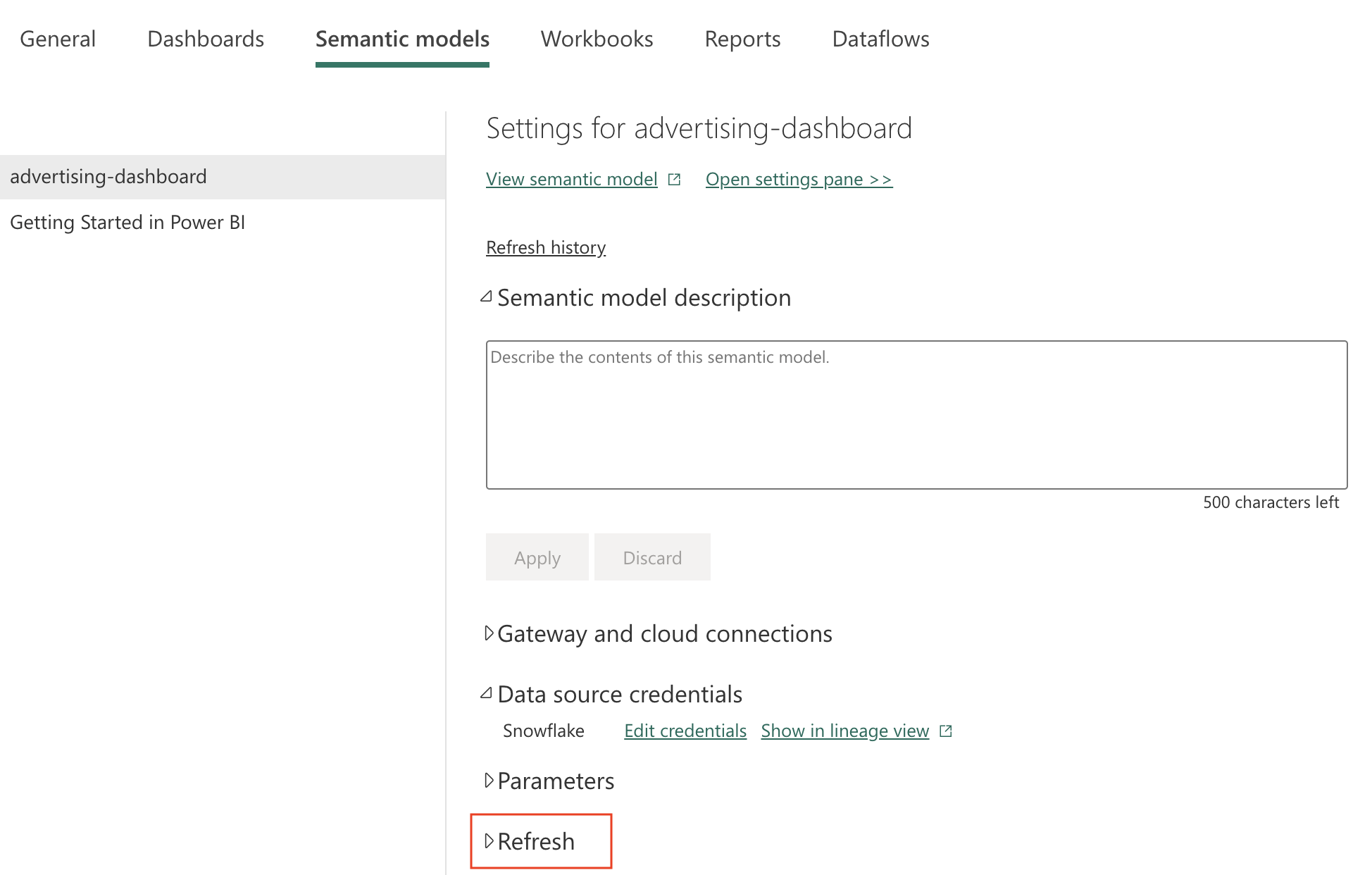 Under **Refresh**, enable the auto-refresh toggle and set it to run daily. Click Apply to save your changes.
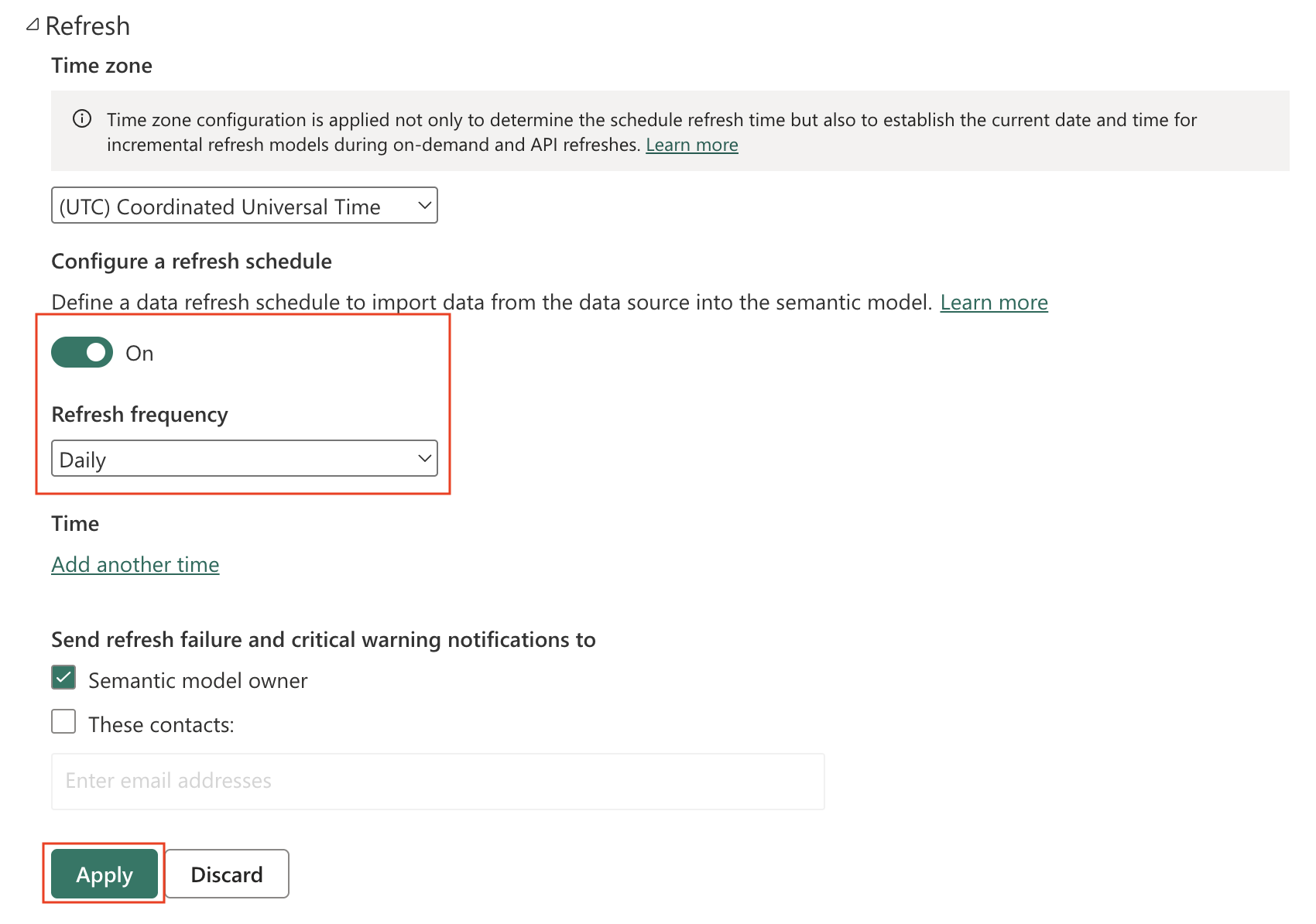 ### Refresh the data only once
Now that you have scheduled a daily refresh, you won't need to refresh manually except for now (first time you set it up).
Go back to your workspace to view the report and semantic model. On the semantic model, hover over it and select **Refresh now**.
### Refresh the data only once
Now that you have scheduled a daily refresh, you won't need to refresh manually except for now (first time you set it up).
Go back to your workspace to view the report and semantic model. On the semantic model, hover over it and select **Refresh now**.
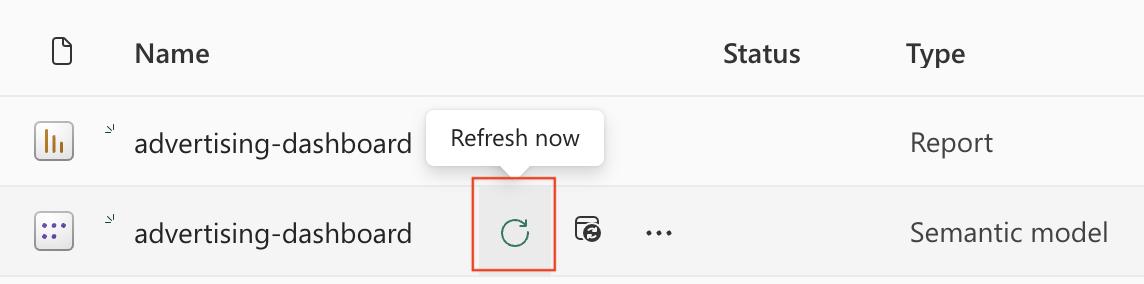 Data will begin refreshing. This can take up to 30 minutes.
### Open the report
Once refreshed, navigate back to your workspace to open the report.
Data will begin refreshing. This can take up to 30 minutes.
### Open the report
Once refreshed, navigate back to your workspace to open the report.
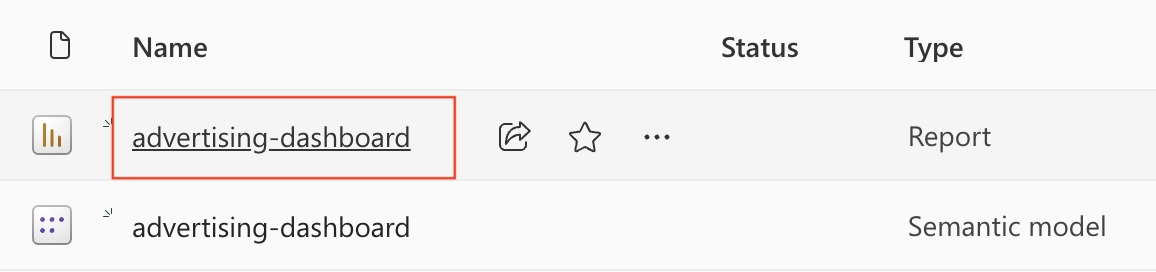 ## Changing the historical lookback window
Most DataHawk Power BI templates cap how much history a tab loads by default, both to keep the report fast and because that default isn't right for everyone. If a tab shows less history than you expected (BSR ranking limited to the last 12 months is a common example), you can usually extend it yourself, without needing raw database access.
This only controls how much of your *existing* data the dashboard displays. It can't show more history than DataHawk has actually collected for your account. See [Historical data storage](/help-center/data-setup/seller-account#historical-data-storage) for how far back your data goes.
**If you're working from the published report in Power BI Service** (the setup used in Option 1 above):
### Open the semantic model settings
In your Power BI workspace, hover over the semantic model (not the report), click **⋯ More options**, and select **Settings**.
## Changing the historical lookback window
Most DataHawk Power BI templates cap how much history a tab loads by default, both to keep the report fast and because that default isn't right for everyone. If a tab shows less history than you expected (BSR ranking limited to the last 12 months is a common example), you can usually extend it yourself, without needing raw database access.
This only controls how much of your *existing* data the dashboard displays. It can't show more history than DataHawk has actually collected for your account. See [Historical data storage](/help-center/data-setup/seller-account#historical-data-storage) for how far back your data goes.
**If you're working from the published report in Power BI Service** (the setup used in Option 1 above):
### Open the semantic model settings
In your Power BI workspace, hover over the semantic model (not the report), click **⋯ More options**, and select **Settings**.
 ### Go to Parameters
Expand **Parameters** and find the history/lookback parameter `[TO CONFIRM: exact parameter name(s), they can vary by template]`.
### Go to Parameters
Expand **Parameters** and find the history/lookback parameter `[TO CONFIRM: exact parameter name(s), they can vary by template]`.
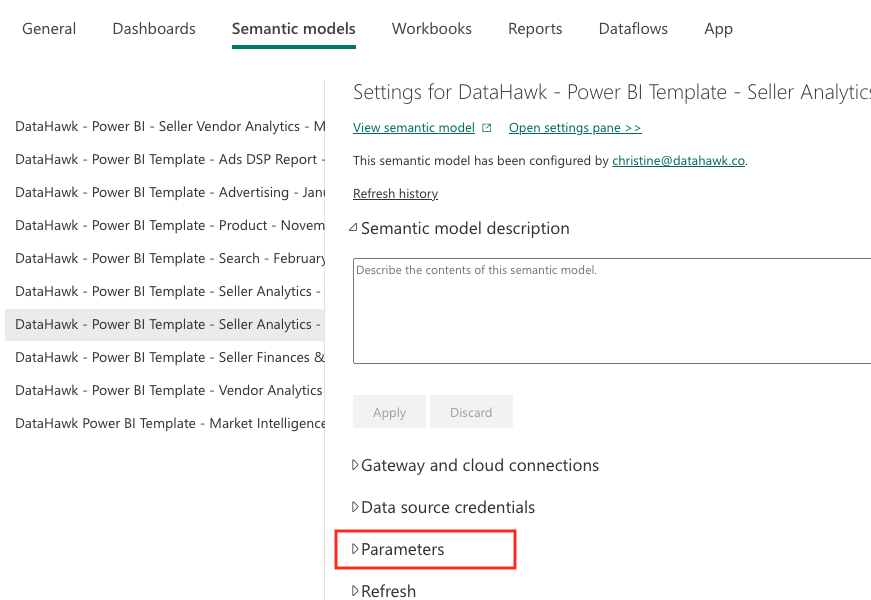 ### Enter the value you want and apply
Enter the number of days (or months, depending on the template) you want, then click **Apply**.
### Enter the value you want and apply
Enter the number of days (or months, depending on the template) you want, then click **Apply**.
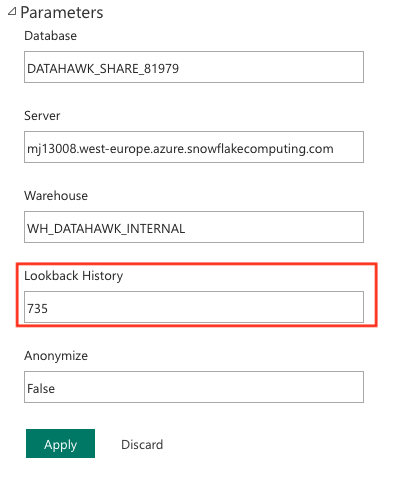 ### Refresh the semantic model
Hover over the semantic model again and select **Refresh now**. This can take up to 30 minutes depending on your data volume.
### Refresh the semantic model
Hover over the semantic model again and select **Refresh now**. This can take up to 30 minutes depending on your data volume.
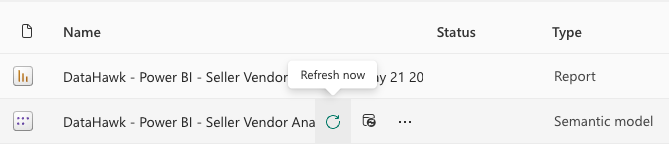 **If you're working from Power BI Desktop** (the `.pbix` file itself): open **Transform data \> Manage Parameters** instead, update the same parameter, and click **Close & Apply**.
### Default lookback by template
Each template ships with its own default, chosen to keep the report fast. If your tab's history looks capped, check this table before assuming data is missing or a bug:
| Template | Default lookback |
|---|---|
| [Seller Analytics](/help-center/dashboard-templates/power-bi/seller-analytics-dashboard) | 730 days (2 years) |
| [Vendor Analytics](/help-center/dashboard-templates/power-bi/vendor-analytics-dashboard) | 730 days (2 years) |
| [Seller + Vendor Analytics](/help-center/dashboard-templates/power-bi/seller-vendor-analytics-dashboard) | 730 days (2 years) |
| [Market Intelligence](/help-center/dashboard-templates/power-bi/market-intelligence-dashboard) | 365 days (1 year) |
| [Ads DSP](/help-center/dashboard-templates/power-bi/ads-dsp-dashboard) | 365 days (1 year) |
| [Advertising](/help-center/dashboard-templates/power-bi/advertising-dashboard) | 180 days |
| Search | 180 days `[TO CONFIRM: this template has no dedicated reference page yet; see note below]` |
| [Product](/help-center/dashboard-templates/power-bi/product-dashboard) | 90 days |
The Search dashboard is referenced in [Dashboard issues](/troubleshooting/dashboard-issues) as a shipped template but doesn't have its own guide on this site yet. `[TO CONFIRM: confirm this is a gap to fill, not a template being retired]`
## Option 2: Build your own reports
If you prefer to build from scratch or connect an existing Power BI file to your DataHawk data, [Learn how to connect to Snowflake in the power bi documentation](https://learn.microsoft.com/en-us/power-bi/connect-data/service-connect-snowflake).
DataHawk's Power BI templates use **DirectQuery** mode. If you plan to build your own reports, the same mode is recommended to ensure your data stays live.
Should you have dificulties connecting to Snowflake, please reach out to your DataHawk representative for assistance.
---
## Going deeper
Once connected, head to the dashboard guides for help using and interpreting what you see.
**If you're working from Power BI Desktop** (the `.pbix` file itself): open **Transform data \> Manage Parameters** instead, update the same parameter, and click **Close & Apply**.
### Default lookback by template
Each template ships with its own default, chosen to keep the report fast. If your tab's history looks capped, check this table before assuming data is missing or a bug:
| Template | Default lookback |
|---|---|
| [Seller Analytics](/help-center/dashboard-templates/power-bi/seller-analytics-dashboard) | 730 days (2 years) |
| [Vendor Analytics](/help-center/dashboard-templates/power-bi/vendor-analytics-dashboard) | 730 days (2 years) |
| [Seller + Vendor Analytics](/help-center/dashboard-templates/power-bi/seller-vendor-analytics-dashboard) | 730 days (2 years) |
| [Market Intelligence](/help-center/dashboard-templates/power-bi/market-intelligence-dashboard) | 365 days (1 year) |
| [Ads DSP](/help-center/dashboard-templates/power-bi/ads-dsp-dashboard) | 365 days (1 year) |
| [Advertising](/help-center/dashboard-templates/power-bi/advertising-dashboard) | 180 days |
| Search | 180 days `[TO CONFIRM: this template has no dedicated reference page yet; see note below]` |
| [Product](/help-center/dashboard-templates/power-bi/product-dashboard) | 90 days |
The Search dashboard is referenced in [Dashboard issues](/troubleshooting/dashboard-issues) as a shipped template but doesn't have its own guide on this site yet. `[TO CONFIRM: confirm this is a gap to fill, not a template being retired]`
## Option 2: Build your own reports
If you prefer to build from scratch or connect an existing Power BI file to your DataHawk data, [Learn how to connect to Snowflake in the power bi documentation](https://learn.microsoft.com/en-us/power-bi/connect-data/service-connect-snowflake).
DataHawk's Power BI templates use **DirectQuery** mode. If you plan to build your own reports, the same mode is recommended to ensure your data stays live.
Should you have dificulties connecting to Snowflake, please reach out to your DataHawk representative for assistance.
---
## Going deeper
Once connected, head to the dashboard guides for help using and interpreting what you see.
---
title: Snowflake
description: Connect DataHawk to Snowflake; a cloud-native data warehouse for use with Power BI, Excel, Tableau, and any SQL-compatible tool.
---
Snowflake is a cloud-native data warehouse built for performance and scale. DataHawk uses Snowflake as the hosted database for users who work with Power BI, Excel, Tableau, or any SQL-compatible tool outside of Google's ecosystem.
## Your DataHawk Snowflake database
When you set up a Snowflake destination, DataHawk creates and manages a dedicated database containing all your collected data. You don't need to configure or maintain anything. We handle setup, scaling, and maintenance.
What's included:
- Daily updated tables, fresh and analysis-ready
- Optimized views, cleaned and enriched by DataHawk
- No infrastructure management on your side
DataHawk refreshes your Snowflake database every day. Not all data arrives at the same time. Some datasets are populated later in the day depending on when Amazon's API makes them available. See the individual dataset pages in the Knowledge Hub for dataset-specific freshness details.
## Option 1: DataHawk-hosted Snowflake (recommended for most users)
This is the default setup. DataHawk creates and hosts the Snowflake database for you.
### How to find your credentials
In your DataHawk workspace, navigate to **Setup \> Destinations \> Snowflake \> See Credentials**.
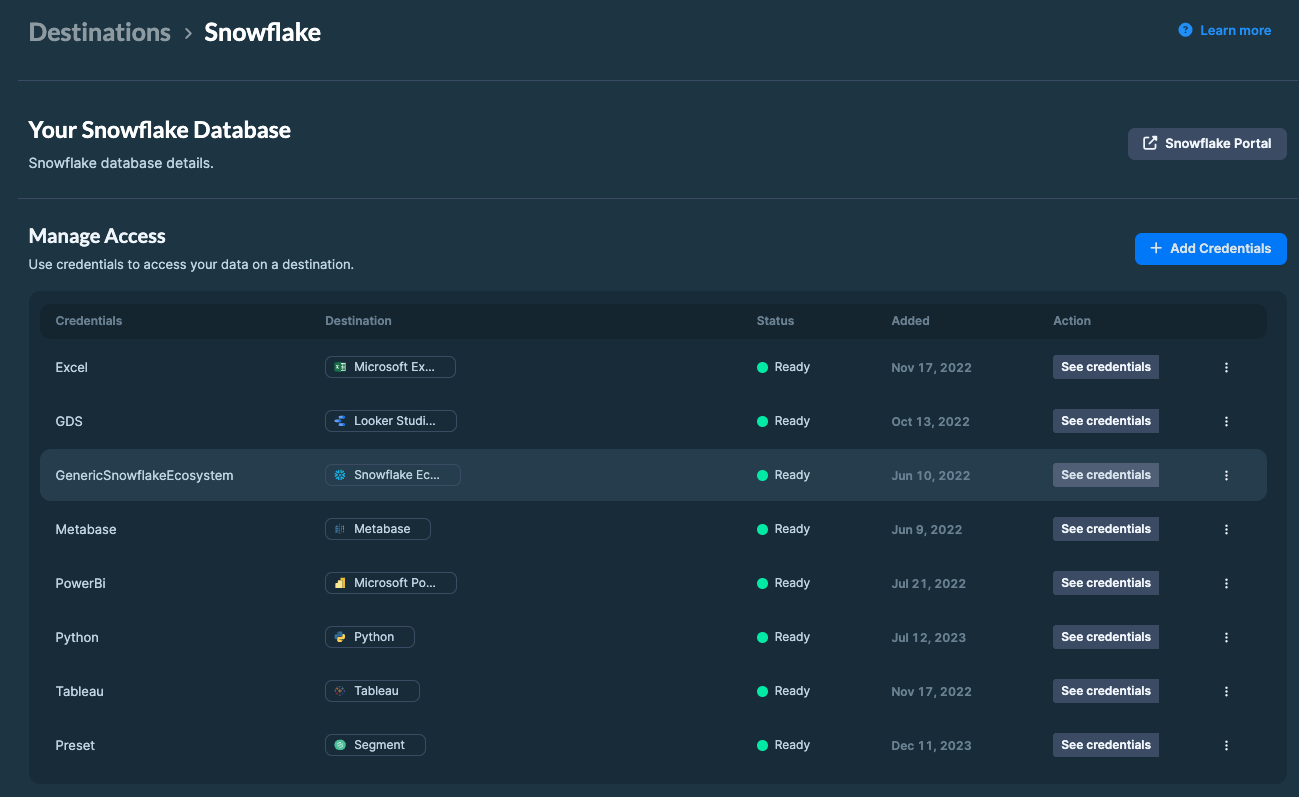 Your credentials page will contain the following:
| Field | Description |
|---|---|
| **User** | Your Snowflake username |
| **Password** | Your Snowflake password |
| **Server** | The Snowflake account URL (e.g. `xyz123.eu-west-1.snowflakecomputing.com`) |
| **Database** | The name of your DataHawk database |
| **Warehouse** | The compute warehouse to use for queries |
Keep these credentials safe. You'll use them to connect your database to your BI tool or SQL editor.
## Option 2: Self-hosted Snowflake (advanced)
If you already use Snowflake and prefer to have DataHawk write data into your own Snowflake account, this is possible.
To get started, contact your Account Manager and share your:
- [Snowflake account identifier](https://docs.snowflake.com/en/user-guide/admin-account-identifier)
- Cloud hosting provider (AWS, Azure, GCP) and region
## Snowflake Credits
DataHawk-hosted Snowflake databases consume Snowflake credits. Credits are used when your warehouse is active (running queries).
See [Snowflake credit usage and consumption monitoring](/help-center/data-reference/snowflake-credit-monitoring) to understand how credits are consumed, what happens if you exceed your quota, and how to track your own usage with self-serve SQL queries.
## Query timeout (30 minutes)
Since **November 2025**, all Snowflake Data Sharing queries are subject to a **default 30-minute timeout**. Queries that exceed 30 minutes are cancelled by the warehouse. This guardrail prevents runaway queries from consuming credits and is applied at the warehouse level for every customer.
**How to verify the limit:** In your SQL client, run `SHOW PARAMETERS LIKE 'STATEMENT_TIMEOUT_IN_SECONDS' IN WAREHOUSE ;`: The value should be `1800` (seconds).
**Write queries that finish in under 30 minutes:**
- Filter early: Restrict by `marketplace_key`, `date`, brand, or ASIN before joining wide tables.
- Limit date ranges in exploratory queries (e.g. `WHERE date >= DATEADD(month, -3, CURRENT_DATE)`).
- Use the curated `REPORTS.*` views when possible. They are pre-aggregated and substantially faster than building from raw layers.
- Avoid `SELECT *` on the largest raw tables (advertising, profit ledger, search). Project only the columns you need.
- Break very large extracts into multiple smaller queries (e.g. month-by-month) rather than a single multi-year scan.
**If a query is cancelled by the timeout:**
- Check the Snowflake query history (`QUERY_HISTORY`) to confirm the cancellation reason.
- See [Accessing our Snowflake database from behind a firewall](/troubleshooting/connection-failures/accessing-our-snowflake-database-from-behind-a-firewall) for network-side issues that can also cause long-running or stalled queries.
{/* TODO: add a dedicated query-timeout troubleshooting page once one exists, and update the link above */}
## Connect an AI assistant
You can connect Claude, ChatGPT, or another AI assistant straight to your DataHawk Snowflake database with Snowflake MCP, Snowflake's native MCP server. Your AI then runs read-only queries on every table, using your Snowflake credits. See [Use AI with your DataHawk data](/help-center/connect-tools/ai-assistants#snowflake-mcp).
## Compatible tools
Snowflake connects natively to most modern data tools. Common examples:
| Category | Tools |
|---|---|
| Business Intelligence | Power BI, Tableau, Metabase, Sigma Computing |
| SQL & Analytics | Hex, Deepnote, Streamlit |
| Data Science & ML | dbt, Python / R notebooks |
| AI assistants | Claude, ChatGPT, and other MCP-compatible tools, with [Snowflake MCP](/help-center/connect-tools/ai-assistants#snowflake-mcp) |
---
## Where to go next
Power BI is the recommended tool for DataHawk users on Snowflake. DataHawk provides pre-built Power BI templates covering sales, advertising, keywords, profitability, and more.
Your credentials page will contain the following:
| Field | Description |
|---|---|
| **User** | Your Snowflake username |
| **Password** | Your Snowflake password |
| **Server** | The Snowflake account URL (e.g. `xyz123.eu-west-1.snowflakecomputing.com`) |
| **Database** | The name of your DataHawk database |
| **Warehouse** | The compute warehouse to use for queries |
Keep these credentials safe. You'll use them to connect your database to your BI tool or SQL editor.
## Option 2: Self-hosted Snowflake (advanced)
If you already use Snowflake and prefer to have DataHawk write data into your own Snowflake account, this is possible.
To get started, contact your Account Manager and share your:
- [Snowflake account identifier](https://docs.snowflake.com/en/user-guide/admin-account-identifier)
- Cloud hosting provider (AWS, Azure, GCP) and region
## Snowflake Credits
DataHawk-hosted Snowflake databases consume Snowflake credits. Credits are used when your warehouse is active (running queries).
See [Snowflake credit usage and consumption monitoring](/help-center/data-reference/snowflake-credit-monitoring) to understand how credits are consumed, what happens if you exceed your quota, and how to track your own usage with self-serve SQL queries.
## Query timeout (30 minutes)
Since **November 2025**, all Snowflake Data Sharing queries are subject to a **default 30-minute timeout**. Queries that exceed 30 minutes are cancelled by the warehouse. This guardrail prevents runaway queries from consuming credits and is applied at the warehouse level for every customer.
**How to verify the limit:** In your SQL client, run `SHOW PARAMETERS LIKE 'STATEMENT_TIMEOUT_IN_SECONDS' IN WAREHOUSE ;`: The value should be `1800` (seconds).
**Write queries that finish in under 30 minutes:**
- Filter early: Restrict by `marketplace_key`, `date`, brand, or ASIN before joining wide tables.
- Limit date ranges in exploratory queries (e.g. `WHERE date >= DATEADD(month, -3, CURRENT_DATE)`).
- Use the curated `REPORTS.*` views when possible. They are pre-aggregated and substantially faster than building from raw layers.
- Avoid `SELECT *` on the largest raw tables (advertising, profit ledger, search). Project only the columns you need.
- Break very large extracts into multiple smaller queries (e.g. month-by-month) rather than a single multi-year scan.
**If a query is cancelled by the timeout:**
- Check the Snowflake query history (`QUERY_HISTORY`) to confirm the cancellation reason.
- See [Accessing our Snowflake database from behind a firewall](/troubleshooting/connection-failures/accessing-our-snowflake-database-from-behind-a-firewall) for network-side issues that can also cause long-running or stalled queries.
{/* TODO: add a dedicated query-timeout troubleshooting page once one exists, and update the link above */}
## Connect an AI assistant
You can connect Claude, ChatGPT, or another AI assistant straight to your DataHawk Snowflake database with Snowflake MCP, Snowflake's native MCP server. Your AI then runs read-only queries on every table, using your Snowflake credits. See [Use AI with your DataHawk data](/help-center/connect-tools/ai-assistants#snowflake-mcp).
## Compatible tools
Snowflake connects natively to most modern data tools. Common examples:
| Category | Tools |
|---|---|
| Business Intelligence | Power BI, Tableau, Metabase, Sigma Computing |
| SQL & Analytics | Hex, Deepnote, Streamlit |
| Data Science & ML | dbt, Python / R notebooks |
| AI assistants | Claude, ChatGPT, and other MCP-compatible tools, with [Snowflake MCP](/help-center/connect-tools/ai-assistants#snowflake-mcp) |
---
## Where to go next
Power BI is the recommended tool for DataHawk users on Snowflake. DataHawk provides pre-built Power BI templates covering sales, advertising, keywords, profitability, and more.
---
title: Writable Database Service
description: Add write access to a separate database alongside your DataHawk read-only database to bring in your own data, build custom pipelines, and create combined views.
---
By default, your DataHawk database is read-only. DataHawk writes your data into it, and you query it. The Writable Database Service adds write access to a separate database, allowing you to bring in your own data, build custom pipelines, and create combined views that blend DataHawk data with your own.
**This is an advanced, paid service.** It requires a Professional Services engagement.
## Who is this for?
The Writable Database Service is designed for teams that want to go beyond querying DataHawk data and need to enrich, transform, or extend it with their own data sources.
Common use cases include:
- **Blending DataHawk data with internal data**: For example, combining DataHawk sales estimates with your own ERP or inventory system data
- **Custom KPI tables**: Pre-computing metrics that aren't in DataHawk natively and storing them in the database
- **ETL pipelines**: Loading data from third-party sources into your DataHawk database for centralized reporting
- **Custom security controls**: Implementing row-level access or custom views for different teams or clients
- **Agency or white-label setups**: Creating client-specific views on top of shared DataHawk data
## How it works
DataHawk creates a **separate writable database** alongside your existing read-only DataHawk database. You receive credentials for both:
- The **read-only database**: Managed entirely by DataHawk, contains all your collected DataHawk data
- The **writable database**: Yours to use, where you can add your own tables, views, and pipelines
You can create combined views that join data from both databases to build custom reports.
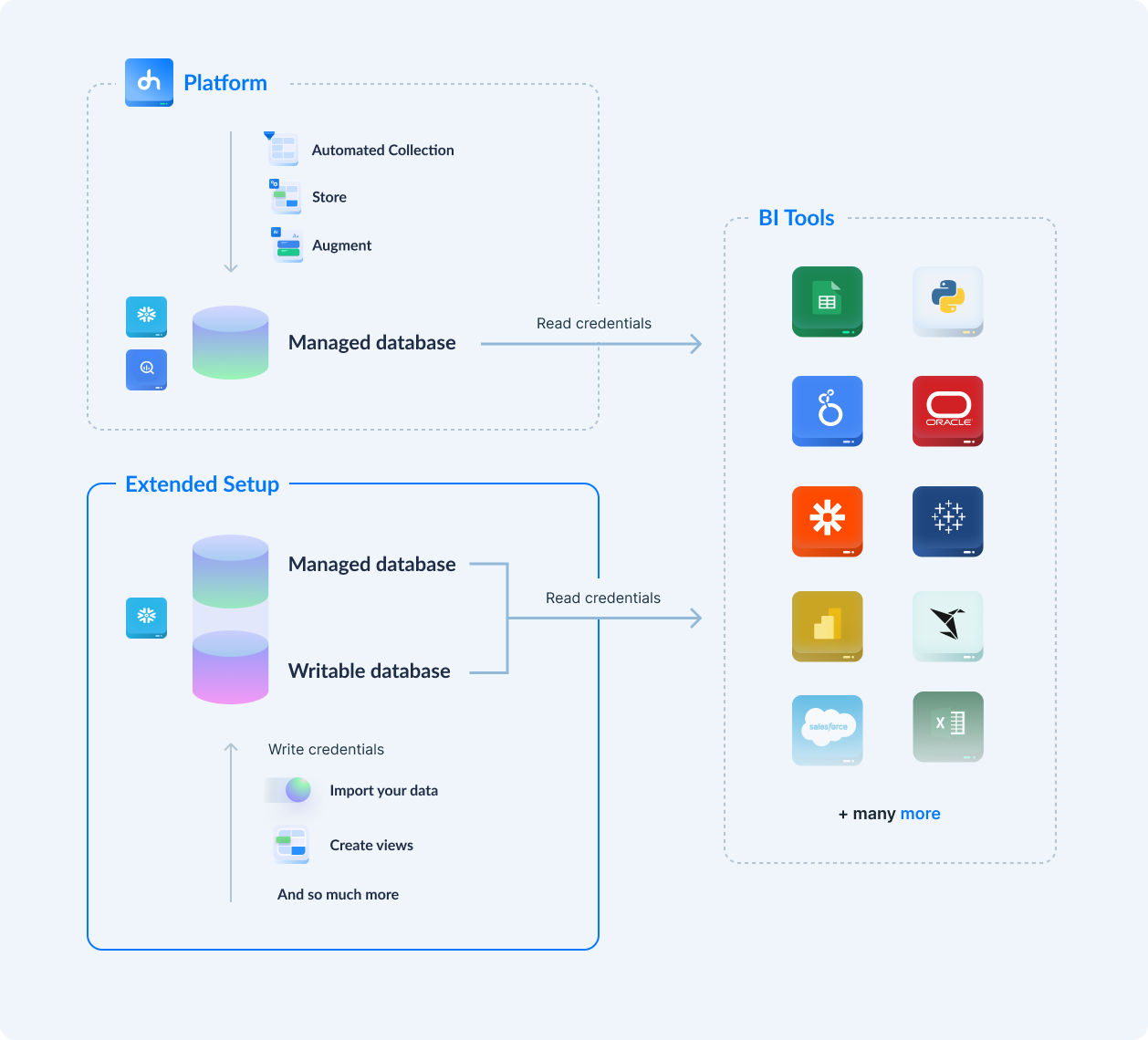 ## What you can do with write access
| Capability | Description |
|---|---|
| Add custom tables and views | Store your own data alongside DataHawk data |
| Insert, update, delete | Full DML operations on your writable database |
| Build ETL pipelines | Automate data flows from external sources |
| Create combined views | Join DataHawk read-only data with your own tables |
| Transform and clean data | Apply custom transformations before reporting |
| Implement custom security | Row-level security, custom roles and access rules |
## Responsibilities
| | DataHawk | You |
|---|---|---|
| Read-only database | Manages fully (data, performance, maintenance) | Query only |
| Writable database | Creates and provides credentials | Own and maintain (performance, security, pipelines) |
## Getting started
Write access requires a Professional Services engagement with custom pricing.
To get started, contact your DataHawk representative or reach out via the DataHawk app.
---
title: Dashboard Templates
description: Explore DataHawk's pre-built Power BI and Looker Studio dashboard templates for reporting, analysis, and client delivery.
---
DataHawk provides ready-to-use dashboard templates on top of your connected warehouse. Use this section to choose the right template for your reporting workflow, then follow the setup guide for the BI tool you use.
## Power BI templates
Power BI templates are built for deep analysis on top of your Snowflake database. They are best when you need detailed filtering, operational drilldowns, and reusable reporting across teams.
## What you can do with write access
| Capability | Description |
|---|---|
| Add custom tables and views | Store your own data alongside DataHawk data |
| Insert, update, delete | Full DML operations on your writable database |
| Build ETL pipelines | Automate data flows from external sources |
| Create combined views | Join DataHawk read-only data with your own tables |
| Transform and clean data | Apply custom transformations before reporting |
| Implement custom security | Row-level security, custom roles and access rules |
## Responsibilities
| | DataHawk | You |
|---|---|---|
| Read-only database | Manages fully (data, performance, maintenance) | Query only |
| Writable database | Creates and provides credentials | Own and maintain (performance, security, pipelines) |
## Getting started
Write access requires a Professional Services engagement with custom pricing.
To get started, contact your DataHawk representative or reach out via the DataHawk app.
---
title: Dashboard Templates
description: Explore DataHawk's pre-built Power BI and Looker Studio dashboard templates for reporting, analysis, and client delivery.
---
DataHawk provides ready-to-use dashboard templates on top of your connected warehouse. Use this section to choose the right template for your reporting workflow, then follow the setup guide for the BI tool you use.
## Power BI templates
Power BI templates are built for deep analysis on top of your Snowflake database. They are best when you need detailed filtering, operational drilldowns, and reusable reporting across teams.
## Looker Studio templates
Looker Studio templates are built on top of your BigQuery database. They are useful for lightweight dashboards, sharing, and agency-style client reporting.
---
title: Data & Metrics Guide
description: Find plain-English guides and technical references for DataHawk metrics, datasets, dashboards, and marketplace use cases.
---
Use this guide when you need to understand what your DataHawk data means, how a metric is calculated, where a signal appears, or which technical reference to open next. Start with the core concepts, then choose the topic that matches the question you are trying to answer.
## Start here
These foundation pages explain how DataHawk organizes data before you move into a specific analysis area.
## Choose a topic
Digital Shelf Analytics helps you understand how shoppers find products on Amazon and Walmart. These guides cover keyword discovery, search demand, organic and paid visibility, SoV, and Amazon search funnel behavior.
Use these guides to evaluate the product detail page itself: listing quality, price and offer changes, ratings, Buy Box ownership, sales rank, and other content signals that affect conversion.
Use these guides to size the market around your products and compare performance against competitors. They cover sales estimates, competitor discovery, market share context, and competitive product signals.
Account Analytics connects advertising performance to the accounts you operate day to day. These guides cover campaign summaries, keyword, product, placement, and store detail, plus impressions, clicks, spend, CTR, CPC, paid sales, ACoS, and ROAS.
Use these guides to connect sales activity to financial outcomes. They explain expenses, returns, profitability, and account or product-level reporting differences that affect margin analysis.
Use these guides to understand stock position, replenishment risk, and demand signals that affect inventory planning. They cover FBA inventory, movement history, stock health, and Subscribe & Save forecasting.
## For analysts and developers
The pages above explain the business meaning and methodology. When you need schemas, table families, grains, joins, SQL examples, or field-level references, use Technical Reference.
---
title: Amazon Advertising Data
description: Amazon Ads API and DSP data in DataHawk, including account, campaign, keyword, product, Brand Store, and freshness notes.
---
This page is the reference for Amazon advertising data in DataHawk. Most performance tables live in the `ADVERTISING` schema, while account and portfolio lookup tables live in `REFERENTIAL`. Use this page to understand the main table families, then use the [Exhaustive Column Referential](https://docs.google.com/spreadsheets/d/1gYGqKQP9Z71nz1lOb4y0wJ15i27NvsUzdliIJeIx0HY/edit#gid=175439716) for the current column-level reference.
To connect your Amazon Advertising account so these tables start populating, see [Amazon Private Data - Advertising Account](/help-center/data-setup/ads-account).
Exact columns, data types, and descriptions live in the [Exhaustive Column Referential](https://docs.google.com/spreadsheets/d/1gYGqKQP9Z71nz1lOb4y0wJ15i27NvsUzdliIJeIx0HY/edit#gid=175439716). This page explains which table family to use and what each family is for.
## Aggregated performance tables
Start here for most dashboarding and BI work. These tables aggregate Amazon advertising data into common analysis grains: account, campaign, keyword, product, and SKU.
Advertising performance aggregated by account, date, and sponsored type. Use it for high-level spend, sales, ACoS, ROAS, impressions, and clicks before drilling into campaigns or products.
**Data table:** `ADVERTISING.ADVERTISING_ACCOUNT_METRICS`
Advertising performance aggregated by account, campaign, date, and sponsored type. Use it to compare campaigns, monitor budget allocation, and investigate which campaigns drive changes in overall performance.
**Data table:** `ADVERTISING.ADVERTISING_CAMPAIGN_METRICS`
Keyword-level advertising performance. Use `ADVERTISING_KEYWORD_METRICS` as the recommended table for new keyword-level analyses. `ADVERTISING_KEYWORD_METRICS_V2` remains available when you specifically need its V2 surface.
**Data tables:**
- `ADVERTISING.ADVERTISING_KEYWORD_METRICS`
- `ADVERTISING.ADVERTISING_KEYWORD_METRICS_V2`
Product-level advertising performance, with different grains depending on the question:
- Use `ADVERTISING_PRODUCT_METRICS` for product performance by date.
- Use `ADVERTISING_PRODUCT_CAMPAIGN_METRICS` when you need product performance inside campaign context.
- Use `ADVERTISING_PRODUCT_SKU_METRICS` when SKU-level attribution is available and relevant.
**Data tables:**
- `ADVERTISING.ADVERTISING_PRODUCT_METRICS`
- `ADVERTISING.ADVERTISING_PRODUCT_CAMPAIGN_METRICS`
- `ADVERTISING.ADVERTISING_PRODUCT_SKU_METRICS`
Advertising tables can differ by grain: account, campaign, keyword, product, SKU, or date. Before joining tables or summing metrics, confirm the grain in [Find Tables and Columns](/help-center/data-reference/find-tables-and-columns).
## Sponsored Products source reports
These tables stay close to Amazon Sponsored Products reporting surfaces. Use them when you need report-style data for reconciliation, audit work, or deeper optimization beyond the aggregated tables.
Performance data for products advertised as part of Sponsored Products campaigns. Use it to analyze advertised ASIN performance and compare product-level results across campaigns.
**Data table:** `ADVERTISING.AMZN_SP_ADVERTISED_PRODUCTS`
Sponsored Products campaign reports with different grouping levels. Use the campaign-level table for standard campaign reporting, the ad-group table for more granular campaign structure, and the placement table when placement performance matters.
**Data tables:**
- `ADVERTISING.AMZN_SP_CAMPAIGN_BY_CAMPAIGN`
- `ADVERTISING.AMZN_SP_CAMPAIGN_BY_AD_GROUP`
- `ADVERTISING.AMZN_SP_CAMPAIGN_BY_CAMPAIGN_PLACEMENT`
Use search-term data to understand what customers actually typed or matched against, and targeting data to evaluate the keyword or product targets you configured in Amazon Ads.
**Data tables:**
- `ADVERTISING.AMZN_SP_SEARCH_TERM`
- `ADVERTISING.AMZN_SP_TARGETING`
Sponsored Products purchased-product reporting shows products that were purchased after an ad interaction, including products that were not the advertised item. Use it to understand cross-ASIN purchasing behavior and downstream attribution.
**Data table:** `ADVERTISING.AMZN_SP_PURCHASED_PRODUCTS`
Gross and invalid traffic reporting for Sponsored Products. Use it when reconciling clicks, impressions, or traffic quality against Amazon Ads reports.
**Data table:** `ADVERTISING.AMZN_SP_GROSS_AND_INVALID_TRAFFIC_REPORT`
## Sponsored Brands and Sponsored Display
Sponsored Brands and Sponsored Display data has its own campaign and report tables. Use these when you need campaign-type-specific analysis, especially brand-building metrics such as NTB where Amazon exposes them.
Sponsored Brands tables cover campaign, search-term, and traffic-quality reporting. Use them for Sponsored Brands campaign analysis, search-term review, and invalid-traffic reconciliation.
**Data tables:**
- `ADVERTISING.AMZN_SB_CAMPAIGNS`
- `ADVERTISING.AMZN_SB_SEARCH_TERM`
- `ADVERTISING.AMZN_SB_GROSS_AND_INVALID_TRAFFIC_REPORT`
Sponsored Display tables cover campaign reporting and traffic-quality reporting. Use them for Sponsored Display performance analysis and reconciliation against Amazon's Sponsored Display reports.
**Data tables:**
- `ADVERTISING.AMZN_SD_CAMPAIGNS`
- `ADVERTISING.AMZN_SD_GROSS_AND_INVALID_TRAFFIC_REPORT`
## Brand Store and DSP
Amazon Brand Store and DSP data sit alongside sponsored-ads performance, but they answer different questions: owned-store engagement and upper-funnel / programmatic advertising performance.
Daily Brand Store performance metrics, including store sales, units, orders, views, and visits. Use it to understand how shoppers engage with your Amazon Store and how store activity changes over time.
**Data table:** `ADVERTISING.AMZN_BRAND_STORE_METRICS`
Amazon DSP campaign performance. Use it for DSP-specific analysis such as spend, sales, impressions, clicks, detail page views, and new-to-brand performance.
**Data table:** `ADVERTISING.AMZN_DSP_CAMPAIGNS`
DSP performance is not marketplace-specific. DataHawk no longer filters DSP data by the marketplace of the related advertising account.
## Advertising referentials
Use these lookup tables to connect advertising facts to account, report, and portfolio metadata.
Lists advertising accounts connected to DataHawk and the account metadata used to populate the `ADVERTISING` schema.
**Data table:** `REFERENTIAL.REFERENTIAL_ADVERTISING_ACCOUNT`
Tracks report availability and status by advertising account. Use it when investigating whether a report is expected, missing, pending, or unavailable for an account.
**Data table:** `REFERENTIAL.REFERENTIAL_ADVERTISING_ACCOUNT_REPORTS`
Links portfolio IDs to portfolio names across advertising types. Use it to label campaign data with portfolio names.
**Data table:** `REFERENTIAL.REFERENTIAL_ADVERTISING_PORTFOLIO`
Portfolio names are updated every two weeks.
## Data freshness and history
- **Backfill at connection:** DataHawk retrieves up to **60 days** of Amazon Advertising history when you connect an account.
- **Daily refresh:** advertising data is updated daily.
- **Recent data can be incomplete:** the latest 24-48 hours may still be processing on Amazon's side or in DataHawk's sync.
- **API limitations apply:** some metrics, reports, campaign types, or marketplaces depend on what Amazon exposes through the Ads API.
- **Marketplace coverage can vary:** the Amazon Advertising setup page notes that some marketplaces are not supported for Sponsored Ads data because of Amazon API availability.
## Attribution and metric notes
Ad performance metrics use Amazon's 14-day post-click attribution window for sales, orders, and conversions. DSP RoAS uses Total Cost (not Ad Spend) and includes both view-through and click-through attribution within the same 14-day window.
For exact metric definitions in dashboards, see [Advertising Power BI Dashboard](/help-center/dashboard-templates/power-bi/advertising-dashboard).
## Search Term Impression Share (SP vs SB)
Search Term Impression Share, the share of eligible impressions your ads won for a given search term, is available for Sponsored Brands but not for Sponsored Products.
| Ad type | Available in DataHawk | Table and column |
|---|---|---|
| Sponsored Brands (SB) | Yes | `ADVERTISING.AMZN_SB_SEARCH_TERM`, column `SEARCH_TERM_IMPRESSION_SHARE` |
| Sponsored Products (SP) | No | Not collected. Manual download from the Amazon ads console only |
**Sponsored Brands:** DataHawk collects this from Amazon's Search Term Impression Share (SIS) report. Query `SEARCH_TERM_IMPRESSION_SHARE` in `ADVERTISING.AMZN_SB_SEARCH_TERM` directly, with no manual download.
**Sponsored Products:** DataHawk does not provide this metric. Amazon's Advertising API doesn't expose `searchTermImpressionShare` for Sponsored Products, so `ADVERTISING.AMZN_SP_SEARCH_TERM` carries no impression share column. Amazon offers it for Sponsored Products only as a manual download from the ads console. This is an Amazon API limitation rather than a DataHawk gap.
You can still bring the Sponsored Products report into your warehouse yourself. Download it from the Amazon ads console and load it through the [Writable Database Service](/help-center/connect-tools/writable-database), then join it to your DataHawk Sponsored Products tables.
## Where to go next
---
title: Amazon Brand Analytics Data
description: Amazon Brand Analytics reports in DataHawk; search Catalog and Query Performance, Search Terms, Market Basket, and Repeat Purchases.
---
This page provides an overview of the Amazon Brand Analytics reports available through DataHawk.
Brand Analytics data is sourced from Amazon Brand Analytics (ABA), through the Amazon Selling Partner API (SP-API) for registered brands.
## Search Catalog Performance
### Overview
Brand Catalog Performance reveals how customers engage with your brand's products during their search and shopping journey. It provides visibility into key engagement metrics, impressions, clicks, cart additions, and purchases, to help you analyze your sales funnel.
**Requirements:** Brand-registered sellers or vendors with Amazon Brand Registry, with Seller account connected to DataHawk.
**Data Availability:**
- Frequency: Monthly & Weekly (typically on Mondays)
- Granularity: ASIN level
- Time Range: Most recent 7-day rolling window
- History: 12 months collected at account connection, then stored moving forward
**Data Tables:**
- `selling_partner.ba_search_catalog_performance_weekly`
- `selling_partner.ba_search_catalog_performance_monthly`
## Search Query Performance
### Overview
Search Query Performance (SQP) provides overall query performance, impressions, clicks, cart adds, and purchases, for a given ASIN and specified date range.
Use cases:
- **Optimize ad spend:** Identify high-performing queries for Sponsored Products and Sponsored Brands.
- **Boost organic visibility:** Understand which search terms drive the most conversions organically.
- **Track brand strength:** See how your brand ranks for strategic keywords relative to competitors.
- **Fix conversion leaks:** Discover drop-offs in the funnel where queries drive views but no purchases.
- **Enhance SEO:** Use high-intent search terms to improve listings and product detail pages.
**Example 1: Funnel Drop-Off**
Query: "wireless earbuds"; impressions: 500K → Clicks: 4K → Purchases: 100
Conversion rate is low (2.5%). Opportunity to improve title, images, or targeting.
**Example 2: Brand Share Loss**
Query: "BrandX headphones"; impressions: 20K → Clicks: 800 → Purchases: 20 → Brand Share: 40%
Indicates competitors are appearing for your branded terms. Consider retargeting or ad defense.
**Example 3: High Intent Keyword**
Query: "noise canceling bluetooth earbuds for gym"; CTR: 18%, Conversion Rate: 12%
Signals a highly qualified audience. Should be prioritized in both SEO and paid campaigns.
### Metrics Glossary
**Impressions:**
- **Total Query Impressions**: Total times a search term appeared in Amazon search results across all ASINs
- **Your ASIN Impressions**: How often your ASIN appeared for that search query
- **ASIN Impression Share**: The percentage of total impressions your ASIN received for the query
**Clicks:**
- **Total Query Clicks**: How many times products were clicked after the query across all ASINs
- **Your ASIN Clicks**: Number of clicks your ASIN received for the search term
- **Click-Through Rate (CTR)**: Percentage of impressions that resulted in a click
- **ASIN Click Share**: Percentage of clicks that went to your ASIN
- **Median Click Price (Market)**: Median price of products clicked by customers across the marketplace
- **Median Click Price (ASIN)**: Median price of your ASIN when clicked from the search query
**Cart Adds:**
- **Total Cart Adds**: Number of times any product was added to cart after the search
- **Your ASIN Cart Adds**: Number of cart adds for your ASIN
- **Cart Add Rate**: Percentage of clicks that led to a cart add
- **ASIN Cart Add Share**: Share of cart adds captured by your ASIN
**Purchases:**
- **Total Purchases**: Number of orders placed after the search query
- **Your ASIN Purchases**: Number of purchases attributed to your ASIN
- **Purchase Conversion Rate**: Percentage of clicks that resulted in a purchase
- **ASIN Purchase Share**: Share of total purchases that went to your ASIN
- **Unique Customers**: Number of unique buyers who purchased your ASIN after the query
- **Repeat Customer Rate**: Percentage of those buyers who had previously purchased your ASIN
### Requirements
- **Eligibility:** Brand-registered sellers or vendors with Amazon Brand Registry.
- **Access:** Must have connected your Seller account to DataHawk.
### Data Availability
- Frequency: Monthly & Weekly (typically on Mondays)
- Granularity: ASIN and ASIN x Term levels
- Time Range: Most recent 7-day rolling window
- History: 3 months collected at account connection, then stored moving forward
For now, Search Query data is only available for accounts with a catalog \<1K ASINs.
**Data Tables:**
- `selling_partner.ba_search_query_performance_weekly`
- `selling_partner.ba_search_query_performance_monthly`
## Search Terms
This report contains data on the most-clicked ASINs by search keyword and department for a marketplace.
**Requirements:** Brand-registered sellers or vendors with Amazon Brand Registry, Seller account connected.
**Data Table:** `selling_partner.ba_search_terms_src`
## Market Basket
This report contains data on the items that are most commonly purchased in combination with the items in the customer's basket (cart) at checkout.
**Requirements:** Brand-registered sellers or vendors with Amazon Brand Registry, Seller account connected.
**Data Table:** `selling_partner.ba_market_basket_src`
## Repeat Purchases
This report contains data on the quantity of repeated purchases of the selling partner's items.
**Requirements:** Brand-registered sellers or vendors with Amazon Brand Registry, Seller account connected.
**Data Table:** `selling_partner.ba_repeat_purchase_src`
## Sources
[Amazon SP API Documentation - Brand Analytics](https://developer-docs.amazon.com/sp-api/docs/report-type-values-analytics#brand-analytics-reports)
---
title: Amazon DataHawk Reports
description: DataHawk Reports provide curated, business-ready datasets designed for reporting, analytics, and executive decision-making.
---
The **DataHawk Reports** provide **curated, business-ready datasets** designed for reporting, analytics, and executive decision-making.
Reports in this layer are built by **combining multiple Amazon data sources**, including Seller Central reports, Amazon APIs, etc, into **standardized, trusted views**. Complex reconciliation logic, metric alignment, and data modeling are handled upstream, so the reports are ready to use as-is.
## Available reports
### Amazon Products Daily (`amzn_products_daily`)
A daily snapshot of product-level data combining metrics from multiple sources into a single unified view.
For the full column reference, see the [Exhaustive Column Referential](https://docs.google.com/spreadsheets/d/1gYGqKQP9Z71nz1lOb4y0wJ15i27NvsUzdliIJeIx0HY/edit#gid=175439716).
## Related
- [Find Tables and Columns](/help-center/data-reference/find-tables-and-columns): How to navigate the source-of-truth schema reference
- [Amazon Advertising Data](/help-center/data-reference/amazon-advertising-data): Amazon Ads API, DSP, Brand Store, and advertising table families
---
title: Amazon Inventory Data
description: Guide to Amazon inventory datasets in DataHawk; FBA stock summaries, FBA planning, ledgers, restock recommendations, and SQL examples.
---
This guide explains which Amazon inventory dataset to use for tracking stock, explaining stock changes, and planning replenishment. Each dataset comes from a different Amazon report, so they answer different questions and their numbers aren't always interchangeable.
**See your inventory the way Seller Central shows it**
- **FBA stock → [`SELLER_INVENTORY_FBA_SUMMARIES`](/help-center/data-reference/fba-seller-inventory-fba-summaries)**: daily stock per SKU and marketplace, split into available, inbound, reserved, researching and unfulfillable units
- **FBA aging, fees and recommendations → [`SELLER_INVENTORY_FBA_PLANNING_LATEST`](/help-center/data-reference/fba-seller-inventory-fba-planning)**: inventory age, storage costs, sales velocity and Amazon's restock or removal advice
- **FBM stock → [`SELLER_INVENTORY_ALL_LISTINGS`](/help-center/data-reference/fbm-seller-inventory-all-listings)**: your catalog with pricing and availability for MFN
- **Stock by country → [`SELLER_INVENTORY_LEDGER_SUMMARY`](/help-center/data-reference/seller-inventory-ledger-summary)**: where your units are physically stored, per country, and how they moved
- **Stock by fulfillment center → [`SELLER_INVENTORY_LEDGER_SUMMARY_BY_FC`](/help-center/data-reference/seller-inventory-ledger-summary)**: the same balances and movements, per fulfillment center
## Decision Flowchart
This diagram acts as a decision tree to identify which inventory tables address your specific needs. Start with your question (e.g. "What's my current stock?" or "Why did inventory change?") and follow the branches to locate datasets for real-time snapshots, historical trends, restock alerts, or logistics planning.
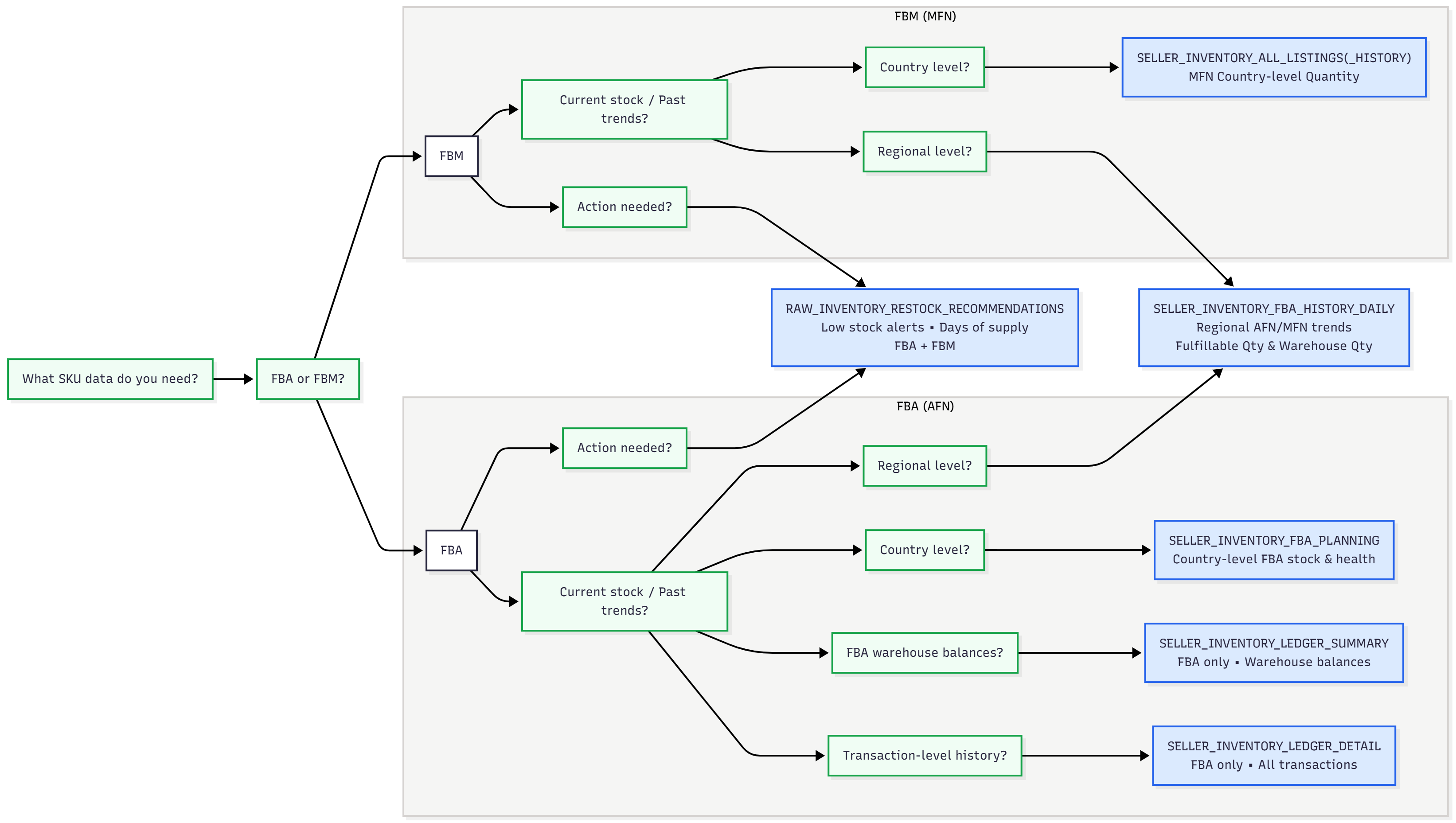 ## Inventory Datasets
All tables live in either the `RAW_INVENTORY` or `SELLING_PARTNER` schema (noted per table below).
### Start here: covers most questions
| Schema | View | Purpose | Freshness | Coverage |
|---|---|---|---|---|
| `SELLING_PARTNER` | `SELLER_INVENTORY_FBA_SUMMARIES` | Current FBA stock by status (available, inbound, reserved, researching, unfulfillable) | Daily | All marketplaces enabled on the account |
| `SELLING_PARTNER` | `SELLER_INVENTORY_FBA_PLANNING_LATEST` | FBA aging, storage costs, sales velocity, pricing and removal recommendations | Daily | All marketplaces except NL, PL, SE, BE and IE; partial for MX |
| `SELLING_PARTNER` | `SELLER_INVENTORY_ALL_LISTINGS` | FBM price, status, quantity | Daily | All marketplaces |
| `SELLING_PARTNER` | `SELLER_INVENTORY` | Unified FBA + FBM view: combined stock, price, and condition per ASIN/SKU | Daily | FBA side follows FBA Planning coverage; FBM side all marketplaces |
**Summaries or Planning for FBA stock?** Use `SELLER_INVENTORY_FBA_SUMMARIES` to follow your stock. It covers every marketplace on the account, keeps every FBA SKU, reports `available` the way Seller Central does, and breaks unfulfillable units down by reason (customer, warehouse, distributor or carrier damaged, defective, expired) and reports units Amazon is researching, which Planning doesn't provide. Use `SELLER_INVENTORY_FBA_PLANNING_LATEST` when you need what Summaries doesn't have: inventory age, storage fees, sales velocity, days of supply and Amazon's recommendations. Total units are very close between the two, but the planning report can count units still in fulfillment center processing as available, and it can leave out SKUs that hold stock, especially outside the US.
`SELLER_INVENTORY` doesn't add new data. It joins `SELLER_INVENTORY_FBA_PLANNING_LATEST` and `SELLER_INVENTORY_ALL_LISTINGS` on ASIN × SKU × Marketplace so you don't have to. Use the individual tables above if you only need one channel or want FBA-specific fields like aging or reserved detail not exposed on the unified view.
### History: snapshot tables vs. tables loaded with history
Inventory tables fall into two groups, depending on what Amazon lets us collect. This matters when you need data from before you connected your account.
| Type | Tables | History available |
|---|---|---|
| **Snapshot tables** | `SELLER_INVENTORY_FBA_SUMMARIES` (+ `_HISTORY`), `SELLER_INVENTORY_FBA_PLANNING` (+ `_LATEST`), `SELLER_INVENTORY_ALL_LISTINGS` (+ `_HISTORY`), `RAW_INVENTORY_RESTOCK_RECOMMENDATIONS` (+ `_HISTORY`), `SELLER_INVENTORY` | From the day you connect your account, moving forward. Amazon only reports the current state, so earlier days can't be loaded |
| **Ledger tables** | `SELLER_INVENTORY_LEDGER_SUMMARY`, `SELLER_INVENTORY_LEDGER_SUMMARY_BY_FC`, `SELLER_INVENTORY_LEDGER_DETAIL` | Up to 18 months before you connect your account (Amazon's limit), then daily |
**Need stock levels from before you connected?** Use the ledger tables: `ending_warehouse_balance` gives your stock per day, by country or fulfillment center. Keep in mind it counts units physically stored in each location, which isn't the same as the marketplace-level `available` in the snapshot tables.
### For specific needs
| Schema | View | Use it for | Why not the default? | Freshness | Coverage |
|---|---|---|---|---|---|
| `SELLING_PARTNER` | `SELLER_INVENTORY_FBA_SUMMARIES_HISTORY` | Day-by-day trend of FBA stock by status | Summaries only gives the latest snapshot; this is its historized counterpart | Daily | All marketplaces enabled on the account |
| `SELLING_PARTNER` | `SELLER_INVENTORY_FBA_PLANNING` | Trend of FBA aging, velocity, and recommendations over time | Planning Latest only gives the current snapshot; this is its historized counterpart | Daily | Same as Planning Latest |
| `SELLING_PARTNER` | `SELLER_INVENTORY_LEDGER_SUMMARY` | Stock balance and net movements by country | Summaries reports what each marketplace can sell, not where units are stored | Daily, 2 to 3 days behind | Country |
| `SELLING_PARTNER` | `SELLER_INVENTORY_LEDGER_SUMMARY_BY_FC` | Stock balance and net movements by fulfillment center | Same as above, at warehouse level | Daily, 2 to 3 days behind | Fulfillment center |
| `SELLING_PARTNER` | `SELLER_INVENTORY_LEDGER_DETAIL` | Transaction-level reason for a stock change | Snapshots show current state only; they don't log individual transactions or their causes | Daily | Country + fulfillment center |
| `RAW_INVENTORY` | `RAW_INVENTORY_RESTOCK_RECOMMENDATIONS` | Amazon's dedicated stock alert + reorder qty/date | Real overlap with Planning, not a clean split (see note below) | Daily (with a gap, since Amazon takes time to process recommendations) | Country |
| `RAW_INVENTORY` | `RAW_INVENTORY_RESTOCK_RECOMMENDATIONS_HISTORY` | Trend of the restock alert above | Same purpose as the restock report, just historized | Daily | Same as above |
| `SELLING_PARTNER` | `SELLER_INVENTORY_ALL_LISTINGS_HISTORY` | Trend of FBM price/status/quantity | Listings only gives the latest snapshot; this is its historized counterpart | Daily | All marketplaces |
**Restock signals overlap.** `SELLER_INVENTORY_FBA_PLANNING` carries a parallel signal via `recommended_action = 'GoToRestock'` with `recommended_ship_in_quantity` / `recommended_ship_in_date`. It's not a clean split from `RAW_INVENTORY_RESTOCK_RECOMMENDATIONS`, so check both if you're building alerts.
**Don't sum FBA stock across marketplaces.** With Pan-European FBA, the European Fulfillment Network or Remote Fulfillment, Amazon shows the same units in every marketplace that can sell them. For stock by physical location, use the ledger summary tables.
### Legacy or internal: avoid querying directly
| Schema | View | Why it exists | Why not just use it? |
|---|---|---|---|
| `RAW_INVENTORY` | `RAW_INVENTORY_FBA` *(deprecated)* | Raw feed behind older dashboards | Region-level only. Superseded by `SELLER_INVENTORY_FBA_SUMMARIES` for stock and `SELLER_INVENTORY_FBA_PLANNING` for aging and recommendations. Its `afn_reserved_quantity` also leaves out units in transfer between fulfillment centers |
| `RAW_INVENTORY` | `RAW_INVENTORY_FBA_HISTORY` *(deprecated)* | Historized version of the report above | Same limitation as `RAW_INVENTORY_FBA` |
| `SELLING_PARTNER` | `SELLER_INVENTORY_FBA_HISTORY_DAILY` | Region-level daily trend | Region-level, while Summaries and Planning are marketplace level |
| `RAW_INVENTORY` | `RAW_INVENTORY_LEDGER_DETAIL`, `RAW_INVENTORY_LEDGER_SUMMARY` *(legacy)* | Older fulfillment-center-level ledgers | Replaced by the `SELLING_PARTNER` ledger tables. Use those instead |
## How Tables Connect
The diagram below traces how raw Amazon reports feed into the transformed views available in your database.
## Inventory Datasets
All tables live in either the `RAW_INVENTORY` or `SELLING_PARTNER` schema (noted per table below).
### Start here: covers most questions
| Schema | View | Purpose | Freshness | Coverage |
|---|---|---|---|---|
| `SELLING_PARTNER` | `SELLER_INVENTORY_FBA_SUMMARIES` | Current FBA stock by status (available, inbound, reserved, researching, unfulfillable) | Daily | All marketplaces enabled on the account |
| `SELLING_PARTNER` | `SELLER_INVENTORY_FBA_PLANNING_LATEST` | FBA aging, storage costs, sales velocity, pricing and removal recommendations | Daily | All marketplaces except NL, PL, SE, BE and IE; partial for MX |
| `SELLING_PARTNER` | `SELLER_INVENTORY_ALL_LISTINGS` | FBM price, status, quantity | Daily | All marketplaces |
| `SELLING_PARTNER` | `SELLER_INVENTORY` | Unified FBA + FBM view: combined stock, price, and condition per ASIN/SKU | Daily | FBA side follows FBA Planning coverage; FBM side all marketplaces |
**Summaries or Planning for FBA stock?** Use `SELLER_INVENTORY_FBA_SUMMARIES` to follow your stock. It covers every marketplace on the account, keeps every FBA SKU, reports `available` the way Seller Central does, and breaks unfulfillable units down by reason (customer, warehouse, distributor or carrier damaged, defective, expired) and reports units Amazon is researching, which Planning doesn't provide. Use `SELLER_INVENTORY_FBA_PLANNING_LATEST` when you need what Summaries doesn't have: inventory age, storage fees, sales velocity, days of supply and Amazon's recommendations. Total units are very close between the two, but the planning report can count units still in fulfillment center processing as available, and it can leave out SKUs that hold stock, especially outside the US.
`SELLER_INVENTORY` doesn't add new data. It joins `SELLER_INVENTORY_FBA_PLANNING_LATEST` and `SELLER_INVENTORY_ALL_LISTINGS` on ASIN × SKU × Marketplace so you don't have to. Use the individual tables above if you only need one channel or want FBA-specific fields like aging or reserved detail not exposed on the unified view.
### History: snapshot tables vs. tables loaded with history
Inventory tables fall into two groups, depending on what Amazon lets us collect. This matters when you need data from before you connected your account.
| Type | Tables | History available |
|---|---|---|
| **Snapshot tables** | `SELLER_INVENTORY_FBA_SUMMARIES` (+ `_HISTORY`), `SELLER_INVENTORY_FBA_PLANNING` (+ `_LATEST`), `SELLER_INVENTORY_ALL_LISTINGS` (+ `_HISTORY`), `RAW_INVENTORY_RESTOCK_RECOMMENDATIONS` (+ `_HISTORY`), `SELLER_INVENTORY` | From the day you connect your account, moving forward. Amazon only reports the current state, so earlier days can't be loaded |
| **Ledger tables** | `SELLER_INVENTORY_LEDGER_SUMMARY`, `SELLER_INVENTORY_LEDGER_SUMMARY_BY_FC`, `SELLER_INVENTORY_LEDGER_DETAIL` | Up to 18 months before you connect your account (Amazon's limit), then daily |
**Need stock levels from before you connected?** Use the ledger tables: `ending_warehouse_balance` gives your stock per day, by country or fulfillment center. Keep in mind it counts units physically stored in each location, which isn't the same as the marketplace-level `available` in the snapshot tables.
### For specific needs
| Schema | View | Use it for | Why not the default? | Freshness | Coverage |
|---|---|---|---|---|---|
| `SELLING_PARTNER` | `SELLER_INVENTORY_FBA_SUMMARIES_HISTORY` | Day-by-day trend of FBA stock by status | Summaries only gives the latest snapshot; this is its historized counterpart | Daily | All marketplaces enabled on the account |
| `SELLING_PARTNER` | `SELLER_INVENTORY_FBA_PLANNING` | Trend of FBA aging, velocity, and recommendations over time | Planning Latest only gives the current snapshot; this is its historized counterpart | Daily | Same as Planning Latest |
| `SELLING_PARTNER` | `SELLER_INVENTORY_LEDGER_SUMMARY` | Stock balance and net movements by country | Summaries reports what each marketplace can sell, not where units are stored | Daily, 2 to 3 days behind | Country |
| `SELLING_PARTNER` | `SELLER_INVENTORY_LEDGER_SUMMARY_BY_FC` | Stock balance and net movements by fulfillment center | Same as above, at warehouse level | Daily, 2 to 3 days behind | Fulfillment center |
| `SELLING_PARTNER` | `SELLER_INVENTORY_LEDGER_DETAIL` | Transaction-level reason for a stock change | Snapshots show current state only; they don't log individual transactions or their causes | Daily | Country + fulfillment center |
| `RAW_INVENTORY` | `RAW_INVENTORY_RESTOCK_RECOMMENDATIONS` | Amazon's dedicated stock alert + reorder qty/date | Real overlap with Planning, not a clean split (see note below) | Daily (with a gap, since Amazon takes time to process recommendations) | Country |
| `RAW_INVENTORY` | `RAW_INVENTORY_RESTOCK_RECOMMENDATIONS_HISTORY` | Trend of the restock alert above | Same purpose as the restock report, just historized | Daily | Same as above |
| `SELLING_PARTNER` | `SELLER_INVENTORY_ALL_LISTINGS_HISTORY` | Trend of FBM price/status/quantity | Listings only gives the latest snapshot; this is its historized counterpart | Daily | All marketplaces |
**Restock signals overlap.** `SELLER_INVENTORY_FBA_PLANNING` carries a parallel signal via `recommended_action = 'GoToRestock'` with `recommended_ship_in_quantity` / `recommended_ship_in_date`. It's not a clean split from `RAW_INVENTORY_RESTOCK_RECOMMENDATIONS`, so check both if you're building alerts.
**Don't sum FBA stock across marketplaces.** With Pan-European FBA, the European Fulfillment Network or Remote Fulfillment, Amazon shows the same units in every marketplace that can sell them. For stock by physical location, use the ledger summary tables.
### Legacy or internal: avoid querying directly
| Schema | View | Why it exists | Why not just use it? |
|---|---|---|---|
| `RAW_INVENTORY` | `RAW_INVENTORY_FBA` *(deprecated)* | Raw feed behind older dashboards | Region-level only. Superseded by `SELLER_INVENTORY_FBA_SUMMARIES` for stock and `SELLER_INVENTORY_FBA_PLANNING` for aging and recommendations. Its `afn_reserved_quantity` also leaves out units in transfer between fulfillment centers |
| `RAW_INVENTORY` | `RAW_INVENTORY_FBA_HISTORY` *(deprecated)* | Historized version of the report above | Same limitation as `RAW_INVENTORY_FBA` |
| `SELLING_PARTNER` | `SELLER_INVENTORY_FBA_HISTORY_DAILY` | Region-level daily trend | Region-level, while Summaries and Planning are marketplace level |
| `RAW_INVENTORY` | `RAW_INVENTORY_LEDGER_DETAIL`, `RAW_INVENTORY_LEDGER_SUMMARY` *(legacy)* | Older fulfillment-center-level ledgers | Replaced by the `SELLING_PARTNER` ledger tables. Use those instead |
## How Tables Connect
The diagram below traces how raw Amazon reports feed into the transformed views available in your database.
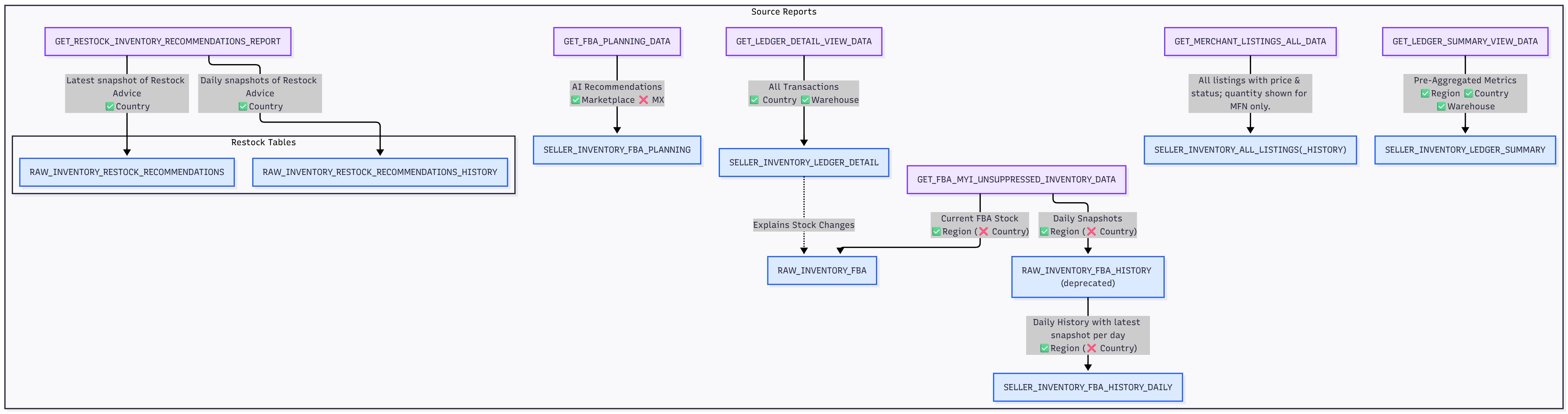 | Amazon source | Tables in your database |
|---|---|
| FBA Inventory API (`getInventorySummaries`) | `SELLER_INVENTORY_FBA_SUMMARIES`, `SELLER_INVENTORY_FBA_SUMMARIES_HISTORY` |
| FBA Manage Inventory Health report (`GET_FBA_INVENTORY_PLANNING_DATA`) | `SELLER_INVENTORY_FBA_PLANNING`, `SELLER_INVENTORY_FBA_PLANNING_LATEST`, FBA side of `SELLER_INVENTORY` |
| All Listings report (`GET_MERCHANT_LISTINGS_ALL_DATA`) | `SELLER_INVENTORY_ALL_LISTINGS`, `SELLER_INVENTORY_ALL_LISTINGS_HISTORY`, FBM side of `SELLER_INVENTORY` |
| Inventory Ledger summary report (`GET_LEDGER_SUMMARY_VIEW_DATA`), by country | `SELLER_INVENTORY_LEDGER_SUMMARY` |
| Inventory Ledger summary report (`GET_LEDGER_SUMMARY_VIEW_DATA`), by fulfillment center | `SELLER_INVENTORY_LEDGER_SUMMARY_BY_FC` |
| Inventory Ledger detail report (`GET_LEDGER_DETAIL_VIEW_DATA`) | `SELLER_INVENTORY_LEDGER_DETAIL` |
| Manage FBA Inventory report (`GET_FBA_MYI_UNSUPPRESSED_INVENTORY_DATA`) | `RAW_INVENTORY_FBA`, `RAW_INVENTORY_FBA_HISTORY`, `SELLER_INVENTORY_FBA_HISTORY_DAILY` |
## Practical Scenarios & Example Queries
### Everyday FBA stock questions
**"What's my current FBA stock?"**
Use `SELLER_INVENTORY_FBA_SUMMARIES`, your default for FBA stock.
```sql
SELECT MARKETPLACE_KEY, SKU, ASIN, AVAILABLE, RESERVED_QUANTITY, INBOUND_QUANTITY, UNFULFILLABLE_QUANTITY, TOTAL_QUANTITY
FROM SELLER_INVENTORY_FBA_SUMMARIES
WHERE TOTAL_QUANTITY > 0
ORDER BY AVAILABLE DESC;
```
**"How has my stock changed day by day?"**
```sql
SELECT SNAPSHOT_DATE, MARKETPLACE_KEY, AVAILABLE, RESERVED_QUANTITY, INBOUND_QUANTITY
FROM SELLER_INVENTORY_FBA_SUMMARIES_HISTORY
WHERE SKU = 'X'
ORDER BY SNAPSHOT_DATE DESC;
```
**"Does Amazon recommend any action on my stock?"**
Use `SELLER_INVENTORY_FBA_PLANNING_LATEST` for aging and recommendations.
Key columns:
- `recommended_action`: Amazon's pricing/removal advice
- `inv_age_365_plus_days`: units aged over 1 year
- `estimated_storage_cost_next_month`: projected fee exposure
```sql
SELECT SNAPSHOT_DATE, ASIN, SKU, RECOMMENDED_ACTION, INV_AGE_365_PLUS_DAYS, ESTIMATED_STORAGE_COST_NEXT_MONTH
FROM SELLER_INVENTORY_FBA_PLANNING
WHERE SKU = 'X'
ORDER BY SNAPSHOT_DATE DESC;
```
**"Which aged SKUs should I remove to avoid storage fees?"**
```sql
SELECT SKU, INV_AGE_365_PLUS_DAYS, RECOMMENDED_ACTION, ESTIMATED_STORAGE_COST_NEXT_MONTH
FROM SELLER_INVENTORY_FBA_PLANNING_LATEST
WHERE INV_AGE_365_PLUS_DAYS > 0;
```
`inv_age_365_plus_days` is **not populated for US, DE, UK, FR, IT, or ES**. For those marketplaces, use `inv_age_366_to_455_days` and `inv_age_456_plus_days` instead to capture the same "aged over a year" population.
**"Amazon says restock, but I have inventory. What's going on?"**
The likely explanation: what you're counting as "my inventory" is total units, but Amazon's restock alert is based on `available`, which is sellable stock only. A SKU can have plenty of total inventory while very little of it is actually sellable, if a large share is inbound, reserved, being researched, or unfulfillable.
First, check the breakdown in `SELLER_INVENTORY_FBA_SUMMARIES`:
```sql
SELECT AVAILABLE, RESERVED_CUSTOMER_ORDER, RESERVED_FC_TRANSFER, RESERVED_FC_PROCESSING,
RESEARCHING_QUANTITY, UNFULFILLABLE_QUANTITY,
INBOUND_WORKING, INBOUND_SHIPPED, INBOUND_RECEIVING
FROM SELLER_INVENTORY_FBA_SUMMARIES
WHERE SKU = 'YOUR_SKU';
```
If reserved, researching, or unfulfillable units account for a large chunk of the total, that's inventory that exists but isn't currently sellable, which explains the alert despite what looks like enough stock.
If `available` genuinely looks sufficient, check `weeks_of_cover_t30` in Planning: a low value means Amazon's recommendation is forward-looking. It's forecasting that your current stock won't cover projected demand, not claiming you're already out.
```sql
SELECT WEEKS_OF_COVER_T30, DAYS_OF_SUPPLY
FROM SELLER_INVENTORY_FBA_PLANNING_LATEST
WHERE SKU = 'YOUR_SKU';
```
Cross-check the actual alert in `RAW_INVENTORY_RESTOCK_RECOMMENDATIONS`.
### Everyday FBM questions
**"What products are active/inactive, and what's my current price per SKU?"**
Use `SELLER_INVENTORY_ALL_LISTINGS`, your default for FBM/MFN questions.
```sql
SELECT SKU, PRICE, STATUS, QUANTITY
FROM SELLER_INVENTORY_ALL_LISTINGS
WHERE SKU = 'X';
```
### Cross-channel questions
**"What's my combined FBA + FBM available and total stock for this SKU?"**
Use `SELLER_INVENTORY`. It blends both channels so you don't need to join manually.
```sql
SELECT ASIN, SKU, TOTAL_AVAILABLE_QUANTITY, TOTAL_QUANTITY, FBA_LISTING_EXISTS, FBM_LISTING_EXISTS
FROM SELLER_INVENTORY
WHERE SKU = 'X';
```
**"Is this listing only on one channel?"**
```sql
SELECT ASIN, SKU, FBA_LISTING_EXISTS, FBM_LISTING_EXISTS
FROM SELLER_INVENTORY
WHERE FBA_LISTING_EXISTS = 'No' OR FBM_LISTING_EXISTS = 'No';
```
### When you need more than a stock snapshot
**"Which SKUs need urgent restocking?"**
Use `RAW_INVENTORY_RESTOCK_RECOMMENDATIONS`, the report Amazon uses specifically for stock alerts.
```sql
SELECT SKU, ALERT, RECOMMENDED_REPLENISHMENT_QTY, RECOMMENDED_SHIP_DATE
FROM RAW_INVENTORY_RESTOCK_RECOMMENDATIONS
WHERE ALERT IN ('low stock', 'no stock');
```
Two things worth knowing:
- **Planning has a parallel signal.** `recommended_action = 'GoToRestock'` with `recommended_ship_in_quantity` / `recommended_ship_in_date` can carry similar guidance.
- **SKU missing from this report?** It likely means Amazon doesn't currently flag it as at-risk. No recent sales, healthy days-of-supply, or no projected demand are the usual reasons.
**"Which FNSKU is linked to each ASIN/SKU?"**
FNSKU isn't exposed on `SELLER_INVENTORY_ALL_LISTINGS` or on the unified `SELLER_INVENTORY` view (see the [known gap note](/help-center/data-reference/fba-fbm-seller-inventory) on the unified view's page). It is available on `SELLER_INVENTORY_FBA_SUMMARIES`, which lists every FBA SKU on the account, including SKUs with no stock.
```sql
SELECT DISTINCT MARKETPLACE_KEY, ASIN, SKU, FNSKU
FROM SELLER_INVENTORY_FBA_SUMMARIES;
```
Join on `ASIN` and `SKU` (and `MARKETPLACE_KEY`) to bring `FNSKU` onto your `SELLER_INVENTORY` rows.
**"Where is my stock physically stored?"**
Snapshots report what each marketplace can sell. For stock by location, use the ledger summary, by country or by fulfillment center.
```sql
SELECT COUNTRY, SUM(ENDING_WAREHOUSE_BALANCE) AS SELLABLE_UNITS
FROM SELLER_INVENTORY_LEDGER_SUMMARY
WHERE DISPOSITION = 'SELLABLE'
AND DATE = (SELECT MAX(DATE) FROM SELLER_INVENTORY_LEDGER_SUMMARY)
GROUP BY COUNTRY;
```
**"Why did my inventory drop by 200 units in a specific country/warehouse last week?"**
Snapshots give you the current state, not the transaction-level reason for a change. For that, use the ledger detail.
```sql
SELECT EVENT_TYPE, QUANTITY, FULFILLMENT_CENTER, DATE
FROM SELLER_INVENTORY_LEDGER_DETAIL
WHERE MSKU = 'X'
AND COUNTRY = 'US'
AND DATE BETWEEN '2026-10-01' AND '2026-10-07';
```
**"What's my net inventory change in each warehouse this week?"**
Same idea, but you just want the aggregated net change, not every individual transaction.
```sql
SELECT FULFILLMENT_CENTER, DATE, STARTING_WAREHOUSE_BALANCE, ENDING_WAREHOUSE_BALANCE
FROM SELLER_INVENTORY_LEDGER_SUMMARY_BY_FC
WHERE DATE BETWEEN '2026-10-01' AND '2026-10-07';
```
For the same question at country level, query `SELLER_INVENTORY_LEDGER_SUMMARY` and use `COUNTRY` instead of `FULFILLMENT_CENTER`.
---
title: Amazon Removal Data
description: Amazon FBA removal reports in DataHawk; removal Order Detail and Removal Shipment Detail, data availability, and table locations.
---
Your Amazon Removal data is sourced from Amazon FBA Reports, through the Amazon Selling Partner API (SP-API) for registered brands. This page provides an overview of the removal reports available through DataHawk.
## Removal Order Detail
### Overview
The Amazon Removal Order Detail Report provides a detailed breakdown of inventory removed from Amazon's fulfillment centers, whether it's due to damage, returns, expiration, long-term storage fees, or your own removal requests. It's especially useful for FBA sellers to track what's leaving Amazon's warehouses and why.
### Requirements
- **Eligibility:** Brand-registered sellers or vendors with Amazon Brand Registry.
- **Access:** Must have connected your Seller account to DataHawk.
### Data Availability
- **Frequency:** Daily
- **Granularity:** One row per item in a removal order, uniquely identified by order-id, sku and fnsku
- **Backwards history:** 3 years
- **Lookback:** Once, at D+30
### Data Table
`SELLING_PARTNER.FBA_REMOVAL_ORDER_DETAIL`
## Removal Shipment Detail
### Overview
The Removal Shipment Detail Report gives you shipment-level visibility into removal orders, tracking how and when Amazon physically ships your removed inventory back to you (or disposes of it).
### Requirements
- **Eligibility:** Brand-registered sellers or vendors with Amazon Brand Registry.
- **Access:** Must have connected your Seller account to DataHawk.
### Data Availability
- **Frequency:** Daily
- **Granularity:** One row per shipped item in a removal order, uniquely identified by `_unique_key` (order-id, sku, fnsku, and shipment-date)
- **Backwards history:** 3 years
- **Lookback:** D+15 and D+30: The dataset is re-fetched at both 15 and 30 days after the initial download to capture late-arriving shipment data.
### Data Table
`SELLING_PARTNER.FBA_REMOVAL_SHIPMENT_DETAIL`
**Deduplication note (January 28, 2026).** The `_unique_key` definition was updated after we discovered that `shipment_date` can change over time, and the dataset was fully refreshed to remove historical duplicates. If you maintain joins or row-count comparisons against snapshots taken before that date, expect row counts to have changed. See the [changelog entry](/changelog/2026-01-28-fba-removal-shipment-dedup).
## Sources
- [Removal Order Detail - SP API Documentation](https://sellercentral.amazon.fr/gp/help/external/200989110?locale=en-GB)
- [Removal Shipment Detail - SP API Documentation](https://sellercentral.amazon.fr/gp/help/external/200989100?locale=en-GB)
---
title: Amazon Replenishment Data
description: Technical reference for DataHawk's Subscribe & Save performance and forecast datasets, including table names, grain, fields, and deprecations.
---
This page is the technical reference for DataHawk's Amazon Subscribe & Save performance and forecast datasets. Use it when you need table names, grain, common fields, deprecation notes, or the source-of-truth column reference.
For business usage, metric interpretation, and inventory-planning examples, see [Subscribe & Save Forecasting](/help-center/data-metrics-guides/inventory/subscribe-save-performance-forecast).
## Available datasets
| Dataset | What it contains |
|---|---|
| `FBA_RESPLENISHMENT_SNS_PERFORMANCE` | Historical Subscribe & Save performance data |
| `FBA_RESPLENISHMENT_SNS_FORECAST` | Amazon's forward-looking Subscribe & Save projections |
**Deprecated and empty:** the legacy `SELLING_PARTNER.FBA_SNS_PERFORMANCE_SRC` and `SELLING_PARTNER.FBA_SNS_FORECAST_SRC` tables are no longer populated and are marked obsolete. Migrate any queries to the `FBA_RESPLENISHMENT_SNS_*` tables above. See the [changelog entry](/changelog/2026-01-21-amazon-replenishment-sns-datasets).
## Grain
Both datasets follow the same grain: **1 row = 1 ASIN x 1 marketplace x 1 time interval**
## Common fields
| Column | Description |
|---|---|
| `ASIN` | Amazon Standard Identification Number |
| `MARKETPLACE_KEY` | Marketplace identifier (e.g. Amazon-US) |
| `PRODUCT_KEY` | DataHawk internal product identifier; use it to join with other DataHawk tables |
| `TIME_INTERVAL_START_DATE` | Start of the period covered by the metrics |
| `TIME_INTERVAL_END_DATE` | End of the period covered by the metrics |
| `CURRENCY_CODE` | ISO currency code (USD, EUR, GBP, etc.) |
## Field families
Use the [Exhaustive Column Referential](https://docs.google.com/spreadsheets/d/1gYGqKQP9Z71nz1lOb4y0wJ15i27NvsUzdliIJeIx0HY/edit#gid=175439716) for the complete, current field list. At a high level:
| Dataset | Field families |
|---|---|
| `FBA_RESPLENISHMENT_SNS_PERFORMANCE` | Shipped subscription units, subscription revenue, active subscriptions, missed subscription deliveries, out-of-stock impact, revenue penetration |
| `FBA_RESPLENISHMENT_SNS_FORECAST` | Forecasted subscription revenue and forecasted subscription units for upcoming periods |
## Join guidance
- Use `PRODUCT_KEY` when joining to DataHawk product reference tables.
- Use `ASIN` and `MARKETPLACE_KEY` when joining to Amazon-facing product or marketplace analysis.
- Keep the time interval in the join or filter condition. These datasets are period-based, not single-snapshot tables.
## Where to go next
| Amazon source | Tables in your database |
|---|---|
| FBA Inventory API (`getInventorySummaries`) | `SELLER_INVENTORY_FBA_SUMMARIES`, `SELLER_INVENTORY_FBA_SUMMARIES_HISTORY` |
| FBA Manage Inventory Health report (`GET_FBA_INVENTORY_PLANNING_DATA`) | `SELLER_INVENTORY_FBA_PLANNING`, `SELLER_INVENTORY_FBA_PLANNING_LATEST`, FBA side of `SELLER_INVENTORY` |
| All Listings report (`GET_MERCHANT_LISTINGS_ALL_DATA`) | `SELLER_INVENTORY_ALL_LISTINGS`, `SELLER_INVENTORY_ALL_LISTINGS_HISTORY`, FBM side of `SELLER_INVENTORY` |
| Inventory Ledger summary report (`GET_LEDGER_SUMMARY_VIEW_DATA`), by country | `SELLER_INVENTORY_LEDGER_SUMMARY` |
| Inventory Ledger summary report (`GET_LEDGER_SUMMARY_VIEW_DATA`), by fulfillment center | `SELLER_INVENTORY_LEDGER_SUMMARY_BY_FC` |
| Inventory Ledger detail report (`GET_LEDGER_DETAIL_VIEW_DATA`) | `SELLER_INVENTORY_LEDGER_DETAIL` |
| Manage FBA Inventory report (`GET_FBA_MYI_UNSUPPRESSED_INVENTORY_DATA`) | `RAW_INVENTORY_FBA`, `RAW_INVENTORY_FBA_HISTORY`, `SELLER_INVENTORY_FBA_HISTORY_DAILY` |
## Practical Scenarios & Example Queries
### Everyday FBA stock questions
**"What's my current FBA stock?"**
Use `SELLER_INVENTORY_FBA_SUMMARIES`, your default for FBA stock.
```sql
SELECT MARKETPLACE_KEY, SKU, ASIN, AVAILABLE, RESERVED_QUANTITY, INBOUND_QUANTITY, UNFULFILLABLE_QUANTITY, TOTAL_QUANTITY
FROM SELLER_INVENTORY_FBA_SUMMARIES
WHERE TOTAL_QUANTITY > 0
ORDER BY AVAILABLE DESC;
```
**"How has my stock changed day by day?"**
```sql
SELECT SNAPSHOT_DATE, MARKETPLACE_KEY, AVAILABLE, RESERVED_QUANTITY, INBOUND_QUANTITY
FROM SELLER_INVENTORY_FBA_SUMMARIES_HISTORY
WHERE SKU = 'X'
ORDER BY SNAPSHOT_DATE DESC;
```
**"Does Amazon recommend any action on my stock?"**
Use `SELLER_INVENTORY_FBA_PLANNING_LATEST` for aging and recommendations.
Key columns:
- `recommended_action`: Amazon's pricing/removal advice
- `inv_age_365_plus_days`: units aged over 1 year
- `estimated_storage_cost_next_month`: projected fee exposure
```sql
SELECT SNAPSHOT_DATE, ASIN, SKU, RECOMMENDED_ACTION, INV_AGE_365_PLUS_DAYS, ESTIMATED_STORAGE_COST_NEXT_MONTH
FROM SELLER_INVENTORY_FBA_PLANNING
WHERE SKU = 'X'
ORDER BY SNAPSHOT_DATE DESC;
```
**"Which aged SKUs should I remove to avoid storage fees?"**
```sql
SELECT SKU, INV_AGE_365_PLUS_DAYS, RECOMMENDED_ACTION, ESTIMATED_STORAGE_COST_NEXT_MONTH
FROM SELLER_INVENTORY_FBA_PLANNING_LATEST
WHERE INV_AGE_365_PLUS_DAYS > 0;
```
`inv_age_365_plus_days` is **not populated for US, DE, UK, FR, IT, or ES**. For those marketplaces, use `inv_age_366_to_455_days` and `inv_age_456_plus_days` instead to capture the same "aged over a year" population.
**"Amazon says restock, but I have inventory. What's going on?"**
The likely explanation: what you're counting as "my inventory" is total units, but Amazon's restock alert is based on `available`, which is sellable stock only. A SKU can have plenty of total inventory while very little of it is actually sellable, if a large share is inbound, reserved, being researched, or unfulfillable.
First, check the breakdown in `SELLER_INVENTORY_FBA_SUMMARIES`:
```sql
SELECT AVAILABLE, RESERVED_CUSTOMER_ORDER, RESERVED_FC_TRANSFER, RESERVED_FC_PROCESSING,
RESEARCHING_QUANTITY, UNFULFILLABLE_QUANTITY,
INBOUND_WORKING, INBOUND_SHIPPED, INBOUND_RECEIVING
FROM SELLER_INVENTORY_FBA_SUMMARIES
WHERE SKU = 'YOUR_SKU';
```
If reserved, researching, or unfulfillable units account for a large chunk of the total, that's inventory that exists but isn't currently sellable, which explains the alert despite what looks like enough stock.
If `available` genuinely looks sufficient, check `weeks_of_cover_t30` in Planning: a low value means Amazon's recommendation is forward-looking. It's forecasting that your current stock won't cover projected demand, not claiming you're already out.
```sql
SELECT WEEKS_OF_COVER_T30, DAYS_OF_SUPPLY
FROM SELLER_INVENTORY_FBA_PLANNING_LATEST
WHERE SKU = 'YOUR_SKU';
```
Cross-check the actual alert in `RAW_INVENTORY_RESTOCK_RECOMMENDATIONS`.
### Everyday FBM questions
**"What products are active/inactive, and what's my current price per SKU?"**
Use `SELLER_INVENTORY_ALL_LISTINGS`, your default for FBM/MFN questions.
```sql
SELECT SKU, PRICE, STATUS, QUANTITY
FROM SELLER_INVENTORY_ALL_LISTINGS
WHERE SKU = 'X';
```
### Cross-channel questions
**"What's my combined FBA + FBM available and total stock for this SKU?"**
Use `SELLER_INVENTORY`. It blends both channels so you don't need to join manually.
```sql
SELECT ASIN, SKU, TOTAL_AVAILABLE_QUANTITY, TOTAL_QUANTITY, FBA_LISTING_EXISTS, FBM_LISTING_EXISTS
FROM SELLER_INVENTORY
WHERE SKU = 'X';
```
**"Is this listing only on one channel?"**
```sql
SELECT ASIN, SKU, FBA_LISTING_EXISTS, FBM_LISTING_EXISTS
FROM SELLER_INVENTORY
WHERE FBA_LISTING_EXISTS = 'No' OR FBM_LISTING_EXISTS = 'No';
```
### When you need more than a stock snapshot
**"Which SKUs need urgent restocking?"**
Use `RAW_INVENTORY_RESTOCK_RECOMMENDATIONS`, the report Amazon uses specifically for stock alerts.
```sql
SELECT SKU, ALERT, RECOMMENDED_REPLENISHMENT_QTY, RECOMMENDED_SHIP_DATE
FROM RAW_INVENTORY_RESTOCK_RECOMMENDATIONS
WHERE ALERT IN ('low stock', 'no stock');
```
Two things worth knowing:
- **Planning has a parallel signal.** `recommended_action = 'GoToRestock'` with `recommended_ship_in_quantity` / `recommended_ship_in_date` can carry similar guidance.
- **SKU missing from this report?** It likely means Amazon doesn't currently flag it as at-risk. No recent sales, healthy days-of-supply, or no projected demand are the usual reasons.
**"Which FNSKU is linked to each ASIN/SKU?"**
FNSKU isn't exposed on `SELLER_INVENTORY_ALL_LISTINGS` or on the unified `SELLER_INVENTORY` view (see the [known gap note](/help-center/data-reference/fba-fbm-seller-inventory) on the unified view's page). It is available on `SELLER_INVENTORY_FBA_SUMMARIES`, which lists every FBA SKU on the account, including SKUs with no stock.
```sql
SELECT DISTINCT MARKETPLACE_KEY, ASIN, SKU, FNSKU
FROM SELLER_INVENTORY_FBA_SUMMARIES;
```
Join on `ASIN` and `SKU` (and `MARKETPLACE_KEY`) to bring `FNSKU` onto your `SELLER_INVENTORY` rows.
**"Where is my stock physically stored?"**
Snapshots report what each marketplace can sell. For stock by location, use the ledger summary, by country or by fulfillment center.
```sql
SELECT COUNTRY, SUM(ENDING_WAREHOUSE_BALANCE) AS SELLABLE_UNITS
FROM SELLER_INVENTORY_LEDGER_SUMMARY
WHERE DISPOSITION = 'SELLABLE'
AND DATE = (SELECT MAX(DATE) FROM SELLER_INVENTORY_LEDGER_SUMMARY)
GROUP BY COUNTRY;
```
**"Why did my inventory drop by 200 units in a specific country/warehouse last week?"**
Snapshots give you the current state, not the transaction-level reason for a change. For that, use the ledger detail.
```sql
SELECT EVENT_TYPE, QUANTITY, FULFILLMENT_CENTER, DATE
FROM SELLER_INVENTORY_LEDGER_DETAIL
WHERE MSKU = 'X'
AND COUNTRY = 'US'
AND DATE BETWEEN '2026-10-01' AND '2026-10-07';
```
**"What's my net inventory change in each warehouse this week?"**
Same idea, but you just want the aggregated net change, not every individual transaction.
```sql
SELECT FULFILLMENT_CENTER, DATE, STARTING_WAREHOUSE_BALANCE, ENDING_WAREHOUSE_BALANCE
FROM SELLER_INVENTORY_LEDGER_SUMMARY_BY_FC
WHERE DATE BETWEEN '2026-10-01' AND '2026-10-07';
```
For the same question at country level, query `SELLER_INVENTORY_LEDGER_SUMMARY` and use `COUNTRY` instead of `FULFILLMENT_CENTER`.
---
title: Amazon Removal Data
description: Amazon FBA removal reports in DataHawk; removal Order Detail and Removal Shipment Detail, data availability, and table locations.
---
Your Amazon Removal data is sourced from Amazon FBA Reports, through the Amazon Selling Partner API (SP-API) for registered brands. This page provides an overview of the removal reports available through DataHawk.
## Removal Order Detail
### Overview
The Amazon Removal Order Detail Report provides a detailed breakdown of inventory removed from Amazon's fulfillment centers, whether it's due to damage, returns, expiration, long-term storage fees, or your own removal requests. It's especially useful for FBA sellers to track what's leaving Amazon's warehouses and why.
### Requirements
- **Eligibility:** Brand-registered sellers or vendors with Amazon Brand Registry.
- **Access:** Must have connected your Seller account to DataHawk.
### Data Availability
- **Frequency:** Daily
- **Granularity:** One row per item in a removal order, uniquely identified by order-id, sku and fnsku
- **Backwards history:** 3 years
- **Lookback:** Once, at D+30
### Data Table
`SELLING_PARTNER.FBA_REMOVAL_ORDER_DETAIL`
## Removal Shipment Detail
### Overview
The Removal Shipment Detail Report gives you shipment-level visibility into removal orders, tracking how and when Amazon physically ships your removed inventory back to you (or disposes of it).
### Requirements
- **Eligibility:** Brand-registered sellers or vendors with Amazon Brand Registry.
- **Access:** Must have connected your Seller account to DataHawk.
### Data Availability
- **Frequency:** Daily
- **Granularity:** One row per shipped item in a removal order, uniquely identified by `_unique_key` (order-id, sku, fnsku, and shipment-date)
- **Backwards history:** 3 years
- **Lookback:** D+15 and D+30: The dataset is re-fetched at both 15 and 30 days after the initial download to capture late-arriving shipment data.
### Data Table
`SELLING_PARTNER.FBA_REMOVAL_SHIPMENT_DETAIL`
**Deduplication note (January 28, 2026).** The `_unique_key` definition was updated after we discovered that `shipment_date` can change over time, and the dataset was fully refreshed to remove historical duplicates. If you maintain joins or row-count comparisons against snapshots taken before that date, expect row counts to have changed. See the [changelog entry](/changelog/2026-01-28-fba-removal-shipment-dedup).
## Sources
- [Removal Order Detail - SP API Documentation](https://sellercentral.amazon.fr/gp/help/external/200989110?locale=en-GB)
- [Removal Shipment Detail - SP API Documentation](https://sellercentral.amazon.fr/gp/help/external/200989100?locale=en-GB)
---
title: Amazon Replenishment Data
description: Technical reference for DataHawk's Subscribe & Save performance and forecast datasets, including table names, grain, fields, and deprecations.
---
This page is the technical reference for DataHawk's Amazon Subscribe & Save performance and forecast datasets. Use it when you need table names, grain, common fields, deprecation notes, or the source-of-truth column reference.
For business usage, metric interpretation, and inventory-planning examples, see [Subscribe & Save Forecasting](/help-center/data-metrics-guides/inventory/subscribe-save-performance-forecast).
## Available datasets
| Dataset | What it contains |
|---|---|
| `FBA_RESPLENISHMENT_SNS_PERFORMANCE` | Historical Subscribe & Save performance data |
| `FBA_RESPLENISHMENT_SNS_FORECAST` | Amazon's forward-looking Subscribe & Save projections |
**Deprecated and empty:** the legacy `SELLING_PARTNER.FBA_SNS_PERFORMANCE_SRC` and `SELLING_PARTNER.FBA_SNS_FORECAST_SRC` tables are no longer populated and are marked obsolete. Migrate any queries to the `FBA_RESPLENISHMENT_SNS_*` tables above. See the [changelog entry](/changelog/2026-01-21-amazon-replenishment-sns-datasets).
## Grain
Both datasets follow the same grain: **1 row = 1 ASIN x 1 marketplace x 1 time interval**
## Common fields
| Column | Description |
|---|---|
| `ASIN` | Amazon Standard Identification Number |
| `MARKETPLACE_KEY` | Marketplace identifier (e.g. Amazon-US) |
| `PRODUCT_KEY` | DataHawk internal product identifier; use it to join with other DataHawk tables |
| `TIME_INTERVAL_START_DATE` | Start of the period covered by the metrics |
| `TIME_INTERVAL_END_DATE` | End of the period covered by the metrics |
| `CURRENCY_CODE` | ISO currency code (USD, EUR, GBP, etc.) |
## Field families
Use the [Exhaustive Column Referential](https://docs.google.com/spreadsheets/d/1gYGqKQP9Z71nz1lOb4y0wJ15i27NvsUzdliIJeIx0HY/edit#gid=175439716) for the complete, current field list. At a high level:
| Dataset | Field families |
|---|---|
| `FBA_RESPLENISHMENT_SNS_PERFORMANCE` | Shipped subscription units, subscription revenue, active subscriptions, missed subscription deliveries, out-of-stock impact, revenue penetration |
| `FBA_RESPLENISHMENT_SNS_FORECAST` | Forecasted subscription revenue and forecasted subscription units for upcoming periods |
## Join guidance
- Use `PRODUCT_KEY` when joining to DataHawk product reference tables.
- Use `ASIN` and `MARKETPLACE_KEY` when joining to Amazon-facing product or marketplace analysis.
- Keep the time interval in the join or filter condition. These datasets are period-based, not single-snapshot tables.
## Where to go next
---
title: Amazon Returns Data
description: Technical reference for Amazon FBA and FBM return tables, order joins, reason-code mappings, and return-record fields.
---
This page is the technical reference for Amazon return records in DataHawk. Use it when you need return table names, fulfillment-path coverage, order joins, and the FBM/FBA reason-code mapping.
For business context, return dispositions, and how to interpret return patterns, see [Amazon Return Analysis](/help-center/data-metrics-guides/finance/understanding-amazon-returns).
## Available data tables
Returns data is available in the `SELLING_PARTNER` schema.
| Table | Coverage | Available since | Description |
|---|---|---|---|
| `RETURNS_DATA_SRC` | FBM (Fulfilled by Merchant) orders only | June 2023 | Return records keyed by return date. Includes ASIN, SKU, return quantities, reason codes, and metadata. |
| `FBA_CUSTOMER_RETURNS_SRC` | FBA (Fulfilled by Amazon) orders | - | Detailed FBA return records including Fulfillment Center ID, disposition, customer comments, and reason codes. |
## Join with order data
To enrich returns with order-level context, join against `finance.finance_orders`:
```sql
SELECT
o.fulfillment_channel,
r.*
FROM SELLING_PARTNER.RETURNS_DATA_SRC r
LEFT OUTER JOIN finance.finance_orders o
ON o.order_id = r.order_id
```
## Full return reason code reference
| Reason | FBM Code | FBA Code |
|---|---|---|
| Unwanted item | CR-UNWANTED_ITEM | UNWANTED_ITEM |
| Defective item | CR-DEFECTIVE | DEFECTIVE |
| Product not as described | AMZ-PG-BAD-DESC | NOT_AS_DESCRIBED |
| Found better price | CR-FOUND_BETTER_PRICE | FOUND_BETTER_PRICE |
| Damaged by carrier | CR-DAMAGED_BY_CARRIER | DAMAGED_BY_CARRIER |
| Damaged by fulfillment center | CR-DAMAGED_BY_FC | DAMAGED_BY_FC |
| Missing parts | CR-MISSING_PARTS | MISSING_PARTS |
| Wrong size | WRONG_SIZE | WRONG_SIZE |
| Wrong style | AMZ-PG-APP-STYLE | APPAREL_STYLE |
| Apparel too small | AMZ-PG-APP-TOO-SMALL | APPAREL_TOO_SMALL |
| Apparel too large | AMZ-PG-APP-TOO_LARGE | APPAREL_TOO_LARGE |
| Never arrived | NEVER_ARRIVED | NEVER_ARRIVED |
| Ordered wrong item | CR-ORDERED_WRONG_ITEM | ORDERED_WRONG_ITEM |
| Received wrong item | CR-SWITCHEROO | SWITCHEROO |
| Quality not acceptable | CR-QUALITY_UNACCEPTABLE | QUALITY_UNACCEPTABLE |
| Missed delivery window | CR-MISSED_ESTIMATED_DELIVERY | MISSED_ESTIMATED_DELIVERY |
| Unauthorized purchase | CR-UNAUTHORIZED_PURCHASE | UNAUTHORIZED_PURCHASE |
| Extra item received | CR-EXTRA_ITEM | EXTRA_ITEM |
## Source-of-truth columns
Use the [Exhaustive Column Referential](https://docs.google.com/spreadsheets/d/1gYGqKQP9Z71nz1lOb4y0wJ15i27NvsUzdliIJeIx0HY/edit#gid=175439716) for the complete, current field list, data types, and field descriptions.
## Where to go next
---
title: Amazon Seller Profit Data
description: Data sources and models behind DataHawk's Amazon Seller profit reporting, from financial events to the profit ledger and metric tables.
---
DataHawk offers comprehensive financial reporting for Amazon Seller accounts. This article explains the data sources behind our holistic reports and the data models that power them.
Our profit and loss data is compiled from multiple sources, initially recorded as an events ledger.
## Data Sources
### Financial Events
The majority of records in the Seller Profit Ledger are financial events sourced from the [Amazon Finance API](https://developer-docs.amazon.com/sp-api/docs/finances-api-reference). This includes all transactions made on an Amazon Seller Account.
Financial events are complete with a 2 year history up to T-2d from today.
### Enrichment Reports
There are particular financial events that lack richness in accompanying information. These enrichment reports are used to replace these events, providing additional relevant information at no loss.
**Advertising Reports**: Advertising cost events are replaced with events sourced from Advertising Reports to provide sponsored type and ASIN annotation. Advertising events are complete with a 2 year history up to T-2d from today.
**FBA Removal Order and Detail Report**: Removal and disposal fee events are replaced to provide ASIN and SKU annotation. FBA reports are produced by Amazon once a month. Events can take up to one month to be present.
**FBA Storage Fee Charges Report**: Storage Fee events are replaced to provide ASIN annotation. FBA reports are produced by Amazon once a month.
**FBA Longterm Storage Fee Charges Report**: Longterm Storage Fee events are replaced to provide ASIN and SKU annotation. FBA reports are produced by Amazon once a month.
### Cost of Goods
User-submitted [product expenses](/help-center/data-setup/cogs-amz-upload) are applied to items sold and returned to get Cost of Goods events which are appended to the profit ledger.
## Data Dictionaries
For an exhaustive list of all tables and fields, see the [Exhaustive Column Referential](https://docs.google.com/spreadsheets/d/1gYGqKQP9Z71nz1lOb4y0wJ15i27NvsUzdliIJeIx0HY/edit#gid=175439716).
## Datasets
### Profit Ledger
`finance.finance_profit_ledger`
A ledger of profit events compiled from a comprehensive selection of seller finance data sources. Events are annotated with timestamp, category, subcategory, event description, and other additional fields.
**Categories:**
- **Sales**: Sales revenue including charges to customers (Tax/VAT, Giftwrap, Shipping). See Subcategories below for the VAT breakdown.
- **Refunds**: Returns, Guarantees, Chargebacks, and related fees.
- **Cost of Goods**: Cost of goods sold and returned.
- **Amazon Fees**: Fulfillment fees, Service Fees, Warehousing, and more. FBA fee coverage includes Inbound Defect Fee, Per Unit Fulfillment Fee, Disposal Fee, and Customer Return Per Unit Fee (the last two may be delayed in Financial Events).
- **Marketing**: Advertising, Coupons, and Promotion.
- **Adjustments**: Made to sales charges and fees.
- **Tax Expenses**: Taxes withheld and paid. See Subcategories below for the VAT-specific ones.
- **Tax Adjustments**: Made to tax charges and expenses.
**ServiceFee categorization (fix, September 17, 2025).** Non-categorized ServiceFee events are now correctly categorized under `Others > ServiceFee`. Previously they were misclassified under `Refunds > Other`.
**Subcategories (selected):** Not an exhaustive list (Amazon's raw event types are numerous), but these are the ones customers ask about most, particularly around VAT.
*Under Sales:*
- **Sales Tax / Tax** (shown as "Sales Tax Charge" in some dashboards): The VAT or sales tax charged to the customer as part of the order. Included in the Sales category total and in Gross Revenue.
- **Shipping** (shown as "Shipping Tax Charge" in some dashboards): The shipping charge billed to the customer as part of the order. Included in the Sales category total and in Gross Revenue, but broken out separately from Sales Principal.
- **Sales Principal**: Sales net of VAT/tax and net of shipping. This is DataHawk's net-of-VAT, net-of-shipping sales figure, available in Profit Explorer. See [Sales vs Sales (Orders) vs Gross Revenue vs Sales Principal](/help-center/glossary#sales-vs-sales-orders-vs-gross-revenue-vs-sales-principal).
For a subcategory not listed here, email [support@datahawk.co](mailto:support@datahawk.co) with your workspace ID and the exact category/subcategory pair, or check the [Exhaustive Column Referential](https://docs.google.com/spreadsheets/d/1gYGqKQP9Z71nz1lOb4y0wJ15i27NvsUzdliIJeIx0HY/edit#gid=175439716).
**Tax handling:** Taxes previously embedded within fees are now extracted into separate ledger lines, and tax portions are flagged with `is_tax = true`. Category and subcategory hierarchies and event signatures are unchanged. Reported profit may increase slightly because tax amounts are no longer mixed into fee totals. (See the [Tax Management changelog](/changelog/2025-11-02-tax-management-profit).)
**Available timestamps:** `purchase_date` (when applicable), `accrual_date` (event incurred date), `recorded_date` (Amazon's official ledger posting date). `posted_date` is an alias for `accrual_date`.
**Deferred-transaction columns** (Ledger table only):
| Column | Values |
|---|---|
| `transaction_status` | `DEFERRED`, `DEFERRED_RELEASED`, `RELEASED` |
| `deferral_reason` | `DD7` (Delivery Date +7), `B2B` (Business-to-Business) |
**Other columns:**
- `settlement_id`: Amazon settlement identifier for the event (added January 22, 2026).
### Accrual Profit Methodology
Our **default aggregated Profit reporting tables follow an accrual methodology**, which recognizes profit events based on their incurred date (such as purchase date) rather than payout date.
**`finance.finance_profit`**: A daily summary of the profit ledger, aggregated by date, seller account, marketplace, ASIN, SKU, and event signature.
**`finance.finance_profit_metrics`**: A collection of profit metrics:
- **Gross Revenue**: Sales including Tax Charges (VAT) and shipping charges, for every marketplace including the US. See the [provisional tax-handling note](/help-center/glossary#sales-vs-sales-orders-vs-gross-revenue-vs-sales-principal) on this definition
- **Net Revenue**: Gross Revenue - Refunds
- **Gross Profit**: Net Revenue - Cost of Goods
- **Operating Profit**: Gross Profit - Amazon Fees - Marketing
- **Adjusted Operating Profit**: Operating Profit + Adjustments
- **Net Profit**: Adjusted Operating Profit - Net Taxes
### Recorded Profit Methodology
For analysis based on Amazon's official ledger posting date:
- `FINANCE_PROFIT_RECORDED_BASIS`: Daily profit aggregated on recorded date
- `FINANCE_PROFIT_METRICS_RECORDED_BASIS`: Daily profit metrics on recorded date
## Use Case Queries
**How do I summarize my Amazon Profit this year?**
```sql
SELECT
category,
subcategory,
SUM(amount_usd) AS amount,
category_path_order
FROM finance.finance_profit_ledger
WHERE YEAR(posted_date) = YEAR(CURRENT_DATE())
GROUP BY ALL
ORDER BY category_path_order
```
**How do I explore SKU profitability?**
```sql
SELECT
asin,
sku,
SUM(amount_usd) AS amount
FROM finance.finance_profit_ledger
WHERE YEAR(posted_date) = YEAR(CURRENT_DATE())
GROUP BY ALL
ORDER BY SUM(amount) DESC
```
**What is my Amazon Profit in Euros?**
```sql
SELECT
l.category,
l.subcategory,
SUM(l.amount_usd * r.rate) AS amount,
l.category_path_order
FROM finance.finance_profit_ledger l
LEFT JOIN referential.referential_currency_rate r
ON l.posted_date = r.posted_date AND l.currency = r.currency
WHERE YEAR(l.posted_date) = YEAR(CURRENT_DATE()) AND r.base = 'USD'
GROUP BY ALL
ORDER BY l.category_path_order
```
---
title: Amazon Vendor Demand Forecasts
description: How VENDOR_FORECASTING_SRC shows Amazon's latest weekly demand forecast, and how to get past forecasts to compare with your sales.
---
Every week, Amazon publishes a new demand forecast for each of your ASINs in Vendor Central. Each forecast covers the next 48 weeks. DataHawk collects it and delivers it to `SELLING_PARTNER.VENDOR_FORECASTING_SRC` every Wednesday. This page explains what the table shows and how to compare a past forecast with your sales.
## What's in the table
The table holds one row per ASIN and forecasted week. Each row carries:
- **Generation date:** the day Amazon produced the forecast.
- **Start date:** the first day of the forecasted week.
- **Forecasted units:** Amazon's Mean, P70, P80, and P90 demand forecasts for that week. In short, the higher the P-level, the more cautious the number.
DataHawk serves these values as Amazon sends them, without recalculating them. For Amazon's exact definitions and report rules, see [Amazon's Vendor Forecasting Report documentation](https://developer-docs.amazon/sp-api/docs/report-type-values-analytics#vendor-forecasting-report).
## Only the latest forecast is kept
The table always shows **Amazon's latest forecast**. Each week, the new forecast replaces the previous one entirely. Older forecasts don't stay in the table.
Here's how it works week by week:
| Week | DataHawk collects | What the table shows |
|---|---|---|
| **W0** | Forecast for W0 to W48 | Forecast for W0 to W48 |
| **W1** | Forecast for W1 to W49 | Forecast for W1 to W49. The W0 forecast is gone |
| **W2** | Forecast for W2 to W50 | Forecast for W2 to W50. The W1 forecast is gone |
And so on, every week.
## Compare a past forecast with your sales
Want to check how accurate Amazon's forecast was? You'll need the forecast as it looked on a given date, then compare it with your actual sales as the weeks go by. You have two ways to get it.
### Option 1: save the forecast yourself
When you want to track a forecast, save a copy of it after Wednesday's delivery, before the next one replaces it. For example:
- Download the Forecasting report from Vendor Central.
- Export the table from your DataHawk destination (Snowflake, BigQuery, or another tool).
Later, compare that saved copy with your sales data. Plan ahead: once a newer forecast is out, neither Amazon nor the table will show the old one.
### Option 2: ask DataHawk
Amazon only shares its most recent forecast. DataHawk, however, keeps every past forecast on its side. Forgot to save one? We can send it to you.
### Contact support
Reach out to your DataHawk contact or our support team and ask for a historical forecast export.
### Tell us what you need
Include:
- **Which vendor accounts and Marketplaces** you need
- **Which forecast dates** you want (for example, the forecast Amazon made on June 1, 2026)
### Get your data
We prepare the export and deliver it. If you have a dedicated Snowflake account with a writable database, we can load it there as a table.
## Frequently asked questions
The table only keeps Amazon's latest forecast. Each new weekly forecast replaces the previous one. See [Only the latest forecast is kept](#only-the-latest-forecast-is-kept).
Yes. Amazon doesn't share old forecasts, but DataHawk stores them and can send them to you. See [Option 2: ask DataHawk](#option-2-ask-datahawk).
Every Wednesday, not daily like other Vendor data. DataHawk collects and delivers Amazon's newest forecast that day. For Amazon's publishing schedule, see [Amazon's documentation](https://developer-docs.amazon/sp-api/docs/report-type-values-analytics#vendor-forecasting-report). See [Source Systems & Freshness](/help-center/data-reference/source-systems-freshness).
## Where to go next
---
title: Convert Currencies
description: SQL recipe for converting financial data between currencies using DataHawk's exchange rate referential table.
---
See [Daily Exchange Rate Dataset](/help-center/data-reference/daily-exchange-rate-dataset) for details on the underlying exchange rate table.
The snippet below performs the conversion of financial data on a dataset without a currency field by joining to the marketplace referential table that contains the currency field.
```sql
SET target_currency = 'EUR';
SELECT
s.workspace_id AS workspace_id,
s.marketplace_key AS marketplace_key,
CAST(s.date AS DATE) AS date_day,
s.visits AS clicks,
s.views AS views,
s.sales AS sales,
s.units AS units,
mp.currency_code AS local_currency,
$target_currency AS target_currency,
-- Local -> USD (divide since rate is base_to_usd)
fx_local.rate AS fx_rate_local_to_usd,
s.sales / fx_local.rate AS sales_usd,
-- USD -> Target currency (multiply since rate is target_to_usd)
fx_target.rate AS fx_rate_target_to_usd,
(s.sales / fx_local.rate) * fx_target.rate AS sales_target
FROM ADVERTISING.AMZN_BRAND_STORE_METRICS s
LEFT JOIN REFERENTIAL.REFERENTIAL_MARKETPLACE mp
ON s.marketplace_key = mp.marketplace_key
-- Local currency -> USD
LEFT JOIN REFERENTIAL.REFERENTIAL_CURRENCY_RATE fx_local
ON CAST(s.date AS DATE) = CAST(fx_local.date_day AS DATE)
AND mp.currency_code = fx_local.currency
-- Target currency -> USD (used to convert USD -> target)
LEFT JOIN REFERENTIAL.REFERENTIAL_CURRENCY_RATE fx_target
ON CAST(s.date AS DATE) = CAST(fx_target.date_day AS DATE)
AND fx_target.currency = $target_currency;
```
---
title: Daily Exchange Rate Dataset
description: DataHawk's daily exchange rate table for cross-marketplace currency conversion; sourced from exchangeratesapi.io, USD as base, available since 2016.
---
DataHawk operates across multiple Amazon and Walmart marketplaces, each with its own local currency (EUR, GBP, CAD, JPY, etc.). To make cross-marketplace comparisons meaningful, DataHawk maintains a daily exchange rate table that lets you convert any financial metric into a common currency.
In practice, this means you can report revenue, profit, or pricing in USD, or in any currency you choose, regardless of the marketplace it came from. Most DataHawk dashboards handle this conversion automatically.
**If you're using the DataHawk dashboards**, currency conversion is already handled for you. This page is primarily relevant if you're writing your own SQL queries against the DataHawk database.
## Data source
Exchange rates are sourced from [exchangeratesapi.io](https://exchangeratesapi.io/), a financial data API providing daily foreign exchange rates.
DataHawk ingests the data daily and stores it in a referential table where:
- **USD is always the base currency**
- Each currency has one rate per day
- Historical values are stable and do not change retroactively (safe for reproducible analysis)
The dataset contains **one exchange rate per currency per day since January 1, 2016**.
## Location
**Schema:** `REFERENTIAL` **Table:** `REFERENTIAL_CURRENCY_RATE`
## Table schema
| Column | Description |
|---|---|
| `DATE_DAY` | Date of the exchange rate |
| `CURRENCY` | 3-letter currency code (EUR, GBP, CAD, etc.) |
| `BASE` | Base currency used for the rate. Always USD |
| `RATE` | Exchange rate relative to USD |
## Typical usage pattern
This table is joined on **date and currency** to convert local values into USD. See the [Convert Currencies](/help-center/data-reference/convert-currencies) page for a full worked SQL example.
Basic pattern for converting local revenue to USD:
```sql
SELECT
revenue_local / rate AS revenue_usd
FROM some_table t
JOIN referential.referential_currency_rate r
ON t.currency = r.currency
AND t.date_day = r.date_day
```
---
title: "Unified View (FBA + FBM) Seller Inventory"
description: "A single, unified view of FBA and FBM inventory side by side, one row per ASIN × SKU × Marketplace."
---
**Source:** Combines `SELLER_INVENTORY_FBA_PLANNING` (Amazon FBA Manage Inventory Health Report) and `SELLER_INVENTORY_ALL_LISTINGS` (Amazon All Listings Report)
Not to be confused with `SELLER_INVENTORY_ALL_LISTINGS` itself. That's the FBM-only source table this view is built from (see [FBM Seller Inventory (All Listings)](/help-center/data-reference/fbm-seller-inventory-all-listings)). This page covers `SELLER_INVENTORY`, the unified FBA + FBM view.
## What this dataset is
A single, unified view of your inventory across both fulfillment channels: one row per **ASIN × SKU × Marketplace**, showing FBA and FBM stock side by side. Instead of querying two separate tables and manually matching rows, you can directly compare price, condition, and stock health across channels for the same product, or pull a blended total quantity across FBA and FBM.
Use it to answer questions like "is this listing active on FBA, FBM, both, or neither?", "how does my price/condition differ by channel?", or "what's my combined available stock for this SKU?"
## Freshness & coverage
| | |
| --- | --- |
| **Refresh** | Daily |
| **History** | Current state only: one row per ASIN × SKU × Marketplace, with no history. For stock over time, use `SELLER_INVENTORY_FBA_SUMMARIES_HISTORY` (FBA) or `SELLER_INVENTORY_ALL_LISTINGS_HISTORY` (FBM), which start on the day you connect your account |
| **Geographic scope** | Marketplace level. FBA side excludes **NL, PL, SE, BE, and IE**, and is partial for **MX** (not covered by Amazon's FBA planning report); FBM side covers all marketplaces. |
| **Grain** | One row per **ASIN × SKU × Marketplace**. A row can be FBA-only, FBM-only, or both. See `FBA_LISTING_EXISTS` / `FBM_LISTING_EXISTS` below. |
If a listing exists on only one channel, the columns for the other channel will simply be null.
## Field reference
### Identity
| Field | Definition |
| --- | --- |
| `WORKSPACE_ID` | Internal workspace identifier |
| `ACCOUNT_KEY` | Internal identifier for the seller account |
| `MARKETPLACE_KEY` | Internal identifier for the Amazon marketplace |
| `ASIN` | Amazon Standard Identification Number, coalesced from FBA or FBM (`ASIN1`) source |
| `SKU` | Seller SKU, coalesced from FBA or FBM (`seller_sku`) source |
| `SELLER_NAME` | Name of the selling account |
| `PRODUCT_NAME` | Product title, coalesced from FBA `PRODUCT_NAME` or FBM `ITEM_NAME` |
| `REGION_NAME` | Geographic region the marketplace belongs to |
| `CURRENCY` | Currency code for price fields on this row |
**Known gap (as of April 2026): no `FNSKU` column on this unified view.** `FNSKU` exists on the FBA source table (`SELLER_INVENTORY_FBA_PLANNING`) and on `SELLER_INVENTORY_FBA_SUMMARIES`, but wasn't carried into this coalesced view. DataHawk was evaluating adding it reliably at the time this note was written. If you're reading this later, check whether it's since been added before using the workaround.
In the meantime, see [Which FNSKU is linked to each ASIN/SKU?](/help-center/data-reference/amz-inventory-data) for the join (join on `ASIN`, and `SKU` too if you need SKU-level precision, to bring `FNSKU` onto your `SELLER_INVENTORY` rows).
### Listing presence
| Field | Definition |
| --- | --- |
| `FBA_LISTING_EXISTS` | `Yes`/`No`: whether this ASIN/SKU has an FBA listing |
| `FBM_LISTING_EXISTS` | `Yes`/`No`: whether this ASIN/SKU has an FBM (merchant-fulfilled) listing |
### Snapshot dates
| Field | Definition |
| --- | --- |
| `FBA_SNAPSHOT_DATE` | Date of the underlying FBA inventory snapshot |
| `FBM_SNAPSHOT_DATE` | Date of the underlying FBM listing snapshot |
### Condition & price (kept separate by channel, not merged)
| Field | Definition |
| --- | --- |
| `FBA_CONDITION` | Item condition as reported on the FBA side (e.g. New, Used - Like New, Collectible - Good) |
| `FBM_CONDITION` | Item condition as reported on the FBM side, decoded from Amazon's numeric condition code |
| `FBA_PRICE` | Current FBA listing price |
| `FBM_PRICE` | Current FBM listing price |
### Stock: available
| Field | Definition |
| --- | --- |
| `FBA_AVAILABLE` | Units currently available for sale via FBA |
| `FBM_QUANTITY` | Units declared as available for merchant-fulfilled orders |
| `TOTAL_AVAILABLE_QUANTITY` | `FBA_AVAILABLE + FBM_QUANTITY` |
### Stock: total
| Field | Definition |
| --- | --- |
| `FBA_TOTAL_QUANTITY` | `FBA_AVAILABLE + FBA_UNFULFILLABLE_QUANTITY + FBA_RESERVED_QUANTITY_INCLUDING_TRANSFER + FBA_INBOUND_TOTAL + FBA_PENDING_REMOVAL_QUANTITY` |
| `FBM_TOTAL_QUANTITY` | `FBM_QUANTITY + FBM_PENDING_QUANTITY` |
| `TOTAL_QUANTITY` | `FBA_TOTAL_QUANTITY + FBM_TOTAL_QUANTITY` |
### FBA: reserved / inbound / removal detail
| Field | Definition |
| --- | --- |
| `FBA_UNFULFILLABLE_QUANTITY` | Units in FBA marked as unsellable (damaged, expired, etc.) |
| `FBA_RESERVED_FC_TRANSFER` | Reserved units in transit between fulfillment centers |
| `FBA_RESERVED_FC_PROCESSING` | Reserved units being processed within a fulfillment center |
| `FBA_RESERVED_CUSTOMER_ORDER` | Reserved units allocated to open customer orders |
| `FBA_RESERVED_STAGING` | Reserved units in staging |
| `FBA_RESERVED_QUANTITY` | Amazon's own total reserved figure |
| `FBA_RESERVED_QUANTITY_INCLUDING_TRANSFER` | Our recomputed total: sum of the four reserved components above |
| `FBA_INBOUND_WORKING` | Inbound units in "working" status (shipment created, not yet shipped) |
| `FBA_INBOUND_SHIPPED` | Inbound units shipped, not yet received at an FC |
| `FBA_INBOUND_RECEIVED` | Inbound units received at an FC, not yet available for sale |
| `FBA_INBOUND_TOTAL` | Sum of working + shipped + received inbound units |
| `FBA_PENDING_REMOVAL_QUANTITY` | Units pending removal or disposal from FBA |
### FBA: aging & supply
| Field | Definition |
| --- | --- |
| `FBA_DAYS_OF_SUPPLY` | Estimated days of inventory remaining at current sales velocity |
| `FBA_INV_AGE_0_TO_30_DAYS` | Units in FBA for 0–30 days |
| `FBA_INV_AGE_31_TO_60_DAYS` | Units in FBA for 31–60 days |
| `FBA_INV_AGE_61_TO_90_DAYS` | Units in FBA for 61–90 days |
| `FBA_INV_AGE_91_TO_180_DAYS` | Units in FBA for 91–180 days |
| `FBA_INV_AGE_181_TO_330_DAYS` | Units in FBA for 181–330 days |
| `FBA_INV_AGE_331_TO_365_DAYS` | Units in FBA for 331–365 days |
| `FBA_INV_AGE_365_PLUS_DAYS` | Units in FBA over 365 days. **Not populated for US, DE, UK, FR, IT, ES**. For these marketplaces use `FBA_INV_AGE_366_TO_455_DAYS` + `FBA_INV_AGE_456_PLUS_DAYS` instead |
| `FBA_INV_AGE_366_TO_455_DAYS` | Units in FBA for 366–455 days (populated only for US, DE, UK, FR, IT, ES) |
| `FBA_INV_AGE_456_PLUS_DAYS` | Units in FBA over 456 days (populated only for US, DE, UK, FR, IT, ES) |
### FBM-only detail
| Field | Definition |
| --- | --- |
| `FBM_PENDING_QUANTITY` | Units pending/reserved on the FBM side, not yet fulfilled |
| `FBM_STATUS` | Listing status (e.g. active, inactive, suppressed) |
| `FBM_FULFILLMENT_CHANNEL` | Fulfillment channel reported on the FBM source row |
## Questions you can answer
- Is this listing active on FBA, FBM or both?
- How does price or condition compare across fulfillment channels for the same ASIN?
- What's my combined (FBA + FBM) available and total stock per SKU?
- What's the current stock health (aging, reserved breakdown, inbound pipeline) for my FBA inventory?
- Are there products only sold via one channel that I'm not tracking on the other?
- How much aged inventory (365+ days) do I have, accounting for the marketplace split in the 366–455 and 456+ buckets?
---
title: FBA Inventory Planning Data
description: "Reference for SELLER_INVENTORY_FBA_PLANNING_LATEST, DataHawk's daily FBA inventory health snapshot: stock, aging, velocity, and Amazon's recommendations."
---
`SELLING_PARTNER.SELLER_INVENTORY_FBA_PLANNING_LATEST` is sourced from Amazon's FBA Manage Inventory Health Report (`GET_FBA_INVENTORY_PLANNING_DATA`). It's a daily country-level snapshot of every FBA SKU, combining stock levels, inventory aging, sales velocity, inbound pipeline, storage costs, and Amazon's own action recommendations in one place. Use it to spot aging and excess stock before fees hit and to validate Amazon's restock or removal suggestions.
To follow your FBA stock level day to day, use [FBA Inventory Summaries](/help-center/data-reference/fba-seller-inventory-fba-summaries) instead. It covers every marketplace on the account, keeps every FBA SKU, and reports `available` the way Seller Central does. Use this planning table for what Summaries doesn't have: aging, storage costs, sales velocity, days of supply and recommendations.
## Freshness & coverage
| Field | Value |
|---|---|
| **Refresh** | Daily |
| **History** | Snapshot only, moving forward: starts on the day you connect your account. Amazon only reports the current state, so earlier days can't be loaded |
| **Geographic scope** | Marketplace level. All marketplaces except **NL, PL, SE, BE, and IE**. Coverage of **MX** is partial |
| **Grain** | One row per ASIN × FNSKU × SKU × snapshot date × marketplace |
`report_date` is the date the report was requested. `snapshot_date` reflects the actual date of the inventory data in the report.
Need aging, velocity, or recommendations **over time** rather than the current snapshot? Use `SELLER_INVENTORY_FBA_PLANNING`, the historized version of this table.
## What's in it
- **Stock levels**: Available units, unfulfillable stock, pending removals, and inbound units broken down by stage (working, shipped, received).
- **Reserved inventory**: Reserved quantity splits into four components: FC Transfer, FC Processing, Customer Order, and Staging. We surface two totals: `RESERVED_QUANTITY` (Amazon's own reserved figure) and `RESERVED_QUANTITY_INCLUDING_TRANSFER` (our sum of all four components). These totals aren't always equal. See [Limitations](#limitations) below.
- **Inventory aging**: Units bucketed by how long they've been in Amazon's fulfillment centers, from 0-30 days up to 365+ days.
For **US, DE, UK, FR, IT, and ES**, the 365+ band splits into two finer buckets: `inv_age_366_to_455_days` and `inv_age_456_plus_days`. These pair with projected aged-inventory surcharge fees per band (`estimated_ais_*` fields), so you can see exactly what you'll be charged if aged stock isn't cleared.
- **Sales velocity**: Units shipped and revenue over the last 7, 30, 60, and 90 days, plus a flag for SKUs with no sales in the past 6 months.
- **Supply & demand**: Days of supply, weeks of cover (T30 and T90), sell-through rate, and estimated excess quantity. A large gap between T30 and T90 weeks of cover signals a velocity change.
- **Pricing**: The price of the product's featured offer.
- **Storage costs**: Estimated storage fee for next month and per-unit volume data.
- **Amazon recommendations**: Suggested actions (reprice, remove, restock), recommended prices and quantities, projected savings, and an overall inventory health status flag per SKU.
## Questions this dataset answers
- How much of my stock is aged, and in which marketplace?
- Why is my available quantity lower than expected?
- Which SKUs have inventory older than 180 days, and what will it cost me?
- What's my total projected aged-inventory surcharge for next month?
- Which SKUs have had no sales in 6 months?
- Do I have excess inventory relative to current demand?
- Which SKUs does Amazon recommend removing or repricing, and what are the projected savings?
- Are my reserved units stuck in FC staging, or just allocated to open orders?
- How much aged inventory (365+ days) do I have, accounting for the marketplace split in the 366-455 and 456+ buckets?
- Do my two reserved-quantity totals agree, or is there a gap worth investigating?
## Limitations
- **NL, PL, SE, BE, and IE aren't supported.** These marketplaces aren't covered by this report, and coverage of MX is partial. For stock in every marketplace, use [FBA Inventory Summaries](/help-center/data-reference/fba-seller-inventory-fba-summaries).
- **Some SKUs that hold stock can be missing.** The report doesn't always return every stocked SKU, especially outside the US. A SKU dropped from the report keeps its last values in this history table but no longer appears in new snapshots.
- **`available` can include units in fulfillment center processing.** Total units match FBA Inventory Summaries closely, but this report can count units still being processed as available, so `available` here can be higher than in Seller Central. FBA Inventory Summaries reports these units in `reserved_fc_processing`.
- **Don't sum stock across marketplaces.** With Pan-European FBA, the European Fulfillment Network or Remote Fulfillment, the same units can appear in several marketplaces.
- **No warehouse-level detail.** Data sits at the marketplace level. For stock by country or fulfillment center, use the [Inventory Ledger Summary](/help-center/data-reference/seller-inventory-ledger-summary).
- **`RESERVED_QUANTITY` and `RESERVED_QUANTITY_INCLUDING_TRANSFER` can differ.** For some marketplaces, Amazon's reported reserved figure doesn't fully reflect FC Transfer units. We recompute a second total from the four reserved components to capture these units.
- **The 365+ day aging bucket splits for six marketplaces.** For US, DE, UK, FR, IT, and ES, `inv_age_365_plus_days`, `quantity_to_be_charged_ais_365_plus_days`, and `estimated_ais_365_plus_days` aren't populated. Use the split fields instead: `inv_age_366_to_455_days` / `inv_age_456_plus_days`, `quantity_to_be_charged_ais_366_455_days` / `quantity_to_be_charged_ais_456_plus_days`, and `estimated_ais_366_455_days` / `estimated_ais_456_plus_days`. For all other marketplaces, the single 365+ fields remain the source of truth.
- **Amazon's recommendations are signals, not directives.** Always cross-check `WEEKS_OF_COVER_T30` and `ESTIMATED_EXCESS_QUANTITY` before acting on a removal or restock suggestion.
---
title: FBA Inventory Summaries Data
description: Daily FBA stock snapshot per SKU and marketplace, with available, inbound, reserved, researching and unfulfillable units broken down by status.
---
FBA Inventory Summaries is DataHawk's recommended source for following your FBA stock. It comes from Amazon's FBA Inventory API (`getInventorySummaries`), the same source behind the stock figures in Seller Central, and it splits every unit Amazon holds for you into a status: available to sell, on its way in, reserved, being researched, or unfulfillable. A full snapshot is collected every day for each connected seller account and marketplace.
The data is available in two tables:
| Table | Content | Use for |
|---|---|---|
| `SELLER_INVENTORY_FBA_SUMMARIES` | Latest full snapshot per account and marketplace | Current stock |
| `SELLER_INVENTORY_FBA_SUMMARIES_HISTORY` | All daily snapshots | Stock trends and day-by-day tracking |
Several inventory tables share the `SELLER_INVENTORY_FBA_` prefix. This page covers stock status. For inventory age, storage fees, sales velocity and Amazon's recommendations, see [FBA Inventory Planning](/help-center/data-reference/fba-seller-inventory-fba-planning). For stock by country or fulfillment center, see [Inventory Ledger Summary](/help-center/data-reference/seller-inventory-ledger-summary).
## Main use cases
- Current available stock per SKU and marketplace
- Daily stock level tracking
- Breakdown of non-sellable units: reserved, researching, damaged or expired
- Inbound shipment monitoring
## Related tables
| Need | Table |
|---|---|
| Inventory age, storage fees, sales velocity, days of supply, restock recommendations | `SELLER_INVENTORY_FBA_PLANNING` |
| Stock by country (physical location) | `SELLER_INVENTORY_LEDGER_SUMMARY` |
| Stock by fulfillment center | `SELLER_INVENTORY_LEDGER_SUMMARY_BY_FC` |
| Transaction-level stock movements (receipts, shipments, returns, transfers) | `SELLER_INVENTORY_LEDGER_DETAIL` |
| Merchant-fulfilled (FBM) stock | `SELLER_INVENTORY_ALL_LISTINGS` |
## Key facts
| | |
|---|---|
| **Tables** | `SELLING_PARTNER.SELLER_INVENTORY_FBA_SUMMARIES`, `SELLING_PARTNER.SELLER_INVENTORY_FBA_SUMMARIES_HISTORY` |
| **Source** | Amazon Selling Partner API, FBA Inventory (`getInventorySummaries`) |
| **Account types** | Seller accounts only |
| **Regions** | North America, Europe, Far East |
| **Marketplaces** | All marketplaces enabled on the account |
| **Refresh** | Daily |
## Grain
| Table | One row per |
|---|---|
| `SELLER_INVENTORY_FBA_SUMMARIES` | Account × marketplace × SKU × FNSKU × ASIN × condition (latest snapshot only) |
| `SELLER_INVENTORY_FBA_SUMMARIES_HISTORY` | Account × marketplace × snapshot date × SKU × FNSKU × ASIN × condition |
- **SKUs with zero stock are kept.** Amazon returns every FBA SKU on the account, including SKUs with no units, so most rows in a snapshot have `total_quantity = 0`. Filter on `total_quantity > 0` to keep only SKUs that hold stock.
- **A SKU absent from a snapshot** was not returned by Amazon for that day.
## How to read the quantities
**Total quantity** is the sum of four statuses:
```text
total_quantity = available + inbound_quantity + reserved_quantity + unfulfillable_quantity
```
Researching units are reported separately and are **not** included in `total_quantity`.
Each status has its own breakdown:
| Status | Total column | Breakdown columns (add up to the total) |
|---|---|---|
| Available | `available` | |
| Inbound | `inbound_quantity` | `inbound_working` + `inbound_shipped` + `inbound_receiving` |
| Reserved | `reserved_quantity` | `reserved_customer_order` + `reserved_fc_transfer` + `reserved_fc_processing` |
| Unfulfillable | `unfulfillable_quantity` | `customer_damaged_quantity` + `warehouse_damaged_quantity` + `distributor_damaged_quantity` + `carrier_damaged_quantity` + `defective_quantity` + `expired_quantity` |
| Researching | `researching_quantity` | `researching_short_term` + `researching_mid_term` + `researching_long_term` (empty when no units are being researched). Amazon names these buckets short, mid and long term without defining day ranges |
**Don't sum stock across marketplaces.** `available` is the stock Amazon can sell on that marketplace, not the stock physically stored in that country. When inventory is shared between marketplaces, Amazon returns the same units for each marketplace that can sell them:
- **Europe:** with Pan-European FBA or the European Fulfillment Network, the EU marketplaces show the same pooled stock. The UK is a separate pool, and Amazon.ie can show stock from both the UK and the EU.
- **North America:** with Remote Fulfillment, Canada and Mexico can show stock that is stored in the US.
Adding marketplaces together counts the same units several times, and picking one marketplace per region doesn't reliably give the pooled total either. To see where your stock is physically stored, use the [Inventory Ledger Summary](/help-center/data-reference/seller-inventory-ledger-summary) by country or by fulfillment center.
## Columns
Both tables have the same columns.
### Identifiers
| Column | Description |
|---|---|
| `workspace_id` | DataHawk workspace identifier |
| `account_key` | DataHawk account identifier |
| `seller_name` | Seller account name |
| `marketplace_seller_name` | Seller name for the marketplace |
| `region_seller_name` | Seller name for the region |
| `region` | Amazon region identifier |
| `region_name` | Region: North America, Europe or Far East |
| `marketplace_key` | DataHawk marketplace identifier |
### Product
| Column | Description |
|---|---|
| `asin` | Amazon Standard Identification Number |
| `sku` | Seller SKU |
| `fnsku` | Amazon fulfillment network SKU |
| `product_name` | Product title |
| `condition` | Item condition as returned by Amazon (for example `NewItem`) |
### Dates
| Column | Description |
|---|---|
| `snapshot_date` | Snapshot date (UTC) |
| `last_updated_time` | Last time Amazon changed any quantity for the item (UTC). Empty on most rows, and not the snapshot time. Use `snapshot_date` instead |
| `_sync_time` | Last time the row was loaded into your database |
### Quantities
| Column | Description |
|---|---|
| `total_quantity` | Total FBA units: available + inbound + reserved + unfulfillable |
| `available` | Units available to fulfill customer orders |
| `inbound_quantity` | Total inbound units: working + shipped + receiving |
| `inbound_working` | Units in inbound shipments in working status |
| `inbound_shipped` | Units in inbound shipments shipped to Amazon |
| `inbound_receiving` | Units in inbound shipments being received |
| `reserved_quantity` | Total reserved units |
| `reserved_customer_order` | Units reserved for pending customer orders |
| `reserved_fc_transfer` | Units reserved for transfer between fulfillment centers |
| `reserved_fc_processing` | Units reserved for fulfillment center processing |
| `researching_quantity` | Total units being researched by Amazon |
| `researching_short_term` | Researching units, short term |
| `researching_mid_term` | Researching units, mid term |
| `researching_long_term` | Researching units, long term |
| `unfulfillable_quantity` | Total unfulfillable units |
| `customer_damaged_quantity` | Unfulfillable: customer damaged |
| `warehouse_damaged_quantity` | Unfulfillable: warehouse damaged |
| `distributor_damaged_quantity` | Unfulfillable: distributor damaged |
| `carrier_damaged_quantity` | Unfulfillable: carrier damaged |
| `defective_quantity` | Unfulfillable: defective |
| `expired_quantity` | Unfulfillable: expired |
| `reserved_future_supply_quantity` | Future supply units, reserved |
| `future_supply_buyable_quantity` | Future supply units, buyable |
| `stores_json` | Store details as returned by Amazon, as JSON text |
## Data delivery
| | |
|---|---|
| **Frequency** | One snapshot per day, per account and marketplace |
| **Delivery** | Same day (D+0). Snapshots are taken in the morning (UTC) and are usually available in your database in the afternoon (UTC) |
| **History** | Snapshot only, moving forward: starts with the first daily snapshot after you connect your account (October 1, 2026 for accounts connected before this dataset's release). Amazon only reports current stock, so earlier days can't be loaded. For stock before that date, use the [Inventory Ledger Summary](/help-center/data-reference/seller-inventory-ledger-summary), which is loaded with up to 18 months of history |
| **Historical updates** | None. Each daily snapshot is final once delivered and is never refreshed |
## Example queries
**Current stock that can be sold, per SKU and marketplace**
```sql
SELECT MARKETPLACE_KEY, SKU, ASIN, AVAILABLE, RESERVED_QUANTITY, INBOUND_QUANTITY, TOTAL_QUANTITY
FROM SELLING_PARTNER.SELLER_INVENTORY_FBA_SUMMARIES
WHERE TOTAL_QUANTITY > 0
ORDER BY AVAILABLE DESC;
```
**Daily available stock for one SKU**
```sql
SELECT SNAPSHOT_DATE, MARKETPLACE_KEY, AVAILABLE, RESERVED_QUANTITY, INBOUND_QUANTITY
FROM SELLING_PARTNER.SELLER_INVENTORY_FBA_SUMMARIES_HISTORY
WHERE SKU = 'YOUR_SKU'
ORDER BY SNAPSHOT_DATE DESC;
```
**Why isn't more of my stock available?**
```sql
SELECT SKU, AVAILABLE,
RESERVED_CUSTOMER_ORDER, RESERVED_FC_TRANSFER, RESERVED_FC_PROCESSING,
RESEARCHING_QUANTITY,
CUSTOMER_DAMAGED_QUANTITY, WAREHOUSE_DAMAGED_QUANTITY, CARRIER_DAMAGED_QUANTITY,
DEFECTIVE_QUANTITY, EXPIRED_QUANTITY
FROM SELLING_PARTNER.SELLER_INVENTORY_FBA_SUMMARIES
WHERE SKU = 'YOUR_SKU';
```
## FAQ
With Pan-European FBA, the European Fulfillment Network, Remote Fulfillment or other shared inventory programs, Amazon reports the stock each marketplace can sell. Marketplaces that share a pool show the same units, so they should not be summed. Use the [Inventory Ledger Summary](/help-center/data-reference/seller-inventory-ledger-summary) for physical stock by country.
The latest table only contains products returned in the most recent snapshot. Products no longer returned by Amazon are not carried over from earlier days.
This follows Amazon's definition of total quantity. Adding `researching_quantity` gives every unit held by Amazon.
Amazon returns every FBA SKU on the account, including SKUs that currently hold no units. Filter on `total_quantity > 0` when you only want SKUs with stock.
This dataset focuses on stock status, with a daily snapshot for every marketplace on the account. It breaks unfulfillable units down by reason (customer, warehouse, distributor or carrier damaged, defective, expired) and reports units Amazon is researching, split into short, mid and long term. Planning only gives an unfulfillable total and has no researching columns. The planning table adds inventory age, fees, sales and recommendations, but doesn't cover every marketplace and can leave out SKUs that hold stock. Total units are very close between the two; the main difference is in `available`, where the planning report can count units still in fulfillment center processing as available, while this dataset reports them in `reserved_fc_processing`, as Seller Central does.
Seller Central shows live stock. This dataset shows stock at the time of the daily snapshot, so orders and receipts after that time appear in the next snapshot.
---
title: "FBM Seller Inventory"
description: "Daily snapshot of FBM stock levels, pricing, and listing status (active/inactive/suppressed) by SKU and marketplace."
---
**Source:** Amazon All Listings Report (`GET_MERCHANT_LISTINGS_ALL_DATA`).
In DataHawk, this is modeled as `SELLER_INVENTORY_ALL_LISTINGS`: the latest snapshot per ASIN × SKU. For a fully historized version tracking every change over time, see `SELLER_INVENTORY_ALL_LISTINGS_HISTORY`.
## What this dataset is
A daily snapshot of your entire Amazon catalog - every SKU you've listed, regardless of fulfillment method or status. It shows how each listing is currently set up: its price, quantity, condition, and whether Amazon considers it active and buyable.
For **FBM sellers**, this is the primary place to check your live inventory levels, since FBM stock is seller-managed and doesn't appear in FBA inventory tables. For **FBA sellers**, it's most useful as a catalog health check - confirming which listings are active, suppressed, or inactive - rather than for stock quantities (FBA quantity is not populated here; use `SELLER_INVENTORY_FBA_PLANNING` for that).
## Freshness & coverage
| | |
| --- | --- |
| **Refresh** | Daily |
| **History** | Snapshot only, moving forward: `SELLER_INVENTORY_ALL_LISTINGS_HISTORY` starts on the day you connect your account. Earlier days can't be loaded |
| **Geographic scope** | Marketplace level |
| **Grain** | One row per SKU × marketplace |
## What's in it
- **Listing identity**: ASIN, SKU, FNSKU, product name, and condition. Covers your full catalog including listings that are inactive or suppressed.
- **Status**: Whether the listing is active, inactive, incomplete, or suppressed. This is the key field for diagnosing why a product isn't showing up on Amazon.
- **Pricing**: Your current selling price.
- **FBM quantity**: The quantity you have declared as available for merchant-fulfilled orders. This is the live sellable stock figure for FBM.
- **Listing details**: Open date, product group, merchant shipping group, and whether the listing is in the Buy Box.
## Questions you can answer
- Which of my listings are currently active vs. inactive or suppressed?
- What is my current FBM stock level by SKU and marketplace?
- What price am I listing each SKU at across marketplaces?
- Which SKUs exist in my catalog but aren't buyable right now?
- When was each listing first created?
- Do I have duplicate SKUs mapped to the same ASIN?
## Limitations
- **FBA quantity is not available here.** The quantity field reflects FBM stock only. For FBA inventory use `SELLER_INVENTORY_FBA_PLANNING`.
- **Snapshot only, no history.** This table always reflects the current state. To track how listings or prices changed over time, use `SELLER_INVENTORY_ALL_LISTINGS_HISTORY`.
- **No sales or velocity data.** This is a catalog snapshot, not a performance report. It won't tell you how fast SKUs are selling.
- **Suppression reasons are not included.** If a listing is suppressed, you'll see the status but not the reason. Check Seller Central directly to resolve suppression issues.
---
title: Find Tables and Columns
description: Learn how to use the source-of-truth schema reference to find DataHawk tables, columns, grains, and field definitions.
---
The [Exhaustive Column Referential](https://docs.google.com/spreadsheets/d/1gYGqKQP9Z71nz1lOb4y0wJ15i27NvsUzdliIJeIx0HY/edit#gid=175439716) is the source of truth for DataHawk schemas, tables, columns, data types, and field descriptions. This page shows you how to navigate that reference instead of relying on a static table catalog that can go stale.
Use the Google Sheet for the complete, current table and column list. Use this documentation for context, workflows, examples, and links to deeper dataset guides.
## Open the schema reference
Start from the [Exhaustive Column Referential](https://docs.google.com/spreadsheets/d/1gYGqKQP9Z71nz1lOb4y0wJ15i27NvsUzdliIJeIx0HY/edit#gid=175439716). The Sheet is designed for filtering, sorting, and searching across schemas, tables, columns, data types, and descriptions.
Each row represents a field in a table. The most useful columns are usually:
- **Schema**: Top-level grouping such as `PRODUCT`, `FINANCE`, `ADVERTISING`, or `REPORTS`
- **Table**: Table name within that schema
- **Column**: Field name as it appears in Snowflake or BigQuery
- **Description**: What the field represents
- **Data type**: Expected format for the field
## Start from the business question
Before searching, translate the question into a data domain.
| If your question is about... | Start with... |
|---|---|
| Advertising spend, campaigns, keywords, accounts | `ADVERTISING` |
| Orders, profit, fees, refunds, tax, P&L | `FINANCE` |
| Product listings, Buy Box, pricing, competitors, LQS | `PRODUCT` |
| Category-level sales estimates and top 100 products | `MARKET` |
| Seller/Vendor Central source reports, inventory, returns, replenishment | `SELLING_PARTNER` |
| Keyword rankings, sponsored ranks, search volume | `SEO` |
| Curated business-ready tables | `REPORTS` |
| Currency, marketplaces, tracked products, accounts, tags | `REFERENTIAL` |
If you are not sure where to start, use [Source Systems & Freshness](/help-center/data-reference/source-systems-freshness) to map data types to source systems and schemas.
## Filter by schema or table
Use the Sheet's built-in filters to narrow the rows:
1. Filter **Schema** to the domain you identified.
2. Filter or search **Table** if you already know part of the table name.
3. Search **Description** for business terms such as `buy box`, `refund`, `inventory`, `campaign`, or `search volume`.
Filtering first makes search results less noisy, especially for common words like `sales`, `date`, or `brand`.
## Search by concept or column name
If you know the business concept but not the column name, search the descriptions. If you know part of the field name, search the Column field directly.
Useful examples:
| Search for | Likely result |
|---|---|
| `featured offer` or `buy box` | Featured-offer and Buy Box fields in product tables |
| `trust` | Sales estimate confidence fields |
| `deferred` | Profit ledger timing and deferral fields |
| `currency` | Marketplace and exchange-rate reference fields |
| `sponsored type` | Advertising table dimensions |
## Check the table grain
Before building a query or dashboard, confirm what one row represents. This is the most common source of mismatched numbers.
Look for clues in the table name, key columns, date fields, and descriptions:
- Product tables may be one row per ASIN, parent ASIN, product key, or snapshot date.
- Advertising tables may be account-level, campaign-level, keyword-level, or product-level.
- Finance tables may be event-level, order-level, ledger-level, or daily aggregation.
- Report tables may already join multiple schemas and hide lower-level grain.
When a page exists for the dataset family, use it to confirm grain and caveats. For example:
## Check date and freshness fields
Tables may include several date-like fields. Pick the one that matches your analysis:
| Field pattern | Typical meaning |
|---|---|
| `DATE_DAY` / `OBSERVATION_DATE` | Business date represented by the row |
| `OBSERVATION_TIME` | Timestamp of a collected snapshot |
| `UPDATED_AT` | When DataHawk last updated the row |
| `TIME_INTERVAL_START_DATE` / `TIME_INTERVAL_END_DATE` | Start and end of an aggregated reporting period |
| Source report date fields | Date assigned by Amazon, Walmart, or the source API |
For source-system delays and freshness guidance, see [Source Systems & Freshness](/help-center/data-reference/source-systems-freshness).
## Watch for preview and deprecated tables
The schema reference may include tables marked as preview, experimental, deprecated, legacy, or aliases. Treat those labels as implementation guidance:
- **Preview / experimental**: Useful for exploration, but avoid production dashboards unless your DataHawk contact confirms stability.
- **Deprecated / legacy**: Migrate to the replacement table where documented.
- **Alias**: Still resolves today, but use the canonical table for new work.
- **Raw**: Closer to the source API, often more granular and less curated.
## Examples
### Find the table for Buy Box owner
1. Start with the `PRODUCT` schema because Buy Box is product-offer data.
2. Search for `featured offer` or `buy box`.
3. Look for `AMZN_PRODUCT_FEATURED_OFFER` and fields such as `FEATURED_SELLER_ID`.
4. Confirm field meaning in [Product Data Reference](/help-center/data-reference/product-data-reference#pricing-and-offers-tables).
### Find sales estimate columns
1. Start with `PRODUCT`, `MARKET`, or `REPORTS`, depending on whether you need product-level, category-level, or curated report data.
2. Search for `sales estimates`, `UNITS_CHILD`, `REVENUE_CHILD`, or `TRUST_INDEX`.
3. Confirm current V7 tables and deprecated aliases in [Sales Estimates Data](/help-center/data-reference/sales-estimates-data).
### Find advertising campaign metrics
1. Start with `ADVERTISING`.
2. Search for `campaign`, `spend`, `sales`, `clicks`, or `sponsored_type`.
3. Choose the table grain that matches the dashboard or query: account, campaign, keyword, product, or SKU.
4. For Walmart-specific tables, use [Walmart Advertising Data](/help-center/data-reference/wmt-advertising-data).
### Find currency conversion fields
1. Start with `REFERENTIAL`.
2. Search for `currency` or `exchange rate`.
3. Use `REFERENTIAL_CURRENCY_RATE` for daily exchange rates and `REFERENTIAL_MARKETPLACE` when you need the currency attached to a marketplace.
4. For a SQL example, see [Convert Currencies](/help-center/data-reference/convert-currencies).
## Where to go next
---
title: Technical Reference
description: Technical entry point for DataHawk source systems, schemas, tables, grains, joins, and SQL references.
---
Use Technical Reference when you need implementation details: source systems, table families, grain, joins, SQL patterns, or the source-of-truth column reference. If you need the business meaning first, start with the [Data & Metrics Guide](/help-center/data-metrics-guides). The complete live list of schemas, tables, columns, and data types lives in the [Exhaustive Column Referential](https://docs.google.com/spreadsheets/d/1gYGqKQP9Z71nz1lOb4y0wJ15i27NvsUzdliIJeIx0HY/edit#gid=175439716); these docs help you understand how to navigate it and which reference page to open next.
## Start here
## Schema families at a glance
DataHawk organizes data into schema families. Use this as orientation only; use the [Exhaustive Column Referential](https://docs.google.com/spreadsheets/d/1gYGqKQP9Z71nz1lOb4y0wJ15i27NvsUzdliIJeIx0HY/edit#gid=175439716) for the current table and column list.
| Schema | What's in it | When to look here |
|---|---|---|
| `ADVERTISING` | Amazon and Walmart advertising performance | Campaign, keyword, product, account, and placement metrics |
| `FINANCE` | Seller orders, profit, P&L, fees, taxes | Revenue, margin, cost-of-goods, financial events |
| `PRODUCT` | Product catalog, listing quality, offers, competitors, estimates | Product tracking, Buy Box, pricing, LQS, competitor analysis |
| `MARKET` | Top-100 category data and market-level estimates | Category sizing and competitive landscape work |
| `SELLING_PARTNER` | Seller/Vendor Central source reports | Inventory, returns, replenishment, Brand Analytics, Vendor data |
| `SEO` | Keyword ranks and search volume | Organic rank, sponsored rank, keyword demand |
| `REPORTS` | Curated business-ready tables | Dashboard-style queries without rebuilding joins |
| `REFERENTIAL` | Reference data | Marketplaces, accounts, tracked entities, tags, currency rates |
| `RAW_INVENTORY` | Raw FBA inventory snapshots and ledger events | Low-level inventory analysis |
| `USAGE` | Snowflake usage and credit tracking | Query history and credit consumption. See [Snowflake Credit Usage and Consumption Monitoring](/help-center/data-reference/snowflake-credit-monitoring) |
## Common data flows
These simplified flows help you choose the right family before opening the Sheet.
### Profit and finance
```text
FINANCE_EVENTS
FINANCE_PROFIT_LEDGER
FINANCE_PROFIT / FINANCE_PROFIT_LOSS
FINANCE_PRODUCT_PROFIT_LOSS
```
For profit-specific fields, event timing, and use-case queries, see [Amazon Seller Profit Data](/help-center/data-reference/amz-seller-profit-data).
### Inventory
```text
SELLER_INVENTORY_FBA_SUMMARIES / SELLER_INVENTORY_FBA_SUMMARIES_HISTORY
SELLER_INVENTORY_FBA_PLANNING / SELLER_INVENTORY_FBA_PLANNING_LATEST
SELLER_INVENTORY_LEDGER_SUMMARY / SELLER_INVENTORY_LEDGER_SUMMARY_BY_FC
SELLER_INVENTORY_LEDGER_DETAIL
```
For inventory examples and operational query patterns, see [Amazon Inventory Data](/help-center/data-reference/amz-inventory-data).
### Advertising
```text
ADVERTISING_ACCOUNT_METRICS
ADVERTISING_CAMPAIGN_METRICS
ADVERTISING_KEYWORD_METRICS_V2
ADVERTISING_PRODUCT_METRICS
```
For Walmart-specific advertising tables, see [Walmart Advertising Data](/help-center/data-reference/wmt-advertising-data).
### Sales estimates
```text
PRODUCT.PRODUCT_SALES_ESTIMATES
MARKET.PRODUCT_SALES_ESTIMATES
REPORTS.REPORT_MARKET_BEST_SELLER_RANK_AND_ESTIMATES
```
For V7 tables, aliases, key columns, grain, and FAQ, see [Sales Estimates Data](/help-center/data-reference/sales-estimates-data).
## Specialized references
---
title: Product Data Reference
description: Reference for product identifiers, joins, feature flags, listing quality, competitor detection, pricing, and offer tables.
---
Use this page when you need to query product-level DataHawk data or join product tables together. For conceptual explanations, start with [DataHawk Data Concepts](/help-center/data-metrics-guides/foundation/key-concepts).
## Identifier fields
| Field name | Description | Where it appears |
|---|---|---|
| `ASIN` | Amazon Standard Identification Number | Product-level Amazon tables |
| `PARENT_ASIN` | Groups child ASINs into a product family | `PRODUCT.*`, sales estimates tables |
| `CHILD_ASIN` | Specific purchasable variant | Sales-estimate and variant-level tables |
| `SKU` | Seller-defined identifier | Private data tables such as orders, inventory, and COGS |
| `PRODUCT_KEY` | DataHawk internal product identifier | Curated product and report tables |
| `MARKETPLACE_KEY` | DataHawk marketplace identifier | Most marketplace-scoped tables |
| `MARKETPLACE_ID` | Amazon's numeric marketplace identifier | Amazon source and reporting tables |
| `BSR` | Best Seller Rank within a category | Product history, category, and report tables |
## Product detail feature flags
`PRODUCT.PRODUCT_DETAILED` stores product-page attributes collected from tracked products. The `FEATURES` column lists activated page features detected for a product.
For Walmart products, `FEATURES` can include:
| Value | Meaning |
|---|---|
| `about_the_brand` | The Walmart product page has an active **About the Brand** section through its marketing module |
This value appears only when DataHawk detects the feature on the page. If the section is not active or not detected, `about_the_brand` is absent from the `FEATURES` list.
## Star-rating breakdown
`PRODUCT.PRODUCT_DETAILED` includes each product's star-rating breakdown: the share of ratings at each star level, from 1 to 5 stars. If a product has ratings but all five percentages are 0, DataHawk shows them as NULL, because that breakdown wasn't captured.
| Column | What it holds |
|---|---|
| `RATING` | Average star rating |
| `RATING_COUNT` | Total number of ratings |
| `RATING_1_STARS_PERCENT` to `RATING_5_STARS_PERCENT` | Share of ratings at each star level. NULL when `RATING_COUNT` is above 0 and all five are 0. |
A single 0 is still a real value. For what NULL means, the effect on rating alerts, and the current known gap, see [Ratings and Reviews](/help-center/data-metrics-guides/content/ratings-and-reviews).
{/* TODO: confirm with Sylvain that the rule also reached self-hosted Snowflake and BigQuery (planned "later in the day" on Oct 16, 2026). */}
## Parent and child ASIN joins
When joining product tables, confirm whether the table is parent-level, child-level, or mixed.
- `PRODUCT.PRODUCT_LISTING` contains one row per ASIN, which may be a parent or child.
- To get all children of a parent, filter where `PARENT_ASIN = ''` and `ASIN != PARENT_ASIN`.
- Some visibility tables are parent-oriented, while sales and inventory often need child or SKU granularity.
- When joining public product data to private Seller data, use the ASIN/SKU mapping available in private account tables or curated report tables.
## Listing quality tables
Listing Quality Analysis data lives in the `PRODUCT` schema and refreshes daily.
| Table | Contents | Key fields |
|---|---|---|
| `PRODUCT_LQA_CRITERION` | Raw listing metrics | `product_key`, `criterion_key`, `date` |
| `PRODUCT_LQA_RULE` | Rule compliance status | `product_key`, `rule_key`, `date` |
| `PRODUCT_LQA_SCORE` | Calculated quality scores | `product_key`, `date` |
| `PRODUCT_LQA_RULE_CRITERION_ASSOCIATION` | Rule-to-criterion mapping | `rule_key`, `criterion_key` |
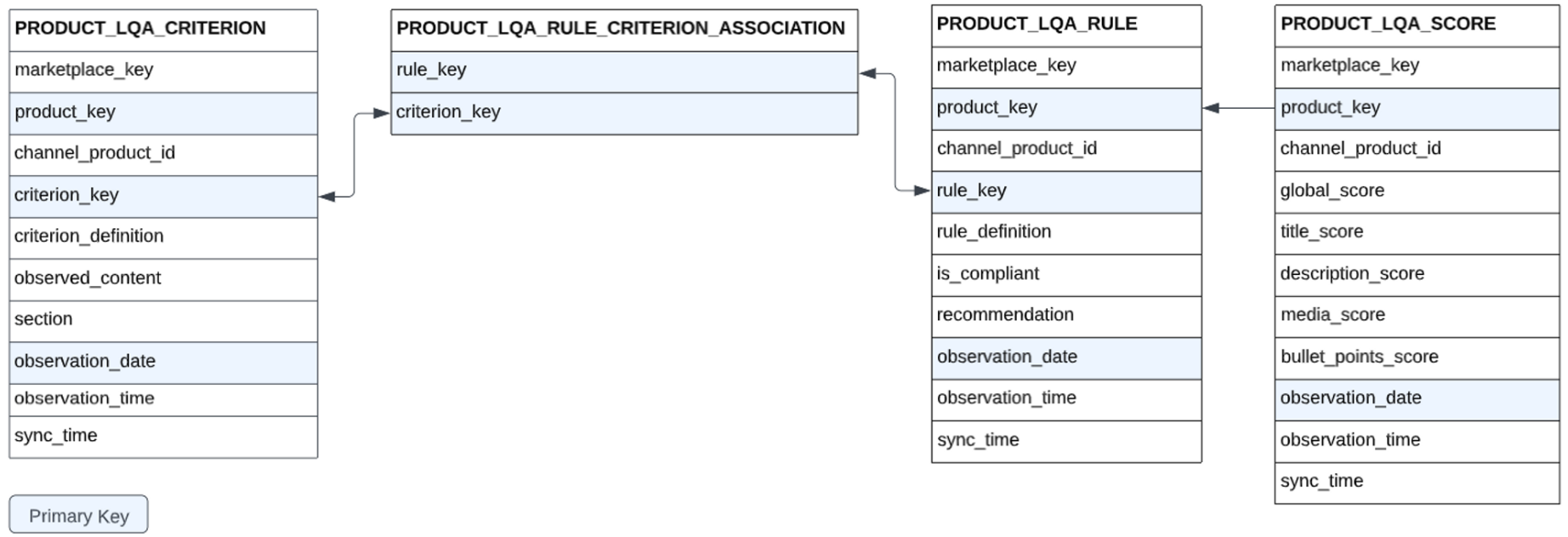 ### Null and empty values
- **Null value**: DataHawk could not extract this data, so the state is unknown.
- **Empty value**: DataHawk confirmed the characteristic is absent. For example, an empty "Emojis in title" field means no emojis were found.
### Score formula
```text
Section score = sum(rule_compliances * rule_weights) / max_section_points
Global LQS = (Title Score * 0.4) + (Media Score * 0.3) + (Bullets Score * 0.2) + (Description Score * 0.1)
```
## Listing issues (compliance & catalog problems)
Amazon flags catalog and compliance problems on your listings through the Listings Items API: search-suppressed active listings, inactive listings missing an offer or price, items pending approval, and more. DataHawk captures these in `SELLING_PARTNER.LISTING_ITEMS`.
Released June 2026. This is a raw table today, with no dedicated view or dashboard yet. Query it directly using the recipe below. See the [changelog entry](/changelog/2026-06-04-listing-issues-dataset) for what's planned next.
**Where the data comes from:** `LISTING_ITEM_DETAILS:issues` is a semi-structured array on each listing item, one entry per open issue, with a `code`, `severity`, `message`, `categories`, and `attributeNames`. A single SKU can have multiple issues open at once.
### Recipe: current listing issues per SKU
```sql
WITH ranked AS (
SELECT
WORKSPACE_ID,
ACCOUNT_KEY,
SELLER_NAME,
MARKETPLACE_KEY,
SKU,
ASIN,
ITEM_NAME,
EXTRACT_TIME,
issue.value:code::STRING AS ISSUE_CODE,
issue.value:severity::STRING AS ISSUE_SEVERITY,
issue.value:message::STRING AS ISSUE_MESSAGE,
issue.value:categories::ARRAY AS ISSUE_CATEGORIES,
issue.value:attributeNames::ARRAY AS ISSUE_ATTRIBUTE_NAMES,
ROW_NUMBER() OVER (
PARTITION BY ACCOUNT_KEY, MARKETPLACE_KEY, SKU, issue.value:code::STRING
ORDER BY EXTRACT_TIME DESC
) AS rn
FROM SELLING_PARTNER.LISTING_ITEMS,
LATERAL FLATTEN(input => LISTING_ITEM_DETAILS:issues) AS issue
WHERE ARRAY_SIZE(LISTING_ITEM_DETAILS:issues) > 0
AND EXTRACT_TIME >= DATEADD('day', -3, CURRENT_TIMESTAMP())
)
SELECT
WORKSPACE_ID, ACCOUNT_KEY, SELLER_NAME, MARKETPLACE_KEY, SKU, ASIN, ITEM_NAME, EXTRACT_TIME,
ISSUE_CODE, ISSUE_SEVERITY, ISSUE_MESSAGE, ISSUE_CATEGORIES, ISSUE_ATTRIBUTE_NAMES
FROM ranked
WHERE rn = 1
```
This dedupes to the latest snapshot of each open issue per SKU, so you don't see the same issue repeated across days. The `-3 days` window only controls which snapshot the dedup uses as "current". Widen it if a SKU's most recent snapshot is older than that.
**This returns every issue Amazon reports, not just compliance problems.** If you only want catalog/compliance issues (for example, to exclude Out of Stock, which is usually managed elsewhere), filter `ISSUE_CODE`, `ISSUE_MESSAGE`, or `ISSUE_CATEGORIES` to the types you care about. Amazon's own **Manage All Inventory \> Activate Listings \> Fix Issues** view in Seller Central groups these; issue types customers commonly ask to track are Search Suppressed, Detail Page Removed, Missing Offer, Pricing Issue, Approval Required, and Closed.
**Known gap (as of June 2026): no "date issue first appeared" field.** `EXTRACT_TIME` is when DataHawk captured the snapshot, not when Amazon created the issue, so this table alone can't tell a brand-new problem from one that's been open for weeks. `[TO CONFIRM: whether a first-seen timestamp is planned]`
## Competitor detection table
| Schema | Table | Description |
|---|---|---|
| `PRODUCT` | `PRODUCT_COMPETITORS` | Competitor products for owned ASINs detected from product, category, price, keyword, and co-occurrence signals |
DataHawk scores candidate competitor pairs using signals such as semantic title similarity, price comparison, shared category depth, keyword intersection, and co-occurrence on listing and search pages. Pairs must reach a 90% confidence threshold to be included.
## Pricing and offers tables
| Table | What it contains |
|---|---|
| `PRODUCT.AMZN_PRODUCT_FEATURED_OFFER` | Daily featured offer (Buy Box) snapshot per ASIN |
| `PRODUCT.AMZN_PRODUCT_COMPETITIVE_PRICES` | Amazon competitive-price and was-price benchmarks |
`AMZN_PRODUCT_COMPETITIVE_PRICES` is sourced from SP-API Product Pricing v2022-05-01 (`getCompetitiveSummary`). It refreshes daily for tracked products and seller listings, and quarterly for other products connected to DataHawk.
### `AMZN_PRODUCT_FEATURED_OFFER` columns
| Column | Description | Status |
|---|---|---|
| `OBSERVATION_DATE` | Date of the snapshot | Live |
| `OBSERVATION_TIME` | Time of the snapshot | Live |
| `MARKETPLACE_KEY` | Marketplace identifier | Live |
| `ASIN` | Amazon Standard Identification Number | Live |
| `HAS_FEATURED_OFFER` | Whether the listing has a featured offer (Buy Box) | Live |
| `IS_FEATURED_OFFER_SUPPRESSED` | Whether the featured offer is suppressed | Live |
| `FEATURED_LANDED_PRICE` | Total price including shipping for the featured offer | Live |
| `FEATURED_LISTING_PRICE` | Listed price for the featured offer | Live |
| `FEATURED_SHIPPING_PRICE` | Shipping price for the featured offer | Live |
| `FEATURED_CURRENCY_CODE` | Currency of the featured offer price | Live |
| `FEATURED_ITEM_CONDITION` | Condition of the featured offer item | Live |
| `FEATURED_FULFILLMENT_TYPE` | Fulfillment type of the featured offer (FBA/FBM) | Live |
| `FEATURED_SELLER_ID` | Seller ID of the featured offer holder | Live |
| `FEATURED_SELLER_NAME` | Name of the featured offer seller | Coming soon |
| `FEATURED_SELLER_FEEDBACK_COUNT` | Feedback count for the featured offer seller | Coming soon |
| `FEATURED_SELLER_POSITIVE_FEEDBACK_RATING` | Positive feedback rating for the featured offer seller | Coming soon |
| `TOTAL_FEATURED_OFFERS_COUNT` | Total number of featured offers on the listing | Live |
| `TOTAL_OFFERS_COUNT` | Total number of all offers, new and used | Live |
| `TOTAL_OFFERS_NEW_COUNT` | Number of new-condition offers | Live |
| `TOTAL_OFFERS_USED_COUNT` | Number of used-condition offers | Live |
| `TOTAL_OFFERS_FBA_COUNT` | Number of FBA offers | Live |
| `TOTAL_OFFERS_FBM_COUNT` | Number of FBM offers | Live |
---
title: Sales Estimates Data
description: Technical reference for DataHawk sales estimate tables, V7 aliases, columns, grain, and refresh behavior.
---
Use this page when you need to query DataHawk's sales estimate tables or migrate from older V5/V6 table names. For methodology and interpretation, see [Amazon Sales Estimates](/help-center/data-metrics-guides/competition/amz-sales-estimates).
## Active tables
| Schema | Table | Level | Description |
|---|---|---|---|
| `PRODUCT` | `PRODUCT_SALES_ESTIMATES` | Child + Parent | One row per tracked child ASIN per day. Contains both variant-level and parent-rollup fields. |
| `MARKET` | `PRODUCT_SALES_ESTIMATES` | Product | Top 100 products per category with V7 estimates. |
| `REPORTS` | `REPORT_MARKET_BEST_SELLER_RANK_AND_ESTIMATES` | Product | Top 100 per category with ranks and estimates. |
## Deprecated aliases
These tables still resolve to active V7 data, so existing queries continue to return values. Do not use them for new work.
| Deprecated alias | Points to |
|---|---|
| `PRODUCT.PRODUCT_SALES_ESTIMATES_V5` | `PRODUCT.PRODUCT_SALES_ESTIMATES` |
| `PRODUCT.PRODUCT_SALES_ESTIMATES_V5_CHILD` | `PRODUCT.PRODUCT_SALES_ESTIMATES` |
| `PRODUCT.PRODUCT_SALES_ESTIMATES_V5_RAW` | `PRODUCT.PRODUCT_SALES_ESTIMATES` |
| `PRODUCT.PRODUCT_SALES_ESTIMATES_V6` | `PRODUCT.PRODUCT_SALES_ESTIMATES` |
| `PRODUCT.PRODUCT_SALES_ESTIMATES_V6_CHILD` | `PRODUCT.PRODUCT_SALES_ESTIMATES` |
| `PRODUCT.PRODUCT_SALES_ESTIMATES_V6_RAW` | `PRODUCT.PRODUCT_SALES_ESTIMATES` |
| `MARKET.PRODUCT_SALES_ESTIMATES_V5_RAW` | `MARKET.PRODUCT_SALES_ESTIMATES` |
| `MARKET.PRODUCT_SALES_ESTIMATES_V6_RAW` | `MARKET.PRODUCT_SALES_ESTIMATES` |
| `REPORTS.REPORT_MARKET_BEST_SELLER_RANK_AND_ESTIMATES_V6` | `REPORTS.REPORT_MARKET_BEST_SELLER_RANK_AND_ESTIMATES` |
| `REPORTS.REPORT_MARKET_PRODUCT_SALES_RANK_AND_ESTIMATES` | `REPORTS.REPORT_MARKET_BEST_SELLER_RANK_AND_ESTIMATES` |
## Key columns
| Column | Level | Description |
|---|---|---|
| `WORKSPACE_ID` |; | DataHawk workspace identifier |
| `OBSERVATION_DATE` |; | Date of the estimate |
| `MARKETPLACE_KEY` |; | Amazon marketplace (US, FR, DE, etc.) |
| `PRODUCT_KEY` |; | DataHawk internal product identifier |
| `ASIN` | Child | Child ASIN |
| `PARENT_ASIN` |; | Parent ASIN |
| `CURRENCY_CODE` |; | Local marketplace currency |
| `BRAND` | Child | Latest known brand name |
| `NAME` | Child | Latest known product name |
| `UNITS_CHILD` | Child | Estimated daily units sold for this variant |
| `REVENUE_CHILD` | Child | Estimated daily revenue for this variant, in local currency |
| `REVENUE_CHILD_USD` | Child | Estimated daily revenue for this variant, in USD |
| `UNITS_PARENT` | Parent | Estimated daily units sold across the full family |
| `REVENUE_PARENT` | Parent | Estimated daily revenue across the full family, in local currency |
| `REVENUE_PARENT_USD` | Parent | Estimated daily revenue across the full family, in USD |
| `PRICE_CHILD` | Child | Observed listing price for this variant, in local currency |
| `PRICE_CHILD_USD` | Child | Observed listing price for this variant, in USD |
| `PRICE_PARENT_WEIGHTED_AVG` | Parent | Weighted average price across all variants, in local currency |
| `PRICE_PARENT_WEIGHTED_AVG_USD` | Parent | Weighted average price across all variants, in USD |
| `SELLER_COUNT_CHILD` | Child | Number of sellers for this variant |
| `SELLER_COUNT_PARENT` | Parent | Distinct seller count across all variants |
| `IS_EXTRAPOLATED` | Child | `true` when the estimate was extrapolated because source data was missing |
| `TAGS_ARRAY` | Child | Tags applied to this product in DataHawk |
| `TRUST_INDEX` | Child | Model confidence score for this estimate |
| `VARIATION_COUNT` |; | Number of known variants in the family |
| `MODEL_VERSION` | Child | Version of the estimation model used |
| `SYNC_TIME` |; | Last data sync timestamp |
The V7 table no longer exposes `OBSERVED_CHANNEL_PRODUCT_ID`, `RATING`, or `RATING_COUNT`.
## Granularity and refresh
| Attribute | Value |
|---|---|
| Granularity | One row per tracked child ASIN / marketplace / day |
| Refresh | Daily |
| History | Up to 2 years before tracking starts, then growing every day |
| Primary key | `WORKSPACE_ID`, `OBSERVATION_DATE`, `MARKETPLACE_KEY`, `ASIN` |
The full 2024+ history was reprocessed with V7 on June 15, 2026.
## FAQ
Yes. V5 and V6 tables now resolve to V7 data via aliases, so existing queries continue to return values. The values may differ from what you saw before June 15, 2026 because V7 reprocessed the historical data.
Yes. Aliases work today but should not be used for new work. Replace `PRODUCT_SALES_ESTIMATES_V5*` and `_V6*` references with `PRODUCT_SALES_ESTIMATES`, and use the active `MARKET` and `REPORTS` tables listed above.
Parent estimates represent total family sales. `UNITS_PARENT` is the family-level estimate, computed from the parent sales rank. `UNITS_CHILD` values are allocated from that family total using public purchase signals (with a conservative fallback, or an equal split when no signal is available). When you compare a complete family for the same date, the sum of `UNITS_CHILD` should reconcile with `UNITS_PARENT`. Do not use `UNITS_PARENT` to represent a single variant's sales: it covers the whole family and would count sibling sales onto that ASIN.
This can happen when the family definition changes over time, or when only some variants in a family are tracked. When you track one child ASIN from a larger family, DataHawk uses the parent ASIN to discover the family structure, but it does not collect sales signals for the untracked children.
If the tracked child has no public purchase signal, its estimate uses the default low-signal range of 0-50 monthly units, represented as 25 monthly units. That child-level estimate can stay low even when the full parent family sells more than 30,000 units per month. Use `VARIATION_COUNT` to understand the full known family size used at estimation time.
Yes. If a product appears in the top 100 of a category you track, category tracking can provide estimates for it even if you did not add that ASIN manually.
When BSR data is temporarily unavailable, DataHawk fills the gap using linear extrapolation. These rows are flagged so you can include or exclude them in analysis.
A per-row confidence score reflecting data quality for that product and date.
---
title: Inventory Ledger Summary Data
description: Daily FBA stock balances and movements per SKU, by country or by fulfillment center, from Amazon's Inventory Ledger summary report.
---
The Inventory Ledger tracks where your FBA units physically are and how they moved: receipts, customer shipments, returns, transfers between warehouses, units found, lost, damaged or disposed. Unlike [FBA Inventory Summaries](/help-center/data-reference/fba-seller-inventory-fba-summaries), which reports the stock each marketplace can sell, the ledger reports the stock stored in each location, so it is the right source when the question is "where is my stock?" or "why did it change?".
DataHawk exposes the ledger summary at two levels of location, from two versions of the same Amazon report (`GET_LEDGER_SUMMARY_VIEW_DATA`):
| Table | Location level | Use for |
|---|---|---|
| `SELLER_INVENTORY_LEDGER_SUMMARY` | Country | Stock and net movements per country |
| `SELLER_INVENTORY_LEDGER_SUMMARY_BY_FC` | Fulfillment center | Stock and net movements per fulfillment center |
The two tables have the same columns, except `COUNTRY` becomes `FULFILLMENT_CENTER`. Amazon builds the country and fulfillment center reports separately, so don't add up fulfillment center rows to get country totals: the sums are usually close but can differ. For country totals, use `SELLER_INVENTORY_LEDGER_SUMMARY`. For the individual transactions behind a movement, use `SELLER_INVENTORY_LEDGER_DETAIL`.
## Key facts
| | |
|---|---|
| **Tables** | `SELLING_PARTNER.SELLER_INVENTORY_LEDGER_SUMMARY`, `SELLING_PARTNER.SELLER_INVENTORY_LEDGER_SUMMARY_BY_FC` |
| **Source** | Amazon Selling Partner API, Inventory Ledger summary report (`GET_LEDGER_SUMMARY_VIEW_DATA`), aggregated by country or by fulfillment center |
| **Account types** | Seller accounts only |
| **Granularity** | Daily |
| **History** | Up to 18 months before you connect your account (Amazon's limit) is loaded at connection, then new days are added daily |
| **Refresh** | Daily. Amazon publishes ledger days with a delay, so the most recent date is usually 2 to 3 days behind today |
## Grain
| Table | One row per |
|---|---|
| `SELLER_INVENTORY_LEDGER_SUMMARY` | Account × date × FNSKU × MSKU × disposition × country |
| `SELLER_INVENTORY_LEDGER_SUMMARY_BY_FC` | Account × date × FNSKU × MSKU × disposition × fulfillment center |
`disposition` splits each SKU's stock by condition: `SELLABLE`, `CUSTOMER_DAMAGED`, `WAREHOUSE_DAMAGED`, `CARRIER_DAMAGED`, `DISTRIBUTOR_DAMAGED`, `DEFECTIVE` and `EXPIRED`. Sum over dispositions for all units in a location, or filter on `SELLABLE` for sellable units only.
## How the balance works
For each row, the ending balance is the starting balance plus the day's movements:
```text
ending_warehouse_balance = starting_warehouse_balance
+ receipts + customer_shipments + customer_returns + vendor_returns
+ warehouse_transfer_in_out + found + lost + damaged + disposed
+ other_events + unknown_events
```
Movements that remove units from the location (shipments, transfers out, lost, disposed) are negative. `in_transit_between_warehouses` is reported for information and is not part of this calculation.
The ledger counts units physically stored in a location. It doesn't include inbound shipments that haven't been received yet, and it doesn't pool stock across marketplaces. That's why its totals are lower than `total_quantity` in FBA Inventory Summaries, and why one country's ledger balance can differ from the `available` quantity shown for the same country's marketplace.
## Columns
### Identifiers
| Column | Description |
|---|---|
| `workspace_id` | DataHawk workspace identifier |
| `account_key` | DataHawk account identifier |
| `seller_name` | Seller account name |
| `region_seller_name` | Seller name for the region |
| `region_name` | Region: North America, Europe or Far East |
| `inventory_ledger_summary_event_key` | Unique row identifier |
### Product and location
| Column | Description |
|---|---|
| `date` | Ledger date |
| `asin` | Amazon Standard Identification Number |
| `fnsku` | Amazon fulfillment network SKU |
| `msku` | Merchant SKU (your seller SKU) |
| `title` | Product title |
| `disposition` | Condition of the units: `SELLABLE` or one of the unsellable dispositions |
| `location` | Location as returned by Amazon: a country code in `SELLER_INVENTORY_LEDGER_SUMMARY`, a fulfillment center code in `SELLER_INVENTORY_LEDGER_SUMMARY_BY_FC` |
| `country` | Country code (for example `US`, `DE`, `GB`). `SELLER_INVENTORY_LEDGER_SUMMARY` only |
| `fulfillment_center` | Fulfillment center code. `SELLER_INVENTORY_LEDGER_SUMMARY_BY_FC` only |
### Balances and movements
| Column | Description |
|---|---|
| `starting_warehouse_balance` | Units in the location at the start of the day |
| `in_transit_between_warehouses` | Units moving between fulfillment centers. Not included in the ending balance |
| `receipts` | Units received from inbound shipments |
| `customer_shipments` | Units shipped to customers |
| `customer_returns` | Units returned by customers |
| `vendor_returns` | Units removed and returned to you |
| `warehouse_transfer_in_out` | Units transferred in or out of the location |
| `found` | Units found after being reported lost |
| `lost` | Units reported lost |
| `damaged` | Units reported damaged |
| `disposed` | Units disposed of |
| `other_events` | Other adjustments |
| `unknown_events` | Movements Amazon doesn't classify |
| `ending_warehouse_balance` | Units in the location at the end of the day |
### Sync
| Column | Description |
|---|---|
| `sync_time` | Time the source report was loaded |
| `_sync_time` | Last time the row was loaded into your database |
## Example queries
**Sellable stock by country on the latest ledger date**
```sql
SELECT COUNTRY, MSKU, SUM(ENDING_WAREHOUSE_BALANCE) AS SELLABLE_UNITS
FROM SELLING_PARTNER.SELLER_INVENTORY_LEDGER_SUMMARY
WHERE DISPOSITION = 'SELLABLE'
AND DATE = (SELECT MAX(DATE) FROM SELLING_PARTNER.SELLER_INVENTORY_LEDGER_SUMMARY)
GROUP BY COUNTRY, MSKU
ORDER BY SELLABLE_UNITS DESC;
```
**Stock by fulfillment center for one SKU**
```sql
SELECT DATE, FULFILLMENT_CENTER, DISPOSITION, ENDING_WAREHOUSE_BALANCE
FROM SELLING_PARTNER.SELLER_INVENTORY_LEDGER_SUMMARY_BY_FC
WHERE MSKU = 'YOUR_SKU'
AND DATE >= DATEADD(day, -7, CURRENT_DATE())
ORDER BY DATE DESC, ENDING_WAREHOUSE_BALANCE DESC;
```
**What moved my stock in a country last week?**
```sql
SELECT MSKU,
SUM(RECEIPTS) AS RECEIPTS,
SUM(CUSTOMER_SHIPMENTS) AS CUSTOMER_SHIPMENTS,
SUM(CUSTOMER_RETURNS) AS CUSTOMER_RETURNS,
SUM(WAREHOUSE_TRANSFER_IN_OUT) AS TRANSFERS,
SUM(LOST + FOUND + DAMAGED + DISPOSED) AS ADJUSTMENTS
FROM SELLING_PARTNER.SELLER_INVENTORY_LEDGER_SUMMARY
WHERE COUNTRY = 'US'
AND DATE BETWEEN '2026-10-01' AND '2026-10-07'
GROUP BY MSKU;
```
For the individual events behind these totals, query `SELLER_INVENTORY_LEDGER_DETAIL` with the same SKU, country and dates.
## FAQ
Amazon makes each ledger day available with a delay. The most recent date is usually 2 to 3 days behind today. For today's stock, use [FBA Inventory Summaries](/help-center/data-reference/fba-seller-inventory-fba-summaries).
The two answer different questions. The ledger counts units stored in a country or fulfillment center. FBA Inventory Summaries reports what each marketplace can sell, which includes stock shared between marketplaces and inbound units. Totals also come from different moments in the day.
`RAW_INVENTORY.RAW_INVENTORY_LEDGER_SUMMARY` is a legacy table, replaced by the `SELLING_PARTNER` ledger tables. Use `SELLER_INVENTORY_LEDGER_SUMMARY` for country-level analysis and `SELLER_INVENTORY_LEDGER_SUMMARY_BY_FC` for fulfillment-center-level analysis.
---
title: SEO & Keyword Data
description: Reference for DataHawk keyword research, search volume, organic rank, and sponsored rank datasets.
---
Use this page when you need the technical tables behind keyword research, search volume, and search visibility. For business usage, see [Keyword Research & Search Volume](/help-center/data-metrics-guides/search/keyword-research).
## Keyword research report tables
All keyword research report tables sit in the `REPORTS` schema.
| Table | Contents | Refresh |
|---|---|---|
| `REPORT_PRODUCT_KEYWORD_SUGGESTIONS` | AI-generated keyword ideas per product | Daily |
| `REPORT_PRODUCT_KEYWORD_LOOKUP` | Organic ranking keywords over the past 7 days | Weekly |
| `REPORT_PRODUCT_KEYWORD_PLACEMENT` | Keyword placement in listings | Paused since Aug 2023 |
| `REPORT_KEYWORD_KEYWORD_SUGGESTIONS` | Keyword-seeded suggestions | On demand |
For full column definitions, use the [Exhaustive Column Referential](https://docs.google.com/spreadsheets/d/1gYGqKQP9Z71nz1lOb4y0wJ15i27NvsUzdliIJeIx0HY/edit#gid=175439716).
## Search volume table
| Schema | Table | Granularity | Refresh |
|---|---|---|---|
| `SEO` | `SEO_KEYWORD_VOLUME_V2` | One data point per keyword per marketplace per day (`DATE_DAY`) | Weekly |
Absence of data for a given date and keyword means that keyword's search volume was below measurable thresholds. It does not indicate a data error.
## Rank tables
| Schema | Table | Contents |
|---|---|---|
| `SEO` | `SEO_PRODUCT_ORGANIC_RANK` | Daily organic rank snapshots for every product found in the search results of tracked keywords (product tracking not required) |
| `SEO` | `SEO_PRODUCT_SPONSORED_RANK` | Sponsored rank snapshots for Premium Keywords workspaces |
Standard sponsored ranks were retired on July 8, 2025. `SEO_PRODUCT_SPONSORED_RANK` is populated only for workspaces using [Premium Keywords](/help-center/data-setup/premium-keywords-tracking).
## Where to go next
### Null and empty values
- **Null value**: DataHawk could not extract this data, so the state is unknown.
- **Empty value**: DataHawk confirmed the characteristic is absent. For example, an empty "Emojis in title" field means no emojis were found.
### Score formula
```text
Section score = sum(rule_compliances * rule_weights) / max_section_points
Global LQS = (Title Score * 0.4) + (Media Score * 0.3) + (Bullets Score * 0.2) + (Description Score * 0.1)
```
## Listing issues (compliance & catalog problems)
Amazon flags catalog and compliance problems on your listings through the Listings Items API: search-suppressed active listings, inactive listings missing an offer or price, items pending approval, and more. DataHawk captures these in `SELLING_PARTNER.LISTING_ITEMS`.
Released June 2026. This is a raw table today, with no dedicated view or dashboard yet. Query it directly using the recipe below. See the [changelog entry](/changelog/2026-06-04-listing-issues-dataset) for what's planned next.
**Where the data comes from:** `LISTING_ITEM_DETAILS:issues` is a semi-structured array on each listing item, one entry per open issue, with a `code`, `severity`, `message`, `categories`, and `attributeNames`. A single SKU can have multiple issues open at once.
### Recipe: current listing issues per SKU
```sql
WITH ranked AS (
SELECT
WORKSPACE_ID,
ACCOUNT_KEY,
SELLER_NAME,
MARKETPLACE_KEY,
SKU,
ASIN,
ITEM_NAME,
EXTRACT_TIME,
issue.value:code::STRING AS ISSUE_CODE,
issue.value:severity::STRING AS ISSUE_SEVERITY,
issue.value:message::STRING AS ISSUE_MESSAGE,
issue.value:categories::ARRAY AS ISSUE_CATEGORIES,
issue.value:attributeNames::ARRAY AS ISSUE_ATTRIBUTE_NAMES,
ROW_NUMBER() OVER (
PARTITION BY ACCOUNT_KEY, MARKETPLACE_KEY, SKU, issue.value:code::STRING
ORDER BY EXTRACT_TIME DESC
) AS rn
FROM SELLING_PARTNER.LISTING_ITEMS,
LATERAL FLATTEN(input => LISTING_ITEM_DETAILS:issues) AS issue
WHERE ARRAY_SIZE(LISTING_ITEM_DETAILS:issues) > 0
AND EXTRACT_TIME >= DATEADD('day', -3, CURRENT_TIMESTAMP())
)
SELECT
WORKSPACE_ID, ACCOUNT_KEY, SELLER_NAME, MARKETPLACE_KEY, SKU, ASIN, ITEM_NAME, EXTRACT_TIME,
ISSUE_CODE, ISSUE_SEVERITY, ISSUE_MESSAGE, ISSUE_CATEGORIES, ISSUE_ATTRIBUTE_NAMES
FROM ranked
WHERE rn = 1
```
This dedupes to the latest snapshot of each open issue per SKU, so you don't see the same issue repeated across days. The `-3 days` window only controls which snapshot the dedup uses as "current". Widen it if a SKU's most recent snapshot is older than that.
**This returns every issue Amazon reports, not just compliance problems.** If you only want catalog/compliance issues (for example, to exclude Out of Stock, which is usually managed elsewhere), filter `ISSUE_CODE`, `ISSUE_MESSAGE`, or `ISSUE_CATEGORIES` to the types you care about. Amazon's own **Manage All Inventory \> Activate Listings \> Fix Issues** view in Seller Central groups these; issue types customers commonly ask to track are Search Suppressed, Detail Page Removed, Missing Offer, Pricing Issue, Approval Required, and Closed.
**Known gap (as of June 2026): no "date issue first appeared" field.** `EXTRACT_TIME` is when DataHawk captured the snapshot, not when Amazon created the issue, so this table alone can't tell a brand-new problem from one that's been open for weeks. `[TO CONFIRM: whether a first-seen timestamp is planned]`
## Competitor detection table
| Schema | Table | Description |
|---|---|---|
| `PRODUCT` | `PRODUCT_COMPETITORS` | Competitor products for owned ASINs detected from product, category, price, keyword, and co-occurrence signals |
DataHawk scores candidate competitor pairs using signals such as semantic title similarity, price comparison, shared category depth, keyword intersection, and co-occurrence on listing and search pages. Pairs must reach a 90% confidence threshold to be included.
## Pricing and offers tables
| Table | What it contains |
|---|---|
| `PRODUCT.AMZN_PRODUCT_FEATURED_OFFER` | Daily featured offer (Buy Box) snapshot per ASIN |
| `PRODUCT.AMZN_PRODUCT_COMPETITIVE_PRICES` | Amazon competitive-price and was-price benchmarks |
`AMZN_PRODUCT_COMPETITIVE_PRICES` is sourced from SP-API Product Pricing v2022-05-01 (`getCompetitiveSummary`). It refreshes daily for tracked products and seller listings, and quarterly for other products connected to DataHawk.
### `AMZN_PRODUCT_FEATURED_OFFER` columns
| Column | Description | Status |
|---|---|---|
| `OBSERVATION_DATE` | Date of the snapshot | Live |
| `OBSERVATION_TIME` | Time of the snapshot | Live |
| `MARKETPLACE_KEY` | Marketplace identifier | Live |
| `ASIN` | Amazon Standard Identification Number | Live |
| `HAS_FEATURED_OFFER` | Whether the listing has a featured offer (Buy Box) | Live |
| `IS_FEATURED_OFFER_SUPPRESSED` | Whether the featured offer is suppressed | Live |
| `FEATURED_LANDED_PRICE` | Total price including shipping for the featured offer | Live |
| `FEATURED_LISTING_PRICE` | Listed price for the featured offer | Live |
| `FEATURED_SHIPPING_PRICE` | Shipping price for the featured offer | Live |
| `FEATURED_CURRENCY_CODE` | Currency of the featured offer price | Live |
| `FEATURED_ITEM_CONDITION` | Condition of the featured offer item | Live |
| `FEATURED_FULFILLMENT_TYPE` | Fulfillment type of the featured offer (FBA/FBM) | Live |
| `FEATURED_SELLER_ID` | Seller ID of the featured offer holder | Live |
| `FEATURED_SELLER_NAME` | Name of the featured offer seller | Coming soon |
| `FEATURED_SELLER_FEEDBACK_COUNT` | Feedback count for the featured offer seller | Coming soon |
| `FEATURED_SELLER_POSITIVE_FEEDBACK_RATING` | Positive feedback rating for the featured offer seller | Coming soon |
| `TOTAL_FEATURED_OFFERS_COUNT` | Total number of featured offers on the listing | Live |
| `TOTAL_OFFERS_COUNT` | Total number of all offers, new and used | Live |
| `TOTAL_OFFERS_NEW_COUNT` | Number of new-condition offers | Live |
| `TOTAL_OFFERS_USED_COUNT` | Number of used-condition offers | Live |
| `TOTAL_OFFERS_FBA_COUNT` | Number of FBA offers | Live |
| `TOTAL_OFFERS_FBM_COUNT` | Number of FBM offers | Live |
---
title: Sales Estimates Data
description: Technical reference for DataHawk sales estimate tables, V7 aliases, columns, grain, and refresh behavior.
---
Use this page when you need to query DataHawk's sales estimate tables or migrate from older V5/V6 table names. For methodology and interpretation, see [Amazon Sales Estimates](/help-center/data-metrics-guides/competition/amz-sales-estimates).
## Active tables
| Schema | Table | Level | Description |
|---|---|---|---|
| `PRODUCT` | `PRODUCT_SALES_ESTIMATES` | Child + Parent | One row per tracked child ASIN per day. Contains both variant-level and parent-rollup fields. |
| `MARKET` | `PRODUCT_SALES_ESTIMATES` | Product | Top 100 products per category with V7 estimates. |
| `REPORTS` | `REPORT_MARKET_BEST_SELLER_RANK_AND_ESTIMATES` | Product | Top 100 per category with ranks and estimates. |
## Deprecated aliases
These tables still resolve to active V7 data, so existing queries continue to return values. Do not use them for new work.
| Deprecated alias | Points to |
|---|---|
| `PRODUCT.PRODUCT_SALES_ESTIMATES_V5` | `PRODUCT.PRODUCT_SALES_ESTIMATES` |
| `PRODUCT.PRODUCT_SALES_ESTIMATES_V5_CHILD` | `PRODUCT.PRODUCT_SALES_ESTIMATES` |
| `PRODUCT.PRODUCT_SALES_ESTIMATES_V5_RAW` | `PRODUCT.PRODUCT_SALES_ESTIMATES` |
| `PRODUCT.PRODUCT_SALES_ESTIMATES_V6` | `PRODUCT.PRODUCT_SALES_ESTIMATES` |
| `PRODUCT.PRODUCT_SALES_ESTIMATES_V6_CHILD` | `PRODUCT.PRODUCT_SALES_ESTIMATES` |
| `PRODUCT.PRODUCT_SALES_ESTIMATES_V6_RAW` | `PRODUCT.PRODUCT_SALES_ESTIMATES` |
| `MARKET.PRODUCT_SALES_ESTIMATES_V5_RAW` | `MARKET.PRODUCT_SALES_ESTIMATES` |
| `MARKET.PRODUCT_SALES_ESTIMATES_V6_RAW` | `MARKET.PRODUCT_SALES_ESTIMATES` |
| `REPORTS.REPORT_MARKET_BEST_SELLER_RANK_AND_ESTIMATES_V6` | `REPORTS.REPORT_MARKET_BEST_SELLER_RANK_AND_ESTIMATES` |
| `REPORTS.REPORT_MARKET_PRODUCT_SALES_RANK_AND_ESTIMATES` | `REPORTS.REPORT_MARKET_BEST_SELLER_RANK_AND_ESTIMATES` |
## Key columns
| Column | Level | Description |
|---|---|---|
| `WORKSPACE_ID` |; | DataHawk workspace identifier |
| `OBSERVATION_DATE` |; | Date of the estimate |
| `MARKETPLACE_KEY` |; | Amazon marketplace (US, FR, DE, etc.) |
| `PRODUCT_KEY` |; | DataHawk internal product identifier |
| `ASIN` | Child | Child ASIN |
| `PARENT_ASIN` |; | Parent ASIN |
| `CURRENCY_CODE` |; | Local marketplace currency |
| `BRAND` | Child | Latest known brand name |
| `NAME` | Child | Latest known product name |
| `UNITS_CHILD` | Child | Estimated daily units sold for this variant |
| `REVENUE_CHILD` | Child | Estimated daily revenue for this variant, in local currency |
| `REVENUE_CHILD_USD` | Child | Estimated daily revenue for this variant, in USD |
| `UNITS_PARENT` | Parent | Estimated daily units sold across the full family |
| `REVENUE_PARENT` | Parent | Estimated daily revenue across the full family, in local currency |
| `REVENUE_PARENT_USD` | Parent | Estimated daily revenue across the full family, in USD |
| `PRICE_CHILD` | Child | Observed listing price for this variant, in local currency |
| `PRICE_CHILD_USD` | Child | Observed listing price for this variant, in USD |
| `PRICE_PARENT_WEIGHTED_AVG` | Parent | Weighted average price across all variants, in local currency |
| `PRICE_PARENT_WEIGHTED_AVG_USD` | Parent | Weighted average price across all variants, in USD |
| `SELLER_COUNT_CHILD` | Child | Number of sellers for this variant |
| `SELLER_COUNT_PARENT` | Parent | Distinct seller count across all variants |
| `IS_EXTRAPOLATED` | Child | `true` when the estimate was extrapolated because source data was missing |
| `TAGS_ARRAY` | Child | Tags applied to this product in DataHawk |
| `TRUST_INDEX` | Child | Model confidence score for this estimate |
| `VARIATION_COUNT` |; | Number of known variants in the family |
| `MODEL_VERSION` | Child | Version of the estimation model used |
| `SYNC_TIME` |; | Last data sync timestamp |
The V7 table no longer exposes `OBSERVED_CHANNEL_PRODUCT_ID`, `RATING`, or `RATING_COUNT`.
## Granularity and refresh
| Attribute | Value |
|---|---|
| Granularity | One row per tracked child ASIN / marketplace / day |
| Refresh | Daily |
| History | Up to 2 years before tracking starts, then growing every day |
| Primary key | `WORKSPACE_ID`, `OBSERVATION_DATE`, `MARKETPLACE_KEY`, `ASIN` |
The full 2024+ history was reprocessed with V7 on June 15, 2026.
## FAQ
Yes. V5 and V6 tables now resolve to V7 data via aliases, so existing queries continue to return values. The values may differ from what you saw before June 15, 2026 because V7 reprocessed the historical data.
Yes. Aliases work today but should not be used for new work. Replace `PRODUCT_SALES_ESTIMATES_V5*` and `_V6*` references with `PRODUCT_SALES_ESTIMATES`, and use the active `MARKET` and `REPORTS` tables listed above.
Parent estimates represent total family sales. `UNITS_PARENT` is the family-level estimate, computed from the parent sales rank. `UNITS_CHILD` values are allocated from that family total using public purchase signals (with a conservative fallback, or an equal split when no signal is available). When you compare a complete family for the same date, the sum of `UNITS_CHILD` should reconcile with `UNITS_PARENT`. Do not use `UNITS_PARENT` to represent a single variant's sales: it covers the whole family and would count sibling sales onto that ASIN.
This can happen when the family definition changes over time, or when only some variants in a family are tracked. When you track one child ASIN from a larger family, DataHawk uses the parent ASIN to discover the family structure, but it does not collect sales signals for the untracked children.
If the tracked child has no public purchase signal, its estimate uses the default low-signal range of 0-50 monthly units, represented as 25 monthly units. That child-level estimate can stay low even when the full parent family sells more than 30,000 units per month. Use `VARIATION_COUNT` to understand the full known family size used at estimation time.
Yes. If a product appears in the top 100 of a category you track, category tracking can provide estimates for it even if you did not add that ASIN manually.
When BSR data is temporarily unavailable, DataHawk fills the gap using linear extrapolation. These rows are flagged so you can include or exclude them in analysis.
A per-row confidence score reflecting data quality for that product and date.
---
title: Inventory Ledger Summary Data
description: Daily FBA stock balances and movements per SKU, by country or by fulfillment center, from Amazon's Inventory Ledger summary report.
---
The Inventory Ledger tracks where your FBA units physically are and how they moved: receipts, customer shipments, returns, transfers between warehouses, units found, lost, damaged or disposed. Unlike [FBA Inventory Summaries](/help-center/data-reference/fba-seller-inventory-fba-summaries), which reports the stock each marketplace can sell, the ledger reports the stock stored in each location, so it is the right source when the question is "where is my stock?" or "why did it change?".
DataHawk exposes the ledger summary at two levels of location, from two versions of the same Amazon report (`GET_LEDGER_SUMMARY_VIEW_DATA`):
| Table | Location level | Use for |
|---|---|---|
| `SELLER_INVENTORY_LEDGER_SUMMARY` | Country | Stock and net movements per country |
| `SELLER_INVENTORY_LEDGER_SUMMARY_BY_FC` | Fulfillment center | Stock and net movements per fulfillment center |
The two tables have the same columns, except `COUNTRY` becomes `FULFILLMENT_CENTER`. Amazon builds the country and fulfillment center reports separately, so don't add up fulfillment center rows to get country totals: the sums are usually close but can differ. For country totals, use `SELLER_INVENTORY_LEDGER_SUMMARY`. For the individual transactions behind a movement, use `SELLER_INVENTORY_LEDGER_DETAIL`.
## Key facts
| | |
|---|---|
| **Tables** | `SELLING_PARTNER.SELLER_INVENTORY_LEDGER_SUMMARY`, `SELLING_PARTNER.SELLER_INVENTORY_LEDGER_SUMMARY_BY_FC` |
| **Source** | Amazon Selling Partner API, Inventory Ledger summary report (`GET_LEDGER_SUMMARY_VIEW_DATA`), aggregated by country or by fulfillment center |
| **Account types** | Seller accounts only |
| **Granularity** | Daily |
| **History** | Up to 18 months before you connect your account (Amazon's limit) is loaded at connection, then new days are added daily |
| **Refresh** | Daily. Amazon publishes ledger days with a delay, so the most recent date is usually 2 to 3 days behind today |
## Grain
| Table | One row per |
|---|---|
| `SELLER_INVENTORY_LEDGER_SUMMARY` | Account × date × FNSKU × MSKU × disposition × country |
| `SELLER_INVENTORY_LEDGER_SUMMARY_BY_FC` | Account × date × FNSKU × MSKU × disposition × fulfillment center |
`disposition` splits each SKU's stock by condition: `SELLABLE`, `CUSTOMER_DAMAGED`, `WAREHOUSE_DAMAGED`, `CARRIER_DAMAGED`, `DISTRIBUTOR_DAMAGED`, `DEFECTIVE` and `EXPIRED`. Sum over dispositions for all units in a location, or filter on `SELLABLE` for sellable units only.
## How the balance works
For each row, the ending balance is the starting balance plus the day's movements:
```text
ending_warehouse_balance = starting_warehouse_balance
+ receipts + customer_shipments + customer_returns + vendor_returns
+ warehouse_transfer_in_out + found + lost + damaged + disposed
+ other_events + unknown_events
```
Movements that remove units from the location (shipments, transfers out, lost, disposed) are negative. `in_transit_between_warehouses` is reported for information and is not part of this calculation.
The ledger counts units physically stored in a location. It doesn't include inbound shipments that haven't been received yet, and it doesn't pool stock across marketplaces. That's why its totals are lower than `total_quantity` in FBA Inventory Summaries, and why one country's ledger balance can differ from the `available` quantity shown for the same country's marketplace.
## Columns
### Identifiers
| Column | Description |
|---|---|
| `workspace_id` | DataHawk workspace identifier |
| `account_key` | DataHawk account identifier |
| `seller_name` | Seller account name |
| `region_seller_name` | Seller name for the region |
| `region_name` | Region: North America, Europe or Far East |
| `inventory_ledger_summary_event_key` | Unique row identifier |
### Product and location
| Column | Description |
|---|---|
| `date` | Ledger date |
| `asin` | Amazon Standard Identification Number |
| `fnsku` | Amazon fulfillment network SKU |
| `msku` | Merchant SKU (your seller SKU) |
| `title` | Product title |
| `disposition` | Condition of the units: `SELLABLE` or one of the unsellable dispositions |
| `location` | Location as returned by Amazon: a country code in `SELLER_INVENTORY_LEDGER_SUMMARY`, a fulfillment center code in `SELLER_INVENTORY_LEDGER_SUMMARY_BY_FC` |
| `country` | Country code (for example `US`, `DE`, `GB`). `SELLER_INVENTORY_LEDGER_SUMMARY` only |
| `fulfillment_center` | Fulfillment center code. `SELLER_INVENTORY_LEDGER_SUMMARY_BY_FC` only |
### Balances and movements
| Column | Description |
|---|---|
| `starting_warehouse_balance` | Units in the location at the start of the day |
| `in_transit_between_warehouses` | Units moving between fulfillment centers. Not included in the ending balance |
| `receipts` | Units received from inbound shipments |
| `customer_shipments` | Units shipped to customers |
| `customer_returns` | Units returned by customers |
| `vendor_returns` | Units removed and returned to you |
| `warehouse_transfer_in_out` | Units transferred in or out of the location |
| `found` | Units found after being reported lost |
| `lost` | Units reported lost |
| `damaged` | Units reported damaged |
| `disposed` | Units disposed of |
| `other_events` | Other adjustments |
| `unknown_events` | Movements Amazon doesn't classify |
| `ending_warehouse_balance` | Units in the location at the end of the day |
### Sync
| Column | Description |
|---|---|
| `sync_time` | Time the source report was loaded |
| `_sync_time` | Last time the row was loaded into your database |
## Example queries
**Sellable stock by country on the latest ledger date**
```sql
SELECT COUNTRY, MSKU, SUM(ENDING_WAREHOUSE_BALANCE) AS SELLABLE_UNITS
FROM SELLING_PARTNER.SELLER_INVENTORY_LEDGER_SUMMARY
WHERE DISPOSITION = 'SELLABLE'
AND DATE = (SELECT MAX(DATE) FROM SELLING_PARTNER.SELLER_INVENTORY_LEDGER_SUMMARY)
GROUP BY COUNTRY, MSKU
ORDER BY SELLABLE_UNITS DESC;
```
**Stock by fulfillment center for one SKU**
```sql
SELECT DATE, FULFILLMENT_CENTER, DISPOSITION, ENDING_WAREHOUSE_BALANCE
FROM SELLING_PARTNER.SELLER_INVENTORY_LEDGER_SUMMARY_BY_FC
WHERE MSKU = 'YOUR_SKU'
AND DATE >= DATEADD(day, -7, CURRENT_DATE())
ORDER BY DATE DESC, ENDING_WAREHOUSE_BALANCE DESC;
```
**What moved my stock in a country last week?**
```sql
SELECT MSKU,
SUM(RECEIPTS) AS RECEIPTS,
SUM(CUSTOMER_SHIPMENTS) AS CUSTOMER_SHIPMENTS,
SUM(CUSTOMER_RETURNS) AS CUSTOMER_RETURNS,
SUM(WAREHOUSE_TRANSFER_IN_OUT) AS TRANSFERS,
SUM(LOST + FOUND + DAMAGED + DISPOSED) AS ADJUSTMENTS
FROM SELLING_PARTNER.SELLER_INVENTORY_LEDGER_SUMMARY
WHERE COUNTRY = 'US'
AND DATE BETWEEN '2026-10-01' AND '2026-10-07'
GROUP BY MSKU;
```
For the individual events behind these totals, query `SELLER_INVENTORY_LEDGER_DETAIL` with the same SKU, country and dates.
## FAQ
Amazon makes each ledger day available with a delay. The most recent date is usually 2 to 3 days behind today. For today's stock, use [FBA Inventory Summaries](/help-center/data-reference/fba-seller-inventory-fba-summaries).
The two answer different questions. The ledger counts units stored in a country or fulfillment center. FBA Inventory Summaries reports what each marketplace can sell, which includes stock shared between marketplaces and inbound units. Totals also come from different moments in the day.
`RAW_INVENTORY.RAW_INVENTORY_LEDGER_SUMMARY` is a legacy table, replaced by the `SELLING_PARTNER` ledger tables. Use `SELLER_INVENTORY_LEDGER_SUMMARY` for country-level analysis and `SELLER_INVENTORY_LEDGER_SUMMARY_BY_FC` for fulfillment-center-level analysis.
---
title: SEO & Keyword Data
description: Reference for DataHawk keyword research, search volume, organic rank, and sponsored rank datasets.
---
Use this page when you need the technical tables behind keyword research, search volume, and search visibility. For business usage, see [Keyword Research & Search Volume](/help-center/data-metrics-guides/search/keyword-research).
## Keyword research report tables
All keyword research report tables sit in the `REPORTS` schema.
| Table | Contents | Refresh |
|---|---|---|
| `REPORT_PRODUCT_KEYWORD_SUGGESTIONS` | AI-generated keyword ideas per product | Daily |
| `REPORT_PRODUCT_KEYWORD_LOOKUP` | Organic ranking keywords over the past 7 days | Weekly |
| `REPORT_PRODUCT_KEYWORD_PLACEMENT` | Keyword placement in listings | Paused since Aug 2023 |
| `REPORT_KEYWORD_KEYWORD_SUGGESTIONS` | Keyword-seeded suggestions | On demand |
For full column definitions, use the [Exhaustive Column Referential](https://docs.google.com/spreadsheets/d/1gYGqKQP9Z71nz1lOb4y0wJ15i27NvsUzdliIJeIx0HY/edit#gid=175439716).
## Search volume table
| Schema | Table | Granularity | Refresh |
|---|---|---|---|
| `SEO` | `SEO_KEYWORD_VOLUME_V2` | One data point per keyword per marketplace per day (`DATE_DAY`) | Weekly |
Absence of data for a given date and keyword means that keyword's search volume was below measurable thresholds. It does not indicate a data error.
## Rank tables
| Schema | Table | Contents |
|---|---|---|
| `SEO` | `SEO_PRODUCT_ORGANIC_RANK` | Daily organic rank snapshots for every product found in the search results of tracked keywords (product tracking not required) |
| `SEO` | `SEO_PRODUCT_SPONSORED_RANK` | Sponsored rank snapshots for Premium Keywords workspaces |
Standard sponsored ranks were retired on July 8, 2025. `SEO_PRODUCT_SPONSORED_RANK` is populated only for workspaces using [Premium Keywords](/help-center/data-setup/premium-keywords-tracking).
## Where to go next
---
title: Snowflake Credit Usage and Consumption Monitoring
description: Understand how Snowflake credits work, what happens when you hit your quota, and how to monitor your own consumption.
---
Snowflake credits are the currency behind your DataHawk-hosted database. They measure the compute your warehouse burns through when it runs queries. This page covers what drives consumption, what happens if you run out, and how to track your own usage with self-serve SQL queries against the `USAGE` schema.
## What are Snowflake credits?
Snowflake credits measure your consumption of compute resources. They're used up whenever your virtual warehouse is running and executing queries. The number of credits you get each month depends on your subscription plan. Standard subscriptions include **20 credits per month**.
Credits are consumed by:
- Running SQL queries
- Powering dashboards and BI tools (Power BI, Tableau, and similar)
- Data transformations and scheduled jobs
Once you've used up your monthly credits, Snowflake automatically suspends the warehouse. Queries can't run again until credits are replenished or your monthly quota resets.
## How credit usage works in practice
Every query you run spins up compute through a virtual warehouse, and credits are consumed based on:
- How long the warehouse runs
- How many queries are executed
- How many users or tools are querying the data at the same time
Usage adds up. Even small, lightweight queries can eat into your quota fast if they run often. A dashboard set to auto-refresh every few minutes is a common culprit.
[Learn more about Snowflake's compute cost model](https://docs.snowflake.com/en/user-guide/cost-understanding-compute)
## What happens when you reach your quota
Once your monthly credit quota is used up, Snowflake blocks further usage. You may see an error like: "Warehouse cannot be resumed because the resource monitor has exceeded its quota."
This means:
- Your warehouse hit the **monthly credit limit** on your plan
- Snowflake won't resume the warehouse, to prevent overconsumption
- Queries, dashboards, and reports fail until credits are available again
A Standard plan's 20 monthly credits works out to roughly **20 hours of compute time**. Quotas reset automatically each month.
If you hit this limit repeatedly, it's a sign your actual usage has outgrown your current plan.
## How to monitor your usage
You don't need to wait for an error to find out where your credits are going. The `USAGE` schema in your Snowflake database gives you full visibility into your own consumption.
### Find your heaviest queries
Run this to pull your 20 most expensive queries from the last 30 days, ranked by execution time:
```sql
select *
from usage.usage_query_history
where start_time > current_date() - 30
order by total_elapsed_time desc
limit 20;
```
Use it to spot inefficient or overly complex queries, flag which dashboards or users are generating the heaviest load, and focus your optimization effort where it'll actually move the needle.
### Track daily credit consumption
Run this to see how many credits you're burning per day:
```sql
select
date_trunc('day', start_time) as usage_day,
sum(credits_used) as credits_consumed
from usage.usage_query_history
where start_time > current_date() - 30
group by usage_day
order by usage_day desc;
```
This surfaces daily trends, flags abnormal spikes, and helps you tell early whether your monthly quota will hold.
## Reduce your consumption
**Short-term fixes:**
- Reduce dashboard refresh frequency
- Narrow date ranges where you can (shorten the lookback window on Power BI dashboards)
- Optimize long-running or frequently executed queries
- Limit unnecessary concurrent usage
**Long-term fix:** if you consistently run over your monthly allocation, upgrading your plan is the more reliable fix. It avoids repeated service interruptions and the need to manually manage consumption every month. You can review plans from **Workspace → Settings → Subscription**, or reach out to your account manager.
Still seeing unexplained high consumption? Reach out to your DataHawk representative. We're happy to help investigate.
---
## Where to go next
---
title: Source Systems & Freshness
description: Technical reference for DataHawk source systems, schemas, account requirements, and freshness fields.
---
Use this page when you need to map a business data type to its source API, account requirement, schema, or freshness field. For a business-friendly explanation of public vs. private data, see [How DataHawk Sources Your Data](/help-center/data-metrics-guides/foundation/how-datahawk-sources-data).
## Schema mapping by data type
DataHawk organizes datasets into schemas based on source system and modeling layer.
| Data type | Primary schemas | Account required |
|---|---|---|
| Product listings, prices, Buy Box, sales estimates | `PRODUCT`, `MARKET`, `REPORTS` | No account connection for tracked public data |
| Keyword rankings and search volume | `SEO`, `REPORTS` | No account connection, but keyword tracking is required |
| Category and market data | `MARKET`, `REPORTS` | No account connection, but category tracking is required |
| Seller orders, finance, fees, profit, returns | `FINANCE`, `SELLING_PARTNER` | Seller Central account |
| Inventory and FBA movement data | `SELLING_PARTNER`, `RAW_INVENTORY` | Seller Central account |
| Vendor sales, inventory, and purchase-order data | `SELLING_PARTNER`, `REPORTS` | Vendor Central account |
| Amazon and Walmart advertising | `ADVERTISING` | Advertising account |
| Marketplace, account, currency, and tracked-entity references | `REFERENTIAL` | Varies by table |
For the full schema map, see [Technical Reference](/help-center/data-reference).
## Data history and refresh by channel
Two different questions get confused often: **"how far back does my history go"** (how much data DataHawk retrieves when you first connect) and **"how long until I see any data"** (the processing time before that historical data appears at all, roughly 24 hours for any source; see [Before Starting](/welcome/getting-started/before-starting)). The table below answers the first question.
| Channel | Historical backfill on connection | Refresh frequency | Typical delay on recent data |
|---|---|---|---|
| **Seller** | Up to 2 years | Daily | Latest 48 hours may be incomplete. See [Seller account setup](/help-center/data-setup/seller-account). |
| **Vendor** | Up to 3 years | Daily | About 72 hours (roughly 3 days), due to Amazon API limitations. Demand Forecasts refresh weekly, every Wednesday. See [Amazon Vendor Demand Forecasts](/help-center/data-reference/amz-vendor-forecasting). See [Vendor account setup](/help-center/data-setup/vendor-account). |
| **Advertising** | Up to 60 days (the maximum Amazon's Ads API allows) | Daily | Latest 24–48 hours may still be incomplete while Amazon finishes processing. See [Advertising account setup](/help-center/data-setup/ads-account). |
| **Category tracking** | Up to 2 years | Daily | Latest 24 hours may be delayed. See [Track Categories](/help-center/data-setup/categories-tracking). |
Regardless of channel, DataHawk keeps accumulating history day by day after connection, so your usable history grows past the initial backfill the longer you stay connected.
## Source systems
| Source system | What DataHawk collects |
|---|---|
| Amazon public storefront | Product attributes, pricing, BSR, offers, category rank, and search visibility signals |
| Amazon Selling Partner API (SP-API) | Seller, Vendor, inventory, finance, returns, replenishment, and Brand Analytics reports |
| Amazon Advertising API | Sponsored Ads and DSP performance data |
| Walmart Marketplace API | Walmart Marketplace seller data |
| Walmart Connect API | Walmart advertising performance data |
| DataHawk collection and modeling layer | Sales estimates, competitor detection, listing quality analysis, keyword research, and curated report tables |
## Freshness and delay fields
Many tables expose one or more fields that help you determine whether a row is current, historical, or recently refreshed.
| Field pattern | Typical use |
|---|---|
| `DATE_DAY` / `OBSERVATION_DATE` | Business date represented by the row |
| `OBSERVATION_TIME` | Timestamp of a collected snapshot when more precision is available |
| `UPDATED_AT` | Time when the row was last updated in DataHawk |
| `TIME_INTERVAL_START_DATE` / `TIME_INTERVAL_END_DATE` | Start and end of an aggregated period |
| `REPORTING_DATE` / report date fields | Source-report date from Amazon or Walmart |
For current-state tables such as inventory or listing snapshots, filter to the latest available date instead of querying all history. For event or ledger tables, use the business date and transaction status fields documented in the relevant dataset page.
## Where to go next
---
title: Walmart Advertising Data
description: Walmart Connect advertising reports in DataHawk; ad-group, item, brand, keyword, page-type, placement, and platform performance.
---
This page is the reference for Walmart Connect advertising data in DataHawk. All tables live in the `ADVERTISING` schema and are prefixed with `WMT_`. Data is refreshed daily, with a second pass 15 days after the first download since Walmart finalizes reports on a 14-day delay.
To connect your Walmart Connect account so these tables start populating, see [Connect a Walmart Connect Account](/help-center/data-setup/connect-account).
**Deprecated as of May 12, 2026:** `ADVERTISING.WMT_SP_AD_ITEM` is deprecated in favor of `ADVERTISING.WMT_AD_ITEM`, which properly attributes spend by `sponsored_type` (Sponsored Products vs Sponsored Brands vs Sponsored Video). Migrate at your earliest convenience. See the [changelog entry](/changelog/2026-05-12-walmart-wmt-ad-item).
## Ad-group and item performance
These are the two foundational reports; every Walmart advertiser has them, and most analyses start here.
Performance metrics aggregated at the ad-group level. Use it to compare ad groups within a single campaign or roll up across campaigns.
**Data table:** `ADVERTISING.WMT_AD_GROUP`
Per-item performance metrics across all Walmart Connect campaigns, with rows correctly attributed to their `sponsored_type` (Sponsored Products, Sponsored Brands, Sponsored Video). Use this table going forward instead of the legacy `WMT_SP_AD_ITEM`.
**Data table:** `ADVERTISING.WMT_AD_ITEM`
Per-item performance metrics across all Sponsored Products campaigns. Use it to find your best- and worst-performing items, and to improve current or future Sponsored Products campaigns.
**Data table:** `ADVERTISING.WMT_SP_AD_ITEM`
**Deprecated as of May 12, 2026.** The legacy `WMT_SP_AD_ITEM` table previously included AD_SPEND from Sponsored Products, Brands, and Video lumped together, even though every row was labeled `SPONSORED_TYPE = 'SponsoredProducts'`. The replacement table `ADVERTISING.WMT_AD_ITEM` correctly attributes spend by sponsored type. See the [changelog entry](/changelog/2026-05-12-walmart-wmt-ad-item) for migration details.
## Brand and category performance (1P only)
These two reports are **only available to Walmart 1P suppliers** (vendors selling directly to Walmart). 3P sellers will see these tables empty.
Performance broken down by brand within a campaign.
**Data table:** `ADVERTISING.WMT_BRAND`
Performance broken down by the category of the items in a campaign.
**Data table:** `ADVERTISING.WMT_CATEGORY`
## Item health
The Item Health report flags the health of sponsored items so advertisers can take corrective actions to improve performance and reach campaign goals. Use it as a pre-flight check before launching new campaigns and as a recurring sweep on existing ones.
**Data table:** `ADVERTISING.WMT_ITEM_HEALTH_V2`
## Keyword performance
Two complementary tables describe how your items perform against the search queries customers used.
Indicates which keywords your advertised items are being served against and how each item performs against each keyword. Use it differently depending on campaign type:
- **Automatic campaigns:** Identify keywords that showed your ads in Search In-Grid placements and delivered high performance. Promote those into Manual campaigns.
- **Manual campaigns:** Bid higher on the keywords your best items convert on; remove the underperformers.
**Data table:** `ADVERTISING.WMT_SP_ITEM_KEYWORD`
**Source migrated to v2.** After January 1, 2026, `WMT_SP_ITEM_KEYWORD` is powered by the v2 source so existing queries keep working without changes. For the new v2 metrics surface, see `WMT_SP_ITEM_KEYWORD_V2` below. See the [changelog entry](/changelog/2026-01-30-walmart-keyword-v2).
The v2 surface of the item-keyword report, with updated metrics (sales, units, engagement) sourced directly from Walmart's v2 endpoint. Available alongside the legacy `WMT_SP_ITEM_KEYWORD` table for direct access to the v2 fields.
**Data table:** `ADVERTISING.WMT_SP_ITEM_KEYWORD_V2`
Available in Manual / Keyword-bidding campaigns only. Includes two columns that don't appear in `WMT_SP_ITEM_KEYWORD`:
- **Bid**: The maximum you'll pay for a click when this target triggers your ad.
- **Average CPC**: The average amount you actually paid for a click.
The `searched_keyword` column tells you where your ad showed:
- If alphabetical or alphanumeric → your ad appeared on the Search In-Grid position for that keyword.
- If numeric → your ad appeared on the Buy Box or Item Carousel for that item ID.
Data is included in the Keyword Performance report only if at least one of these is true for the row:
- Impressions > 10
- Ad spend > $0.00
- Attributed sales > $0.00
**Data table:** `ADVERTISING.WMT_KEYWORD`
## Where ads appeared: context and placement
Three reports tell you *where* your ads were served. Combined with item / keyword data above, they form a full picture of campaign reach.
Performance of the page types where your campaign's items appeared.
| Page type | What it means |
|---|---|
| `browse` | Sub-category pages with algorithmic item selection |
| `item` | Specific item pages |
| `search` | Search pages based on a customer's query |
| `topic` | Custom curated search pages reached from external searches |
| `category` | Category pages |
| `homepage` | Home-page high-visibility personalization carousels (**Auto Campaigns only**) |
| `other` | Pages our beacon couldn't track, or that don't fit any category above |
**Data table:** `ADVERTISING.WMT_PAGE_TYPE`
Performance broken down by where the ad was served on the page. Use placement bid multipliers to tilt spend toward the placements that convert best.
| Campaign type | Available placements |
|---|---|
| Keyword campaign | `Search In-grid`, `Carousel`, `Buybox`, `Others` |
| Auto campaign | `Search In-grid`, `Carousel`, `Buybox`, `Browse In-Grid`, `Stock Up`, `Home Page`, `Others` |
**Data table:** `ADVERTISING.WMT_PLACEMENT`
Performance broken down by where the customer saw your ad.
| Platform | What it means |
|---|---|
| `app` | The Walmart iOS and Android app |
| `desktop` | The Walmart.com website on desktop and tablet |
| `mobile` | The Walmart.com website on mobile web |
| `others` | Platforms we couldn't detect at the time |
**Data table:** `ADVERTISING.WMT_PLATFORM`
---
## Data freshness and history
- **Backfill at connection:** up to **90 days** of historical data is pulled the first time you connect.
- **Daily refresh:** new data lands every day.
- **15-day reconciliation pass:** Walmart finalizes reports on a 14-day lag. DataHawk re-fetches each day's data 15 days after the first download so the consolidated numbers stick.
- **Ongoing storage:** every day's data is backed up so you can run trend analyses across the full history of your account.
## Where to go next
---
title: Amazon Private Data - Advertising Account
description: Connect your Amazon Advertising account to DataHawk to automatically collect and centralize your advertising data for structured reporting and analysis.
---
Connecting your Amazon Advertising account allows you to **automatically collect and centralize your advertising data in DataHawk. Enable structured reporting and analysis**, data **storage to prevent data loss**, and consolidation with other metrics such as financial and search data.
## Your Amazon Advertising Account
Whether you are a Seller, a Vendor, or an Agency, you already have access to Amazon advertising account. This is where your campaigns (Sponsored Products, Sponsored Brands, Sponsored Display) are created and managed.
DataHawk will be taking care of **collecting data through API**, clean and normalize the data, aggregate them, and deliver them to you. You can have access to the raw data as well as aggregated data in dashboards.
- [Amazon Ads platform](https://advertising.amazon.com/?ref_=logo)
- [Amazon Ads Academy](https://advertising.amazon.com/academy?ref_=aaa_us_hnav_gw&activeLocale=en-gb)
- [Type of Amazon Ads](https://advertising.amazon.com/products?ref_=a20m_us_fnav_p)
## DataHawk Connection Capabilities
### What Data Does DataHawk Collect?
When you connect your Amazon Advertising account, DataHawk automatically:
- Collects your advertising data via Amazon's API
- Cleans and organizes the data
- Stores it securely (so you don't lose historical data - Amazon gives only the latest 60 days)
- Makes it available in dashboards and raw datasets
Once you connect your Amazon Advertising account, DataHawk will have **access to all the data available in the account**. It means that you can not choose to give partial access to DataHawk on certain Seller/Vendor account or profile/marketplaces.
If you advertise in:
- France 🇫🇷 - Brand A
- France 🇫🇷 - Brand B
- Germany 🇩🇪
You will see:
- One dataset for France - Brand A
- One dataset for France - Brand B
- One dataset for Germany
### Data Coverage
Data is structured across multiple levels:
- Campaign-level
- Ad group-level
- Keyword / targeting-level
- ASIN-level (when available)
Metrics resulting from integrating an Amazon Advertising account can be accessed **both in a raw format and ready-to-use reports and dashboards**.
Note that for certain type of data, DataHawk might be limited by what Amazon Ads' API is providing.
### Supported regions
DataHawk integration works for Advertisers registered in all Amazon regions:
- **North America**: US, Canada, Mexico, and Brazil.
- **Europe**: UK, Germany, Italy, France, Spain, Netherlands, UAE, Sweden, India, and Poland.
- **Far East**: Japan, Singapore, and Australia.
Note: Sweden, Poland, Ireland, and Belgium marketplaces are not supported for Sponsored Ads data due to availability on Amazon's API.
### Automated Data Sync & Backup
Once you connect your Advertising account to DataHawk, we immediately retrieve **60 days of historical data**. This is the maximum historical window allowed by Amazon Ads API.
We then **securely store and back up** all your data **everyday**, enabling **more comprehensive reporting with extended historical context**.
### Refresh Frequency
Data is updated daily. There may be a delay in updating the data from the last 24 hours.
## DataHawk Limitations
- Data for the last 48h may be incomplete
- Some metrics are limited by Amazon API
- Initial historical depth is limited by Amazon API
## How to Connect your Amazon Advertising Accounts
Before you start, ensure you have the **necessary account permissions**. If not, share the login link with someone who does.
### Go to the Sources Page
On DataHawk App, go to the [Sources Page](https://analytics.datahawk.co/app/sources).
### Add Sources
Click `+ Add Sources` on the top right corner. Or `+ Add` on the Amazon Advertising line (jump to step 4).
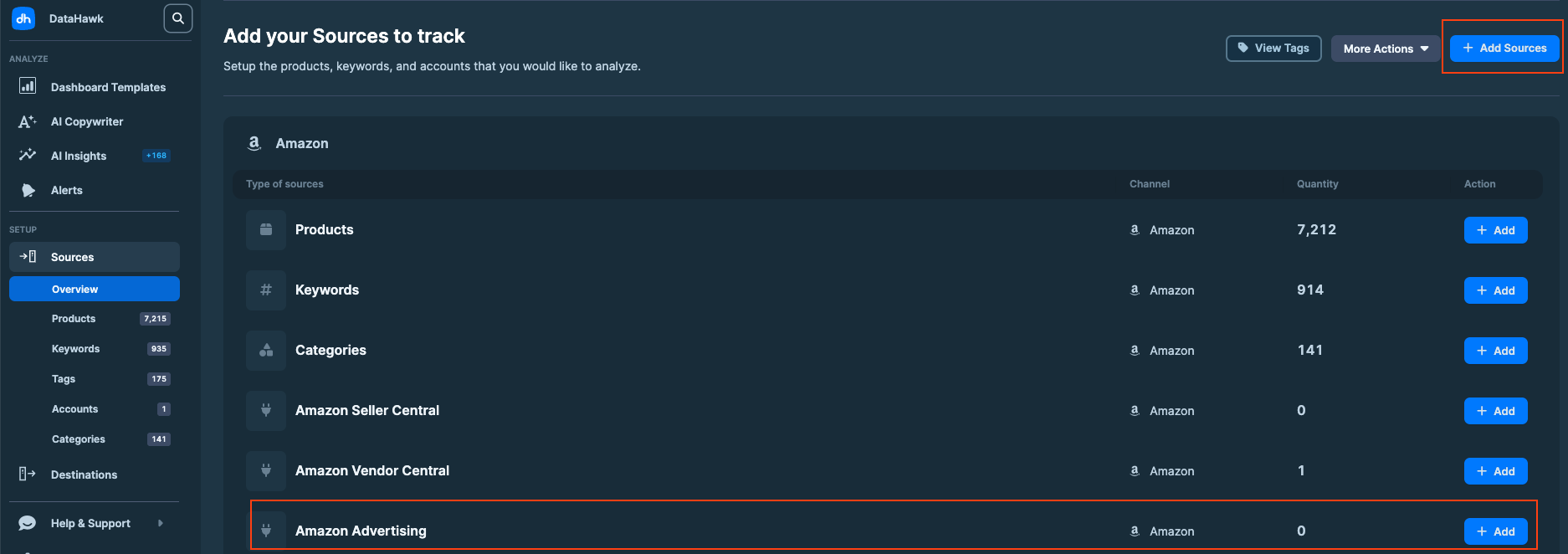 ### Select Amazon Ads
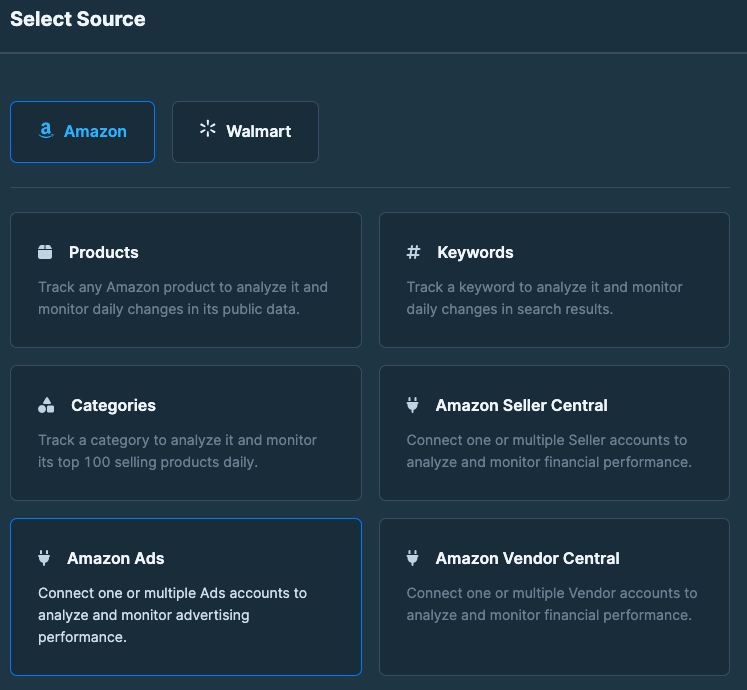 ### Choose the corresponding region
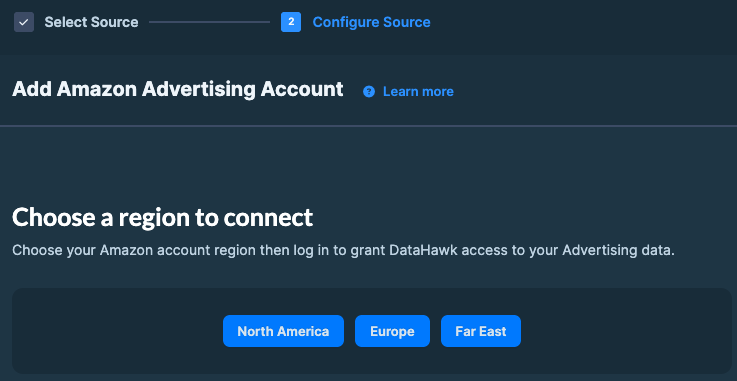 ### Log in and authorize
Log in to your **Amazon Advertising account**.
Authorize DataHawk integration.
### Log in and authorize
Log in to your **Amazon Advertising account**.
Authorize DataHawk integration.
 ## Check your connection
Once your account is connected, you can verify everything is properly linked directly from the Sources page.
### Open the Sources page
Go to the [Sources page](https://analytics.datahawk.co/app/sources) and find your Amazon Advertising account in the accounts list.
### Open the account details
Click the account name to open a detail view with:
- **Account type** (Seller, Vendor, Agency, or DSP)
- **Account ID**
- **Marketplace**
- **Advertiser name**
- **Connected by**: the user who authorized the connection
### Confirm your DSP accounts appear
If you advertise on Amazon DSP, your DSP accounts are listed alongside your Sponsored Ads accounts. Each one also shows its **DSP Advertiser ID**, plus the advertising account it's linked to.
DSP performance data isn't filtered by marketplace, since DSP campaigns aren't marketplace-specific. See [Amazon Advertising Data](/help-center/data-reference/amazon-advertising-data) for details.
If an account you expect to see is missing, or its details look wrong, check the troubleshooting cards above, or [contact us](/help-center/contact).
## Outputs
### Raw data
Raw data can be accessed via destinations and can notably be used to build dashboards on your favorite BI solution.
Your DataHawk-powered Snowflake database contains multiple tables about advertising data. These tables contain a very exhaustive list of data points as columns and are organized into what is called a schema.
[Here, is our datasets schema](https://docs.google.com/spreadsheets/d/1gYGqKQP9Z71nz1lOb4y0wJ15i27NvsUzdliIJeIx0HY/edit?usp=sharing).
### Dashboards
DataHawk provides ready-to-use dashboards and reports on Power BI and Looker Studio.
Go on our complete guide on Advertising Dashboards:
- for Looker Studio: Perfect for a high-level overview
- for Power BI: Great for a deep-dive and investigation on performance
## Troubleshooting on common issues
## Check your connection
Once your account is connected, you can verify everything is properly linked directly from the Sources page.
### Open the Sources page
Go to the [Sources page](https://analytics.datahawk.co/app/sources) and find your Amazon Advertising account in the accounts list.
### Open the account details
Click the account name to open a detail view with:
- **Account type** (Seller, Vendor, Agency, or DSP)
- **Account ID**
- **Marketplace**
- **Advertiser name**
- **Connected by**: the user who authorized the connection
### Confirm your DSP accounts appear
If you advertise on Amazon DSP, your DSP accounts are listed alongside your Sponsored Ads accounts. Each one also shows its **DSP Advertiser ID**, plus the advertising account it's linked to.
DSP performance data isn't filtered by marketplace, since DSP campaigns aren't marketplace-specific. See [Amazon Advertising Data](/help-center/data-reference/amazon-advertising-data) for details.
If an account you expect to see is missing, or its details look wrong, check the troubleshooting cards above, or [contact us](/help-center/contact).
## Outputs
### Raw data
Raw data can be accessed via destinations and can notably be used to build dashboards on your favorite BI solution.
Your DataHawk-powered Snowflake database contains multiple tables about advertising data. These tables contain a very exhaustive list of data points as columns and are organized into what is called a schema.
[Here, is our datasets schema](https://docs.google.com/spreadsheets/d/1gYGqKQP9Z71nz1lOb4y0wJ15i27NvsUzdliIJeIx0HY/edit?usp=sharing).
### Dashboards
DataHawk provides ready-to-use dashboards and reports on Power BI and Looker Studio.
Go on our complete guide on Advertising Dashboards:
- for Looker Studio: Perfect for a high-level overview
- for Power BI: Great for a deep-dive and investigation on performance
## Troubleshooting on common issues
---
title: Track Categories (Amazon only)
description: Track an Amazon category to monitor the top 100 products daily and follow their sales rank with a simplified set of product metrics.
---
Category tracking is how you monitor the competitive landscape around your own products: which competitors rank where, how those rankings shift over time, and what categories are heating up. For each tracked category, DataHawk keeps a daily snapshot of the top 100 products with their sales rank, price, rating, and key metadata.
Only available for Amazon
## Category tracking capabilities
### What data does DataHawk collect?
For each category you track, DataHawk will provide you with a daily snapshot of these primary product attributes:
- category name
- category path
- top 100 products
- bestseller rank
- product price
- title
- star rating
- numbers of ratings, including reviews
- A+ status
- product image URL
- estimated sales
### Supported regions
Category tracking works in all Amazon regions:
- **North America**: US, Canada, Mexico, and Brazil.
- **Europe**: UK, Germany, Italy, France, Spain, Netherlands, UAE, Sweden, India, and Poland.
- **Far East**: Japan, Singapore, and Australia.
Category tracking is country-specific. If you track the same category in multiple marketplaces, each marketplace is counted as a separate tracked category.
### History
When you add a category, you also get up to 2 years of its past data. From then on, DataHawk adds new data every day and keeps everything: after one year of tracking, you have up to 3 years of data; after two years, up to 4; and so on.
It may take up to 24 hours for the new category and its history to show up. After that, DataHawk keeps collecting the category every day.
### Automated data sync and backup
We then **securely store and back up** all your data **every day**, enabling **more comprehensive reporting with extended historical context**.
### Refresh Frequency
Data is updated daily. Data from the last 24 hours may be delayed.
## How to Add Categories
### Open the Sources page
Go to the [Sources page](https://analytics.datahawk.co/app/sources) and click **+ Add** on the **Categories** row.
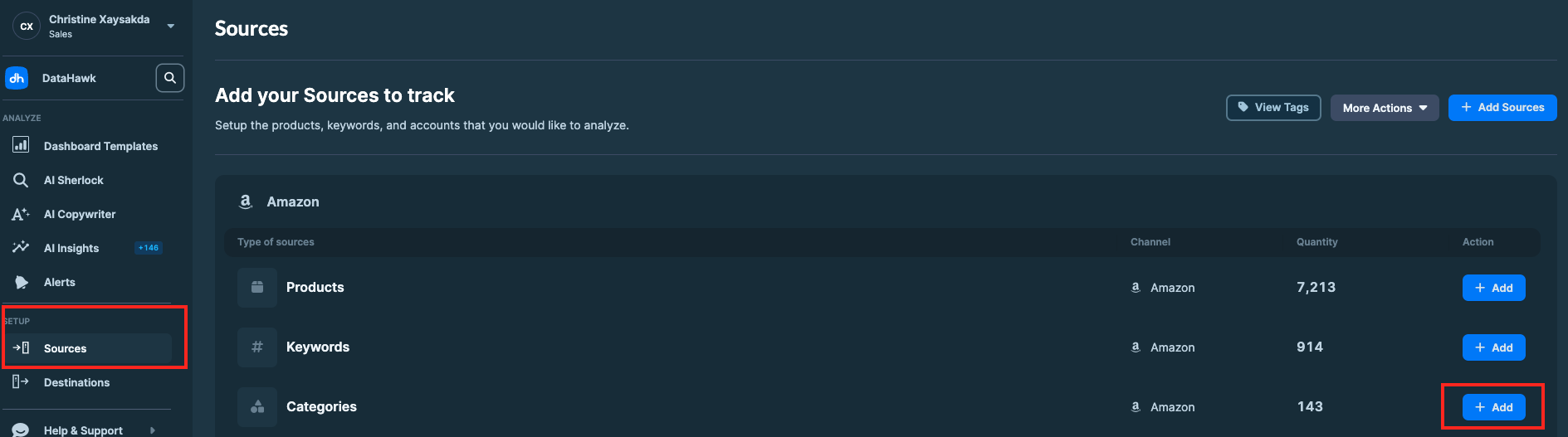 ### Search for a category
Search for the top-level category you want to add, then click **Add Categories**.
### Search for a category
Search for the top-level category you want to add, then click **Add Categories**.
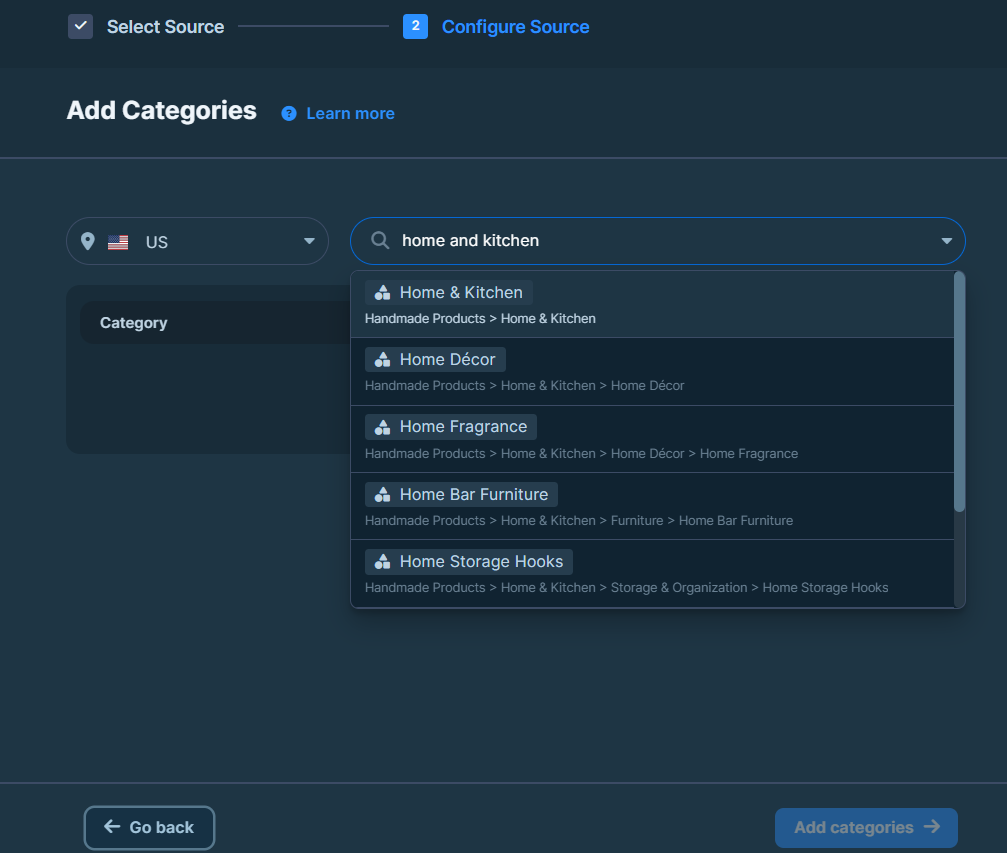 ### Choose tracking scope
Choose:
- A single category.
- All subcategories below the selected level.
- A specific number of subcategory levels.
### Choose tracking scope
Choose:
- A single category.
- All subcategories below the selected level.
- A specific number of subcategory levels.
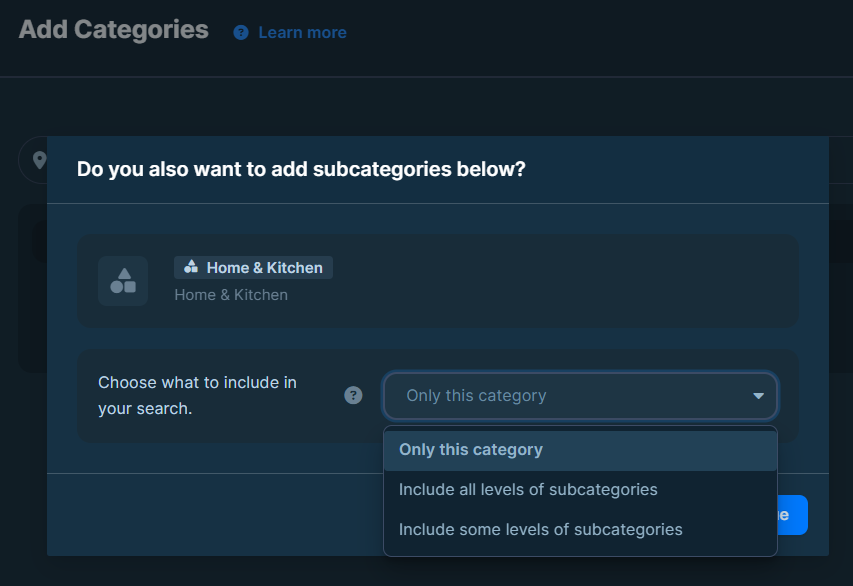 ### Optionally remove subcategories
(Optional) Remove specific subcategories if needed.
### Optionally remove subcategories
(Optional) Remove specific subcategories if needed.
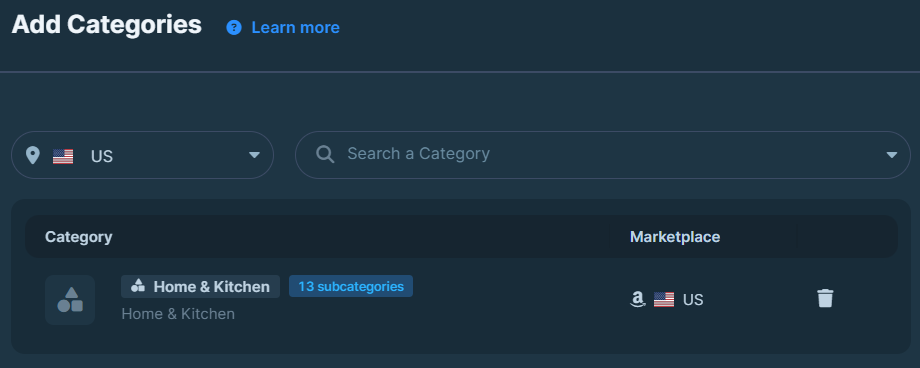 ### Confirm
Click **Continue** to confirm and finish adding.
---
title: Upload Amazon Product Expenses (COGS)
description: Add Amazon product expenses as a Source to make daily unit costs available in your database and profit analyses.
---
Adding an Amazon Product Expense as a Source will make daily unit expenses available on your managed database. It will also add product expense reporting to your profit and loss analyses.
## Where Product Expenses Data Appears
**Datasets:** your product expenses (COGS) are surfaced in the following tables:
- `FINANCE.FINANCE_PROFIT`: Aggregated daily COGS used for overall profit calculations.
- `FINANCE.FINANCE_PROFIT_LEDGER`: COGS represented as transactional events:
- Negative COGS (-COGS) when a sale occurs
- Positive COGS (+COGS) when a return is processed
- `FINANCE.FINANCE_PROFIT_METRICS`: Used to compute profit metrics such as:
- Gross Profit
- Operating Profit
- Net Profit
- `FINANCE.FINANCE_COGS`: Provides detailed daily COGS data per product/channel.
- `FINANCE.FINANCE_COGS_SKU`: SKU-level breakdown of daily COGS for deeper product-level analysis.
- *`FINANCE.FINANCE_PROFIT_LOSS` (Deprecated)*: Previously used for profit/loss reporting. Superseded by the tables above.
**In the Dashboards:**
- Templates:
- Seller Finances and Supply Chain on Power BI: Product expenses data will be included in profit and loss reporting.
- Analytics Essentials on Looker: Product expenses data will be included in profit and loss reporting.
- Any custom dashboard built on top of the tables above
## Uploading Product Expenses
### Download the CSV template
Click on `Download CSV template` then click `continue ->`
### Confirm
Click **Continue** to confirm and finish adding.
---
title: Upload Amazon Product Expenses (COGS)
description: Add Amazon product expenses as a Source to make daily unit costs available in your database and profit analyses.
---
Adding an Amazon Product Expense as a Source will make daily unit expenses available on your managed database. It will also add product expense reporting to your profit and loss analyses.
## Where Product Expenses Data Appears
**Datasets:** your product expenses (COGS) are surfaced in the following tables:
- `FINANCE.FINANCE_PROFIT`: Aggregated daily COGS used for overall profit calculations.
- `FINANCE.FINANCE_PROFIT_LEDGER`: COGS represented as transactional events:
- Negative COGS (-COGS) when a sale occurs
- Positive COGS (+COGS) when a return is processed
- `FINANCE.FINANCE_PROFIT_METRICS`: Used to compute profit metrics such as:
- Gross Profit
- Operating Profit
- Net Profit
- `FINANCE.FINANCE_COGS`: Provides detailed daily COGS data per product/channel.
- `FINANCE.FINANCE_COGS_SKU`: SKU-level breakdown of daily COGS for deeper product-level analysis.
- *`FINANCE.FINANCE_PROFIT_LOSS` (Deprecated)*: Previously used for profit/loss reporting. Superseded by the tables above.
**In the Dashboards:**
- Templates:
- Seller Finances and Supply Chain on Power BI: Product expenses data will be included in profit and loss reporting.
- Analytics Essentials on Looker: Product expenses data will be included in profit and loss reporting.
- Any custom dashboard built on top of the tables above
## Uploading Product Expenses
### Download the CSV template
Click on `Download CSV template` then click `continue ->`
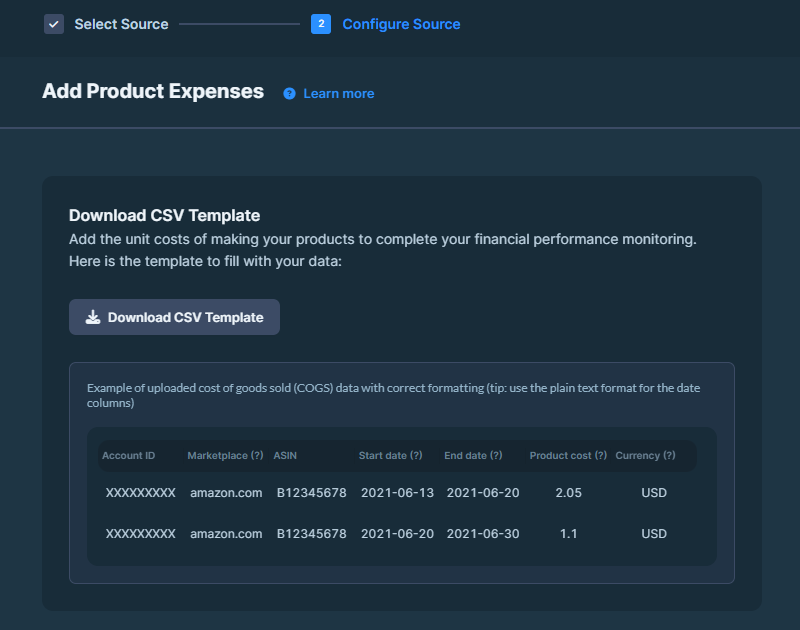 ### Fill in the template
Fill in the template with:
- **Account ID:** Seller Central Account ID.
- **Marketplace:** Domain name.
- **ASIN**: Product identifier.
- **Start/End Date:** Duration the cost applies. You can upload COGS data for dates up to 5 years in the past or 1 year in the future.
- **Product Cost:** Per-unit cost of goods sold.
- **Currency:** Currency for the cost.
Save in **CSV UTF-8 format**.
### Date Format
To avoid issues while parsing the imported file, please choose the date format you used:
### Fill in the template
Fill in the template with:
- **Account ID:** Seller Central Account ID.
- **Marketplace:** Domain name.
- **ASIN**: Product identifier.
- **Start/End Date:** Duration the cost applies. You can upload COGS data for dates up to 5 years in the past or 1 year in the future.
- **Product Cost:** Per-unit cost of goods sold.
- **Currency:** Currency for the cost.
Save in **CSV UTF-8 format**.
### Date Format
To avoid issues while parsing the imported file, please choose the date format you used:
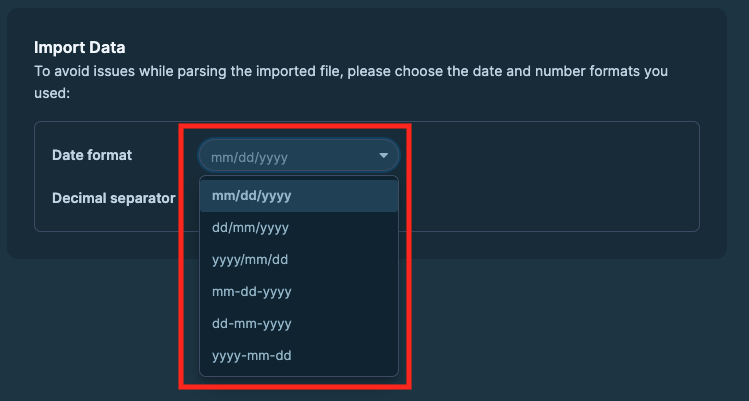 ### Number Format
To avoid issues while parsing the imported file, please choose the number (decimal seperator) format you used:
### Number Format
To avoid issues while parsing the imported file, please choose the number (decimal seperator) format you used:
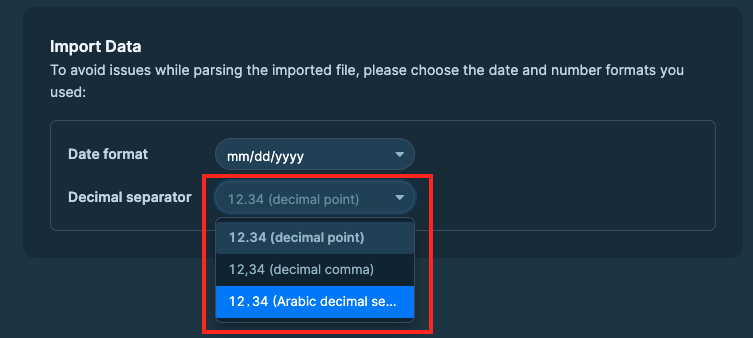 Once it is done, you can continue with `Add Product Expenses` button on the bottom right.
### Upload
Click on `Choose CSV file`, select your local file in **CSV UTF-8 format**.
Once it is done, you can continue with `Add Product Expenses` button on the bottom right.
### Upload
Click on `Choose CSV file`, select your local file in **CSV UTF-8 format**.
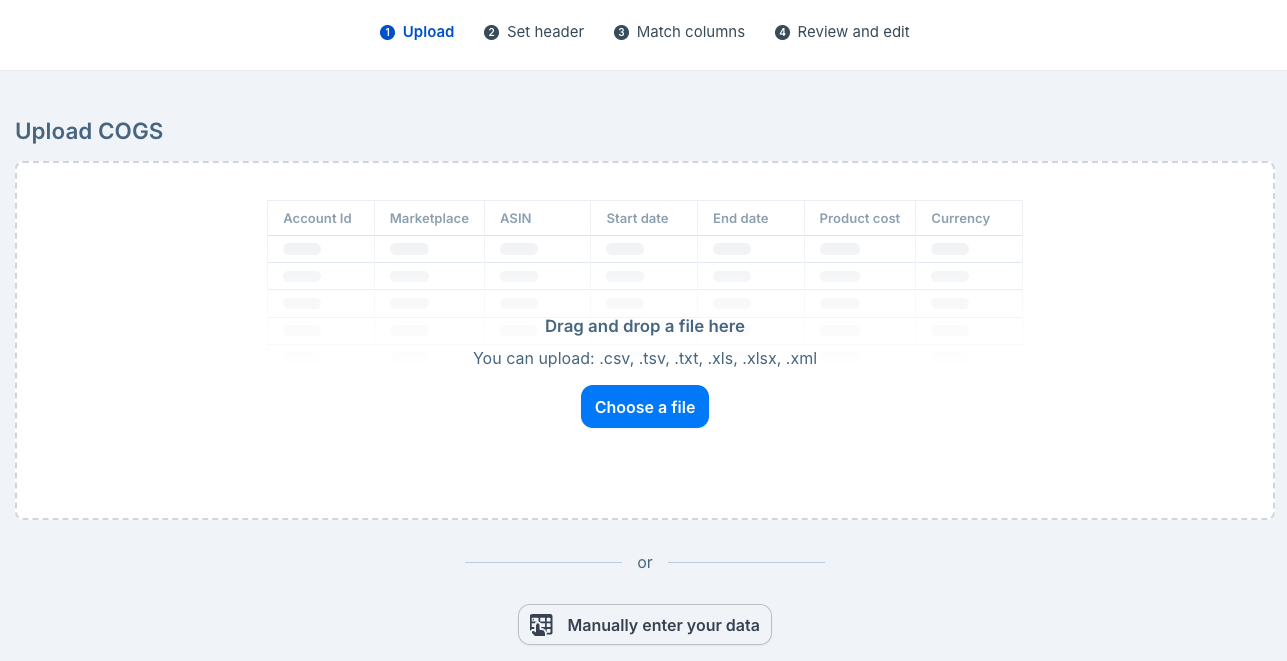 ### Mapping
Map your columns to the template fields.
### Mapping
Map your columns to the template fields.
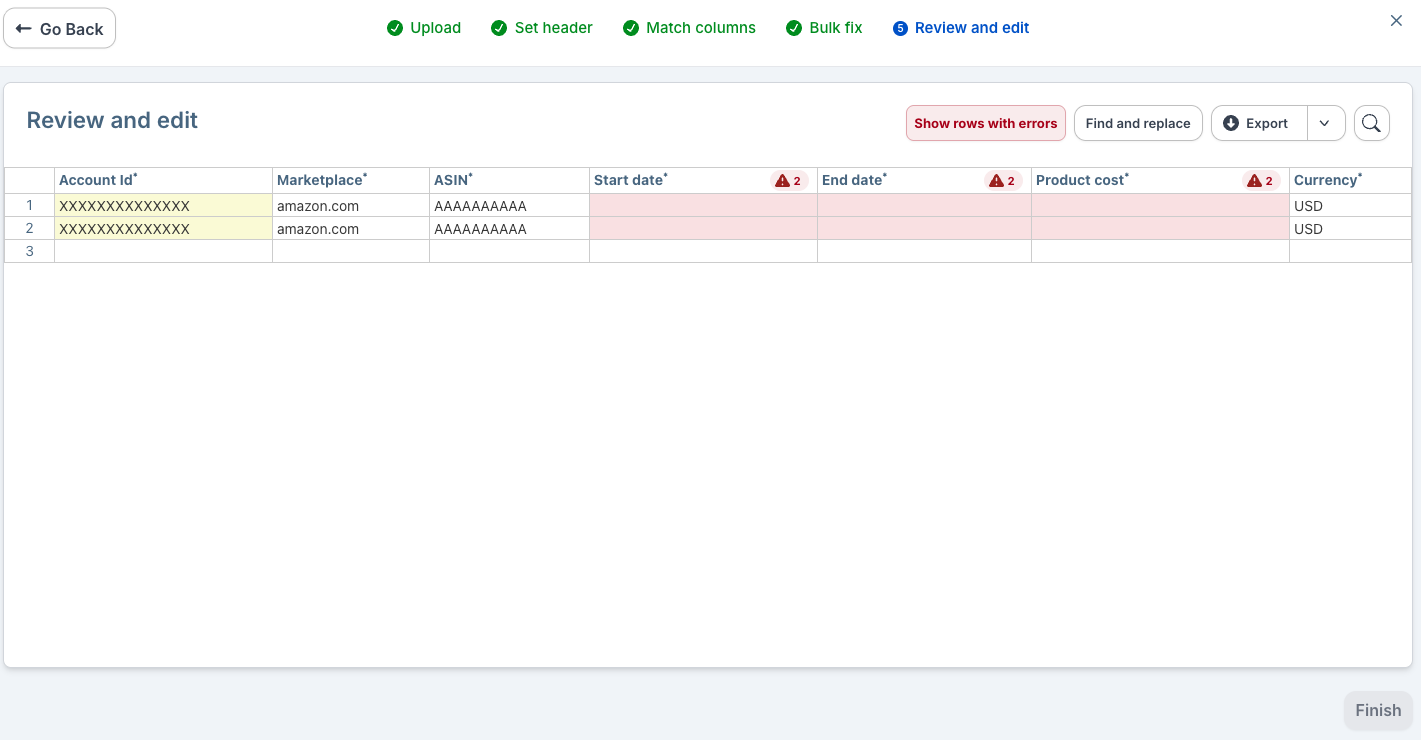 Click **`Continue`**.
### Review and Validate
Datahawk will make a first review of your document and point out all the errors it notices
Click **`Continue`**.
### Review and Validate
Datahawk will make a first review of your document and point out all the errors it notices
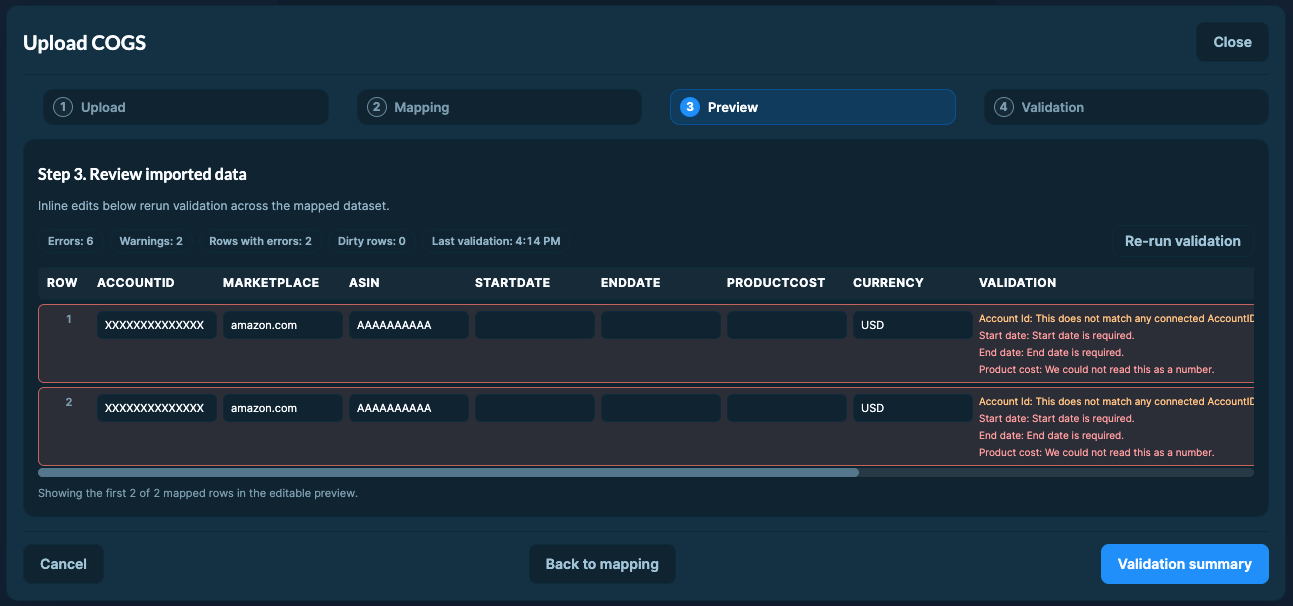 Review and correct any errors on your side.
Click **`Validation summary`**.
You will see a summary of the errors and warnings found in your document. You will be able to **`Complete import`** if there are only warnings, but you will have to fix the errors before being able to complete the import.
Review and correct any errors on your side.
Click **`Validation summary`**.
You will see a summary of the errors and warnings found in your document. You will be able to **`Complete import`** if there are only warnings, but you will have to fix the errors before being able to complete the import.
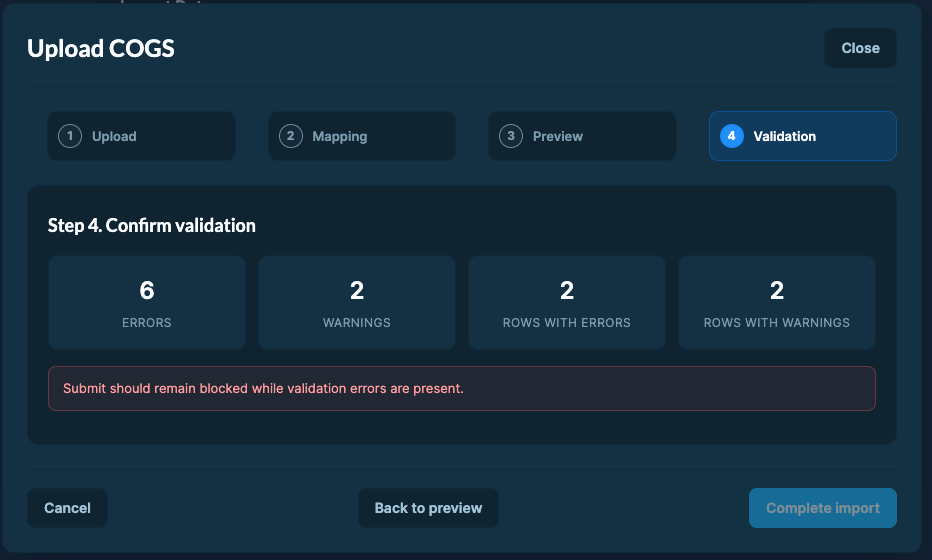 The system always uses the **most recent upload** to calculate final product expenses.
To Edit Previously Uploaded Data:
1. Re-upload the updated values for the affected products and date range.
2. The system will automatically **overwrite** the old data with your new submission.
Updates take up to 24 hours. You can upload COGS data for dates up to 5 years in the past or 1 year in the future.
---
title: Connect a Walmart Connect Account
description: Connect your Walmart Connect advertising account to DataHawk to pull daily ad performance alongside Marketplace sales and search data.
---
Walmart Connect is Walmart's advertising platform: the equivalent of Amazon Advertising for Walmart Marketplace sellers. Once connected, DataHawk pulls campaign-level performance daily and joins it with your Marketplace sales and search data for a complete view of advertising ROI.
## What you get
### Supported regions
DataHawk connects only with **US-registered** Walmart Connect accounts.
### Data coverage
Walmart Connect data lands in the `ADVERTISING` schema, with all tables prefixed `WMT_` (for example `ADVERTISING.WMT_AD_ITEM`). The full reference, every table, what's in it, and how to use it, lives on [Walmart Advertising Data](/help-center/data-reference/wmt-advertising-data).
### Historical data
At connection time, DataHawk retrieves up to **90 days** of past data. From then on we refresh daily and keep the full history available for trend analyses. Walmart finalizes reports on a 14-day lag, so a second reconciliation pass runs 15 days after the first download to capture the final numbers.
## Before you start
You'll need:
- Your **advertising ID**: See [Walmart's official guide](https://advertisinghelp.walmart.com/s/guides?language=en_US&article=000009632) for where to find it.
- To know whether your account is **1P or 3P**: See [Walmart user roles and permissions](https://advertisinghelp.walmart.com/s/guides?language=en_US&article=000009334) if you're unsure.
## How to connect
### Go to the Sources page
Open the [Sources page](https://analytics.datahawk.co/app/sources) in the DataHawk web app.
### Add a source
Click **Sources** in the sidebar, then **+ Add Sources** in the top-right corner.
The system always uses the **most recent upload** to calculate final product expenses.
To Edit Previously Uploaded Data:
1. Re-upload the updated values for the affected products and date range.
2. The system will automatically **overwrite** the old data with your new submission.
Updates take up to 24 hours. You can upload COGS data for dates up to 5 years in the past or 1 year in the future.
---
title: Connect a Walmart Connect Account
description: Connect your Walmart Connect advertising account to DataHawk to pull daily ad performance alongside Marketplace sales and search data.
---
Walmart Connect is Walmart's advertising platform: the equivalent of Amazon Advertising for Walmart Marketplace sellers. Once connected, DataHawk pulls campaign-level performance daily and joins it with your Marketplace sales and search data for a complete view of advertising ROI.
## What you get
### Supported regions
DataHawk connects only with **US-registered** Walmart Connect accounts.
### Data coverage
Walmart Connect data lands in the `ADVERTISING` schema, with all tables prefixed `WMT_` (for example `ADVERTISING.WMT_AD_ITEM`). The full reference, every table, what's in it, and how to use it, lives on [Walmart Advertising Data](/help-center/data-reference/wmt-advertising-data).
### Historical data
At connection time, DataHawk retrieves up to **90 days** of past data. From then on we refresh daily and keep the full history available for trend analyses. Walmart finalizes reports on a 14-day lag, so a second reconciliation pass runs 15 days after the first download to capture the final numbers.
## Before you start
You'll need:
- Your **advertising ID**: See [Walmart's official guide](https://advertisinghelp.walmart.com/s/guides?language=en_US&article=000009632) for where to find it.
- To know whether your account is **1P or 3P**: See [Walmart user roles and permissions](https://advertisinghelp.walmart.com/s/guides?language=en_US&article=000009334) if you're unsure.
## How to connect
### Go to the Sources page
Open the [Sources page](https://analytics.datahawk.co/app/sources) in the DataHawk web app.
### Add a source
Click **Sources** in the sidebar, then **+ Add Sources** in the top-right corner.
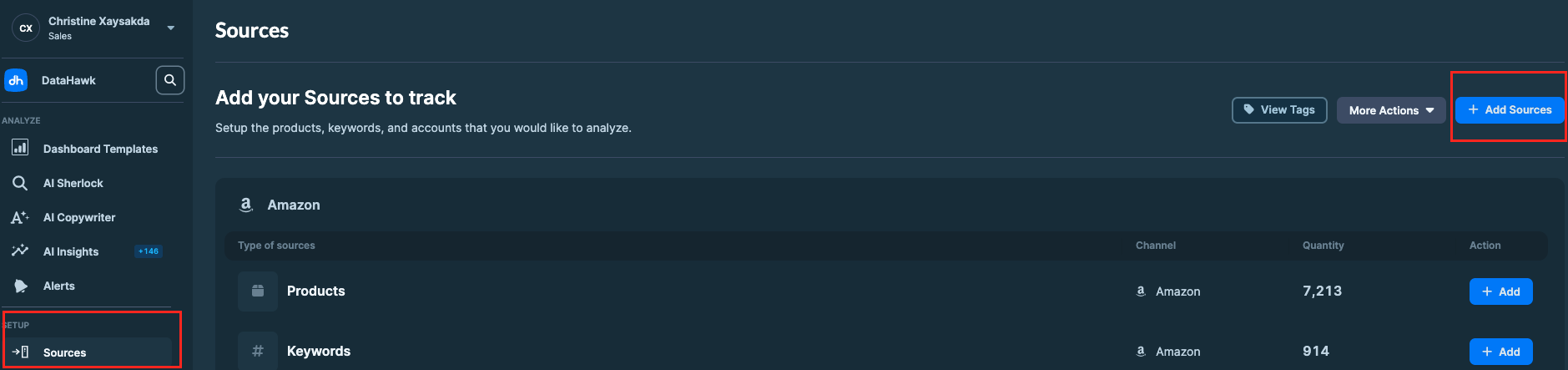 ### Select Walmart Marketplace Account
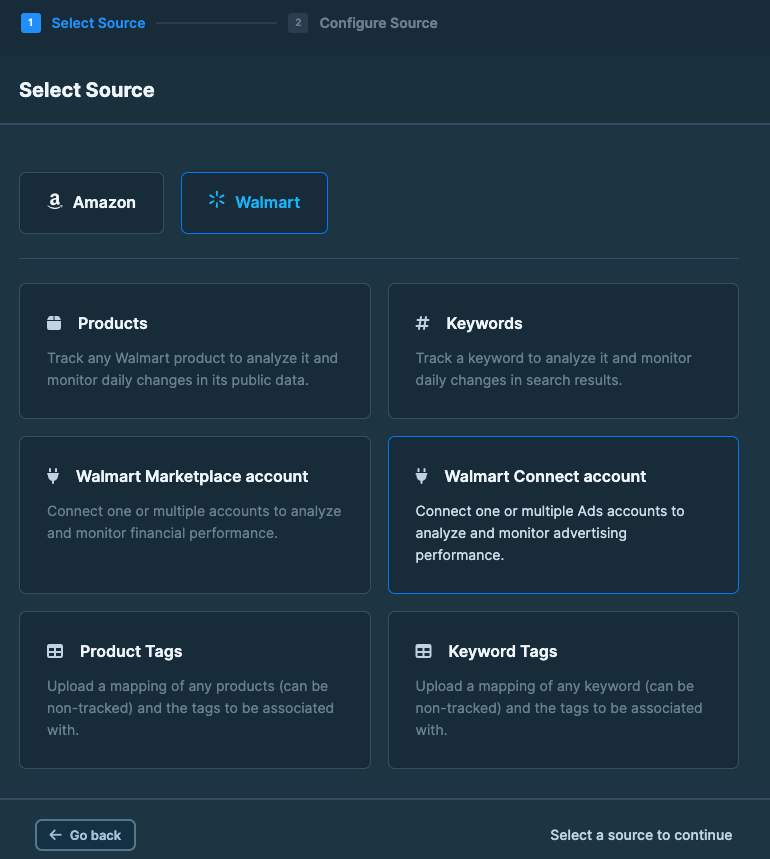 ### Enter your Advertising ID
Paste the advertising ID you located earlier.
### Enter your Advertising ID
Paste the advertising ID you located earlier.
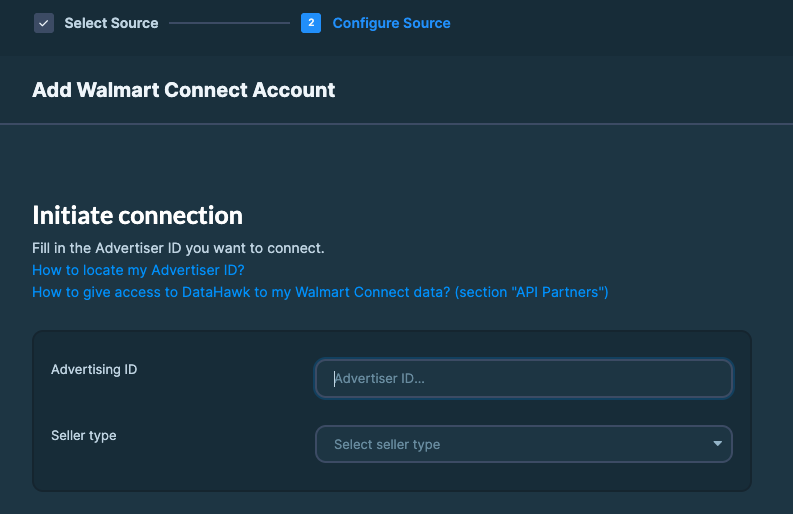 ### Select your seller type
Pick **1P** or **3P** to match your Walmart account.
### Select your seller type
Pick **1P** or **3P** to match your Walmart account.
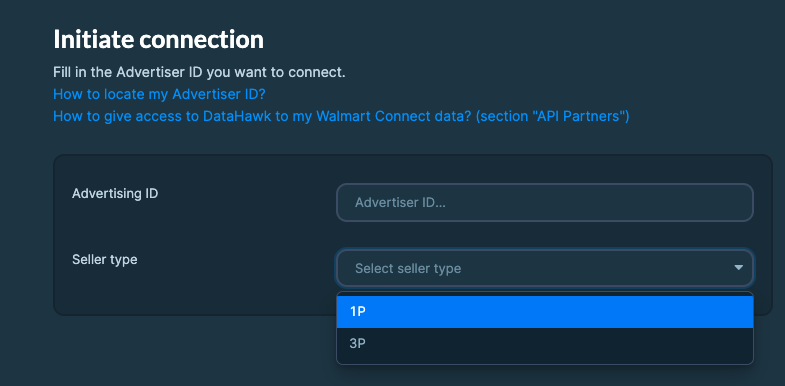 ### Confirm the connection
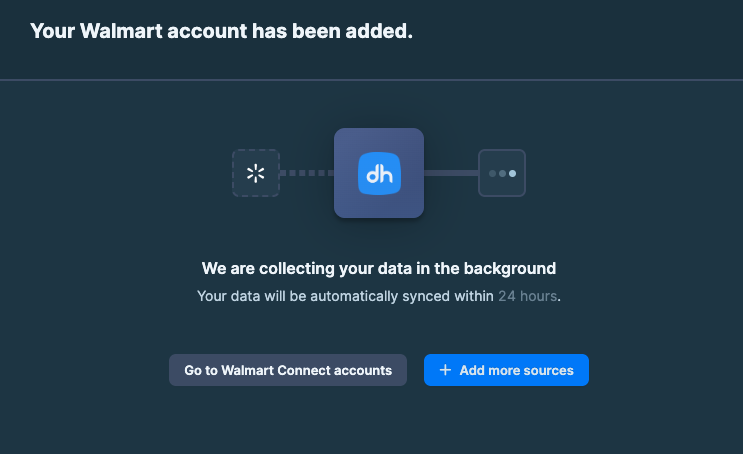 Your account is now connected. The first 90 days of data start backfilling in the background. You can come back to the Sources page to check progress.
---
## Where to go next
Your account is now connected. The first 90 days of data start backfilling in the background. You can come back to the Sources page to check progress.
---
## Where to go next
---
title: Setup Overview
description: Connect your accounts and configure product, keyword, and category tracking so DataHawk can collect and deliver clean data across your business.
---
Data setup is the one-time work that decides what DataHawk can show you. Connect your marketplace and advertising accounts, upload COGS, and choose which products, keywords, and categories to track. Everything else, including dashboards, Alerts, and Sherlock, reads from what you configure here. Start with whichever marketplace your business runs on.
Wondering how much history you'll get and how often it refreshes? That varies by channel, see [Data history and refresh by channel](/help-center/data-reference/source-systems-freshness#data-history-and-refresh-by-channel) for Seller, Vendor, and Advertising specifics.
## Which marketplace are you using?
### Amazon users
### Walmart users
---
title: Track Keywords
description: Monitor the first 5 pages of Amazon search results daily to track changes in organic rank and editorial recommendations.
---
Keyword tracking shows which products appear in search results for a keyword, and in what position. It's the foundation of both SEO and PPC analysis. Each day, DataHawk collects the first 5 pages of results for every tracked keyword: roughly 200 products, yours and your competitors'. You get a history of organic rank movements, content recommendations and, with Premium Keywords, sponsored rank.
Keyword tracking is the only source of search rank in DataHawk. You don't need to track a product to see where it ranks: tracking the keyword is enough.
## DataHawk Keyword Tracking Capabilities
### What data does DataHawk collect?
For each keyword you track, DataHawk records a daily snapshot of search ranks plus basic info on every product that shows up in the results, tracked or not. This is the data visible on the search results page. For full product page details (bullets, sales rank, Buy Box, A+, variations), [track the product](/help-center/data-setup/products-tracking). Available fields differ slightly between Amazon and Walmart. Pick your platform.
**Primary attributes:**
- organic search rank
- organic page rank
- sponsored page rank *(requires [Amazon Premium Keywords](/help-center/data-setup/premium-keywords-tracking))*
- content recommendations
**Per-product info:**
- title
- product image
- brand *(added by DataHawk)*
- price
- stars rating
- number of ratings, including reviews
**Primary attributes:**
- organic search rank
- organic page rank
- sponsored page rank
- editorial recommendations
**Per-product info:**
- title
- price
- stars rating
- number of ratings, including reviews
- A+ status
- product image
### Supported regions
Keyword tracking works in all Amazon regions:
- **North America**: US, Canada, Mexico, and Brazil.
- **Europe**: UK, Germany, Italy, France, Spain, Netherlands, UAE, Sweden, India, and Poland.
- **Far East**: Japan, Singapore, and Australia.
Keyword tracking is country-specific. If you track the same keyword in multiple marketplaces, each marketplace is counted as a separate tracked keyword.
### Automated Data Sync & Backup
Once you add a keyword for tracking, we collect data automatically from that point forward (it may take up to 24 hours to have complete data). We can't collect data from before you started tracking.
We then **securely store and back up** all your data **every day**, enabling **more comprehensive reporting with extended historical context**.
### Refresh Frequency
Data is updated daily. Data from the last 24 hours may be delayed.
## Products or keywords: which should you track?
Product tracking and keyword tracking collect different data. They complement each other, but you don't need both for every goal.
| You want to… | Track |
|---|---|
| See the organic rank of any product, yours or a competitor's | Keyword |
| See basic info on every product ranking for a keyword (title, image, price, rating, brand) | Keyword |
| Get full product page details (bullets, sales rank, Buy Box, A+, variations, sales estimates) | Product |
| Get Alerts and Sherlock signals on a specific ASIN | Product |
| Find the keywords a product ranks for (Keyword Lookup) | Product and keyword |
If you only need search rank, you can archive tracked products and use those units to track competitors instead. Keyword Lookup is the exception: it needs the product tracked. See [Keyword research](/help-center/data-metrics-guides/search/keyword-research).
## How to track a keyword
### Go to the Sources Page
Go to the [Sources Page](https://analytics.datahawk.co/app/sources).
### Add Source
Click **Add Source**.
### Select Amazon or Walmart Keyword
Select **Amazon** or **Walmart**, then choose **Keyword**.
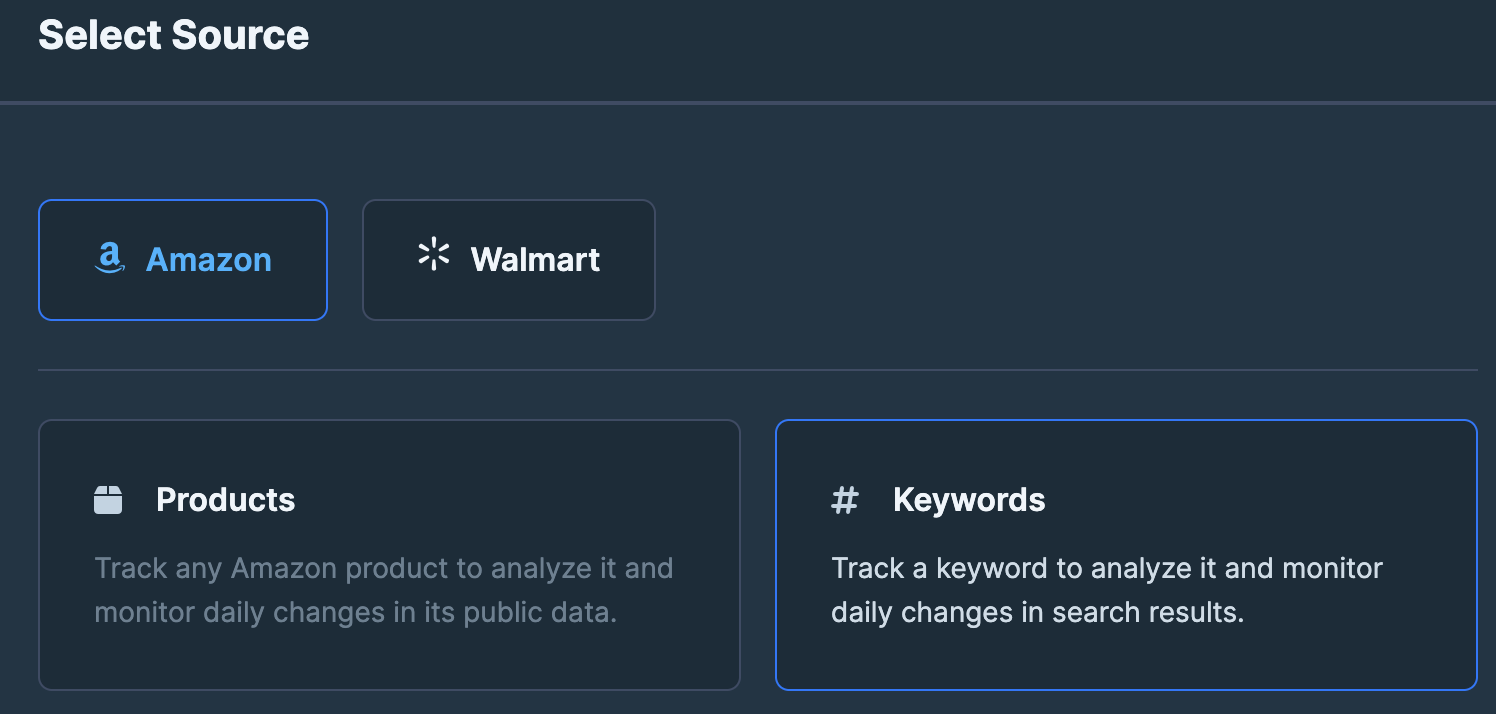 ### Choose your preferred method
DataHawk supports two ways to add keywords. Pick the tab that matches your input.
Best for adding a handful of keywords you can type or paste directly.
1. Click **Enter Keywords**.
2. Select the marketplace.
3. Enter or paste the keywords.
4. *(Optional)* [Assign tags](/help-center/data-setup/tags) for better organization.
5. Click **Add Keywords** to finish.
**Recommended for more than 500 keywords.** Lets you set tags per row in a spreadsheet.
1. Download the CSV template.
2. Fill in the template with:
### Choose your preferred method
DataHawk supports two ways to add keywords. Pick the tab that matches your input.
Best for adding a handful of keywords you can type or paste directly.
1. Click **Enter Keywords**.
2. Select the marketplace.
3. Enter or paste the keywords.
4. *(Optional)* [Assign tags](/help-center/data-setup/tags) for better organization.
5. Click **Add Keywords** to finish.
**Recommended for more than 500 keywords.** Lets you set tags per row in a spreadsheet.
1. Download the CSV template.
2. Fill in the template with:
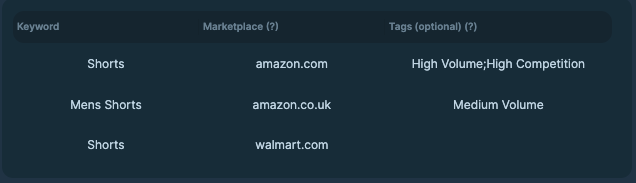 - **Marketplace**: Domain name.
- **Keyword**: The search term you want to track.
- **Tags (optional)**: Separate multiple tags with semicolons (`;`). See [tagging](/help-center/data-setup/tags) for the conventions.
3. Save the file in **CSV UTF-8 format**.
4. Click on `Choose CSV file`, select your local file in **CSV UTF-8 format**.
5. Map your columns to the template fields. Click **`Continue`**.
6. Datahawk will make a first review of your document and point out all the errors it notices. Review and correct any errors on your side. Click **`Validation summary`**.
7. You will see a summary of the errors and warnings found in your document. You will be able to **`Complete import`** if there are only warnings, but you will have to fix the errors before being able to complete the import.
## How to archive a tracked keyword
Archiving stops collecting new data for a keyword but keeps its history.
### Open your tracked keywords list
In the DataHawk App, go to **Sources → Keywords**.
### Select the keywords
Search for the keyword and tick the box next to it.
- **Marketplace**: Domain name.
- **Keyword**: The search term you want to track.
- **Tags (optional)**: Separate multiple tags with semicolons (`;`). See [tagging](/help-center/data-setup/tags) for the conventions.
3. Save the file in **CSV UTF-8 format**.
4. Click on `Choose CSV file`, select your local file in **CSV UTF-8 format**.
5. Map your columns to the template fields. Click **`Continue`**.
6. Datahawk will make a first review of your document and point out all the errors it notices. Review and correct any errors on your side. Click **`Validation summary`**.
7. You will see a summary of the errors and warnings found in your document. You will be able to **`Complete import`** if there are only warnings, but you will have to fix the errors before being able to complete the import.
## How to archive a tracked keyword
Archiving stops collecting new data for a keyword but keeps its history.
### Open your tracked keywords list
In the DataHawk App, go to **Sources → Keywords**.
### Select the keywords
Search for the keyword and tick the box next to it.
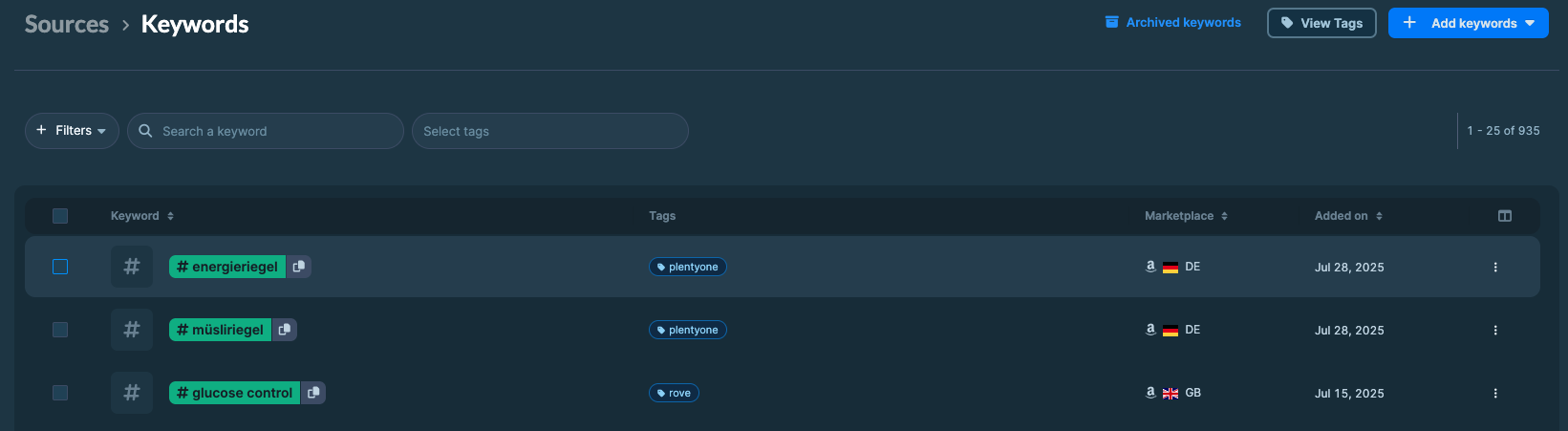 To archive every tracked keyword, click **Select all keywords**.
 ### Archive
Click **Archive in Workspace**.
---
title: Walmart Private Data - Marketplace
description: Connect your Walmart Marketplace account to DataHawk to collect and report on US seller data.
---
Walmart Marketplace is Walmart's third-party seller platform: the equivalent of Amazon Seller Central for the Walmart ecosystem. Connect your account to DataHawk to automatically pull sales, fulfillment, and item-level data. There's no limit on the number of US-registered Marketplace accounts you can link.
## DataHawk Connection Capabilities
### Supported regions
DataHawk connects only with US-registered accounts.
### Data Coverage
Walmart Seller data can be found in the `FINANCE` schema. Tables are prefixed with `WMT`. Example: `FINANCE.WMT_MARKETPLACE_ITEMS`
Data is refreshed **daily**.
#### Tables
- `WMT_MARKETPLACE_ITEMS`
- This table stores product listings for Walmart Marketplace, including identifiers, pricing, availability, condition, status, and publishing details for inventory management.
- `WMT_MARKETPLACE_ORDERS`
- This table stores Walmart Marketplace order details, including order IDs, product info, pricing, customer data, fulfillment, shipping, and status for tracking and processing.
### Historical data storage
Once you connect your Walmart Marketplace to DataHawk, we immediately retrieve a maximum of **90 days of data**. Then, we **securely store and back up** all your data **everyday**, enabling **more comprehensive reporting with extended historical context**.
### Refresh Frequency & Data Delay
- **Data Refresh**: A second data refresh takes place 15 days after the first download.
- **Data Updates**: Walmart does not update reports after 14 days, so we always fetch the most recent consolidated version available.
## How to connect Marketplace account
### Go to the Sources Page
On DataHawk App, go to the [Sources Page](https://analytics.datahawk.co/app/sources).
### Add Sources
Click on `Sources` in your sidebar, then click `+ Add Sources` on the top right corner.
### Archive
Click **Archive in Workspace**.
---
title: Walmart Private Data - Marketplace
description: Connect your Walmart Marketplace account to DataHawk to collect and report on US seller data.
---
Walmart Marketplace is Walmart's third-party seller platform: the equivalent of Amazon Seller Central for the Walmart ecosystem. Connect your account to DataHawk to automatically pull sales, fulfillment, and item-level data. There's no limit on the number of US-registered Marketplace accounts you can link.
## DataHawk Connection Capabilities
### Supported regions
DataHawk connects only with US-registered accounts.
### Data Coverage
Walmart Seller data can be found in the `FINANCE` schema. Tables are prefixed with `WMT`. Example: `FINANCE.WMT_MARKETPLACE_ITEMS`
Data is refreshed **daily**.
#### Tables
- `WMT_MARKETPLACE_ITEMS`
- This table stores product listings for Walmart Marketplace, including identifiers, pricing, availability, condition, status, and publishing details for inventory management.
- `WMT_MARKETPLACE_ORDERS`
- This table stores Walmart Marketplace order details, including order IDs, product info, pricing, customer data, fulfillment, shipping, and status for tracking and processing.
### Historical data storage
Once you connect your Walmart Marketplace to DataHawk, we immediately retrieve a maximum of **90 days of data**. Then, we **securely store and back up** all your data **everyday**, enabling **more comprehensive reporting with extended historical context**.
### Refresh Frequency & Data Delay
- **Data Refresh**: A second data refresh takes place 15 days after the first download.
- **Data Updates**: Walmart does not update reports after 14 days, so we always fetch the most recent consolidated version available.
## How to connect Marketplace account
### Go to the Sources Page
On DataHawk App, go to the [Sources Page](https://analytics.datahawk.co/app/sources).
### Add Sources
Click on `Sources` in your sidebar, then click `+ Add Sources` on the top right corner.
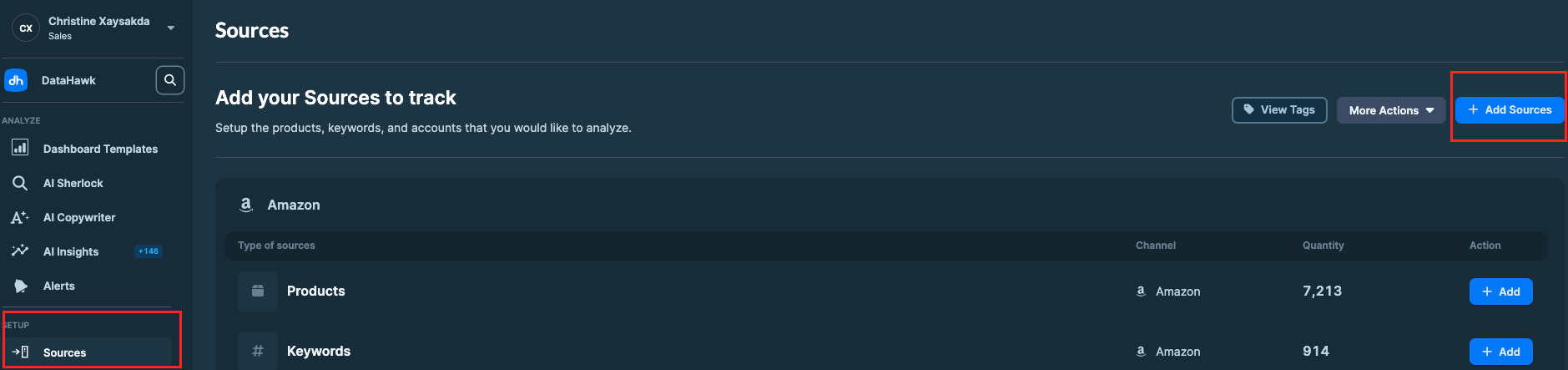 ### Select Walmart Marketplace Account
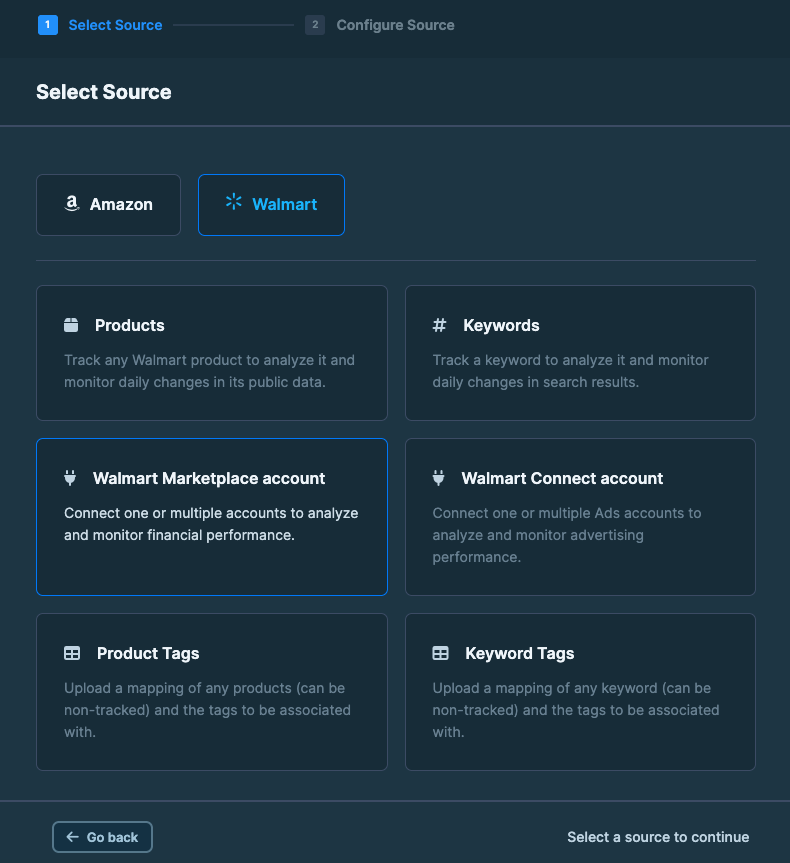 ### Select US region
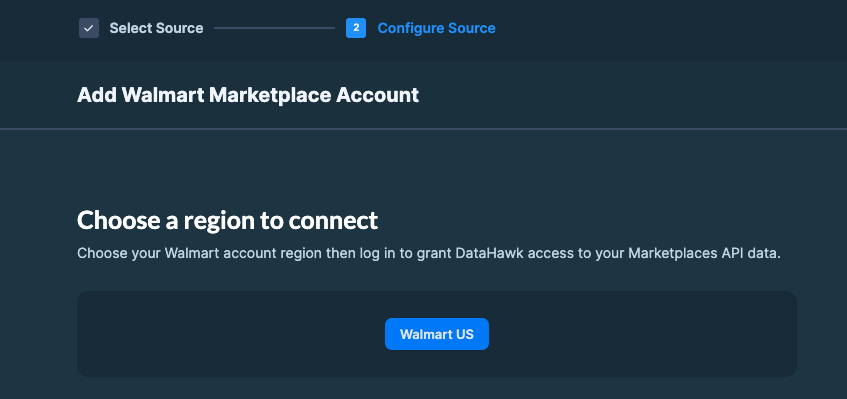 ### Log in and authorize
Log in to your **Walmart Marketplace**.
Authorize DataHawk integration.
### Log in and authorize
Log in to your **Walmart Marketplace**.
Authorize DataHawk integration.
 ## Useful resources
[Walmart Advertising Reports official guide](https://developer.walmart.com/doc/us/us-wmc-ads/us-wmc-ads-snapshot-reportsv2/)
---
title: On-Demand Sources
description: Request custom integrations for data sources outside DataHawk's standard coverage; delivered as a paid add-on through our Professional Services team.
---
DataHawk natively supports Amazon and Walmart data, with new platforms added regularly. If you need a data source we don't yet cover, a vertical-specific marketplace, an internal API, a non-supported retailer, or a custom feed, the **On-Demand Integration Program** lets you request it as a paid add-on. Once built, the new source behaves like any other DataHawk source: Warehouse access, dashboards, Alerts, and Sherlock all included.
## What's already supported
These sources are part of standard DataHawk and don't require an on-demand integration. They split into two groups:
**Account-level connections**: Link your existing platform accounts to pull private data (sales, ads, inventory, profit):
- **Amazon**: [Seller](/help-center/data-setup/seller-account), [Vendor](/help-center/data-setup/vendor-account), and [Advertising](/help-center/data-setup/ads-account) accounts
- **Walmart**: [Marketplace](/help-center/data-setup/marketplace-account) and [Walmart Connect](/help-center/data-setup/connect-account) accounts
**Item-level tracking**: Add the specific products, keywords, or categories you want a daily snapshot for (works for both Amazon and Walmart, no account connection required):
- [**Products**](/help-center/data-setup/products-tracking): Daily snapshot of attributes, pricing, BSR, ratings, and more
- [**Keywords**](/help-center/data-setup/keywords-tracking): Organic and sponsored rank, plus [Premium Keywords](/help-center/data-setup/premium-keywords-tracking) for richer signals
- [**Categories**](/help-center/data-setup/categories-tracking): Top products and category-level trends
For the full picture of how data flows in and what each source covers, see [How DataHawk Sources Your Data](/help-center/data-metrics-guides/foundation/how-datahawk-sources-data). New platforms ship regularly; track them in the [Changelog](/changelog).
## When to request a custom source
On-demand integrations cover **additional data that isn't already reachable** through tracked items (Products, Keywords, Categories) or connected accounts (Amazon Seller / Vendor / Advertising, Walmart Marketplace / Walmart Connect). If the data you need can't be pulled by any of those standard paths, this program is how you bring it into DataHawk.
{/* TODO: Confirm and expand. Below are placeholder categories. Replace with the kinds of additional sources Professional Services has built before, ideally with anonymized examples. */}
Typical examples of additional data customers request:
- A retailer outside our standard catalog (regional or vertical-specific marketplaces, e.g. non-Amazon / non-Walmart eCommerce platforms)
- Your own internal systems (CRM, POS, ERP, finance, custom feeds)
- A third-party tool that complements your eCommerce data (review platforms, ad networks beyond Amazon/Walmart, retail-media networks)
- A non-eCommerce dataset you want to join with your DataHawk warehouse for cross-analysis
{/* TODO: List past on-demand integrations as concrete examples (e.g. "We've added X for a home-goods brand, Y for a beauty vendor"). Even anonymized references help readers self-qualify. */}
### What we can't build
{/* TODO: Confirm and list anti-examples; sources we can't take on for legal, compliance, technical, or commercial reasons. Helps readers avoid asking for the impossible. */}
## How it works
### Email Professional Services
Send a request to [professionalservices@datahawk.co](mailto:professionalservices@datahawk.co) with a brief description of the source you'd like to integrate; name of the system, what kind of data you need from it, and your use case.
### Discovery
We'll set up a call to scope the integration: data shape, refresh requirements, volume, and how it should connect to your existing DataHawk workspace.
### Quote and timeline
You receive a written proposal with the integration fee, minimum commitment period, and expected delivery date.
{/* TODO: Typical timeline range; e.g. "4-8 weeks depending on complexity" */}
### Build
Our team builds the integration. We may ask for sample data, credentials, or technical contacts from your end during this phase.
### UAT and rollout
We hand over the new source for testing. Once you've validated the data, it lands in your warehouse on the agreed refresh cadence.
## What you get
{/* TODO: confirm each of the four claims below before publishing. */}
- The new source's data lands alongside your standard sources in the same data warehouse (Snowflake or BigQuery).
- Compatible with DataHawk dashboards, Alerts, and Sherlock.
- Default refresh cadence is daily: Custom cadences possible if your use case requires it.
- Storage and refresh are included in your existing workspace pricing; the integration fee is one-time.
## Commercials
{/* TODO: Confirm pricing structure and minimum commitment. Below are placeholders. Replace with actuals or remove this section if you'd rather quote per-request only. */}
- **One-time integration fee**: Quoted per source based on complexity.
- **Minimum commitment period**: The source stays active and billed for a minimum duration agreed at signing.
## What we need from you
To scope and build, we typically need:
- Documentation for the source (API docs, file format, sample export)
- Access credentials or a path to obtain them
- A technical point of contact on your side
- A clear use case so we can prioritize the right fields
{/*
FAQ section hidden for now; restore once answers are confirmed.
Questions ready to surface (each becomes one in an block):
1. How long does it take to deliver a new source?
→ TODO: confirm timeline range and what drives the variance.
2. What sources have you built before?
→ TODO: list anonymized examples of past on-demand integrations.
3. Can I bring a non-eCommerce source?
→ TODO: Confirm; does the program support finance data, marketing platforms, internal CRMs, etc.?
4. What happens to my data if I cancel?
→ TODO: confirm data retention and cancellation policy for on-demand sources.
5. Can I see how other customers structure their integrations?
→ TODO: confirm whether case studies / anonymized references are available.
*/}
---
---
title: Track Premium Keywords
description: Monitor the first 5 pages of Amazon search results daily to track changes in Sponsored rank.
---
Amazon Premium Keywords give you deeper visibility into your keyword performance by adding Sponsored Ranks (ads like Sponsored Products and Sponsored Brands) on top of organic tracking (natural placement). This data is crucial for understanding visibility, SEO, and ad performance.
**Premium Keywords are the only way to collect Amazon Sponsored Rank data.** Standard Sponsored Rank data was retired on **July 8, 2025** due to Amazon's evolving content policies and detection mechanisms. Without Premium Keywords, **no sponsored rank data is collected at all**: Standard Keywords still cover organic ranks, but the `SEO.SEO_PRODUCT_SPONSORED_RANK` table, the Search Power BI Dashboard sponsored views, the Analytics Essentials Looker Studio sponsored views, and any custom reports built on sponsored ranks return no Amazon data unless your workspace is upgraded. Walmart Sponsored Ranks are not affected.
## What are Amazon Premium Keywords?
Amazon Premium Keywords are an optional add-on designed to give you a more comprehensive view of your keyword performance. While **normal keywords** provide you with **organic rankings data**, Premium Keywords go a step further by displaying both:
- **Organic rankings**: How your product performs in unpaid search results
- **Sponsored rankings**: How your product performs in paid (advertising) placements
This dual visibility gives you a fuller picture of your presence on search results, helping you make smarter decisions around both SEO and advertising strategy.
## How do they work?
Amazon Premium Keywords work exactly like your regular keywords but with expanded data. Once activated, they begin collecting and displaying both organic and sponsored rank data. You'll see these additional signals in your database and dashboards.
| **Unit Type** | **Organic Ranks** | **Sponsored Ranks** | **Search Depth** | **Notes** |
| --- | --- | --- | --- | --- |
| **Standard Keywords** | Yes | No | Organic: 5 Pages | Cost-efficient organic tracking. No Sponsored ranks. |
| **Premium Keywords** | Yes | Sponsored Products & Sponsored Brands | Organic: 5 Pages
Sponsored: 1 Page | Organic and Sponsored Ranks fully supported. Ideal for complete visibility. |
## Why are Amazon Premium Keywords more expensive?
Amazon Premium Keywords track both **organic and sponsored rankings**, while normal keywords only track organic.
Collecting sponsored data requires more advanced and costly technology, they are harder to capture and more resource-intensive to process. This is why Premium Keywords cost more (5x more than a Standard Keywords).
We kept **Standard Keyword Units** focused on organic results to remain cost-efficient when organic ranking is sufficient.
## I am interested in Amazon Premium Keywords
Contact us if you'd like a quote to convert your current volume into Premium.
As of now the switch from Standard to Premium is made at Workspace level, meaning you can not mix Standard and Premium keywords within a single workspace.
---
title: Track Products
description: Monitor key data from Amazon and Walmart product pages including ratings, sales rank, sales, and buy box ownership.
---
Product tracking monitors key data from Amazon and Walmart product pages, ratings, sales rank, sales, buy box ownership, and dozens of other attributes, so you can track performance, detect changes, and make informed decisions. Each tracked product produces a daily snapshot that feeds dashboards, Alerts, and Sherlock downstream.
You don't need to track a product to see its search rank. Organic rank comes only from [tracked keywords](/help-center/data-setup/keywords-tracking), whatever products you track. Product tracking adds the product page details listed below. See [Products or keywords: which should you track?](/help-center/data-setup/keywords-tracking#products-or-keywords-which-should-you-track)
## DataHawk Product Tracking Capabilities
### What data does DataHawk collect?
For each tracked product, DataHawk captures a daily snapshot of dozens of attributes. The fields vary slightly between marketplaces. Pick your platform.
- brand
- title
- description
- bullet items
- product image
- number of media
- the product's price
- stars rating
- number of ratings
- star-rating breakdown (share of ratings at each star level, see [Ratings and Reviews](/help-center/data-metrics-guides/content/ratings-and-reviews))
- the number of Sellers competing for the Buy Box
- displayed categories and corresponding best seller ranks
- its group ASIN
- number of variations
- A+ status
- out-of-stock status
- and many more.
Plus these computed metrics:
- Estimated Monthly Sales
- Competitiveness Score
- Listing Quality Score
- brand
- title
- description
- bullet items
- product image
- number of media
- the product's price
- stars rating
- number of ratings, including reviews
- star-rating breakdown (share of ratings at each star level)
- the number of Sellers competing for the Buy Box
- displayed categories and corresponding best seller ranks
- its group Item ID
- number of variations
- Walmart+ status
- activated product-page features, including About the Brand when the marketing module is active
- out-of-stock status
- and many more.
### Supported regions
DataHawk integration works for tracked products in all Amazon regions:
- **North America**: US, Canada, Mexico, and Brazil.
- **Europe**: UK, Germany, Italy, France, Spain, Netherlands, UAE, Sweden, India, and Poland.
- **Far East**: Japan, Singapore, and Australia.
Product tracking is country-specific. If you track the same product in multiple marketplaces, each marketplace is counted as a separate tracked product.
### Automated Data Sync & Backup
Once you add a product for tracking, we collect data automatically from that point forward (it may take up to 24-hours to have complete data). No historical data possible.
We then **securely store and back up** all your data **every day**, enabling **more comprehensive reporting with extended historical context**.
### Refresh Frequency
Data is updated daily. There may be a delay in updating the data from the last 24-hours.
## How to track a Product
After adding a product, it may take **up to 24 hours** for data to sync. Data is collected automatically from that point forward. Historical data availability depends on the data source.
### Go to the Sources Page
Go to the [Sources Page](https://analytics.datahawk.co/app/sources).
### Add Source
Click **Add Source**.
## Useful resources
[Walmart Advertising Reports official guide](https://developer.walmart.com/doc/us/us-wmc-ads/us-wmc-ads-snapshot-reportsv2/)
---
title: On-Demand Sources
description: Request custom integrations for data sources outside DataHawk's standard coverage; delivered as a paid add-on through our Professional Services team.
---
DataHawk natively supports Amazon and Walmart data, with new platforms added regularly. If you need a data source we don't yet cover, a vertical-specific marketplace, an internal API, a non-supported retailer, or a custom feed, the **On-Demand Integration Program** lets you request it as a paid add-on. Once built, the new source behaves like any other DataHawk source: Warehouse access, dashboards, Alerts, and Sherlock all included.
## What's already supported
These sources are part of standard DataHawk and don't require an on-demand integration. They split into two groups:
**Account-level connections**: Link your existing platform accounts to pull private data (sales, ads, inventory, profit):
- **Amazon**: [Seller](/help-center/data-setup/seller-account), [Vendor](/help-center/data-setup/vendor-account), and [Advertising](/help-center/data-setup/ads-account) accounts
- **Walmart**: [Marketplace](/help-center/data-setup/marketplace-account) and [Walmart Connect](/help-center/data-setup/connect-account) accounts
**Item-level tracking**: Add the specific products, keywords, or categories you want a daily snapshot for (works for both Amazon and Walmart, no account connection required):
- [**Products**](/help-center/data-setup/products-tracking): Daily snapshot of attributes, pricing, BSR, ratings, and more
- [**Keywords**](/help-center/data-setup/keywords-tracking): Organic and sponsored rank, plus [Premium Keywords](/help-center/data-setup/premium-keywords-tracking) for richer signals
- [**Categories**](/help-center/data-setup/categories-tracking): Top products and category-level trends
For the full picture of how data flows in and what each source covers, see [How DataHawk Sources Your Data](/help-center/data-metrics-guides/foundation/how-datahawk-sources-data). New platforms ship regularly; track them in the [Changelog](/changelog).
## When to request a custom source
On-demand integrations cover **additional data that isn't already reachable** through tracked items (Products, Keywords, Categories) or connected accounts (Amazon Seller / Vendor / Advertising, Walmart Marketplace / Walmart Connect). If the data you need can't be pulled by any of those standard paths, this program is how you bring it into DataHawk.
{/* TODO: Confirm and expand. Below are placeholder categories. Replace with the kinds of additional sources Professional Services has built before, ideally with anonymized examples. */}
Typical examples of additional data customers request:
- A retailer outside our standard catalog (regional or vertical-specific marketplaces, e.g. non-Amazon / non-Walmart eCommerce platforms)
- Your own internal systems (CRM, POS, ERP, finance, custom feeds)
- A third-party tool that complements your eCommerce data (review platforms, ad networks beyond Amazon/Walmart, retail-media networks)
- A non-eCommerce dataset you want to join with your DataHawk warehouse for cross-analysis
{/* TODO: List past on-demand integrations as concrete examples (e.g. "We've added X for a home-goods brand, Y for a beauty vendor"). Even anonymized references help readers self-qualify. */}
### What we can't build
{/* TODO: Confirm and list anti-examples; sources we can't take on for legal, compliance, technical, or commercial reasons. Helps readers avoid asking for the impossible. */}
## How it works
### Email Professional Services
Send a request to [professionalservices@datahawk.co](mailto:professionalservices@datahawk.co) with a brief description of the source you'd like to integrate; name of the system, what kind of data you need from it, and your use case.
### Discovery
We'll set up a call to scope the integration: data shape, refresh requirements, volume, and how it should connect to your existing DataHawk workspace.
### Quote and timeline
You receive a written proposal with the integration fee, minimum commitment period, and expected delivery date.
{/* TODO: Typical timeline range; e.g. "4-8 weeks depending on complexity" */}
### Build
Our team builds the integration. We may ask for sample data, credentials, or technical contacts from your end during this phase.
### UAT and rollout
We hand over the new source for testing. Once you've validated the data, it lands in your warehouse on the agreed refresh cadence.
## What you get
{/* TODO: confirm each of the four claims below before publishing. */}
- The new source's data lands alongside your standard sources in the same data warehouse (Snowflake or BigQuery).
- Compatible with DataHawk dashboards, Alerts, and Sherlock.
- Default refresh cadence is daily: Custom cadences possible if your use case requires it.
- Storage and refresh are included in your existing workspace pricing; the integration fee is one-time.
## Commercials
{/* TODO: Confirm pricing structure and minimum commitment. Below are placeholders. Replace with actuals or remove this section if you'd rather quote per-request only. */}
- **One-time integration fee**: Quoted per source based on complexity.
- **Minimum commitment period**: The source stays active and billed for a minimum duration agreed at signing.
## What we need from you
To scope and build, we typically need:
- Documentation for the source (API docs, file format, sample export)
- Access credentials or a path to obtain them
- A technical point of contact on your side
- A clear use case so we can prioritize the right fields
{/*
FAQ section hidden for now; restore once answers are confirmed.
Questions ready to surface (each becomes one in an block):
1. How long does it take to deliver a new source?
→ TODO: confirm timeline range and what drives the variance.
2. What sources have you built before?
→ TODO: list anonymized examples of past on-demand integrations.
3. Can I bring a non-eCommerce source?
→ TODO: Confirm; does the program support finance data, marketing platforms, internal CRMs, etc.?
4. What happens to my data if I cancel?
→ TODO: confirm data retention and cancellation policy for on-demand sources.
5. Can I see how other customers structure their integrations?
→ TODO: confirm whether case studies / anonymized references are available.
*/}
---
---
title: Track Premium Keywords
description: Monitor the first 5 pages of Amazon search results daily to track changes in Sponsored rank.
---
Amazon Premium Keywords give you deeper visibility into your keyword performance by adding Sponsored Ranks (ads like Sponsored Products and Sponsored Brands) on top of organic tracking (natural placement). This data is crucial for understanding visibility, SEO, and ad performance.
**Premium Keywords are the only way to collect Amazon Sponsored Rank data.** Standard Sponsored Rank data was retired on **July 8, 2025** due to Amazon's evolving content policies and detection mechanisms. Without Premium Keywords, **no sponsored rank data is collected at all**: Standard Keywords still cover organic ranks, but the `SEO.SEO_PRODUCT_SPONSORED_RANK` table, the Search Power BI Dashboard sponsored views, the Analytics Essentials Looker Studio sponsored views, and any custom reports built on sponsored ranks return no Amazon data unless your workspace is upgraded. Walmart Sponsored Ranks are not affected.
## What are Amazon Premium Keywords?
Amazon Premium Keywords are an optional add-on designed to give you a more comprehensive view of your keyword performance. While **normal keywords** provide you with **organic rankings data**, Premium Keywords go a step further by displaying both:
- **Organic rankings**: How your product performs in unpaid search results
- **Sponsored rankings**: How your product performs in paid (advertising) placements
This dual visibility gives you a fuller picture of your presence on search results, helping you make smarter decisions around both SEO and advertising strategy.
## How do they work?
Amazon Premium Keywords work exactly like your regular keywords but with expanded data. Once activated, they begin collecting and displaying both organic and sponsored rank data. You'll see these additional signals in your database and dashboards.
| **Unit Type** | **Organic Ranks** | **Sponsored Ranks** | **Search Depth** | **Notes** |
| --- | --- | --- | --- | --- |
| **Standard Keywords** | Yes | No | Organic: 5 Pages | Cost-efficient organic tracking. No Sponsored ranks. |
| **Premium Keywords** | Yes | Sponsored Products & Sponsored Brands | Organic: 5 Pages
Sponsored: 1 Page | Organic and Sponsored Ranks fully supported. Ideal for complete visibility. |
## Why are Amazon Premium Keywords more expensive?
Amazon Premium Keywords track both **organic and sponsored rankings**, while normal keywords only track organic.
Collecting sponsored data requires more advanced and costly technology, they are harder to capture and more resource-intensive to process. This is why Premium Keywords cost more (5x more than a Standard Keywords).
We kept **Standard Keyword Units** focused on organic results to remain cost-efficient when organic ranking is sufficient.
## I am interested in Amazon Premium Keywords
Contact us if you'd like a quote to convert your current volume into Premium.
As of now the switch from Standard to Premium is made at Workspace level, meaning you can not mix Standard and Premium keywords within a single workspace.
---
title: Track Products
description: Monitor key data from Amazon and Walmart product pages including ratings, sales rank, sales, and buy box ownership.
---
Product tracking monitors key data from Amazon and Walmart product pages, ratings, sales rank, sales, buy box ownership, and dozens of other attributes, so you can track performance, detect changes, and make informed decisions. Each tracked product produces a daily snapshot that feeds dashboards, Alerts, and Sherlock downstream.
You don't need to track a product to see its search rank. Organic rank comes only from [tracked keywords](/help-center/data-setup/keywords-tracking), whatever products you track. Product tracking adds the product page details listed below. See [Products or keywords: which should you track?](/help-center/data-setup/keywords-tracking#products-or-keywords-which-should-you-track)
## DataHawk Product Tracking Capabilities
### What data does DataHawk collect?
For each tracked product, DataHawk captures a daily snapshot of dozens of attributes. The fields vary slightly between marketplaces. Pick your platform.
- brand
- title
- description
- bullet items
- product image
- number of media
- the product's price
- stars rating
- number of ratings
- star-rating breakdown (share of ratings at each star level, see [Ratings and Reviews](/help-center/data-metrics-guides/content/ratings-and-reviews))
- the number of Sellers competing for the Buy Box
- displayed categories and corresponding best seller ranks
- its group ASIN
- number of variations
- A+ status
- out-of-stock status
- and many more.
Plus these computed metrics:
- Estimated Monthly Sales
- Competitiveness Score
- Listing Quality Score
- brand
- title
- description
- bullet items
- product image
- number of media
- the product's price
- stars rating
- number of ratings, including reviews
- star-rating breakdown (share of ratings at each star level)
- the number of Sellers competing for the Buy Box
- displayed categories and corresponding best seller ranks
- its group Item ID
- number of variations
- Walmart+ status
- activated product-page features, including About the Brand when the marketing module is active
- out-of-stock status
- and many more.
### Supported regions
DataHawk integration works for tracked products in all Amazon regions:
- **North America**: US, Canada, Mexico, and Brazil.
- **Europe**: UK, Germany, Italy, France, Spain, Netherlands, UAE, Sweden, India, and Poland.
- **Far East**: Japan, Singapore, and Australia.
Product tracking is country-specific. If you track the same product in multiple marketplaces, each marketplace is counted as a separate tracked product.
### Automated Data Sync & Backup
Once you add a product for tracking, we collect data automatically from that point forward (it may take up to 24-hours to have complete data). No historical data possible.
We then **securely store and back up** all your data **every day**, enabling **more comprehensive reporting with extended historical context**.
### Refresh Frequency
Data is updated daily. There may be a delay in updating the data from the last 24-hours.
## How to track a Product
After adding a product, it may take **up to 24 hours** for data to sync. Data is collected automatically from that point forward. Historical data availability depends on the data source.
### Go to the Sources Page
Go to the [Sources Page](https://analytics.datahawk.co/app/sources).
### Add Source
Click **Add Source**.
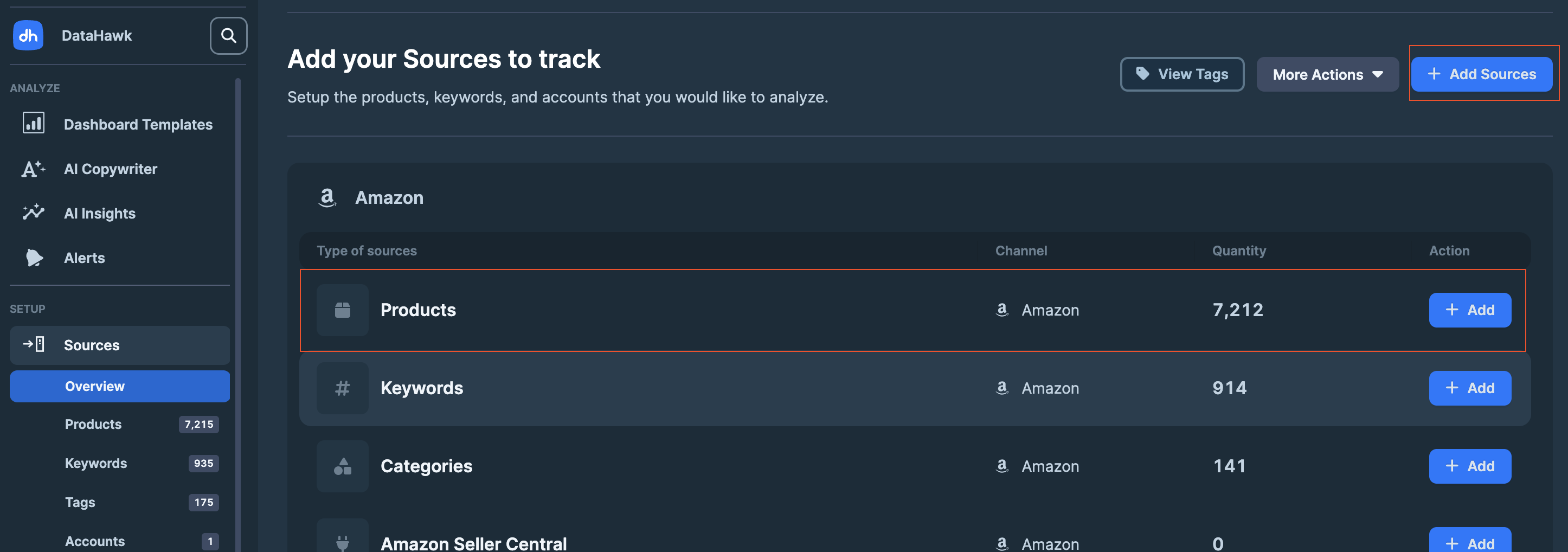 ### Select Amazon or Walmart Product
Select **Amazon or Walmart**, then choose **Product**.
### Select Amazon or Walmart Product
Select **Amazon or Walmart**, then choose **Product**.
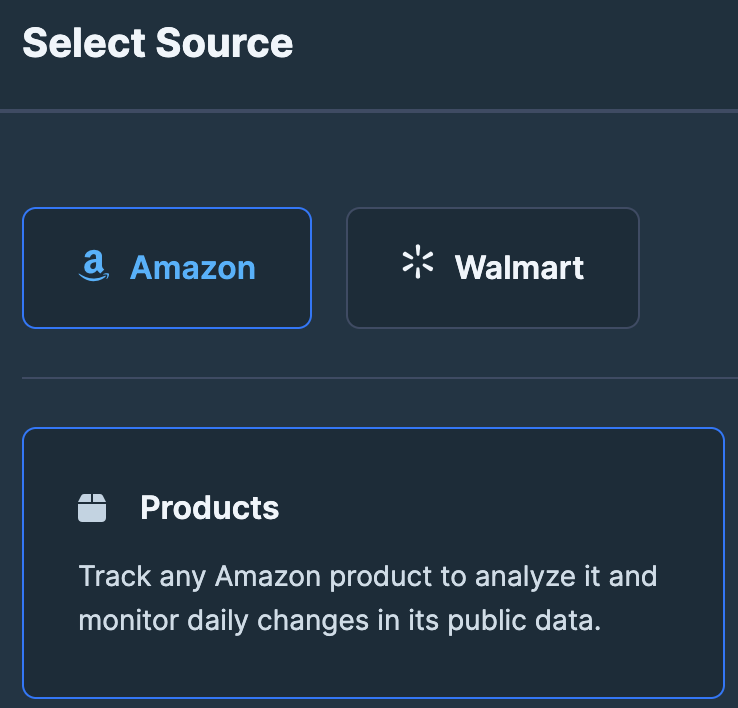 ### Choose your preferred method
DataHawk supports four ways to add products. Pick the tab that matches your input.
If you choose to track variations, DataHawk will automatically monitor all discovered variations linked to the parent product.
Best for adding a handful of products from links you already have.
1. Enter or paste the product URLs.
### Choose your preferred method
DataHawk supports four ways to add products. Pick the tab that matches your input.
If you choose to track variations, DataHawk will automatically monitor all discovered variations linked to the parent product.
Best for adding a handful of products from links you already have.
1. Enter or paste the product URLs.
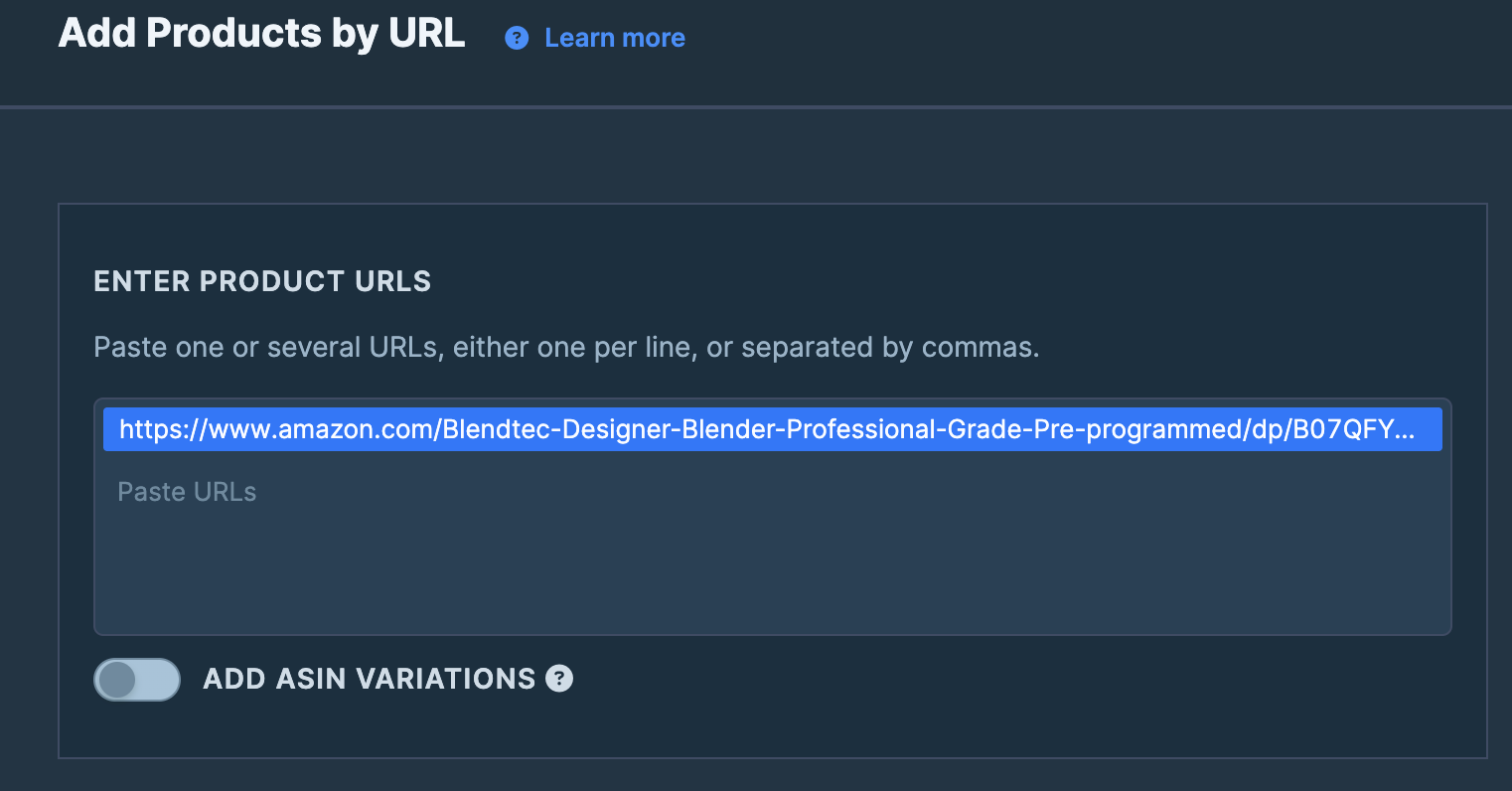 2. *(Optional)* Toggle to add all associated variations.
 3. *(Optional)* [Assign tags](/help-center/data-setup/tags) for better organization.
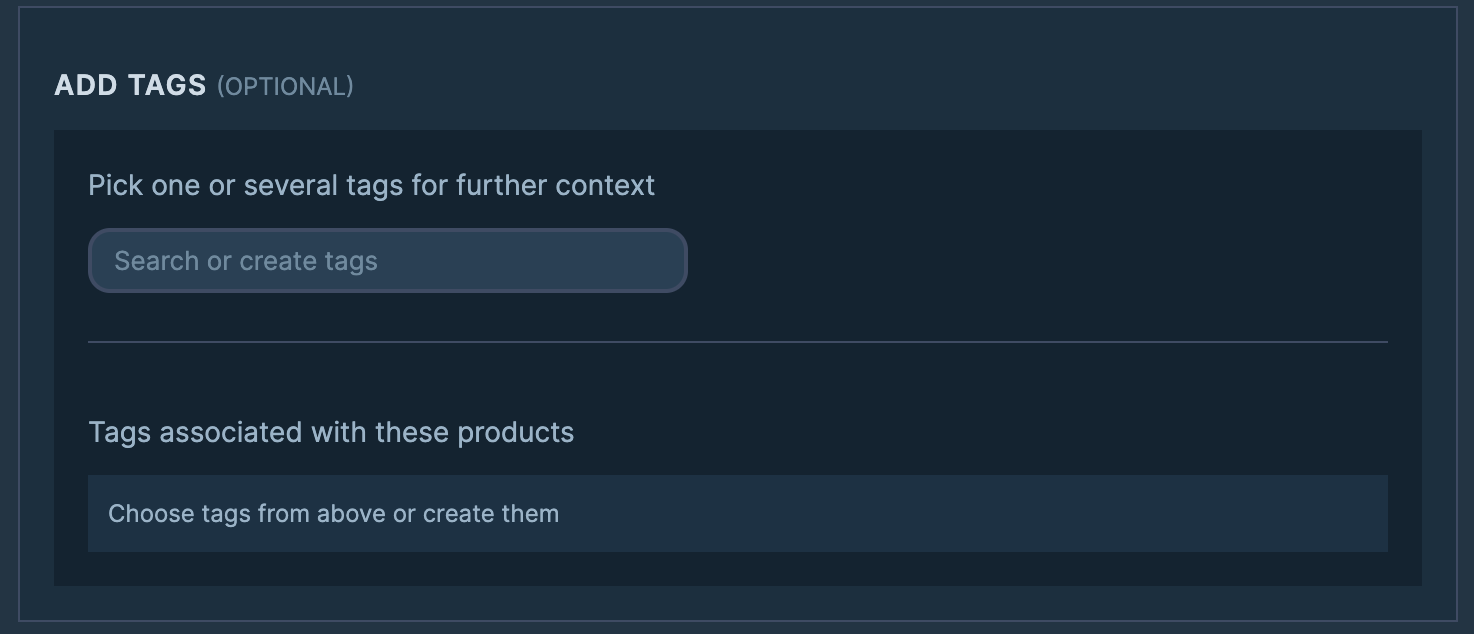 4. Click **Add Products** (bottom right) to finish.
Best when you already have the identifiers in a list.
1. Select the marketplace.
4. Click **Add Products** (bottom right) to finish.
Best when you already have the identifiers in a list.
1. Select the marketplace.
 2. Enter or paste the product ASINs (or Walmart IDs).
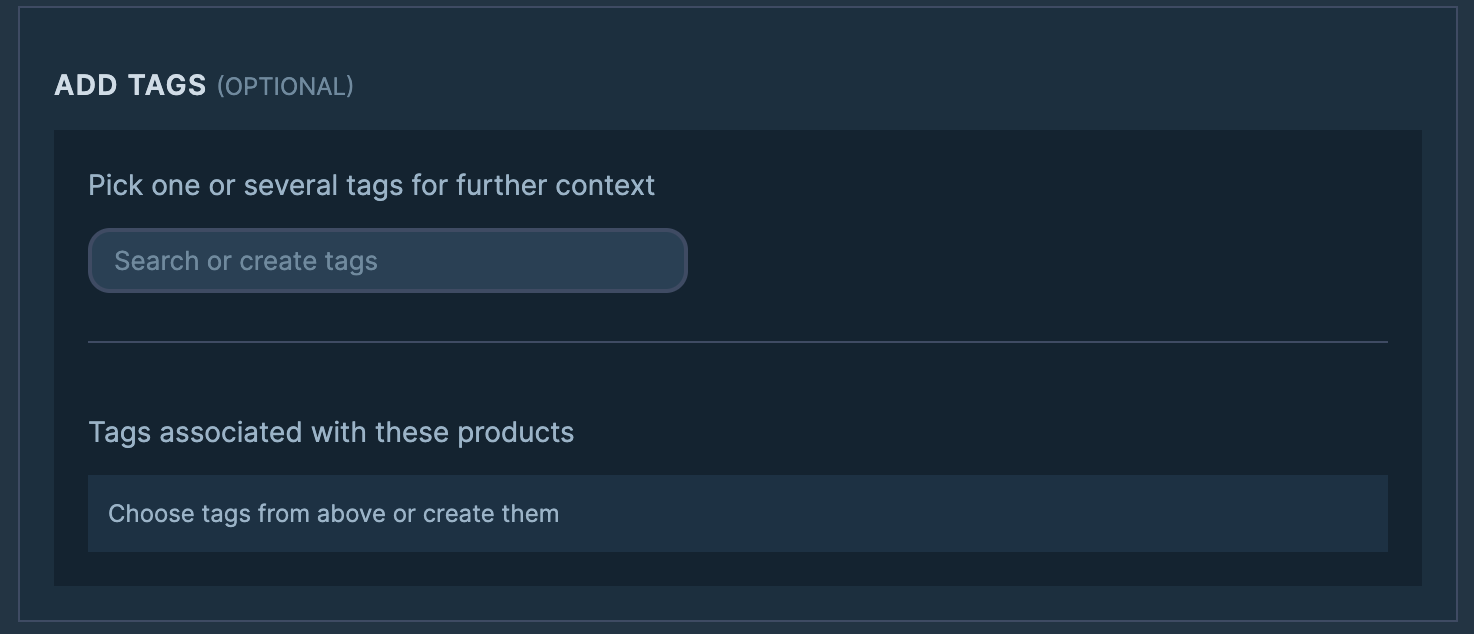 3. *(Optional)* Toggle to add all associated variations.
4. *(Optional)* [Assign tags](/help-center/data-setup/tags) for better organization.
5. Click **Add Products** (bottom right) to finish.
**Recommended for more than 500 products.** Lets you set tags and variation rules per row in a spreadsheet.
The CSV import only adds products. It never removes or replaces the ones you already track:
- A product that isn't in your file stays tracked.
- A product you already track isn't added twice.
- A product you don't track yet is added and tracked.
To replace your whole list, see [Replace your tracked products](#replace-your-tracked-products).
1. Download the CSV template.
2. Fill in the template with:
- **Marketplace**: Domain name (Amazon/Walmart marketplace).
- **Product ID**: ASIN (Amazon) or Product ID (Walmart).
- **Include Variations**: `True` to include variations, `False` to exclude.
- **Tags (optional)**: Separate multiple tags with semicolons (`;`).
3. Save the file in **CSV UTF-8 format**.
4. Click on `Choose CSV file`, select your local file in **CSV UTF-8 format**.
5. Map your columns to the template fields. Click **`Continue`**.
6. Datahawk will make a first review of your document and point out all the errors it notices. Review and correct any errors on your side. Click **`Validation summary`**.
7. You will see a summary of the errors and warnings found in your document. You will be able to **`Complete import`** if there are only warnings, but you will have to fix the errors before being able to complete the import.
This method is **coming soon**. In the meantime, contact our team if you'd like early access or help adding a whole brand catalog.
## How to archive a tracked product
Archiving stops collecting new data for a product but keeps its history intact. Archived products don't count against your tracked product limit. Use it when you no longer need fresh snapshots for a SKU you used to track.
### Open your tracked products list
In the DataHawk App, go to **Sources → Products**.
### Find the products you want to archive
Use the search to locate a specific product, or scroll the list to pick several.
### Select the products
Tick the box next to each product you want to archive.
3. *(Optional)* Toggle to add all associated variations.
4. *(Optional)* [Assign tags](/help-center/data-setup/tags) for better organization.
5. Click **Add Products** (bottom right) to finish.
**Recommended for more than 500 products.** Lets you set tags and variation rules per row in a spreadsheet.
The CSV import only adds products. It never removes or replaces the ones you already track:
- A product that isn't in your file stays tracked.
- A product you already track isn't added twice.
- A product you don't track yet is added and tracked.
To replace your whole list, see [Replace your tracked products](#replace-your-tracked-products).
1. Download the CSV template.
2. Fill in the template with:
- **Marketplace**: Domain name (Amazon/Walmart marketplace).
- **Product ID**: ASIN (Amazon) or Product ID (Walmart).
- **Include Variations**: `True` to include variations, `False` to exclude.
- **Tags (optional)**: Separate multiple tags with semicolons (`;`).
3. Save the file in **CSV UTF-8 format**.
4. Click on `Choose CSV file`, select your local file in **CSV UTF-8 format**.
5. Map your columns to the template fields. Click **`Continue`**.
6. Datahawk will make a first review of your document and point out all the errors it notices. Review and correct any errors on your side. Click **`Validation summary`**.
7. You will see a summary of the errors and warnings found in your document. You will be able to **`Complete import`** if there are only warnings, but you will have to fix the errors before being able to complete the import.
This method is **coming soon**. In the meantime, contact our team if you'd like early access or help adding a whole brand catalog.
## How to archive a tracked product
Archiving stops collecting new data for a product but keeps its history intact. Archived products don't count against your tracked product limit. Use it when you no longer need fresh snapshots for a SKU you used to track.
### Open your tracked products list
In the DataHawk App, go to **Sources → Products**.
### Find the products you want to archive
Use the search to locate a specific product, or scroll the list to pick several.
### Select the products
Tick the box next to each product you want to archive.
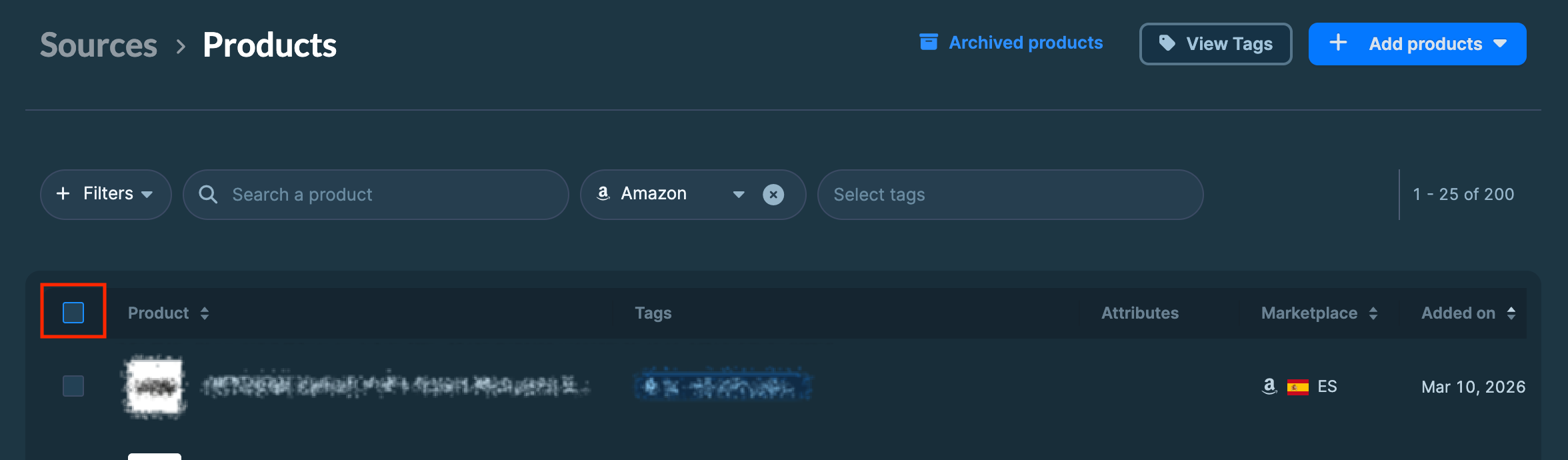 To archive everything you currently track, click **Select all products** instead.
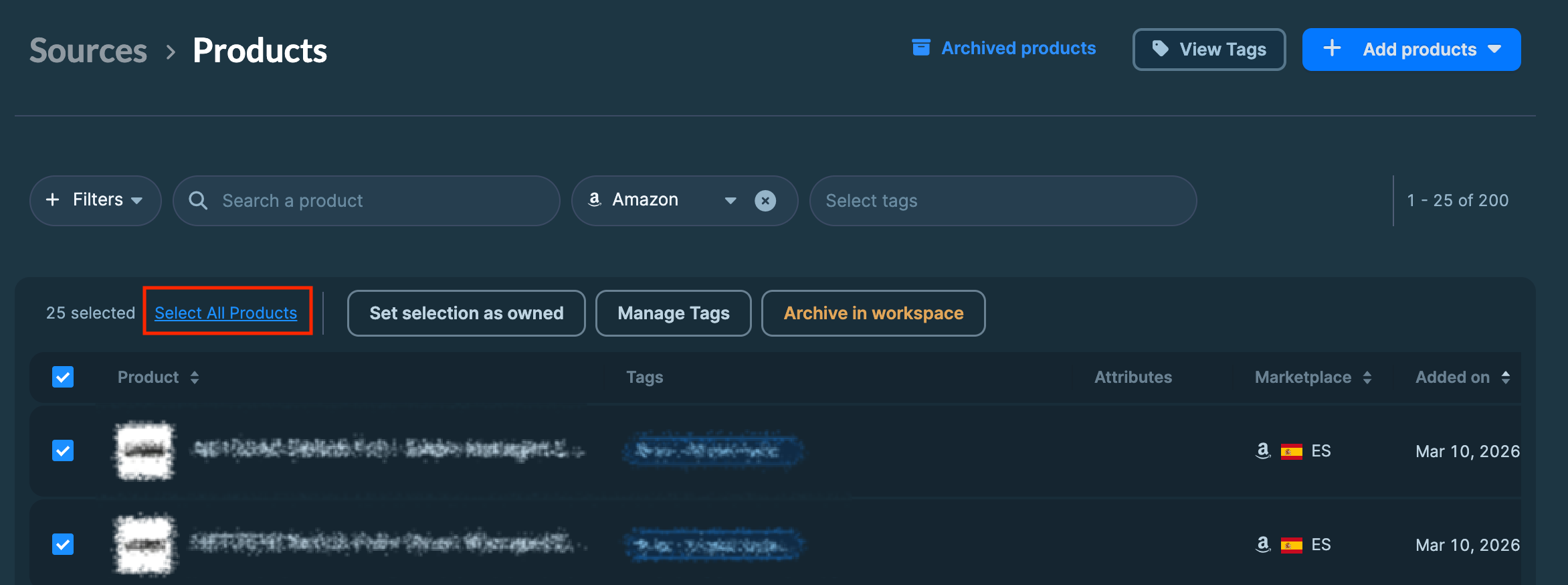 ### Archive
Click **Archive in Workspace**. The selected products stop receiving new daily snapshots immediately.
### Archive
Click **Archive in Workspace**. The selected products stop receiving new daily snapshots immediately.
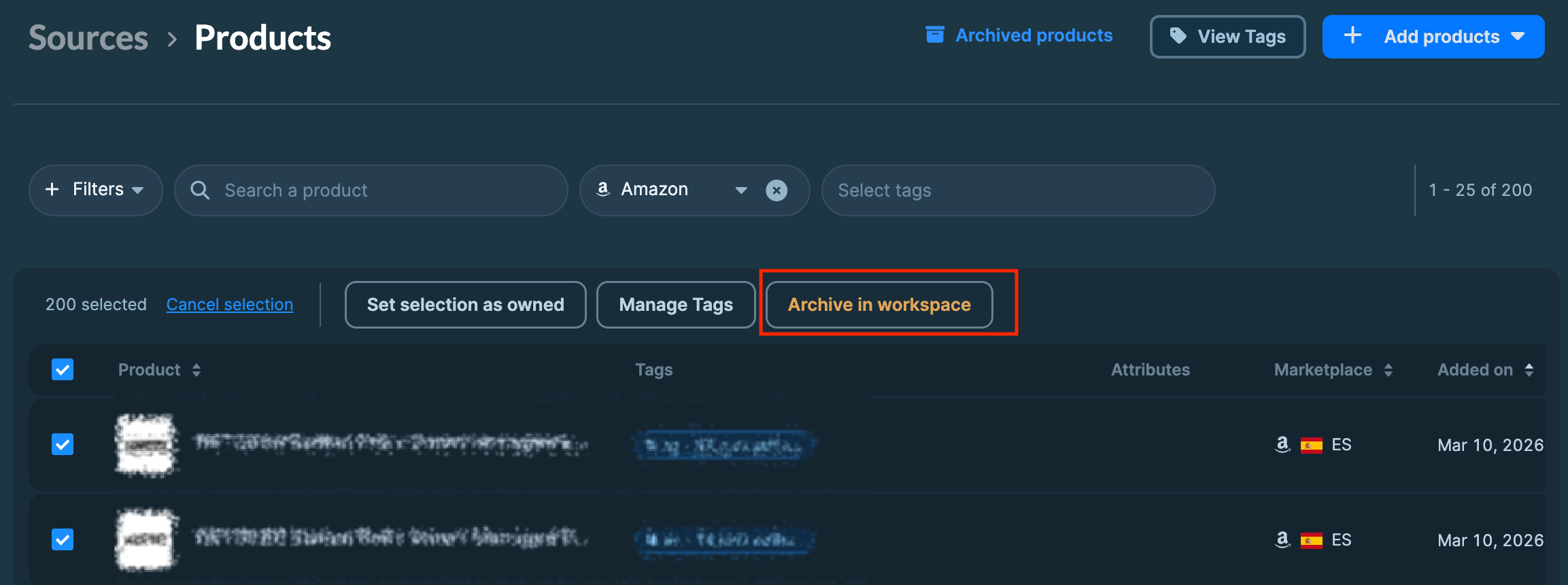 ## Replace your tracked products
You can't delete tracked products, and the CSV import can't replace your list: it only adds. To swap your tracked products for a new list, archive what you don't need, then upload your file.
- **A few products to remove:** archive them one by one, as shown in [How to archive a tracked product](#how-to-archive-a-tracked-product).
- **Many products to remove:** start from a clean slate.
### Archive all your tracked products
Go to **Sources → Products**, click **Select all products**, then **Archive in Workspace**.
### Upload your new list
Import your CSV with only the products you want to track. See the **CSV Import** tab in [How to track a Product](#how-to-track-a-product).
If an archived product is in your new list, DataHawk tracks it again and keeps its past data. Only tracked products count against your limit, so the products you leave archived don't use any of it.
{/* TODO: confirm whether the keyword CSV import works the same way (add only). */}
---
title: Amazon Private Data - Seller Account
description: Connect your Amazon Seller Central account to DataHawk to automatically collect financial, traffic, and inventory data.
---
Amazon Seller Central is the platform sellers use to sell products on Amazon directly to consumers, either fulfilling orders themselves (FBM) or via Amazon's fulfillment centers (FBA). DataHawk lets you connect an unlimited number of Seller Central accounts and automatically pulls financial, traffic, inventory, and listing data for each, ready for **seamless reporting and analysis**:
- **Financial Data:** Revenue, expenses, and cost breakdowns **by account and product**
- **Traffic & Sessions Data:** Page views and sessions metrics **per product**
- **Inventory Data:** FBA inventory levels and movements **by product**
## DataHawk Connection Capabilities
### Supported regions
DataHawk integration works for Sellers registered in all Amazon regions:
- **North America**: US, Canada, Mexico, and Brazil.
- **Europe**: UK, Germany, Italy, France, Spain, Netherlands, UAE, Sweden, India, and Poland.
- **Far East**: Japan, Singapore, and Australia.
### Data Coverage
Metrics resulting from integrating a Seller Central account can be accessed **both in a raw format and ready-to-use reports and dashboards**.
The table below highlights a very high-level summary of the datasets available, where they can be accessed, and how.
| Metric Family | By Account on your Database | By SKU on your Database |
|---|---|---|
| Sales | Yes | Yes |
| Orders | Yes | Yes |
| Units Sold | Yes | Yes |
| Returns | Yes | Yes |
| Refunds and Returns | Yes | Yes |
| Reimbursements | Yes | Yes |
| Marketing | Yes | Yes |
| Referral Costs | Yes | Yes |
| Warehousing Costs | Yes | Yes |
| Shipping Costs | Yes | Yes |
| Other Costs | Yes | Yes |
| Traffic & Sessions | Yes | Yes |
| Inventory | Yes | Yes |
### Historical data storage
Once you connect your Seller Central account to DataHawk, we immediately retrieve a maximum of **2 years of historical data on some data point**. We then **securely store and back up** all your data **everyday**, enabling **more comprehensive reporting with extended historical context**.
### Refresh Frequency & Data Delay
Data is updated daily.
There is usually a delay in updating the data from the last 48 hours.
## How to Connect your Amazon Seller Accounts
Before you start, ensure you have the **necessary account permissions**. If not, share the login link with someone who does.
### Go to the Sources Page
On DataHawk App, go to the [Sources Page](https://analytics.datahawk.co/app/sources).
### Add Sources
Click `+ Add Sources` on the top right corner. Or `+ Add` on the Amazon Seller Central line (jump to step 4).
## Replace your tracked products
You can't delete tracked products, and the CSV import can't replace your list: it only adds. To swap your tracked products for a new list, archive what you don't need, then upload your file.
- **A few products to remove:** archive them one by one, as shown in [How to archive a tracked product](#how-to-archive-a-tracked-product).
- **Many products to remove:** start from a clean slate.
### Archive all your tracked products
Go to **Sources → Products**, click **Select all products**, then **Archive in Workspace**.
### Upload your new list
Import your CSV with only the products you want to track. See the **CSV Import** tab in [How to track a Product](#how-to-track-a-product).
If an archived product is in your new list, DataHawk tracks it again and keeps its past data. Only tracked products count against your limit, so the products you leave archived don't use any of it.
{/* TODO: confirm whether the keyword CSV import works the same way (add only). */}
---
title: Amazon Private Data - Seller Account
description: Connect your Amazon Seller Central account to DataHawk to automatically collect financial, traffic, and inventory data.
---
Amazon Seller Central is the platform sellers use to sell products on Amazon directly to consumers, either fulfilling orders themselves (FBM) or via Amazon's fulfillment centers (FBA). DataHawk lets you connect an unlimited number of Seller Central accounts and automatically pulls financial, traffic, inventory, and listing data for each, ready for **seamless reporting and analysis**:
- **Financial Data:** Revenue, expenses, and cost breakdowns **by account and product**
- **Traffic & Sessions Data:** Page views and sessions metrics **per product**
- **Inventory Data:** FBA inventory levels and movements **by product**
## DataHawk Connection Capabilities
### Supported regions
DataHawk integration works for Sellers registered in all Amazon regions:
- **North America**: US, Canada, Mexico, and Brazil.
- **Europe**: UK, Germany, Italy, France, Spain, Netherlands, UAE, Sweden, India, and Poland.
- **Far East**: Japan, Singapore, and Australia.
### Data Coverage
Metrics resulting from integrating a Seller Central account can be accessed **both in a raw format and ready-to-use reports and dashboards**.
The table below highlights a very high-level summary of the datasets available, where they can be accessed, and how.
| Metric Family | By Account on your Database | By SKU on your Database |
|---|---|---|
| Sales | Yes | Yes |
| Orders | Yes | Yes |
| Units Sold | Yes | Yes |
| Returns | Yes | Yes |
| Refunds and Returns | Yes | Yes |
| Reimbursements | Yes | Yes |
| Marketing | Yes | Yes |
| Referral Costs | Yes | Yes |
| Warehousing Costs | Yes | Yes |
| Shipping Costs | Yes | Yes |
| Other Costs | Yes | Yes |
| Traffic & Sessions | Yes | Yes |
| Inventory | Yes | Yes |
### Historical data storage
Once you connect your Seller Central account to DataHawk, we immediately retrieve a maximum of **2 years of historical data on some data point**. We then **securely store and back up** all your data **everyday**, enabling **more comprehensive reporting with extended historical context**.
### Refresh Frequency & Data Delay
Data is updated daily.
There is usually a delay in updating the data from the last 48 hours.
## How to Connect your Amazon Seller Accounts
Before you start, ensure you have the **necessary account permissions**. If not, share the login link with someone who does.
### Go to the Sources Page
On DataHawk App, go to the [Sources Page](https://analytics.datahawk.co/app/sources).
### Add Sources
Click `+ Add Sources` on the top right corner. Or `+ Add` on the Amazon Seller Central line (jump to step 4).
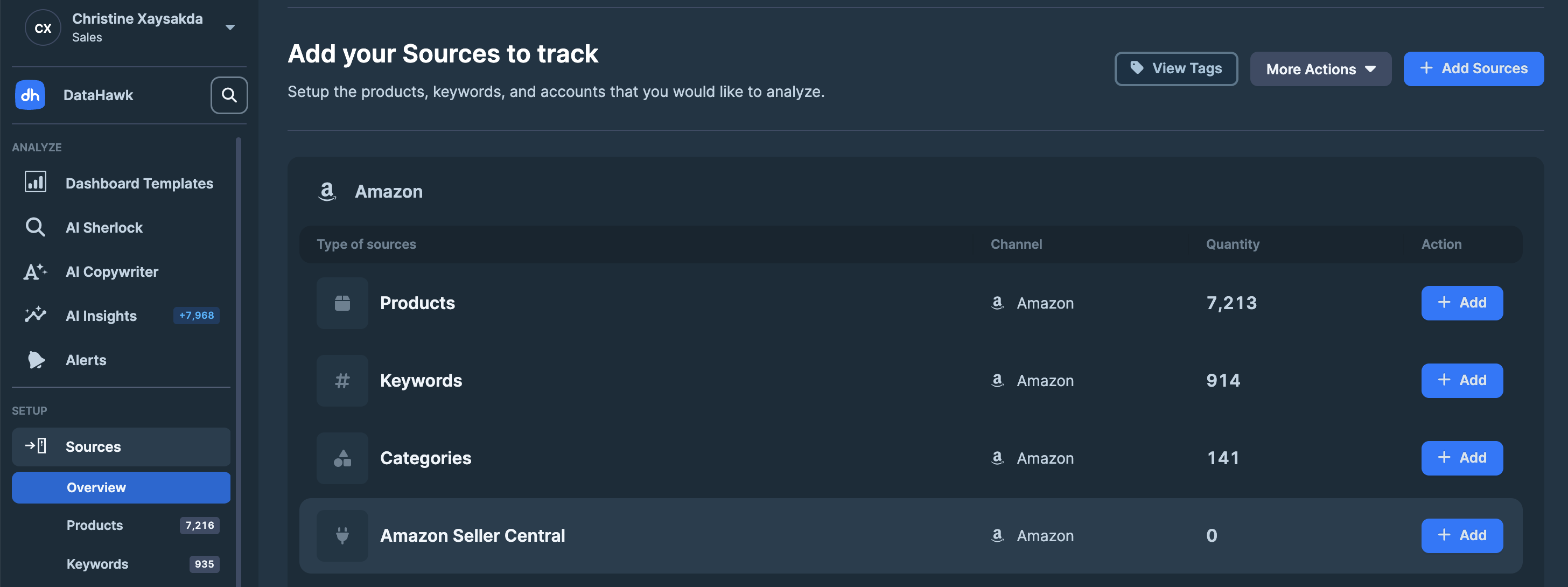 ### Select Amazon Seller Central
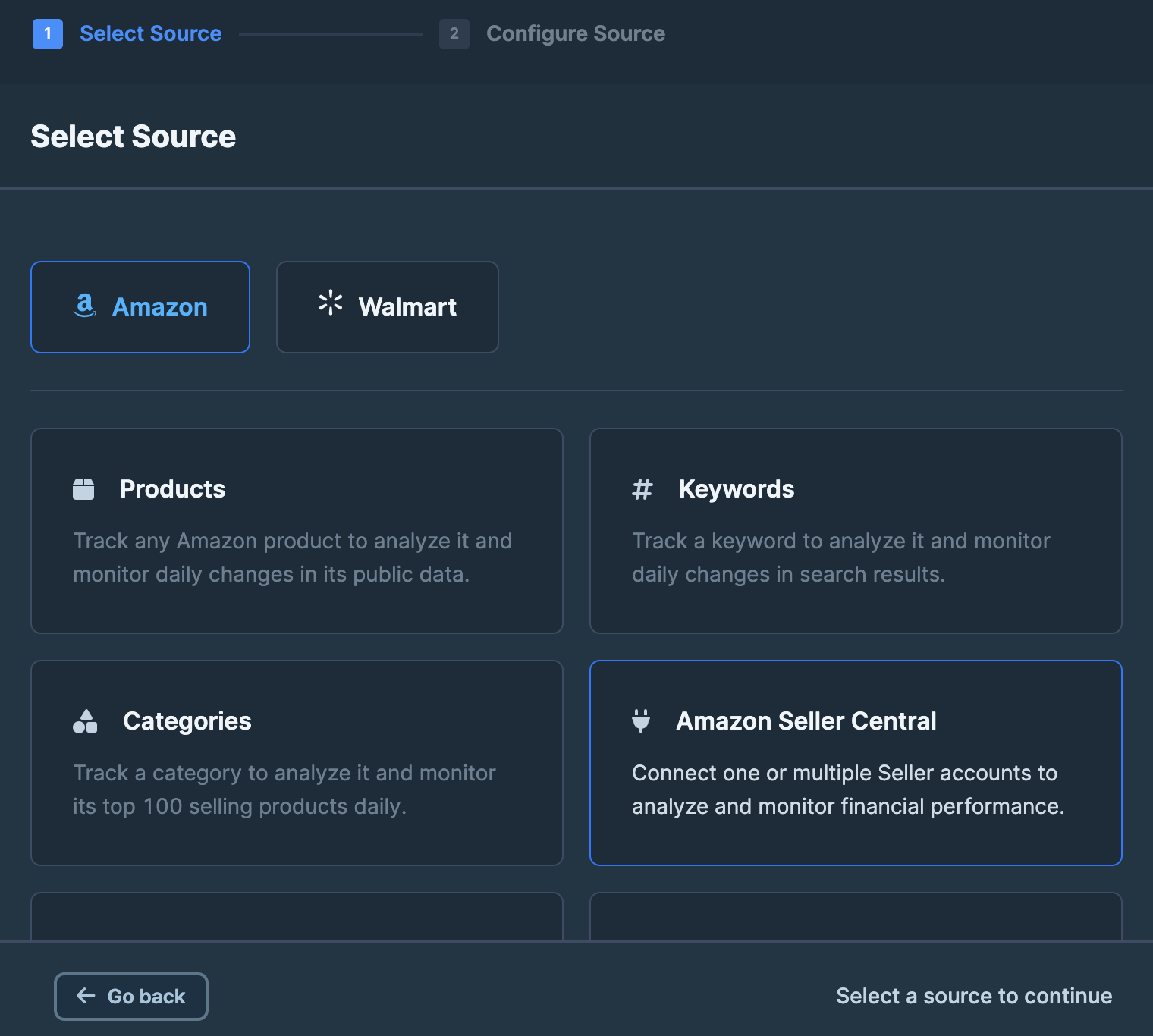 ### Choose a marketplace to connect
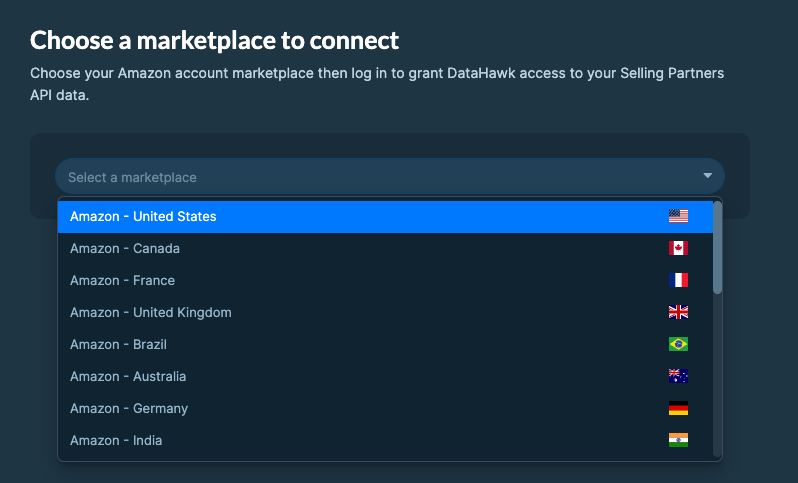 ### Log in and authorize
Log in to your **Amazon Seller account**.
Authorize DataHawk integration.
### Log in and authorize
Log in to your **Amazon Seller account**.
Authorize DataHawk integration.
 ## DataHawk Limitations
- Data for the last 48h may be incomplete
- Due to Amazon's API's limitations, datasets contain data until 72 hours before the refresh.
- Some metrics are limited by Amazon API
- Initial historical depth is limited by Amazon API
## Outputs
### Raw data
Raw data can be accessed on your destination and can notably be **used to build your own dashboards** on your favorite BI solution.
Your Seller Central accounts data will be found in the following schemas:
| Schema | Available Data |
|---|---|
| FINANCE | Sales Data and Profit & Loss Data |
| RAW_INVENTORY | Inventory Breakdown Data |
| SELLING_PARTNER | Traffic & Sessions Data |
Use [Find Tables and Columns](/help-center/data-reference/find-tables-and-columns) to locate the current schema, table, and column definitions.
### Dashboards
**Ready-to-use dashboards** and reports are available on the web application, and in our [pre-built Power BI report](https://drive.google.com/uc?export=download&id=1AIvk0lBOnNdMqHrXopZLrNW-pFWGTVtR) covering Seller Finances & Supply Chain (Traffic Data coming soon).
---
title: Use Tags
description: Tag Products and Keywords to organize your catalog and target dashboards, Alerts, and Sherlock at any slice.
---
A tag is a label you attach to a product or a keyword, like `Top Performer` or `cat:HomeCare`. Once tagged, you can filter dashboards, scope Alerts, and group Sherlock signals by that label instead of picking items one by one. An item can carry as many tags as you need.
To tag products from your connected Seller Central or Vendor Central account, use the **Product Tags** source on the Sources page. You don't need product tracking to tag a product. The **Products** source adds products to tracking and counts against your tracked product limit.
## Why use tags?
Tags pay off as soon as you have more than a handful of products or keywords. With them, you can:
- **Filter dashboards** to a meaningful slice, for example only your `Top Performer` products or only `cat:HomeCare` keywords.
- **Scope Alerts** to a group, so you're pinged when your premium SKUs lose the Buy Box, not for every product.
- **Slice ad performance** by your own categories, without restructuring anything in Amazon Seller Central.
- **Get context in Sherlock**: when you triage an anomaly, tags show which part of your catalog is affected.
## Tagging vs tracking
Tagging and tracking are separate. Tagging only labels a product. Tracking makes DataHawk collect that product's page data every day. Pick the right source on the Sources page before you start:
| | Your catalog (connected accounts) | Tracked products |
|---|---|---|
| What it is | Your own products, from your Seller Central or Vendor Central account | Products DataHawk monitors daily, yours or competitors' |
| Source to use | **Product Tags** | **Products** |
| Needs product tracking in your plan | No | Yes |
| Counts against your tracked product limit | No | Yes |
| How to tag | **Product Tags** CSV upload | While adding the products, or later with **Product Tags** |
If you only want to group your catalog in dashboards, use **Product Tags**. Track a product only when you need its daily product page data (see [Track Products](/help-center/data-setup/products-tracking)). The same applies to keywords: you can tag keywords you don't track, for example to filter Brand Analytics SQP data by your own groups.
## Add tags
Most people tag in bulk with a CSV file. Pick the tab that matches your situation.
Best for tagging your catalog, or retagging dozens or hundreds of items at once.
### Open the tags importer
Go to **Sources**. Find the **Product Tags** (or **Keyword Tags**) row and click **+ Add**.
## DataHawk Limitations
- Data for the last 48h may be incomplete
- Due to Amazon's API's limitations, datasets contain data until 72 hours before the refresh.
- Some metrics are limited by Amazon API
- Initial historical depth is limited by Amazon API
## Outputs
### Raw data
Raw data can be accessed on your destination and can notably be **used to build your own dashboards** on your favorite BI solution.
Your Seller Central accounts data will be found in the following schemas:
| Schema | Available Data |
|---|---|
| FINANCE | Sales Data and Profit & Loss Data |
| RAW_INVENTORY | Inventory Breakdown Data |
| SELLING_PARTNER | Traffic & Sessions Data |
Use [Find Tables and Columns](/help-center/data-reference/find-tables-and-columns) to locate the current schema, table, and column definitions.
### Dashboards
**Ready-to-use dashboards** and reports are available on the web application, and in our [pre-built Power BI report](https://drive.google.com/uc?export=download&id=1AIvk0lBOnNdMqHrXopZLrNW-pFWGTVtR) covering Seller Finances & Supply Chain (Traffic Data coming soon).
---
title: Use Tags
description: Tag Products and Keywords to organize your catalog and target dashboards, Alerts, and Sherlock at any slice.
---
A tag is a label you attach to a product or a keyword, like `Top Performer` or `cat:HomeCare`. Once tagged, you can filter dashboards, scope Alerts, and group Sherlock signals by that label instead of picking items one by one. An item can carry as many tags as you need.
To tag products from your connected Seller Central or Vendor Central account, use the **Product Tags** source on the Sources page. You don't need product tracking to tag a product. The **Products** source adds products to tracking and counts against your tracked product limit.
## Why use tags?
Tags pay off as soon as you have more than a handful of products or keywords. With them, you can:
- **Filter dashboards** to a meaningful slice, for example only your `Top Performer` products or only `cat:HomeCare` keywords.
- **Scope Alerts** to a group, so you're pinged when your premium SKUs lose the Buy Box, not for every product.
- **Slice ad performance** by your own categories, without restructuring anything in Amazon Seller Central.
- **Get context in Sherlock**: when you triage an anomaly, tags show which part of your catalog is affected.
## Tagging vs tracking
Tagging and tracking are separate. Tagging only labels a product. Tracking makes DataHawk collect that product's page data every day. Pick the right source on the Sources page before you start:
| | Your catalog (connected accounts) | Tracked products |
|---|---|---|
| What it is | Your own products, from your Seller Central or Vendor Central account | Products DataHawk monitors daily, yours or competitors' |
| Source to use | **Product Tags** | **Products** |
| Needs product tracking in your plan | No | Yes |
| Counts against your tracked product limit | No | Yes |
| How to tag | **Product Tags** CSV upload | While adding the products, or later with **Product Tags** |
If you only want to group your catalog in dashboards, use **Product Tags**. Track a product only when you need its daily product page data (see [Track Products](/help-center/data-setup/products-tracking)). The same applies to keywords: you can tag keywords you don't track, for example to filter Brand Analytics SQP data by your own groups.
## Add tags
Most people tag in bulk with a CSV file. Pick the tab that matches your situation.
Best for tagging your catalog, or retagging dozens or hundreds of items at once.
### Open the tags importer
Go to **Sources**. Find the **Product Tags** (or **Keyword Tags**) row and click **+ Add**.
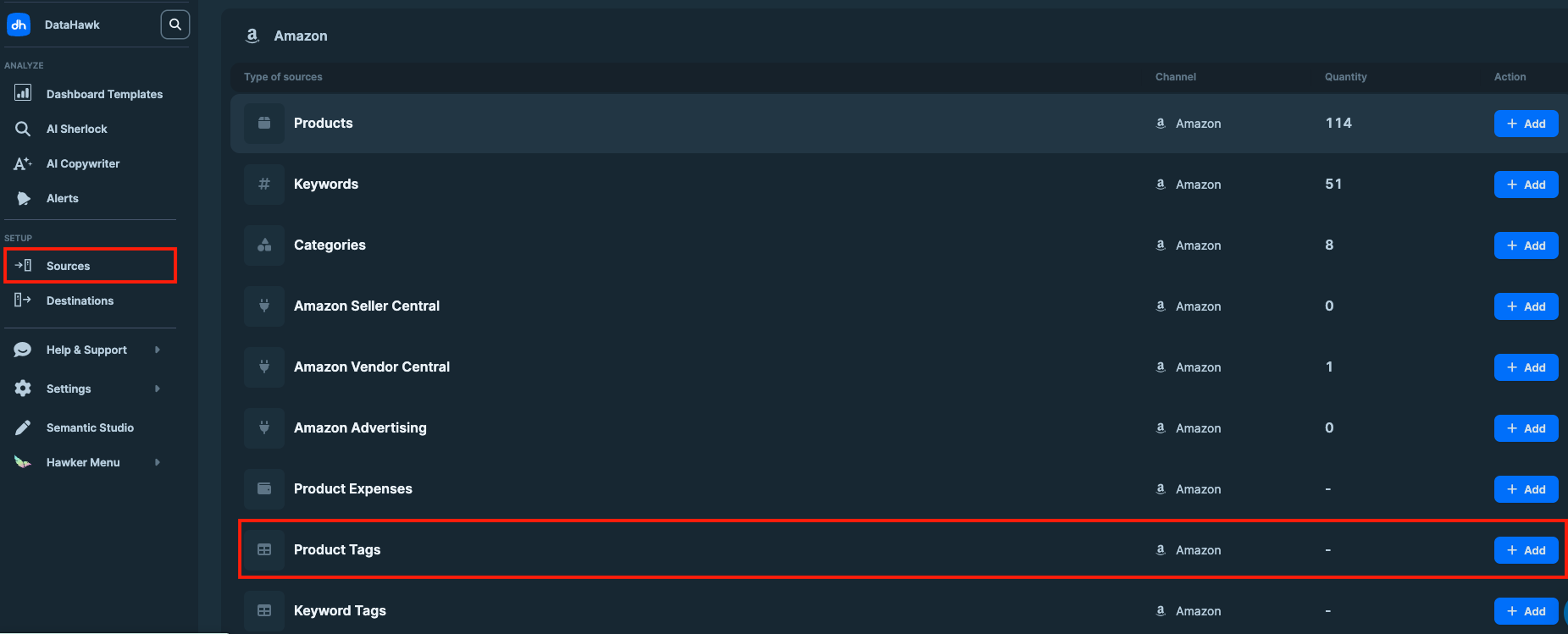 Don't use the **Products** row. It adds products to tracking, not tags.
### Download a template
- **Template CSV**: a blank file. Use it the first time you tag.
- **Product/Keyword Catalog & Tags CSV**: pre-filled with the items you've already tagged. Use it to update existing tags. It doesn't include untagged items.
For a first upload, start from your own product list, for example an export from Seller Central.
{/* TODO: confirm whether DataHawk offers a way to download the full catalog, including untagged products, or to see how many products are still untagged. Customers ask for this to check their uploads. */}
### Fill in the template
Use one row per product or keyword. Put its tags in the **Tags** column, separated by semicolons (`;`). Tags are case-sensitive.
### Upload and fix errors
Upload the file. DataHawk checks every row and flags errors. Use the in-app **Find and replace** to fix them quickly.
### Choose the import mode
| Mode | What it does |
|---|---|
| **Add New Only** | Adds the tags in your file. Tags already on each item stay. The safe default. |
| **Replace Matching** | For items in your file, replaces their tags with the ones in the file. Items not in the file keep their tags. |
| **Replace All** | Wipes all existing tags, then applies your file. Destructive: be sure before you use it. |
### Confirm
Click **Add Product Tags** or **Add Keyword Tags**.
Large file? See [Uploads & bulk imports](/troubleshooting/uploads-bulk-imports) if your upload hangs or times out.
When you add products or keywords to tracking, you can tag them in the same flow:
- **URL or ASIN entry:** fill in the **Tags** field in the last step, before you click **Add**.
- **CSV import:** add an optional **Tags** column, with multiple tags separated by semicolons (`;`). Tags are case-sensitive.
See [Track Products](/help-center/data-setup/products-tracking) or [Track Keywords](/help-center/data-setup/keywords-tracking) for the full flow.
Handy when you're looking at a single tracked SKU and want to add an `On Watch` or `cat:NewSegment` tag on the fly.
{/* TODO: Confirm exact UI flow + add screenshot; currently inferred from product tracking UI. Also confirm how to tag a single untracked product. */}
### Open the items list
Go to **Sources → Products** or **Sources → Keywords**.
### Edit the tags
Click the item's row. Type new tags or pick one from the suggestions.
### Save
Click **Save**.
### How long until tags show up?
Tags don't apply instantly. DataHawk processes tag uploads every 3 hours, and each run takes about 40 minutes. Your tags reach your data (Snowflake or BigQuery) within **3 hours 40 minutes** at most. Dashboards show them after their next refresh.
{/* TODO: confirm whether Sources → View Tags shows uploaded tags right away or on the same 3-hour cycle, how long dashboards take after the data lands, and whether single-item edits follow the same cycle. Real-time tag uploads are being considered (Linear DAT-459); update this section if it ships. */}
## Types of tags
You'll see three kinds of tags in DataHawk. They can sit side by side on the same item.
| Type | Who creates them | When they're attached |
|---|---|---|
| **Automated** | DataHawk | Automatically, based on what DataHawk knows about the item. You can't add or remove them. |
| **Preset** | DataHawk, as a starter list | When you pick one from the suggestions |
| **Custom** | You | Whenever you add or edit a product or keyword |
- **FBA**: Fulfilled by Amazon
- **Prime**: Prime-eligible
- **Vendor**: sold by Amazon
- **Tracked**: currently tracked in your workspace
- **ASIN**: the product's ASIN identifier
- **Variation**: part of a parent/child variation family
- **Owned Tags**: tags found in your Seller Central or Advertising account, copied into DataHawk
{/* TODO: clarify what "Owned Tags" are (which Seller Central or Advertising field they come from) and what the "ASIN" automated tag is used for. */}
A ready-made list for when you don't want to invent your own names.
- **Products:** Direct Competitor, Threat, New Entrant, Top Performer
- **Keywords:** Short Tail / Mid Tail / Long Tail; Low / Medium / High Volume; Low / Medium / High Competition; Core Keywords / Ancillary Keywords
You name them. Your most-used custom tags show up as suggestions when you tag new items. Common examples: brand name, product category, marketing segment, supplier, internal SKU family.
## Name your tags so they scale
A flat list of tags gets hard to filter after a few dozen. Each tag is a single text value, but you can build structure into the name.
**Add a prefix for each dimension.** Use the `dimension:value` format, so every tag says what it describes:
- Product category: `cat:HomeCare`
- Product group: `pg:Vacuum Cleaner`
- Product color: `color:Red`
Then search `cat:` to see all category tags, `pg:` for all product groups, and so on.
**Use `/` for sub-levels.** Use the `dimension:level1/level2` format:
- `cat:HomeCare/All`
- `cat:HomeCare/Accessory`
- `cat:HomeCare/Vacuum/Cordless`
**Follow a few formatting rules:**
- Always include the prefix (`cat:`, `pg:`, `color:`).
- Keep prefixes lowercase.
- Don't put spaces around `/`.
- Remove leading and trailing spaces.
- Pick a casing convention and stick to it. Tags are case-sensitive: `HomeCare` and `homecare` are two different tags. Lowercase prefixes with PascalCase values (`cat:HomeCare`) work well.
{/* TODO: confirm max tags per item (placeholder was "no practical limit, contact support above ~50"), max tag name length, and which special characters are allowed beyond the prefix:value/sublevel pattern. */}
## Manage tags
To manage tags across your workspace, click **View Tags** in the Sources header. From there you can:
- **Add** a tag without attaching it to anything, to set up your naming in advance.
- **Rename** a tag. Every item with the old name follows the rename, with no re-import needed.
- **Remove** a tag from the workspace.
{/* TODO: add screenshot of Tag Management UI. Confirm whether tags can be merged, and whether removing a tag also clears it from every item or only from the central list. */}
## Where tags show up
Once applied, tags are available across DataHawk:
- **Dashboards (Power BI, Looker Studio):** every standard dashboard has a Tags filter.
- **Alerts:** target items by tag instead of one ASIN at a time.
- **Sherlock:** signals are grouped by tag, so you see patterns across your catalog.
- **Your data (Snowflake, BigQuery):** see [For analysts](#for-analysts-tags-in-your-data-warehouse) below.
Tags belong to one workspace and aren't shared with your other workspaces. If you have several, upload the same tag file to each one.
## FAQ
1. **Wait for the next run.** Tags can take up to 3 hours 40 minutes to appear, then dashboards need to refresh.
2. **Check you used the right source.** Tags for your catalog go through **Product Tags**, not **Products**.
3. **Check the product is in your file.** Tags only apply to the exact ASINs listed. If you tagged child ASINs, don't expect the parent to carry the tag.
4. **Check the import mode.** **Replace All** wipes tags that aren't in your file.
Still missing? Email [support@datahawk.co](mailto:support@datahawk.co) with your file and two or three ASINs that should be tagged.
{/* TODO: confirm with Isaac whether tags on child ASINs are ever applied to the parent (or the reverse). */}
Yes. Use the **Product Tags** importer (**Sources → Product Tags → + Add**), not the product tracking CSV. The tags importer only changes tags, so your tracked products stay as they are.
{/* TODO: confirm whether re-uploading the product tracking CSV also updates tags on products already tracked. */}
No. Tagging and tracking are independent. See [Tagging vs tracking](#tagging-vs-tracking).
No. Tags belong to one workspace. If you have several workspaces with overlapping catalogs, upload the same tag file to each one.
Yes. In **Sources → View Tags**, rename the tag. Every item with the old name follows the rename.
Yes. Product tags are in `REFERENTIAL.REFERENTIAL_PRODUCT_TAG`, one row per product and tag, updated every 3 hours. See [For analysts](#for-analysts-tags-in-your-data-warehouse).
## For analysts: tags in your data warehouse
Product tags live in the `REFERENTIAL` schema, in two tables:
| Table | What it holds | Use it to |
|---|---|---|
| `REFERENTIAL.REFERENTIAL_PRODUCT_TAG` | Current product and tag pairs (`PRODUCT_KEY`, `TAG_NAME`), updated every 3 hours | Filter or group data by tag. Power BI dashboards read this table. |
| `REFERENTIAL.DATAHAWK_TAGS_SOURCE` | Each uploaded tag, with `TAG_NAME`, `MARKETPLACE_KEY`, `CHANNEL_PRODUCT_ID`, and `TAG_CREATION_DATE` | Check that a specific upload landed |
To check an upload, count the tags created on the upload date:
```sql
SELECT COUNT(*) AS TAGS_CREATED
FROM REFERENTIAL.DATAHAWK_TAGS_SOURCE
WHERE TAG_CREATION_DATE::DATE = '2026-09-24'
```
Replace `COUNT(*) AS TAGS_CREATED` with `TAG_NAME, MARKETPLACE_KEY, CHANNEL_PRODUCT_ID, TAG_CREATION_DATE` to list them instead.
To group your data by tag, join on `PRODUCT_KEY`. The [Google Sheets examples](/help-center/connect-tools/google-sheets) include a full query.
{/* TODO: confirm DATAHAWK_TAGS_SOURCE is exposed to customers (it was queried through the internal share) and its refresh timing (it may update faster than REFERENTIAL_PRODUCT_TAG), what REFERENTIAL_PRODUCT_CATALOG_INPUT holds (Seller dashboards read it alongside REFERENTIAL_PRODUCT_TAG), and where keyword tags live. */}
---
## Where to go next
Don't use the **Products** row. It adds products to tracking, not tags.
### Download a template
- **Template CSV**: a blank file. Use it the first time you tag.
- **Product/Keyword Catalog & Tags CSV**: pre-filled with the items you've already tagged. Use it to update existing tags. It doesn't include untagged items.
For a first upload, start from your own product list, for example an export from Seller Central.
{/* TODO: confirm whether DataHawk offers a way to download the full catalog, including untagged products, or to see how many products are still untagged. Customers ask for this to check their uploads. */}
### Fill in the template
Use one row per product or keyword. Put its tags in the **Tags** column, separated by semicolons (`;`). Tags are case-sensitive.
### Upload and fix errors
Upload the file. DataHawk checks every row and flags errors. Use the in-app **Find and replace** to fix them quickly.
### Choose the import mode
| Mode | What it does |
|---|---|
| **Add New Only** | Adds the tags in your file. Tags already on each item stay. The safe default. |
| **Replace Matching** | For items in your file, replaces their tags with the ones in the file. Items not in the file keep their tags. |
| **Replace All** | Wipes all existing tags, then applies your file. Destructive: be sure before you use it. |
### Confirm
Click **Add Product Tags** or **Add Keyword Tags**.
Large file? See [Uploads & bulk imports](/troubleshooting/uploads-bulk-imports) if your upload hangs or times out.
When you add products or keywords to tracking, you can tag them in the same flow:
- **URL or ASIN entry:** fill in the **Tags** field in the last step, before you click **Add**.
- **CSV import:** add an optional **Tags** column, with multiple tags separated by semicolons (`;`). Tags are case-sensitive.
See [Track Products](/help-center/data-setup/products-tracking) or [Track Keywords](/help-center/data-setup/keywords-tracking) for the full flow.
Handy when you're looking at a single tracked SKU and want to add an `On Watch` or `cat:NewSegment` tag on the fly.
{/* TODO: Confirm exact UI flow + add screenshot; currently inferred from product tracking UI. Also confirm how to tag a single untracked product. */}
### Open the items list
Go to **Sources → Products** or **Sources → Keywords**.
### Edit the tags
Click the item's row. Type new tags or pick one from the suggestions.
### Save
Click **Save**.
### How long until tags show up?
Tags don't apply instantly. DataHawk processes tag uploads every 3 hours, and each run takes about 40 minutes. Your tags reach your data (Snowflake or BigQuery) within **3 hours 40 minutes** at most. Dashboards show them after their next refresh.
{/* TODO: confirm whether Sources → View Tags shows uploaded tags right away or on the same 3-hour cycle, how long dashboards take after the data lands, and whether single-item edits follow the same cycle. Real-time tag uploads are being considered (Linear DAT-459); update this section if it ships. */}
## Types of tags
You'll see three kinds of tags in DataHawk. They can sit side by side on the same item.
| Type | Who creates them | When they're attached |
|---|---|---|
| **Automated** | DataHawk | Automatically, based on what DataHawk knows about the item. You can't add or remove them. |
| **Preset** | DataHawk, as a starter list | When you pick one from the suggestions |
| **Custom** | You | Whenever you add or edit a product or keyword |
- **FBA**: Fulfilled by Amazon
- **Prime**: Prime-eligible
- **Vendor**: sold by Amazon
- **Tracked**: currently tracked in your workspace
- **ASIN**: the product's ASIN identifier
- **Variation**: part of a parent/child variation family
- **Owned Tags**: tags found in your Seller Central or Advertising account, copied into DataHawk
{/* TODO: clarify what "Owned Tags" are (which Seller Central or Advertising field they come from) and what the "ASIN" automated tag is used for. */}
A ready-made list for when you don't want to invent your own names.
- **Products:** Direct Competitor, Threat, New Entrant, Top Performer
- **Keywords:** Short Tail / Mid Tail / Long Tail; Low / Medium / High Volume; Low / Medium / High Competition; Core Keywords / Ancillary Keywords
You name them. Your most-used custom tags show up as suggestions when you tag new items. Common examples: brand name, product category, marketing segment, supplier, internal SKU family.
## Name your tags so they scale
A flat list of tags gets hard to filter after a few dozen. Each tag is a single text value, but you can build structure into the name.
**Add a prefix for each dimension.** Use the `dimension:value` format, so every tag says what it describes:
- Product category: `cat:HomeCare`
- Product group: `pg:Vacuum Cleaner`
- Product color: `color:Red`
Then search `cat:` to see all category tags, `pg:` for all product groups, and so on.
**Use `/` for sub-levels.** Use the `dimension:level1/level2` format:
- `cat:HomeCare/All`
- `cat:HomeCare/Accessory`
- `cat:HomeCare/Vacuum/Cordless`
**Follow a few formatting rules:**
- Always include the prefix (`cat:`, `pg:`, `color:`).
- Keep prefixes lowercase.
- Don't put spaces around `/`.
- Remove leading and trailing spaces.
- Pick a casing convention and stick to it. Tags are case-sensitive: `HomeCare` and `homecare` are two different tags. Lowercase prefixes with PascalCase values (`cat:HomeCare`) work well.
{/* TODO: confirm max tags per item (placeholder was "no practical limit, contact support above ~50"), max tag name length, and which special characters are allowed beyond the prefix:value/sublevel pattern. */}
## Manage tags
To manage tags across your workspace, click **View Tags** in the Sources header. From there you can:
- **Add** a tag without attaching it to anything, to set up your naming in advance.
- **Rename** a tag. Every item with the old name follows the rename, with no re-import needed.
- **Remove** a tag from the workspace.
{/* TODO: add screenshot of Tag Management UI. Confirm whether tags can be merged, and whether removing a tag also clears it from every item or only from the central list. */}
## Where tags show up
Once applied, tags are available across DataHawk:
- **Dashboards (Power BI, Looker Studio):** every standard dashboard has a Tags filter.
- **Alerts:** target items by tag instead of one ASIN at a time.
- **Sherlock:** signals are grouped by tag, so you see patterns across your catalog.
- **Your data (Snowflake, BigQuery):** see [For analysts](#for-analysts-tags-in-your-data-warehouse) below.
Tags belong to one workspace and aren't shared with your other workspaces. If you have several, upload the same tag file to each one.
## FAQ
1. **Wait for the next run.** Tags can take up to 3 hours 40 minutes to appear, then dashboards need to refresh.
2. **Check you used the right source.** Tags for your catalog go through **Product Tags**, not **Products**.
3. **Check the product is in your file.** Tags only apply to the exact ASINs listed. If you tagged child ASINs, don't expect the parent to carry the tag.
4. **Check the import mode.** **Replace All** wipes tags that aren't in your file.
Still missing? Email [support@datahawk.co](mailto:support@datahawk.co) with your file and two or three ASINs that should be tagged.
{/* TODO: confirm with Isaac whether tags on child ASINs are ever applied to the parent (or the reverse). */}
Yes. Use the **Product Tags** importer (**Sources → Product Tags → + Add**), not the product tracking CSV. The tags importer only changes tags, so your tracked products stay as they are.
{/* TODO: confirm whether re-uploading the product tracking CSV also updates tags on products already tracked. */}
No. Tagging and tracking are independent. See [Tagging vs tracking](#tagging-vs-tracking).
No. Tags belong to one workspace. If you have several workspaces with overlapping catalogs, upload the same tag file to each one.
Yes. In **Sources → View Tags**, rename the tag. Every item with the old name follows the rename.
Yes. Product tags are in `REFERENTIAL.REFERENTIAL_PRODUCT_TAG`, one row per product and tag, updated every 3 hours. See [For analysts](#for-analysts-tags-in-your-data-warehouse).
## For analysts: tags in your data warehouse
Product tags live in the `REFERENTIAL` schema, in two tables:
| Table | What it holds | Use it to |
|---|---|---|
| `REFERENTIAL.REFERENTIAL_PRODUCT_TAG` | Current product and tag pairs (`PRODUCT_KEY`, `TAG_NAME`), updated every 3 hours | Filter or group data by tag. Power BI dashboards read this table. |
| `REFERENTIAL.DATAHAWK_TAGS_SOURCE` | Each uploaded tag, with `TAG_NAME`, `MARKETPLACE_KEY`, `CHANNEL_PRODUCT_ID`, and `TAG_CREATION_DATE` | Check that a specific upload landed |
To check an upload, count the tags created on the upload date:
```sql
SELECT COUNT(*) AS TAGS_CREATED
FROM REFERENTIAL.DATAHAWK_TAGS_SOURCE
WHERE TAG_CREATION_DATE::DATE = '2026-09-24'
```
Replace `COUNT(*) AS TAGS_CREATED` with `TAG_NAME, MARKETPLACE_KEY, CHANNEL_PRODUCT_ID, TAG_CREATION_DATE` to list them instead.
To group your data by tag, join on `PRODUCT_KEY`. The [Google Sheets examples](/help-center/connect-tools/google-sheets) include a full query.
{/* TODO: confirm DATAHAWK_TAGS_SOURCE is exposed to customers (it was queried through the internal share) and its refresh timing (it may update faster than REFERENTIAL_PRODUCT_TAG), what REFERENTIAL_PRODUCT_CATALOG_INPUT holds (Seller dashboards read it alongside REFERENTIAL_PRODUCT_TAG), and where keyword tags live. */}
---
## Where to go next
---
title: Amazon Private Data - Vendor Account
description: Connect your Amazon Vendor Central account to DataHawk to automatically collect sales, inventory, traffic, and margin data.
---
Amazon Vendor Central is an invitation-only platform where vendors sell products wholesale to Amazon (the 1P model). Amazon then resells those products to consumers at prices Amazon controls. Connect your account to DataHawk to **automatically collect sales, product margins, inventory, and traffic data**: With no limit on the number of Vendor Central accounts you can link.
## DataHawk Connection Capabilities
### Supported regions
DataHawk integration works for Vendors registered in all Amazon regions:
- **North America**: US, Canada, Mexico, and Brazil.
- **Europe**: UK, Germany, Italy, France, Spain, Netherlands, UAE, Sweden, India, and Poland.
- **Far East**: Japan, Singapore, and Australia.
### Data Coverage
The list below highlights a very high-level summary of the currently available datasets on any destination.
All of the data listed below is available at **both Account-level and ASIN-level**.
- **Vendor's Revenue** (Referred to as "Shipped COGS," as this is COGS from Amazon's perspective)
- **Amazon's Revenue** (Referred to as "Shipped Sales" or "Ordered Sales," as these are sales from Amazon's perspective)
- **Units Sold**
- **Returns**
- **Product Margins**
- **Product Page Views**
- **Inventory**
- **Demand Forecasts**
### Historical data storage
Once you connect your Vendor Central account to DataHawk, we immediately retrieve **3 years of historical data**. We then **securely store and back up** all your data **everyday**, enabling **more comprehensive reporting with extended historical context**.
### Refresh Frequency & Data Delay
Data is updated daily.
For Vendor Central data, there is a 72-hour delay between the data available and the day the data is retrieved/refreshed, due to limitations with Amazon's API.
## How to Connect your Amazon Vendor Accounts
Before you start, ensure you have the **necessary account permissions**. If not, share the login link with someone who does.
### Go to the Sources Page
On DataHawk App, go to the [Sources Page](https://analytics.datahawk.co/app/sources).
### Add Sources
Click `+ Add Sources` on the top right corner. Or `+ Add` on the Amazon Vendor Central line (jump to step 4).
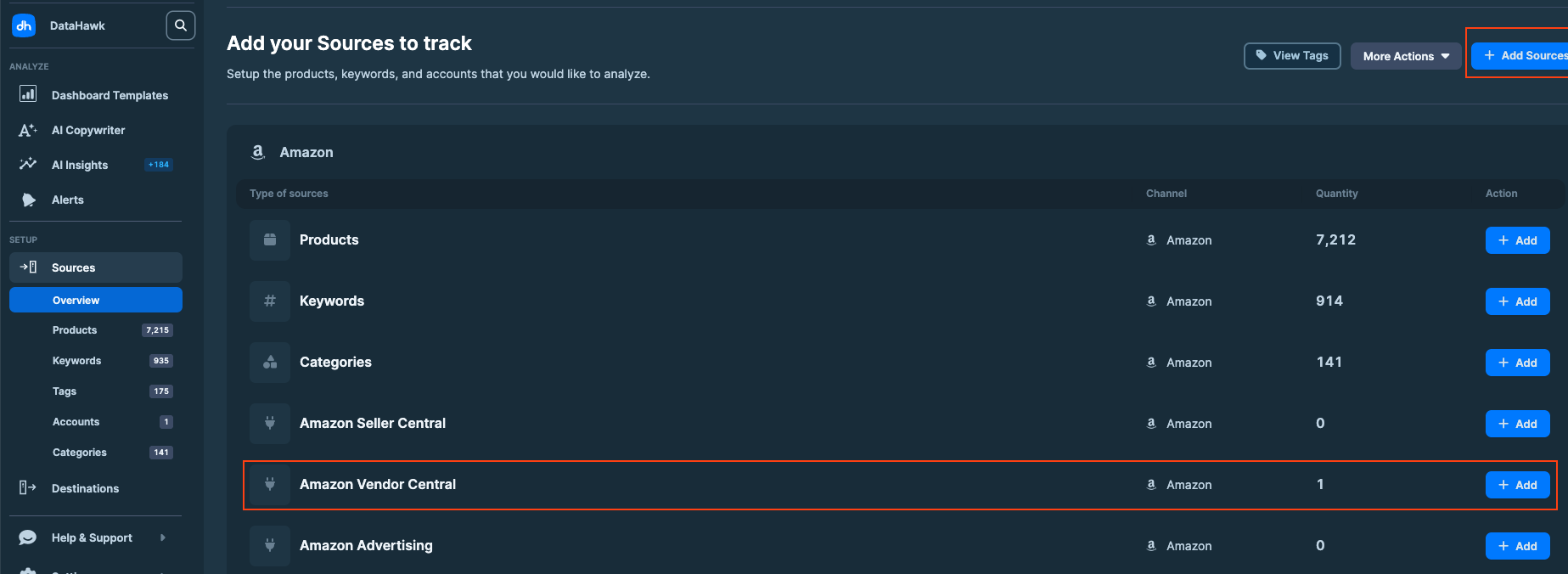 ### Select Amazon Vendor Central
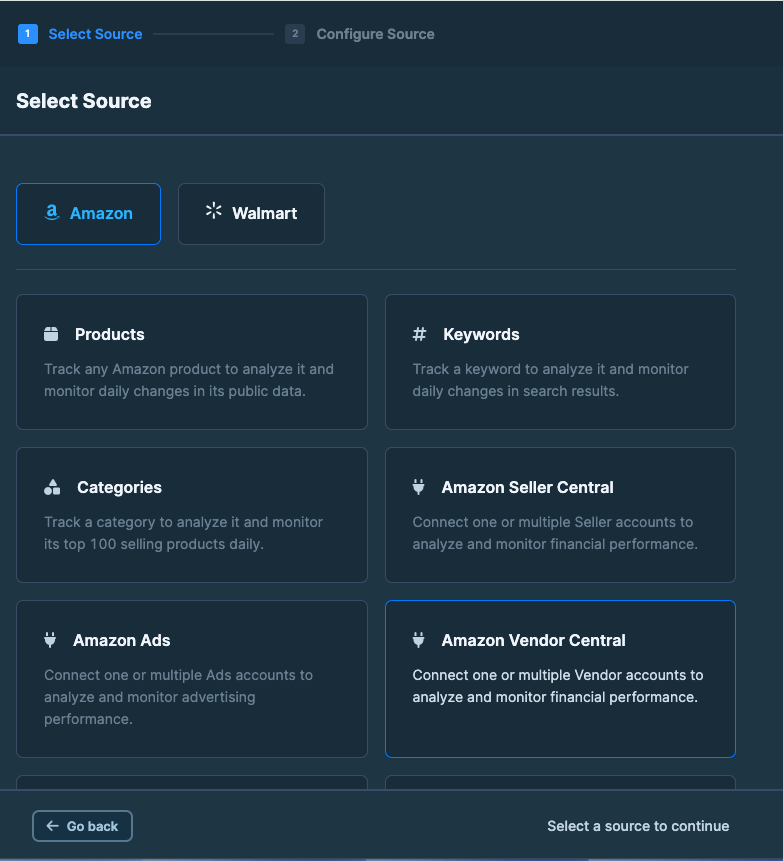 ### Choose a marketplace to connect
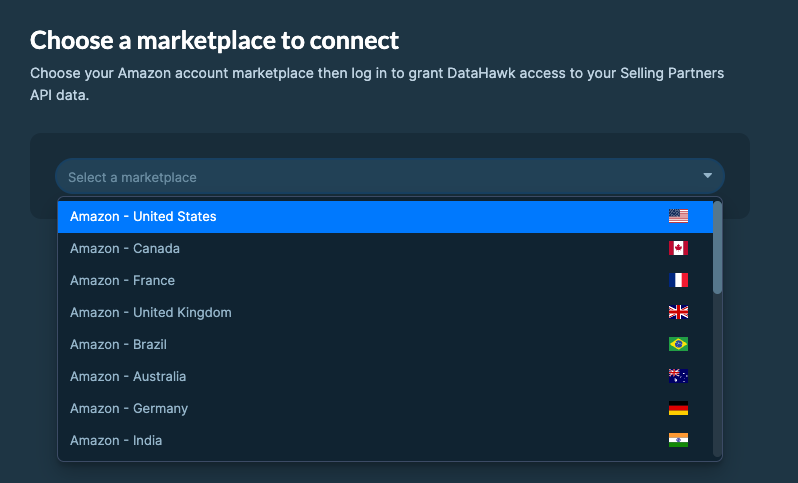 ### Log in and authorize
Log in to your **Amazon Vendor account**.
Authorize DataHawk integration.
### Log in and authorize
Log in to your **Amazon Vendor account**.
Authorize DataHawk integration.
 ## DataHawk Limitations
- Data for the last 48h may be incomplete
- Due to Amazon's API's limitations, datasets contain data until 72 hours before the refresh.
- Some metrics are limited by Amazon API
- Initial historical depth is limited by Amazon API
- Due to Amazon's API limitations, we have limited access to data when your marketplace is sourcing and not manufacturing. [Learn more.](/help-center/data-metrics-guides/foundation/key-concepts#amazon-vendor-views-sourcing-vs-manufacturing)
## Outputs
### Raw data
Raw data can be accessed via destinations and can notably be used to build dashboards on your favorite BI solution.
When you set up a destination, DataHawk provides you with a hosted database containing your Sources data. These tables contain a very exhaustive list of data points as columns and are organized into what are called schemas.
All data is available under the `SELLING_PARTNER` schema.
Most of these tables have several variations available based on the **Distributor View** chosen. Moreover, most of these tables have a column indicating the **Selling Program** corresponding to each data point. The following are definitions of the different distributor views and selling programs available:
- **Distributor Views**
- **Manufacturing** - Includes all product's under the Vendor's brand, including those not sourced directly from their inventory.
- **Sourcing** - Includes only products sourced directly from the Vendor's inventory.
- **Selling Program**
- **Retail** - The default selling program applicable to the vast majority of Vendor sales.
- **Fresh** - Refers to [Amazon Fresh](https://www.amazon.com/fmc/m/30003175?almBrandId=QW1hem9uIEZyZXNo), Amazon's online food shopping home delivery service.
- **Business** - Refers to [Amazon Business](https://business.amazon.com/en/discover-more/blog/what-is-amazon-business), which is specialized towards enterprises as buyers.
To see an exhaustive view of all columns within these tables, refer to [our Table & Column Referential](https://docs.google.com/spreadsheets/d/1gYGqKQP9Z71nz1lOb4y0wJ15i27NvsUzdliIJeIx0HY/edit#gid=175439716).
| Schema | Table | About |
|---|---|---|
| SELLING_PARTNER | `VENDOR_SALES_{VIEW}_SRC` | Sales data including Vendor's Revenue (Shipped COGS), Amazon's Revenue (Sales), Units Sold, and Returns. |
| SELLING_PARTNER | `VENDOR_NET_PURE_PRODUCT_MARGIN_SRC` | Net Pure Margins per Product |
| SELLING_PARTNER | `VENDOR_TRAFFIC_SRC` | Daily Page Views per Product |
| SELLING_PARTNER | `VENDOR_INVENTORY_{VIEW}_SRC` | In-Depth Daily Inventory Breakdown |
| SELLING_PARTNER | `VENDOR_FORECASTING_SRC` | Demand forecasts per ASIN for the next 48 weeks, delivered every Wednesday, with Mean, P70, P80, and P90 units. Only the latest forecast is kept. See [Amazon Vendor Demand Forecasts](/help-center/data-reference/amz-vendor-forecasting). |
### Dashboards
DataHawk provides ready-to-use dashboards and reports on Power BI and Looker Studio.
Go on our complete guide on Advertising Dashboards:
- for Looker Studio: Perfect for a high-level overview
- for Power BI: Great for a deep-dive and investigation on performance
## Coming Soon
Vendor Central Support at DataHawk is still in development. New capabilities will be released in the near future, such as more refined data, including added layers of intelligence in the context of the Vendor's full Amazon ecosystem.
---
title: Manage your Account
description: Update your account name, email, password, delete your account, or download your personal data.
---
Your DataHawk account is separate from any workspace you belong to. It holds your name, email, password, and personal data. Manage all of it from **Settings → Account** in the web app.
## DataHawk Limitations
- Data for the last 48h may be incomplete
- Due to Amazon's API's limitations, datasets contain data until 72 hours before the refresh.
- Some metrics are limited by Amazon API
- Initial historical depth is limited by Amazon API
- Due to Amazon's API limitations, we have limited access to data when your marketplace is sourcing and not manufacturing. [Learn more.](/help-center/data-metrics-guides/foundation/key-concepts#amazon-vendor-views-sourcing-vs-manufacturing)
## Outputs
### Raw data
Raw data can be accessed via destinations and can notably be used to build dashboards on your favorite BI solution.
When you set up a destination, DataHawk provides you with a hosted database containing your Sources data. These tables contain a very exhaustive list of data points as columns and are organized into what are called schemas.
All data is available under the `SELLING_PARTNER` schema.
Most of these tables have several variations available based on the **Distributor View** chosen. Moreover, most of these tables have a column indicating the **Selling Program** corresponding to each data point. The following are definitions of the different distributor views and selling programs available:
- **Distributor Views**
- **Manufacturing** - Includes all product's under the Vendor's brand, including those not sourced directly from their inventory.
- **Sourcing** - Includes only products sourced directly from the Vendor's inventory.
- **Selling Program**
- **Retail** - The default selling program applicable to the vast majority of Vendor sales.
- **Fresh** - Refers to [Amazon Fresh](https://www.amazon.com/fmc/m/30003175?almBrandId=QW1hem9uIEZyZXNo), Amazon's online food shopping home delivery service.
- **Business** - Refers to [Amazon Business](https://business.amazon.com/en/discover-more/blog/what-is-amazon-business), which is specialized towards enterprises as buyers.
To see an exhaustive view of all columns within these tables, refer to [our Table & Column Referential](https://docs.google.com/spreadsheets/d/1gYGqKQP9Z71nz1lOb4y0wJ15i27NvsUzdliIJeIx0HY/edit#gid=175439716).
| Schema | Table | About |
|---|---|---|
| SELLING_PARTNER | `VENDOR_SALES_{VIEW}_SRC` | Sales data including Vendor's Revenue (Shipped COGS), Amazon's Revenue (Sales), Units Sold, and Returns. |
| SELLING_PARTNER | `VENDOR_NET_PURE_PRODUCT_MARGIN_SRC` | Net Pure Margins per Product |
| SELLING_PARTNER | `VENDOR_TRAFFIC_SRC` | Daily Page Views per Product |
| SELLING_PARTNER | `VENDOR_INVENTORY_{VIEW}_SRC` | In-Depth Daily Inventory Breakdown |
| SELLING_PARTNER | `VENDOR_FORECASTING_SRC` | Demand forecasts per ASIN for the next 48 weeks, delivered every Wednesday, with Mean, P70, P80, and P90 units. Only the latest forecast is kept. See [Amazon Vendor Demand Forecasts](/help-center/data-reference/amz-vendor-forecasting). |
### Dashboards
DataHawk provides ready-to-use dashboards and reports on Power BI and Looker Studio.
Go on our complete guide on Advertising Dashboards:
- for Looker Studio: Perfect for a high-level overview
- for Power BI: Great for a deep-dive and investigation on performance
## Coming Soon
Vendor Central Support at DataHawk is still in development. New capabilities will be released in the near future, such as more refined data, including added layers of intelligence in the context of the Vendor's full Amazon ecosystem.
---
title: Manage your Account
description: Update your account name, email, password, delete your account, or download your personal data.
---
Your DataHawk account is separate from any workspace you belong to. It holds your name, email, password, and personal data. Manage all of it from **Settings → Account** in the web app.
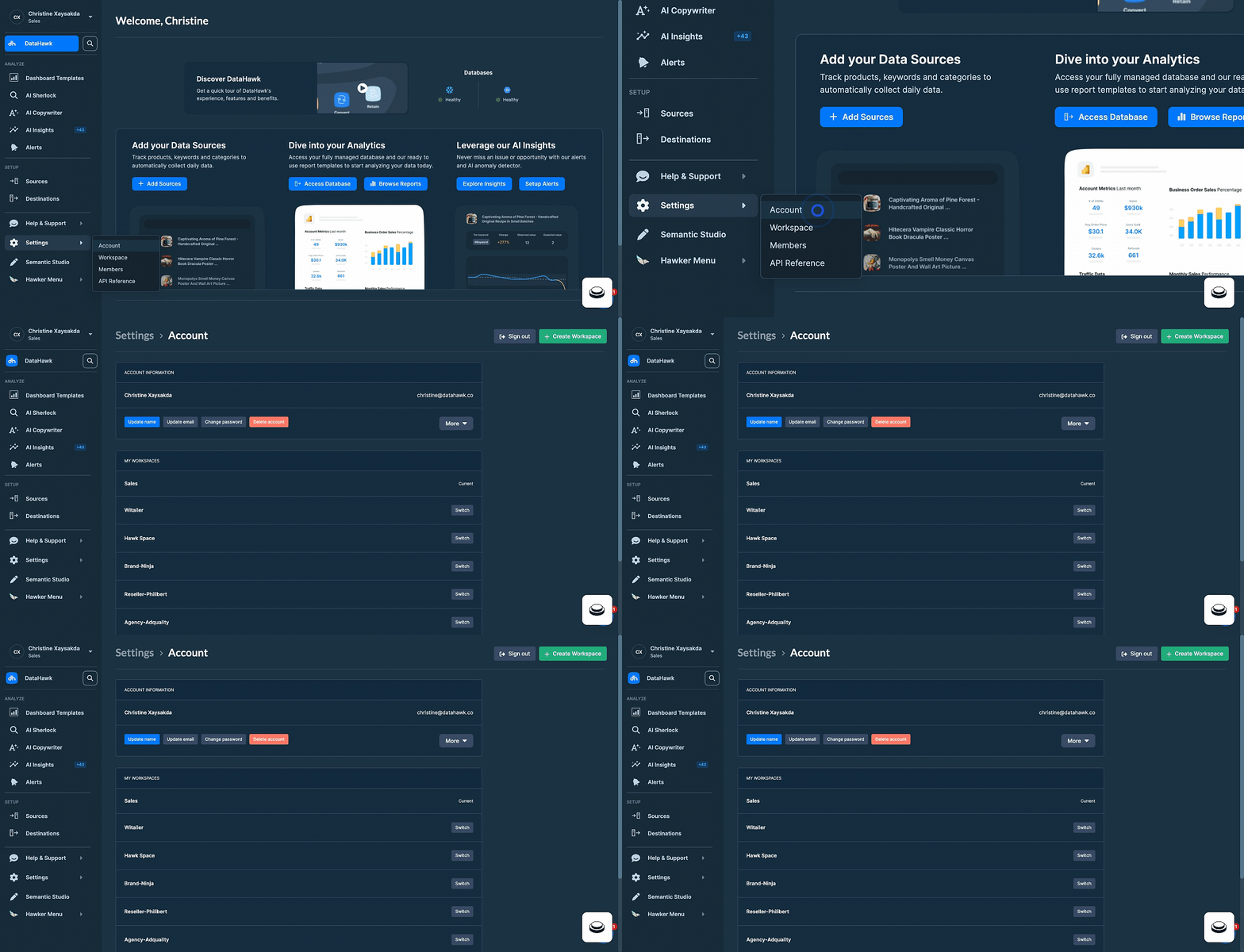 ## Update your account name
### Open the name editor
Click **Update name** in your account settings.
## Update your account name
### Open the name editor
Click **Update name** in your account settings.
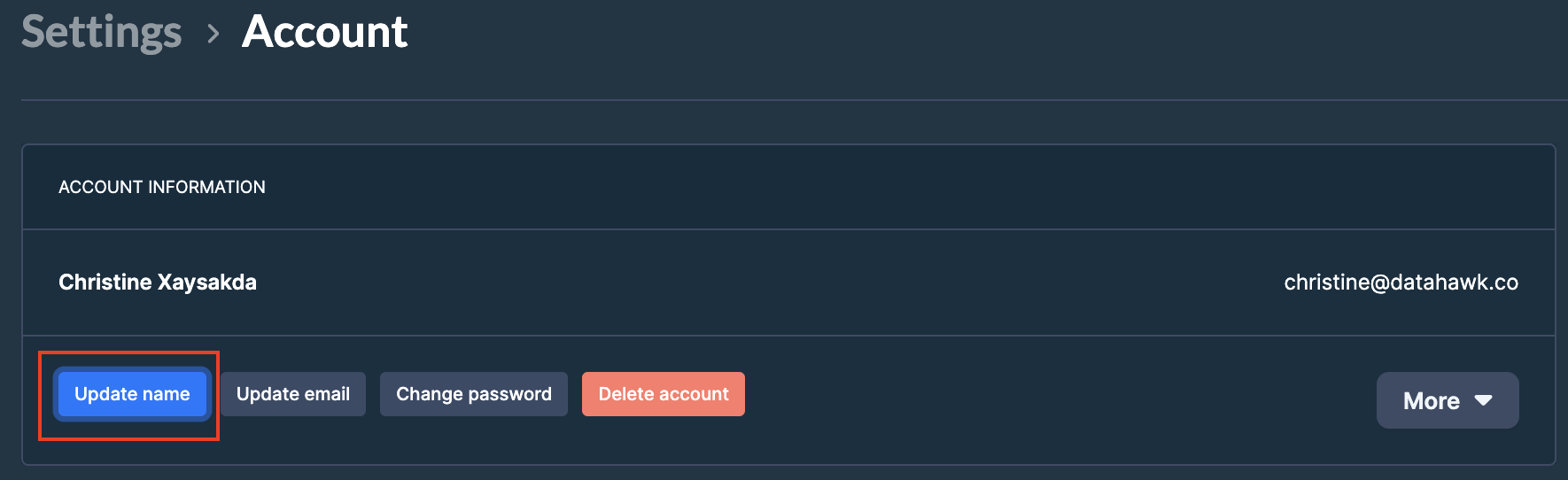 ### Edit your first and last name
A pop-up opens where you can change your **first name** and **last name**.
### Edit your first and last name
A pop-up opens where you can change your **first name** and **last name**.
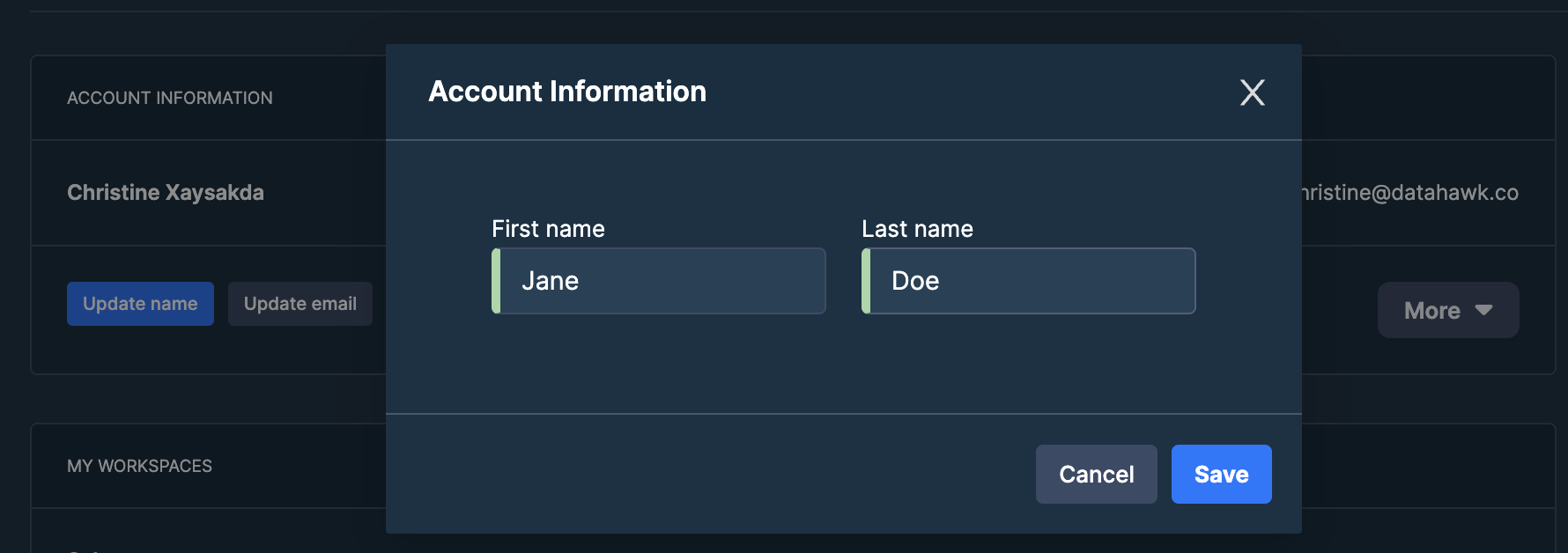 ### Save
Click **Save** to apply the change.
## Update your email
### Open the email editor
Click **Update email**.
### Save
Click **Save** to apply the change.
## Update your email
### Open the email editor
Click **Update email**.
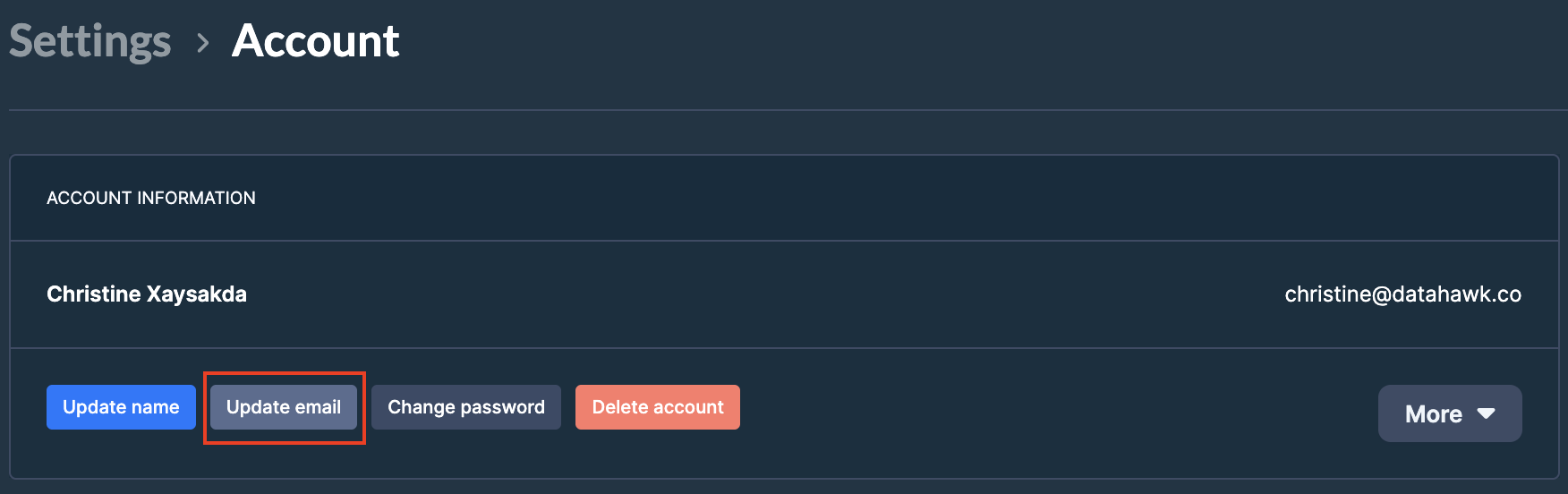 ### Enter your new email
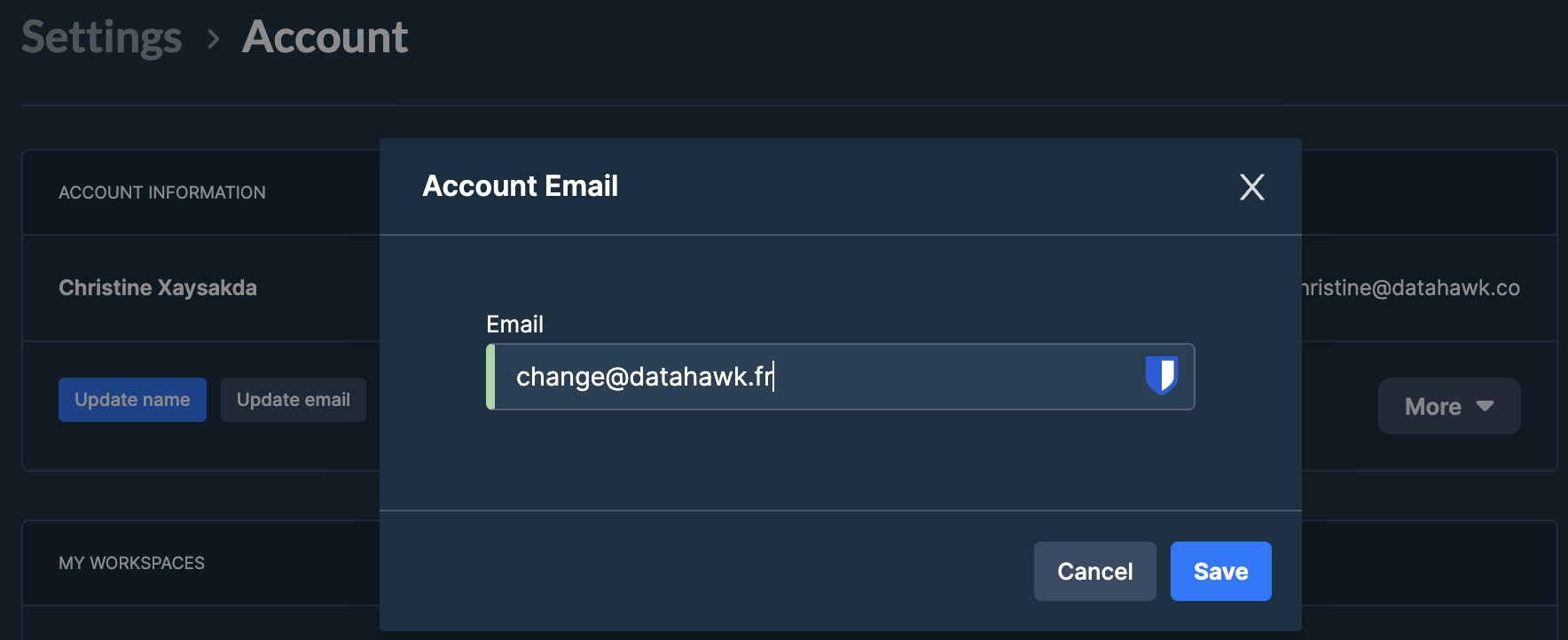 ### Save
Click **Save** to apply the change.
## Change your password
### Open the change-password dialog
Click **Change password**.
### Save
Click **Save** to apply the change.
## Change your password
### Open the change-password dialog
Click **Change password**.
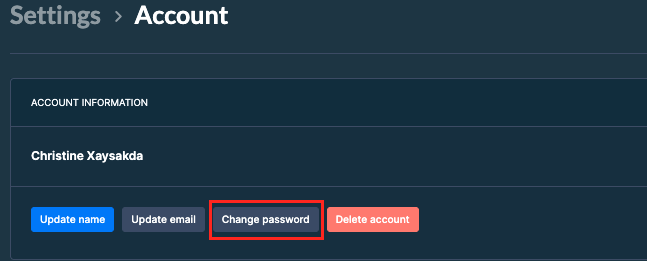 ### Enter your current password
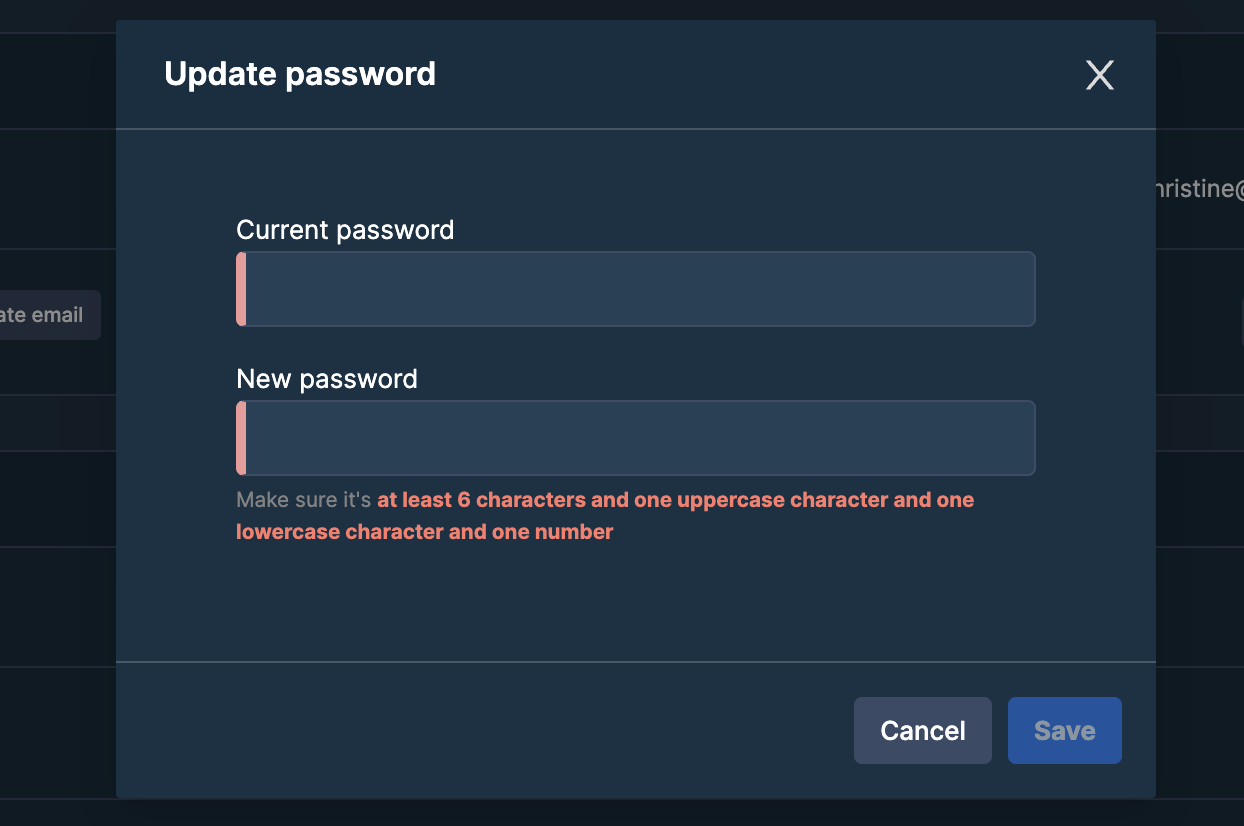 ### Set a new password
Requirements: at least 6 characters, one uppercase letter, one lowercase letter, and one number.
### Save
Click **Save** to apply the change.
## Delete your account
Deleting your account is permanent. We cannot recover a canceled account.
### Open the deletion flow
Click **Delete Account**.
### Set a new password
Requirements: at least 6 characters, one uppercase letter, one lowercase letter, and one number.
### Save
Click **Save** to apply the change.
## Delete your account
Deleting your account is permanent. We cannot recover a canceled account.
### Open the deletion flow
Click **Delete Account**.
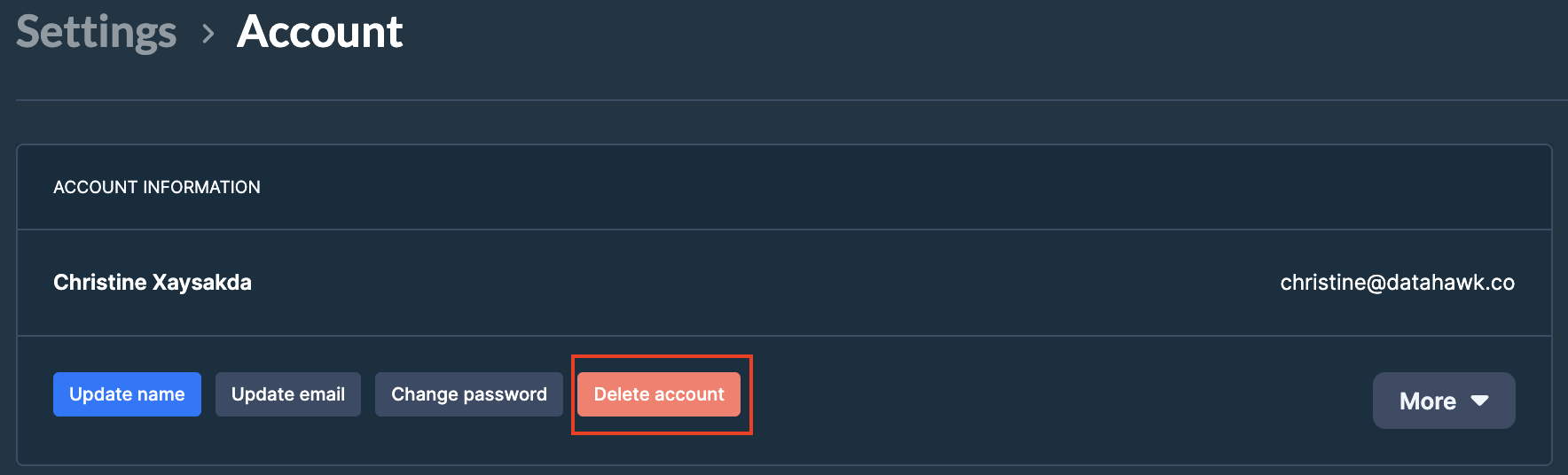 ### Confirm
A confirmation pop-up appears. Click **Yes** to permanently delete your account.
### Confirm
A confirmation pop-up appears. Click **Yes** to permanently delete your account.
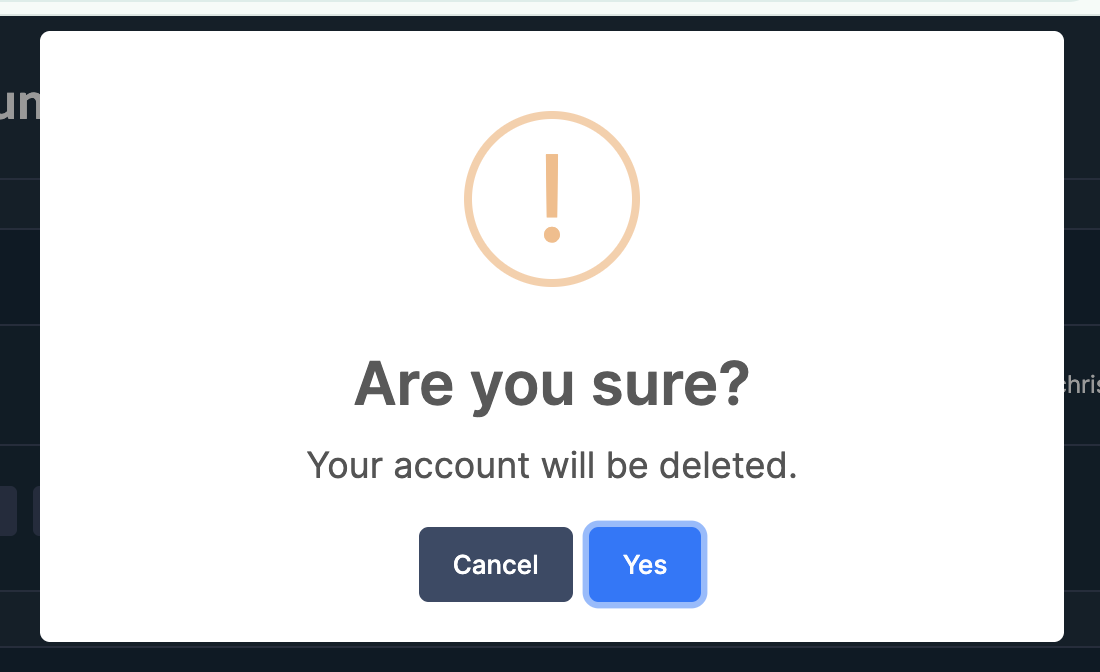 ## Download your data
### Open the More menu
Click **More**.
## Download your data
### Open the More menu
Click **More**.
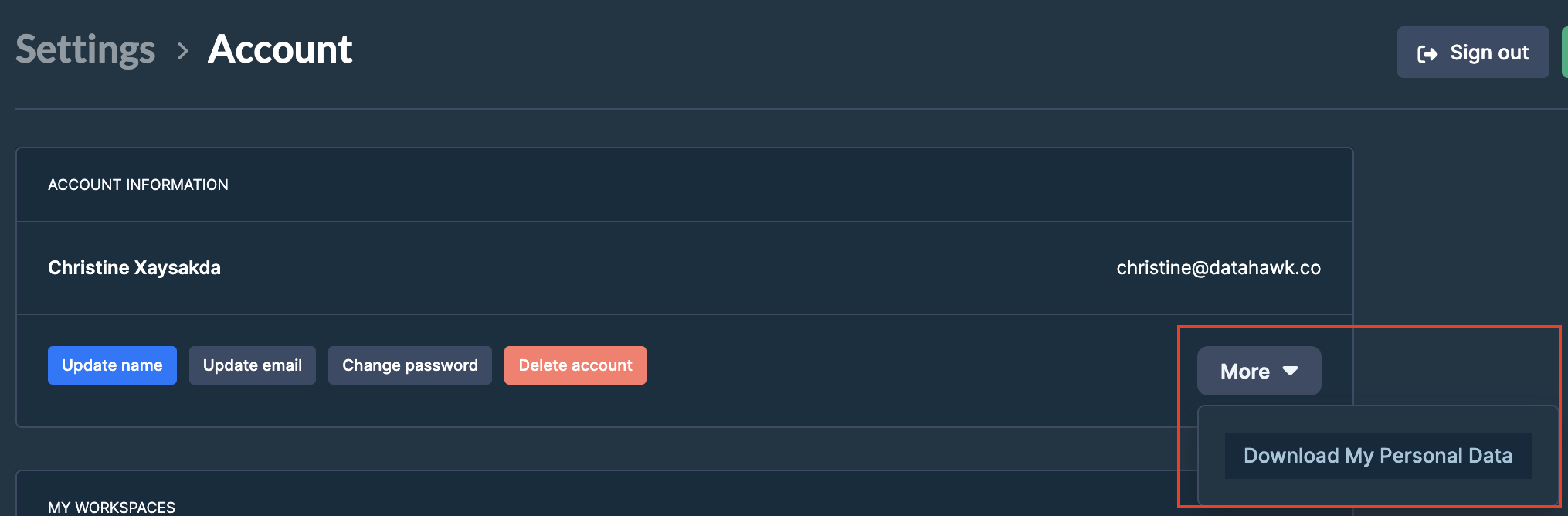 ### Trigger the export
Click **Download My Personal Data**. An Excel file downloads automatically.
The exported file contains:
- Export Date (UTC)
- Account Creation Date
- Email
- Last name
- First name
- Full name
---
title: DataHawk App Introduction
description: An overview of the DataHawk web platform; how to get access, how the platform is organized, and where to go next.
---
The DataHawk App is the web platform where you configure data sources, run AI modules such as Sherlock and AI Copywriter, manage Alerts, and explore your data. This page covers how to get signed in for the first time and how the platform is structured. For term definitions, see the [Glossary](/help-center/glossary).
## Get access to DataHawk
- You signed your order form
- You will receive an email with a link to our [DataHawk Platform](https://analytics.datahawk.co/)
- You can proceed to sign in
- DataHawk team will add capacities to your workspace according to your agreement.
## How the platform is organized
### Trigger the export
Click **Download My Personal Data**. An Excel file downloads automatically.
The exported file contains:
- Export Date (UTC)
- Account Creation Date
- Email
- Last name
- First name
- Full name
---
title: DataHawk App Introduction
description: An overview of the DataHawk web platform; how to get access, how the platform is organized, and where to go next.
---
The DataHawk App is the web platform where you configure data sources, run AI modules such as Sherlock and AI Copywriter, manage Alerts, and explore your data. This page covers how to get signed in for the first time and how the platform is structured. For term definitions, see the [Glossary](/help-center/glossary).
## Get access to DataHawk
- You signed your order form
- You will receive an email with a link to our [DataHawk Platform](https://analytics.datahawk.co/)
- You can proceed to sign in
- DataHawk team will add capacities to your workspace according to your agreement.
## How the platform is organized
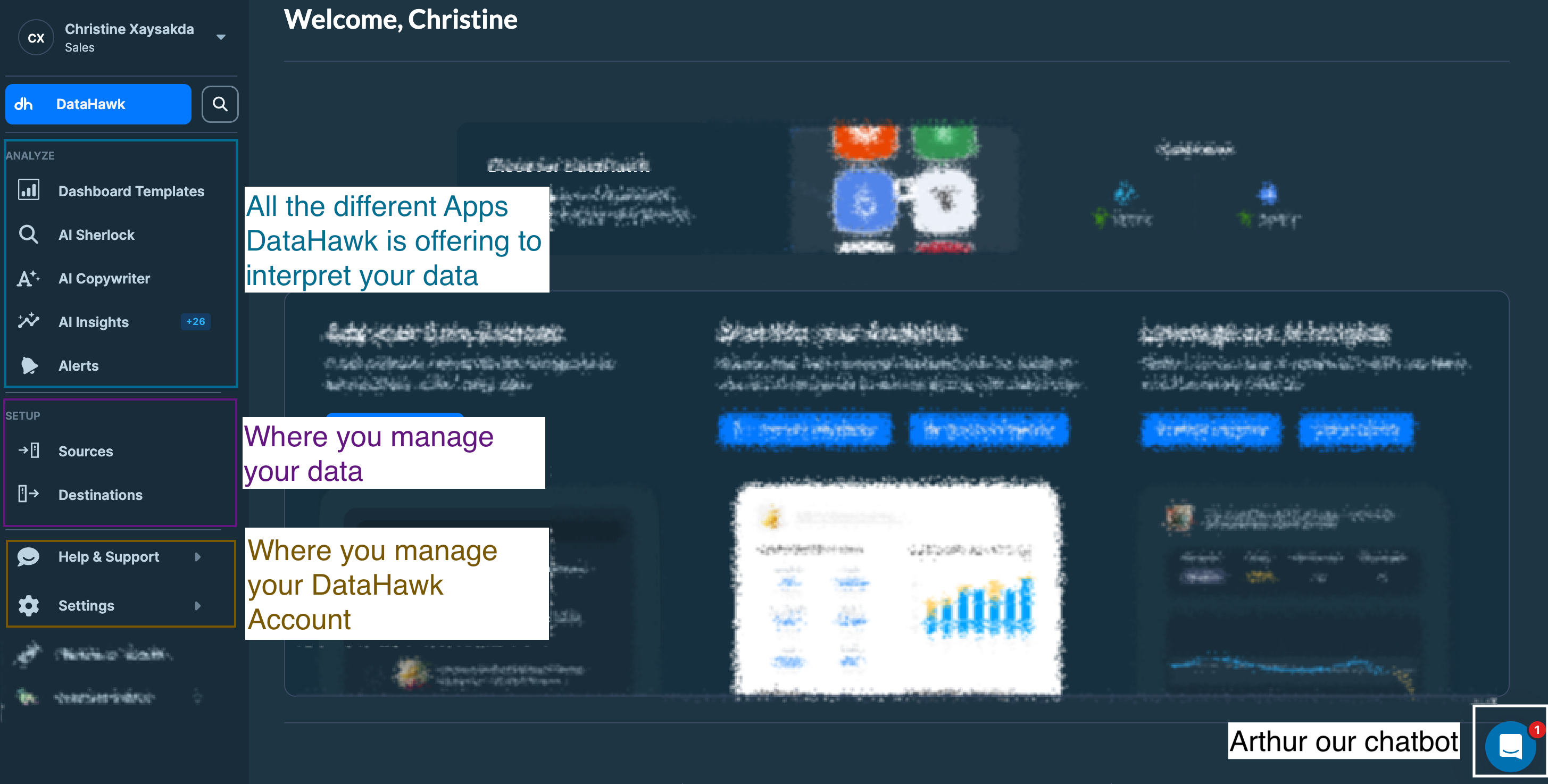 ---
## Read next
---
## Read next
---
title: Manage members
description: Invite members, change access levels, and remove members from a workspace.
---
A workspace can have several users. Use **Settings → Members** to invite new ones, change their access level, or remove them. You must be an admin to manage members.
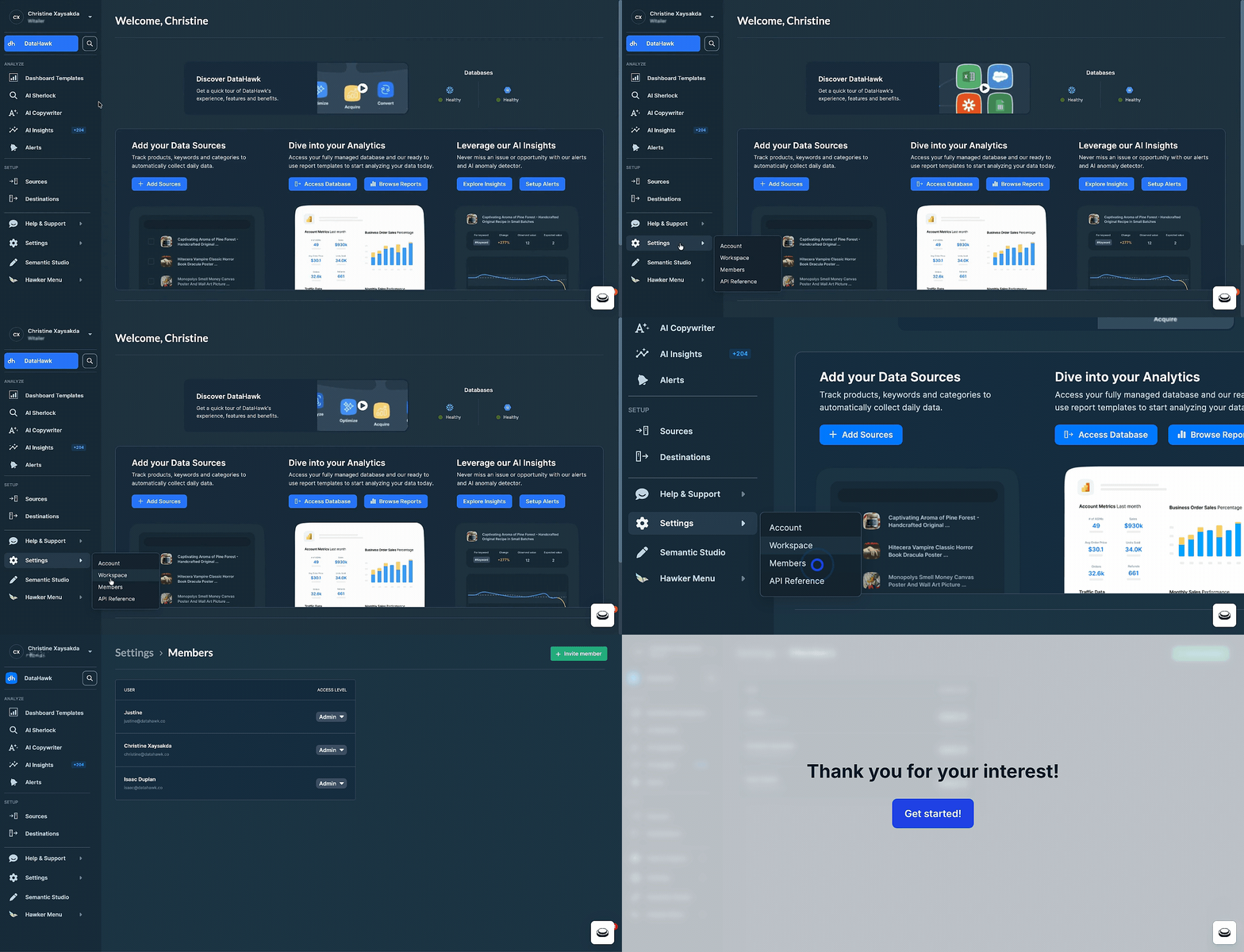 ## Invite members
Add teammates to the workspace so they can collaborate on the same data and dashboards.
### Open the invite dialog
Click **+ Invite member**. A pop-up opens.
### Enter the email address
Type the email address of the person you want to invite.
## Invite members
Add teammates to the workspace so they can collaborate on the same data and dashboards.
### Open the invite dialog
Click **+ Invite member**. A pop-up opens.
### Enter the email address
Type the email address of the person you want to invite.
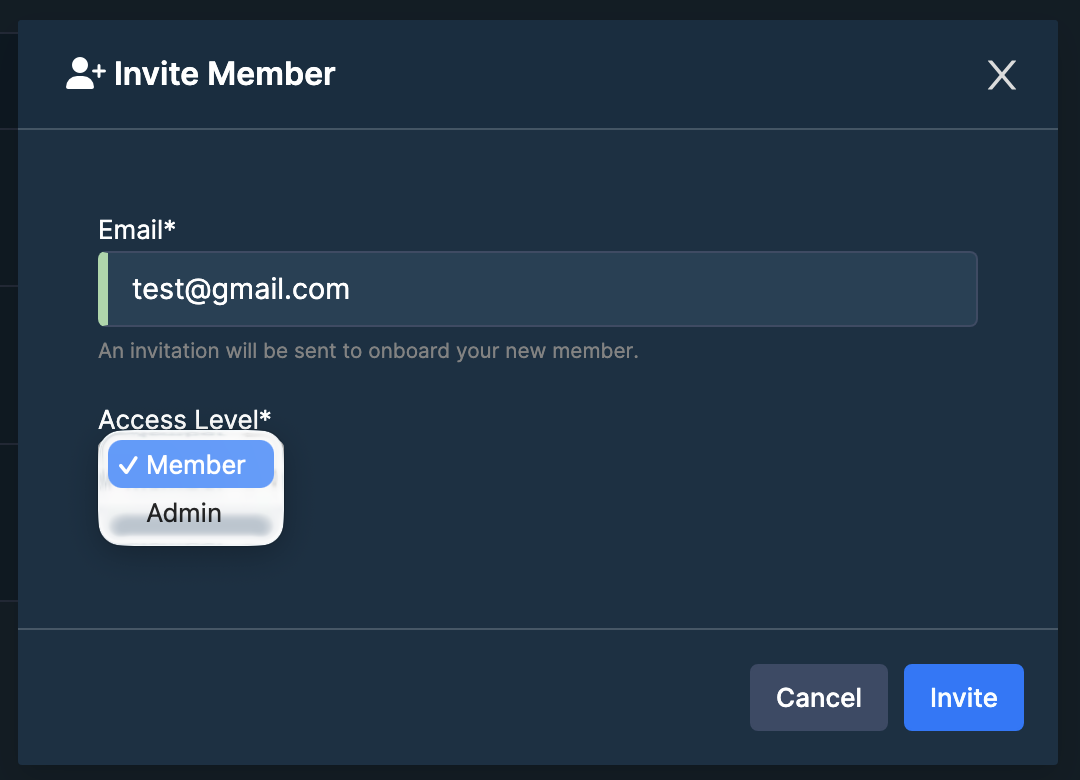 ### Pick the access level
Choose one of:
- **Member**: Cannot access billing information and cannot invite new members.
- **Admin**: Can access billing information and add new members.
## Change a member's access level
Only an admin can change another member's access level.
### Find the member
Scroll the member list and locate the user you want to change.
### Pick the access level
Choose one of:
- **Member**: Cannot access billing information and cannot invite new members.
- **Admin**: Can access billing information and add new members.
## Change a member's access level
Only an admin can change another member's access level.
### Find the member
Scroll the member list and locate the user you want to change.
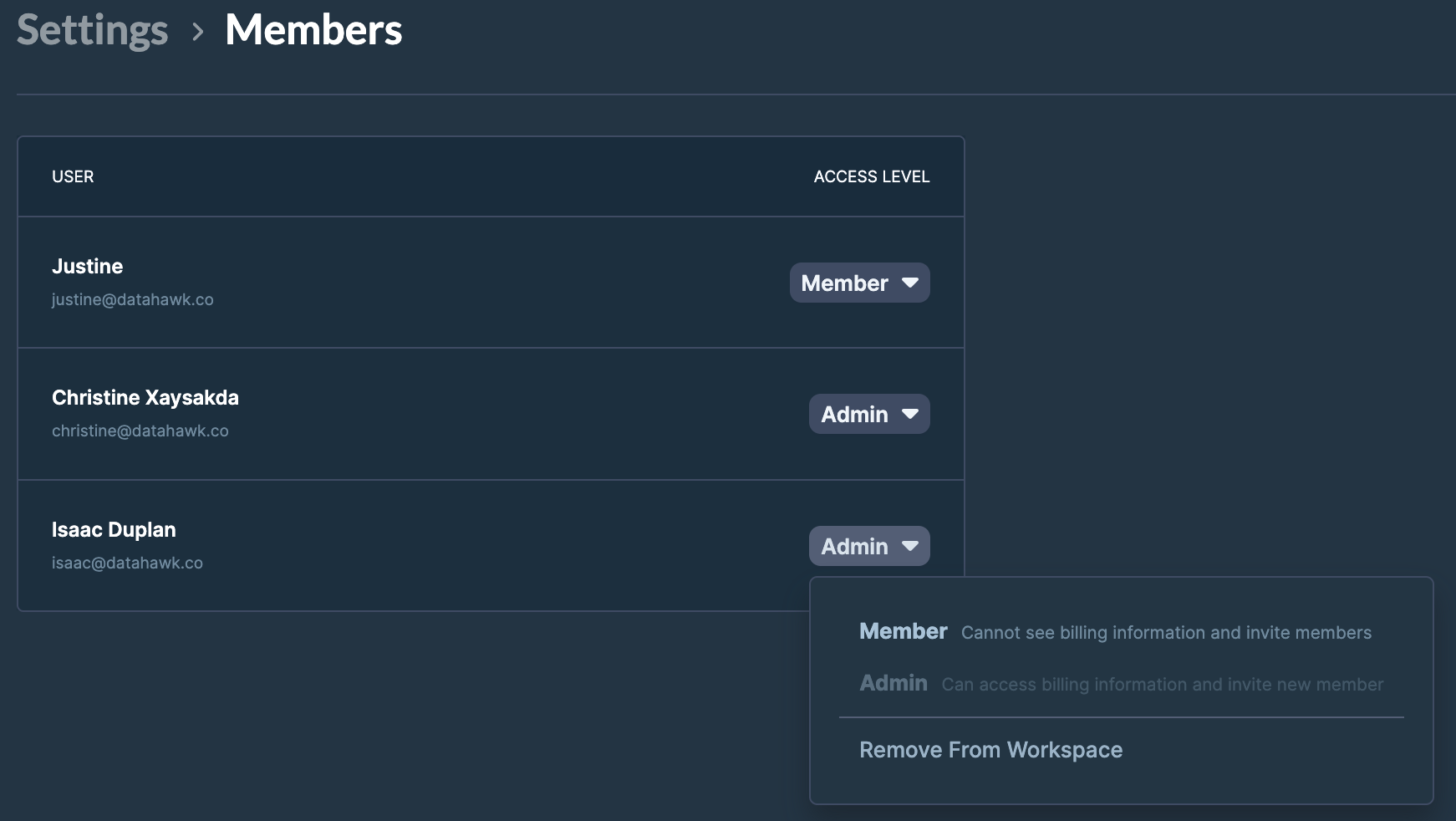 ### Open their access-level menu
Click the current access level (Admin or Member) next to their name.
### Pick the new access level
Select **Admin** or **Member** from the options.
## Remove a member from a workspace
### Find the member
Locate the user in the member list.
### Open their menu
Click the current access level (Admin or Member) next to their name.
### Remove them
Select **Remove From Workspace**. The member loses access immediately.
---
title: Navigating the platform
description: How to navigate through DataHawk App, then explore dedicated pages to know more about each topic and understand how to navigate it.
---
A few moves repeat everywhere in DataHawk; switching workspace, using global search, and jumping between the Analyze, Apps, and Sources sections. Get comfortable with them first, then follow the cards below to the dedicated pages for the area you need.
## General across platform
- **Change workspace:** Click on your current workspace to see the list and select the next workspace you want to investigate
- **Search through the platform:** Use the search to find what you need among your products, keywords, projects, reports or even in the help center.
## Analyze section
### Open their access-level menu
Click the current access level (Admin or Member) next to their name.
### Pick the new access level
Select **Admin** or **Member** from the options.
## Remove a member from a workspace
### Find the member
Locate the user in the member list.
### Open their menu
Click the current access level (Admin or Member) next to their name.
### Remove them
Select **Remove From Workspace**. The member loses access immediately.
---
title: Navigating the platform
description: How to navigate through DataHawk App, then explore dedicated pages to know more about each topic and understand how to navigate it.
---
A few moves repeat everywhere in DataHawk; switching workspace, using global search, and jumping between the Analyze, Apps, and Sources sections. Get comfortable with them first, then follow the cards below to the dedicated pages for the area you need.
## General across platform
- **Change workspace:** Click on your current workspace to see the list and select the next workspace you want to investigate
- **Search through the platform:** Use the search to find what you need among your products, keywords, projects, reports or even in the help center.
## Analyze section
## Setup section
## Settings section
---
title: Stripe Subscription Management
description: View and manage your DataHawk subscription, billing information, payment methods, and invoices via the Stripe portal.
---
This page applies only to customers with a Stripe subscription. Enterprise customers with a custom contract manage billing directly with our team.
DataHawk uses Stripe to handle subscriptions, invoices, and payments. From **Settings → Manage Subscription** in the web app, you're redirected to the Stripe customer portal where you can review billing details, update payment methods, and pay outstanding invoices.
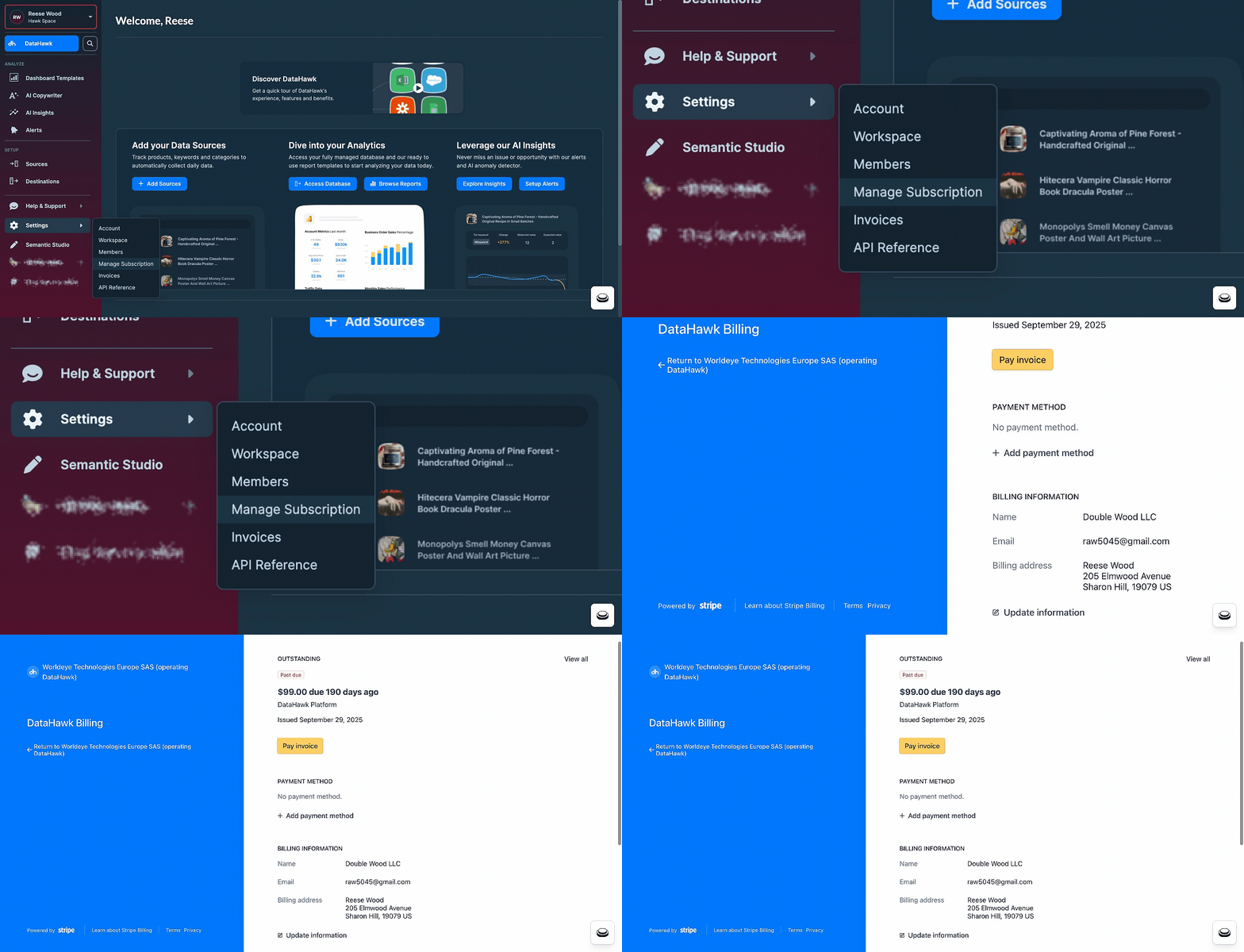 ## Subscription payment status
In the Stripe portal you'll see:
- Whether you have an outstanding payment
- Since when the payment has been outstanding
- The amount of the outstanding payment
## Subscription payment status
In the Stripe portal you'll see:
- Whether you have an outstanding payment
- Since when the payment has been outstanding
- The amount of the outstanding payment
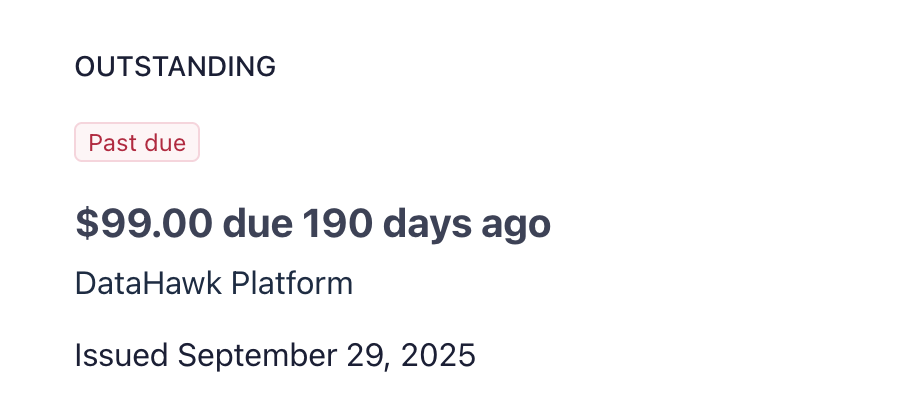 ## View invoice history
Scroll down in the Stripe portal to see your full invoice history. Click any invoice row to view or download its details.
## View invoice history
Scroll down in the Stripe portal to see your full invoice history. Click any invoice row to view or download its details.
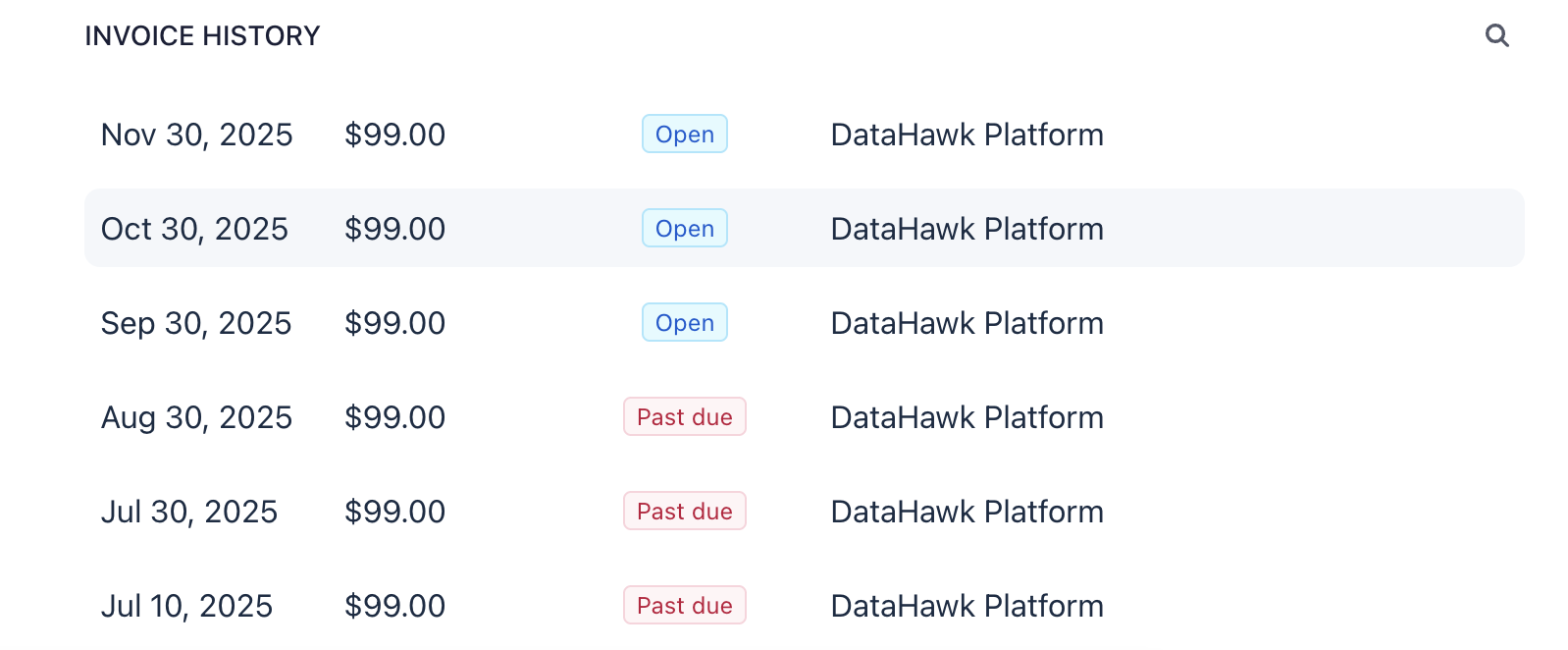 ## Update your payment method
### Locate the payment-method section
Your current payment method is displayed in the Stripe portal.
### Add or update
Click **+ Add payment method** or **Update Payment Method** to make changes.
## Update your payment method
### Locate the payment-method section
Your current payment method is displayed in the Stripe portal.
### Add or update
Click **+ Add payment method** or **Update Payment Method** to make changes.
 ## Update billing information
### Locate the billing-information section
Your current billing information is displayed in the Stripe portal.
### Edit
Click **Update Information** to make changes.
## Update billing information
### Locate the billing-information section
Your current billing information is displayed in the Stripe portal.
### Edit
Click **Update Information** to make changes.
 ## Pay a pending invoice
### Click Pay invoice
From the invoice history, click **Pay invoice** on the outstanding row.
## Pay a pending invoice
### Click Pay invoice
From the invoice history, click **Pay invoice** on the outstanding row.
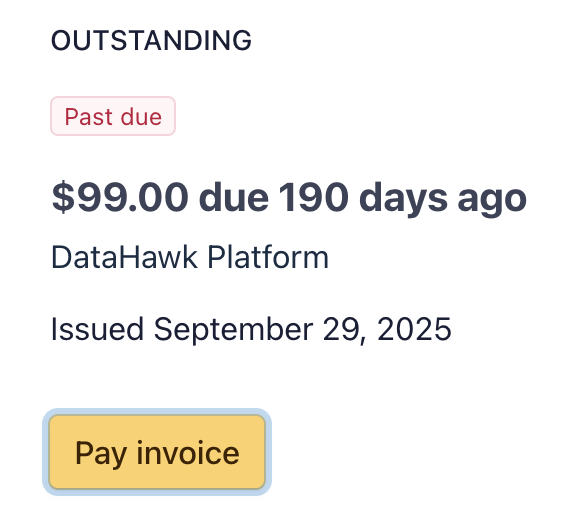 ### Confirm payment on the next screen
Stripe takes you to a confirmation page where you can review and confirm the payment.
### Confirm payment on the next screen
Stripe takes you to a confirmation page where you can review and confirm the payment.
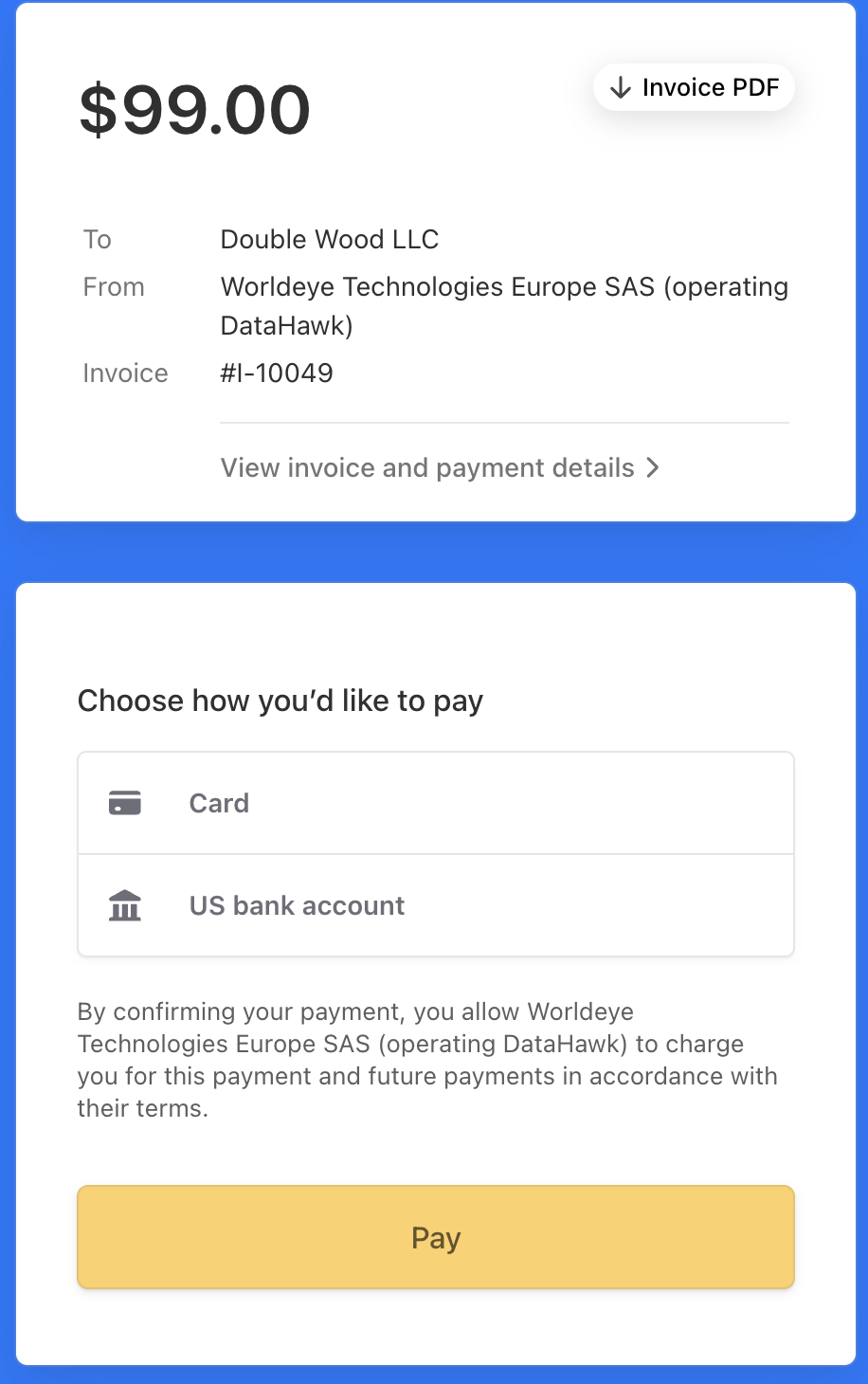 ### Download the invoice
After confirming, you can download a copy of the invoice for your records.
---
title: Workspace Management
description: Organize teams and data efficiently with separate workspaces for different business units or projects.
---
A workspace is an isolated environment for a brand, client, or business unit. Each one has its own data, settings, and members. Use **Settings → Workspace** to create new workspaces, monitor your current usage against your plan, and request upgrades.
### Download the invoice
After confirming, you can download a copy of the invoice for your records.
---
title: Workspace Management
description: Organize teams and data efficiently with separate workspaces for different business units or projects.
---
A workspace is an isolated environment for a brand, client, or business unit. Each one has its own data, settings, and members. Use **Settings → Workspace** to create new workspaces, monitor your current usage against your plan, and request upgrades.
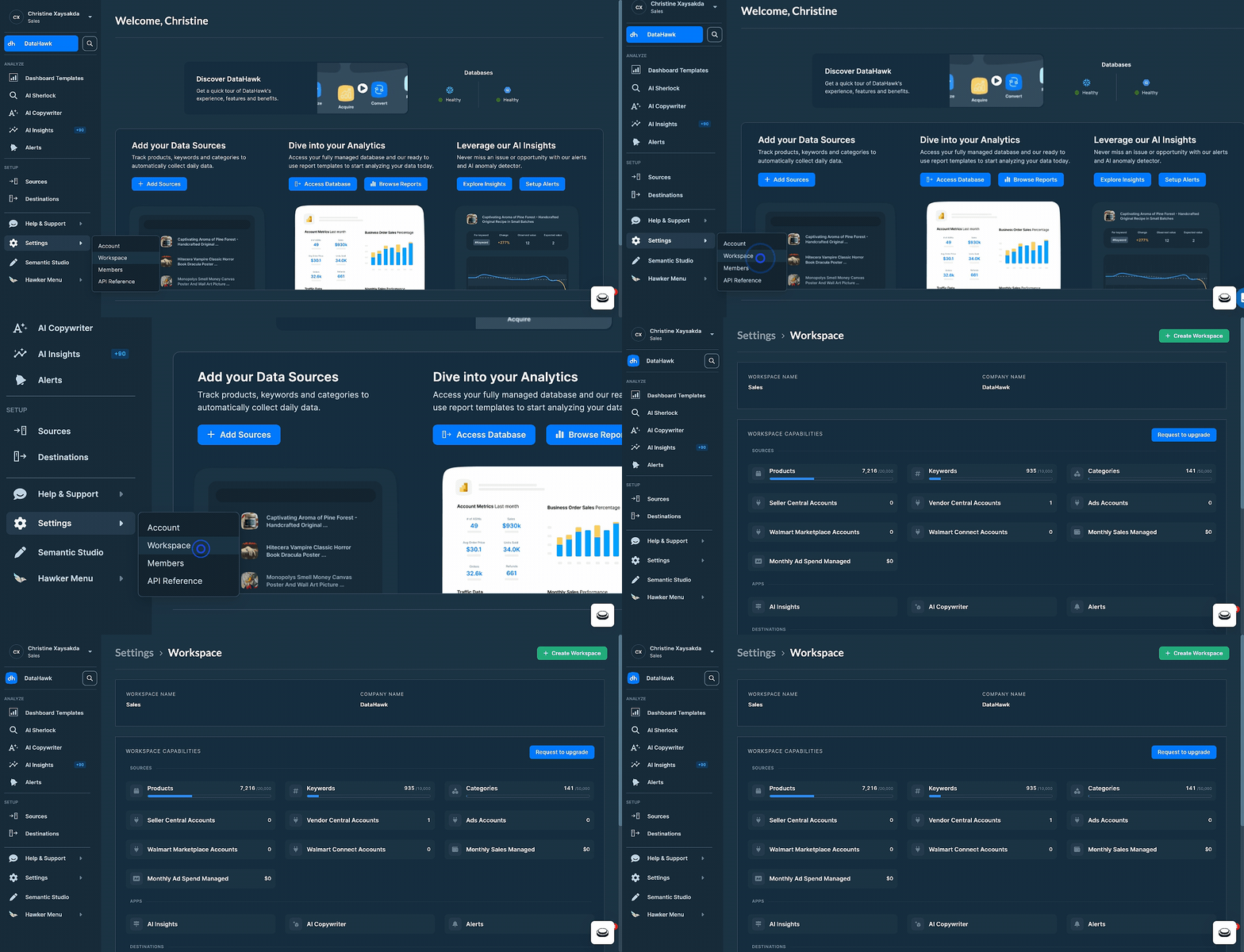 ## Create a new workspace
There are two ways to create a new workspace. Use whichever entry point you're closer to.
### Open Settings → Workspace
## Create a new workspace
There are two ways to create a new workspace. Use whichever entry point you're closer to.
### Open Settings → Workspace
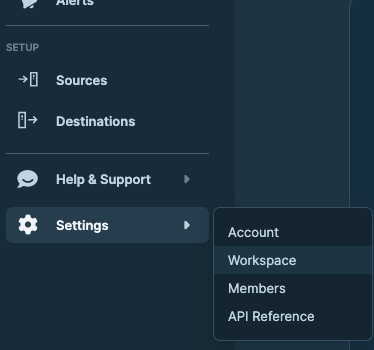 ### Click Create Workspace
In the top-right corner, click **+ Create Workspace**.
### Click Create Workspace
In the top-right corner, click **+ Create Workspace**.
 ### Fill in workspace details
Answer the short company survey: company name, website, country, company type, yearly marketplace revenue, and what you want to use DataHawk for.
### Submit
Click **Submit** to create the workspace.
### Open the workspace switcher
Click your **workspace name** in the top-left corner.
### Fill in workspace details
Answer the short company survey: company name, website, country, company type, yearly marketplace revenue, and what you want to use DataHawk for.
### Submit
Click **Submit** to create the workspace.
### Open the workspace switcher
Click your **workspace name** in the top-left corner.
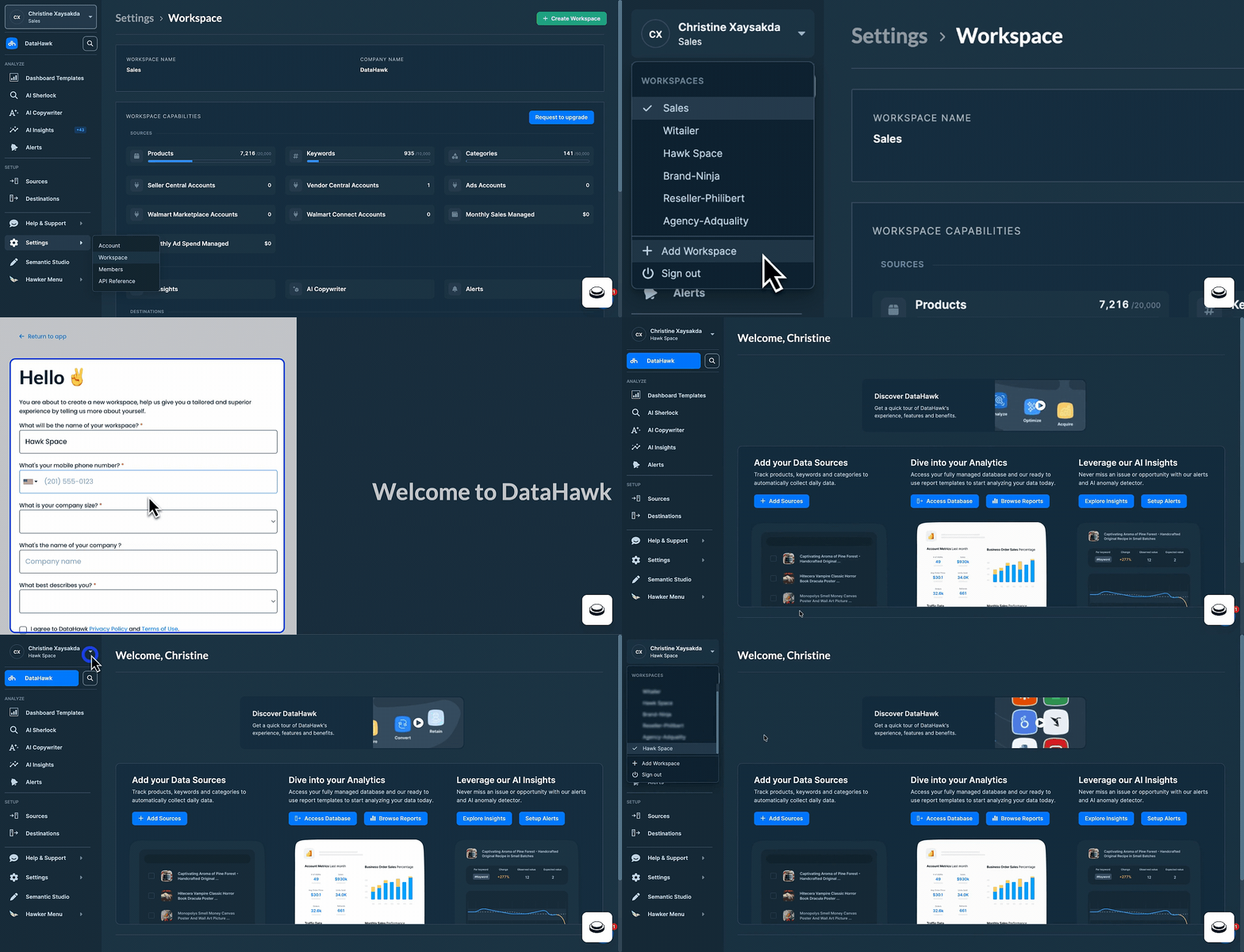 ### Click + Add Workspace
In the dropdown, select **+ Add Workspace**.
### Fill in workspace details
Answer the short company survey: company name, website, country, company type, yearly marketplace revenue, and what you want to use DataHawk for.
### Submit
Click **Submit** to create the workspace.
New workspaces start fresh. They don't copy settings, sources, or members from existing ones. Each new workspace you create also starts its own 14-day free trial.
## Workspace capabilities
Go to the **Workspace Capabilities** section to check your current usage against your plan limits.
### Click + Add Workspace
In the dropdown, select **+ Add Workspace**.
### Fill in workspace details
Answer the short company survey: company name, website, country, company type, yearly marketplace revenue, and what you want to use DataHawk for.
### Submit
Click **Submit** to create the workspace.
New workspaces start fresh. They don't copy settings, sources, or members from existing ones. Each new workspace you create also starts its own 14-day free trial.
## Workspace capabilities
Go to the **Workspace Capabilities** section to check your current usage against your plan limits.
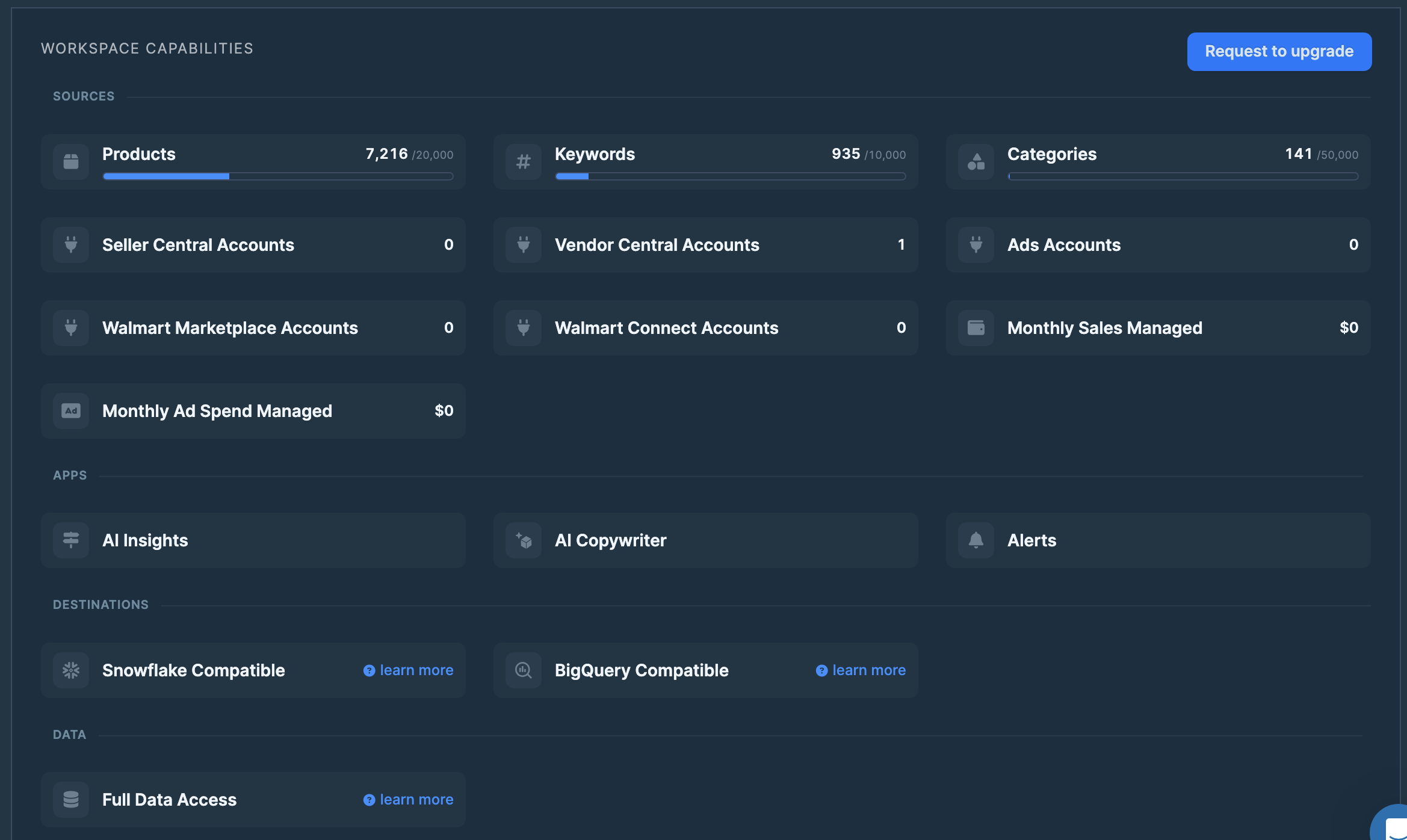 ## Request an upgrade
If you're maxing out your workspace capabilities and want to upgrade, click **Request to upgrade**: Our team will reach out to discuss options.
## Request an upgrade
If you're maxing out your workspace capabilities and want to upgrade, click **Request to upgrade**: Our team will reach out to discuss options.
 ## Update workspace information
To change your workspace name or other workspace-level settings, navigate to **Settings → Account** from inside the workspace you want to edit. See [Manage your Account](/help-center/datahawk-app/account-management) for the available fields.
---
title: Modules Overview
description: Overview of DataHawk's active modules, Alerts, AI Copywriter, Sherlock, and MCP, and when to use each one.
---
DataHawk modules sit on top of your connected data and help you act on it. Each module serves a different job: monitoring changes, creating listing content, diagnosing performance shifts, or connecting your data to AI assistants and automations.
This page covers the active DataHawk modules. All modules are Amazon-focused unless otherwise noted.
## At a glance
| Module | What it does | Best for |
|---|---|---|
| **Alerts** | Notifies you when something changes on your tracked products | Monitoring and reacting quickly |
| **AI Copywriter** | Generates and optimizes Amazon listing content using AI | Writing and improving product listings |
| **Sherlock** | Diagnoses *why* your performance changed and guides you to root causes | Understanding what happened and what to do |
| **MCP** | Connects DataHawk to your favorite AI assistant (Claude, ChatGPT, n8n, and more) | Asking questions and automating workflows in the tools you already use |
## Alerts: Stay on top of changes
Alerts monitors your tracked products around the clock and sends you a notification when a condition you care about is met.
You define the rules: for example, "notify me when the Buy Box price of ASIN X drops below £15" or "alert me when my Best Seller Rank drops by more than 20%". DataHawk checks the conditions daily and delivers alerts to your inbox or dashboard.
**Use Alerts when you want to:**
- Know when a competitor changes their price
- Catch a Buy Box loss before it impacts your sales
- Monitor review count or rating changes on key ASINs
- Get notified when inventory drops below a threshold
Alerts is reactive: it tells you *that* something changed. To understand *why* it changed, use Sherlock.
[Go to Alerts →](/help-center/modules/alerts)
## AI Copywriter: Write better listings
The AI Copywriter helps you create and optimize Amazon product listings, titles, bullet points, and descriptions, using AI. It takes your product information and generates listing content that is structured for readability and keyword relevance.
**Use AI Copywriter when you want to:**
- Write a listing for a new product from scratch
- Improve an existing listing's title or bullet points
- Generate listing variations for A/B testing
- Scale listing creation across a large catalog
[Go to AI Copywriter →](/help-center/modules/ai-copywriter)
## Sherlock: Diagnose performance changes
Sherlock is DataHawk's AI-powered diagnostic engine. When your sales, rankings, or revenue change, Sherlock helps you understand *why* by breaking down contributing factors and guiding you to the likely root cause.
You can interact with Sherlock through its standard interface or by talking to the Sherlock Agent directly in natural language. You can also log business events, such as promotions, price changes, or listing edits, so Sherlock can factor them into its analysis.
**Use Sherlock when you want to:**
- Investigate a sudden drop or spike in sales
- Understand what's driving a change in your BSR or conversion rate
- Get an AI-assisted explanation of your account's recent performance
- Ask questions about your data in plain language
Sherlock is diagnostic: it tells you *why* something happened and what to investigate next.
[Go to Sherlock →](/help-center/modules/sherlock)
## MCP: Bring DataHawk into your favorite AI
DataHawk's MCP server lets external AI assistants, Claude, ChatGPT, n8n, Make, and more, query your DataHawk data directly. Connect once via OAuth, then ask questions in plain English, run scheduled reports, or wire DataHawk into your own automations.
**Use MCP when you want to:**
- Ask questions about your performance inside Claude or ChatGPT
- Build scheduled Slack or email digests using n8n or Make
- Combine DataHawk numbers with tools you already use
- Build custom apps that read your DataHawk data
[MCP Setup →](/help-center/modules/datahawkmcp/setup)
## How the modules work together
You do not need to use every module. Start with the module that matches the problem you are trying to solve today, then combine modules as your workflow matures.
### Scenario 1: A key ASIN loses momentum
1. **Alerts** notifies you that the Buy Box was lost two days ago.
2. **Sherlock** diagnoses the likely cause, such as a competitor undercutting your price.
3. **AI Copywriter** helps refresh the listing while you address pricing or fulfillment.
4. **MCP** lets you ask your AI assistant to draft a team update using the latest DataHawk numbers.
### Scenario 2: Inventory risk needs attention
1. **Alerts** notifies you when a tracked ASIN drops below 30 days of cover.
2. **Sherlock** helps prioritize the highest-impact stock risks across the catalog.
3. **MCP** wires the workflow into n8n or Make to trigger a daily Slack digest in your inventory channel.
### Scenario 3: Weekly performance review
1. **MCP** pulls a fresh executive summary into Claude or ChatGPT every Monday morning.
2. **Sherlock** investigates any revenue, ACOS, ranking, or conversion changes that need follow-up.
3. **Alerts** keeps the team aware of specific changes that need immediate action.
4. **AI Copywriter** helps turn listing opportunities into updated content.
---
title: Creating Power BI Alerts in Power Automate
description: How to create and use Power BI alerts with Power Automate; dashboard card alerts, data-driven alerts, and scorecard goal alerts.
---
This guide explains how to create and use Power BI alerts with Power Automate. It covers different trigger types, scenarios, and licensing requirements.
## Examples of alerts you can create
- Get notified when a **key metric** (like sales, page views, or ad spend) goes above or below a target.
- Automatically **inform your team** in Slack, Teams or email when important thresholds are reached.
- Send a **summary email** with the latest numbers after the dataset finishes refreshing.
- Monitor **business goals or KPIs in scorecards** and trigger actions when progress updates.
## This guide is for you if…
- You already use **Power BI Online** and know how to upload a `.pbix` file.
- You have access to **Power Automate** in your organization.
- You're comfortable with **basic Power BI terms** (report, dataset, dashboard).
- You know whether your workspace is **Pro only** or in **Premium/Fabric capacity**, since some features depend on this.
By the end, you'll know which type of alert to use, how to connect it to Power Automate, and how to deliver notifications by email, Slack, or report attachments.
## Licensing Notes
**Power BI Pro**
- You can create **personal alerts** (card/KPI/gauge on dashboards → email notification to yourself).
- Some types of Power Automate flow
**Premium / Premium per User (PPU) / Fabric capacity**
- Required for:
- Using **Power Automate triggers** for Power BI data alerts.
- **Export to file** (PDF, PowerPoint, Excel) and **Export paginated reports** actions.
When you upload a `.pbix` file to Power BI Online, three entities are created automatically: the report, the dataset (semantic model), and the dashboard.
## Update workspace information
To change your workspace name or other workspace-level settings, navigate to **Settings → Account** from inside the workspace you want to edit. See [Manage your Account](/help-center/datahawk-app/account-management) for the available fields.
---
title: Modules Overview
description: Overview of DataHawk's active modules, Alerts, AI Copywriter, Sherlock, and MCP, and when to use each one.
---
DataHawk modules sit on top of your connected data and help you act on it. Each module serves a different job: monitoring changes, creating listing content, diagnosing performance shifts, or connecting your data to AI assistants and automations.
This page covers the active DataHawk modules. All modules are Amazon-focused unless otherwise noted.
## At a glance
| Module | What it does | Best for |
|---|---|---|
| **Alerts** | Notifies you when something changes on your tracked products | Monitoring and reacting quickly |
| **AI Copywriter** | Generates and optimizes Amazon listing content using AI | Writing and improving product listings |
| **Sherlock** | Diagnoses *why* your performance changed and guides you to root causes | Understanding what happened and what to do |
| **MCP** | Connects DataHawk to your favorite AI assistant (Claude, ChatGPT, n8n, and more) | Asking questions and automating workflows in the tools you already use |
## Alerts: Stay on top of changes
Alerts monitors your tracked products around the clock and sends you a notification when a condition you care about is met.
You define the rules: for example, "notify me when the Buy Box price of ASIN X drops below £15" or "alert me when my Best Seller Rank drops by more than 20%". DataHawk checks the conditions daily and delivers alerts to your inbox or dashboard.
**Use Alerts when you want to:**
- Know when a competitor changes their price
- Catch a Buy Box loss before it impacts your sales
- Monitor review count or rating changes on key ASINs
- Get notified when inventory drops below a threshold
Alerts is reactive: it tells you *that* something changed. To understand *why* it changed, use Sherlock.
[Go to Alerts →](/help-center/modules/alerts)
## AI Copywriter: Write better listings
The AI Copywriter helps you create and optimize Amazon product listings, titles, bullet points, and descriptions, using AI. It takes your product information and generates listing content that is structured for readability and keyword relevance.
**Use AI Copywriter when you want to:**
- Write a listing for a new product from scratch
- Improve an existing listing's title or bullet points
- Generate listing variations for A/B testing
- Scale listing creation across a large catalog
[Go to AI Copywriter →](/help-center/modules/ai-copywriter)
## Sherlock: Diagnose performance changes
Sherlock is DataHawk's AI-powered diagnostic engine. When your sales, rankings, or revenue change, Sherlock helps you understand *why* by breaking down contributing factors and guiding you to the likely root cause.
You can interact with Sherlock through its standard interface or by talking to the Sherlock Agent directly in natural language. You can also log business events, such as promotions, price changes, or listing edits, so Sherlock can factor them into its analysis.
**Use Sherlock when you want to:**
- Investigate a sudden drop or spike in sales
- Understand what's driving a change in your BSR or conversion rate
- Get an AI-assisted explanation of your account's recent performance
- Ask questions about your data in plain language
Sherlock is diagnostic: it tells you *why* something happened and what to investigate next.
[Go to Sherlock →](/help-center/modules/sherlock)
## MCP: Bring DataHawk into your favorite AI
DataHawk's MCP server lets external AI assistants, Claude, ChatGPT, n8n, Make, and more, query your DataHawk data directly. Connect once via OAuth, then ask questions in plain English, run scheduled reports, or wire DataHawk into your own automations.
**Use MCP when you want to:**
- Ask questions about your performance inside Claude or ChatGPT
- Build scheduled Slack or email digests using n8n or Make
- Combine DataHawk numbers with tools you already use
- Build custom apps that read your DataHawk data
[MCP Setup →](/help-center/modules/datahawkmcp/setup)
## How the modules work together
You do not need to use every module. Start with the module that matches the problem you are trying to solve today, then combine modules as your workflow matures.
### Scenario 1: A key ASIN loses momentum
1. **Alerts** notifies you that the Buy Box was lost two days ago.
2. **Sherlock** diagnoses the likely cause, such as a competitor undercutting your price.
3. **AI Copywriter** helps refresh the listing while you address pricing or fulfillment.
4. **MCP** lets you ask your AI assistant to draft a team update using the latest DataHawk numbers.
### Scenario 2: Inventory risk needs attention
1. **Alerts** notifies you when a tracked ASIN drops below 30 days of cover.
2. **Sherlock** helps prioritize the highest-impact stock risks across the catalog.
3. **MCP** wires the workflow into n8n or Make to trigger a daily Slack digest in your inventory channel.
### Scenario 3: Weekly performance review
1. **MCP** pulls a fresh executive summary into Claude or ChatGPT every Monday morning.
2. **Sherlock** investigates any revenue, ACOS, ranking, or conversion changes that need follow-up.
3. **Alerts** keeps the team aware of specific changes that need immediate action.
4. **AI Copywriter** helps turn listing opportunities into updated content.
---
title: Creating Power BI Alerts in Power Automate
description: How to create and use Power BI alerts with Power Automate; dashboard card alerts, data-driven alerts, and scorecard goal alerts.
---
This guide explains how to create and use Power BI alerts with Power Automate. It covers different trigger types, scenarios, and licensing requirements.
## Examples of alerts you can create
- Get notified when a **key metric** (like sales, page views, or ad spend) goes above or below a target.
- Automatically **inform your team** in Slack, Teams or email when important thresholds are reached.
- Send a **summary email** with the latest numbers after the dataset finishes refreshing.
- Monitor **business goals or KPIs in scorecards** and trigger actions when progress updates.
## This guide is for you if…
- You already use **Power BI Online** and know how to upload a `.pbix` file.
- You have access to **Power Automate** in your organization.
- You're comfortable with **basic Power BI terms** (report, dataset, dashboard).
- You know whether your workspace is **Pro only** or in **Premium/Fabric capacity**, since some features depend on this.
By the end, you'll know which type of alert to use, how to connect it to Power Automate, and how to deliver notifications by email, Slack, or report attachments.
## Licensing Notes
**Power BI Pro**
- You can create **personal alerts** (card/KPI/gauge on dashboards → email notification to yourself).
- Some types of Power Automate flow
**Premium / Premium per User (PPU) / Fabric capacity**
- Required for:
- Using **Power Automate triggers** for Power BI data alerts.
- **Export to file** (PDF, PowerPoint, Excel) and **Export paginated reports** actions.
When you upload a `.pbix` file to Power BI Online, three entities are created automatically: the report, the dataset (semantic model), and the dashboard.
 - The report contains the visuals and interactive charts you created.
- The dataset is the underlying data with tables, relationships, and measures.
- The dashboard is a single-page view where visuals from reports can be pinned, and it's where alerts can be set.
## Types of Alerts in Power BI
### 1. Dashboard Card Alerts
- Works with **cards, KPIs, or gauges** pinned to dashboards.
- You can create an alert that notifies you when a measure crosses a threshold.
- **Limitations**: Only you (the alert creator) get the alert email. Useful for personal monitoring.
**How to set up:**
### Pin a visual to the dashboard
Open your report in Power BI Service, click edit, choose card / KPI / gauge that you'd want to follow, and click Pin to the dashboard. For the simplicity choose the dashboard with the same name.
- The report contains the visuals and interactive charts you created.
- The dataset is the underlying data with tables, relationships, and measures.
- The dashboard is a single-page view where visuals from reports can be pinned, and it's where alerts can be set.
## Types of Alerts in Power BI
### 1. Dashboard Card Alerts
- Works with **cards, KPIs, or gauges** pinned to dashboards.
- You can create an alert that notifies you when a measure crosses a threshold.
- **Limitations**: Only you (the alert creator) get the alert email. Useful for personal monitoring.
**How to set up:**
### Pin a visual to the dashboard
Open your report in Power BI Service, click edit, choose card / KPI / gauge that you'd want to follow, and click Pin to the dashboard. For the simplicity choose the dashboard with the same name.
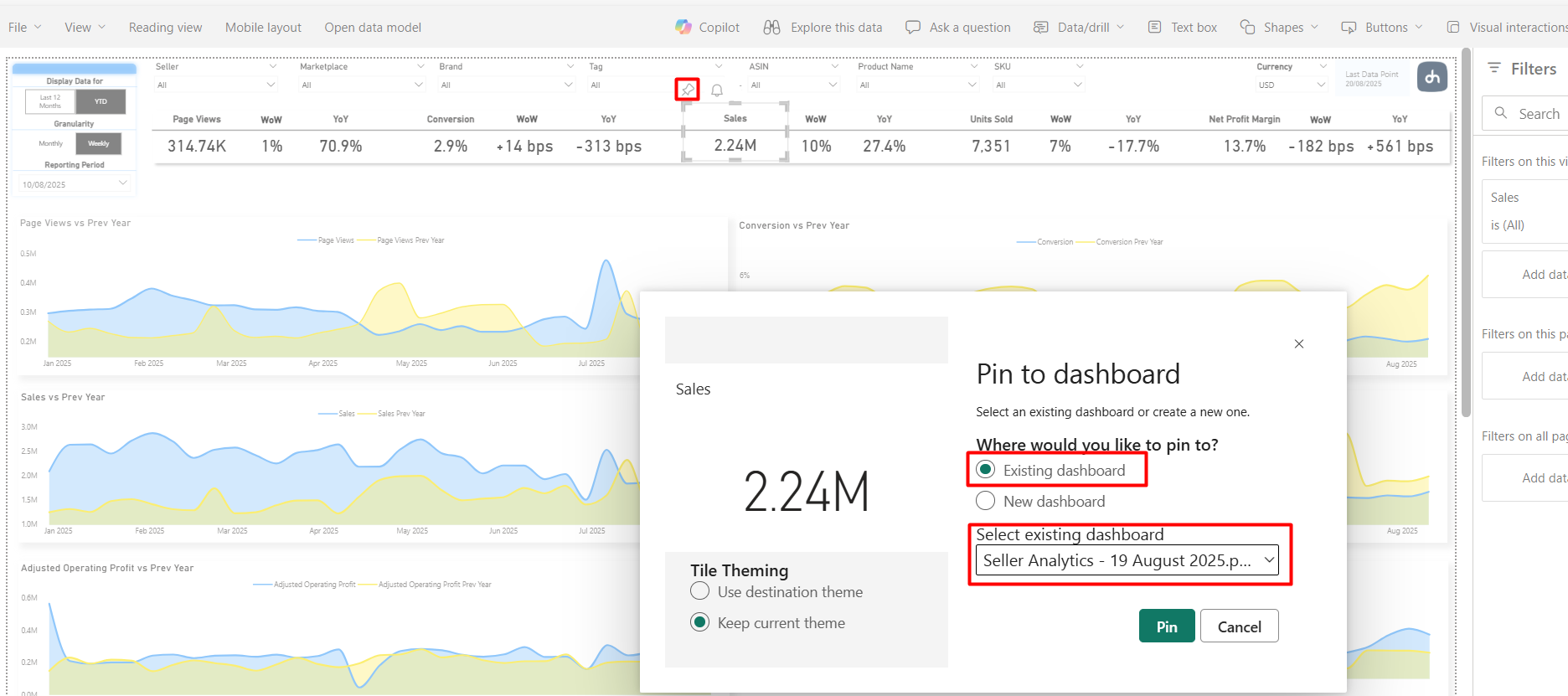 Note: if you'll click the bell icon on this stage, Power BI will either subscribe you to a trial of Fabric capacity, or will show you that you have no workspaces with Fabric licenses to create an alert.
### Manage Alerts
Go to the Dashboard, hover over just pinned visual, click three dots → **Manage Alerts**.
Note: if you'll click the bell icon on this stage, Power BI will either subscribe you to a trial of Fabric capacity, or will show you that you have no workspaces with Fabric licenses to create an alert.
### Manage Alerts
Go to the Dashboard, hover over just pinned visual, click three dots → **Manage Alerts**.
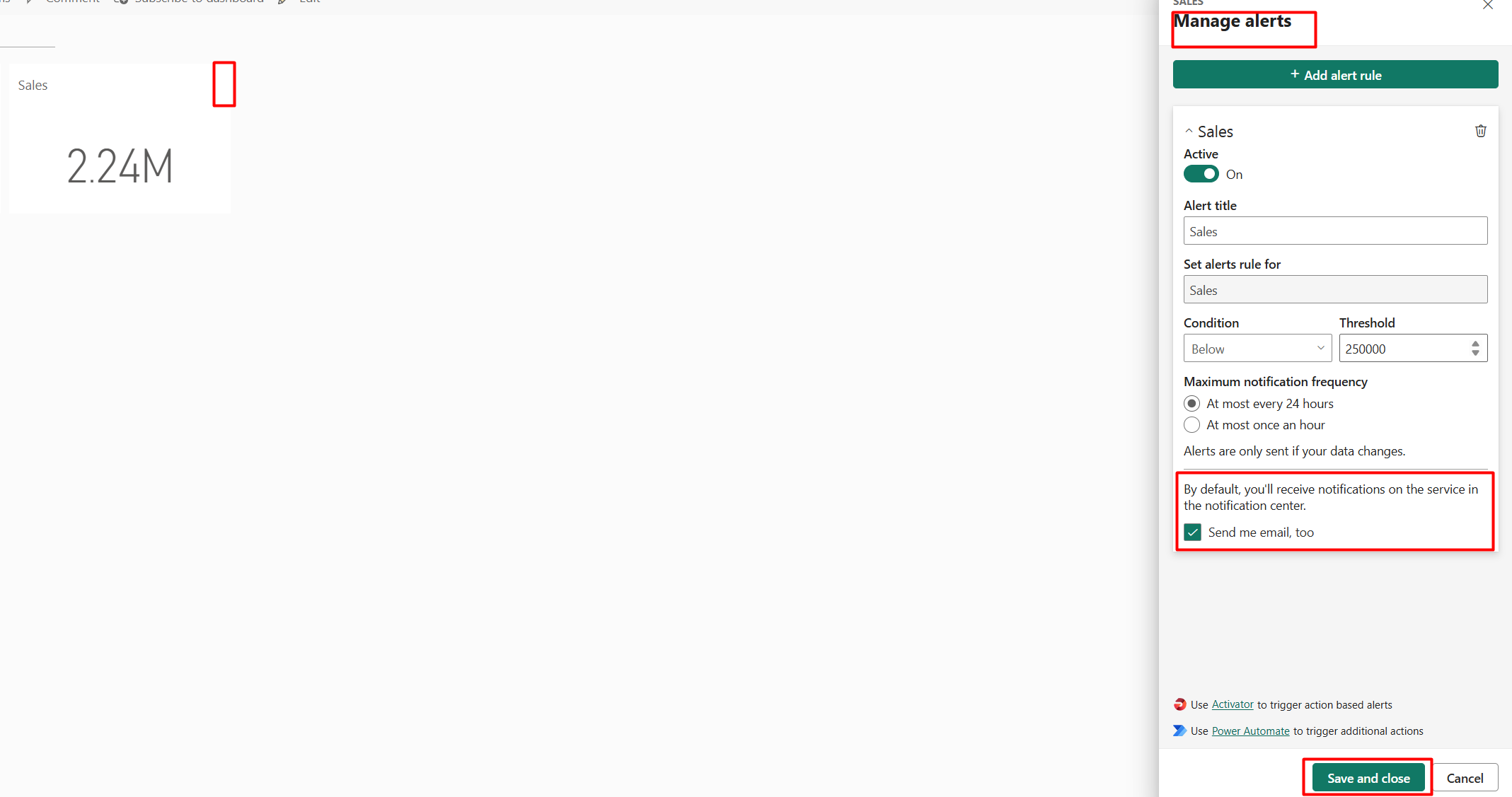 ### Configure alert conditions
Here you can activate the alert, configure alert conditions (above/below a threshold, frequency). Tick "Send me email too" if you want to also get the emails, aside from notifications on Power BI Online.
**Tip:** To notify others, you'll need to connect the alert to Power Automate.
### 2. Data-Driven Alerts via Power Automate
- Trigger a flow when a **Power BI data alert is activated**.
- Unlike dashboard alerts, Power Automate lets you:
- Send alerts to **distribution lists**.
- Post alerts to **Slack or Teams**.
- Attach/export a **paginated report** with the latest data (requires Premium License).
**How to set up:**
### Open Power Automate from the dashboard
From the same menu of managing alerts in the dashboard, click **Use Power Automate**.
### Configure alert conditions
Here you can activate the alert, configure alert conditions (above/below a threshold, frequency). Tick "Send me email too" if you want to also get the emails, aside from notifications on Power BI Online.
**Tip:** To notify others, you'll need to connect the alert to Power Automate.
### 2. Data-Driven Alerts via Power Automate
- Trigger a flow when a **Power BI data alert is activated**.
- Unlike dashboard alerts, Power Automate lets you:
- Send alerts to **distribution lists**.
- Post alerts to **Slack or Teams**.
- Attach/export a **paginated report** with the latest data (requires Premium License).
**How to set up:**
### Open Power Automate from the dashboard
From the same menu of managing alerts in the dashboard, click **Use Power Automate**.
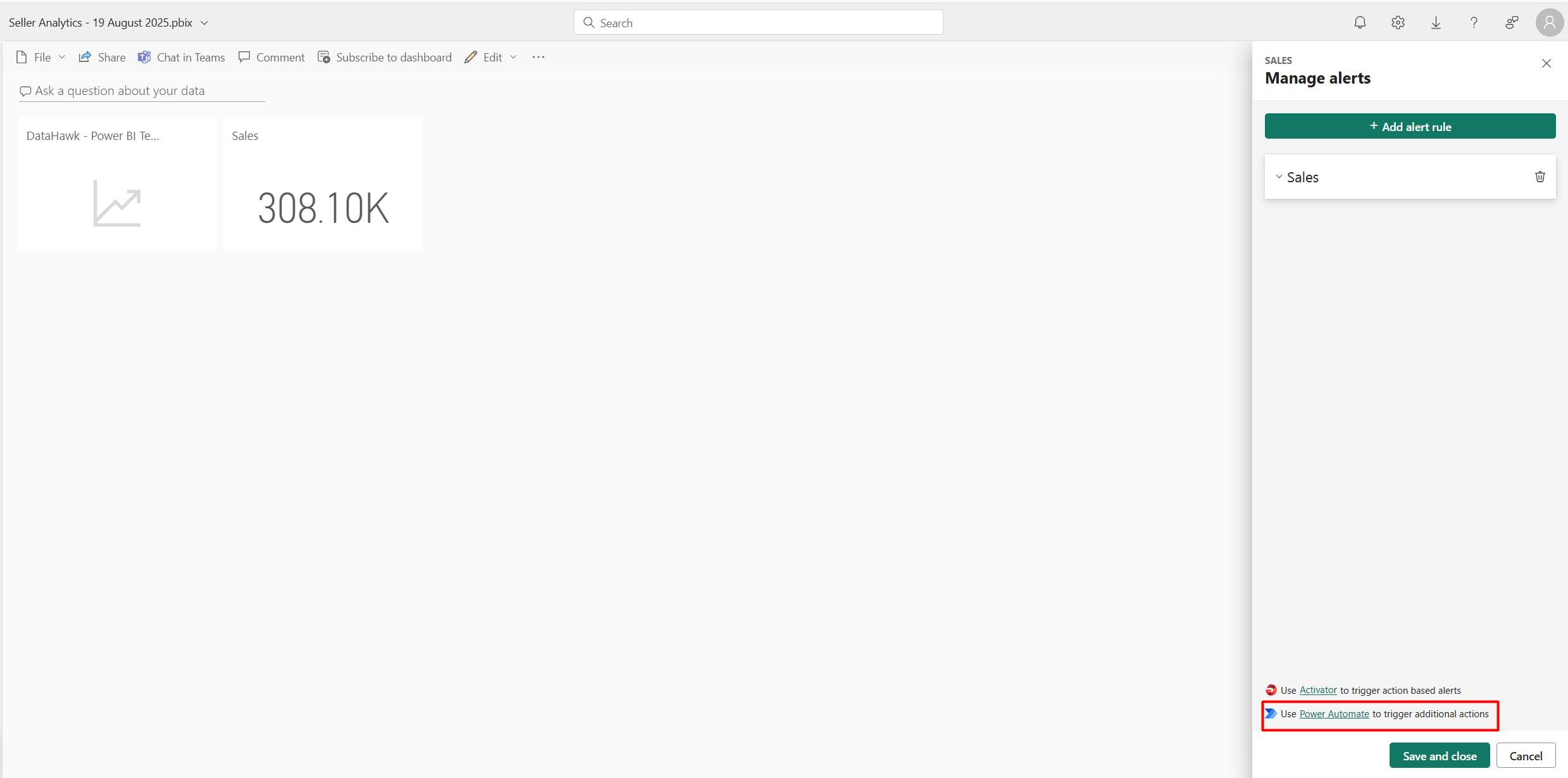 It will take you to the Power Automate website, where the new flow will be automatically created. Click the first block to open the menu on the left, which will allow you to choose the alert ID to track.
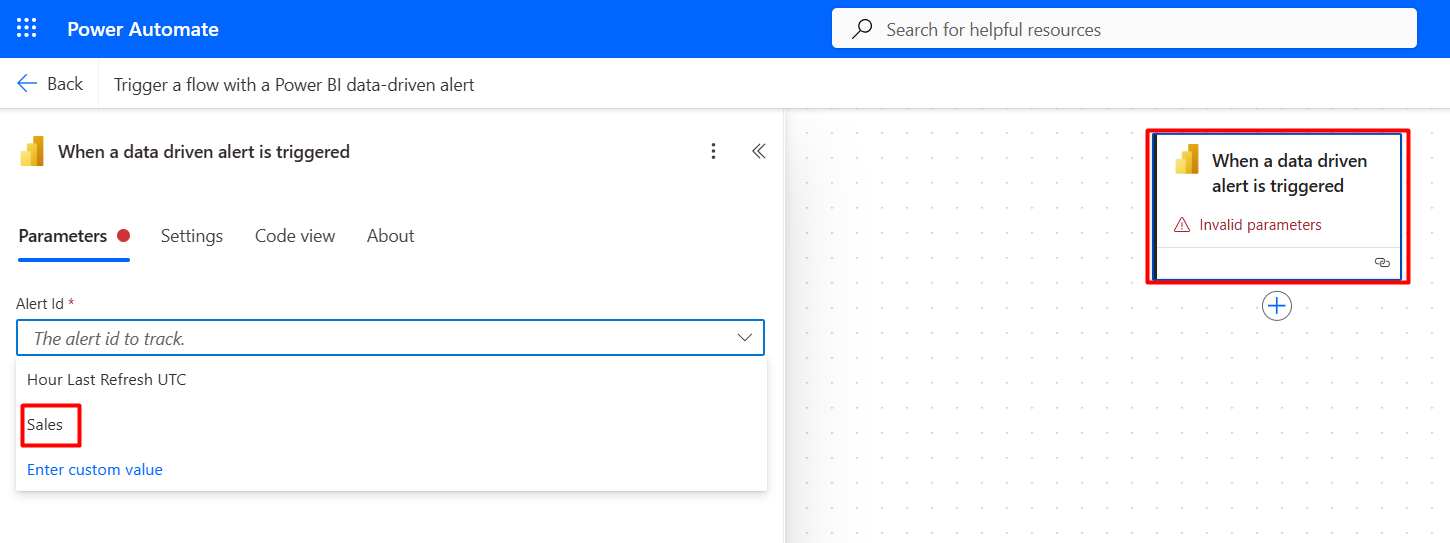 **Alternatively:** In Power Automate, create a new flow.
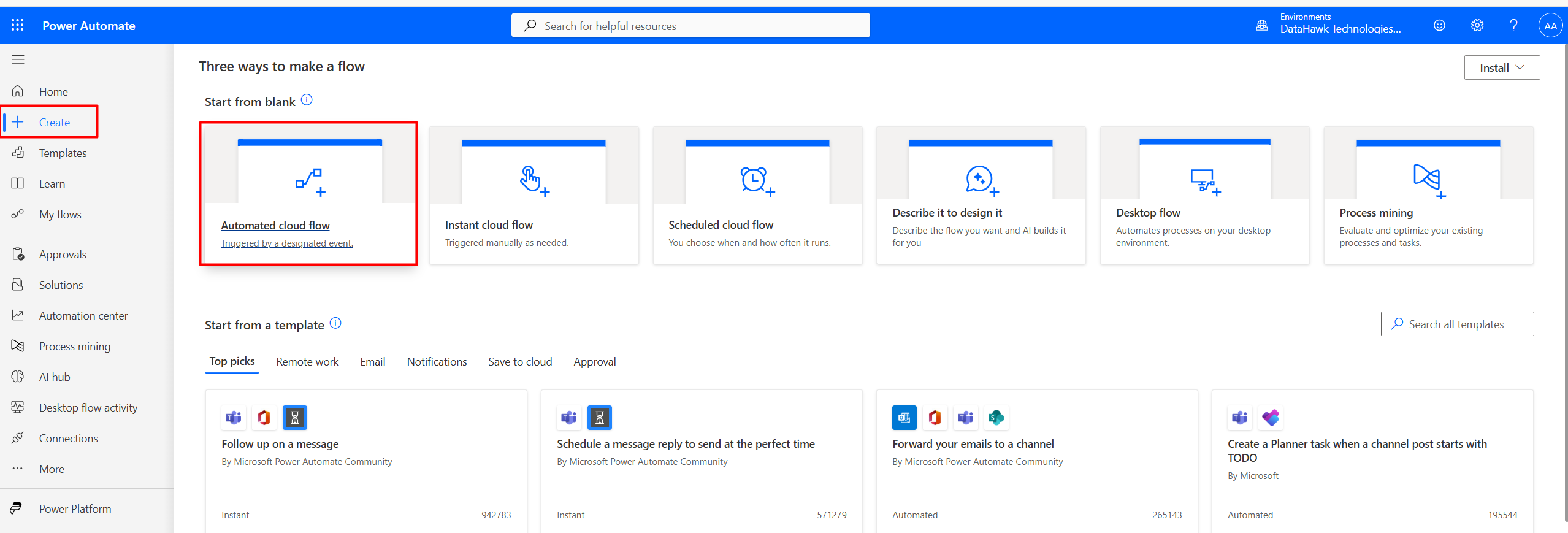 Use trigger: **Power BI → When a data-driven alert is triggered**.
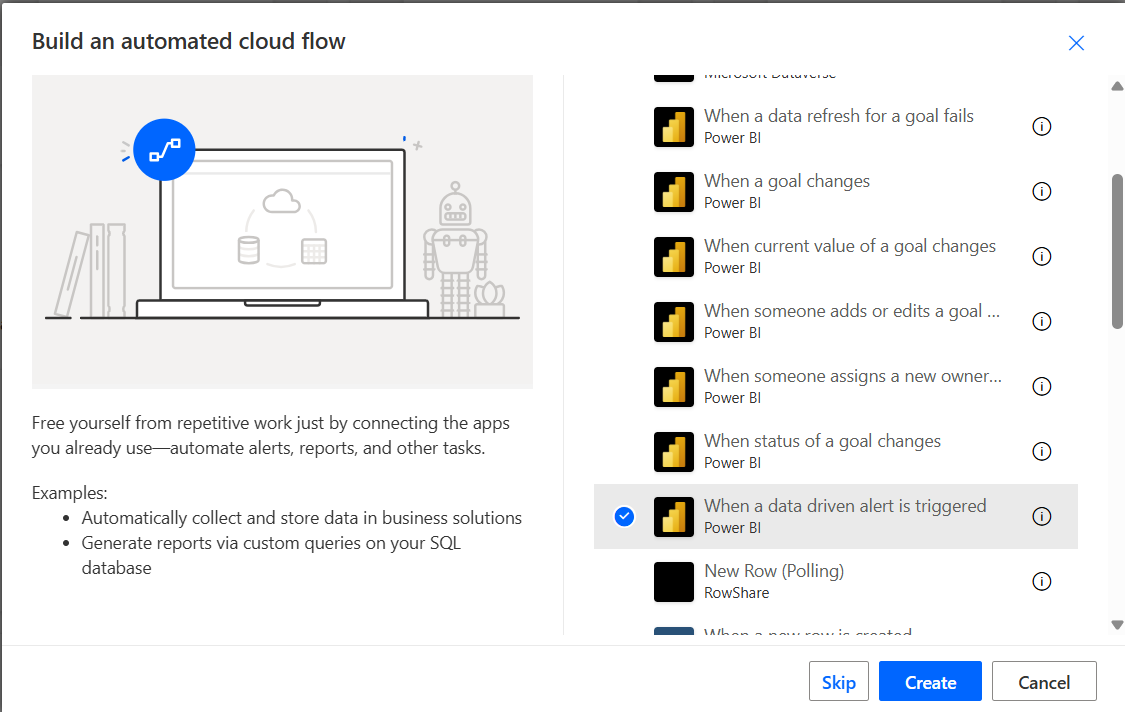 ### Add an action
Add an action, e.g.:
- **Send an email (Outlook)** → to a list of recipients.
- **Post message in Slack** → send to a channel.
- **Export & send a paginated report** → requires Premium.
**Example of the email flow:**
1. Click **Add action**, choose **Mail**.
### Add an action
Add an action, e.g.:
- **Send an email (Outlook)** → to a list of recipients.
- **Post message in Slack** → send to a channel.
- **Export & send a paginated report** → requires Premium.
**Example of the email flow:**
1. Click **Add action**, choose **Mail**.
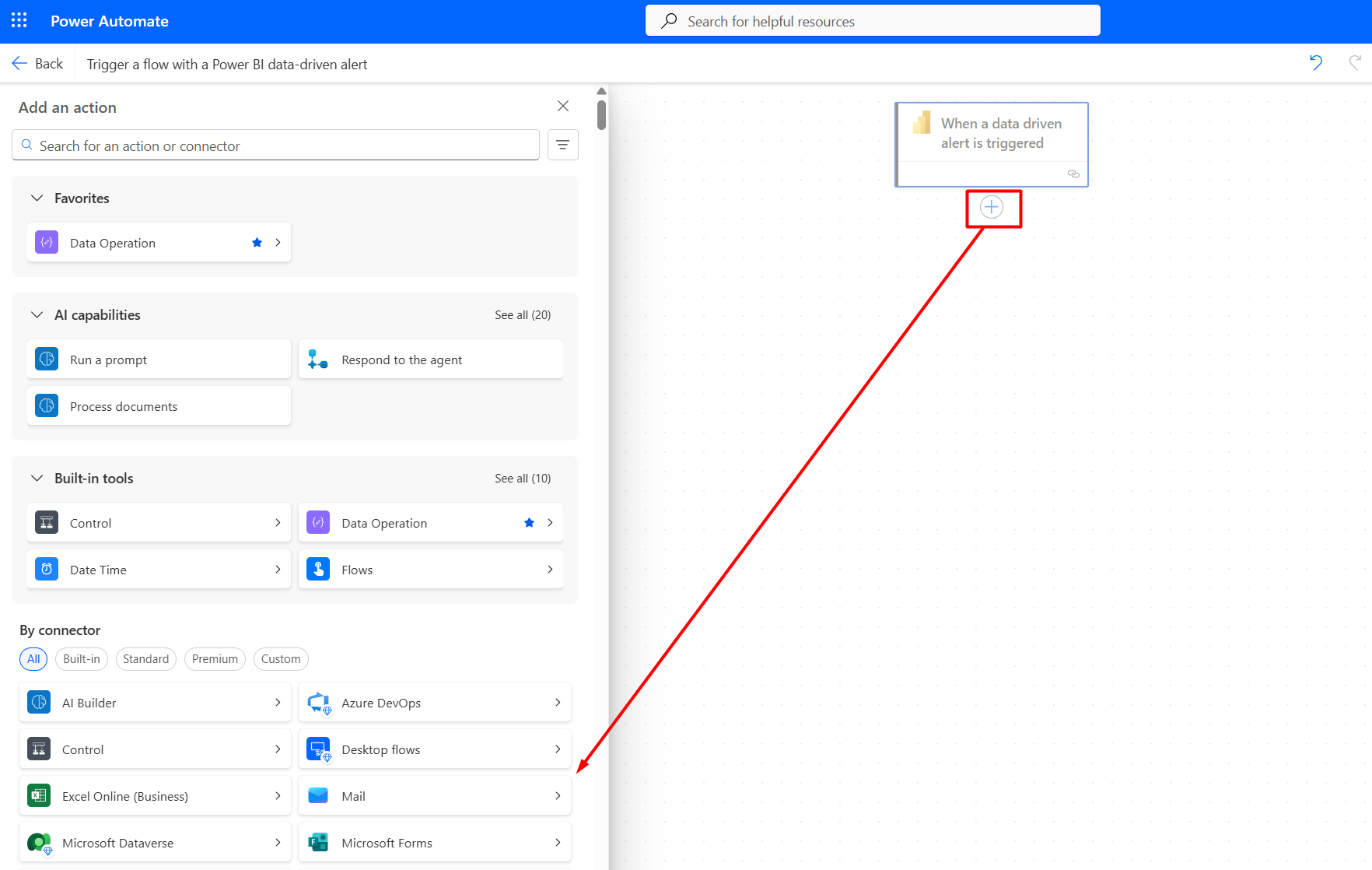 2. Put in the list of recipients, the topic, and for the message, click function and use `concat` to combine words with dynamic content.
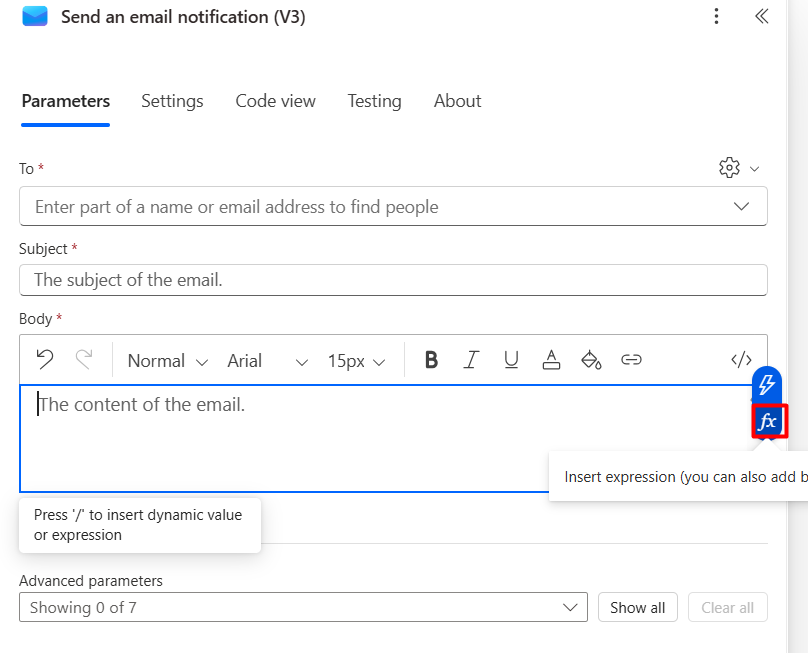 Example message:
```
concat('Alert "', triggerOutputs()?['body/alertTitle'], '" was triggered. The sales value is ', triggerOutputs()?['body/tileValue'], ', which is below the threshold of ', triggerOutputs()?['body/alertThreshold'], '.')
```
3. Click **Add**. Publish the flow, and your alert is set.
Example message:
```
concat('Alert "', triggerOutputs()?['body/alertTitle'], '" was triggered. The sales value is ', triggerOutputs()?['body/tileValue'], ', which is below the threshold of ', triggerOutputs()?['body/alertThreshold'], '.')
```
3. Click **Add**. Publish the flow, and your alert is set.
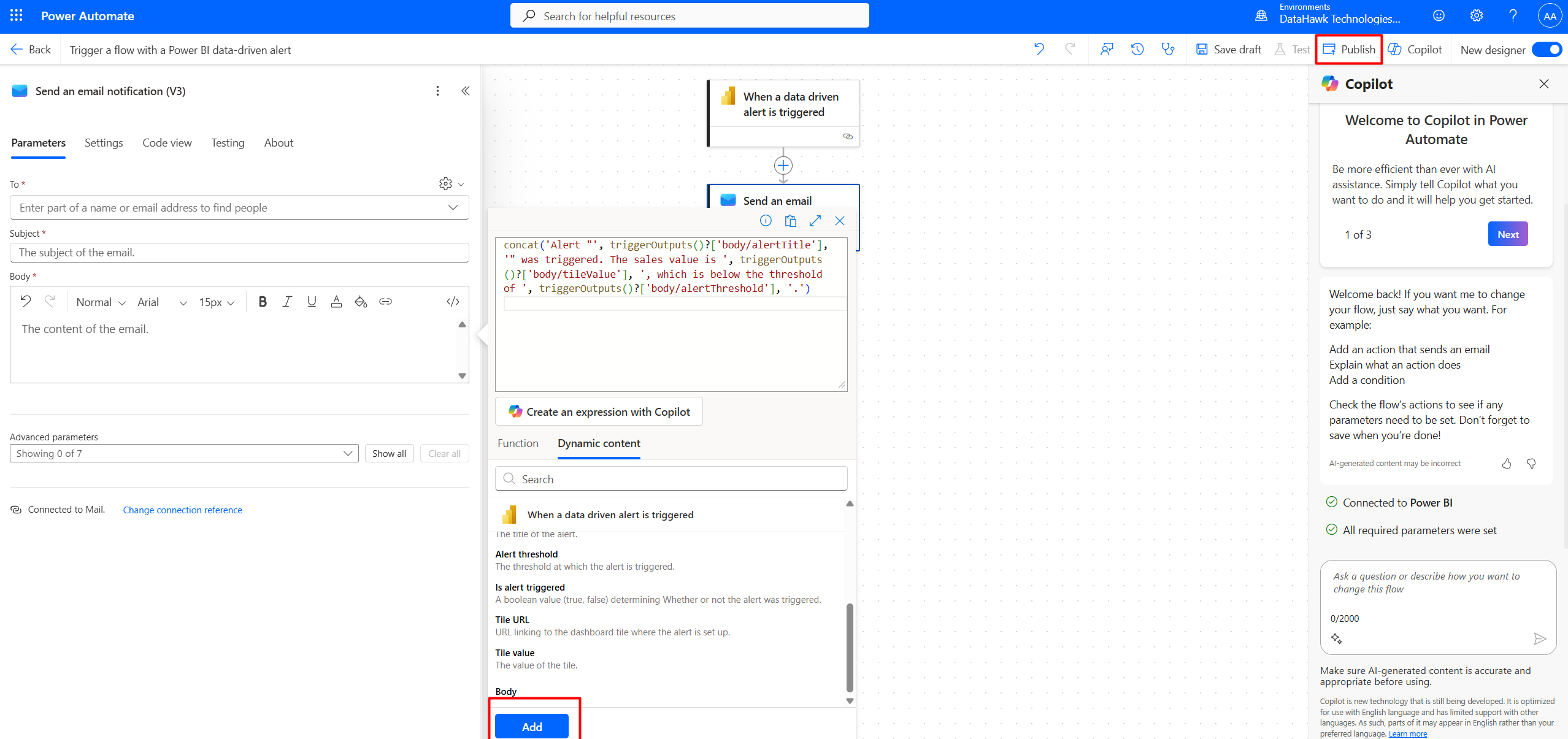 ### 3. Scorecards / Goals Alerts (Metrics)
- You can track progress against a measure and create alerts when a goal value changes.
- Trigger: **Power BI → When a goal value changes** in Power Automate.
If you manually trigger a change to test, you may see: "Flow run timed out because the starting action was not performed." This happens if the system doesn't detect the goal update as a valid trigger. Sometimes resolved only with real data refresh updates.
**How to set up:**
### Create a Scorecard
In workspace → create a **Scorecard**.
### 3. Scorecards / Goals Alerts (Metrics)
- You can track progress against a measure and create alerts when a goal value changes.
- Trigger: **Power BI → When a goal value changes** in Power Automate.
If you manually trigger a change to test, you may see: "Flow run timed out because the starting action was not performed." This happens if the system doesn't detect the goal update as a valid trigger. Sometimes resolved only with real data refresh updates.
**How to set up:**
### Create a Scorecard
In workspace → create a **Scorecard**.
 ### Configure the goal
Change the name of the scorecard on top left as well as goal name.
For current value click **Set up → Connect to data**.
### Configure the goal
Change the name of the scorecard on top left as well as goal name.
For current value click **Set up → Connect to data**.
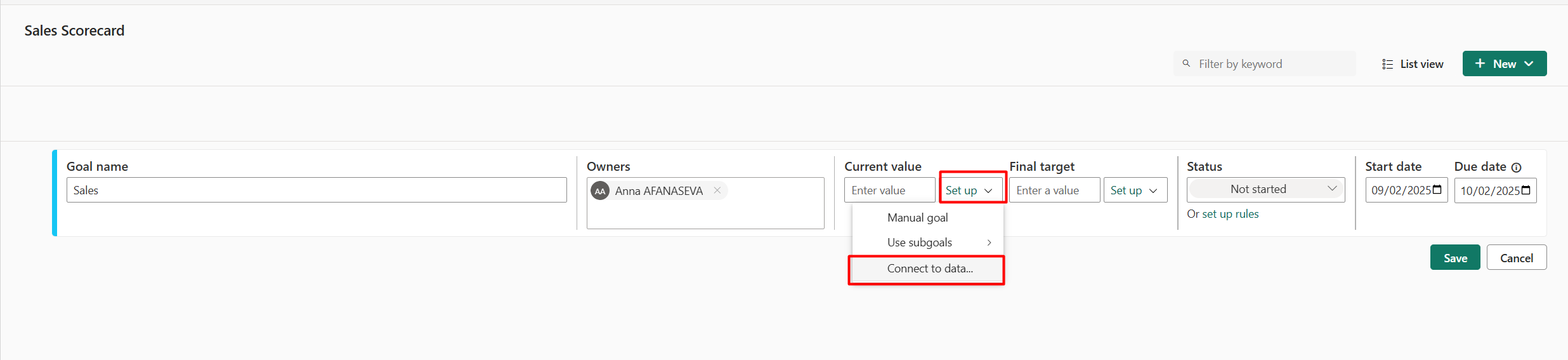 Select the report, and the card / KPI / gauge that you want to follow. In the scorecard also set up the goal, due date, and you also have an ability to set up rules for the status change.
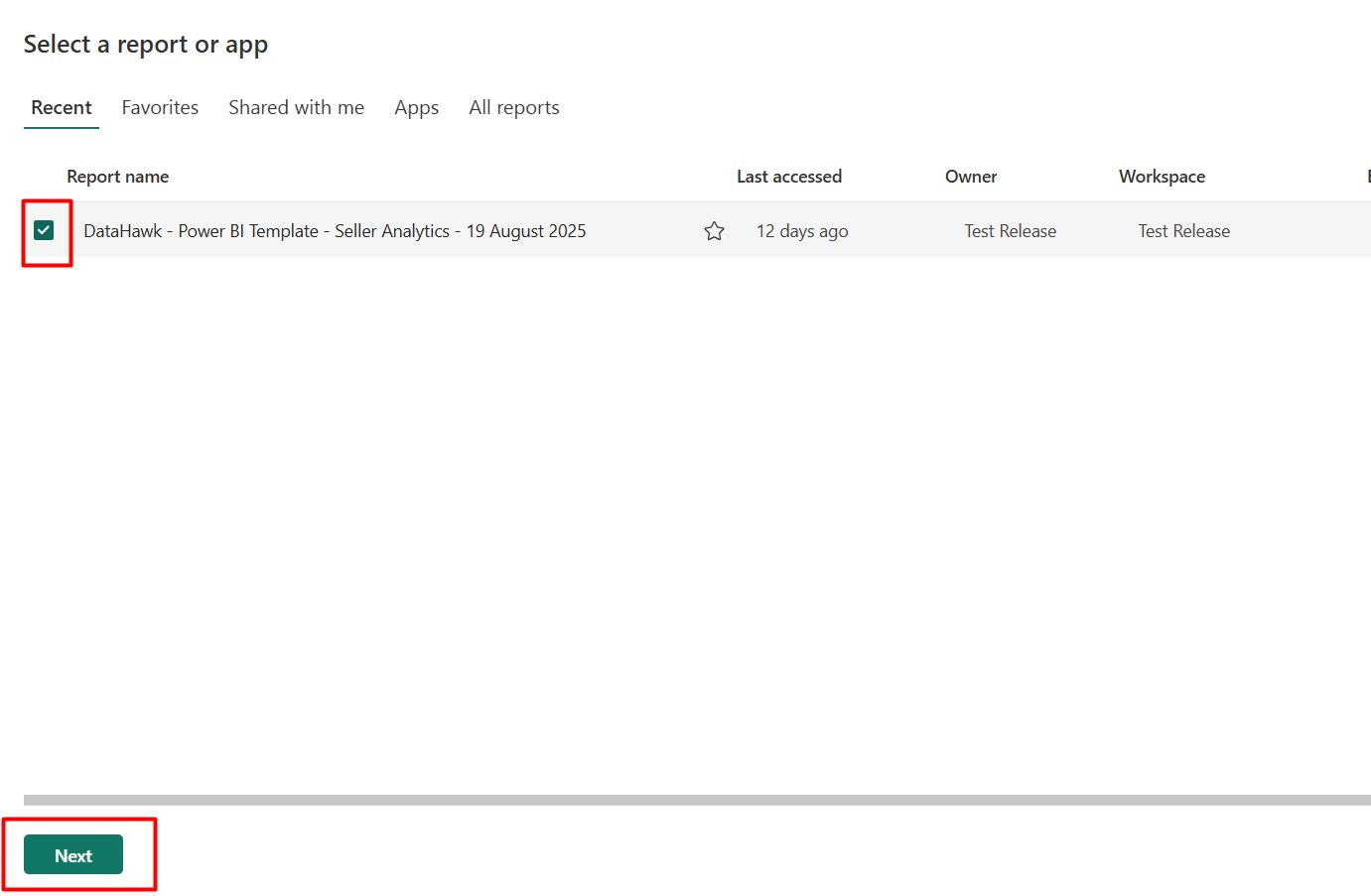
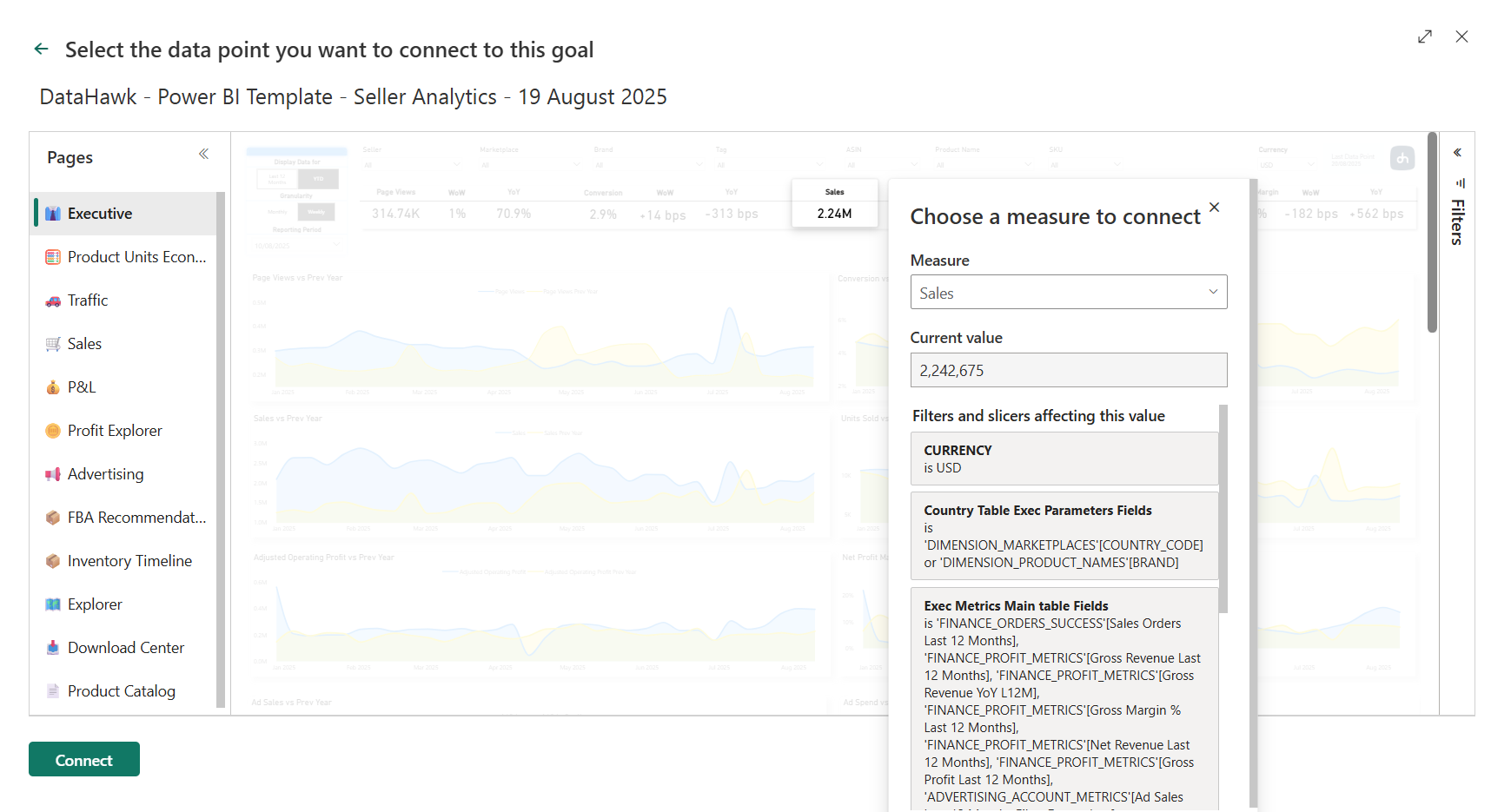 ### Create a flow
From here click **Create a flow**.
### Create a flow
From here click **Create a flow**.
 ### Configure the Power Automate trigger
On Power Automate website click **"When current value of a goal changes"**. Depending on your desired outcome, you might want to choose when the goal changes, or when status of a goal changes.
### Configure the Power Automate trigger
On Power Automate website click **"When current value of a goal changes"**. Depending on your desired outcome, you might want to choose when the goal changes, or when status of a goal changes.
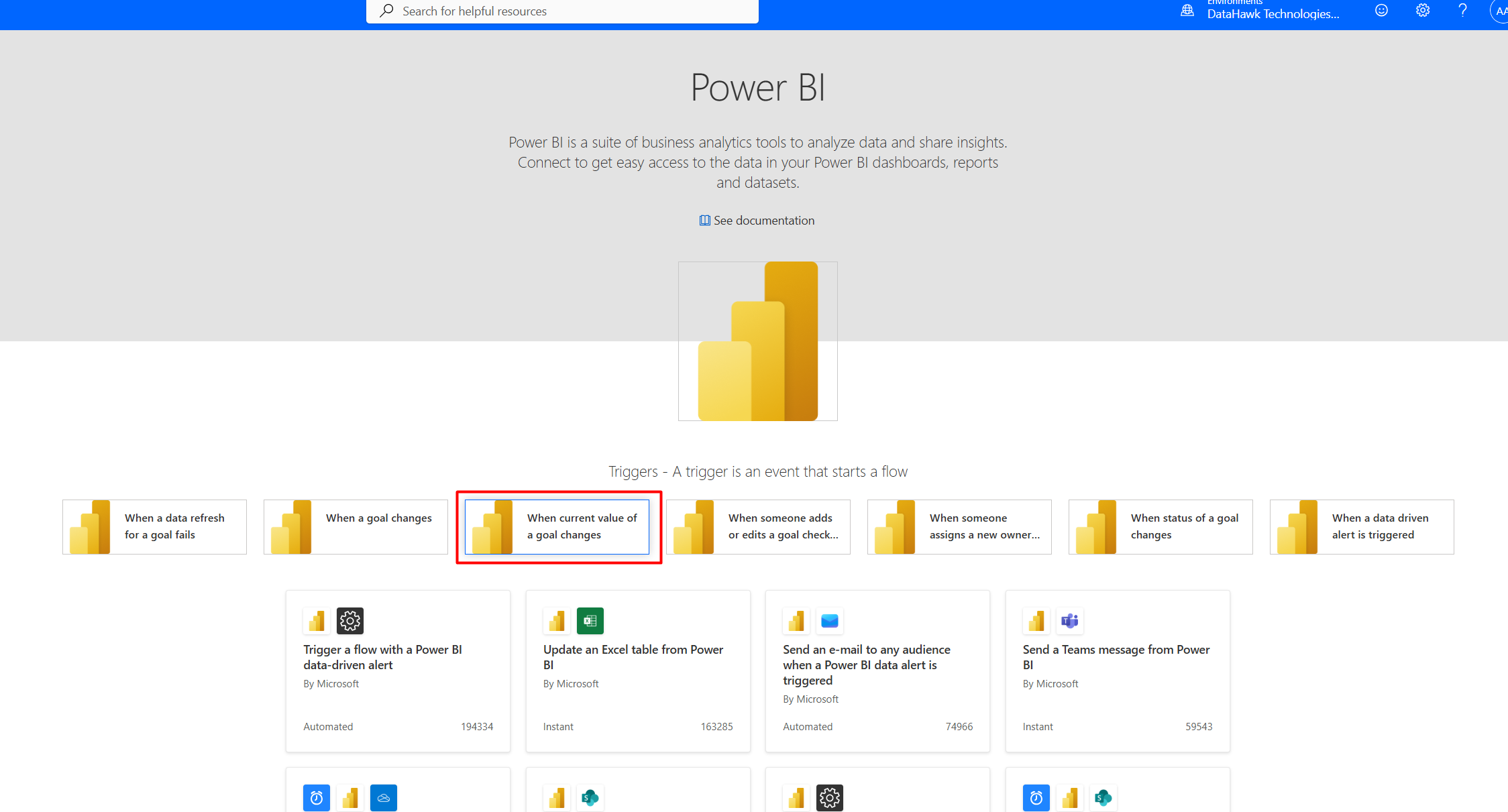 ### Set up the trigger details
Click the first block that appeared, and choose the workspace, scorecard ID and goal ID.
### Set up the trigger details
Click the first block that appeared, and choose the workspace, scorecard ID and goal ID.
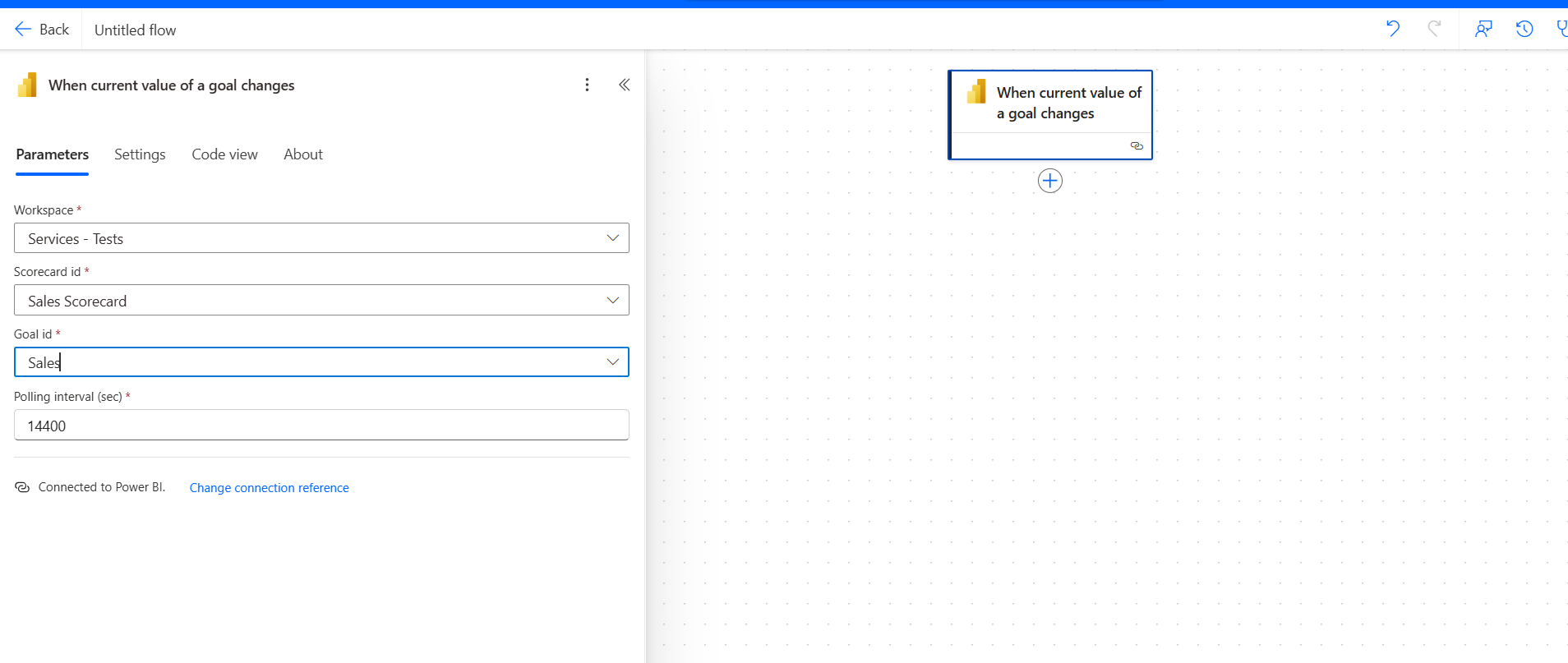 ### Add action: email or Slack
As next step you can connect it to email sending, or posting a Slack message.
Click **Add an action** and find **Slack: Post message**.
### Add action: email or Slack
As next step you can connect it to email sending, or posting a Slack message.
Click **Add an action** and find **Slack: Post message**.
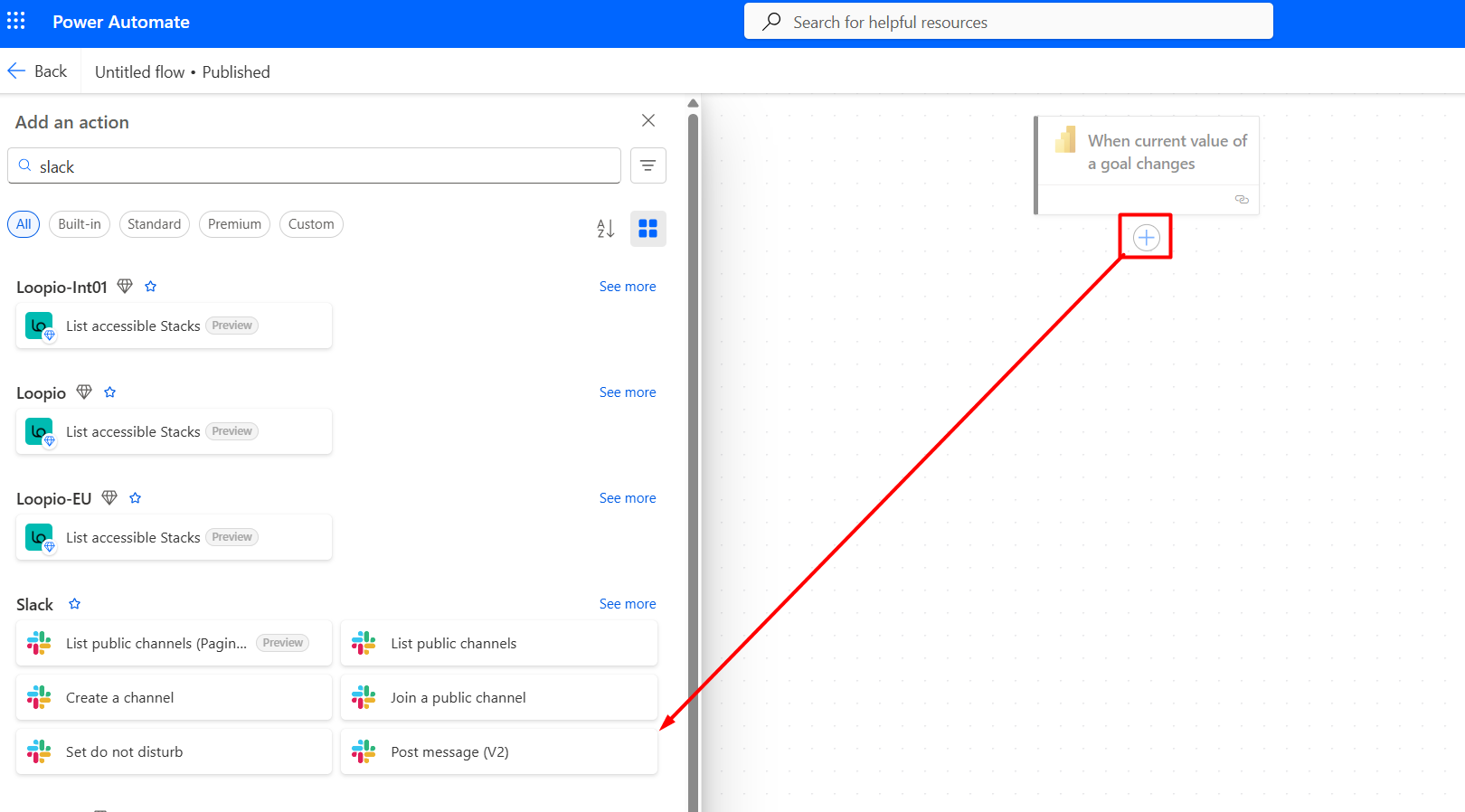 You'll have to sign in to Slack and allow Microsoft access to your Slack Workspace. You might need to ask your admin to grant permissions.
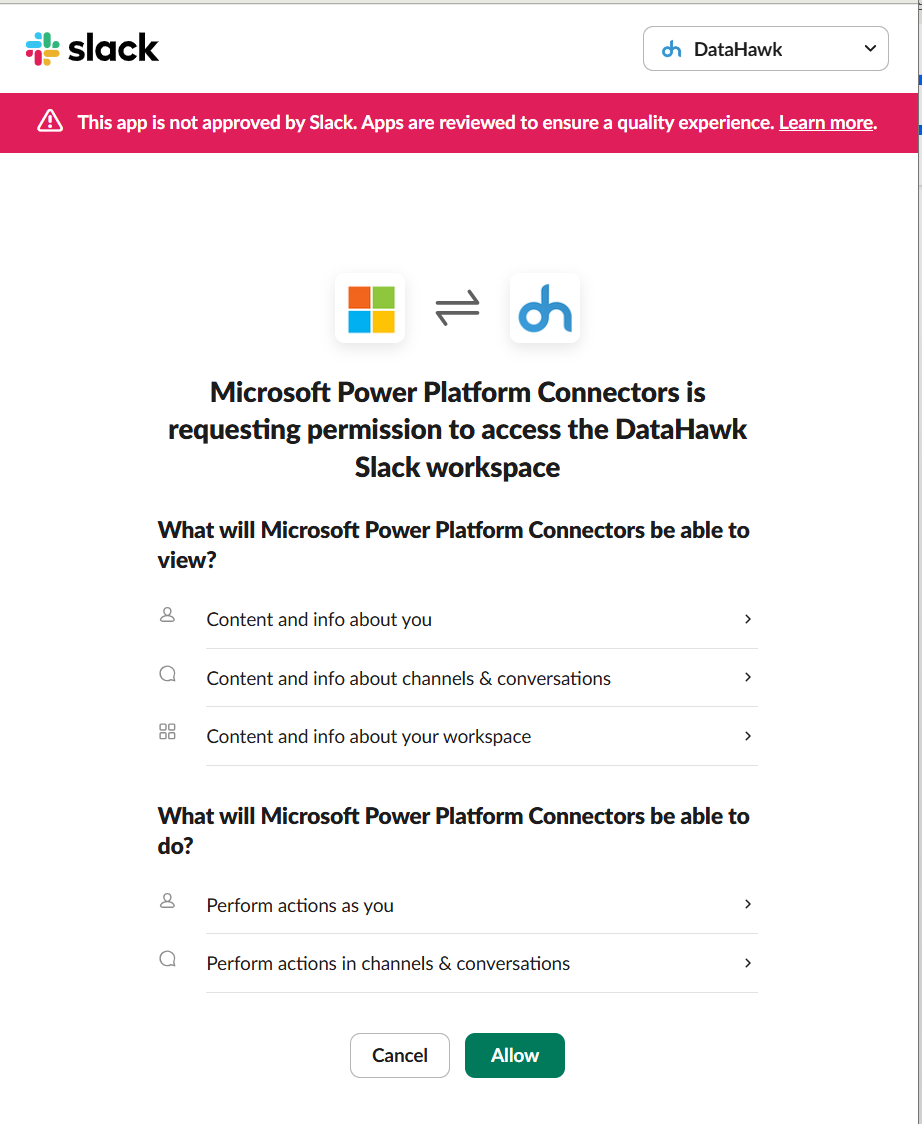 Fill in the channel where you want to post a message. For the message you might use this example:
```
concat('The sales have changed from ', triggerOutputs()?['body/oldCurrentValue'], ' to ', triggerOutputs()?['body/newCurrentValue'])
```
Fill in the channel where you want to post a message. For the message you might use this example:
```
concat('The sales have changed from ', triggerOutputs()?['body/oldCurrentValue'], ' to ', triggerOutputs()?['body/newCurrentValue'])
```
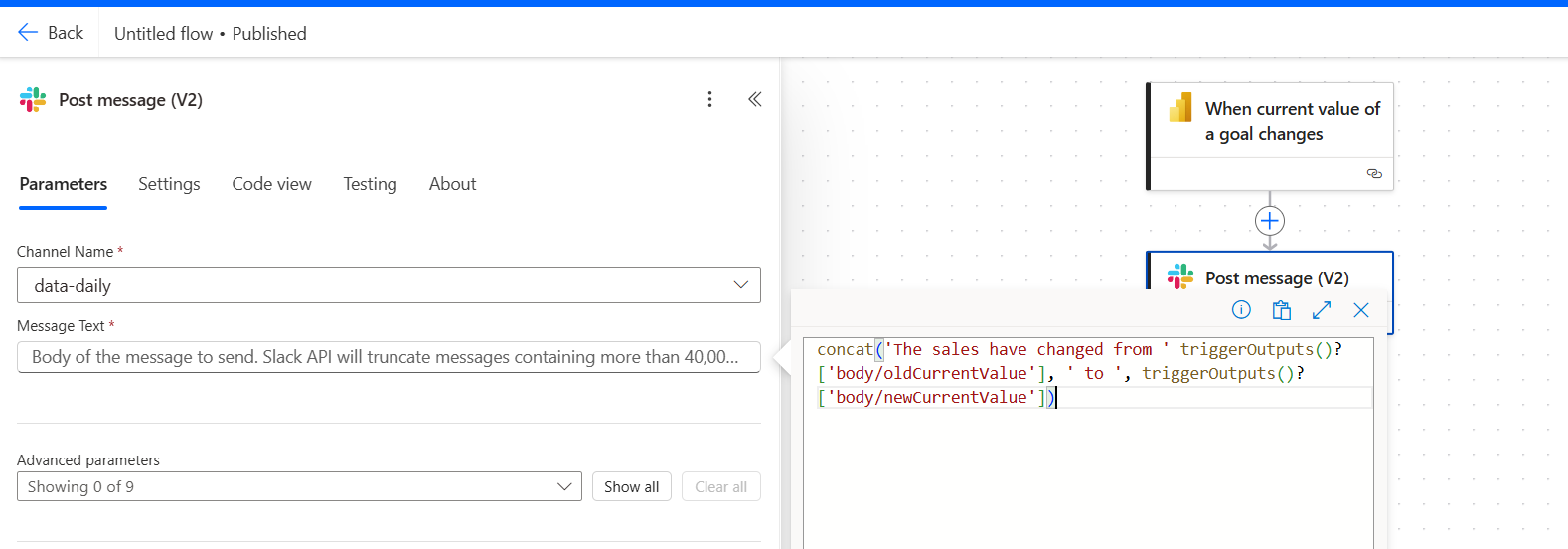 You might want to explore other options provided in the Power BI part of Power Automate such as **Send whole report (paginated) by email**:
- Trigger: Data refresh or Data-driven alert.
- Action: Export paginated report → Send email with attachment.
- Requires **Premium**.
## Summary
- **For personal alerts** → use dashboard card alerts.
- **For team notifications** → use Power Automate with data-driven alerts.
- **For OKR/KPI tracking** → use goal/scorecard alerts.
- **For sending reports** → use Power Automate with paginated reports (Premium required).
---
title: Build Something New
description: Options for building customized eCommerce reporting solutions on top of DataHawk data, from adapting templates to professional services.
---
To begin leveraging your DataHawk data, you can access our gallery of available templates.
But if none of the templates meet your specific needs, you have various options to **create a customized eCommerce reporting solution** that fits your requirements.
## Customize your own dashboard
### Adapt an existing template
You can adapt any existing template by downloading it and implementing your desired modifications, whether it's adapting the visuals, changing the metrics displayed, or even adding your own data sources.
### Build from scratch, on any destination
If you have a clear vision of what you want your eCommerce reporting to include, or if you want to build on a BI tool for which we do not offer any template yet, you can build from scratch on the tool of your choice.
## Professional Services
### We build it for you
If our pre-built templates don't cover your needs, and if you do not have the time or internal skills to build and customize them yourself, **our Professional Services team can help you** build your dream solution for a customization fee. Whether it's building a specific dashboard, computing a customized metric, or implementing a fully tailored reporting solution, we will be able to assist.
### What we do
Our Professional Services team assists you to build your dream solution. Examples of custom implementations that we can help with include:
- DataHawk Templates customization: we tweak our available templates to answer your specific use cases.
- Fully custom Dashboard: we build custom dashboards based on your requirements and on the BI tool of your choice.
- Custom data integrations: we enable seamless data integration and tailored analytics across disparate data sources based on your specific needs.
**Contact our team to get a quote: [cs@datahawk.co](mailto:cs@datahawk.co)**
---
title: Tips & Tricks Overview
description: Advanced use cases and guides for getting more out of DataHawk, including Power BI alerts, automation, and custom integrations.
---
This section collects extensions that sit on top of your DataHawk setup rather than inside it; wiring Power BI dashboards to Microsoft Power Automate, or starting from a blank slate to build a custom workflow against your data. Pick the path that matches what you're trying to ship.
You might want to explore other options provided in the Power BI part of Power Automate such as **Send whole report (paginated) by email**:
- Trigger: Data refresh or Data-driven alert.
- Action: Export paginated report → Send email with attachment.
- Requires **Premium**.
## Summary
- **For personal alerts** → use dashboard card alerts.
- **For team notifications** → use Power Automate with data-driven alerts.
- **For OKR/KPI tracking** → use goal/scorecard alerts.
- **For sending reports** → use Power Automate with paginated reports (Premium required).
---
title: Build Something New
description: Options for building customized eCommerce reporting solutions on top of DataHawk data, from adapting templates to professional services.
---
To begin leveraging your DataHawk data, you can access our gallery of available templates.
But if none of the templates meet your specific needs, you have various options to **create a customized eCommerce reporting solution** that fits your requirements.
## Customize your own dashboard
### Adapt an existing template
You can adapt any existing template by downloading it and implementing your desired modifications, whether it's adapting the visuals, changing the metrics displayed, or even adding your own data sources.
### Build from scratch, on any destination
If you have a clear vision of what you want your eCommerce reporting to include, or if you want to build on a BI tool for which we do not offer any template yet, you can build from scratch on the tool of your choice.
## Professional Services
### We build it for you
If our pre-built templates don't cover your needs, and if you do not have the time or internal skills to build and customize them yourself, **our Professional Services team can help you** build your dream solution for a customization fee. Whether it's building a specific dashboard, computing a customized metric, or implementing a fully tailored reporting solution, we will be able to assist.
### What we do
Our Professional Services team assists you to build your dream solution. Examples of custom implementations that we can help with include:
- DataHawk Templates customization: we tweak our available templates to answer your specific use cases.
- Fully custom Dashboard: we build custom dashboards based on your requirements and on the BI tool of your choice.
- Custom data integrations: we enable seamless data integration and tailored analytics across disparate data sources based on your specific needs.
**Contact our team to get a quote: [cs@datahawk.co](mailto:cs@datahawk.co)**
---
title: Tips & Tricks Overview
description: Advanced use cases and guides for getting more out of DataHawk, including Power BI alerts, automation, and custom integrations.
---
This section collects extensions that sit on top of your DataHawk setup rather than inside it; wiring Power BI dashboards to Microsoft Power Automate, or starting from a blank slate to build a custom workflow against your data. Pick the path that matches what you're trying to ship.
---
title: Analytics Essentials User Guide
description: A ready-to-use Looker Studio template covering products, keywords, ads, sales, finance, traffic, and inventory; one dashboard for your Amazon business.
---
DataHawk's Analytics Essentials is a ready-to-use Looker Studio template built on best practices from brands and agencies. It connects directly to your BigQuery database and gives you a single, unified dashboard covering your full Amazon business, products, keywords, advertising, sales, finance, traffic, and inventory, without any setup beyond connecting your data sources.
## Questions this template helps answer
- How are my tracked products performing in terms of BSR, pricing, Buy Box, and listing quality?
- Which keywords am I ranking for organically, and where are competitors showing up in sponsored results?
- How is my advertising spend and return performing across campaigns and products?
- What are my actual sales, returns, and revenue broken down by product and geography?
- What is my P&L: Including Amazon fees, COGS, and net profit?
- How are my page views, sessions, and Buy Box win rate evolving over time?
- What is my current FBA inventory status and how has it changed historically?
## Prerequisites
Before requesting access, make sure you have:
- **An active BigQuery database**: DataHawk must be connected to a BigQuery instance. If not yet, see [Send data to your tool](/help-center/connect-tools).
- **Sources configured**: Your Amazon Seller, Vendor, or Advertising accounts are added as sources in DataHawk. If not, see [Set up data](/help-center/data-setup).
- **A Google account registered on the BigQuery access list**: Go to **Setup → Destinations → BigQuery → Access** in the DataHawk app and add your Google email. Access to the template is shared via Google invitation to that exact address, so registering it before requesting is mandatory or the invitation won't reach you.
## How to get access
Self-serve access is coming. In the near future you will be able to access the template directly from the DataHawk app. Until then, access is granted by the DataHawk team via the steps below.
### Open the Report Templates page
Go to the [Report Templates](https://analytics.datahawk.co/app/report-templates) page in the DataHawk app.
### Request access to Analytics Essentials
Find the **Analytics Essentials** template and click **Request Access**.
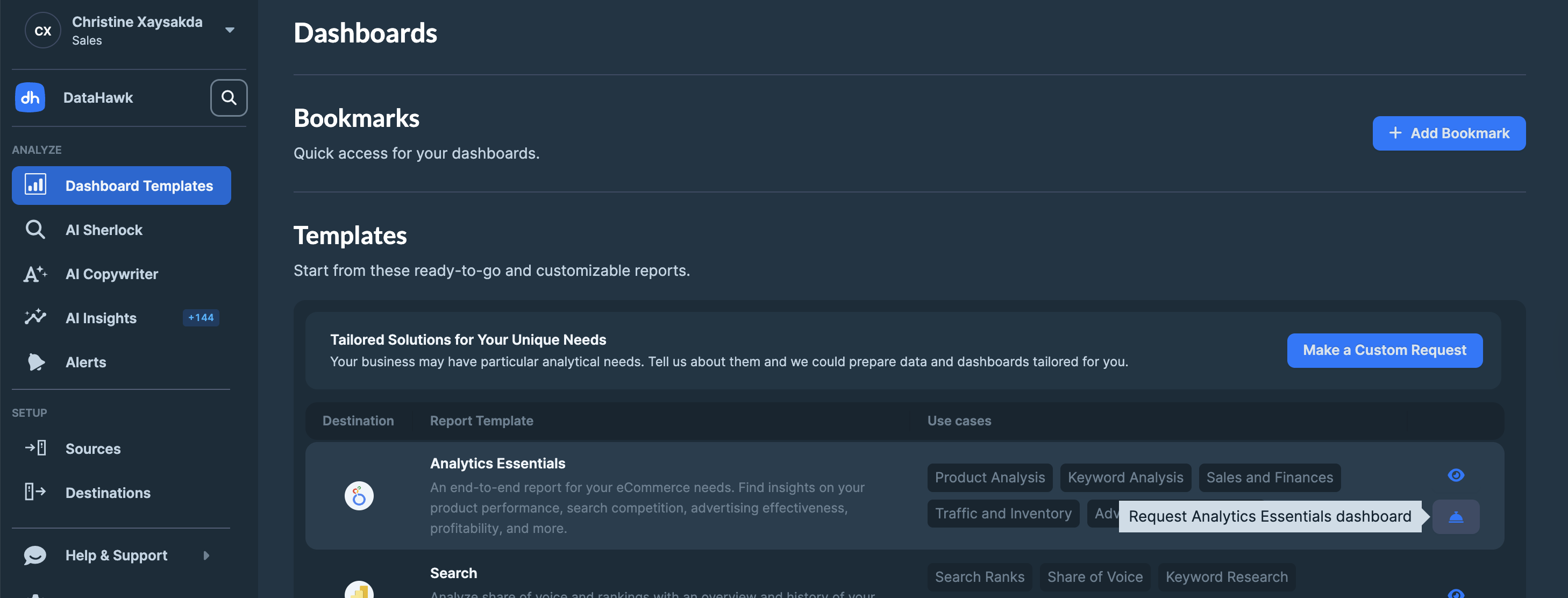 ### Send the prepared message
A draft message is prepared for you. Click **Send** to submit your request to the DataHawk team.
### Wait for the DataHawk team to share the template
A team member will reach out and share the dashboard with the Google email you registered in your BigQuery access list.
### Accept the Google invitation
You'll receive a Google email invitation to access the template. Open it and accept to land in your personal copy of the dashboard.
## What's inside Analytics Essentials
The template is organized into **9 sections**, each containing multiple report pages. All sections share a consistent theme and are designed to work together as a single source of truth for your Amazon business.
### 1. Overview
An orientation section that sets the context for the rest of the template.
### Send the prepared message
A draft message is prepared for you. Click **Send** to submit your request to the DataHawk team.
### Wait for the DataHawk team to share the template
A team member will reach out and share the dashboard with the Google email you registered in your BigQuery access list.
### Accept the Google invitation
You'll receive a Google email invitation to access the template. Open it and accept to land in your personal copy of the dashboard.
## What's inside Analytics Essentials
The template is organized into **9 sections**, each containing multiple report pages. All sections share a consistent theme and are designed to work together as a single source of truth for your Amazon business.
### 1. Overview
An orientation section that sets the context for the rest of the template.
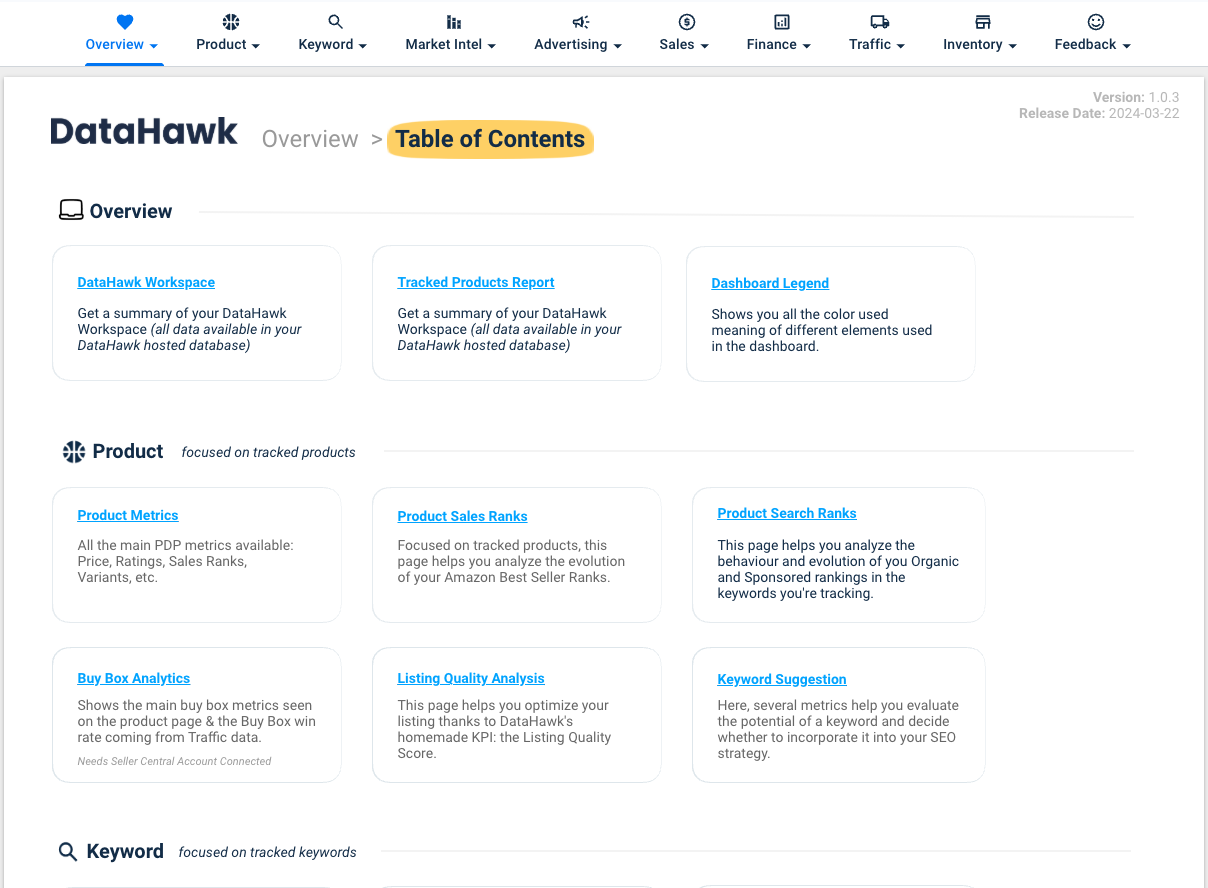 ### 2. Product
Product-level intelligence across rankings, pricing, Buy Box, listing quality, and keyword suggestions.
| Page | What it shows |
|---|---|
| **Metrics** | Key metrics for your tracked products: price, ratings, review count, estimated sales, BSR |
| **Product Metrics by Brand** | Best Seller rankings by ASIN |
| **Sales Ranks** | Best Sellers Rank (BSR) trends over time, by product and category |
| **Search Ranks** | Organic search ranking positions for your tracked keywords, by product |
| **Buy Box** | Buy Box ownership rate and competitor Buy Box activity |
| **Listing Quality Analysis** | Listing Quality Score (LQS) breakdown and recommendations |
| **Keyword Suggestion** | Keyword ideas to improve organic visibility based on your product catalog |
### 3. Keyword
Keyword ranking and visibility across both organic and sponsored placements.
| Page | What it shows |
|---|---|
| **Keywords Metrics** | Overview of tracked keywords with ranking positions, search volume, and trend indicators |
| **Organic Products** | Which of your products rank organically for each tracked keyword, and at what position |
| **Sponsored Products** | Which products appear in sponsored results for each tracked keyword, and their ad rank |
| **Search Ranks** | Organic search ranking positions for your tracked keywords, by keyword |
| **Search Ranks Monitoring** | Organic or Sponsored search ranking positions for your tracked keywords, tags, or product |
### 4. Market intelligence
| Page | What it shows |
|---|---|
| **Overview & market share** | Overview market share and by segments |
| **Exports** | Export brand and product revenue and revenue share |
### 4. Advertising
Advertising performance across campaigns and products for Amazon Ads.
| Page | What it shows |
|---|---|
| **Overview** | Account-level totals: ad spend, ad sales, impressions, clicks, ACoS, RoAS |
| **Campaign** | Campaign-level breakdown with spend, performance, and efficiency metrics |
| **Product** | Product-level ad performance for Sponsored Products and Sponsored Display |
### 5. Sales
Sales performance, geographic breakdown, purchasing behavior, and FBA returns.
| Page | What it shows |
|---|---|
| **Sales Performance** | Revenue, units sold, and order trends over time |
| **Sales Location** | Sales breakdown by marketplace and geography |
| **Purchase Analysis** | Order patterns, repeat purchase behavior, and basket analysis |
| **FBA Returns Analytics** | Return rates, return reasons, and the financial impact of FBA returns |
| **Walmart Sales Performance** | Walmart specific revenue, units sold, and order trends over time |
### 6. Finance
Profit and loss reporting at summary, detailed, and historical levels.
| Page | What it shows |
|---|---|
| **Executive** | High-level P&L: revenue, Amazon fees, COGS, advertising costs, and net profit |
| **Explorer** | Line-by-line breakdown of all revenue and cost components |
| **Products** | Monthly P&L trend showing how profitability has evolved over time |
The Finance section requires your **Cost of Goods Sold (COGS)** to be uploaded to DataHawk. Without COGS data, gross profit, operating profit, and net profit figures will not be accurate. See [Upload Amazon Product Expenses (COGS)](/help-center/data-setup/cogs-amz-upload) for the step-by-step upload guide.
### 7. Traffic
Customer traffic analysis covering page views, sessions, and Buy Box win rates.
| Page | What it shows |
|---|---|
| **Sessions & Page Views** | Trends in product page views and unique sessions over time |
| **Buy Box** | Buy Box win rate history and product-level Buy Box performance |
### 8. Inventory
FBA inventory status at the latest snapshot and over time.
| Page | What it shows |
|---|---|
| **Metrics: Latest** | Current inventory snapshot: Available units, inbound, reserved, and unfulfillable stock |
| **Metrics: Historical** | How inventory levels have changed over time for each tracked ASIN |
### 9. Feedback
Use the Feedback Form to report issues, request new report pages, or suggest improvements. The DataHawk team monitors submissions actively.
## Template details
| | |
|---|---|
| **Template name** | Analytics Essentials |
| **Version** | 1.1 |
| **Data source** | Google BigQuery (DataHawk-hosted or customer-hosted) |
| **Compatible tools** | Looker Studio (Google Data Studio) |
## Metrics
Formulas used in this template. Concept-level definitions for acronyms live in the [Glossary](/help-center/glossary).
**Advertising**
| Metric | Formula / definition | Notes |
|---|---|---|
| **ACoS** | Ad Spend ÷ Ad Sales × 100 | Lower is more efficient |
| **RoAS** | Ad Sales ÷ Ad Spend | Inverse of ACoS, expressed as a multiplier |
| **TACoS** | Ad Spend ÷ Total Sales × 100 | Advertising cost relative to total sales, not just ad-attributed sales |
| **CTR** | Clicks ÷ Impressions × 100 | |
| **CPC** | Ad Spend ÷ Clicks | |
| **CVR** | Orders from Ads ÷ Clicks × 100 | |
**Traffic and sales**
| Metric | Formula / definition | Notes |
|---|---|---|
| **Sessions CVR** | Orders ÷ Sessions × 100 | Session-to-purchase conversion |
| **Buy Box Win %** | Page views with your offer as Featured Offer ÷ Total page views × 100 | Active listings only |
| **ASP** | Sales ÷ Units Sold | Average Selling Price |
| **Return Rate** | Returns ÷ Net Revenue × 100 | FBA returns relative to revenue |
**Profit and loss**
| Metric | Formula / definition | Notes |
|---|---|---|
| **Net Revenue** | Gross Revenue − Refunds | |
| **Gross Profit** | Net Revenue − COGS | |
| **Operating Profit** | Gross Profit − Amazon Fees − Marketing | |
| **Net Profit** | Adjusted Operating Profit − Net Taxes | |
---
## For analysts: data sources & methodology
**Data source**: The Analytics Essentials template connects to your BigQuery database. All DataHawk data models available in BigQuery are accessible from within the template. For a full reference of available tables and columns, see the [Exhaustive Column Referential](https://docs.google.com/spreadsheets/d/1gYGqKQP9Z71nz1lOb4y0wJ15i27NvsUzdliIJeIx0HY/edit#gid=175439716).
**Customizing the template**, When DataHawk shares the Analytics Essentials template with you, you receive your own **personal copy**. This means you can freely customize it, add new charts, adjust filters, rename pages, or connect additional BigQuery data; without affecting other users or the master template.
**Template updates**, When DataHawk publishes a new version of the Analytics Essentials template, updates **propagate automatically** to your copy. You do not need to re-request access or take any action, improvements and new report pages will appear in your dashboard directly.
---
title: Looker Studio Templates
description: DataHawk's Looker Studio template; analytics Essentials covers products, keywords, ads, sales, finance, traffic, and inventory in one dashboard.
---
DataHawk provides a ready-to-use Looker Studio template built on top of your BigQuery database. The template gives you a unified dashboard covering your full Amazon business, products, keywords, advertising, sales, finance, traffic, and inventory, without setup beyond connecting your data sources.
See [Connect to Looker Studio](/help-center/connect-tools/looker-studio) to get started.
## Available templates
### 2. Product
Product-level intelligence across rankings, pricing, Buy Box, listing quality, and keyword suggestions.
| Page | What it shows |
|---|---|
| **Metrics** | Key metrics for your tracked products: price, ratings, review count, estimated sales, BSR |
| **Product Metrics by Brand** | Best Seller rankings by ASIN |
| **Sales Ranks** | Best Sellers Rank (BSR) trends over time, by product and category |
| **Search Ranks** | Organic search ranking positions for your tracked keywords, by product |
| **Buy Box** | Buy Box ownership rate and competitor Buy Box activity |
| **Listing Quality Analysis** | Listing Quality Score (LQS) breakdown and recommendations |
| **Keyword Suggestion** | Keyword ideas to improve organic visibility based on your product catalog |
### 3. Keyword
Keyword ranking and visibility across both organic and sponsored placements.
| Page | What it shows |
|---|---|
| **Keywords Metrics** | Overview of tracked keywords with ranking positions, search volume, and trend indicators |
| **Organic Products** | Which of your products rank organically for each tracked keyword, and at what position |
| **Sponsored Products** | Which products appear in sponsored results for each tracked keyword, and their ad rank |
| **Search Ranks** | Organic search ranking positions for your tracked keywords, by keyword |
| **Search Ranks Monitoring** | Organic or Sponsored search ranking positions for your tracked keywords, tags, or product |
### 4. Market intelligence
| Page | What it shows |
|---|---|
| **Overview & market share** | Overview market share and by segments |
| **Exports** | Export brand and product revenue and revenue share |
### 4. Advertising
Advertising performance across campaigns and products for Amazon Ads.
| Page | What it shows |
|---|---|
| **Overview** | Account-level totals: ad spend, ad sales, impressions, clicks, ACoS, RoAS |
| **Campaign** | Campaign-level breakdown with spend, performance, and efficiency metrics |
| **Product** | Product-level ad performance for Sponsored Products and Sponsored Display |
### 5. Sales
Sales performance, geographic breakdown, purchasing behavior, and FBA returns.
| Page | What it shows |
|---|---|
| **Sales Performance** | Revenue, units sold, and order trends over time |
| **Sales Location** | Sales breakdown by marketplace and geography |
| **Purchase Analysis** | Order patterns, repeat purchase behavior, and basket analysis |
| **FBA Returns Analytics** | Return rates, return reasons, and the financial impact of FBA returns |
| **Walmart Sales Performance** | Walmart specific revenue, units sold, and order trends over time |
### 6. Finance
Profit and loss reporting at summary, detailed, and historical levels.
| Page | What it shows |
|---|---|
| **Executive** | High-level P&L: revenue, Amazon fees, COGS, advertising costs, and net profit |
| **Explorer** | Line-by-line breakdown of all revenue and cost components |
| **Products** | Monthly P&L trend showing how profitability has evolved over time |
The Finance section requires your **Cost of Goods Sold (COGS)** to be uploaded to DataHawk. Without COGS data, gross profit, operating profit, and net profit figures will not be accurate. See [Upload Amazon Product Expenses (COGS)](/help-center/data-setup/cogs-amz-upload) for the step-by-step upload guide.
### 7. Traffic
Customer traffic analysis covering page views, sessions, and Buy Box win rates.
| Page | What it shows |
|---|---|
| **Sessions & Page Views** | Trends in product page views and unique sessions over time |
| **Buy Box** | Buy Box win rate history and product-level Buy Box performance |
### 8. Inventory
FBA inventory status at the latest snapshot and over time.
| Page | What it shows |
|---|---|
| **Metrics: Latest** | Current inventory snapshot: Available units, inbound, reserved, and unfulfillable stock |
| **Metrics: Historical** | How inventory levels have changed over time for each tracked ASIN |
### 9. Feedback
Use the Feedback Form to report issues, request new report pages, or suggest improvements. The DataHawk team monitors submissions actively.
## Template details
| | |
|---|---|
| **Template name** | Analytics Essentials |
| **Version** | 1.1 |
| **Data source** | Google BigQuery (DataHawk-hosted or customer-hosted) |
| **Compatible tools** | Looker Studio (Google Data Studio) |
## Metrics
Formulas used in this template. Concept-level definitions for acronyms live in the [Glossary](/help-center/glossary).
**Advertising**
| Metric | Formula / definition | Notes |
|---|---|---|
| **ACoS** | Ad Spend ÷ Ad Sales × 100 | Lower is more efficient |
| **RoAS** | Ad Sales ÷ Ad Spend | Inverse of ACoS, expressed as a multiplier |
| **TACoS** | Ad Spend ÷ Total Sales × 100 | Advertising cost relative to total sales, not just ad-attributed sales |
| **CTR** | Clicks ÷ Impressions × 100 | |
| **CPC** | Ad Spend ÷ Clicks | |
| **CVR** | Orders from Ads ÷ Clicks × 100 | |
**Traffic and sales**
| Metric | Formula / definition | Notes |
|---|---|---|
| **Sessions CVR** | Orders ÷ Sessions × 100 | Session-to-purchase conversion |
| **Buy Box Win %** | Page views with your offer as Featured Offer ÷ Total page views × 100 | Active listings only |
| **ASP** | Sales ÷ Units Sold | Average Selling Price |
| **Return Rate** | Returns ÷ Net Revenue × 100 | FBA returns relative to revenue |
**Profit and loss**
| Metric | Formula / definition | Notes |
|---|---|---|
| **Net Revenue** | Gross Revenue − Refunds | |
| **Gross Profit** | Net Revenue − COGS | |
| **Operating Profit** | Gross Profit − Amazon Fees − Marketing | |
| **Net Profit** | Adjusted Operating Profit − Net Taxes | |
---
## For analysts: data sources & methodology
**Data source**: The Analytics Essentials template connects to your BigQuery database. All DataHawk data models available in BigQuery are accessible from within the template. For a full reference of available tables and columns, see the [Exhaustive Column Referential](https://docs.google.com/spreadsheets/d/1gYGqKQP9Z71nz1lOb4y0wJ15i27NvsUzdliIJeIx0HY/edit#gid=175439716).
**Customizing the template**, When DataHawk shares the Analytics Essentials template with you, you receive your own **personal copy**. This means you can freely customize it, add new charts, adjust filters, rename pages, or connect additional BigQuery data; without affecting other users or the master template.
**Template updates**, When DataHawk publishes a new version of the Analytics Essentials template, updates **propagate automatically** to your copy. You do not need to re-request access or take any action, improvements and new report pages will appear in your dashboard directly.
---
title: Looker Studio Templates
description: DataHawk's Looker Studio template; analytics Essentials covers products, keywords, ads, sales, finance, traffic, and inventory in one dashboard.
---
DataHawk provides a ready-to-use Looker Studio template built on top of your BigQuery database. The template gives you a unified dashboard covering your full Amazon business, products, keywords, advertising, sales, finance, traffic, and inventory, without setup beyond connecting your data sources.
See [Connect to Looker Studio](/help-center/connect-tools/looker-studio) to get started.
## Available templates
---
## For agencies and partners
If you're delivering Looker Studio dashboards to clients with DataHawk data, see [White-label your Looker Studio dashboards](/help-center/dashboard-templates/looker-studio/white-label); three approaches from manual duplication to portal-based delivery.
---
title: White-label your Dashboards for customers
description: Three approaches to delivering client-specific Looker Studio dashboards with DataHawk data isolation, from manual duplication to portal-based delivery.
---
This guide outlines three approaches to delivering client-specific dashboards in Looker Studio while ensuring data isolation when using DataHawk data.
Each approach aligns with a different level of scale and operational maturity, from manual duplication to fully automated, portal-based delivery.
This guide is meant to help you choose the most efficient setup for your client base and reporting needs.
We strongly advise against using the full scope of the **Analytics Essentials Template**. The sheer volume of sources significantly complicates the required filtering, so a **small, targeted perimeter is recommended**.
## Summary Table
| Method | Best For | Pros | Cons |
|---|---|---|---|
| **1. [Duplicate Dashboard](/help-center/dashboard-templates/looker-studio/white-label#method-1-duplicate-dashboard--hard-coded-filters)** | \<10 clients, simple setups | Easy to set up, no tools | Manual updates, error-prone |
| **2. [Master + Google Sheets URLs](/help-center/dashboard-templates/looker-studio/white-label#method-2-master-dashboard--google-sheets-url-filter-generator)** | 10–50 clients | Scalable, one dashboard to maintain | Does not enable customer-level customization |
| **3. [Portal (Retool / no-code)](/help-center/dashboard-templates/looker-studio/white-label#method-3-no-code-portal-with-embedded-dashboards)** | 50+ clients, need secure portal | Very secure, scalable, extensible | Setup cost + time |
## Method 1: Duplicate Dashboard + Hard-Coded Filters
### Overview
This method consists of making one copy of the Looker Studio dashboard per client and applying fixed filters directly inside each copy. You then share each dashboard with **view-only** access.
### How It Works
Duplicate your master dashboard.
Apply hard-coded filters on Account Key, Tags, or any field that you want to filter the data on.
Rename the dashboard to the client's name.
Test all tabs to ensure filtering has been applied thoroughly.
Share with view-only permissions.
### Best Adapted For
- Agencies managing **fewer than 10 clients**.
- Dashboards that do **not change frequently**.
### Benefits
- Very simple to set up, no additional tooling required.
- Full control over what each client sees.
### Inconvenients
- Manual duplication for each new client.
- Any dashboard update must be repeated manually across all copies.
## Method 2: Master Dashboard + Google Sheets URL Filter Generator
### Overview
This approach keeps **one master dashboard** in Looker Studio but generates **pre-filtered anonymised dashboard URLs** via a Google Sheet referential. Each client gets a specific link that automatically filters the dashboard to their data.
### Best Adapted For
- Agencies with **10 to 50 clients**.
- Frequent dashboard updates (only update the master).
### Benefits
- Only one dashboard to maintain.
- Updates automatically benefit all clients.
- Scalable and low-effort once configured.
- Single master dashboard on Looker Studio serving multiple brands
- Data filtered by Amazon Seller ID (`account_key` in DataHawk)
- Optional brand filter available for additional segmentation
- All data resides within the IFGlobal workspace
- Unique URL for each account (+ optional brand) combination
- Security through anonymized account keys
- Centralized management via Google Sheets
**What does your target dashboard look like?** If you start from the Analytics Essentials template, which pages/tabs do you want to keep in your Master Dashboard:
- Any custom edits you want to add
- Your desired timeline for delivery
- FYI final price is heavily influenced by how many sources need to be filtered.
**Pre-filtering capabilities (hard filtering → hides other data):** To ensure we're on the same page, can you **confirm the following:**
- Each dashboard will require data from a single seller account
- Is brand filtering capabilities needed? allowing for multiple dashboards based on the same seller account but different brands (use case when you handle multiple clients in the same account)
- Could you share the Account Key, Account Name, and Brand (if needed) of the first dashboard you'd like to set up?
### Get Started
Contact your Account Manager if you would like us to help you set up this solution.
## Method 3: No-Code Portal With Embedded Dashboards
### Overview
This method uses a no-code tool (Bubble, Retool, Lovable…) to create a secure portal where clients log in. The Tool filters data based on the client's login credentials and embeds the Looker Studio dashboard, or its own UI connected to your db.
### Best Adapted For
- Agencies with **50+ clients**.
- Need for a branded, secure, professional portal.
- Use cases requiring more than reporting (forms, actions, alerts, CRM, etc.).
### Benefits
- Very secure: server-side filtering.
- Scalable to hundreds of clients, central portal with user management.
- Can integrate additional features beyond dashboards.
### Get Started
Contact your Account Manager if you would like us to help you set up this solution.
---
title: Ads DSP Dashboard Documentation
description: Complete guide to DataHawk's Ads DSP Power BI Dashboard; visibility into programmatic Amazon DSP campaigns from advertiser level down to individual creatives.
---
The Ads DSP Dashboard gives Amazon DSP advertisers detailed visibility into their programmatic campaigns. It covers investment efficiency, audience engagement, and conversion performance, from advertiser and order level all the way down to individual creatives.
## Questions this dashboard helps answer
- How much am I spending on DSP, and what revenue is it generating?
- What is my Return on Ad Spend (RoAS) for my DSP campaigns?
- How often are my ads being seen (impressions), and how many people click through?
- How many shoppers visit my product detail pages after seeing a DSP ad?
- What share of my DSP-attributed sales are coming from new-to-brand customers?
- Which orders and line items are performing best by spend and conversions?
- How is my budget distributed across different line item types?
## Before you start
**What you need:**
- [Amazon DSP account connected](/help-center/data-setup/ads-account) in DataHawk
**Set up:** Download and configure the Power BI template. See [Connect to Power BI](/help-center/connect-tools/powerbi).
**Data history:** Up to 365 days (1 year) by default. Amazon's DSP API only exposes 60 days of history at connection, so it takes about 9 months of being connected to reach the full 365-day window. Need more once you've reached it? See [Changing the historical lookback window](/help-center/connect-tools/powerbi#changing-the-historical-lookback-window).
## Dashboard tabs at a glance
| Tab | What it shows |
|---|---|
| **Ads DSP Reporting** | Full DSP performance: KPIs, charts, budget distribution, and explorer |
| **Metrics Definition** | In-dashboard glossary of all DSP metrics |
## Time periods and comparisons
**Date filters** let you select the date range and time granularity (Year / Quarter / Month / Week / Day) for the dashboard. The bar and line chart adapts its time bucket to the granularity you choose.
{/* TODO: confirm prior-period or year-over-year comparison behavior for this dashboard */}
## Dashboard filters
**General filters:**
| Filter | What it does |
|---|---|
| **Advertiser** | Filter to a specific advertiser account |
| **Country** | Filter by country |
| **Currency** | Choose the display currency |
**Entity-specific filters:**
| Level | Filters available |
|---|---|
| **Order** | Order Name |
| **Line Item** | Line Item Name, Line Item Type |
| **Creative** | Creative Type, Creative Name, Creative Size |
**Custom filters**: Category, Targeting Type, Audience, and other dimensions derived from your Order or Line Item names. Requires configuration in the Data Model (see below).
## Dashboard reports tab by tab
The main report page is organized into several analytical blocks:
- **Summary table (top row)**: Key metrics for the selected period: Order Budget, Total Cost, Total Sales, Total New to Brand Sales, Impressions, Clicks, eCPM, CTR, eCP DPV, DPVR, and Purchase Rate.
 - **Bar and line chart**: Time-based view of Total Sales, Total Cost, and RoAS. Adjust the time granularity (day, week, month, etc.) using the calendar control at the top left.
 - **Budget distribution**: A 100% stacked bar chart showing how budget is allocated across different line item types.
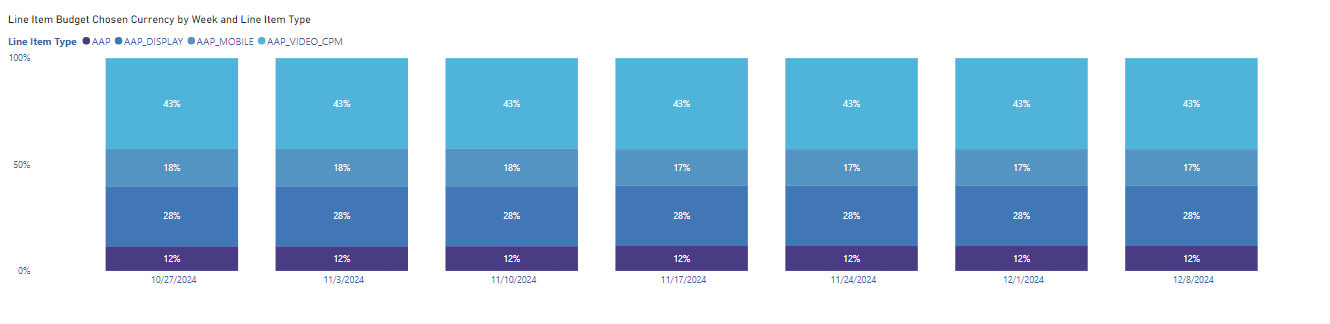 - **100% Stacked Bar Chart and Pie Chart**: Two sets of stacked bar charts and a pie chart, each controlled by independent Metric and Legend slicers. The pie chart breaks down your chosen metric by country.
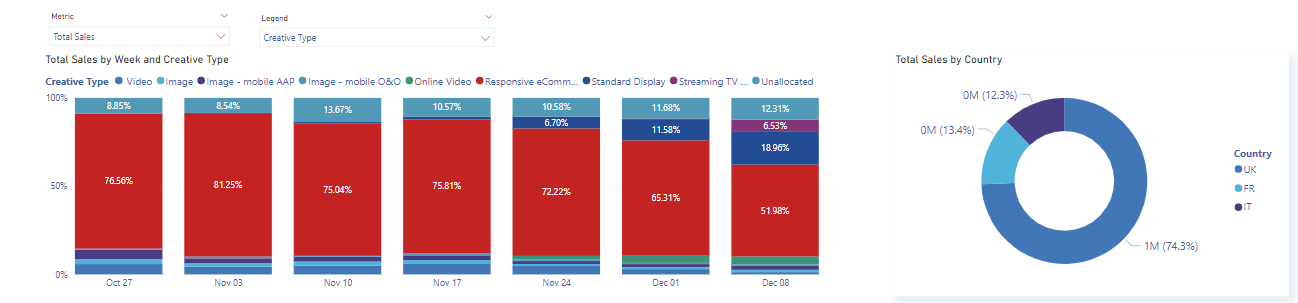 - **New-to-brand gauge**: Shows the percentage of New-to-Brand Product Sales relative to Total Sales.
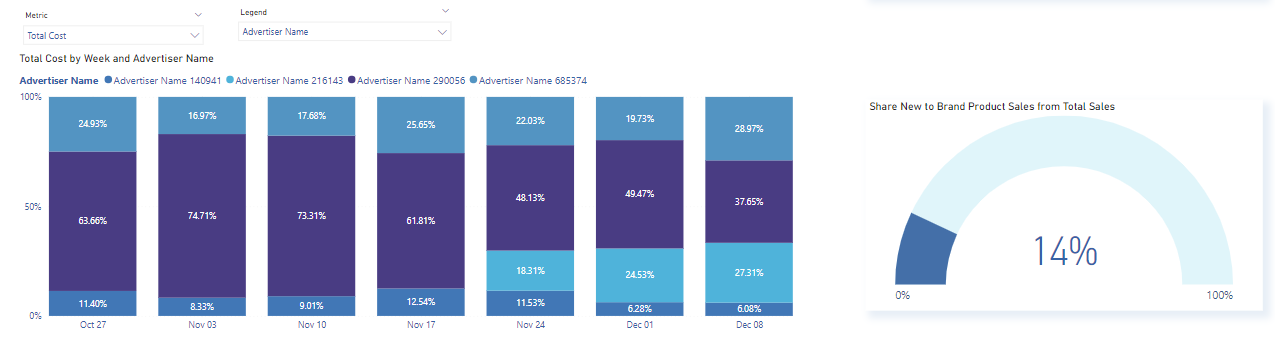 - **Category & targeting table**, Breaks down key metrics by Category and Targeting Type (requires custom filter parameters to be configured, see below).
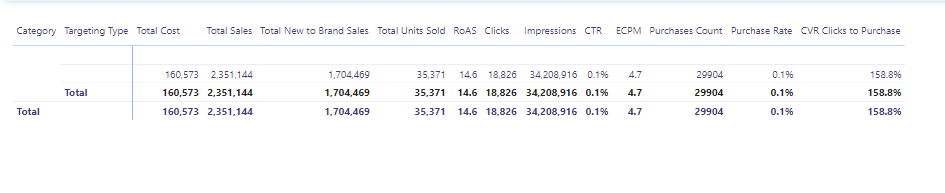 - **Explorer**: Custom chart and table for flexible ad hoc analysis, grouped by Advertiser, Order Name, Line Item Type, Line Item Name, Creative Type, or Creative Name.
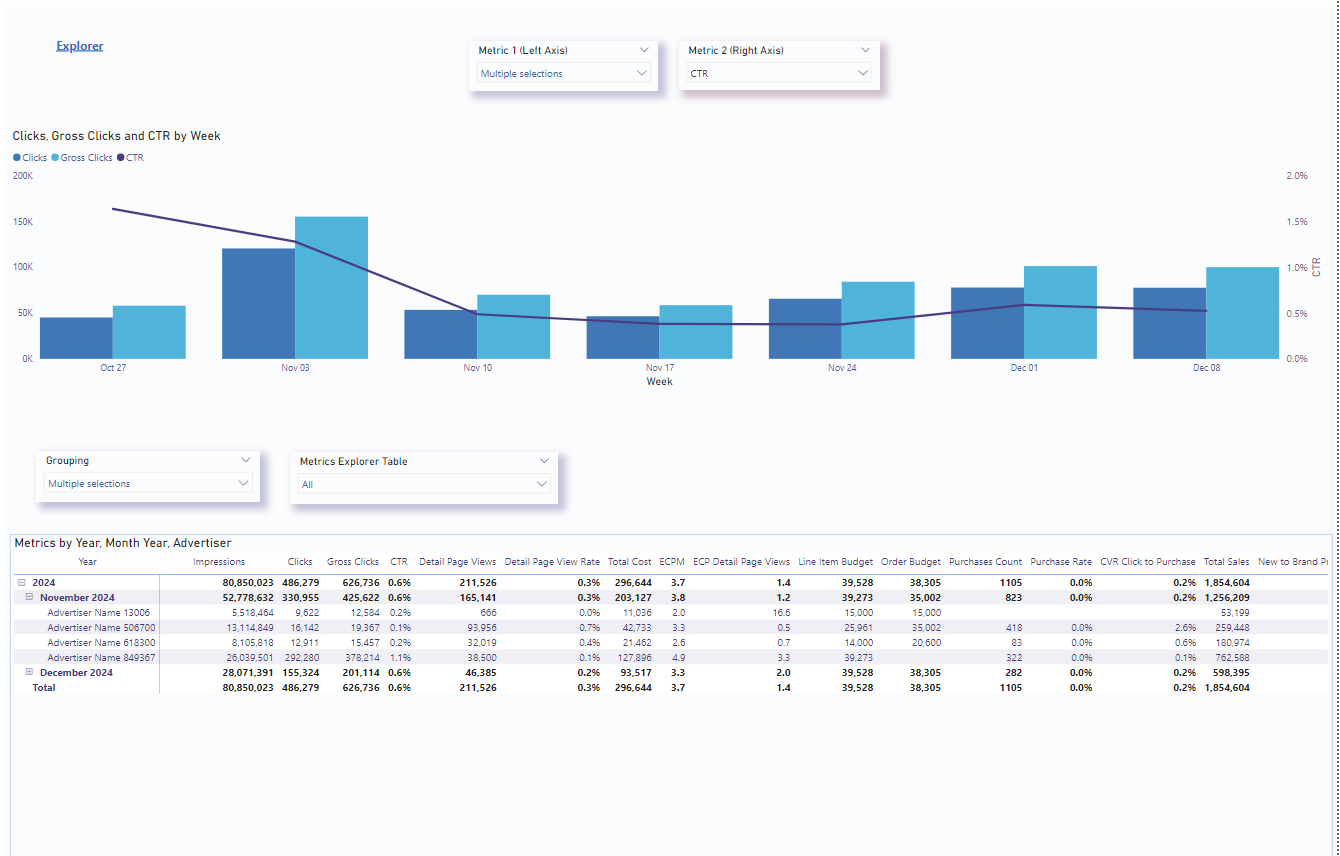 An in-dashboard glossary listing the definitions for every DSP metric used across the report. Use this tab as a quick reference when you're not sure how a specific metric (e.g. eCP DPV, DPVR, Purchase Rate) is computed.
{/* TODO: add screenshot at /images/help-center/dashboard-templates/power-bi/ads-dsp-dashboard/ads-dsp-dashboard-2.gif */}
## Setting up custom filters
Custom filters work by extracting keywords from your Order or Line Item names. To configure them:
### Open Parameters
In Power BI, click the three dots next to the **Data Model** and go to **Settings > Parameters**.
An in-dashboard glossary listing the definitions for every DSP metric used across the report. Use this tab as a quick reference when you're not sure how a specific metric (e.g. eCP DPV, DPVR, Purchase Rate) is computed.
{/* TODO: add screenshot at /images/help-center/dashboard-templates/power-bi/ads-dsp-dashboard/ads-dsp-dashboard-2.gif */}
## Setting up custom filters
Custom filters work by extracting keywords from your Order or Line Item names. To configure them:
### Open Parameters
In Power BI, click the three dots next to the **Data Model** and go to **Settings > Parameters**.
 ### Enter the terms used in your naming
For each parameter (Category, Targeting Type, Audience, etc.), enter the terms that appear in your Order or Line Item names, separated by commas. Leave a parameter blank if you don't use it.
### Enter the terms used in your naming
For each parameter (Category, Targeting Type, Audience, etc.), enter the terms that appear in your Order or Line Item names, separated by commas. Leave a parameter blank if you don't use it.
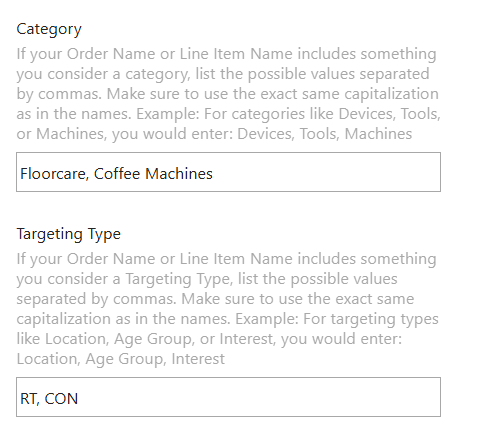 - **Categories**: If the names of your **Orders** or **Line Items** contain specific terms that should act as categories, add those terms to the **Category Parameter** (separate multiple terms with commas).
- Example: If the term "Toys" appears in your Order name and you want it to be a category, add `Toys` to the Category Parameter.
- **Targeting Types**: If terms in the names indicate a targeting type, add them to the **Targeting Parameter** accordingly.
**Parameters are case-sensitive** and must match exactly. `Toys` and `TOYS` are different values.
## Metrics
Formulas used in this dashboard. Concept-level definitions for acronyms live in the [Glossary](/help-center/glossary).
| Metric | Formula / definition | Notes |
|---|---|---|
| **CTR** | Clicks ÷ Impressions × 100 | |
| **RoAS** | Total Sales ÷ Total Cost | DSP uses Total Cost, not Ad Spend |
| **eCPM** | Total Cost ÷ Impressions × 1,000 | Effective cost per thousand impressions |
| **eCP DPV** | Total Cost ÷ DPV | Effective cost per detail page view |
| **DPV** | Detail page views within 14 days of an ad click or view | |
| **DPVR** | DPV ÷ Impressions × 100 | |
| **Purchase Rate** | Purchases Count ÷ Impressions × 100 | |
| **Total Cost** | Sum of investment across DSP campaigns | Used in place of Ad Spend |
| **Sales** | Sales of promoted products within 14 days of an ad click or view | |
| **Total Sales** | Revenue generated as a direct result of DSP campaigns | Across all brand products |
| **New to Brand Product Sales** | Sales of promoted products to new-to-brand shoppers | Attributed to ad view or click |
| **Total New to Brand Sales** | Sales of all the brand's products to new-to-brand shoppers | Attributed to ad view or click |
| **Gross Clicks** | All clicks including potentially fraudulent or invalid ones | |
---
## For analysts: data sources & methodology
### Source tables and datasets
Data comes from [Amazon's Ads API](https://advertising.amazon.com/API/docs/en-us/info/api-overview) via DataHawk's processing pipeline.
For a full column reference, see the [Exhaustive Column Referential](https://docs.google.com/spreadsheets/d/1gYGqKQP9Z71nz1lOb4y0wJ15i27NvsUzdliIJeIx0HY/edit#gid=175439716).
**Dashboard-specific fields**
- **Order Budget**: Total budget allocated to a DSP order (latest value).
- **Line Item Budget**: Total budget allocated to a line item (latest value).
- **Sales**: Sales of promoted products within 14 days of an ad click or view.
- **Total Sales**: Revenue across all brand products generated as a direct result of DSP campaigns.
- **Units Sold**: Ad-attributed units sold within 14 days of a click or view (promoted products only).
- **Total Units Sold**: Units purchased across all brand products, attributed to the campaign.
- **New to Brand Product Sales**: Sales to first-time brand shoppers from promoted products.
- **Total New to Brand Sales**: Sales to first-time brand shoppers across all brand products.
- **Purchases Count**: Attributed conversion events within 14 days of a click or view.
### DSP entities
These are the dashboard-context entities specific to DSP campaign structure.
- **Order**: High-level budget grouping within a DSP campaign.
- **Line Item**: Defines targeting, bidding, and delivery settings within an order.
- **Creative**: The individual ad asset used in a campaign.
- **Creative Type**: Format of the creative (display, video, etc.).
- **Creative Size**: Dimensions of the creative asset (e.g. 300×250).
### Attribution and methodology
DSP attribution uses a 14-day post-click and post-view window. Sales, units, and purchase events that occur within 14 days of an ad interaction (click or view) are credited to the corresponding campaign. RoAS in DSP uses Total Cost rather than Ad Spend because programmatic billing includes media cost plus serving fees.
{/* TODO: confirm Snowflake/BigQuery dataset names for DSP data (currently only API source is named). Confirm budget snapshot timing (latest vs historical). Confirm new-to-brand shopper identification logic. Confirm currency handling. Confirm data latency from Ads API. */}
## Download this template
- **Categories**: If the names of your **Orders** or **Line Items** contain specific terms that should act as categories, add those terms to the **Category Parameter** (separate multiple terms with commas).
- Example: If the term "Toys" appears in your Order name and you want it to be a category, add `Toys` to the Category Parameter.
- **Targeting Types**: If terms in the names indicate a targeting type, add them to the **Targeting Parameter** accordingly.
**Parameters are case-sensitive** and must match exactly. `Toys` and `TOYS` are different values.
## Metrics
Formulas used in this dashboard. Concept-level definitions for acronyms live in the [Glossary](/help-center/glossary).
| Metric | Formula / definition | Notes |
|---|---|---|
| **CTR** | Clicks ÷ Impressions × 100 | |
| **RoAS** | Total Sales ÷ Total Cost | DSP uses Total Cost, not Ad Spend |
| **eCPM** | Total Cost ÷ Impressions × 1,000 | Effective cost per thousand impressions |
| **eCP DPV** | Total Cost ÷ DPV | Effective cost per detail page view |
| **DPV** | Detail page views within 14 days of an ad click or view | |
| **DPVR** | DPV ÷ Impressions × 100 | |
| **Purchase Rate** | Purchases Count ÷ Impressions × 100 | |
| **Total Cost** | Sum of investment across DSP campaigns | Used in place of Ad Spend |
| **Sales** | Sales of promoted products within 14 days of an ad click or view | |
| **Total Sales** | Revenue generated as a direct result of DSP campaigns | Across all brand products |
| **New to Brand Product Sales** | Sales of promoted products to new-to-brand shoppers | Attributed to ad view or click |
| **Total New to Brand Sales** | Sales of all the brand's products to new-to-brand shoppers | Attributed to ad view or click |
| **Gross Clicks** | All clicks including potentially fraudulent or invalid ones | |
---
## For analysts: data sources & methodology
### Source tables and datasets
Data comes from [Amazon's Ads API](https://advertising.amazon.com/API/docs/en-us/info/api-overview) via DataHawk's processing pipeline.
For a full column reference, see the [Exhaustive Column Referential](https://docs.google.com/spreadsheets/d/1gYGqKQP9Z71nz1lOb4y0wJ15i27NvsUzdliIJeIx0HY/edit#gid=175439716).
**Dashboard-specific fields**
- **Order Budget**: Total budget allocated to a DSP order (latest value).
- **Line Item Budget**: Total budget allocated to a line item (latest value).
- **Sales**: Sales of promoted products within 14 days of an ad click or view.
- **Total Sales**: Revenue across all brand products generated as a direct result of DSP campaigns.
- **Units Sold**: Ad-attributed units sold within 14 days of a click or view (promoted products only).
- **Total Units Sold**: Units purchased across all brand products, attributed to the campaign.
- **New to Brand Product Sales**: Sales to first-time brand shoppers from promoted products.
- **Total New to Brand Sales**: Sales to first-time brand shoppers across all brand products.
- **Purchases Count**: Attributed conversion events within 14 days of a click or view.
### DSP entities
These are the dashboard-context entities specific to DSP campaign structure.
- **Order**: High-level budget grouping within a DSP campaign.
- **Line Item**: Defines targeting, bidding, and delivery settings within an order.
- **Creative**: The individual ad asset used in a campaign.
- **Creative Type**: Format of the creative (display, video, etc.).
- **Creative Size**: Dimensions of the creative asset (e.g. 300×250).
### Attribution and methodology
DSP attribution uses a 14-day post-click and post-view window. Sales, units, and purchase events that occur within 14 days of an ad interaction (click or view) are credited to the corresponding campaign. RoAS in DSP uses Total Cost rather than Ad Spend because programmatic billing includes media cost plus serving fees.
{/* TODO: confirm Snowflake/BigQuery dataset names for DSP data (currently only API source is named). Confirm budget snapshot timing (latest vs historical). Confirm new-to-brand shopper identification logic. Confirm currency handling. Confirm data latency from Ads API. */}
## Download this template
---
title: Advertising Dashboard User Guide
description: Complete guide to DataHawk's Advertising Power BI Dashboard, covering all campaign types from account level down to keyword and creative.
---
The Advertising Dashboard is DataHawk's central reporting tool for Amazon and Walmart advertisers. It consolidates performance data across all campaign types, Sponsored Products, Sponsored Brands, Sponsored Display, Sponsored Videos, and DSP, at every level from account down to keyword and creative.
## Questions this dashboard helps answer
- How much am I spending on advertising and what revenue is it generating (ACoS / RoAS)?
- Which campaigns are performing best, and which need optimization?
- How are my keywords performing: Am I getting clicks and conversions from the right terms?
- Which products are driving the most ad-attributed revenue (Sponsored Products + Display)?
- How has my advertising performance changed week over week or month over month?
- How is my Brand Store performing in terms of traffic and engagement?
- How do my DSP campaigns compare in terms of spend, sales, and new-to-brand impact?
## Before you start
**What you need:**
- Amazon and/or Walmart Advertising accounts connected in DataHawk
**Set up:** Download and configure the Power BI template. See [Connect to Power BI](/help-center/connect-tools/powerbi).
**Data history:** Up to 180 days by default. The dashboard refreshes daily. Need more? See [Changing the historical lookback window](/help-center/connect-tools/powerbi#changing-the-historical-lookback-window).
## Dashboard tabs at a glance
| Tab | What it shows |
|---|---|
| **Account Overview** | Aggregated totals for all ad metrics across all accounts |
| **Account History** | Ad performance trends over time at the account level |
| **Campaign Overview** | Ad metrics and KPIs per campaign, with previous period comparison |
| **Campaign History** | Campaign performance trends over time |
| **Product Overview** | Product-level ad metrics (SP + SD only) with previous period comparison |
| **Product History** | Product ad performance trends over time |
| **Keyword Overview** | Keyword and search term performance with match type breakdown |
| **Keyword History** | Keyword performance trends over time |
| **Brand Store Overview** | Brand Store ad performance aggregated totals |
| **Brand Store History** | Brand Store performance trends over time |
| **DSP Overview** | Amazon DSP performance: spend, sales, impressions, new-to-brand, and more |
## Time periods and comparisons
All tabs include a **date range selector** at the top. Two tab patterns determine how time is handled:
- **Overview tabs** compare the selected period against the **prior period**: The same number of days, immediately before the selected range. KPI cards show the selected-period totals alongside the prior-period comparison.
- **History tabs** include a **Timeline By** selector (Year / Quarter / Month / Week / Day) that controls both the chart and the table below it. Two **axis slicers** let you compare multiple metrics on the left axis against a single metric on the right. For example, Impressions and Clicks (left) vs. Conversion Rate (right).
## Dashboard filters
Tabs share a common filter panel in the left rail. The same data can be sliced by:
| Filter | What it does |
|---|---|
| **Channel** | Filter to Amazon or Walmart |
| **Account** | Filter to one or more ad accounts |
| **Marketplace** | Filter to specific marketplaces |
| **Sponsored Type** | Filter to SB, SD and/or SP |
| **Currency** | Choose the display currency for monetary metrics |
| Filter | What it does |
|---|---|
| **Current Campaign Status** | Select the Archived, Enabled and/or Paused campaigns |
| **Portfolio** | Filter to specific Protfolio with name |
| **Portfolio ID** | Filter to specific Protfolio with ID |
| **Ad Group** | Filter to specific Ad group with name |
| **Ad Group ID** | Filter to specific Ad group with ID |
| Filter | What it does |
|---|---|
| **Product ID** | Select one or several ASIN to filter |
| **Product Name** | Filter based on the name of the product |
| **Product Tag** | Filter based on the product tag assigned |
| **Brand** | Filter to brand name |
| Filter | What it does |
|---|---|
| **Campaign Name** | Filter to specific campaigns with name |
| **Campaign ID** | Filter to specific campaigns with ID |
| **Ad Group** | Filter to specific Ad group with name |
| **Ad Group ID** | Filter to specific Ad group with ID |
| **Keyword Tag** | Filter to keyword tags |
| **keyword** | Filter to a (group of) keyword(s) |
| **Search Term** | Filter to a (group of) Search term(s) |
| Filter | What it does |
|---|---|
| **Brand Entity ID** | Filter to Brand Entity with its ID |
| **Brand Name** | Filter to Brand Entity with its name |
At the top bar, you can see different filter levels
 | Filter | What it does |
|---|---|
| **Order Name** | Filter by the order name |
| **Line Item Type** | Filter by the Line item type |
| **Line Item Name** | Filter by the Line item name |
| **Creative Type** | Filter by the Creative type |
| **Creative Size** | Filter by the Creative size |
| **Creative Name** |Filter by the Creative name |
DSP reporting supports **Custom Filters** based on parameters defined in the Data Model.
These allow grouping and filtering by dimensions such as **Category, Targeting Type, Audience,** or other custom attributes derived from **Order Name** or **Line Item** Name.
| Filter | What it does |
|---|---|
| **Order Name** | Filter by the order name |
| **Line Item Type** | Filter by the Line item type |
| **Line Item Name** | Filter by the Line item name |
| **Creative Type** | Filter by the Creative type |
| **Creative Size** | Filter by the Creative size |
| **Creative Name** |Filter by the Creative name |
DSP reporting supports **Custom Filters** based on parameters defined in the Data Model.
These allow grouping and filtering by dimensions such as **Category, Targeting Type, Audience,** or other custom attributes derived from **Order Name** or **Line Item** Name.
 The DSP tab includes multiple analytical blocks:
- **KPI Summary Table** displaying key metrics such as Total Cost, Sales, Impressions, Clicks, ROAS, and New-to-Brand performance.
- **Time-based bar and line charts** for analyzing trends in Total Sales, Total Cost, and ROAS.
- **Budget Distribution charts**, including a stacked bar chart by **Line Item Type**.
- **Geographic and metric breakdowns**, including stacked bar and pie charts controlled by metric and legend selectors.
- **New-to-Brand Gauge**, showing the percentage of New-to-Brand Product Sales relative to Total Sales.
- **Category & Targeting Table**, breaking down key metrics by custom-defined dimensions.
Custom parameters are case-sensitive and must exactly match the naming used in DSP entities.
## Analyzing the reports
All tabs of this report include a date range selector.
The DSP tab includes multiple analytical blocks:
- **KPI Summary Table** displaying key metrics such as Total Cost, Sales, Impressions, Clicks, ROAS, and New-to-Brand performance.
- **Time-based bar and line charts** for analyzing trends in Total Sales, Total Cost, and ROAS.
- **Budget Distribution charts**, including a stacked bar chart by **Line Item Type**.
- **Geographic and metric breakdowns**, including stacked bar and pie charts controlled by metric and legend selectors.
- **New-to-Brand Gauge**, showing the percentage of New-to-Brand Product Sales relative to Total Sales.
- **Category & Targeting Table**, breaking down key metrics by custom-defined dimensions.
Custom parameters are case-sensitive and must exactly match the naming used in DSP entities.
## Analyzing the reports
All tabs of this report include a date range selector.
 At the top of each Overview tab you can see Grouping & Metrics slicers that allow you to choose what you want to see as rows and columns in the table below. Depending on what you have selected, you can further breakdown the overview metrics listed on the table.
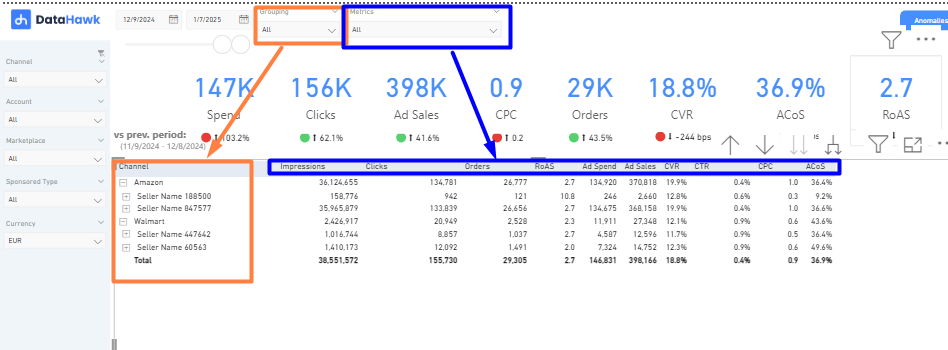 Under these slicers, there are KPIs that are displayed alongside its corresponding comparison to the previous period (the previous period is of the same length as the selected one, covering the dates immediately prior). Definitions for each metric and KPI can be found in the glossary below.
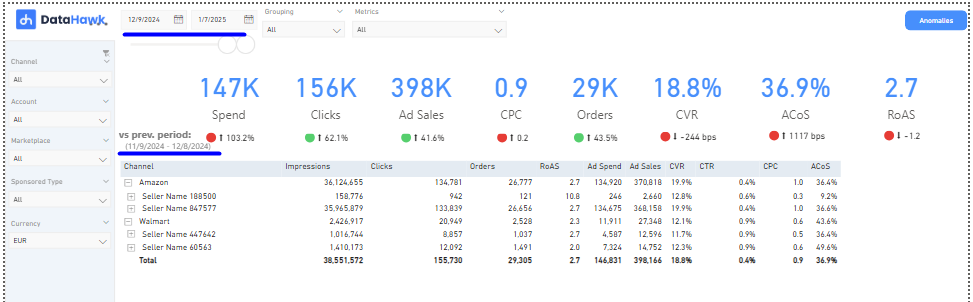 At the top of each **History Tab**, you will find the **Timeline By** option, which allows you to adjust the time granularity reflected in the graph and table below. You can select between **Year, Quarter, Month, Week, or Day** views, depending on your analysis needs.
Below the **Timeline By** section, two slicers let you customize the graph. You can select multiple metrics to display on the **left axis** and compare them to a single metric on the **right axis**. The slicers are color-coded to match their respective axes, making it easy to understand which metrics correspond to which axis.
Use Case: For example, you might compare Impressions and Clicks (on the left axis) with Conversion Rate (CVR) (on the right axis). This setup allows you to analyze how increase in visibility (impressions) and engagement (clicks) correlate with actual sales performance (conversion rate).
At the top of each **History Tab**, you will find the **Timeline By** option, which allows you to adjust the time granularity reflected in the graph and table below. You can select between **Year, Quarter, Month, Week, or Day** views, depending on your analysis needs.
Below the **Timeline By** section, two slicers let you customize the graph. You can select multiple metrics to display on the **left axis** and compare them to a single metric on the **right axis**. The slicers are color-coded to match their respective axes, making it easy to understand which metrics correspond to which axis.
Use Case: For example, you might compare Impressions and Clicks (on the left axis) with Conversion Rate (CVR) (on the right axis). This setup allows you to analyze how increase in visibility (impressions) and engagement (clicks) correlate with actual sales performance (conversion rate).
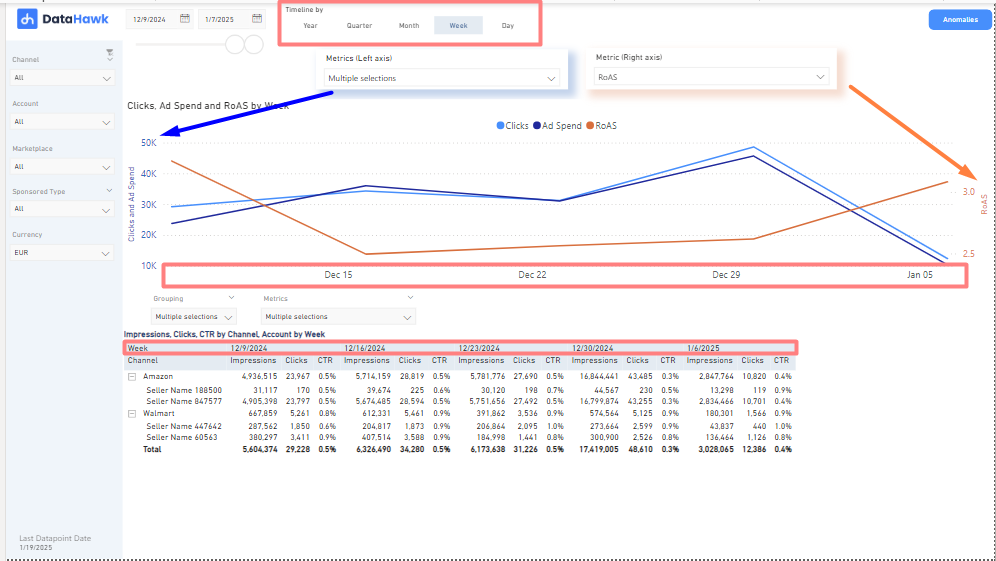 In the tables available across all **History Tabs**, you can customize the grouping and metrics displayed according to your preferences. Note that the history tables always use the selected "Timeline By" granularity as their columns.
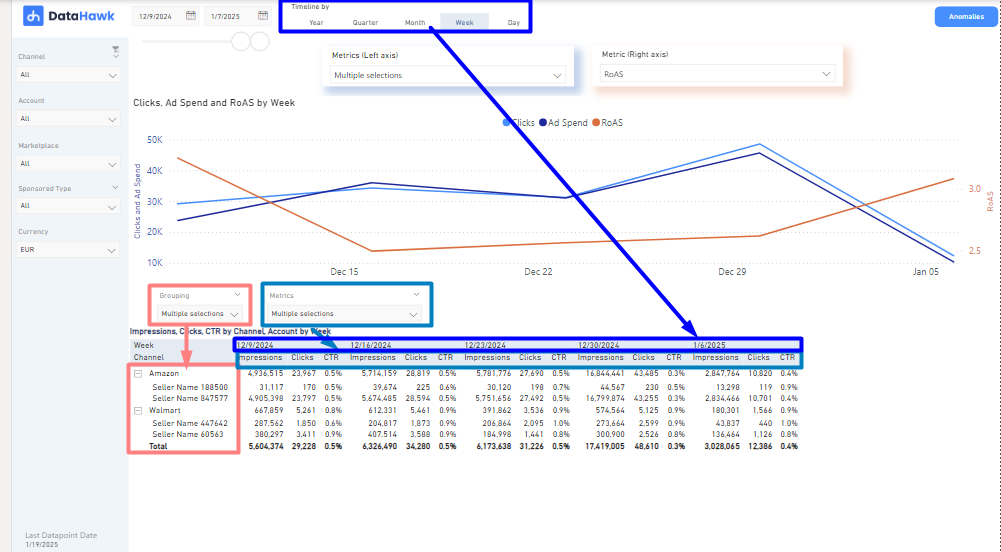 If you select multiple metrics, they will be displayed for each time period based on the chosen granularity.
## Dashboard reports tab by tab
Aggregated ad metrics and KPIs across all your accounts for the selected period. Shows totals for spend, sales, impressions, clicks, CTR, CVR, ACoS, and RoAS, with comparisons to the prior period.
This tab provides a detailed view of advertising performance over time. It includes a customizable graph to compare multiple metrics (on the left and right axes) and a table showing impressions, clicks, CTR, and other key metrics broken down by the selected Timeline By granularity (e.g., Week, Month). You can adjust slicers to analyze data by channel, account, or other dimensions.
This tab provides a summary of ad metrics and KPIs for different campaigns over the selected timeframe, along with a comparison to the previous period. A bar chart is included to compare campaigns based on a chosen metric or KPI, displayed alongside the table for easy analysis.
**Custom Filters**
- Campaign Overview and History tabs support **Custom Filters** based on parameters defined in the **Data Model**.
- These allow grouping and filtering by dimensions such as **Category**, **Targeting Type**, **Audience**, or other custom attributes derived from **Campaign Name** or **Ad Group Name**.
Note: Custom parameters are case-sensitive and must exactly match the naming used in these entities.
On the left panel, in addition to the usual slicers, you will find a **Campaign Status** filter, allowing you to filter campaigns by their most recent status.
**At this level**, certain slicers are specific to channels:
- **Portfolio** and **Portfolio ID** are available only for Amazon.
- **Ad Group** and **Ad Group ID** are available only for Walmart (for example, in the Ad Group slicer, you’ll see an option labeled ‘No ad group (Amazon)’ for non-applicable campaigns).
If you select multiple metrics, they will be displayed for each time period based on the chosen granularity.
## Dashboard reports tab by tab
Aggregated ad metrics and KPIs across all your accounts for the selected period. Shows totals for spend, sales, impressions, clicks, CTR, CVR, ACoS, and RoAS, with comparisons to the prior period.
This tab provides a detailed view of advertising performance over time. It includes a customizable graph to compare multiple metrics (on the left and right axes) and a table showing impressions, clicks, CTR, and other key metrics broken down by the selected Timeline By granularity (e.g., Week, Month). You can adjust slicers to analyze data by channel, account, or other dimensions.
This tab provides a summary of ad metrics and KPIs for different campaigns over the selected timeframe, along with a comparison to the previous period. A bar chart is included to compare campaigns based on a chosen metric or KPI, displayed alongside the table for easy analysis.
**Custom Filters**
- Campaign Overview and History tabs support **Custom Filters** based on parameters defined in the **Data Model**.
- These allow grouping and filtering by dimensions such as **Category**, **Targeting Type**, **Audience**, or other custom attributes derived from **Campaign Name** or **Ad Group Name**.
Note: Custom parameters are case-sensitive and must exactly match the naming used in these entities.
On the left panel, in addition to the usual slicers, you will find a **Campaign Status** filter, allowing you to filter campaigns by their most recent status.
**At this level**, certain slicers are specific to channels:
- **Portfolio** and **Portfolio ID** are available only for Amazon.
- **Ad Group** and **Ad Group ID** are available only for Walmart (for example, in the Ad Group slicer, you’ll see an option labeled ‘No ad group (Amazon)’ for non-applicable campaigns).
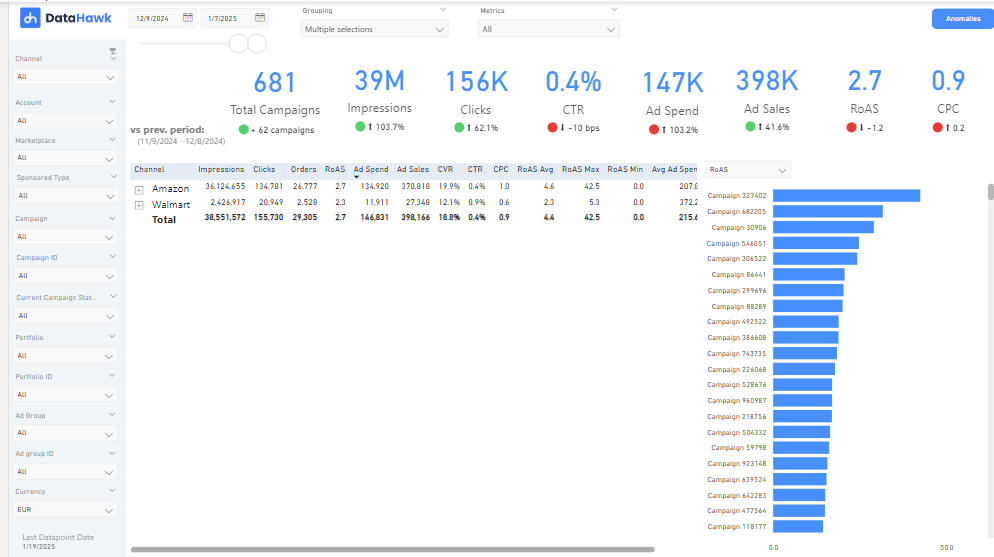 Time-based breakdown of campaign performance. Same dual-axis chart and granularity controls as Account History, but at campaign level.
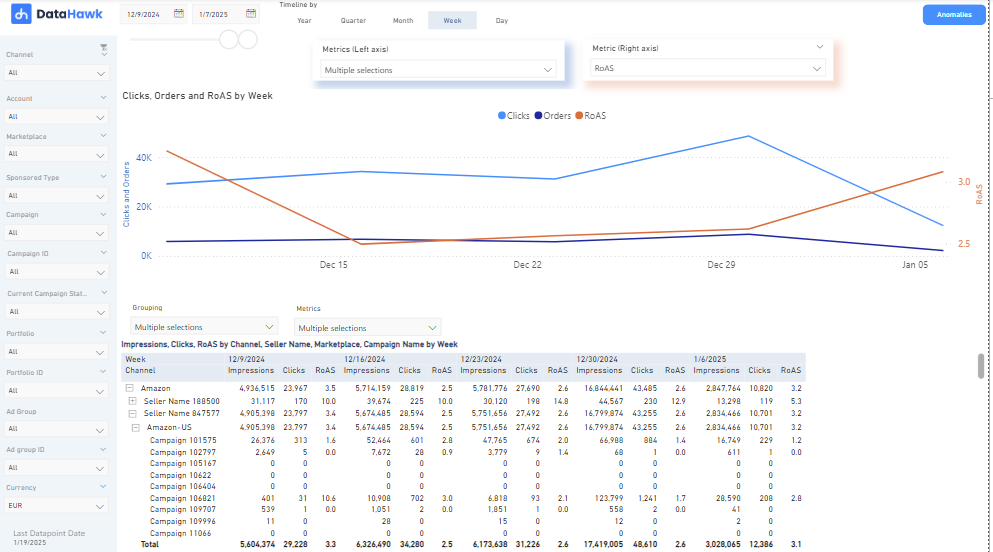 The **Product Overview Tab** provides a comprehensive summary of product-level advertising performance *(Sponsored Products & Sponsored Display)* for the selected timeframe. It includes totals for key metrics and KPIs, along with a comparison to the previous period. A bar chart is available to compare products based on a chosen metric or KPI, displayed alongside the table.
In addition to the usual filters, this tab includes product-specific filters such as **Product Name**, **Product Tag**, and **Brand**. The **Product Tag** filter allows you to segment products based on tags created within the DataHawk app.
The **Product Overview Tab** provides a comprehensive summary of product-level advertising performance *(Sponsored Products & Sponsored Display)* for the selected timeframe. It includes totals for key metrics and KPIs, along with a comparison to the previous period. A bar chart is available to compare products based on a chosen metric or KPI, displayed alongside the table.
In addition to the usual filters, this tab includes product-specific filters such as **Product Name**, **Product Tag**, and **Brand**. The **Product Tag** filter allows you to segment products based on tags created within the DataHawk app.
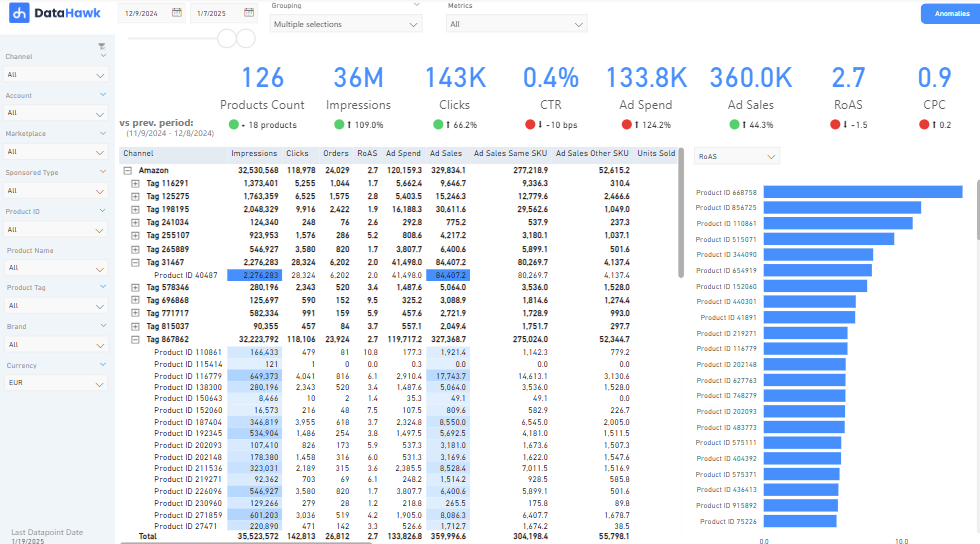 The Product History Tab offers a detailed view of product-level advertising performance over time. It features a customizable graph for comparing multiple metrics on the left and right axes and a table showing key metrics like impressions, clicks, and CTR, broken down by the selected Timeline By granularity (e.g., Week, Month). Filters specific to products, such as Product Name, Product Tag, and Brand, can also be applied for more focused analysis.
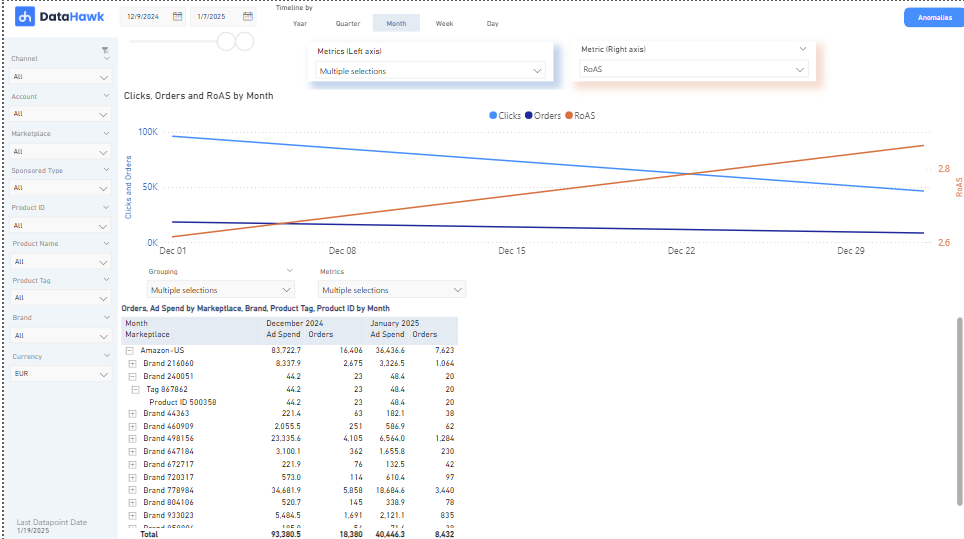 Keyword and search term performance for the selected period. You can view data by **Keyword** or **Search Term**. Additional filters: Search Term, Match Type, Keyword Tag, Ad Group Name, and Ad Group ID (both available for Amazon and Walmart).
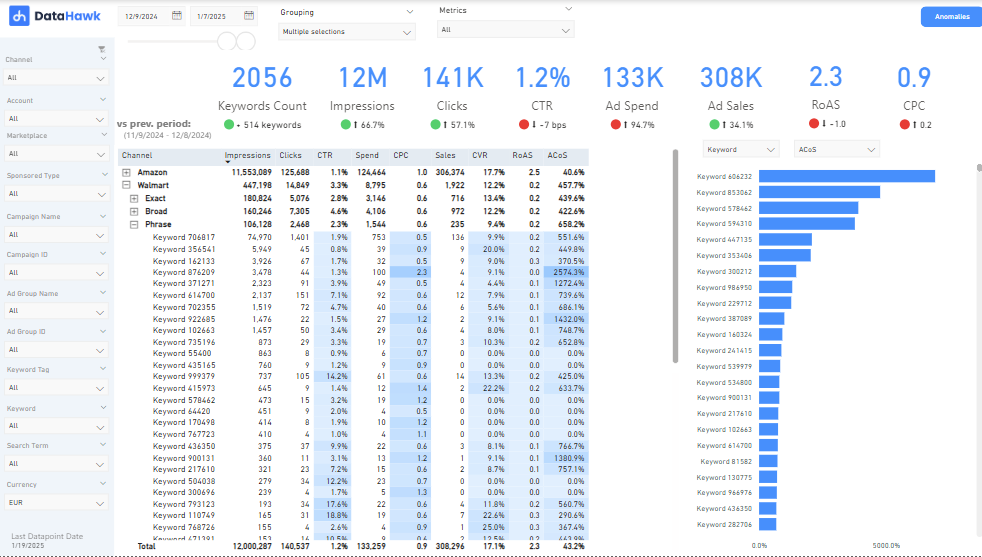 Timeline-based analysis of keyword performance. Useful for tracking trends in CTR, CVR, or spend for specific keywords or match types.
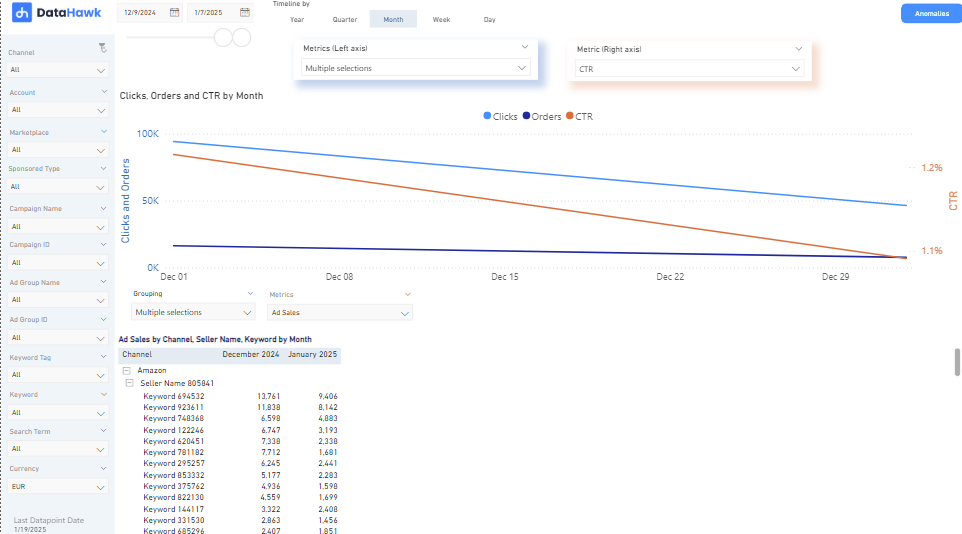 Aggregated Brand Store advertising performance: impressions, clicks, CTR, and other key metrics. Bar chart for comparing stores by a selected metric.
Time-based view of Brand Store performance trends using the same dual-axis chart controls as other History tabs.
Amazon DSP performance in a single view. Includes:
- KPI summary table: Total Cost, Sales, Impressions, Clicks, RoAS, New-to-Brand, eCPM, CTR, eCP DPV, DPVR, Purchase Rate
- Bar and line chart: Total Sales, Total Cost, RoAS over time
- Budget distribution chart (100% stacked by line item type)
- Stacked and pie charts controlled by Metric and Legend slicers
- New-to-brand gauge (% of New-to-Brand Product Sales relative to Total Sales)
- Category & Targeting breakdown table (requires custom filter parameters)
DSP filters: Advertiser, Country, Currency; entity filters for Order, Line Item, and Creative. Supports Custom Filters.
**DSP filter behavior (April 2026):** DSP data is **no longer filtered by the marketplace of the related advertising account**. DSP performance isn't marketplace-specific, so all DSP advertisers tied to your connection now surface here regardless of the Marketplace slicer. Expect to see more DSP volume than before, especially if you previously narrowed the dashboard by marketplace.
## Custom filters (Campaign and DSP tabs)
Custom filters extract dimensions from Campaign, Ad Group, Order, or Line Item names. To configure them:
### Open Parameters
In Power BI, go to **Data Model settings → Parameters**.
### Enter the terms used in your naming
Type the terms you use in naming your campaigns or orders, separated by commas.
### Assign them to the relevant parameter
Map your terms to the right parameter (Category, Targeting Type, Audience, etc.).
**Parameters are case-sensitive.** `Retargeting` and `retargeting` are treated as different values.
## Metrics
Formulas used in this dashboard. Concept-level definitions for acronyms live in the [Glossary](/help-center/glossary).
| Metric | Formula / definition | Notes |
|---|---|---|
| **ACoS** | Ad Spend ÷ Ad Sales × 100 | Lower is more efficient. ACoS of 30% means you spend 30% of ad revenue on ads |
| **RoAS** | Ad Sales ÷ Ad Spend | Inverse of ACoS, expressed as a multiplier. RoAS of 5 means you earn 5× your ad spend in revenue |
| **CTR** | Clicks ÷ Impressions × 100 | Higher CTR implies ads are engaging |
| **CPC** | Ad Spend ÷ Clicks | Higher CPC may indicate more competitive ad space |
| **CVR** | Orders ÷ Clicks × 100 | Attribution per Amazon's 14-day post-click window |
| **New to Brand Sales** | Revenue from first-time brand shoppers | Available for Sponsored Brands, Sponsored Display, and DSP |
| **New to Brand Orders** | Orders from first-time brand shoppers | Available for Sponsored Brands and Sponsored Display |
| **New to Brand DPV** | Detail page views from new-to-brand shoppers | Sponsored Display only |
| **New to Brand DPV Clicks** | Ad clicks that resulted in a new-to-brand detail page view | Sponsored Display only |
**DSP-specific metrics**
| Metric | Formula / definition | Notes |
|---|---|---|
| **Total Cost** | Total investment in DSP campaigns | |
| **DPV** | Product detail page views within 14 days of an ad click or view | |
| **DPVR** | DPV ÷ Impressions | |
| **eCPM** | Total Cost ÷ Impressions × 1,000 | Effective cost per thousand impressions |
| **eCP DPV** | Total Cost ÷ DPV | Effective cost per detail page view |
| **RoAS (DSP)** | Total Sales ÷ Total Cost | DSP uses Total Cost instead of Ad Spend |
| **Purchase Rate** | Purchases ÷ Impressions | |
| **Gross Clicks** | All clicks including potentially invalid ones | |
---
## For analysts: data sources & methodology
### Source tables and datasets
Data is sourced from [Amazon's Ads API](https://advertising.amazon.com/API/docs/en-us/info/api-overview) and [Walmart Connect](https://advertising.walmart.com/signin). For a full column reference, see the [Exhaustive Column Referential](https://docs.google.com/spreadsheets/d/1gYGqKQP9Z71nz1lOb4y0wJ15i27NvsUzdliIJeIx0HY/edit#gid=175439716). For Amazon dataset details, see [Amazon Advertising Data](/help-center/data-reference/amazon-advertising-data).
For a full column reference, see the [Exhaustive Column Referential](https://docs.google.com/spreadsheets/d/1gYGqKQP9Z71nz1lOb4y0wJ15i27NvsUzdliIJeIx0HY/edit#gid=175439716).
### Ad entities
These are the dashboard-context entities used to group and filter ad performance. They are not glossary terms.
- **Ad Account**: Seller name (Amazon) or account key (Walmart).
- **Campaign**: A set of ad groups and keywords targeting a specific audience or goal.
- **Portfolio** (Amazon only): Grouping of campaigns for shared budget management.
- **Ad Group**: Subset of a campaign organizing ads and targeting settings.
- **Search Term**: The exact phrase a user typed into the search bar.
- **Keyword**: The targeting criterion set by the advertiser (not always the same as the search term).
- **Brand Entity ID / Brand Name**: Brand-level identifier for Brand Store campaigns.
- **Order** (DSP): High-level budget grouping within a DSP campaign.
- **Line Item** (DSP): Specific targeting and delivery settings within an order.
- **Creative** (DSP): Individual ad asset including type (display/video) and size.
### Attribution and methodology
Ad performance metrics use Amazon's 14-day post-click attribution window for sales, orders, and conversions. DSP RoAS uses Total Cost (not Ad Spend) and includes both view-through and click-through attribution within the same 14-day window.
{/* TODO: confirm same-SKU vs other-SKU attribution logic. Confirm how returns / cancellations affect Ad Sales. Confirm currency conversion rules for cross-marketplace aggregation. Confirm data freshness / latency. */}
**Changelog (January 2026):**
- Added Brand Store Overview and Brand Store History tabs
- Introduced dedicated DSP Overview tab with DSP-specific metrics, advanced filters, and Explorer tools
- Added Custom Filters to Campaign Overview and Campaign History
- Expanded New-to-Brand metrics for Sponsored Brands and Sponsored Display
- Added New-to-Brand DPV metrics for Sponsored Display campaigns
## Download this template
Aggregated Brand Store advertising performance: impressions, clicks, CTR, and other key metrics. Bar chart for comparing stores by a selected metric.
Time-based view of Brand Store performance trends using the same dual-axis chart controls as other History tabs.
Amazon DSP performance in a single view. Includes:
- KPI summary table: Total Cost, Sales, Impressions, Clicks, RoAS, New-to-Brand, eCPM, CTR, eCP DPV, DPVR, Purchase Rate
- Bar and line chart: Total Sales, Total Cost, RoAS over time
- Budget distribution chart (100% stacked by line item type)
- Stacked and pie charts controlled by Metric and Legend slicers
- New-to-brand gauge (% of New-to-Brand Product Sales relative to Total Sales)
- Category & Targeting breakdown table (requires custom filter parameters)
DSP filters: Advertiser, Country, Currency; entity filters for Order, Line Item, and Creative. Supports Custom Filters.
**DSP filter behavior (April 2026):** DSP data is **no longer filtered by the marketplace of the related advertising account**. DSP performance isn't marketplace-specific, so all DSP advertisers tied to your connection now surface here regardless of the Marketplace slicer. Expect to see more DSP volume than before, especially if you previously narrowed the dashboard by marketplace.
## Custom filters (Campaign and DSP tabs)
Custom filters extract dimensions from Campaign, Ad Group, Order, or Line Item names. To configure them:
### Open Parameters
In Power BI, go to **Data Model settings → Parameters**.
### Enter the terms used in your naming
Type the terms you use in naming your campaigns or orders, separated by commas.
### Assign them to the relevant parameter
Map your terms to the right parameter (Category, Targeting Type, Audience, etc.).
**Parameters are case-sensitive.** `Retargeting` and `retargeting` are treated as different values.
## Metrics
Formulas used in this dashboard. Concept-level definitions for acronyms live in the [Glossary](/help-center/glossary).
| Metric | Formula / definition | Notes |
|---|---|---|
| **ACoS** | Ad Spend ÷ Ad Sales × 100 | Lower is more efficient. ACoS of 30% means you spend 30% of ad revenue on ads |
| **RoAS** | Ad Sales ÷ Ad Spend | Inverse of ACoS, expressed as a multiplier. RoAS of 5 means you earn 5× your ad spend in revenue |
| **CTR** | Clicks ÷ Impressions × 100 | Higher CTR implies ads are engaging |
| **CPC** | Ad Spend ÷ Clicks | Higher CPC may indicate more competitive ad space |
| **CVR** | Orders ÷ Clicks × 100 | Attribution per Amazon's 14-day post-click window |
| **New to Brand Sales** | Revenue from first-time brand shoppers | Available for Sponsored Brands, Sponsored Display, and DSP |
| **New to Brand Orders** | Orders from first-time brand shoppers | Available for Sponsored Brands and Sponsored Display |
| **New to Brand DPV** | Detail page views from new-to-brand shoppers | Sponsored Display only |
| **New to Brand DPV Clicks** | Ad clicks that resulted in a new-to-brand detail page view | Sponsored Display only |
**DSP-specific metrics**
| Metric | Formula / definition | Notes |
|---|---|---|
| **Total Cost** | Total investment in DSP campaigns | |
| **DPV** | Product detail page views within 14 days of an ad click or view | |
| **DPVR** | DPV ÷ Impressions | |
| **eCPM** | Total Cost ÷ Impressions × 1,000 | Effective cost per thousand impressions |
| **eCP DPV** | Total Cost ÷ DPV | Effective cost per detail page view |
| **RoAS (DSP)** | Total Sales ÷ Total Cost | DSP uses Total Cost instead of Ad Spend |
| **Purchase Rate** | Purchases ÷ Impressions | |
| **Gross Clicks** | All clicks including potentially invalid ones | |
---
## For analysts: data sources & methodology
### Source tables and datasets
Data is sourced from [Amazon's Ads API](https://advertising.amazon.com/API/docs/en-us/info/api-overview) and [Walmart Connect](https://advertising.walmart.com/signin). For a full column reference, see the [Exhaustive Column Referential](https://docs.google.com/spreadsheets/d/1gYGqKQP9Z71nz1lOb4y0wJ15i27NvsUzdliIJeIx0HY/edit#gid=175439716). For Amazon dataset details, see [Amazon Advertising Data](/help-center/data-reference/amazon-advertising-data).
For a full column reference, see the [Exhaustive Column Referential](https://docs.google.com/spreadsheets/d/1gYGqKQP9Z71nz1lOb4y0wJ15i27NvsUzdliIJeIx0HY/edit#gid=175439716).
### Ad entities
These are the dashboard-context entities used to group and filter ad performance. They are not glossary terms.
- **Ad Account**: Seller name (Amazon) or account key (Walmart).
- **Campaign**: A set of ad groups and keywords targeting a specific audience or goal.
- **Portfolio** (Amazon only): Grouping of campaigns for shared budget management.
- **Ad Group**: Subset of a campaign organizing ads and targeting settings.
- **Search Term**: The exact phrase a user typed into the search bar.
- **Keyword**: The targeting criterion set by the advertiser (not always the same as the search term).
- **Brand Entity ID / Brand Name**: Brand-level identifier for Brand Store campaigns.
- **Order** (DSP): High-level budget grouping within a DSP campaign.
- **Line Item** (DSP): Specific targeting and delivery settings within an order.
- **Creative** (DSP): Individual ad asset including type (display/video) and size.
### Attribution and methodology
Ad performance metrics use Amazon's 14-day post-click attribution window for sales, orders, and conversions. DSP RoAS uses Total Cost (not Ad Spend) and includes both view-through and click-through attribution within the same 14-day window.
{/* TODO: confirm same-SKU vs other-SKU attribution logic. Confirm how returns / cancellations affect Ad Sales. Confirm currency conversion rules for cross-marketplace aggregation. Confirm data freshness / latency. */}
**Changelog (January 2026):**
- Added Brand Store Overview and Brand Store History tabs
- Introduced dedicated DSP Overview tab with DSP-specific metrics, advanced filters, and Explorer tools
- Added Custom Filters to Campaign Overview and Campaign History
- Expanded New-to-Brand metrics for Sponsored Brands and Sponsored Display
- Added New-to-Brand DPV metrics for Sponsored Display campaigns
## Download this template
---
title: Power BI Templates
description: DataHawk's pre-built Power BI dashboard templates, covering seller analytics, advertising, vendor performance, market intelligence, products, and DSP.
---
DataHawk provides pre-built Power BI templates built on top of your Snowflake database. Each template is ready to use after a simple credential setup.
See [Connect to Power BI](/help-center/connect-tools/powerbi) to get started.
## Available templates
---
title: Market Intelligence Dashboard User Guide
description: Complete guide to DataHawk's Market Intelligence Power BI Dashboard; category-level analysis of pricing, ratings, market share, and brand presence.
---
The Market Intelligence dashboard is your go-to tool for understanding category-level performance on Amazon. It shows you how the top 100 best-selling products in your tracked categories are performing, including pricing, ratings, estimated sales, market share, and brand presence, giving you the competitive context to make informed decisions.
The dashboard was fully released in April 2026 and received a major v2 update in May 2026 that added Parent/Child ASIN filters, Price Bands, a Top N Brands slicer, new market visuals, and new metrics (Rank Score, Est. Market Size, Est. Market Share).
Only available for Amazon.
## Questions this dashboard helps answer
- Which brands have the largest share of sales in my category?
- How has estimated market share evolved over the past 6 or 12 months?
- What is the typical price range for best-selling products in my category?
- Which products consistently appear in the Top 100, and which come and go?
- How does my brand's Best Sellers Rank (BSR) compare to competitors?
- Are there new brands or products gaining traction in my category?
- What is the estimated total market size (in sales) for a given category?
## Before you start
**What you need:**
- At least one Amazon category added as a source in DataHawk (go to **Sources** in the DataHawk app)
**Set up:** Download and configure the Power BI template. See [Connect to Power BI](/help-center/connect-tools/powerbi).
**Data coverage:** The dashboard analyzes the top 100 best-selling products in each tracked category.
**Data history:** Up to 365 days (1 year) by default. Need more? See [Changing the historical lookback window](/help-center/connect-tools/powerbi#changing-the-historical-lookback-window).
## Dashboard tabs at a glance
| Tab | What it shows |
|---|---|
| **Market Charts** | Summary metrics, bar charts, line charts, and a scatter chart for competitive comparison |
| **Market Overview** | Totals for all entities (marketplace, category, brand, product) over the selected timeframe |
| **Market History** | Monthly trends for your selected entities and metrics |
## Time periods and comparisons
All three tabs use the **Timeframe** filter to set the date range for analysis. **Market History** shows a monthly breakdown across that timeframe, while **Market Overview** aggregates totals across the entire selected period.
{/* TODO: confirm prior-period or year-over-year comparison behavior for this dashboard */}
## Dashboard filters
All three tabs share the same set of filters:
| Filter | What it does |
|---|---|
| **Timeframe** | Set the date range for analysis |
| **Marketplace** | Filter to Amazon and specific country |
| **Category** | Filter to one or more tracked categories |
| **Brand** | Filter to one or more brands |
| **Product name** | Filter to specific products based on the name|
| **Parent ASIN** | Filter to specific Parent products ID (added in v2, May 2026) |
| **Child ASIN** | Filter to specific Child products ID (added in v2, May 2026) |
| **Top N Brands by Market Share** | Limit visuals to the top N brands by Market Share; works best together with the Min/Med/Max Price by Brand visual (added in v2) |
| **Price Min / Max** | Slice the market by price range (added in v2) |
| **Price Bands** | Slice the market by price band (added in v2) |
**Price Bands**: The step size for price bands is configured in the Parameters section, in the same place where you set up your warehouse connection.
**Top N Brands by Market Share**: This slicer applies only when Brand is selected as the grouping dimension in the Categories or Rows slicer at the top of the page.
## Aggregated views filters
The dashboard provides aggregated and historical views of the following data among Category Best Sellers (top 100 selling products):
| Filter | What it does |
|---|---|
| **Timeframe** | Set the date range for analysis |
| **Categories** | Filter to Marketplace, Category, Brand, Parent ASIN, Child ASIN, or Product Name |
| **Primary Metric** | Filter to Brands, Products, Presence in top 100, Sales, Estimated Market Size, Estimated Sales, BSR, or Price attributes |
| **Secondary Metric** | Filter to Brands, Products, Presence in top 100, Sales, Estimated Market Size, Estimated Sales, BSR, or Price attributes|
Each tab also includes a shortcut to **Add Sources**, letting you add more categories or products directly from within the dashboard.
## Dashboard reports tab by tab
A visual exploration tool for comparing market data. Includes:
- A **summary bar** with aggregate totals for the selected filters
- A **bar chart** comparing a chosen primary metric across a chosen dimension (e.g. Estimated Market Share by Brand)
- A **line chart** showing the evolution of that metric over time for a selected entity (click any bar to focus on it)
- A **scatter chart** adding a second metric dimension for richer comparison (e.g. Market Share vs. Median Price by brand)
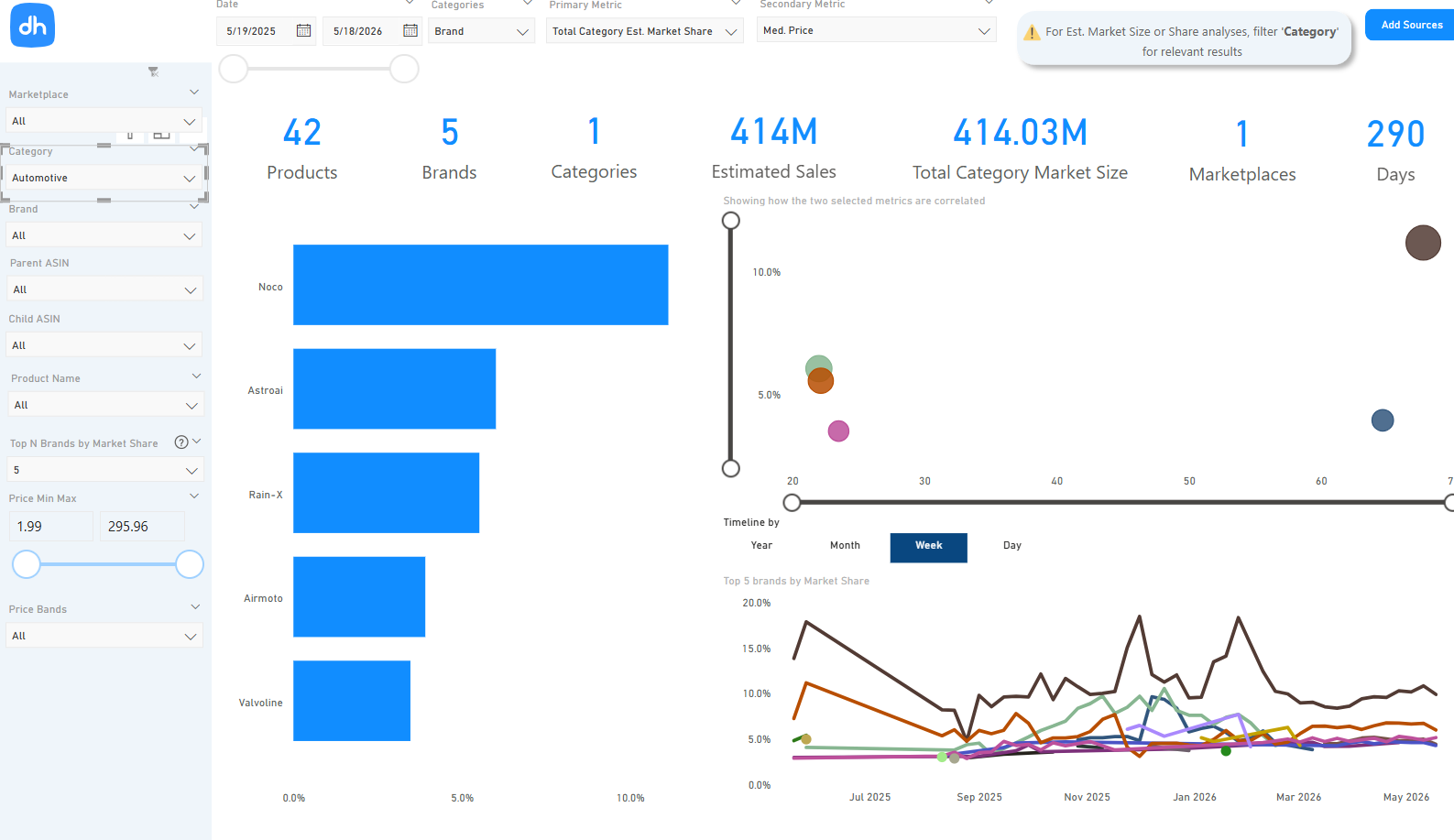 The v2 release (May 2026) expanded this tab with five additional visuals:
- **Min/Med/Max Prices by Brand**
A combined bar and line chart showing the minimum, maximum, and median prices for each of the top brands. Useful for understanding each brand's price positioning and spread at a glance.
The v2 release (May 2026) expanded this tab with five additional visuals:
- **Min/Med/Max Prices by Brand**
A combined bar and line chart showing the minimum, maximum, and median prices for each of the top brands. Useful for understanding each brand's price positioning and spread at a glance.
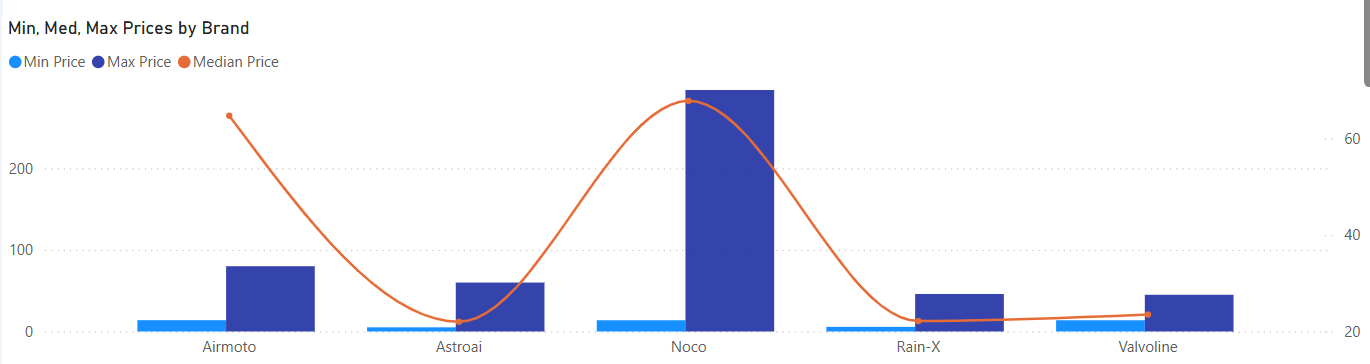 - **Min/Max Price by Brand & Price Band**
A detailed bar chart showing the minimum and maximum prices broken down by both brand and price band. This lets you see exactly which price segments each brand competes in, and how wide their price range is within each segment.
- **Total Category Market Share by price band & Price Segement Market Share by Brand**
- **Min/Max Price by Brand & Price Band**
A detailed bar chart showing the minimum and maximum prices broken down by both brand and price band. This lets you see exactly which price segments each brand competes in, and how wide their price range is within each segment.
- **Total Category Market Share by price band & Price Segement Market Share by Brand**
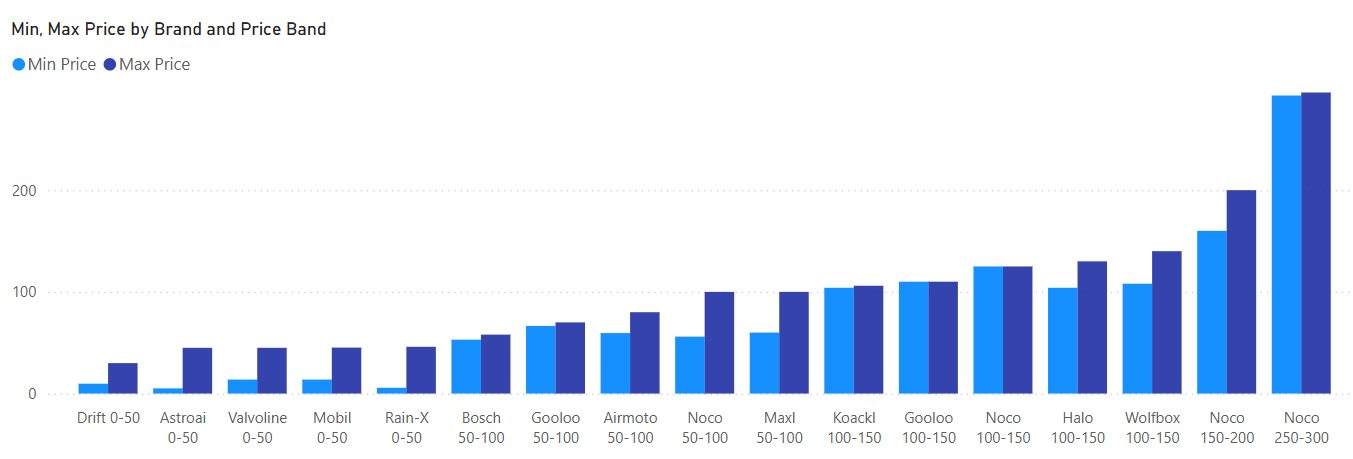 - **Market share by price band** (pie)
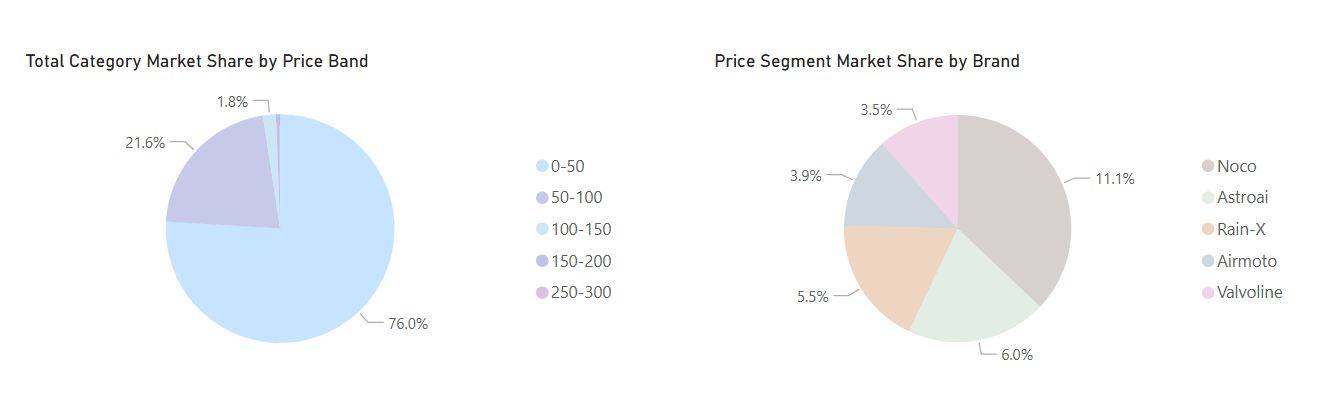 - **Price segment share by Price Band and Brand**
A stacked bar chart breaking down each brand's market share contribution within each price band. Lets you see both which price bands are largest overall and which brands dominate within each band.
- **Price segment share by Price Band and Brand**
A stacked bar chart breaking down each brand's market share contribution within each price band. Lets you see both which price bands are largest overall and which brands dominate within each band.
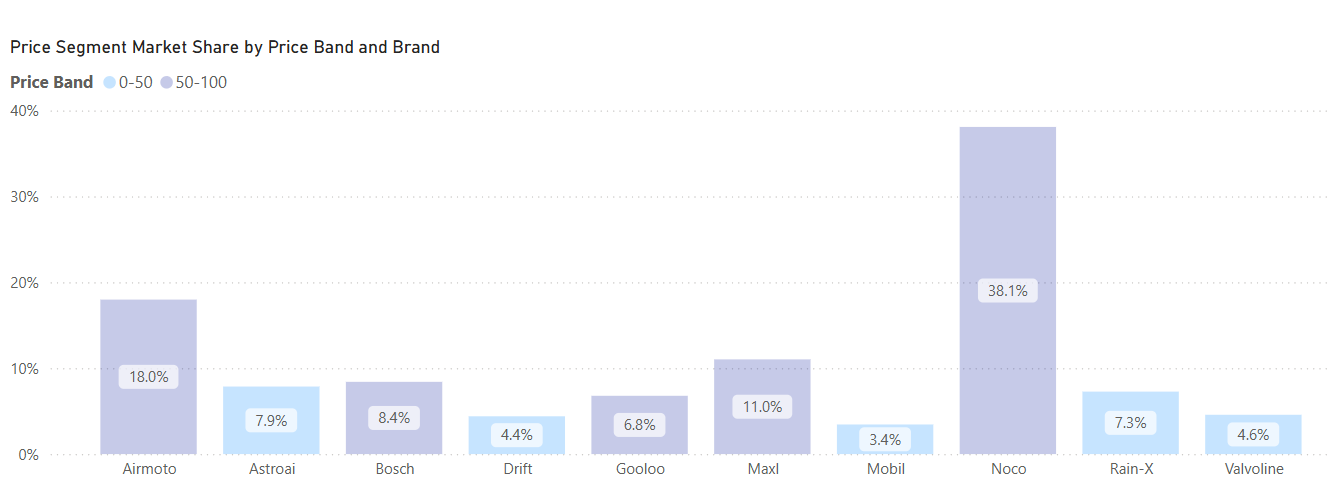 This tab is best for answering "who is winning?" and "how are rankings changing?"
This tab includes totals, for selected entities over the selected timeframe, of different metrics and KPIs. Definitions can be found in the Glossary below.
Clicking on a row within the displayed table will enable you to see metrics specific to the associated entity.
This tab is best for answering "who is winning?" and "how are rankings changing?"
This tab includes totals, for selected entities over the selected timeframe, of different metrics and KPIs. Definitions can be found in the Glossary below.
Clicking on a row within the displayed table will enable you to see metrics specific to the associated entity.
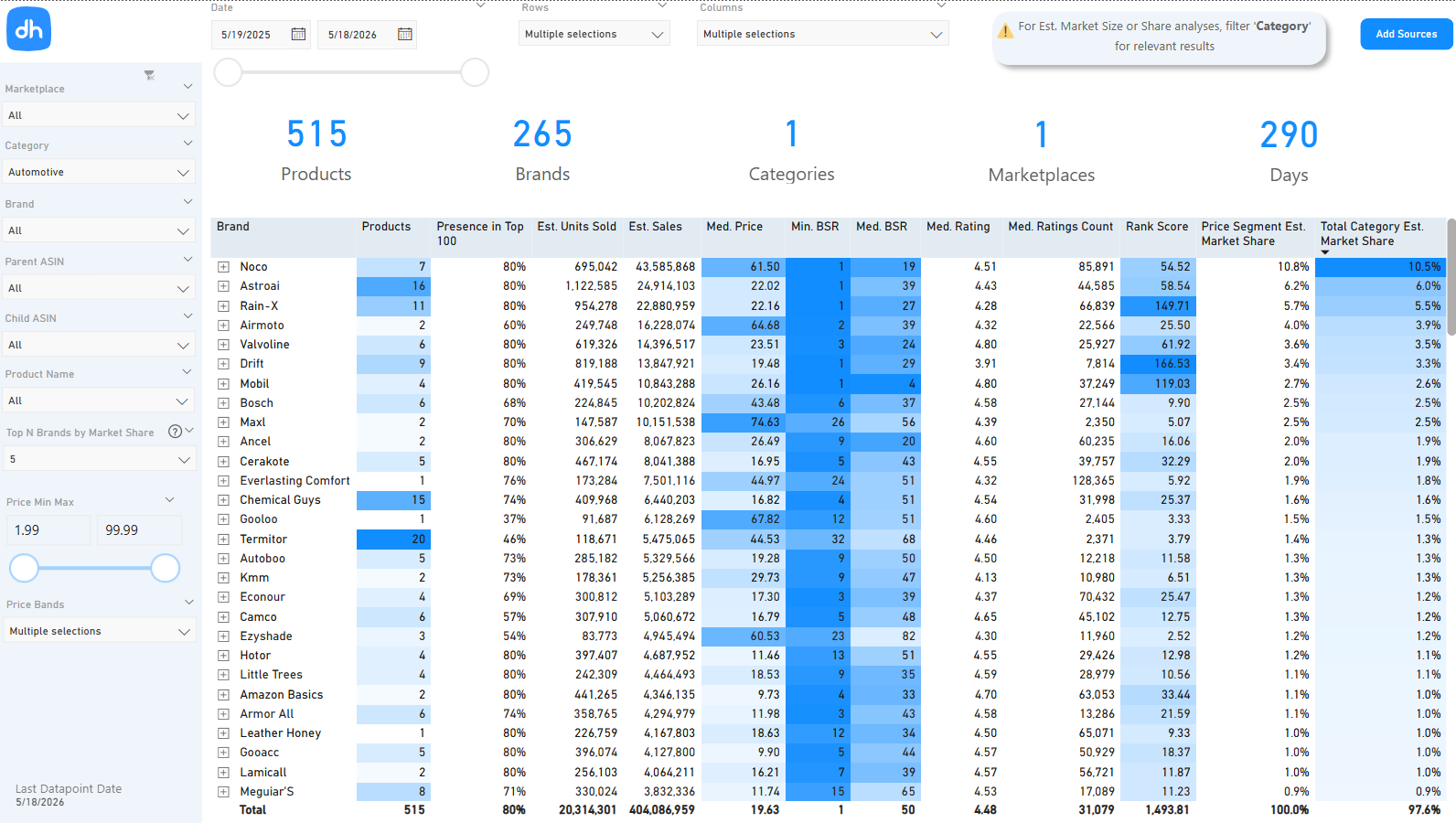 Monthly (or weekly/daily) history of your selected entities and metrics across the selected timeframe. A line chart comparing the first chosen column across brands is included above the table.
Clicking on a row within the displayed table will enable you to see metrics specific to the associated entity.
Monthly (or weekly/daily) history of your selected entities and metrics across the selected timeframe. A line chart comparing the first chosen column across brands is included above the table.
Clicking on a row within the displayed table will enable you to see metrics specific to the associated entity.
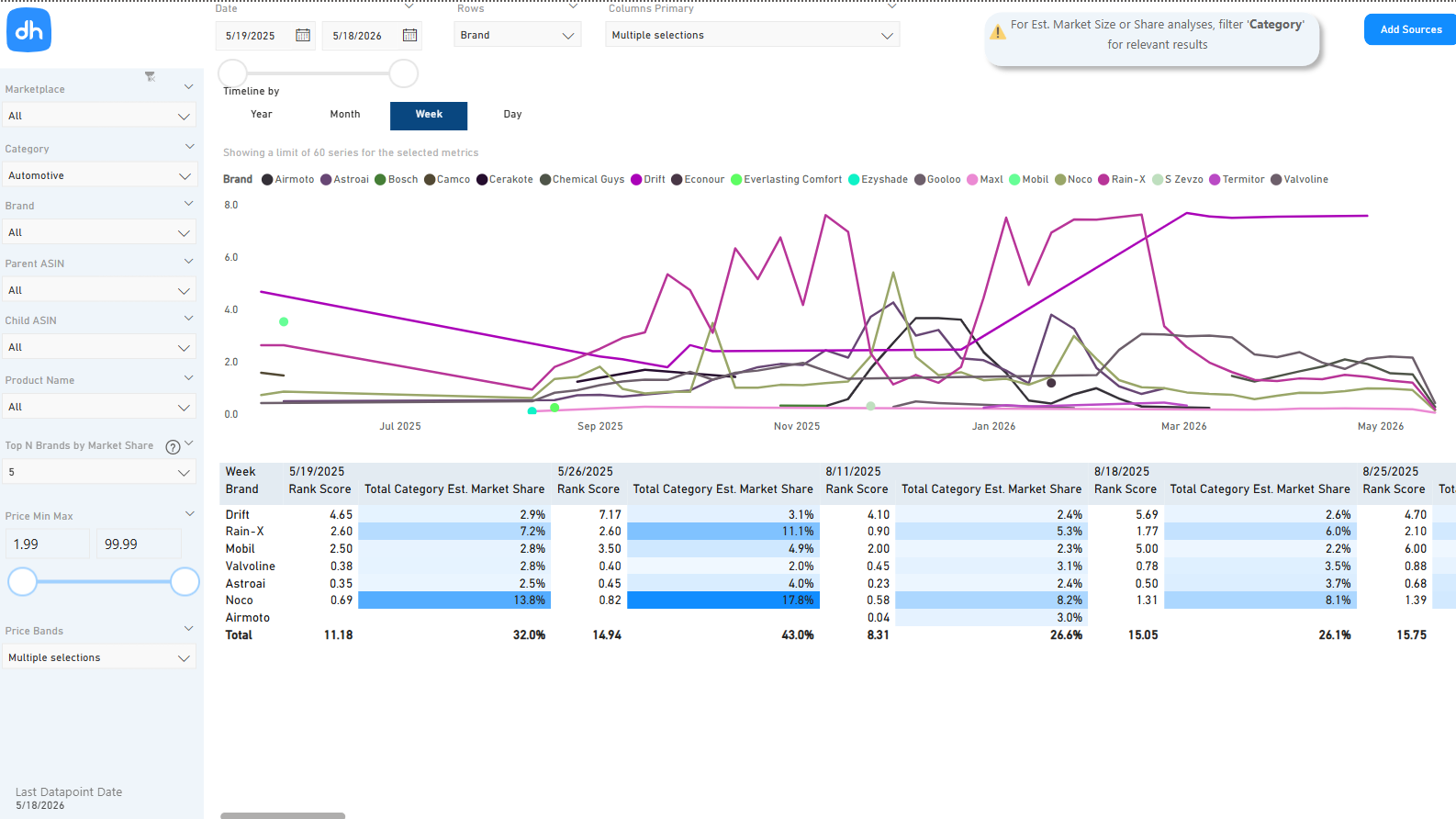 ## A note on unknown or missing data
In some cases, DataHawk cannot collect complete listing details for a product in a given period. When this happens, sales are still **estimated using virtual rank signals**, so overall market totals and trends remain accurate. However, the specific product or brand behind those sales cannot be reliably identified, and will appear as *XXXXXXXXXX* or *Unknown*.
These estimates reflect real market activity but lack item-level metadata. This is expected behavior and does not indicate a data error.
---
## For analysts: data sources & methodology
### Source tables and datasets
This dashboard is built on `REPORTS.REPORT_MARKET_BEST_SELLER_RANK_AND_ESTIMATES` (as of January 2026, replacing the previous `REPORTS.REPORT_MARKET_PRODUCT_SALES_RANK_AND_ESTIMATES`). For a full column reference, see the [Exhaustive Column Referential](https://docs.google.com/spreadsheets/d/1gYGqKQP9Z71nz1lOb4y0wJ15i27NvsUzdliIJeIx0HY/edit#gid=175439716).
**Dashboard-specific fields**
- **Estimated Sales**: Estimated sales for a product at the given date. Sum aggregations provided.
- **Estimated Sales/Product/Month**: Estimated monthly sales per product. Min, max, and median aggregations provided.
- **Rank Score**: Computed as `1 / BSR`. Easier to aggregate and to read on trend lines than raw BSR (added in v2, May 2026).
- **Presence in the Top 100**: The share of time a product appeared in the Top 100 for a given category.
- **Est. Market Size**: Estimated total sales for a category, broken out by Category and by Price Segment (added in v2).
- **Estimated Market Share**: Approximate % of total category sales attributed to a brand or product. The v2 release also exposes Market Share broken out by Total Category and by Price Segment.
### Top 100 coverage methodology
As of November 2025, sales estimates are run every day for **all 100 ranks** in every tracked category, regardless of whether the product at that rank was successfully collected. The dashboard then maps each rank to the observed product:
- **Product present**: Sales are computed with the **product price** and the row is enriched with product info (brand, name, picture, rating, etc.).
- **Product missing**: Sales are computed with the **weekly median price** of the category, and product fields fall back to `null` or `"Unknown"` (specifically `product_key`, `channel_product_id`, `group_channel_product_id`, `rating`, `rating_count`, `picture_url`, `is_membership_program` are `null`; `name`, `brand`, `brand_catalog` are `"Unknown"`).
This guarantees full top-100 coverage even when the bestsellers collection had gaps, especially historically. Products in the Top 100 of a category are referred to as Category Best Sellers throughout the dashboard.
### Attribution and methodology
Market data is organized around four entity layers: Marketplace (Amazon or Walmart, by country), Category (as defined by the marketplace), Brand, and Product. Estimates are computed per-product per-day, then rolled up to brand and category levels at query time.
{/* TODO: confirm data freshness / SLA. Confirm currency handling. Confirm ASIN stability rules over time (how products are tracked across rank shifts). */}
## Download this template
## A note on unknown or missing data
In some cases, DataHawk cannot collect complete listing details for a product in a given period. When this happens, sales are still **estimated using virtual rank signals**, so overall market totals and trends remain accurate. However, the specific product or brand behind those sales cannot be reliably identified, and will appear as *XXXXXXXXXX* or *Unknown*.
These estimates reflect real market activity but lack item-level metadata. This is expected behavior and does not indicate a data error.
---
## For analysts: data sources & methodology
### Source tables and datasets
This dashboard is built on `REPORTS.REPORT_MARKET_BEST_SELLER_RANK_AND_ESTIMATES` (as of January 2026, replacing the previous `REPORTS.REPORT_MARKET_PRODUCT_SALES_RANK_AND_ESTIMATES`). For a full column reference, see the [Exhaustive Column Referential](https://docs.google.com/spreadsheets/d/1gYGqKQP9Z71nz1lOb4y0wJ15i27NvsUzdliIJeIx0HY/edit#gid=175439716).
**Dashboard-specific fields**
- **Estimated Sales**: Estimated sales for a product at the given date. Sum aggregations provided.
- **Estimated Sales/Product/Month**: Estimated monthly sales per product. Min, max, and median aggregations provided.
- **Rank Score**: Computed as `1 / BSR`. Easier to aggregate and to read on trend lines than raw BSR (added in v2, May 2026).
- **Presence in the Top 100**: The share of time a product appeared in the Top 100 for a given category.
- **Est. Market Size**: Estimated total sales for a category, broken out by Category and by Price Segment (added in v2).
- **Estimated Market Share**: Approximate % of total category sales attributed to a brand or product. The v2 release also exposes Market Share broken out by Total Category and by Price Segment.
### Top 100 coverage methodology
As of November 2025, sales estimates are run every day for **all 100 ranks** in every tracked category, regardless of whether the product at that rank was successfully collected. The dashboard then maps each rank to the observed product:
- **Product present**: Sales are computed with the **product price** and the row is enriched with product info (brand, name, picture, rating, etc.).
- **Product missing**: Sales are computed with the **weekly median price** of the category, and product fields fall back to `null` or `"Unknown"` (specifically `product_key`, `channel_product_id`, `group_channel_product_id`, `rating`, `rating_count`, `picture_url`, `is_membership_program` are `null`; `name`, `brand`, `brand_catalog` are `"Unknown"`).
This guarantees full top-100 coverage even when the bestsellers collection had gaps, especially historically. Products in the Top 100 of a category are referred to as Category Best Sellers throughout the dashboard.
### Attribution and methodology
Market data is organized around four entity layers: Marketplace (Amazon or Walmart, by country), Category (as defined by the marketplace), Brand, and Product. Estimates are computed per-product per-day, then rolled up to brand and category levels at query time.
{/* TODO: confirm data freshness / SLA. Confirm currency handling. Confirm ASIN stability rules over time (how products are tracked across rank shifts). */}
## Download this template
---
title: Product Dashboard User Guide
description: Guide to the Product Power BI dashboard; monitor rankings, pricing, ratings, listing quality, and estimated sales for your tracked products.
---
The Product dashboard lets you monitor performance across your tracked products on Amazon and Walmart. Use it to track rankings, pricing, ratings, listing quality, and estimated sales; for your own products and the top products in your tracked categories.
## Questions this dashboard helps answer
- Which of my products have the best and worst Best Sellers Rank (BSR) right now?
- How are my product ratings and review counts trending over time?
- What is my Buy Box win rate, and which sellers are winning it instead of me?
- How does my average listing quality score compare across my catalog?
- Which products have had price changes, and by how much?
- How are estimated monthly sales and units trending for my products?
- Which products have seen changes in their listing details (title, images, badges)?
## Before you start
**What you need:**
- [Products tracked](/help-center/data-setup/products-tracking) in DataHawk (Amazon and/or Walmart)
- Optionally: tracked categories, to also see the top 100 products within those categories
**Set up:** Download and configure the Power BI template. See [Connect to Power BI](/help-center/connect-tools/powerbi).
**Data history:** Up to 90 days by default. Need more? See [Changing the historical lookback window](/help-center/connect-tools/powerbi#changing-the-historical-lookback-window).
## Dashboard tabs at a glance
| Tab | What it shows |
|---|---|
| **Dashboard** | A high-level overview of key product metrics for the selected period |
| **Overview** | A detailed snapshot of your full product portfolio at a point in time |
| **History** | How metrics have changed over time (BSR, price, ratings, estimated sales) |
| **Changes** | A log of specific changes detected in product details |
## Time periods and comparisons
All tabs share a **Dates** filter that sets the date range for analysis. The **Dashboard** tab aggregates metrics across the entire selected period, **Overview** provides a point-in-time snapshot, and **History** plots the time series across that range.
{/* TODO: confirm prior-period or year-over-year comparison behavior for this dashboard */}
## Dashboard filters
All tabs share the same set of filters. Key filters to know:
| Filter | What it does |
|---|---|
| **Dates** | Set the date range for analysis |
| **Marketplace** | Filter to one or more Amazon/Walmart marketplaces |
| **Seller** | Filter to a specific seller account |
| **Brand** | Filter by brand name |
| **Product Name** | Filter by product name |
| **Product ID** | Filter by ASIN (Amazon) or equivalent ID (Walmart) |
| **Product Tag** | Filter to products assigned a specific tag in DataHawk |
| **Category** | Filter by product category |
| **Price** | Set a price range |
| **Ratings** | Filter by total number of ratings |
| **Rating** | Filter by average star rating |
| **Sales Rank** | Filter by BSR range |
## Dashboard reports tab by tab
A summary view showing the most important metrics for your tracked products across the selected date range. Use this as your daily health check. It surfaces top-level figures for BSR, pricing, Buy Box, ratings, and estimated sales in one place.
{/* TODO: add screenshot at /images/help-center/dashboard-templates/power-bi/product-dashboard/product-dashboard-1.gif */}
A detailed, product-by-product snapshot covering all key attributes: variants, brands, sellers, pricing (min/avg/max), Buy Box ownership, listing quality score (LQS), images, badges, sessions, and conversion rate. Use filters to drill down by marketplace, seller account, brand, product tag, or category.
{/* TODO: add screenshot at /images/help-center/dashboard-templates/power-bi/product-dashboard/product-dashboard-2.gif */}
A time-series view showing how your products' metrics have evolved. Useful for spotting trends. For example, a drop in BSR following a price change, or a spike in ratings after a product launch. You can filter by date range, product, or marketplace.
{/* TODO: add screenshot at /images/help-center/dashboard-templates/power-bi/product-dashboard/product-dashboard-3.gif */}
A changelog that flags when specific product details have changed: title, price, images, category, and other listing attributes. Use this to catch unexpected listing modifications (by you or other sellers) and to audit your own updates.
{/* TODO: add screenshot at /images/help-center/dashboard-templates/power-bi/product-dashboard/product-dashboard-4.gif */}
## Metrics
Formulas used in this dashboard. Concept-level definitions for acronyms live in the [Glossary](/help-center/glossary).
**Buy Box**
| Metric | Formula / definition | Notes |
|---|---|---|
| **Buy Box % (Active)** | Time the listing was Buy Box-eligible ÷ Total observation time × 100 | Tracks Buy Box enabled rate |
| **Buy Box % (Public)** | Time your offer was the Featured Offer (publicly observed) ÷ Total observation time × 100 | Visibility to customers |
| **Buy Box % (Private)** | Page views with your offer as Featured Offer ÷ Total page views × 100 | Requires Seller Central connection |
**Rankings and engagement**
| Metric | Formula / definition | Notes |
|---|---|---|
| **BSR (Best / Avg / Worst)** | Minimum / average / maximum BSR observed across the period | Lower is better |
| **Rating (Avg)** | Sum of star ratings ÷ Count | |
| **Sessions CVR (Avg)** | Orders ÷ Sessions × 100 | Average across the period |
| **Sales % (E)** | Your products' estimated sales ÷ Total estimated market sales × 100 | Share of estimated market |
| **Units % (E)** | Your products' estimated units ÷ Total estimated market units × 100 | Share of estimated market |
---
## For analysts: data sources & methodology
### Source tables and datasets
The Product dashboard pulls from two data models:
- **Products**: [Amazon](/help-center/data-setup/products-tracking) / [Walmart](/help-center/data-setup/products-tracking)
- **Categories**: [Amazon](/help-center/data-setup/categories-tracking) / [Walmart](/help-center/data-setup/categories-tracking)
Product data comes from your tracked products. Category data covers the top 100 products within each of your tracked categories.
For a full column reference, see the [Exhaustive Column Referential](https://docs.google.com/spreadsheets/d/1gYGqKQP9Z71nz1lOb4y0wJ15i27NvsUzdliIJeIx0HY/edit#gid=175439716).
**Dashboard-specific fields**
- **Sales Score**: DataHawk-computed estimated demand score, used for ranking products by relative sales potential.
- **LQS (Listing Quality Score)**: DataHawk-computed score that summarizes listing completeness and quality (images, content, A+, video, etc.) on a 0–100 scale.
- **Sellers (Winners)**: Count of distinct Buy Box winners observed during the period.
- **Seller (Latest)**: Most recent Buy Box winner.
- **Price (Distinct)**: Count of distinct price points observed during the period.
- **Badges**: Count of badges (e.g. Amazon's Choice, Best Seller) observed on the listing.
### Buy Box variants
The dashboard exposes three distinct Buy Box rates, each measuring a different aspect of competitive positioning.
- **Buy Box % (Active)**: Share of observation time the listing was Buy Box-eligible. Measures whether your listing qualifies to compete for the Buy Box at all, independent of which seller wins it.
- **Buy Box % (Public)**: Share of observation time your offer was the publicly Featured Offer (visible to shoppers). Computed from DataHawk's polling of the public product page.
- **Buy Box % (Private)**: Share of page views where your offer was the Featured Offer, computed from Seller Central session-level data. Requires a Seller Central connection. Reflects actual shopper-facing Buy Box ownership rather than polled snapshots.
The three variants can disagree; a listing can be Buy Box-eligible most of the time (Active high), publicly win the Buy Box less often (Public lower), and still convert most of its real traffic with the Buy Box (Private higher than Public).
### BSR Min / Avg / Max
BSR is observed multiple times per period. The dashboard reports the minimum (best rank achieved), average (mean across observations), and maximum (worst rank). For BSR, lower is better, so "Best" refers to the minimum value and "Worst" refers to the maximum.
### Attribution and methodology
Sales and units shown in this dashboard are DataHawk estimates derived from BSR-to-sales modeling for the marketplace and category. Estimated values appear with `(E)` and `Low / High` suffixes to indicate they are ranges, not measured values. Sessions, Pageviews, and Sessions CVR are measured (not estimated) but require a Seller Central connection.
{/* TODO: confirm observation frequency (daily? hourly?). Confirm rating aggregation rule (how removed reviews are handled). Confirm Buy Box % calculation methodology (daily snapshots vs continuous). Confirm LQS scoring methodology. Confirm price history deduplication rules. */}
## Download this template
---
title: Seller Analytics Dashboard User Guide
description: Complete guide to DataHawk's Seller Analytics Power BI Dashboard, covering advertising, traffic, sales, profitability, and inventory in one place.
---
DataHawk's Seller Analytics Dashboard gives Seller Central managers a complete view of their business across advertising, traffic, sales, profitability, and inventory: all in one place. It covers both financial performance and operational health, making it suited for daily reporting as well as deeper weekly or monthly analysis.
## Questions this dashboard helps answer
- What is my actual profit after Amazon fees, advertising spend, and returns?
- Which products are my top revenue and margin contributors this month?
- How is my traffic trending, and how well am I converting page views into orders?
- What is my current FBA inventory status, and do I need to replenish any ASINs?
- How does my advertising spend compare to my total sales (TACoS)?
- Which campaigns or products are driving the most ad-attributed revenue?
- How has my performance changed versus last week, last month, or the same period last year?
## Before you start
**What you need:**
- [Seller Central account](/help-center/data-setup/seller-account) connected in DataHawk
- [Advertising account](/help-center/data-setup/ads-account) connected in DataHawk
- COGS uploaded to DataHawk (required for P&L tabs: See [Upload Product Expenses](/help-center/data-setup/cogs-amz-upload))
**Set up:** Download and configure the Power BI template. See [Connect to Power BI](/help-center/connect-tools/powerbi).
**Data history:** Up to 730 days (2 years) of historical data by default. The dashboard refreshes daily. The Inventory Timeline tab is the exception; it only covers the last 30 days.
## Dashboard tabs at a glance
| Tab | What it shows |
|---|---|
| **Executive Report** | Top KPIs across sales, advertising, and inventory; weekly or monthly |
| **Product Units Economics Report** | SKU-level unit economics including revenue, fees, and margins |
| **Traffic Report** | Page views, sessions, conversion rate, and Buy Box win rate |
| **Sales Report** | Orders, units sold, revenue, and average selling/order values |
| **P&L Report** | Full profit and loss: gross revenue, fees, COGS, marketing, and net profit |
| **Profit Explorer** | Flexible P&L exploration by product, brand, tag, or marketplace |
| **Advertising: Advertising** | Advertising performance overview of the account |
| **Advertising: Campaign** | Campaign-level ad performance (spend, sales, ACoS, RoAS, TACoS) |
| **Advertising: Product** | Product-level ad performance for Sponsored Products and Display |
| **FBA Recommendations** | Current FBA stock levels with Amazon and custom restock recommendations |
| **Inventory Timeline** | 30-day history of inventory movements and fulfillment center status |
| **Explorer** | Custom cross-metric analysis with flexible dimensions |
| **Download Center** | Export any combination of metrics to a flat file |
| **Product Catalog** | Reference table of all tracked products and their attributes |
## Time periods and comparisons
Most tabs let you switch between **Weekly**, **Monthly**, and **Quarterly** views. The look-back window is **2 years** (except Inventory Timeline, which covers the last 30 days). Need more? See [Changing the historical lookback window](/help-center/connect-tools/powerbi#changing-the-historical-lookback-window).
**Week definition:** A week starts on Sunday.
**What's selected by default:** When you open the dashboard, it preselects the most recently completed week, the current month, or the current quarter; depending on the view.
### Comparison types
- **PoP (Period over Period)**: % change versus the previous comparable period (WoW / MoM / QoQ, depending on granularity)
- **YoY (Year over Year)**: % change versus the same period, prior year
- **YTD (Year to Date)**: Cumulative from January 1 to the end of the chosen reporting period
- **Last 12 Months**: Rolling 12-month total
For weekly granularity, YTD usually gives more useful context than Last 12 Months.
### How changes display
- **Simple metrics** (e.g. revenue, units) show changes as a **percentage**.
- **Ratio metrics** (e.g. Conversion rate, ACoS) show changes in **bps** (basis points; 100 bps = 1 percentage point).
## Dashboard filters
All tabs share a common filter panel at the top. The same data can be sliced by:
| Filter | What it does |
|---|---|
| **Seller** | Filter to one or more seller accounts |
| **Marketplace** | Filter to specific Amazon marketplaces |
| **Brand** | Filter by brand name |
| **ASIN** | Filter to specific products |
| **Currency** | Choose the display currency for monetary metrics |
| **Tag** | Filter to products assigned a specific tag in DataHawk |
The **tag filter** only shows tags for products that appeared in any dashboard report within the last 2 years.
## Dashboard reports tab by tab
A high-level summary of your most important KPIs for the selected period. It includes:
- A summary bar at the top
- Line charts comparing current vs. prior year (prior period shown as an overlay line)
- A main metrics table, configurable with a slicer
- A dimension breakdown table (by country, brand, tag, or ASIN)
- A drill-down section to investigate what's driving the biggest changes
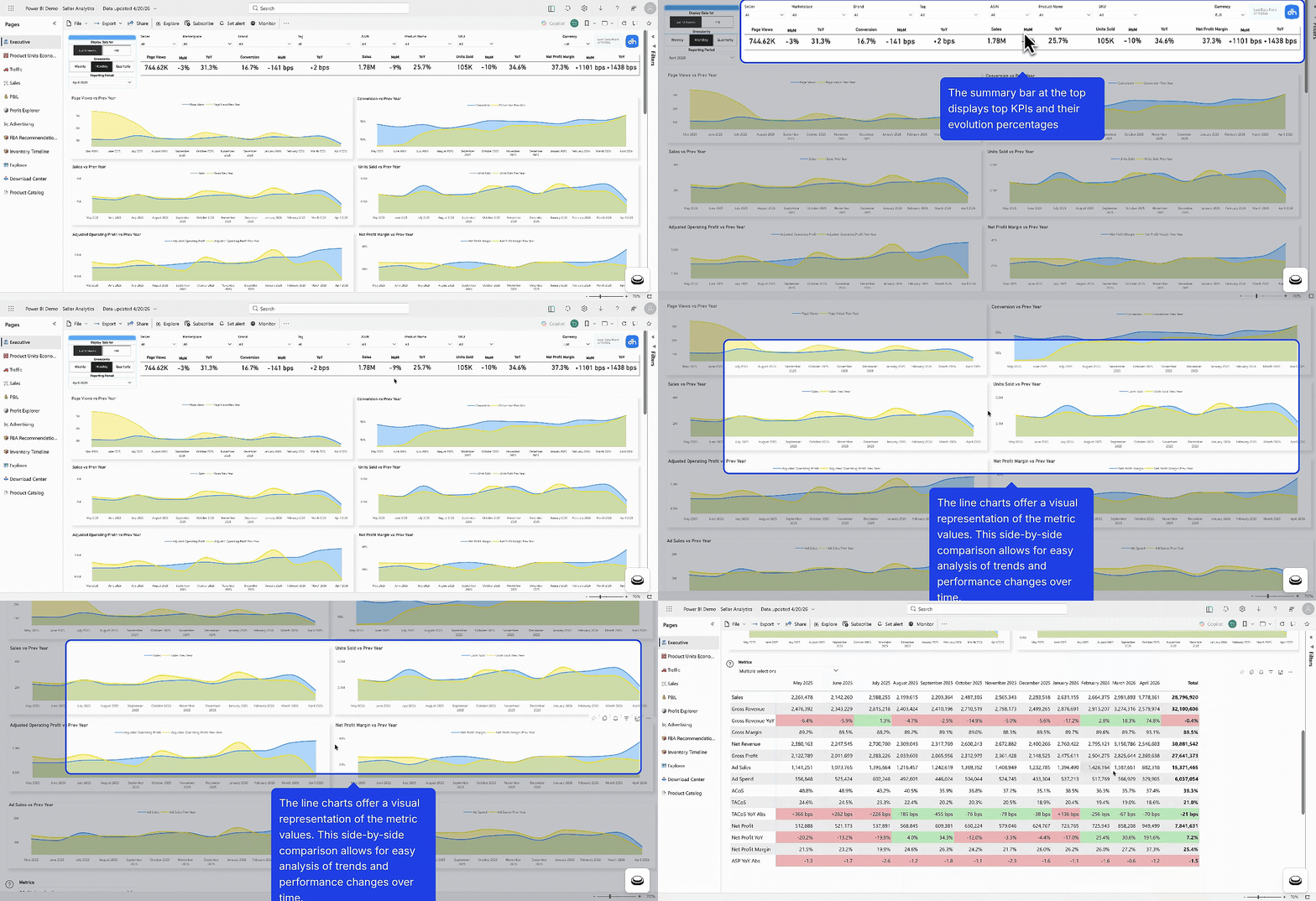 Advertising metrics here reflect account-level totals (SB + SP + SD), and automatically switch to product-level when you apply a product filter.
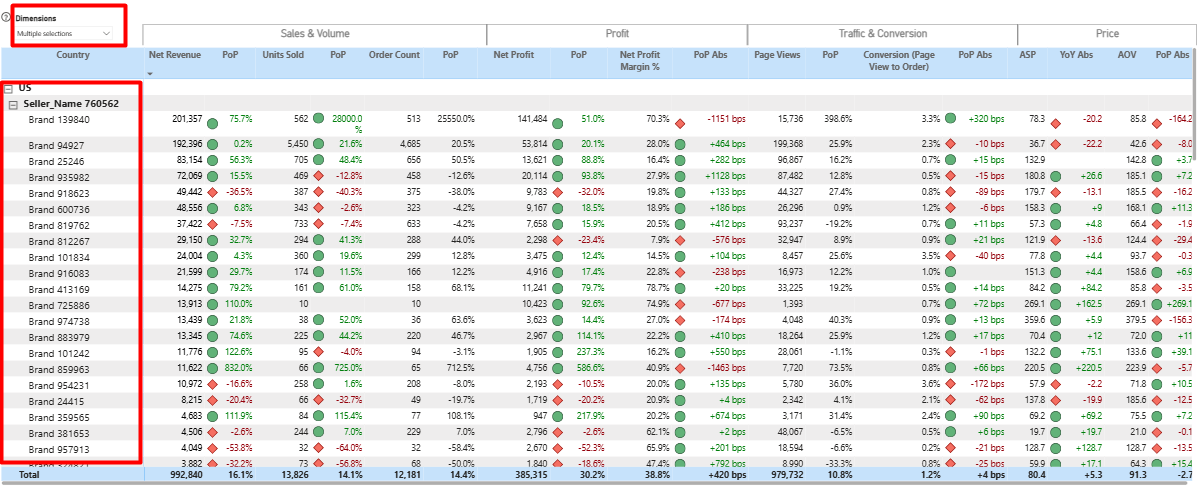 SKU-level economics showing the contribution of each product to revenue, costs, and margin. As of v1.2 (August 2025), SKU-level display and filtering is enabled across the relevant tabs, with the SKU referential sourced (among others) from the `_all_listings_` report.
Uses a SKU slicer to make ASIN searches easier, though all data is stored at the ASIN level.
SKU-level economics showing the contribution of each product to revenue, costs, and margin. As of v1.2 (August 2025), SKU-level display and filtering is enabled across the relevant tabs, with the SKU referential sourced (among others) from the `_all_listings_` report.
Uses a SKU slicer to make ASIN searches easier, though all data is stored at the ASIN level.
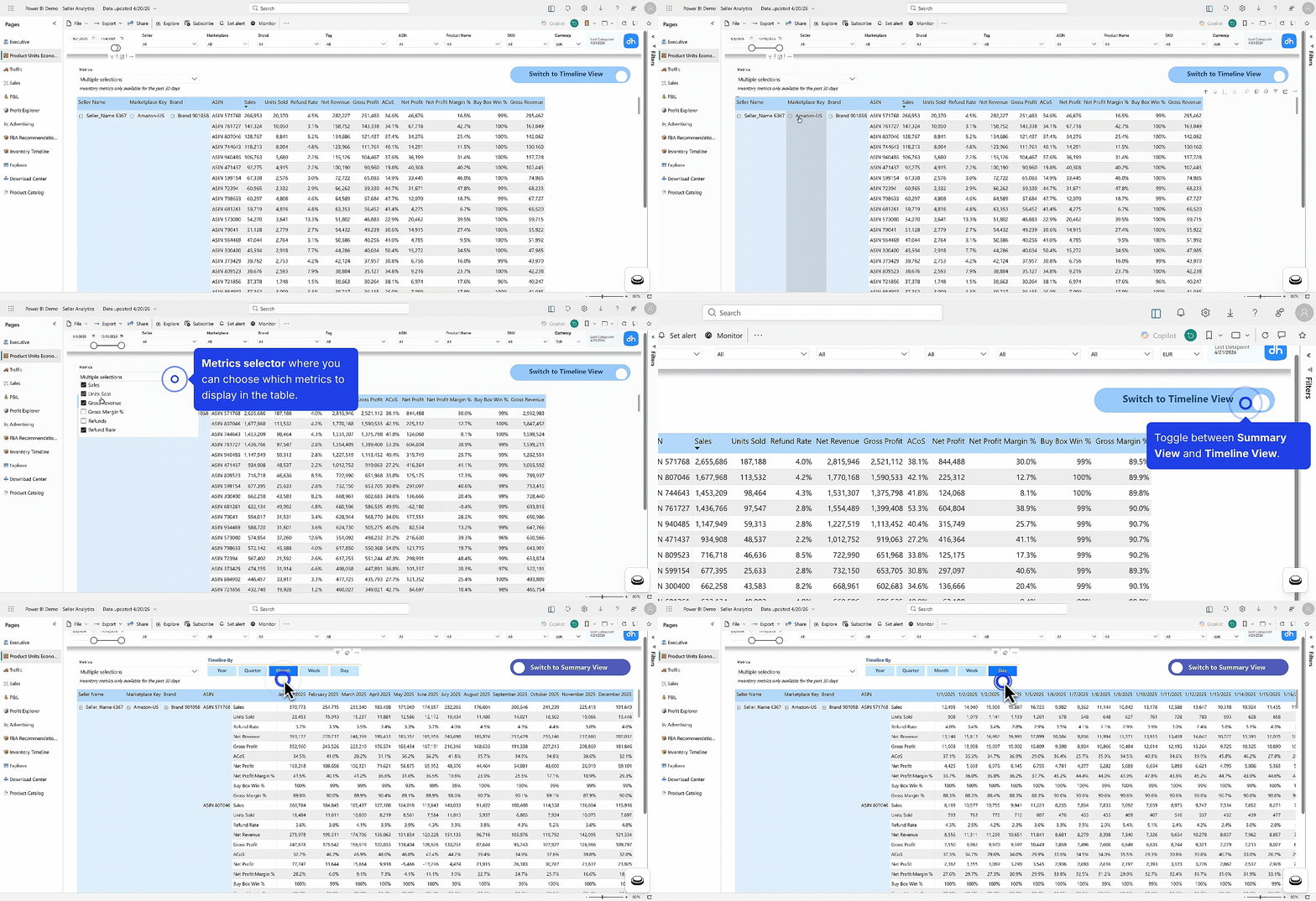 Analysis of customer traffic and conversion. Shows page views, sessions, Buy Box win rate, and conversion rate (page views to orders). Includes top products by glance views and those with the biggest week-over-week gains or drops.
Requires a Seller Central connection for sessions and Buy Box data.
Analysis of customer traffic and conversion. Shows page views, sessions, Buy Box win rate, and conversion rate (page views to orders). Includes top products by glance views and those with the biggest week-over-week gains or drops.
Requires a Seller Central connection for sessions and Buy Box data.
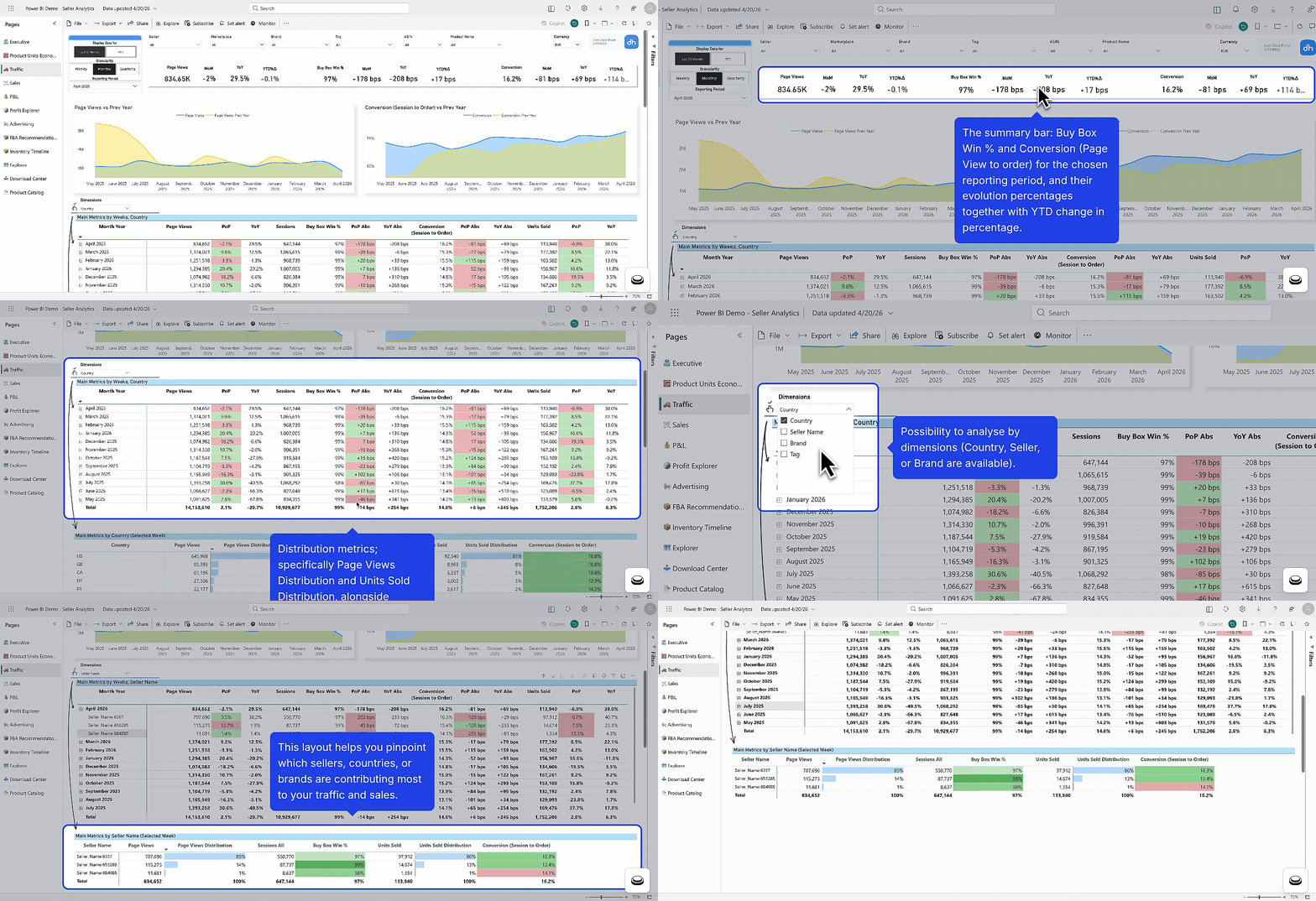 Revenue, units sold, order count, average selling price (ASP), and average order value (AOV). Breakdowns available by marketplace, brand, tag, or ASIN. Product performance tables surface the biggest PoP contributors.
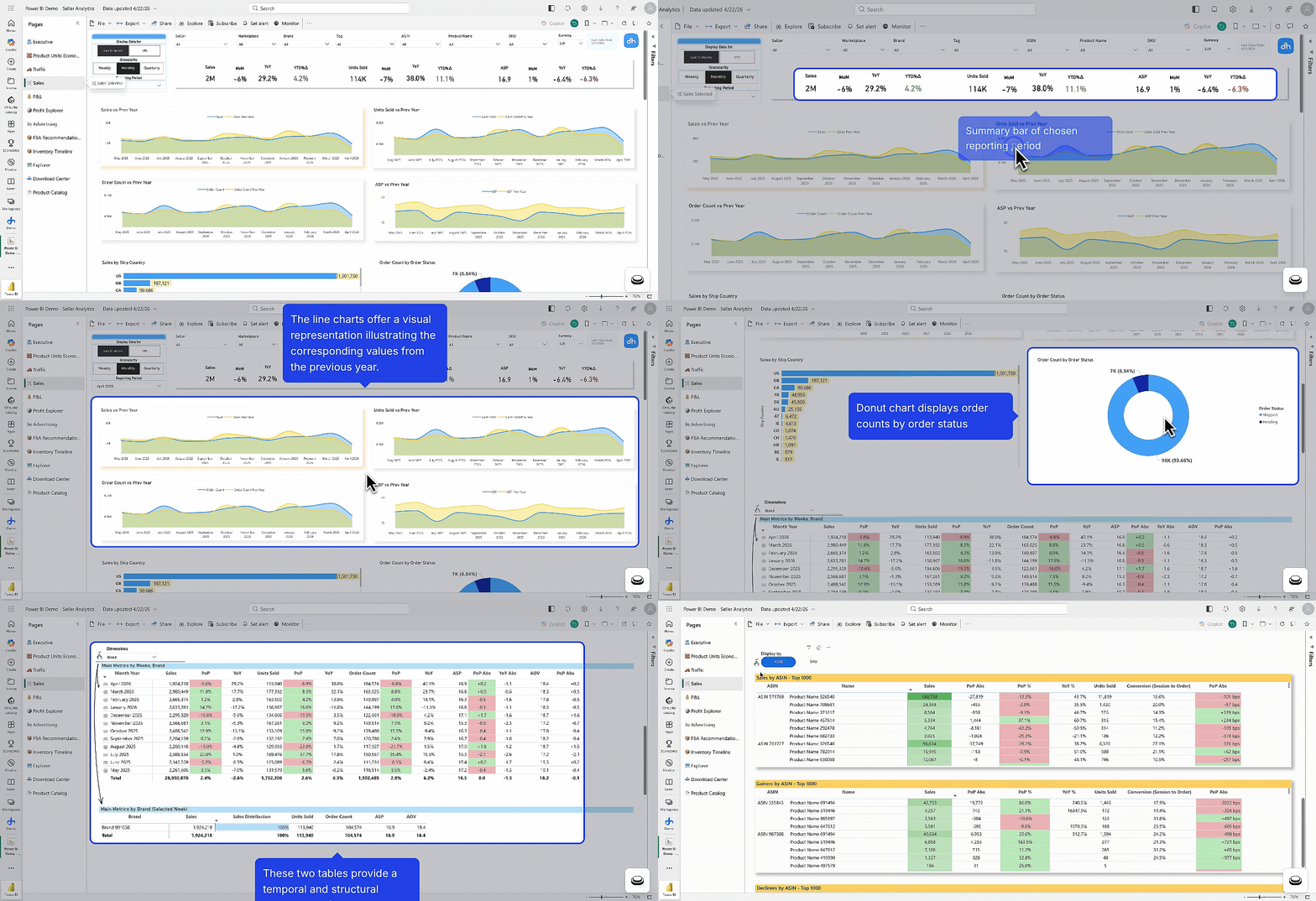 Your full profit and loss statement. Shows: Gross Revenue → Refunds → Net Revenue → COGS → Gross Profit → Amazon Fees → Marketing → Operating Profit → Adjustments → Adjusted Operating Profit → Net Taxes → Net Profit.
Requires COGS to be uploaded for accurate results.
Your full profit and loss statement. Shows: Gross Revenue → Refunds → Net Revenue → COGS → Gross Profit → Amazon Fees → Marketing → Operating Profit → Adjustments → Adjusted Operating Profit → Net Taxes → Net Profit.
Requires COGS to be uploaded for accurate results.
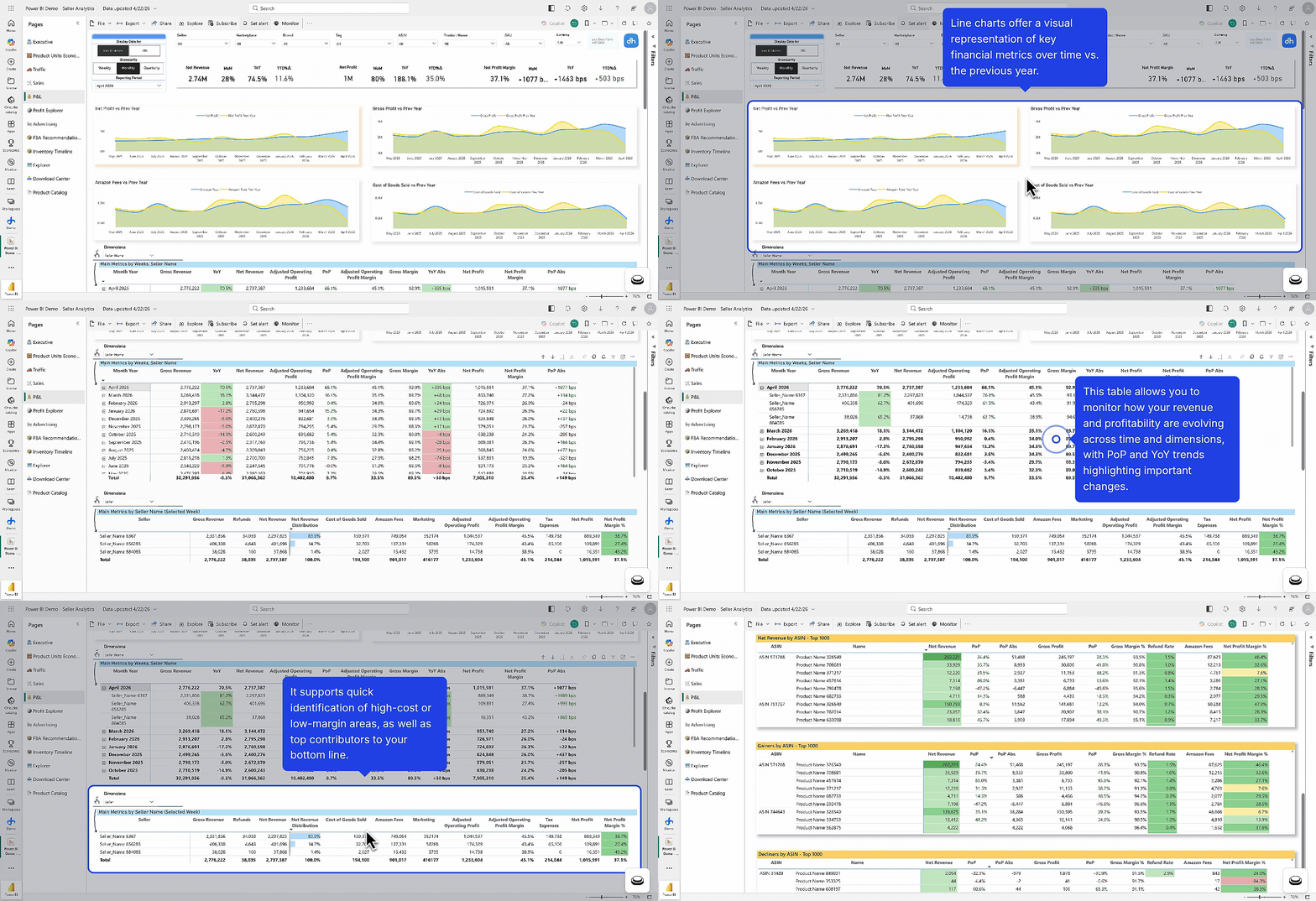 A flexible P&L explorer that lets you build custom views of profitability by selecting metrics and dimensions. Useful for ad hoc margin analysis by product, brand, or tag.
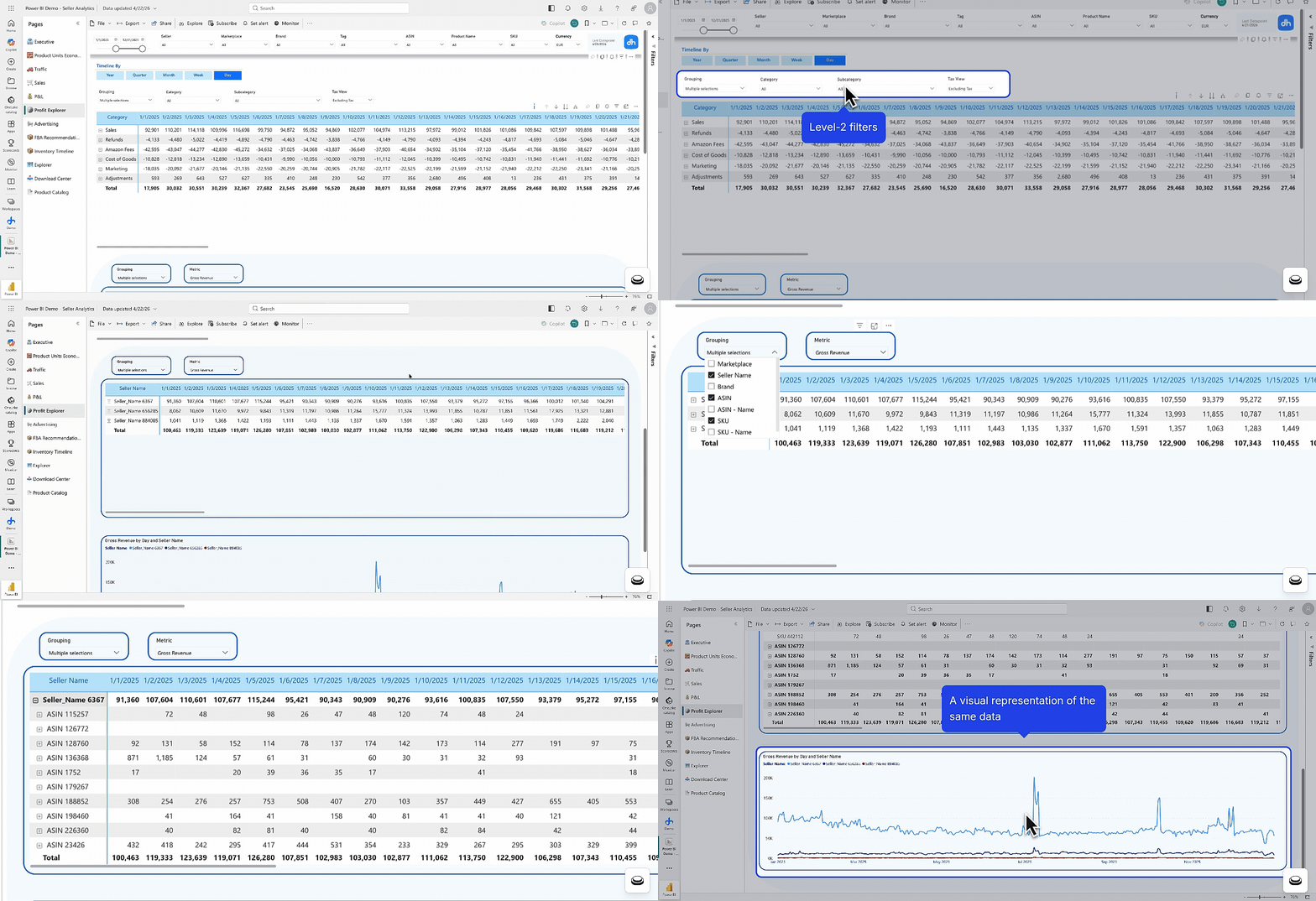 Advertising performance overview of the account.
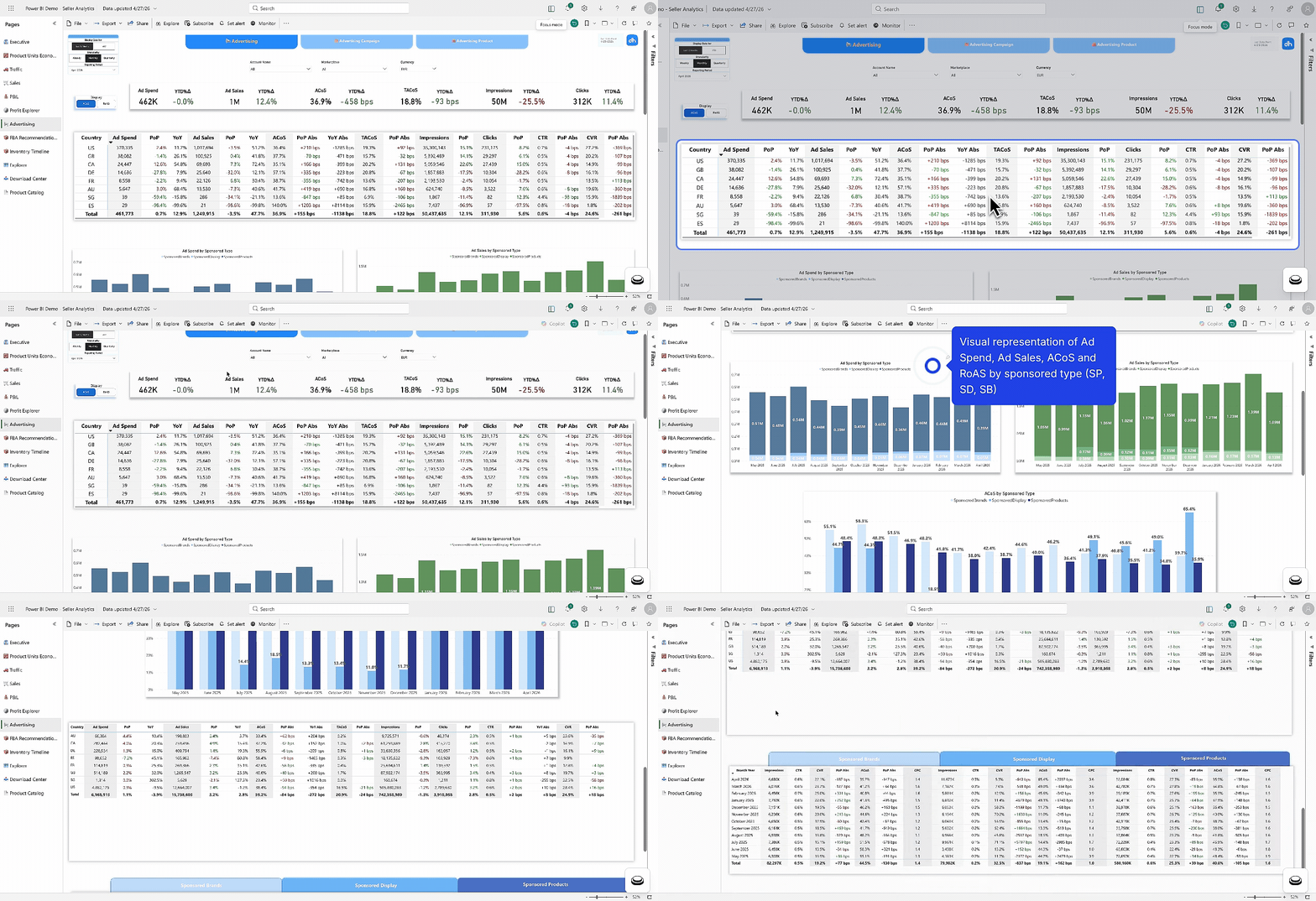 Campaign-level advertising performance: ad spend, ad sales, impressions, ACoS, RoAS, TACoS, CVR, CTR. Includes both Sponsored Products, Sponsored Brands, and Sponsored Display.
Use the primary metric slicer to toggle between ACoS and RoAS as the headline metric.
Campaign-level advertising performance: ad spend, ad sales, impressions, ACoS, RoAS, TACoS, CVR, CTR. Includes both Sponsored Products, Sponsored Brands, and Sponsored Display.
Use the primary metric slicer to toggle between ACoS and RoAS as the headline metric.
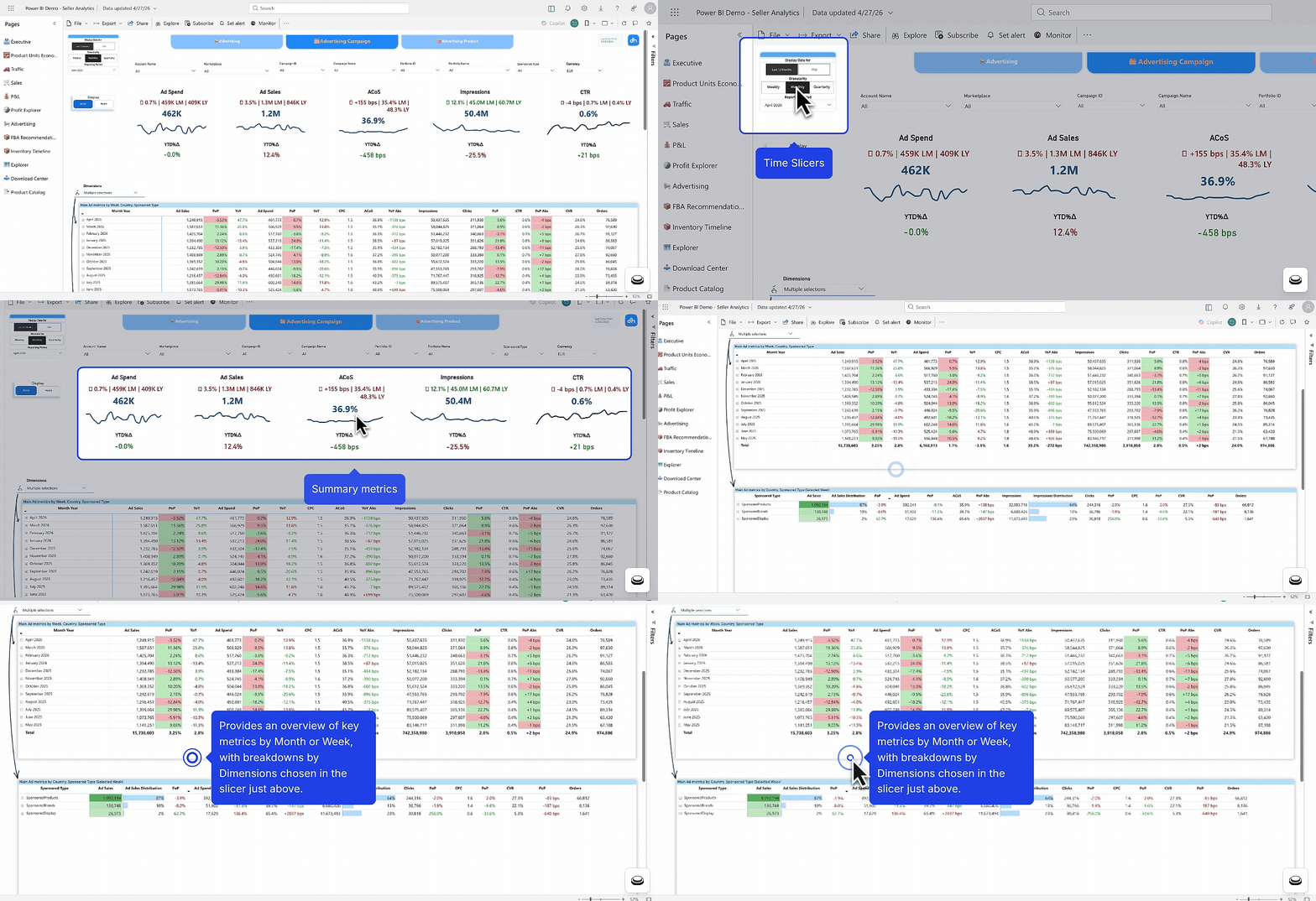 Product-level advertising performance for Sponsored Products and Sponsored Display (Sponsored Brands are not available at the product level). Ad Sales are split into Same-SKU and Other-SKU. Supports filtering by tag.
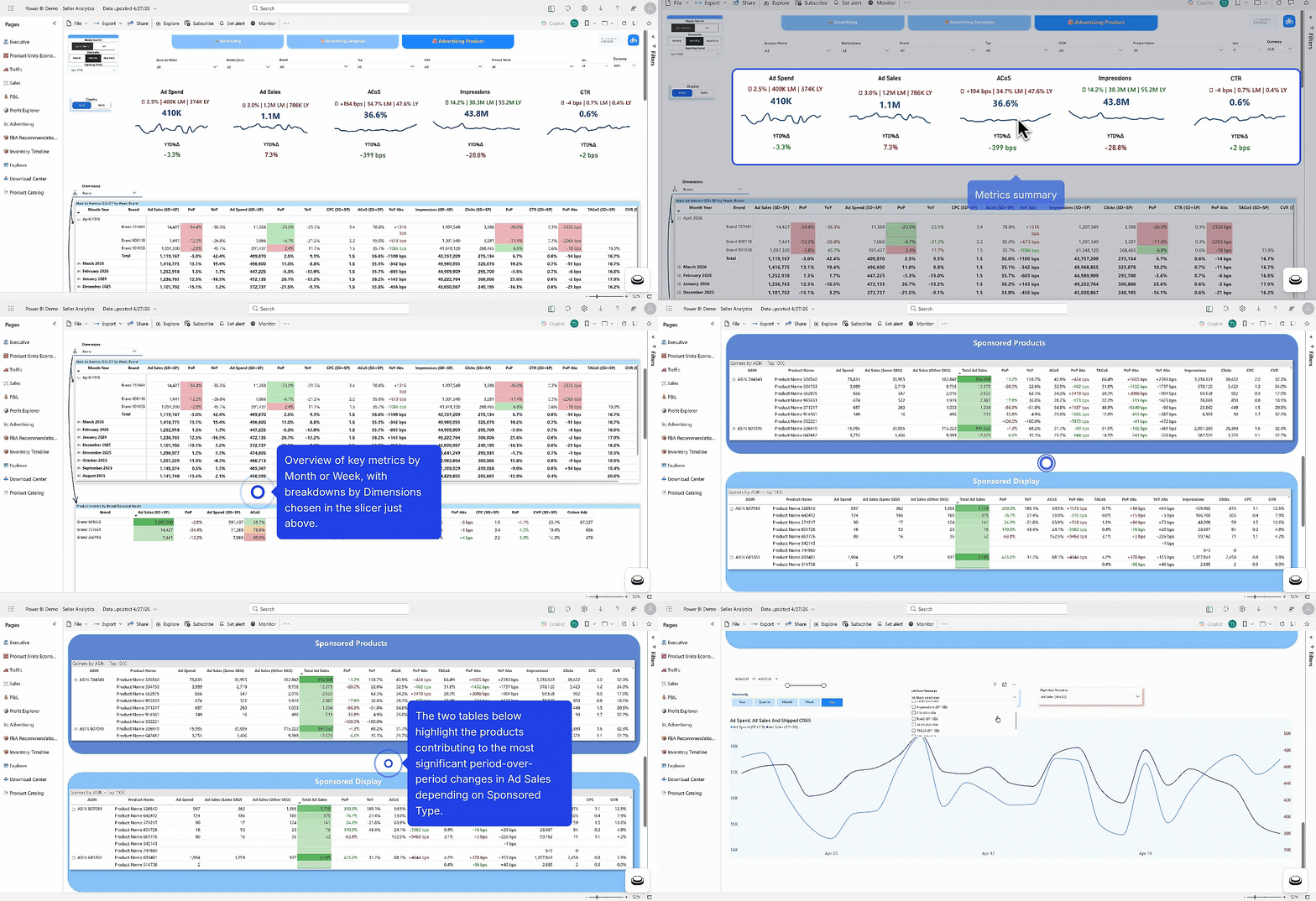 Two sections:
1. **Amazon FBA Recommendations**: Amazon's own restock suggestions, based on their algorithm.
2. **Custom FBA Recommendations**: Your own restock logic, using three slicers: Which inventory components to include, your lead time in days, and your target weeks on hand.
The resulting table shows OOS Forecast date, Replenishment Date, and Replenishment Quantity per ASIN.
Two sections:
1. **Amazon FBA Recommendations**: Amazon's own restock suggestions, based on their algorithm.
2. **Custom FBA Recommendations**: Your own restock logic, using three slicers: Which inventory components to include, your lead time in days, and your target weeks on hand.
The resulting table shows OOS Forecast date, Replenishment Date, and Replenishment Quantity per ASIN.
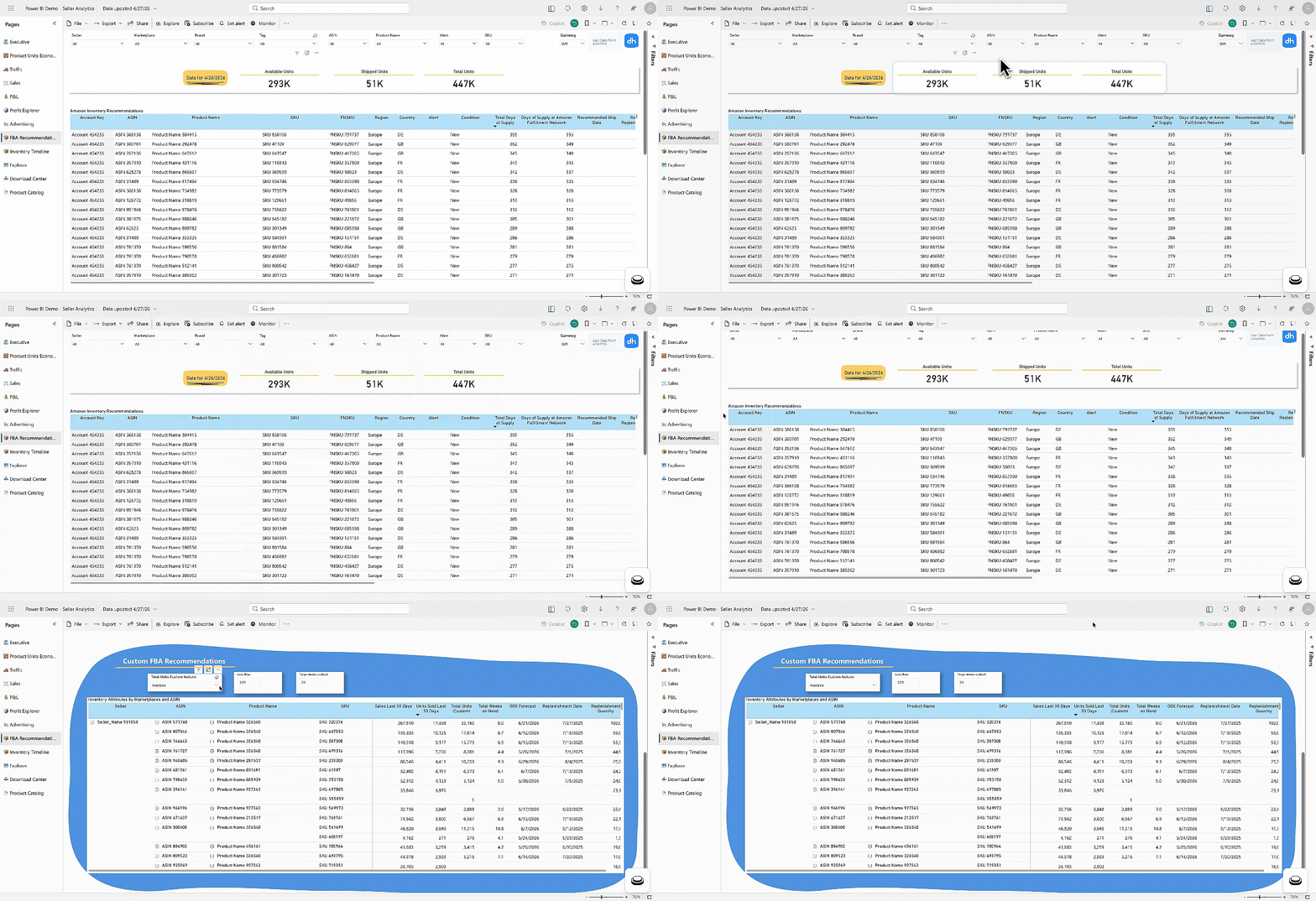 A 30-day view of how your inventory has moved across fulfillment stages: available units, inbound shipments, FC transfers, processing, reserved, and unsellable. Use the slicer to choose which inventory attribute to track. Useful for spotting gaps between inbound and available stock.
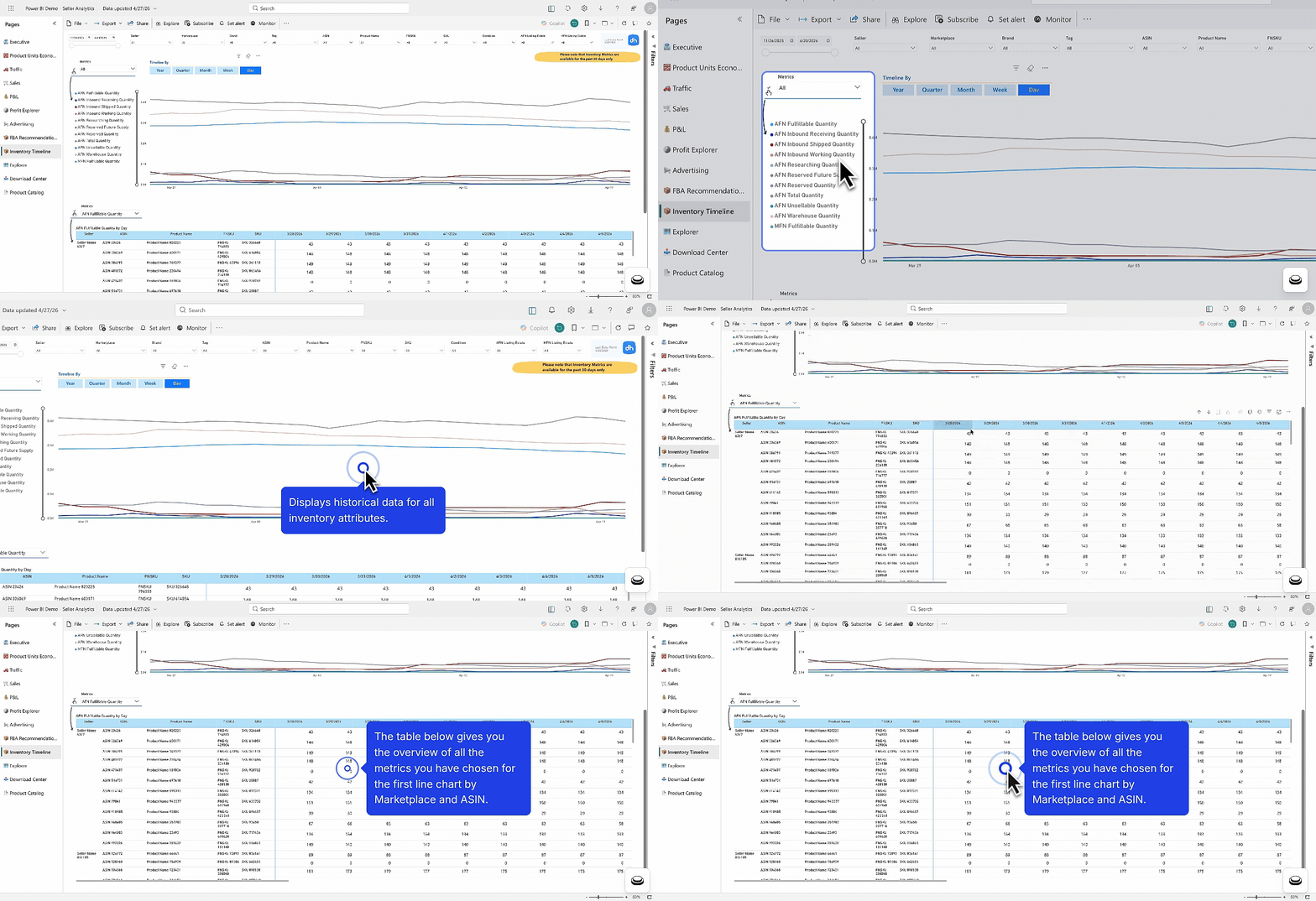 Choose any two metrics and any dimension hierarchy (Country → Tag → Brand → ASIN) to build a custom cross-metric chart and table. Granularity can be set to year, quarter, month, week, or day.
Each ad metric indicates that it includes **SD + SP**, meaning they do not include **Sponsored Brands**. Additionally, selecting a metric determines what will be reflected in the table below, which follows this structure: **Country → Tag → Brand → ASIN**, with the same time granularity chosen for the graph.
Choose any two metrics and any dimension hierarchy (Country → Tag → Brand → ASIN) to build a custom cross-metric chart and table. Granularity can be set to year, quarter, month, week, or day.
Each ad metric indicates that it includes **SD + SP**, meaning they do not include **Sponsored Brands**. Additionally, selecting a metric determines what will be reflected in the table below, which follows this structure: **Country → Tag → Brand → ASIN**, with the same time granularity chosen for the graph.
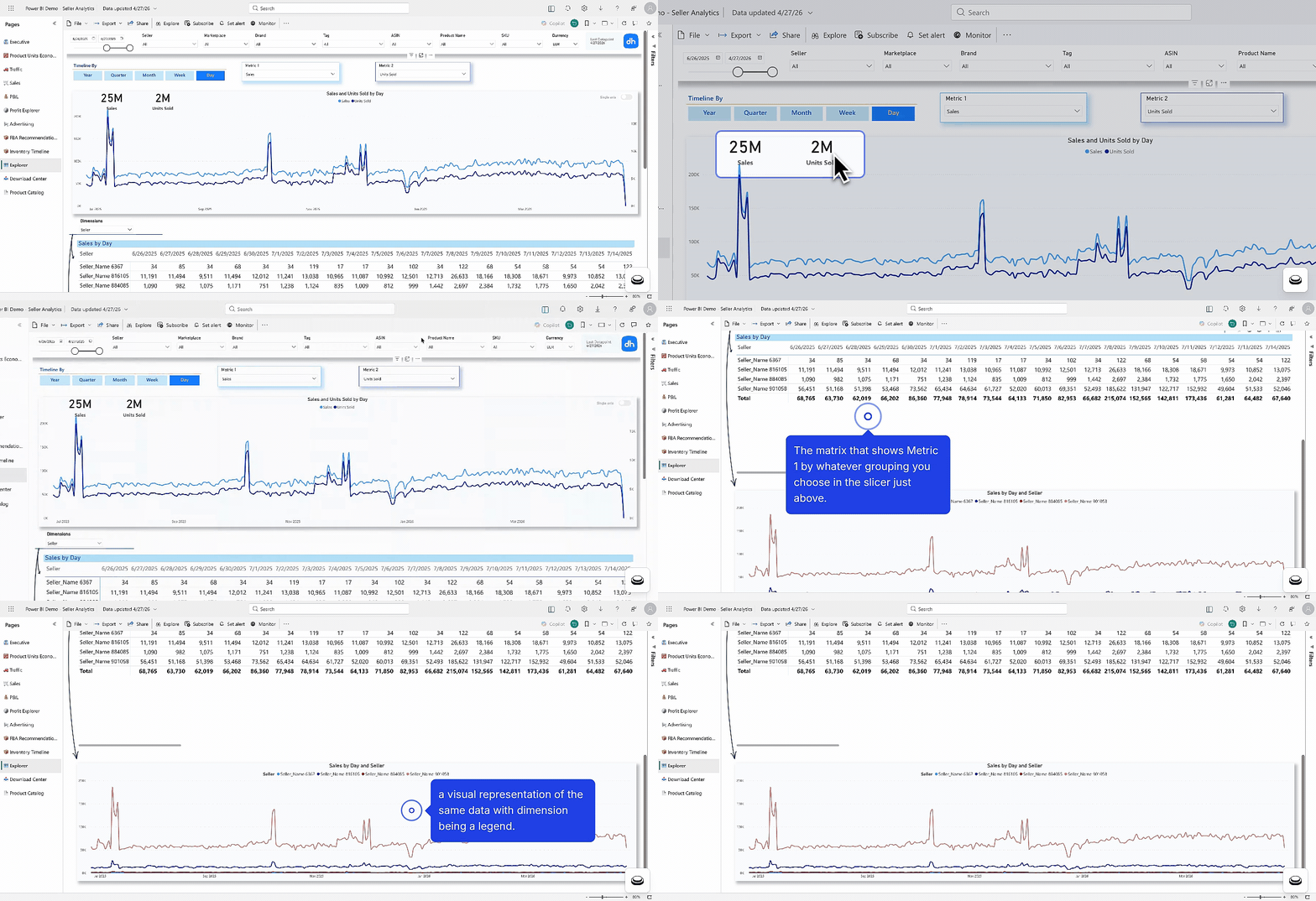 Export any combination of metrics to a flat CSV-style table. Choose your grouping and metrics using slicers, then export. Useful for feeding data into other tools or sending reports to stakeholders.
**Note:** Account-level advertising metrics work correctly when your breakdown **does not include product-level dimensions** like Seller, Brand, Tag, or ASIN. However, they are fully compatible with advertising account, or time-based groupings or even when no grouping is selected. If you apply any product-level breakdown, you'll need to switch to product-level advertising metrics, which are available only for Sponsored Products (SP) and Sponsored Display (SD).
**Account-level fees (e.g. FBA storage fees)** are not attributed to individual products by Amazon. In a Brand or SKU breakdown, these will appear under **"No Brand"** or **"No SKU"**. This is expected behavior; include these rows when calculating your total costs.
**How to Use the Download Center**
1. **Select Rows and Columns**: Use the **Rows** and **Columns** slicers to define how your data is structured. Rows typically define the primary breakdown (e.g., **Year, Country, ASIN**). Columns help create comparisons across categories (e.g., **Month Year, Selling Program**).
2. **Choosing Metrics (Values)**: The Metrics slicer consists of key performance indicators (KPIs) related to sales, profit and advertising performance. Users can select multiple metrics to include in the matrix.
3. **Drilling Down**: For in-depth analysis, users can drill down on rows or columns. This functionality helps navigate hierarchical data structures such as Year → Month → Week or Country → Brand → Seller Account.
4. **Downloading the Data**: Once the table is configured, users can export the dataset in a downloadable format (e.g., Excel, CSV) by using Power BI's built-in export feature.
Export any combination of metrics to a flat CSV-style table. Choose your grouping and metrics using slicers, then export. Useful for feeding data into other tools or sending reports to stakeholders.
**Note:** Account-level advertising metrics work correctly when your breakdown **does not include product-level dimensions** like Seller, Brand, Tag, or ASIN. However, they are fully compatible with advertising account, or time-based groupings or even when no grouping is selected. If you apply any product-level breakdown, you'll need to switch to product-level advertising metrics, which are available only for Sponsored Products (SP) and Sponsored Display (SD).
**Account-level fees (e.g. FBA storage fees)** are not attributed to individual products by Amazon. In a Brand or SKU breakdown, these will appear under **"No Brand"** or **"No SKU"**. This is expected behavior; include these rows when calculating your total costs.
**How to Use the Download Center**
1. **Select Rows and Columns**: Use the **Rows** and **Columns** slicers to define how your data is structured. Rows typically define the primary breakdown (e.g., **Year, Country, ASIN**). Columns help create comparisons across categories (e.g., **Month Year, Selling Program**).
2. **Choosing Metrics (Values)**: The Metrics slicer consists of key performance indicators (KPIs) related to sales, profit and advertising performance. Users can select multiple metrics to include in the matrix.
3. **Drilling Down**: For in-depth analysis, users can drill down on rows or columns. This functionality helps navigate hierarchical data structures such as Year → Month → Week or Country → Brand → Seller Account.
4. **Downloading the Data**: Once the table is configured, users can export the dataset in a downloadable format (e.g., Excel, CSV) by using Power BI's built-in export feature.
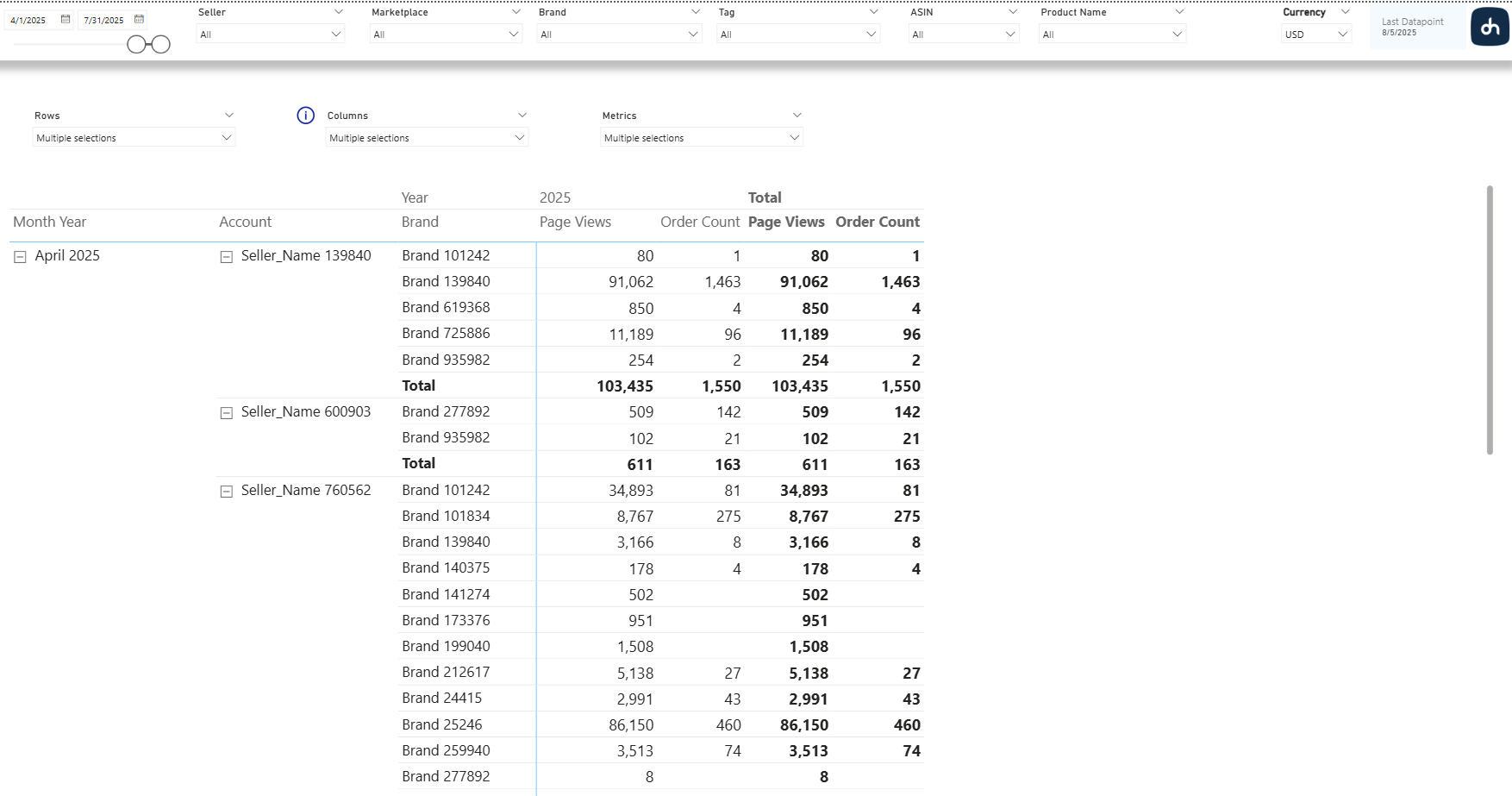 A reference table of all products being tracked, with their attributes (ASIN, name, brand, tags). Not an analytics tab. Use it for quick product lookups or to verify which products are in scope.
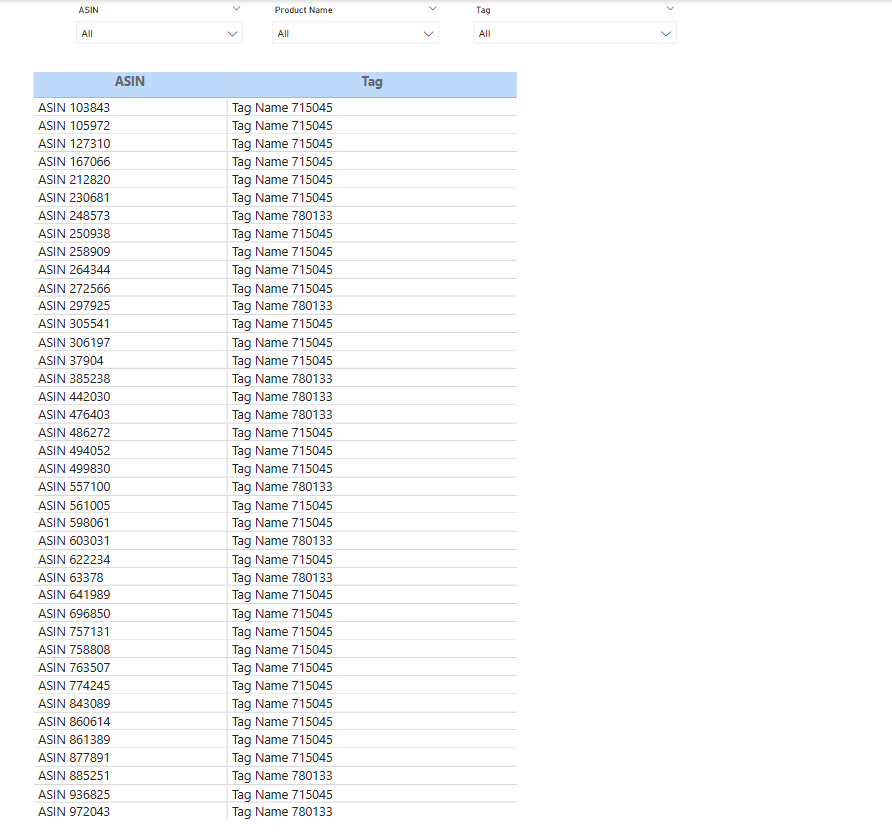 ## Metrics
Formulas used in this dashboard. Concept-level definitions for acronyms live in the [Glossary](/help-center/glossary).
**Traffic and sales**
| Metric | Formula / definition | Notes |
|---|---|---|
| **Conversion (Page View to Order)** | Order Count ÷ Page Views | Measures how effectively page views convert into orders |
| **Buy Box Win %** | Page Views as Featured Offer ÷ Total Page Views × 100 | Active listings only |
| **ASP** | Sales (Orders) ÷ Units Sold | Average Selling Price |
| **AOV** | Sales (Orders) ÷ Order Count | Average Order Value |
**Profit and loss**
| Metric | Formula / definition | Notes |
|---|---|---|
| **Refund Rate** | Refunds ÷ Gross Revenue × 100 | |
| **Net Revenue** | Gross Revenue − Refunds | |
| **Gross Profit** | Net Revenue − COGS | |
| **Gross Margin** | Gross Profit ÷ Net Revenue × 100 | |
| **Operating Profit** | Gross Profit − Amazon Fees − Marketing | |
| **Adjusted Operating Profit** | Operating Profit + Adjustments | |
| **Net Profit** | Adjusted Operating Profit − Net Taxes | |
| **Net Profit Margin** | Net Profit ÷ Net Revenue × 100 | |
**Advertising**
| Metric | Formula / definition | Notes |
|---|---|---|
| **ACoS** | Ad Spend ÷ Ad Sales × 100 | Lower is more efficient |
| **RoAS** | Ad Sales ÷ Ad Spend | Inverse of ACoS, expressed as a multiplier |
| **TACoS** | Ad Spend ÷ Total Sales × 100 | Measures ad cost relative to total sales, not just ad-attributed sales |
| **CTR** | Clicks ÷ Impressions × 100 | |
| **CPC** | Ad Spend ÷ Clicks | |
| **CVR** | Orders from Ads ÷ Clicks × 100 | Attribution per Amazon's 14-day post-click window |
| **Ad Sales Ratio** | Ad Sales ÷ Net Revenue × 100 | Share of revenue attributed to ads |
---
## For analysts: data sources & methodology
### Source tables and datasets
This dashboard reads from your connected Seller Central and Advertising accounts. For a full column reference, see the [Exhaustive Column Referential](https://docs.google.com/spreadsheets/d/1gYGqKQP9Z71nz1lOb4y0wJ15i27NvsUzdliIJeIx0HY/edit#gid=175439716).
- **Traffic**: `seller_retail_traffic_by_asin_src` (ASIN-level). As of February 2026 the dashboard reads ASIN-level traffic rather than SKU-level so page-view counts match Seller Central. Update any parallel custom queries to the ASIN-level source.
- **Sales and orders**: Seller Central orders and finance feeds via the Selling Partner API.
- **P&L**: `FINANCE.FINANCE_PROFIT_LEDGER` plus user-uploaded COGS for cost-of-goods application.
- **Advertising**: Amazon Ads API daily feeds for Sponsored Products, Sponsored Brands, and Sponsored Display.
- **Inventory**: Seller Central FBA inventory states (Available, Inbound, Working, FC Processing, FC Transfer, Researching, Reserved, Unfulfillable, MFN Fulfillable) plus Amazon's restock recommendations.
### Attribution and methodology
- **Sales** include VAT/tax charges except in the US marketplace, and exclude shipping price.
- **Refunds** cover returns, guarantees, chargebacks, and related fees, and are applied to the original sale date (not the refund date).
- **COGS** comes from user uploads and is applied to both items sold and items returned.
- **Amazon Fees** combine FBA/FBM fulfillment fees, referral fees, account fees, storage fees, and service fees.
- **Account-level fees** (for example FBA storage) are not attributed to individual products by Amazon; in a Brand or SKU breakdown they appear under "No Brand" or "No SKU".
- **Ad attribution** uses Amazon's 14-day post-click window. Ad Sales are split into Same-SKU and Other-SKU.
- **Custom Inventory slicer** lets analysts pick which FBA inventory states feed Total Inventory, Total Weeks on Hand, OOS Forecast, Replenishment Date, and Replenishment Quantity. Replenishment Date subtracts configured lead time from OOS Forecast; replenishment Quantity is derived from 30-day sales rate and target weeks on hand.
## Download this template
## Metrics
Formulas used in this dashboard. Concept-level definitions for acronyms live in the [Glossary](/help-center/glossary).
**Traffic and sales**
| Metric | Formula / definition | Notes |
|---|---|---|
| **Conversion (Page View to Order)** | Order Count ÷ Page Views | Measures how effectively page views convert into orders |
| **Buy Box Win %** | Page Views as Featured Offer ÷ Total Page Views × 100 | Active listings only |
| **ASP** | Sales (Orders) ÷ Units Sold | Average Selling Price |
| **AOV** | Sales (Orders) ÷ Order Count | Average Order Value |
**Profit and loss**
| Metric | Formula / definition | Notes |
|---|---|---|
| **Refund Rate** | Refunds ÷ Gross Revenue × 100 | |
| **Net Revenue** | Gross Revenue − Refunds | |
| **Gross Profit** | Net Revenue − COGS | |
| **Gross Margin** | Gross Profit ÷ Net Revenue × 100 | |
| **Operating Profit** | Gross Profit − Amazon Fees − Marketing | |
| **Adjusted Operating Profit** | Operating Profit + Adjustments | |
| **Net Profit** | Adjusted Operating Profit − Net Taxes | |
| **Net Profit Margin** | Net Profit ÷ Net Revenue × 100 | |
**Advertising**
| Metric | Formula / definition | Notes |
|---|---|---|
| **ACoS** | Ad Spend ÷ Ad Sales × 100 | Lower is more efficient |
| **RoAS** | Ad Sales ÷ Ad Spend | Inverse of ACoS, expressed as a multiplier |
| **TACoS** | Ad Spend ÷ Total Sales × 100 | Measures ad cost relative to total sales, not just ad-attributed sales |
| **CTR** | Clicks ÷ Impressions × 100 | |
| **CPC** | Ad Spend ÷ Clicks | |
| **CVR** | Orders from Ads ÷ Clicks × 100 | Attribution per Amazon's 14-day post-click window |
| **Ad Sales Ratio** | Ad Sales ÷ Net Revenue × 100 | Share of revenue attributed to ads |
---
## For analysts: data sources & methodology
### Source tables and datasets
This dashboard reads from your connected Seller Central and Advertising accounts. For a full column reference, see the [Exhaustive Column Referential](https://docs.google.com/spreadsheets/d/1gYGqKQP9Z71nz1lOb4y0wJ15i27NvsUzdliIJeIx0HY/edit#gid=175439716).
- **Traffic**: `seller_retail_traffic_by_asin_src` (ASIN-level). As of February 2026 the dashboard reads ASIN-level traffic rather than SKU-level so page-view counts match Seller Central. Update any parallel custom queries to the ASIN-level source.
- **Sales and orders**: Seller Central orders and finance feeds via the Selling Partner API.
- **P&L**: `FINANCE.FINANCE_PROFIT_LEDGER` plus user-uploaded COGS for cost-of-goods application.
- **Advertising**: Amazon Ads API daily feeds for Sponsored Products, Sponsored Brands, and Sponsored Display.
- **Inventory**: Seller Central FBA inventory states (Available, Inbound, Working, FC Processing, FC Transfer, Researching, Reserved, Unfulfillable, MFN Fulfillable) plus Amazon's restock recommendations.
### Attribution and methodology
- **Sales** include VAT/tax charges except in the US marketplace, and exclude shipping price.
- **Refunds** cover returns, guarantees, chargebacks, and related fees, and are applied to the original sale date (not the refund date).
- **COGS** comes from user uploads and is applied to both items sold and items returned.
- **Amazon Fees** combine FBA/FBM fulfillment fees, referral fees, account fees, storage fees, and service fees.
- **Account-level fees** (for example FBA storage) are not attributed to individual products by Amazon; in a Brand or SKU breakdown they appear under "No Brand" or "No SKU".
- **Ad attribution** uses Amazon's 14-day post-click window. Ad Sales are split into Same-SKU and Other-SKU.
- **Custom Inventory slicer** lets analysts pick which FBA inventory states feed Total Inventory, Total Weeks on Hand, OOS Forecast, Replenishment Date, and Replenishment Quantity. Replenishment Date subtracts configured lead time from OOS Forecast; replenishment Quantity is derived from 30-day sales rate and target weeks on hand.
## Download this template
---
title: Seller + Vendor Analytics Dashboard User Guide
description: Complete guide to DataHawk's Seller + Vendor Analytics Dashboard, a unified Power BI view consolidating Seller Central and Vendor Central reporting.
---
DataHawk's Seller + Vendor Analytics Dashboard consolidates reporting across both Seller Central (3P) and Vendor Central (1P) accounts into a single executive view. It covers traffic, sales, advertising, and inventory, with unified metrics designed for brands operating on both channels simultaneously. Because the revenue models differ structurally, on the Vendor side, earned revenue (Shipped COGS) differs from consumer demand (Ordered Revenue), while on the Seller side these are the same figure, all combined metrics are clearly labelled to reflect which revenue base they use.
## Questions this dashboard helps answer
- What is my total business performance across both Seller Central and Vendor Central?
- How is revenue split between my 1P and 3P channels?
- How does consumer demand (Ordered Revenue) compare to my earned revenue (Shipped COGS) on the Vendor side?
- How efficient is my advertising spend across both channels combined?
- What is the profitability breakdown for each channel after fees, COGS, and advertising?
- Which products are the top performers across Seller and Vendor?
- What is my current FBA inventory status and when do I need to replenish?
- How does my Vendor inventory cover projected demand, and what is Amazon's restocking forecast?
- How has my blended average selling price evolved across both channels?
## Before you start
**What you need:**
- [Seller Central account](/help-center/data-setup/seller-account) connected in DataHawk
- [Vendor Central account](/help-center/data-setup/vendor-account) connected in DataHawk
- [Advertising account](/help-center/data-setup/ads-account) connected in DataHawk (Seller and/or Vendor)
- COGS uploaded to DataHawk (required for P&L tabs: See [Upload Product Expenses](/help-center/data-setup/cogs-amz-upload))
**Set up:** Download and configure the Power BI template. See [Connect to Power BI](/help-center/connect-tools/powerbi).
**Data history:** Up to 730 days (2 years) by default. The Inventory Timeline tab is the exception, covering the past 30 days only. Need more on the other tabs? See [Changing the historical lookback window](/help-center/connect-tools/powerbi#changing-the-historical-lookback-window).
## Dashboard tabs at a glance
| Tab | What it shows |
|---|---|
| **Executive Seller + Vendor** | Combined Seller + Vendor executive summary with blended revenue, units, page views, and advertising metrics |
| **Traffic Seller** | Seller Central traffic metrics |
| **Traffic Vendor** | Vendor Central traffic metrics |
| **Sales Seller** | Seller Central sales performance: orders, units, ASP, AOV, page views, and conversion |
| **Sales Vendor** | Vendor Central sales performance: Shipped COGS, Ordered Revenue, Glance Views, and conversion |
| **Advertising** | Consolidated advertising performance across SP, SB, and SD for both channels |
| **P&L** | Full profit and loss for Seller Central; gross revenue through net profit |
| **Profit Explorer** | Full profit and loss for Vendor Central; shipped revenue through net profit |
| **Inventory Timeline Seller** | 30-day FBA inventory history across all fulfillment stages (Seller) |
| **FBA Recommendations Seller** | Amazon's restock suggestions and custom replenishment calculations (Seller) |
| **Vendor Inventory Snapshot** | Vendor inventory health, aging, purchase orders, and Amazon demand forecast |
| **Explorer** | Custom cross-metric analysis with any two metrics plotted over a configurable timeline |
| **Download Center** | Build and export custom data tables by selecting rows, columns, and metrics |
## Dashboard filters
Global slicers apply to all pages unless a page has its own local slicer, in which case the local slicer takes precedence.
### Date filters
| Filter | What it does |
|---|---|
| **Date Range** | Calendar picker for start and end dates |
| **Granularity** | Year / Quarter / Month / Week / Day |
| **Period comparison** | Toggle between PoP (period over period) and YoY (year over year) |
### Scope filters
| Filter | What it does |
|---|---|
| **Marketplace** | Filter by Amazon country (US, CA, UK, DE, etc.) |
| **Seller Account** | Filter by connected Seller Central account |
| **Vendor Account** | Filter by connected Vendor Central account |
| **Brand** | Filter by brand name |
| **Tags** | Filter by custom ASIN tags created in DataHawk |
| **ASIN** | Filter by specific ASINs |
| **SKU** | Filter by specific Seller SKUs |
## Dashboard reports page by page
The combined Executive tab provides a unified overview of performance across both channels.
**Summary bar** at the top displays the following KPIs for the selected period, with latest month values and PoP change:
| Metric| What it shows|
|---|---|
| Page Views| Total Seller Page Views + Vendor Glance Views, split by channel
| Unit View Percentage| Combined and split by Seller / Vendor
| Total Earned Revenue| Combined (Seller Sales + Vendor Shipped COGS), split by channel
| Total Units Ordered| Combined, split by channel
| Ad Spend| Combined, split by channel
| TACoS (Ordered Revenue basis)| Combined, split by channel
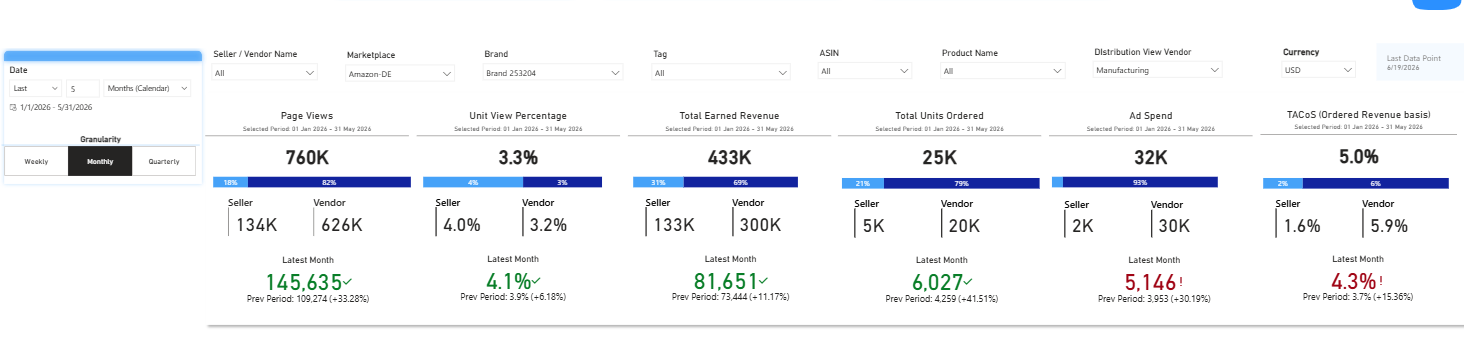 **Line charts** show monthly trends for each KPI vs the previous year, with separate series for Seller and Vendor:
- Page Views vs Prev Year (Seller Page Views + Vendor Glance Views)
- Unit View Percentage vs Prev Year
- Units Ordered vs Prev Year
- Total Earned Revenue vs Prev Year (Seller Sales + Vendor Shipped COGS)
- Ad Sales vs Prev Year
- Ad Spend vs Prev Year
**Line charts** show monthly trends for each KPI vs the previous year, with separate series for Seller and Vendor:
- Page Views vs Prev Year (Seller Page Views + Vendor Glance Views)
- Unit View Percentage vs Prev Year
- Units Ordered vs Prev Year
- Total Earned Revenue vs Prev Year (Seller Sales + Vendor Shipped COGS)
- Ad Sales vs Prev Year
- Ad Spend vs Prev Year
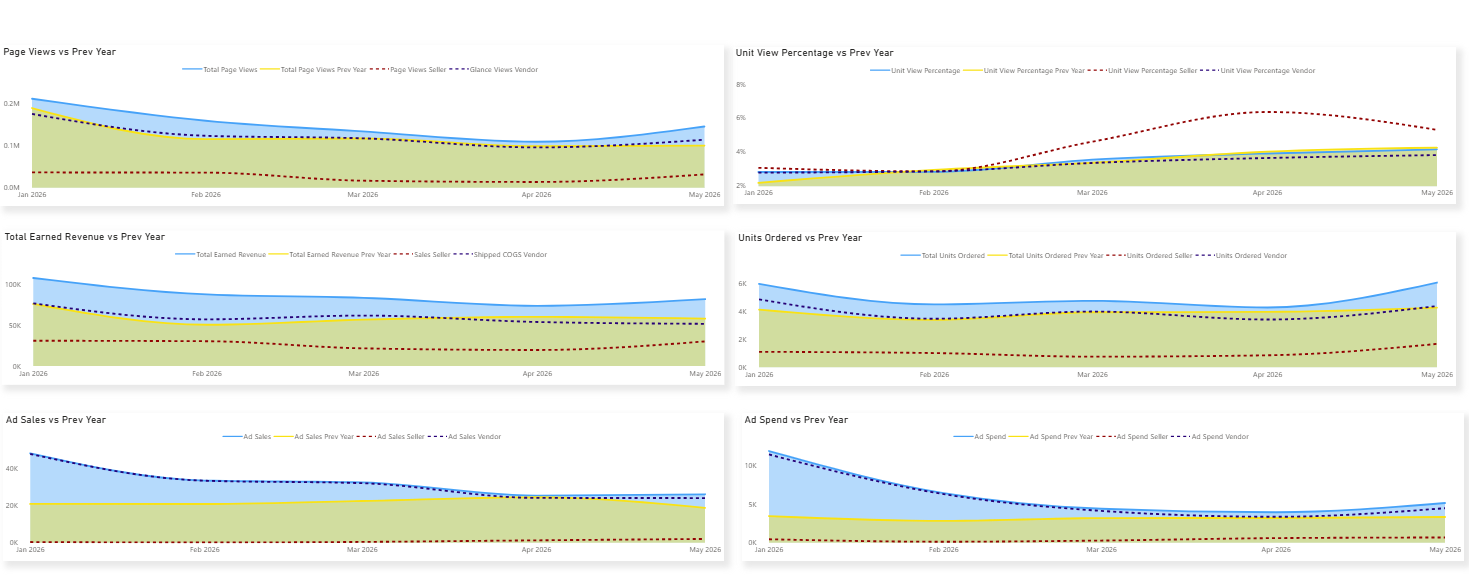 **Main metrics table** displays monthly values for all core metrics with PoP and YoY comparisons, broken down by Seller and Vendor columns with a combined Total. Metrics included:
- Page Views / PoP / (no YoY in combined view)
- Unit View Percentage / PoP Abs / YoY Abs
- Total Earned Revenue / PoP / YoY
- Total Ordered Revenue / PoP / YoY
- Total Units Ordered / PoP
- ASP Earned Revenue basis / PoP Abs / YoY Abs
- ASP Ordered Revenue basis / PoP Abs / YoY Abs
- etc
Advertising metrics are account level and include all sponsored types (SB + SP + SD). They switch automatically to product-level metrics (SP + SD only) when product-level filters (Tag, Brand, ASIN, Product Name) are applied.
Use the Metrics slicer above the table to adjust which metrics are shown.
**Main metrics table** displays monthly values for all core metrics with PoP and YoY comparisons, broken down by Seller and Vendor columns with a combined Total. Metrics included:
- Page Views / PoP / (no YoY in combined view)
- Unit View Percentage / PoP Abs / YoY Abs
- Total Earned Revenue / PoP / YoY
- Total Ordered Revenue / PoP / YoY
- Total Units Ordered / PoP
- ASP Earned Revenue basis / PoP Abs / YoY Abs
- ASP Ordered Revenue basis / PoP Abs / YoY Abs
- etc
Advertising metrics are account level and include all sponsored types (SB + SP + SD). They switch automatically to product-level metrics (SP + SD only) when product-level filters (Tag, Brand, ASIN, Product Name) are applied.
Use the Metrics slicer above the table to adjust which metrics are shown.
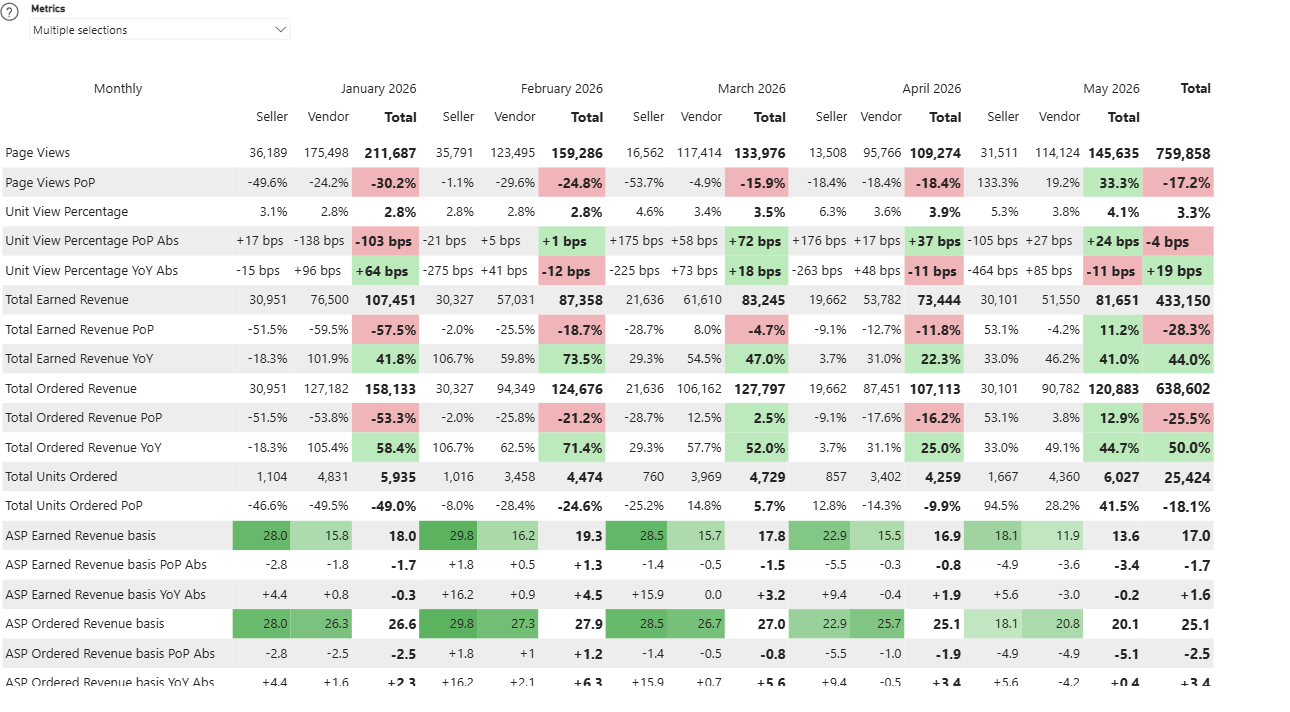 Breakdown table (Selected Period) shows the main metrics split by Account Type (Seller / Vendor) or another Dimension you can choose in the slicer.
 Drill Down Analysis section at the bottom allows you to explore performance by Country, Brand, Tag, and ASIN. The date range for this section has its own slicer (defaulting to the last 5 weeks). Click any row to filter the other tables. Use Ctrl + Click to select multiple rows.
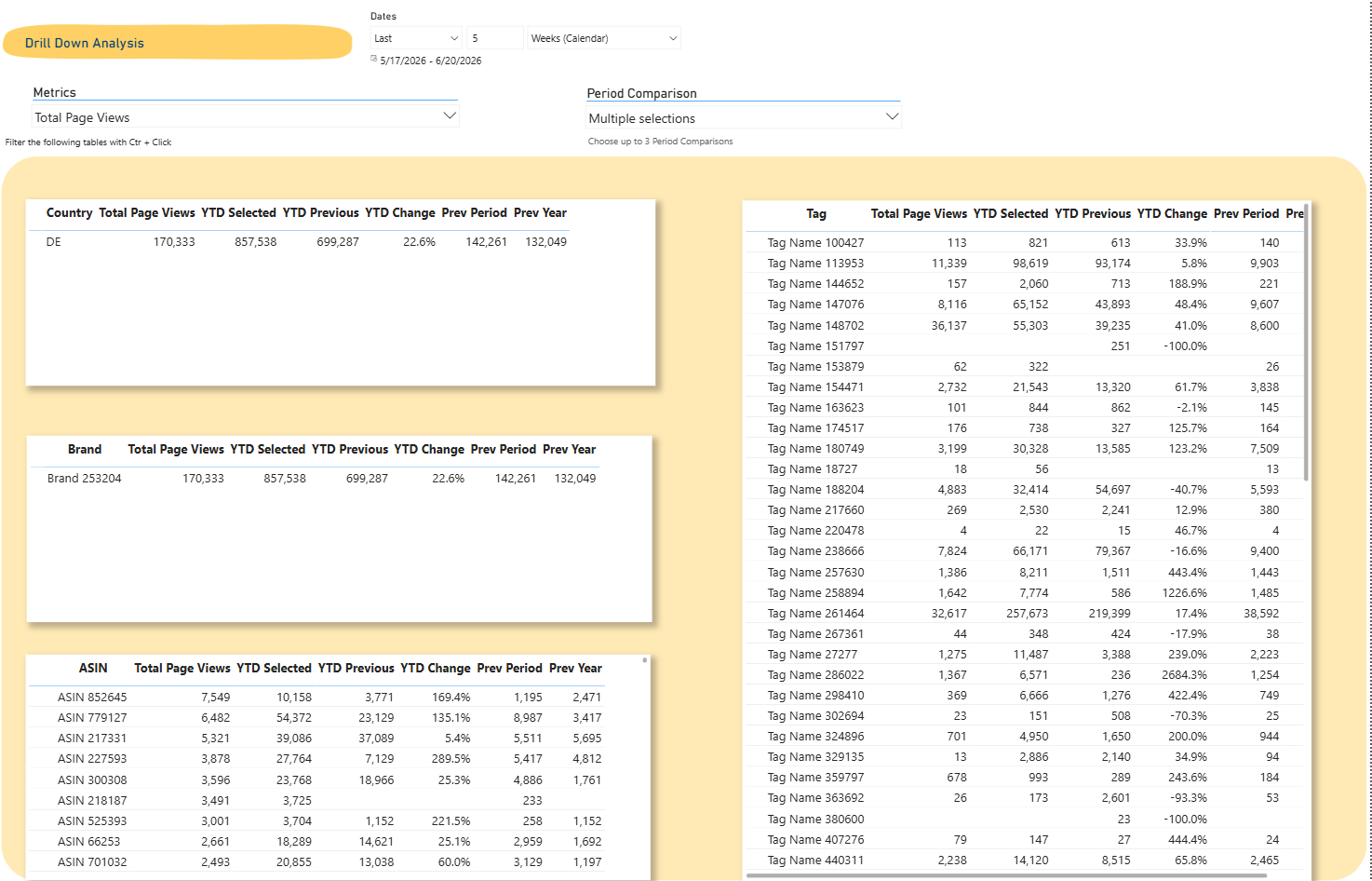 The Drill Down tables use a separate date slicer from the main reporting period at the top of the page.
The Seller-only Executive tab follows the same structure as the combined tab, focused exclusively on Seller Central data.
**Summary bar** KPIs:
- Page Views
- Unit View Percentage
- Sales (Ordered Product Sales)
- Units Sold
- Net Profit Margin %
- Refund Rate
**Line charts** cover Sales, Adjusted Operating Profit, Ad Sales, Unit View Percentage, Units Sold, Net Profit Margin %, and Ad Spend, each vs Prev Year.
The Drill Down tables use a separate date slicer from the main reporting period at the top of the page.
The Seller-only Executive tab follows the same structure as the combined tab, focused exclusively on Seller Central data.
**Summary bar** KPIs:
- Page Views
- Unit View Percentage
- Sales (Ordered Product Sales)
- Units Sold
- Net Profit Margin %
- Refund Rate
**Line charts** cover Sales, Adjusted Operating Profit, Ad Sales, Unit View Percentage, Units Sold, Net Profit Margin %, and Ad Spend, each vs Prev Year.
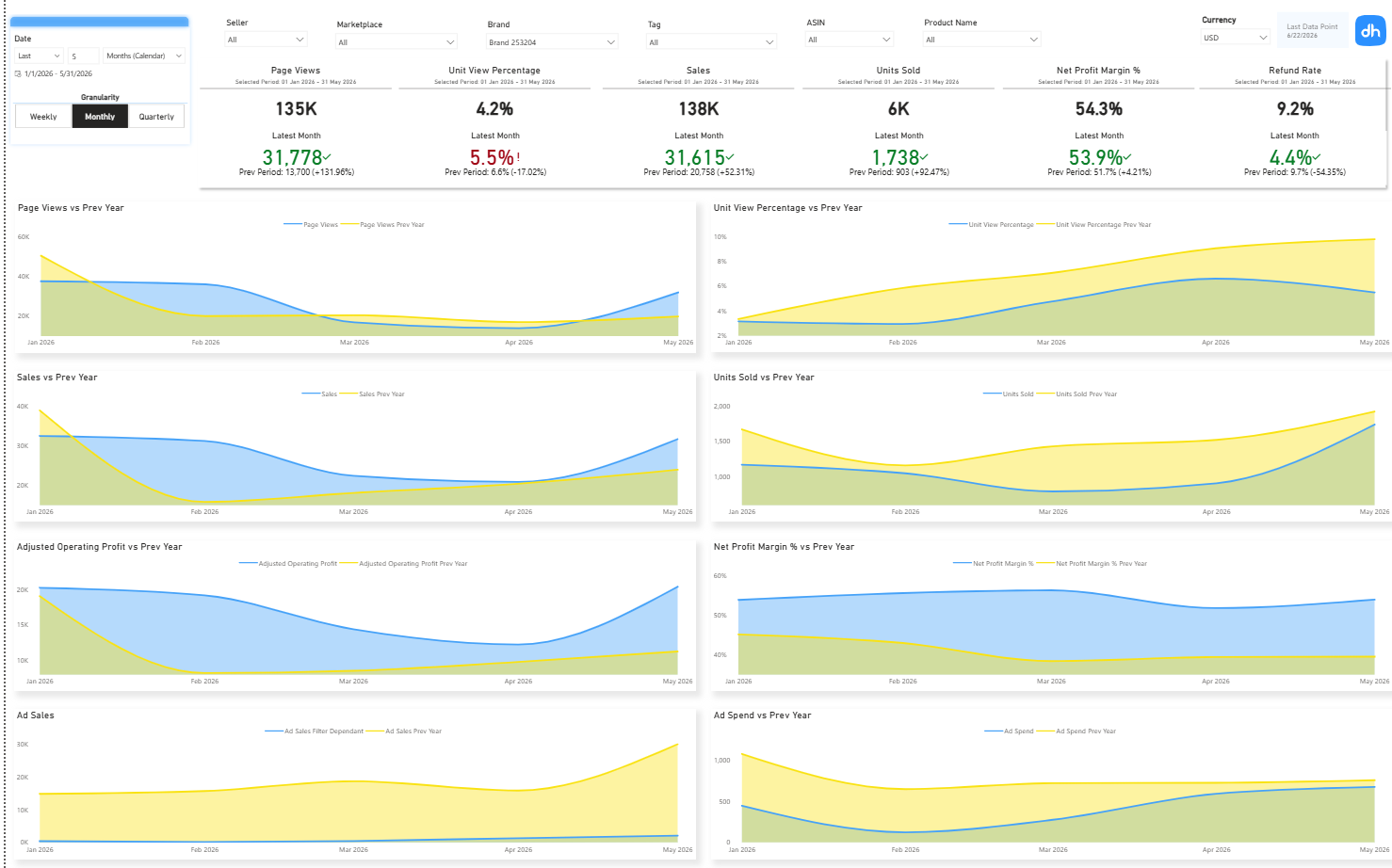 **Main metrics table** (monthly, with PoP and YoY):
- Page Views, Page Views YoY
- Unit View Percentage / PoP Abs / YoY Abs
- Sales / PoP / YoY
- Units Sold / PoP / YoY
- Order Count / PoP / YoY
- ASP / PoP Abs / YoY Abs
- AOV / PoP Abs / YoY Abs
- Gross Revenue / PoP / YoY
- etc
**Main metrics table** (monthly, with PoP and YoY):
- Page Views, Page Views YoY
- Unit View Percentage / PoP Abs / YoY Abs
- Sales / PoP / YoY
- Units Sold / PoP / YoY
- Order Count / PoP / YoY
- ASP / PoP Abs / YoY Abs
- AOV / PoP Abs / YoY Abs
- Gross Revenue / PoP / YoY
- etc
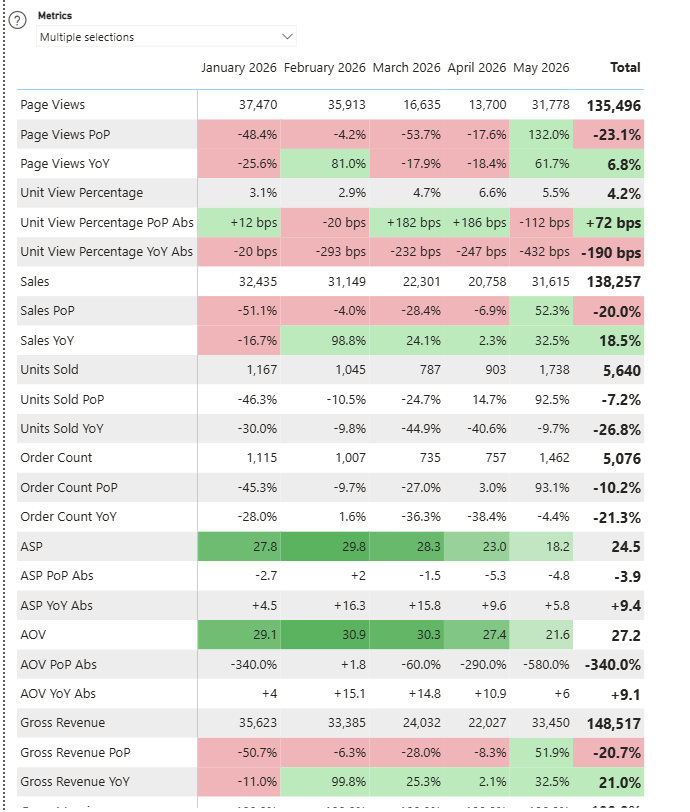 Breakdown table (Selected Period) shows performance by Dimension you choose in the slicer, with columns for Sales & Volume, Profit, Traffic & Conversion, and Price.
The Vendor-only Executive tab focuses on Vendor Central data.
**Summary bar** KPIs:
- Glance Views
- Unit View Percentage
- Shipped COGS
- Ordered Revenue
- ASP Earned Revenue basis (AWP)
- ASP Ordered Revenue basis
**Line charts** cover Glance Views, Unit View Percentage, Shipped Revenue, Shipped COGS, Ad Sales, and Ad Spend, each vs Prev Year.
Breakdown table (Selected Period) shows performance by Dimension you choose in the slicer, with columns for Sales & Volume, Profit, Traffic & Conversion, and Price.
The Vendor-only Executive tab focuses on Vendor Central data.
**Summary bar** KPIs:
- Glance Views
- Unit View Percentage
- Shipped COGS
- Ordered Revenue
- ASP Earned Revenue basis (AWP)
- ASP Ordered Revenue basis
**Line charts** cover Glance Views, Unit View Percentage, Shipped Revenue, Shipped COGS, Ad Sales, and Ad Spend, each vs Prev Year.
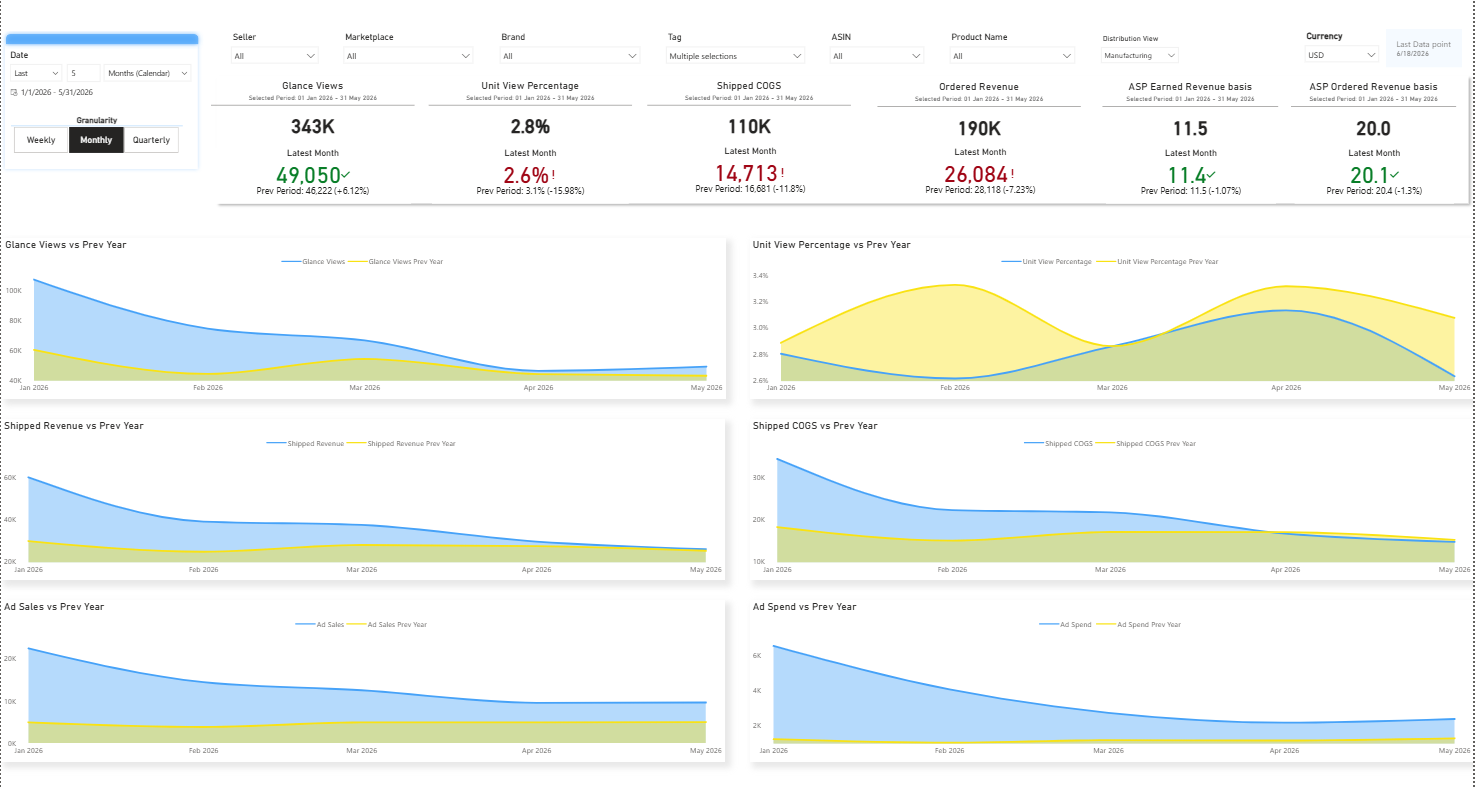 **Main metrics table** (monthly, with PoP and YoY):
- Page Views, Page Views YoY
- Unit View Percentage / PoP Abs / YoY Abs
- Sales / PoP / YoY
- Units Sold / PoP / YoY
- Order Count / PoP / YoY
- ASP / PoP Abs / YoY Abs
- AOV / PoP Abs / YoY Abs
- Gross Revenue / PoP / YoY
- etc
**Main metrics table** (monthly, with PoP and YoY):
- Page Views, Page Views YoY
- Unit View Percentage / PoP Abs / YoY Abs
- Sales / PoP / YoY
- Units Sold / PoP / YoY
- Order Count / PoP / YoY
- ASP / PoP Abs / YoY Abs
- AOV / PoP Abs / YoY Abs
- Gross Revenue / PoP / YoY
- etc
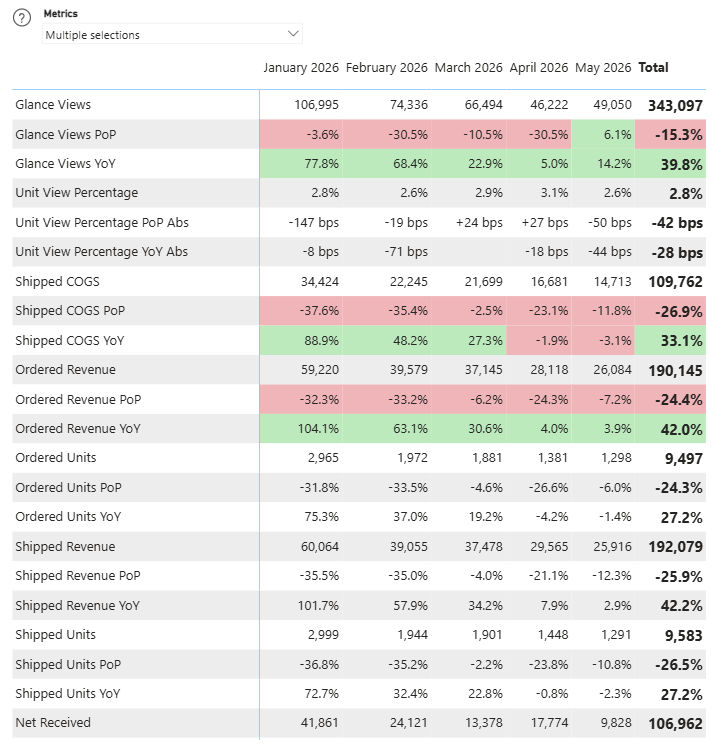 Breakdown table (Selected Period) shows performance by Country, with Shipped COGS, Ordered Revenue, Glance Views, Unit View Percentage, ASP Ordered Revenue basis, and ASP Earned Revenue basis per country.
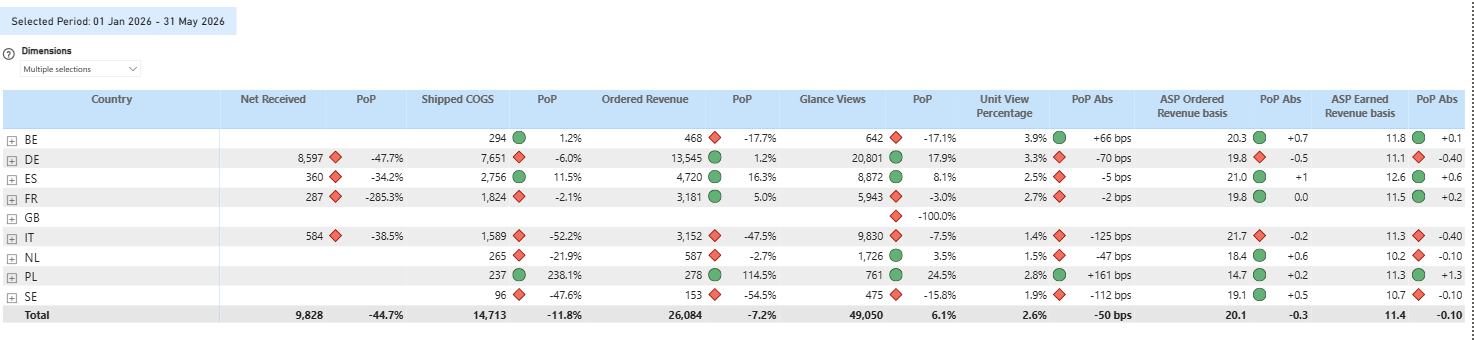 The Vendor tab includes a Distribution View slicer (Manufacturing / Sourcing) that controls how inventory and procurement data is grouped.
Displays Seller traffic metrics.
**Summary bar**: Page Views, Buy Box Win %, Unit View Percentage, Conversion (Session to Order).
**Line charts**: Page Views and Unit View Percentage vs Prev Year.
The Vendor tab includes a Distribution View slicer (Manufacturing / Sourcing) that controls how inventory and procurement data is grouped.
Displays Seller traffic metrics.
**Summary bar**: Page Views, Buy Box Win %, Unit View Percentage, Conversion (Session to Order).
**Line charts**: Page Views and Unit View Percentage vs Prev Year.
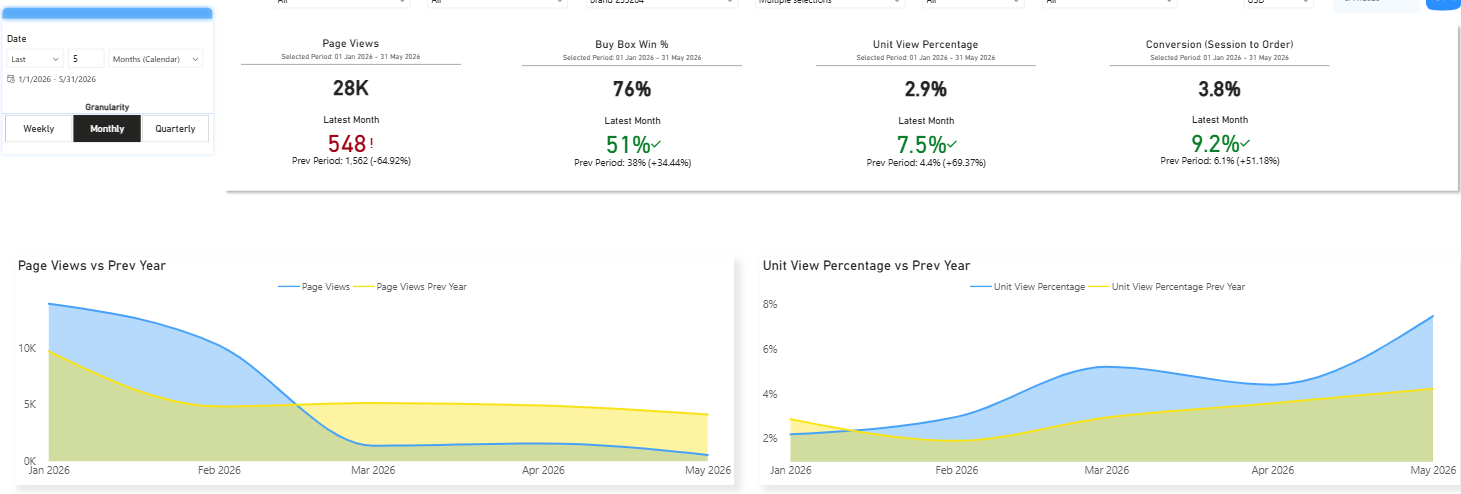 **Main Metrics table by Dimension chosen in the slicer above (weekly/monthly/quarterly)**: Page Views, Sessions, Buy Box Win %, Unit View Percentage, Sales, Units Sold, ASP, with PoP, YoY.
**Breakdown table** (Latest Period): Page Views distribution, Sessions, Buy Box Win %, Units Sold distribution, Unit View Percentage, per Dimension chosen in the slicer above.
**Main Metrics table by Dimension chosen in the slicer above (weekly/monthly/quarterly)**: Page Views, Sessions, Buy Box Win %, Unit View Percentage, Sales, Units Sold, ASP, with PoP, YoY.
**Breakdown table** (Latest Period): Page Views distribution, Sessions, Buy Box Win %, Units Sold distribution, Unit View Percentage, per Dimension chosen in the slicer above.
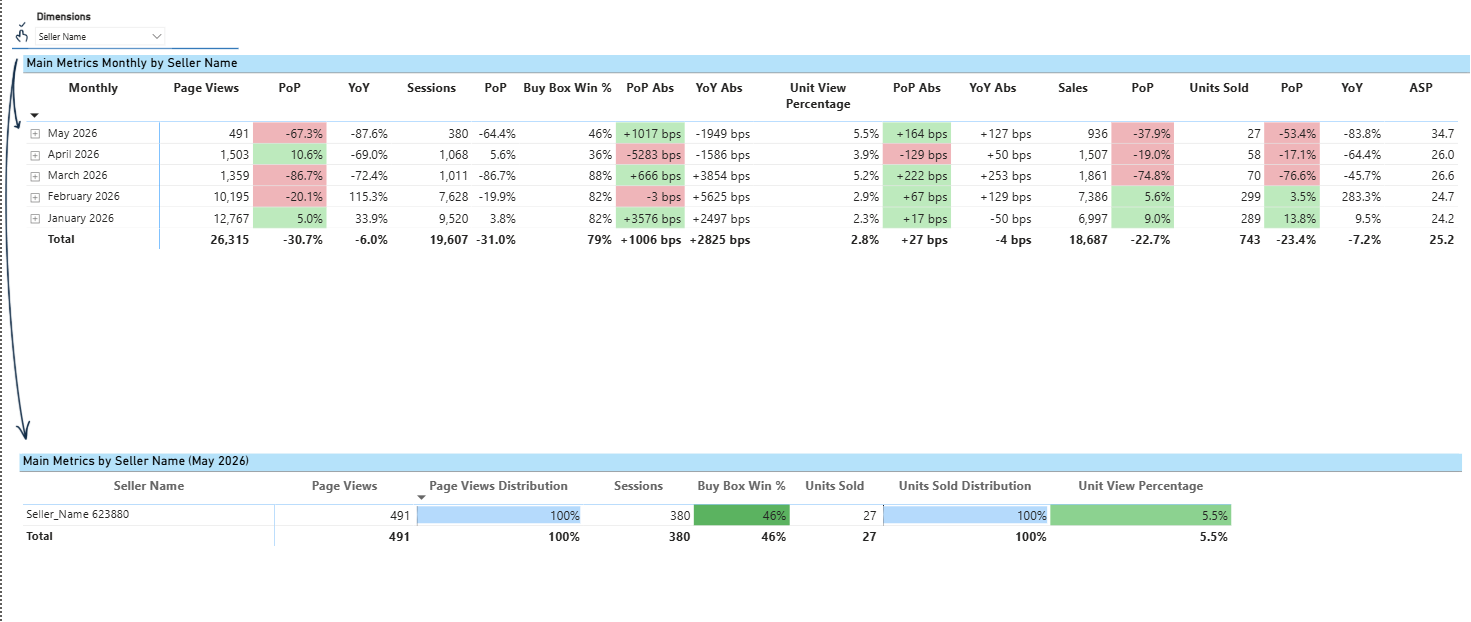 **ASIN tables at the bottom**:
- Page Views by ASIN: Top 1000 (with PoP Abs, PoP %, YoY %, Buy Box Win %, Unit View Percentage)
- Gainers by ASIN: Top 1000
- Decliners by ASIN: Top 1000
**ASIN tables at the bottom**:
- Page Views by ASIN: Top 1000 (with PoP Abs, PoP %, YoY %, Buy Box Win %, Unit View Percentage)
- Gainers by ASIN: Top 1000
- Decliners by ASIN: Top 1000
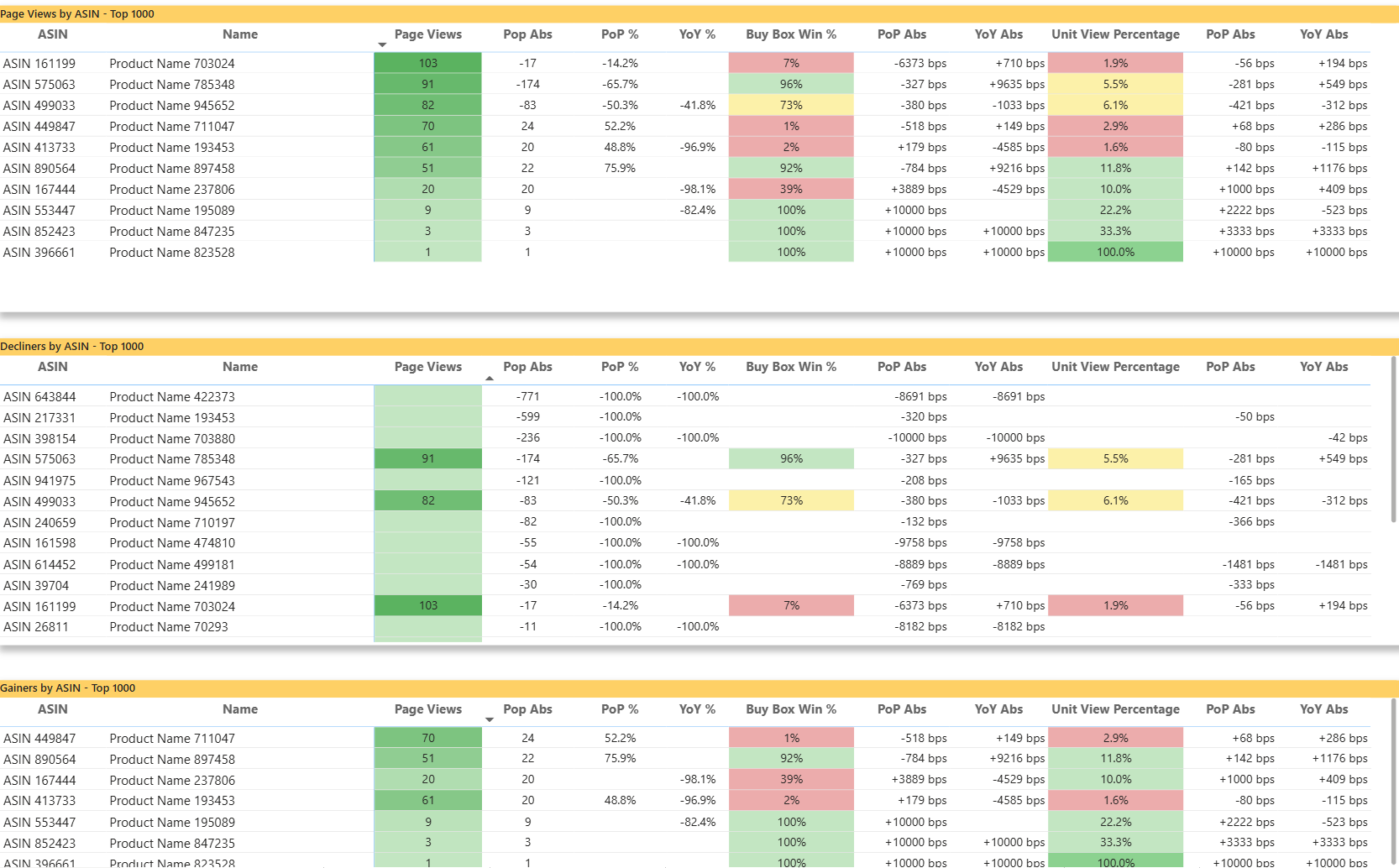 Displays Vendor traffic metrics.
**Summary bar**: Glance Views, Unit View Percentage, GV OOS (Manufacturing), Proc OOS % (Manufacturing).
**Line charts**: Glance Views and Unit View Percentage vs Prev Year.
Displays Vendor traffic metrics.
**Summary bar**: Glance Views, Unit View Percentage, GV OOS (Manufacturing), Proc OOS % (Manufacturing).
**Line charts**: Glance Views and Unit View Percentage vs Prev Year.
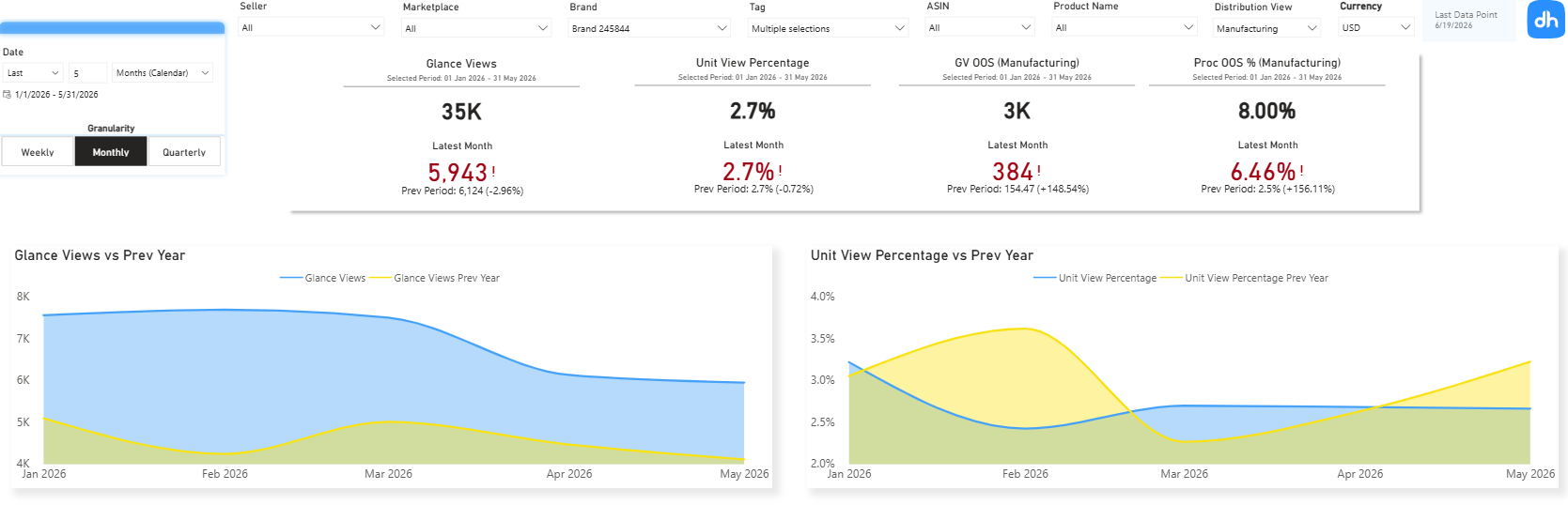 **Main metrics table** (weekly/monthly/quarterly): Glance Views, Ordered Revenue, Unit View Percentage, GV OOS, Proc OOS %, with PoP, YoY.
**Breakdown table** (Latest Period) by Dimension chosen in the slicer above: Glance Views distribution, Ordered Revenue distribution, Ordered Units, Unit View Percentage, GV OOS, Proc OOS %.
**Main metrics table** (weekly/monthly/quarterly): Glance Views, Ordered Revenue, Unit View Percentage, GV OOS, Proc OOS %, with PoP, YoY.
**Breakdown table** (Latest Period) by Dimension chosen in the slicer above: Glance Views distribution, Ordered Revenue distribution, Ordered Units, Unit View Percentage, GV OOS, Proc OOS %.
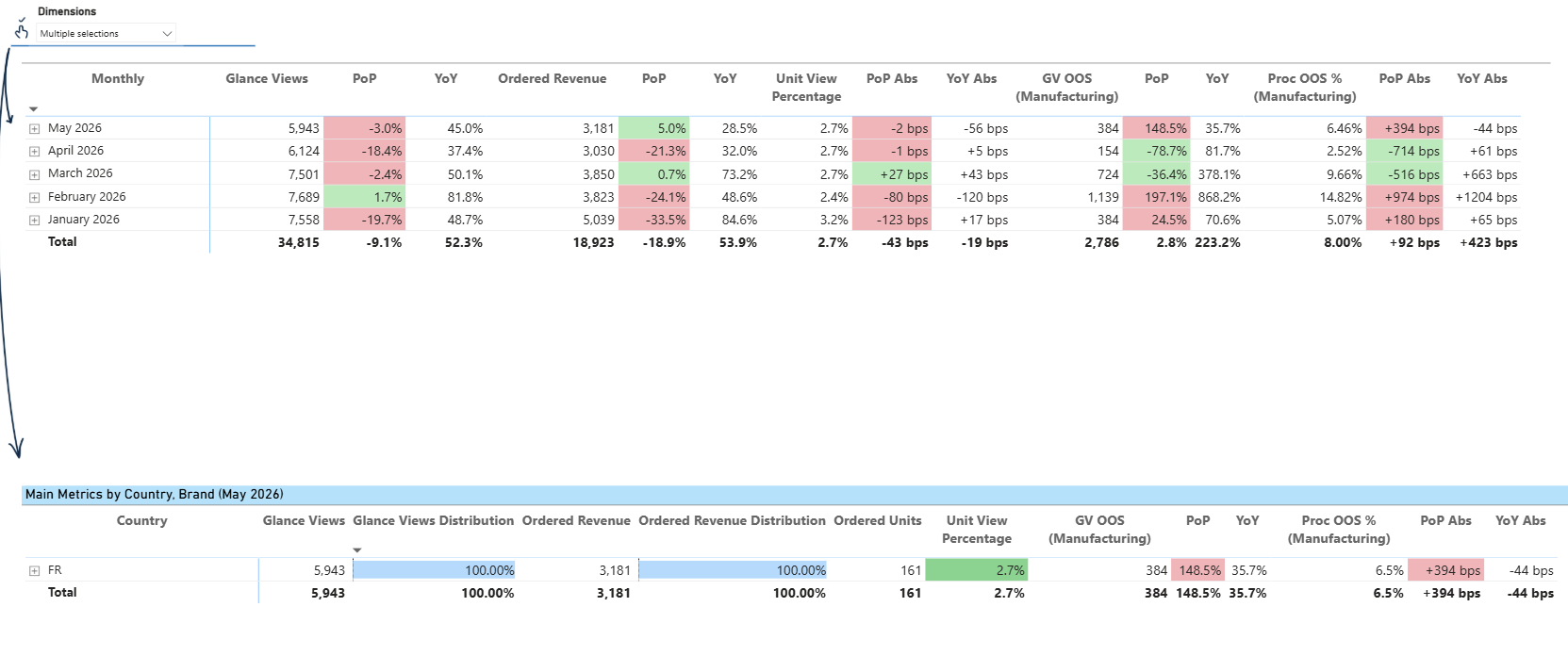 **ASIN tables at the bottom**:
- Traffic by ASIN: Top 1000
- Decliners by ASIN: Top 1000
- Gainers by ASIN: Top 1000
**ASIN tables at the bottom**:
- Traffic by ASIN: Top 1000
- Decliners by ASIN: Top 1000
- Gainers by ASIN: Top 1000
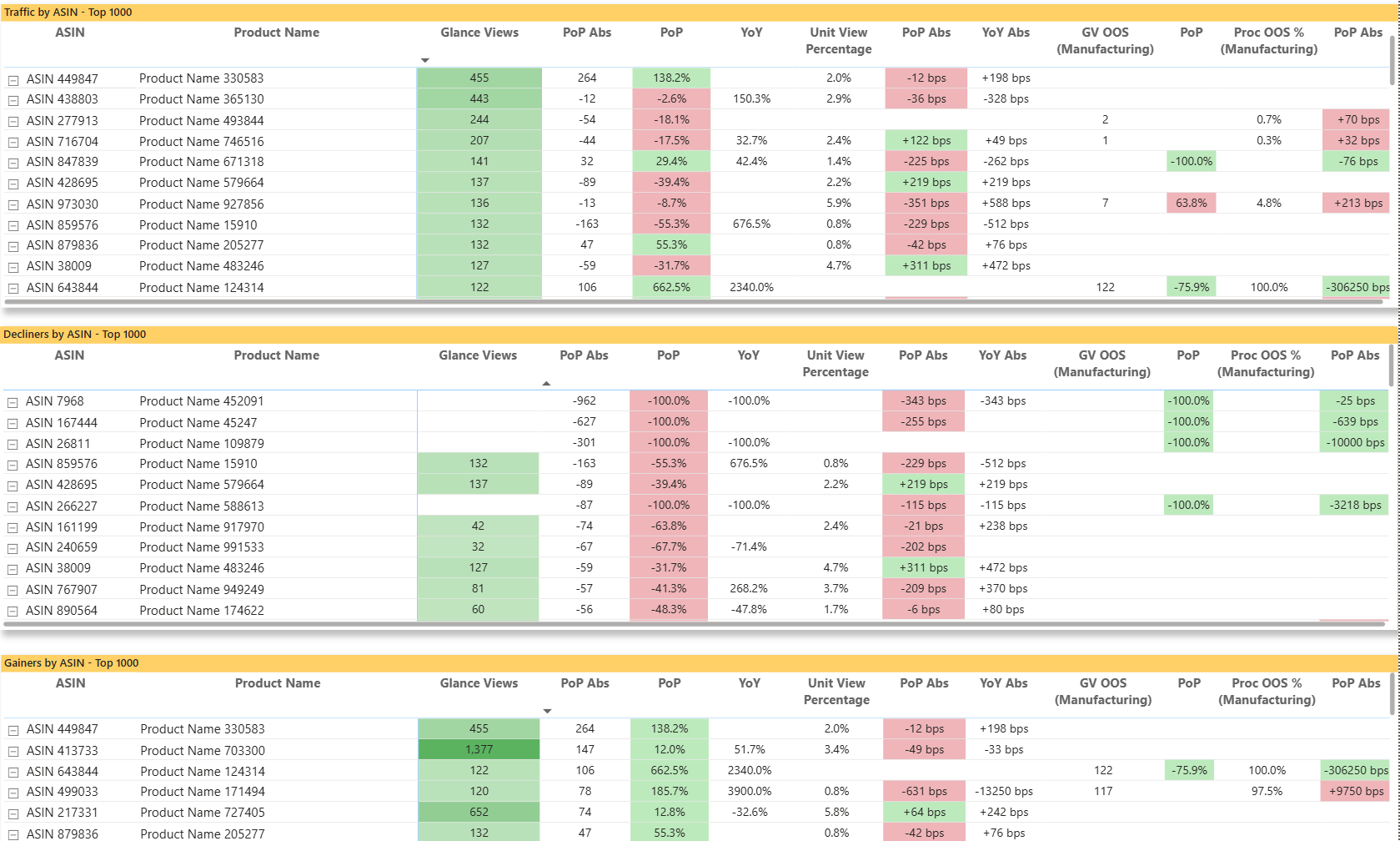 **Summary bar**: Sales, Units Sold, ASP, AOV.
**Line charts**: Sales, Units Sold, Order Count, ASP vs. Prev Year.
Bar chart: Sales by shipping country (drillable to state → city → postal code). Donut chart: Order count by order status.
**Summary bar**: Sales, Units Sold, ASP, AOV.
**Line charts**: Sales, Units Sold, Order Count, ASP vs. Prev Year.
Bar chart: Sales by shipping country (drillable to state → city → postal code). Donut chart: Order count by order status.
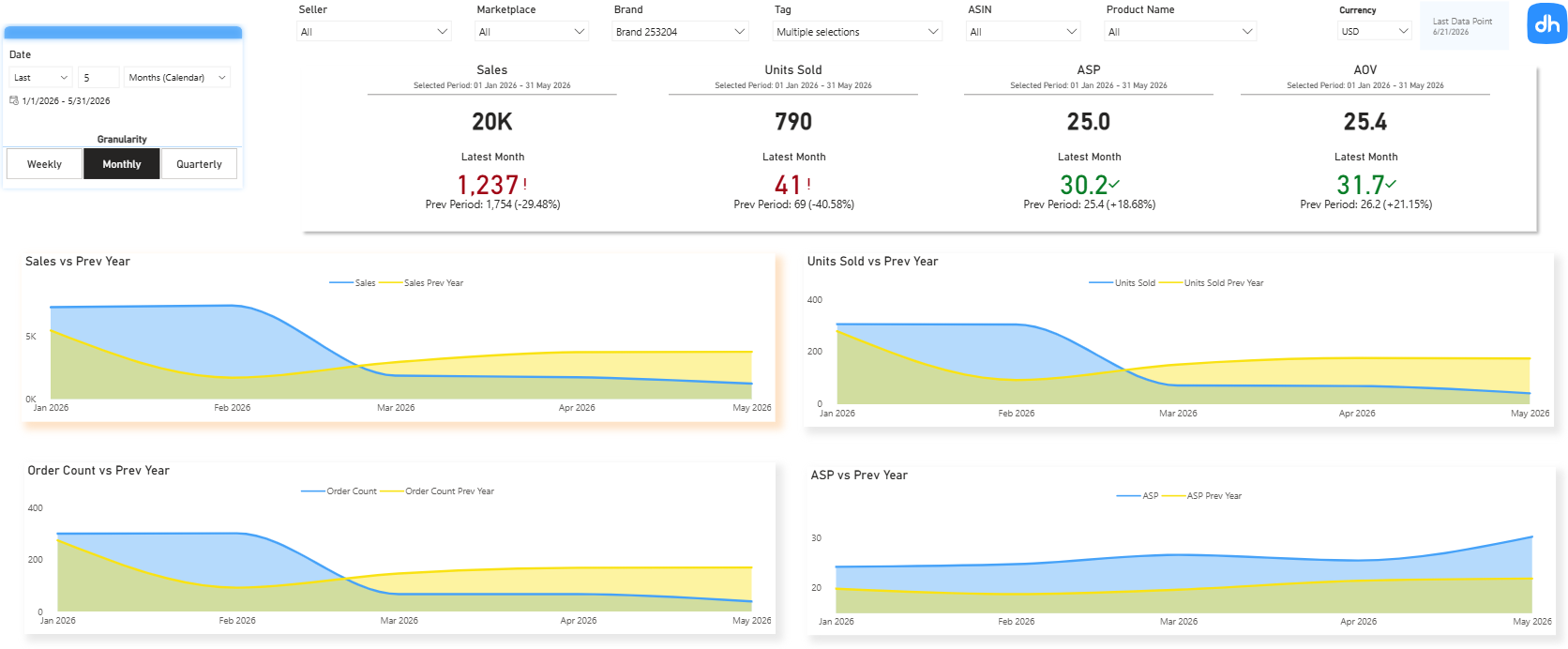 **Main metrics table** (weekly/monthly/quarterly) by Dimension chosen in the slicer above: Sales, Units Sold, Order Count, ASP, AOV, with PoP, YoY.
**Breakdown table** (Latest Period) by Dimension chosen in the slicer above: Sales distribution, Units Sold, Order Count, ASP, AOV, per Seller name.
**Main metrics table** (weekly/monthly/quarterly) by Dimension chosen in the slicer above: Sales, Units Sold, Order Count, ASP, AOV, with PoP, YoY.
**Breakdown table** (Latest Period) by Dimension chosen in the slicer above: Sales distribution, Units Sold, Order Count, ASP, AOV, per Seller name.
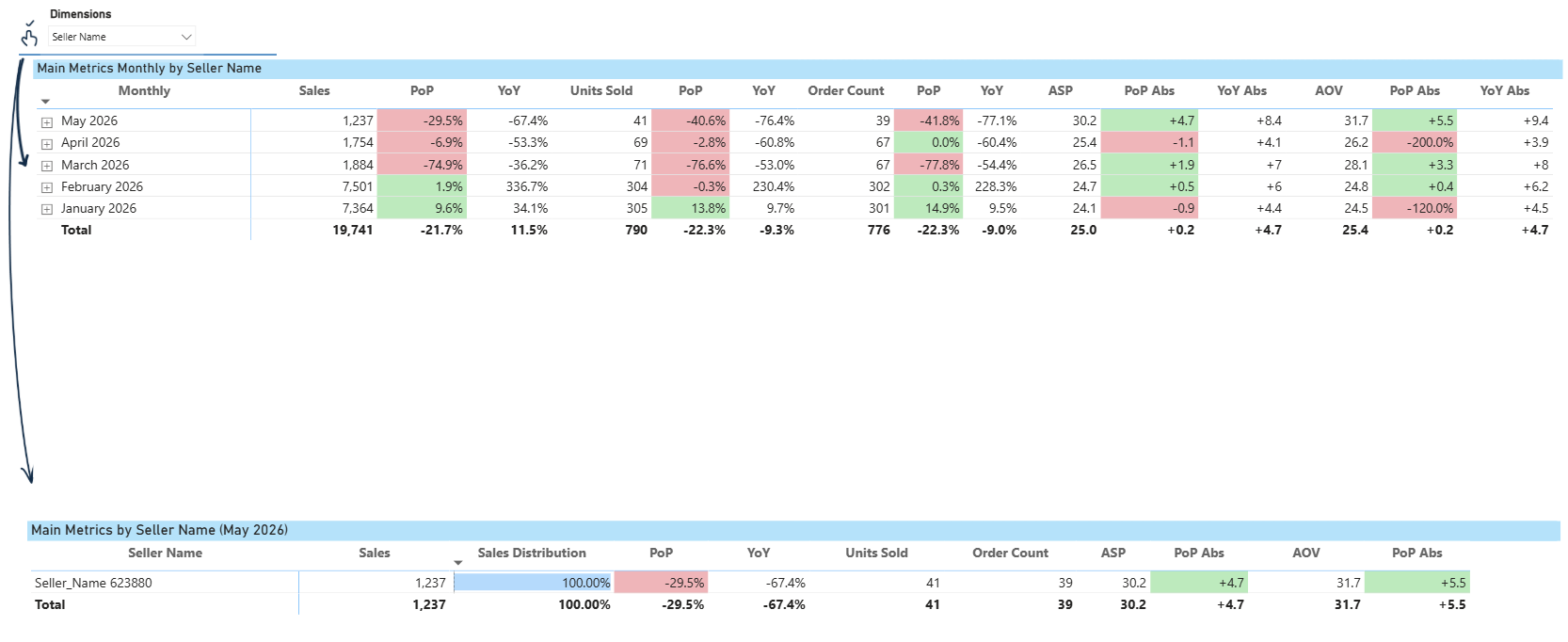 **ASIN tables at the bottom**:
- Sales by ASIN: Top 1000
- Decliners by ASIN: Top 1000
- Gainers by ASIN: Top 1000
**ASIN tables at the bottom**:
- Sales by ASIN: Top 1000
- Decliners by ASIN: Top 1000
- Gainers by ASIN: Top 1000
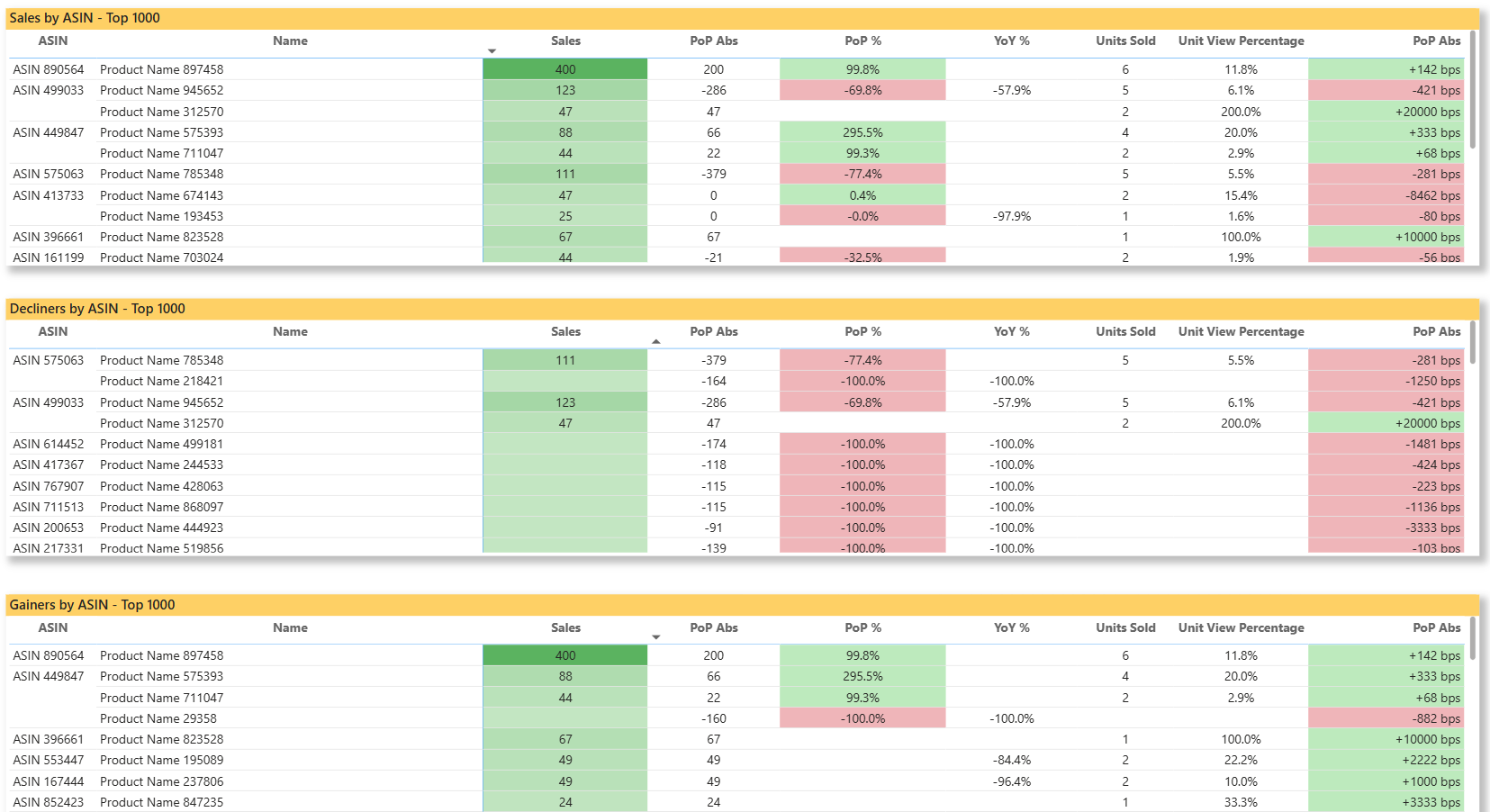 **Summary bar**: Shipped COGS, Ordered Revenue, ASP Earned Revenue basis (AWP), ASP Ordered Revenue basis, Return Rate.
**Line charts**: Shipped Revenue, Shipped COGS, Shipped Units, ASP (both bases) vs. Prev Year.
**Summary bar**: Shipped COGS, Ordered Revenue, ASP Earned Revenue basis (AWP), ASP Ordered Revenue basis, Return Rate.
**Line charts**: Shipped Revenue, Shipped COGS, Shipped Units, ASP (both bases) vs. Prev Year.
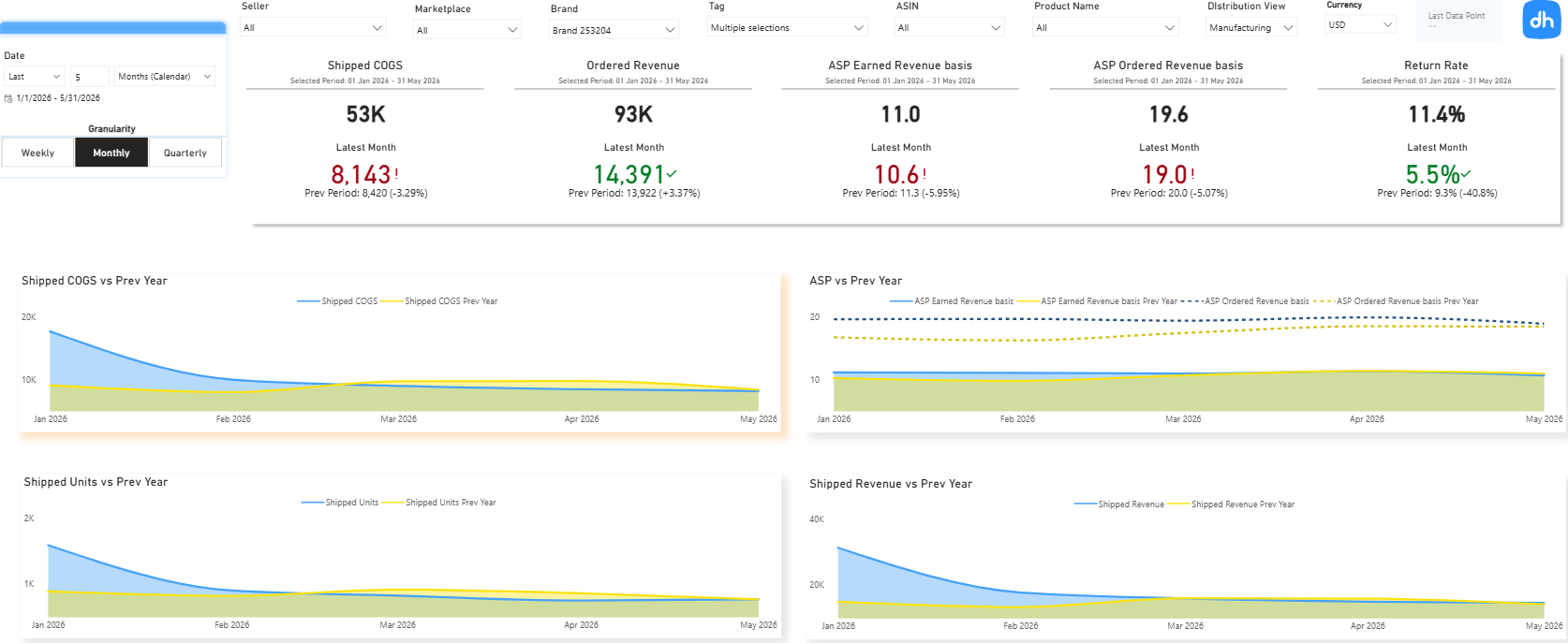 **Main metrics table** (weekly/monthly/quarterly) by Dimension chosen in the slicer above: Shipped COGS, Shipped Revenue, Ordered Revenue, Ordered Units, Shipped Units, ASP Ordered Revenue basis, ASP Earned Revenue basis, Return Rate, with PoP, YoY.
**Country breakdown table** (Latest Period) by Dimension chosen in the slicer above: Shipped COGS distribution, Shipped Revenue, Ordered Revenue, ASP Ordered Revenue basis, ASP Earned Revenue basis, Return Rate, per country.
**Main metrics table** (weekly/monthly/quarterly) by Dimension chosen in the slicer above: Shipped COGS, Shipped Revenue, Ordered Revenue, Ordered Units, Shipped Units, ASP Ordered Revenue basis, ASP Earned Revenue basis, Return Rate, with PoP, YoY.
**Country breakdown table** (Latest Period) by Dimension chosen in the slicer above: Shipped COGS distribution, Shipped Revenue, Ordered Revenue, ASP Ordered Revenue basis, ASP Earned Revenue basis, Return Rate, per country.
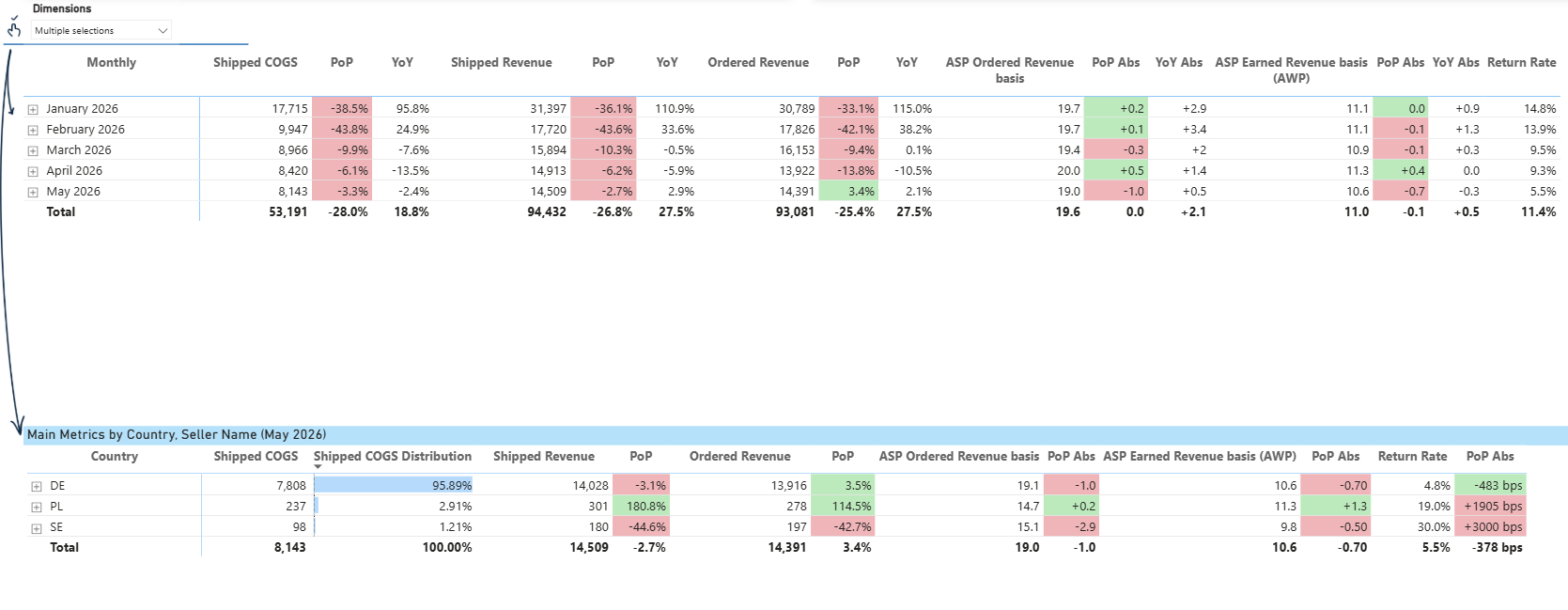 **ASIN tables at the bottom**:
- Sales by ASIN: Top 1000 (with Shipped COGS, Ordered Revenue, both ASPs, Glance Views, Unit View Percentage, Return Rate)
- Gainers by ASIN: Top 1000
- Decliners by ASIN: Top 1000
**ASIN tables at the bottom**:
- Sales by ASIN: Top 1000 (with Shipped COGS, Ordered Revenue, both ASPs, Glance Views, Unit View Percentage, Return Rate)
- Gainers by ASIN: Top 1000
- Decliners by ASIN: Top 1000
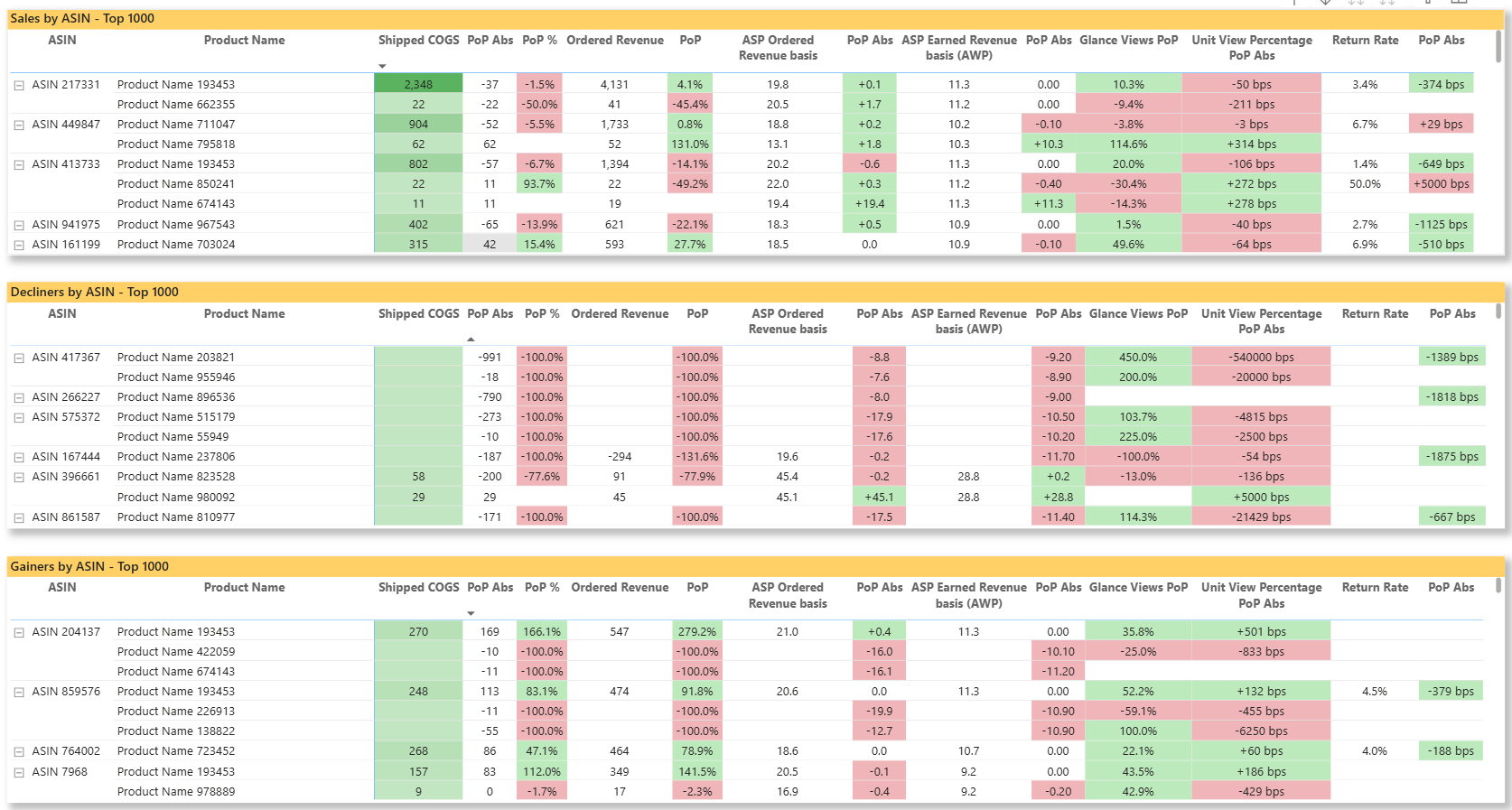 Covers advertising performance across Seller and Vendor accounts.
Accessible via three sub-tabs at the top: **📢 Advertising** (account view) / **🗂️ Advertising Campaign** / **🛍️ Advertising Product**.
A toggle at the top left switches between **ACoS** and **RoAS** as the primary efficiency metric across all advertising tabs.
**Summary bar**: Ad Spend, Ad Sales, ACoS (or RoAS), TACoS (Ordered Revenue basis), CTR, CPC for the whole selected period, latest period and PoP
**Country table**: Ad Spend, Ad Sales, ACoS, TACoS (Ordered Revenue basis), Impressions, Clicks, CTR, Unit View Percentage, CPC, with PoP and YoY.
Covers advertising performance across Seller and Vendor accounts.
Accessible via three sub-tabs at the top: **📢 Advertising** (account view) / **🗂️ Advertising Campaign** / **🛍️ Advertising Product**.
A toggle at the top left switches between **ACoS** and **RoAS** as the primary efficiency metric across all advertising tabs.
**Summary bar**: Ad Spend, Ad Sales, ACoS (or RoAS), TACoS (Ordered Revenue basis), CTR, CPC for the whole selected period, latest period and PoP
**Country table**: Ad Spend, Ad Sales, ACoS, TACoS (Ordered Revenue basis), Impressions, Clicks, CTR, Unit View Percentage, CPC, with PoP and YoY.
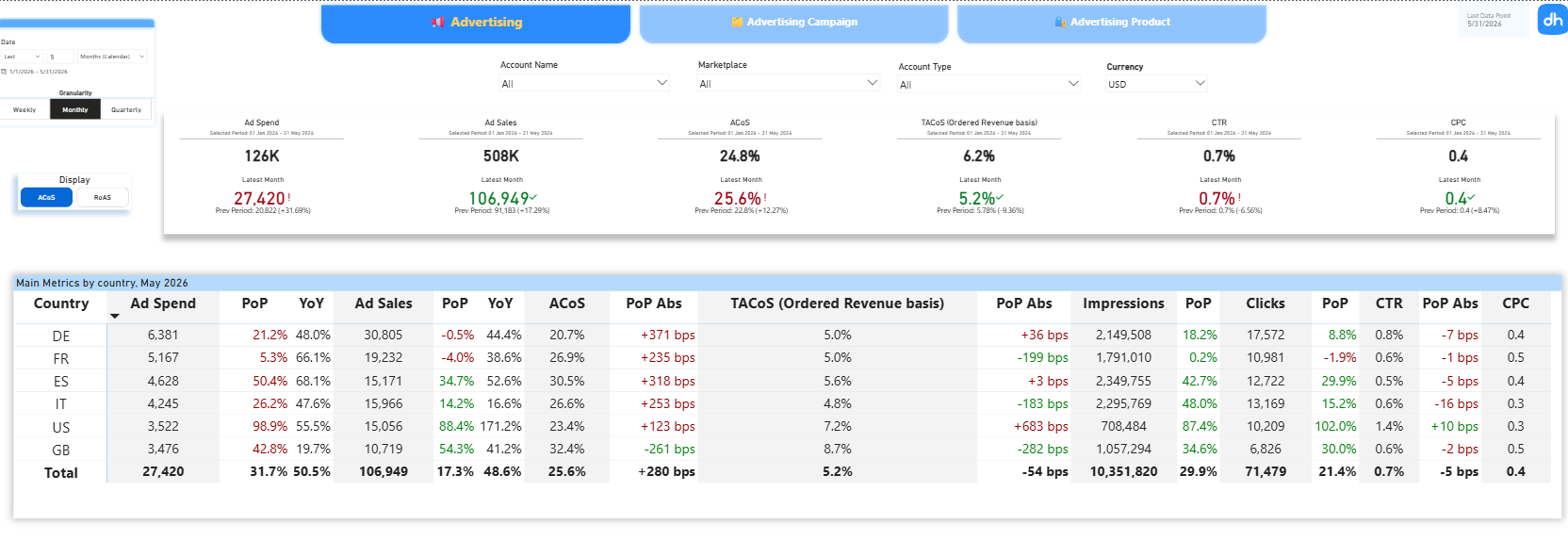 Bar charts by Sponsored Type (SP / SD / SB): Ad Spend, Ad Sales, and ACoS / RoAS over time.
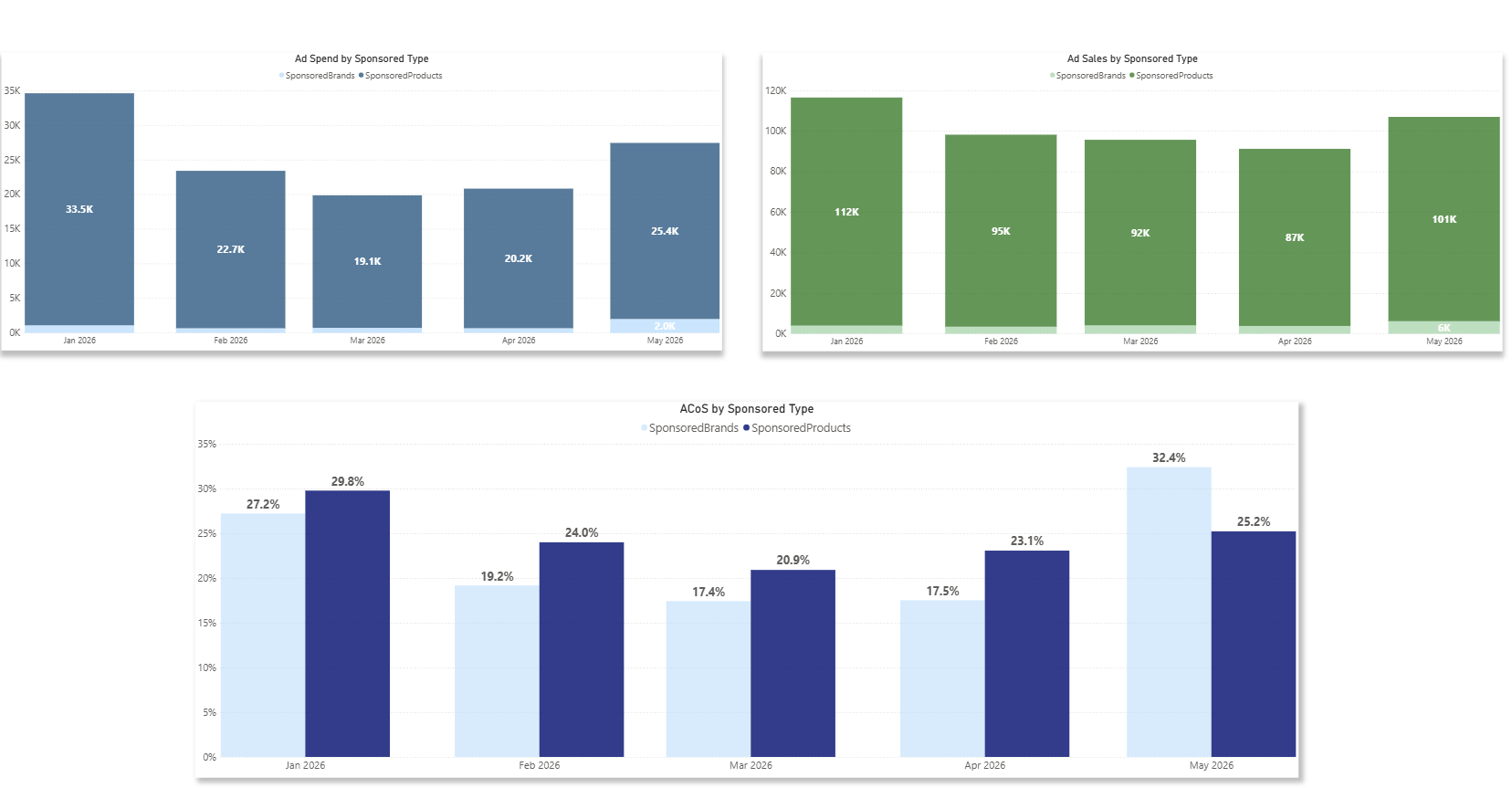 **Breakdown table** (weekly/monthly/quarterly) by Country: Ad Spend, Ad Sales, ACoS, TACoS (Ordered Revenue basis), Impressions, Clicks, CTR, with PoP and YoY.
**Sponsored type detail**: Side-by-side breakdown of Sponsored Brands, Sponsored Display, and Sponsored Products; impressions, CTR, Unit View Percentage, ACoS, CPC.
**Breakdown table** (weekly/monthly/quarterly) by Country: Ad Spend, Ad Sales, ACoS, TACoS (Ordered Revenue basis), Impressions, Clicks, CTR, with PoP and YoY.
**Sponsored type detail**: Side-by-side breakdown of Sponsored Brands, Sponsored Display, and Sponsored Products; impressions, CTR, Unit View Percentage, ACoS, CPC.
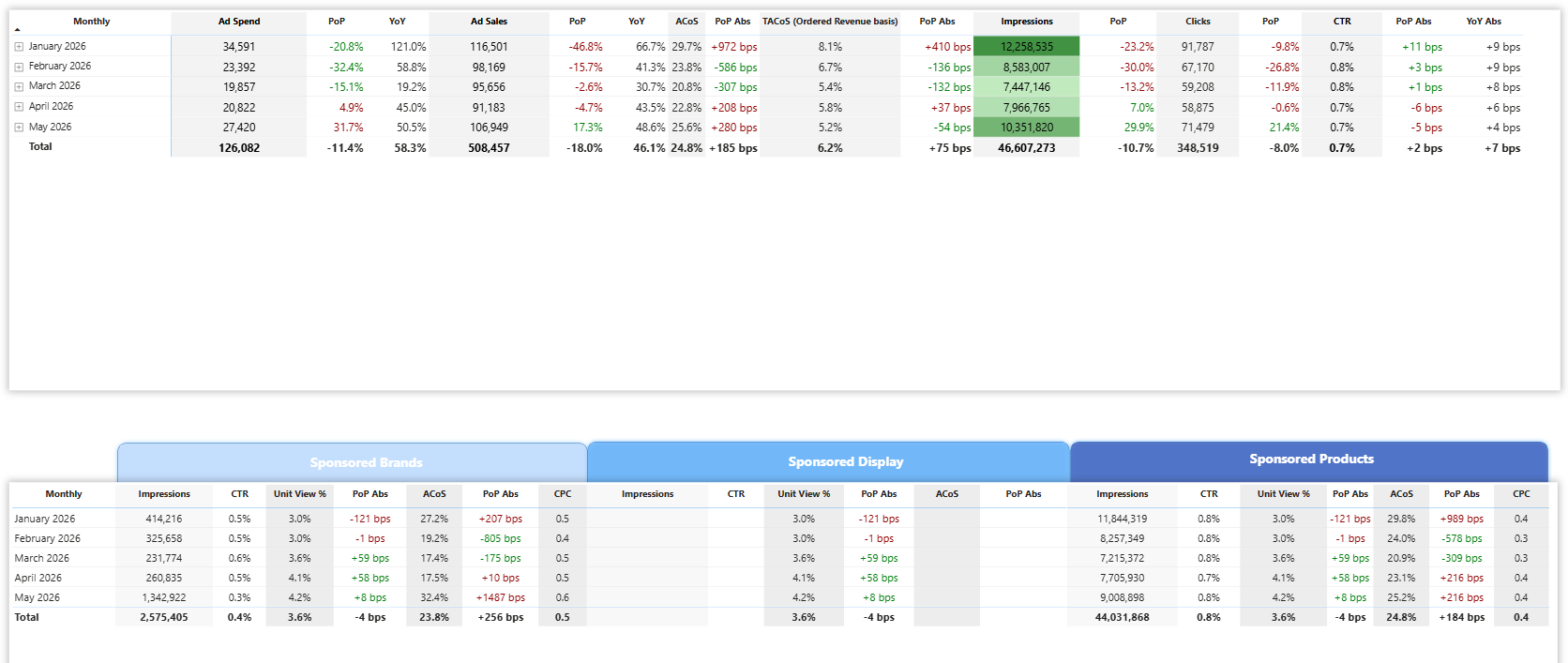 Top metric cards for Ad Spend, Ad Sales, ACoS/RoAS, Impressions, CTR - showing values for the whole current period selected, Latest Period, and PoP trend.
**Breakdown Table over the whole period** (weekly/monthly/quarterly by Dimension chosen in the slicer above): Ad Sales, Ad Spend, CPC, ACoS/RoAS, Impressions, Clicks, CTR, CVR, Orders, with PoP and YoY.
**Breakdown table** (Latest Period by Dimension chosen in the slicer above): Ad Sales distribution, Ad Spend, Impressions distribution, Clicks, Orders, CPC, CTR, CVR, ACoS/RoAS.
Top metric cards for Ad Spend, Ad Sales, ACoS/RoAS, Impressions, CTR - showing values for the whole current period selected, Latest Period, and PoP trend.
**Breakdown Table over the whole period** (weekly/monthly/quarterly by Dimension chosen in the slicer above): Ad Sales, Ad Spend, CPC, ACoS/RoAS, Impressions, Clicks, CTR, CVR, Orders, with PoP and YoY.
**Breakdown table** (Latest Period by Dimension chosen in the slicer above): Ad Sales distribution, Ad Spend, Impressions distribution, Clicks, Orders, CPC, CTR, CVR, ACoS/RoAS.
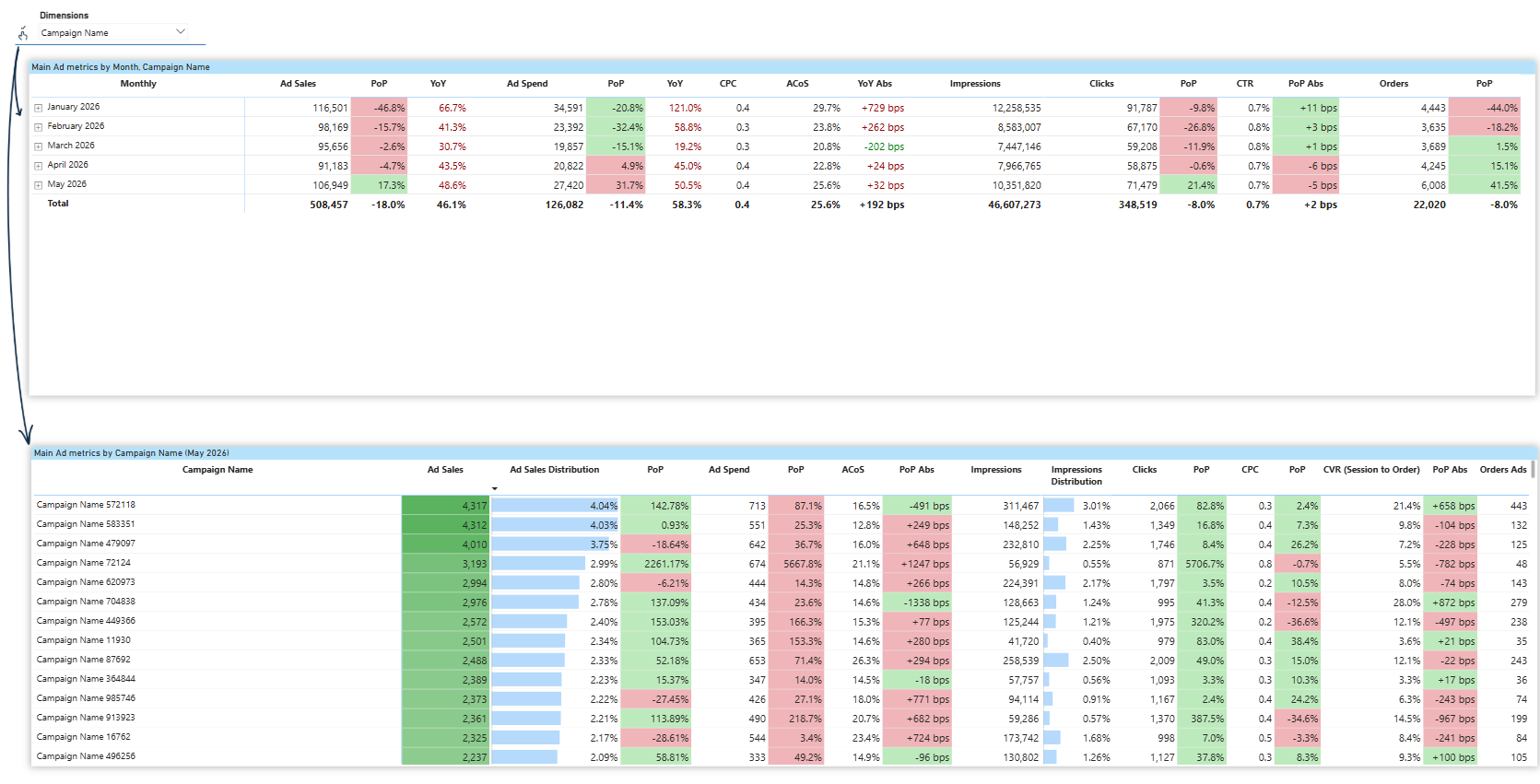 Custom timeline chart: Choose any date range and granularity. Compare two metrics using Left Axis and Right Axis selectors.
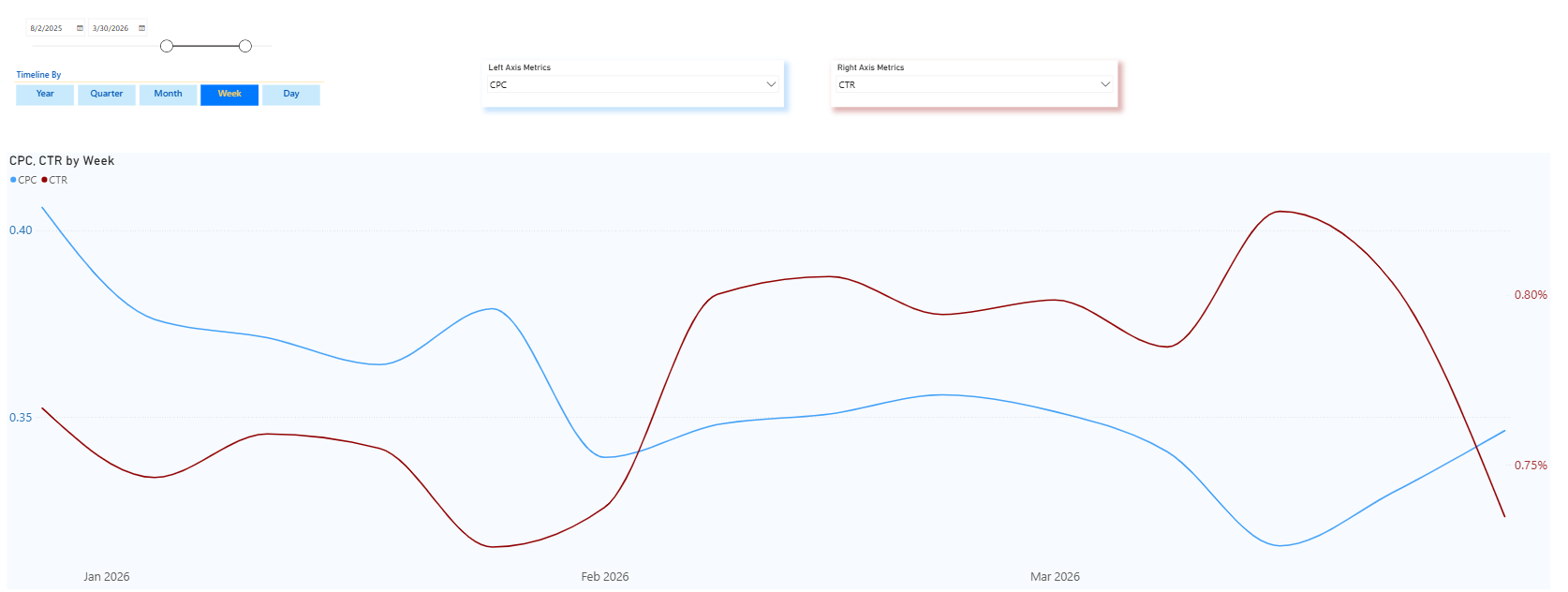
 Same structure as Advertising Campaign, plus:
- Top 1000 ASINs by Ad Sales for Sponsored Products
- Top 1000 ASINs by Ad Sales for Sponsored Display
Same structure as Advertising Campaign, plus:
- Top 1000 ASINs by Ad Sales for Sponsored Products
- Top 1000 ASINs by Ad Sales for Sponsored Display
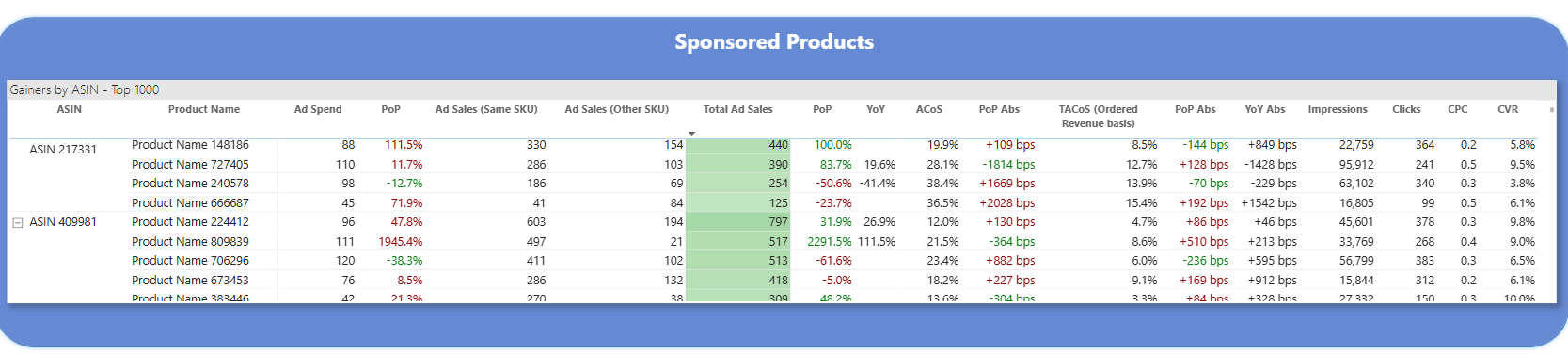
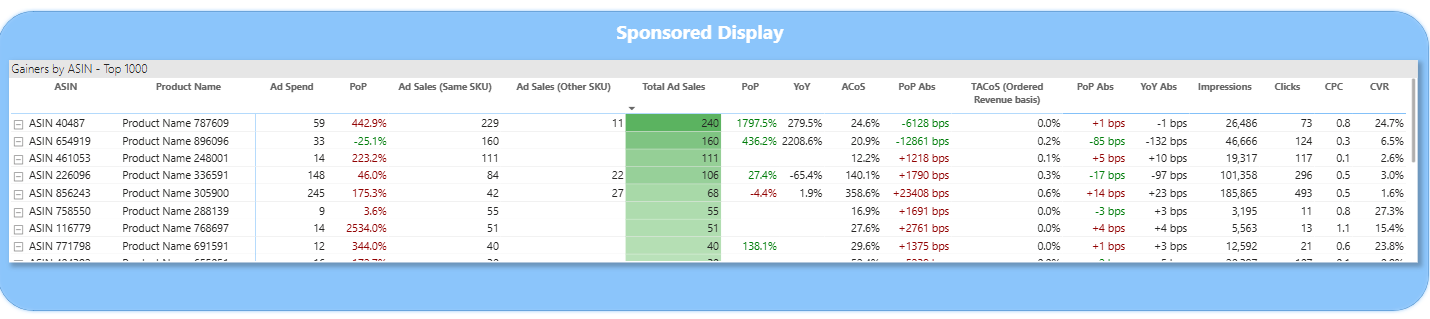 Product-level data includes Sponsored Products and Sponsored Display only (no Sponsored Brands).
Provides a financial overview focused on profitability and cost structure for the Seller channel.
COGS must be imported in the DataHawk app for the cost-related metrics to display more precisely.
**Summary bar**: Gross Revenue, Net Revenue, Net Profit, Net Profit Margin with values for the whole period, latest period and PoP change.
**Line charts**: Net Profit, Gross Profit, Amazon Fees, COGS vs. Prev Year.
Product-level data includes Sponsored Products and Sponsored Display only (no Sponsored Brands).
Provides a financial overview focused on profitability and cost structure for the Seller channel.
COGS must be imported in the DataHawk app for the cost-related metrics to display more precisely.
**Summary bar**: Gross Revenue, Net Revenue, Net Profit, Net Profit Margin with values for the whole period, latest period and PoP change.
**Line charts**: Net Profit, Gross Profit, Amazon Fees, COGS vs. Prev Year.
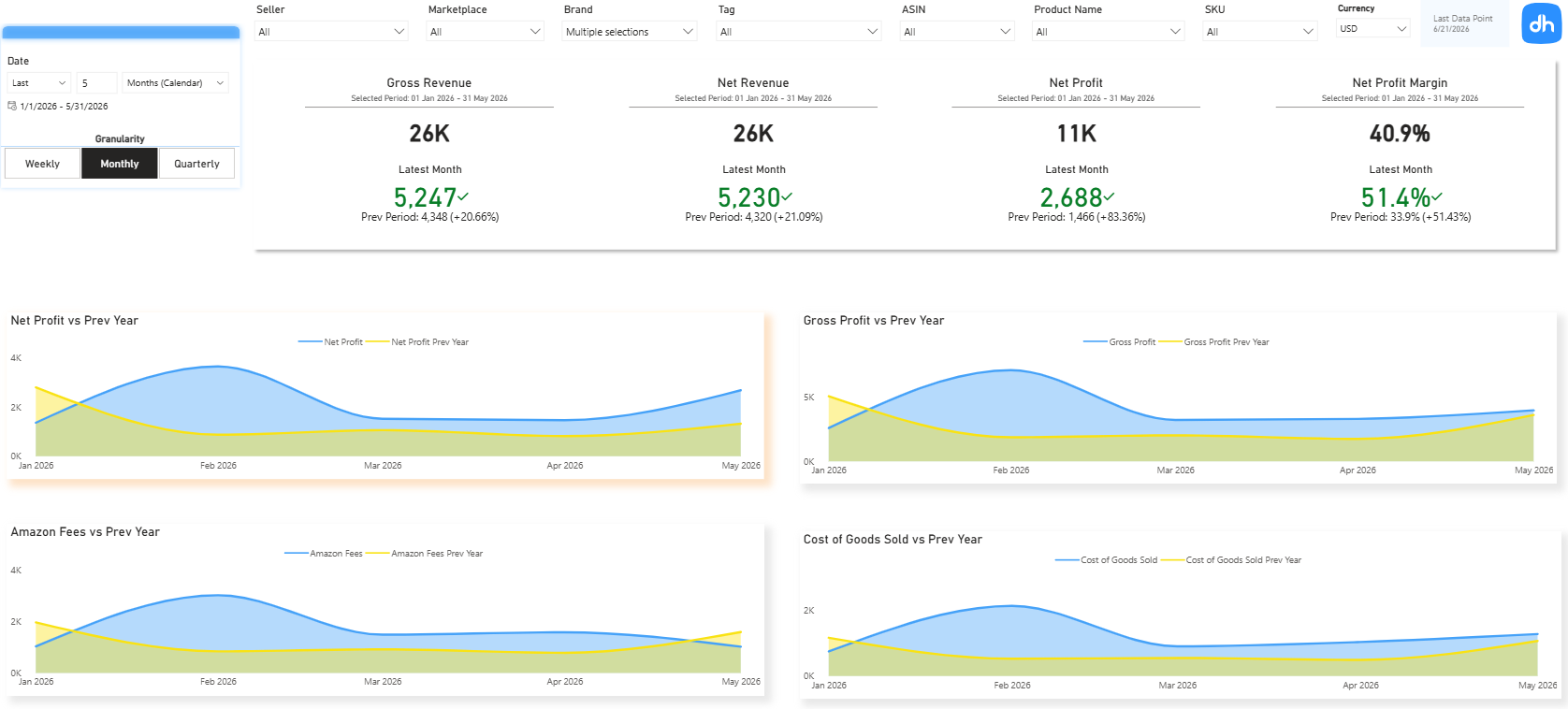 **Breakdown table** (weekly/monthly/quarterly by Dimension chosen in the slicer above): Gross Revenue YoY, Net Revenue, Adjusted Operating Profit, Adjusted Operating Profit Margin %, Gross Margin %, Net Profit, Net Profit Margin %, with PoP.
**Breakdown table** (Latest Period by Dimension chosen in the slicer above): Gross Revenue, Refunds, Net Revenue, Net Revenue Distribution, Cost of Goods Sold, Amazon Fees, Marketing, Adjusted Operating Profit, Adjusted Operating Profit Margin %, Tax Expenses, Net Profit, Net Profit Margin %.
**Breakdown table** (weekly/monthly/quarterly by Dimension chosen in the slicer above): Gross Revenue YoY, Net Revenue, Adjusted Operating Profit, Adjusted Operating Profit Margin %, Gross Margin %, Net Profit, Net Profit Margin %, with PoP.
**Breakdown table** (Latest Period by Dimension chosen in the slicer above): Gross Revenue, Refunds, Net Revenue, Net Revenue Distribution, Cost of Goods Sold, Amazon Fees, Marketing, Adjusted Operating Profit, Adjusted Operating Profit Margin %, Tax Expenses, Net Profit, Net Profit Margin %.
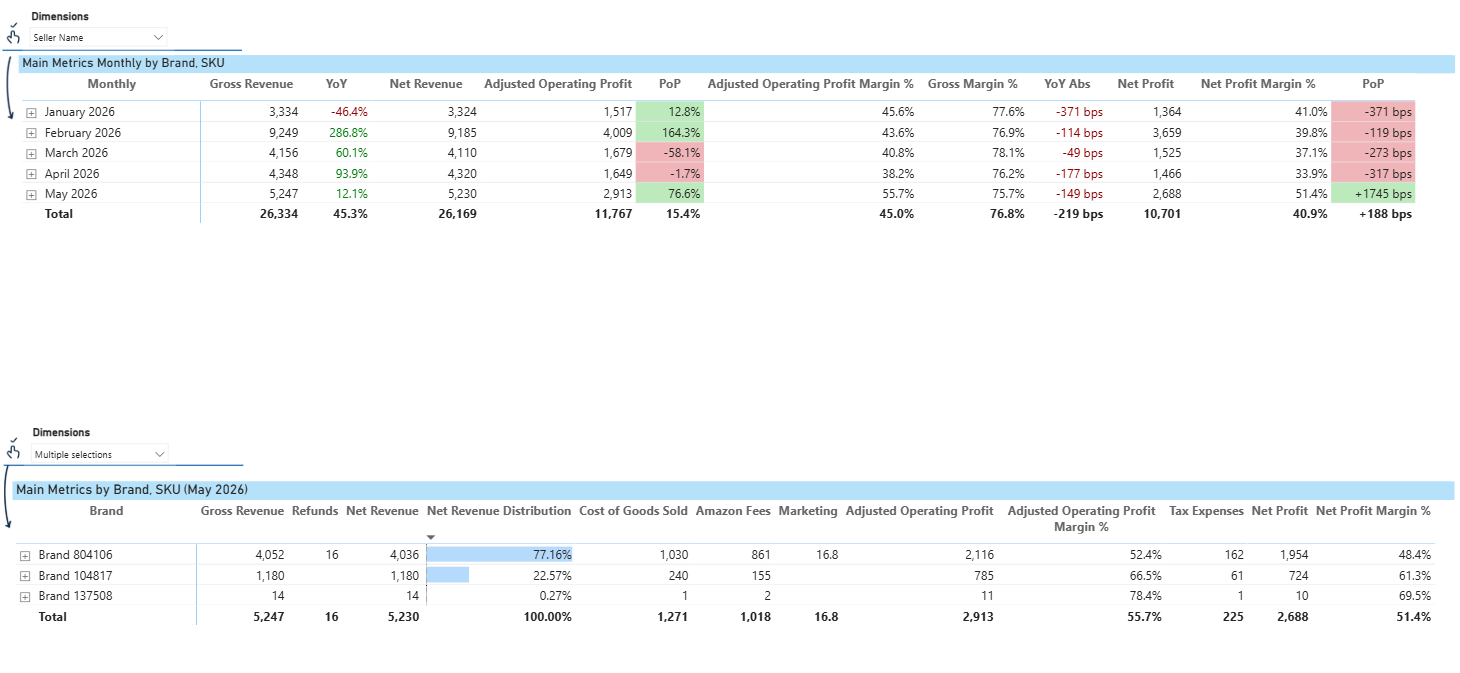 **ASIN tables at the bottom**:
- Net Revenue by ASIN: Top 1000
- Decliners by ASIN: Top 1000
- Gainers by ASIN: Top 1000
**ASIN tables at the bottom**:
- Net Revenue by ASIN: Top 1000
- Decliners by ASIN: Top 1000
- Gainers by ASIN: Top 1000
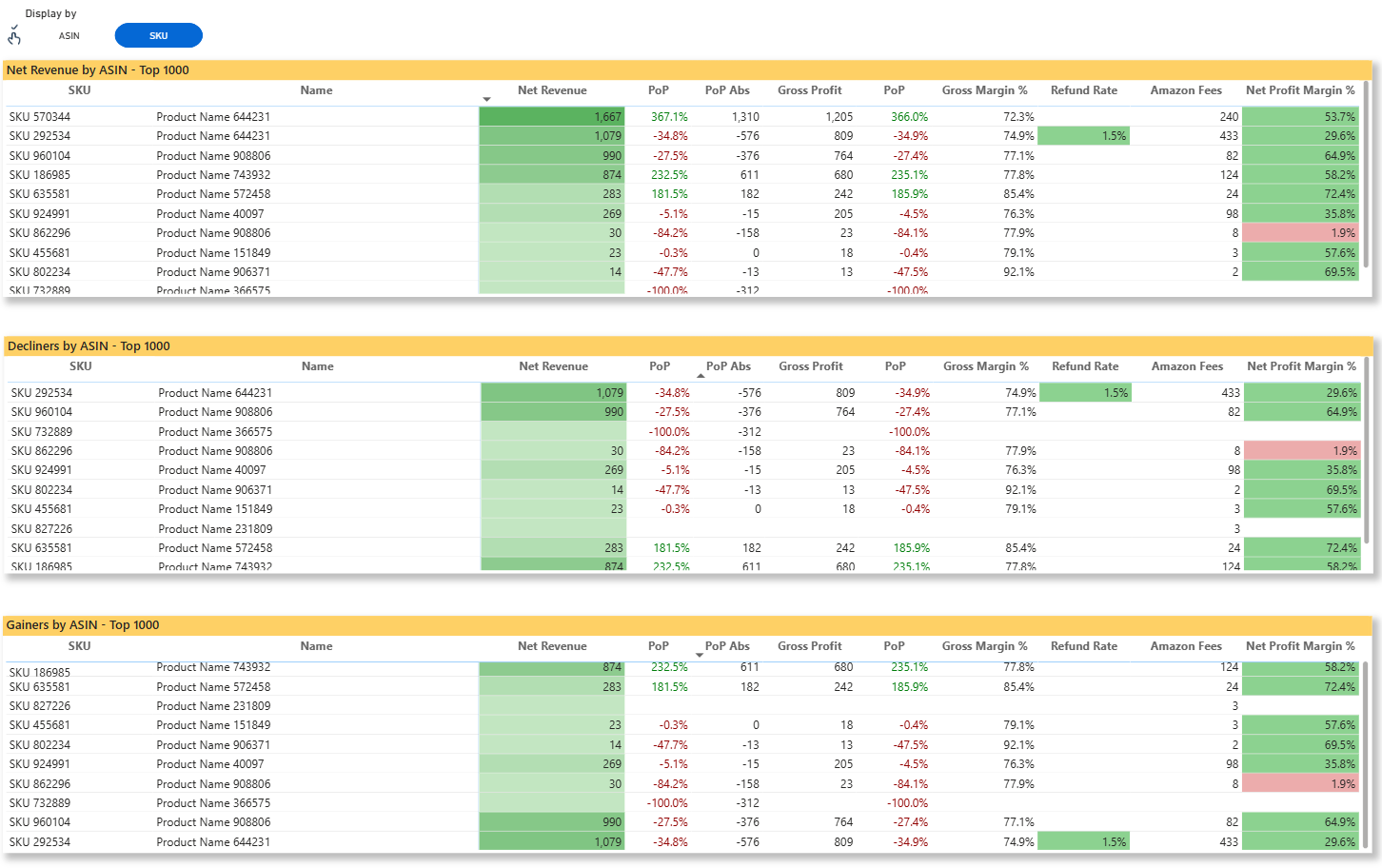 Flexible profitability analysis across time periods, dimensions, and financial categories.
**Date filter** at the top for custom time range. **Timeline view** selector: Year / Quarter / Month / Week / Day.
**First matrix**: Detailed profit breakdown. Group rows by category, subcategory, event description, seller, marketplace, brand, ASIN, SKU, product name, or combinations. Filter by **Category** (sales, refunds, Amazon fees, COGS, marketing, adjustments, tax expenses, tax adjustments) and **Subcategory** for granular breakdowns. **Tax View** slicer: including/excluding tax, or tax only.
Flexible profitability analysis across time periods, dimensions, and financial categories.
**Date filter** at the top for custom time range. **Timeline view** selector: Year / Quarter / Month / Week / Day.
**First matrix**: Detailed profit breakdown. Group rows by category, subcategory, event description, seller, marketplace, brand, ASIN, SKU, product name, or combinations. Filter by **Category** (sales, refunds, Amazon fees, COGS, marketing, adjustments, tax expenses, tax adjustments) and **Subcategory** for granular breakdowns. **Tax View** slicer: including/excluding tax, or tax only.
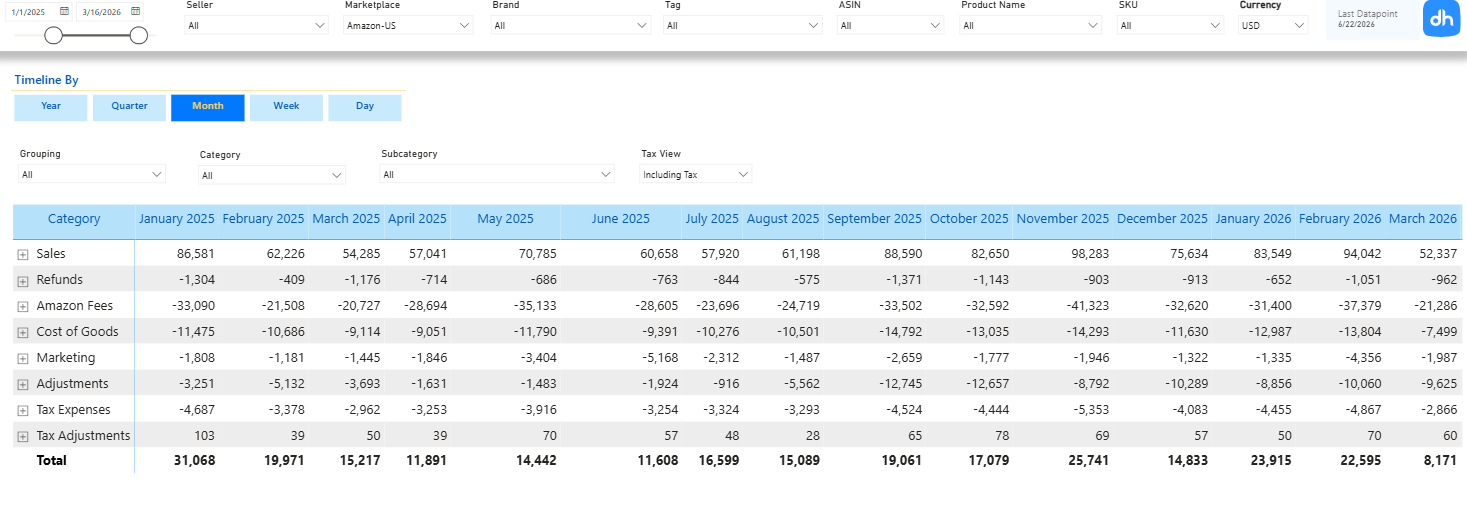 **Second matrix**: Performance metrics by business dimension. Choose grouping (marketplace, seller, brand, ASIN, SKU) and **Metric** (gross revenue, gross margin, refunds, net revenue, COGS, gross profit, Amazon fees, operating profit, adjusted operating profit and margin, tax expenses, net profit and margin). Visual representation below with first-level grouping as legend.
**Line chart** showing selected metric in the second matrix by timeline and dimension that was first chosen in Grouping slicer.
**Second matrix**: Performance metrics by business dimension. Choose grouping (marketplace, seller, brand, ASIN, SKU) and **Metric** (gross revenue, gross margin, refunds, net revenue, COGS, gross profit, Amazon fees, operating profit, adjusted operating profit and margin, tax expenses, net profit and margin). Visual representation below with first-level grouping as legend.
**Line chart** showing selected metric in the second matrix by timeline and dimension that was first chosen in Grouping slicer.
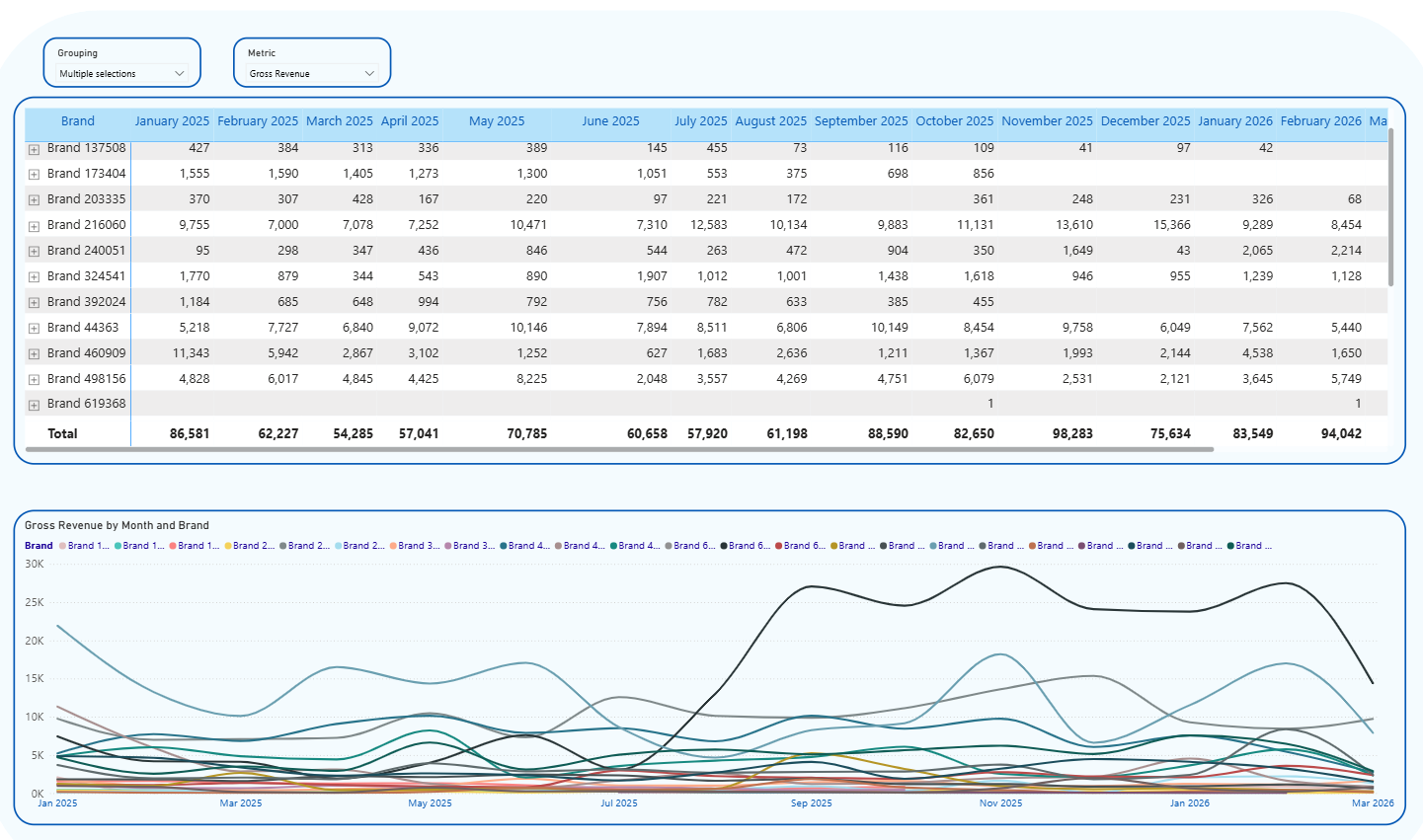 Data is available for the past 30 days only.
Tracks FBA inventory levels over the past 30 days across all fulfillment stages.
**Line chart** at the top: Select inventory attributes to visualize (AFN Fulfillable Qty, Inbound Shipments, Reserved Quantities, Unsellable Units, etc.) at Year / Quarter / Month / Week / Day granularity.
**Timeline table**: Select one inventory metric to display across time columns. Organized by Seller, ASIN, Product Name, FNSKU, SKU. Available metrics: AFN Fulfillable Qty, AFN Inbound Receiving Qty, AFN Inbound Shipped Qty, AFN Inbound Working Qty, AFN Researching Qty, AFN Reserved Future Supply, AFN Reserved Qty, AFN Total Qty, AFN Unsellable Qty, AFN Warehouse Qty, MFN Fulfillable Qty.
Data is available for the past 30 days only.
Tracks FBA inventory levels over the past 30 days across all fulfillment stages.
**Line chart** at the top: Select inventory attributes to visualize (AFN Fulfillable Qty, Inbound Shipments, Reserved Quantities, Unsellable Units, etc.) at Year / Quarter / Month / Week / Day granularity.
**Timeline table**: Select one inventory metric to display across time columns. Organized by Seller, ASIN, Product Name, FNSKU, SKU. Available metrics: AFN Fulfillable Qty, AFN Inbound Receiving Qty, AFN Inbound Shipped Qty, AFN Inbound Working Qty, AFN Researching Qty, AFN Reserved Future Supply, AFN Reserved Qty, AFN Total Qty, AFN Unsellable Qty, AFN Warehouse Qty, MFN Fulfillable Qty.
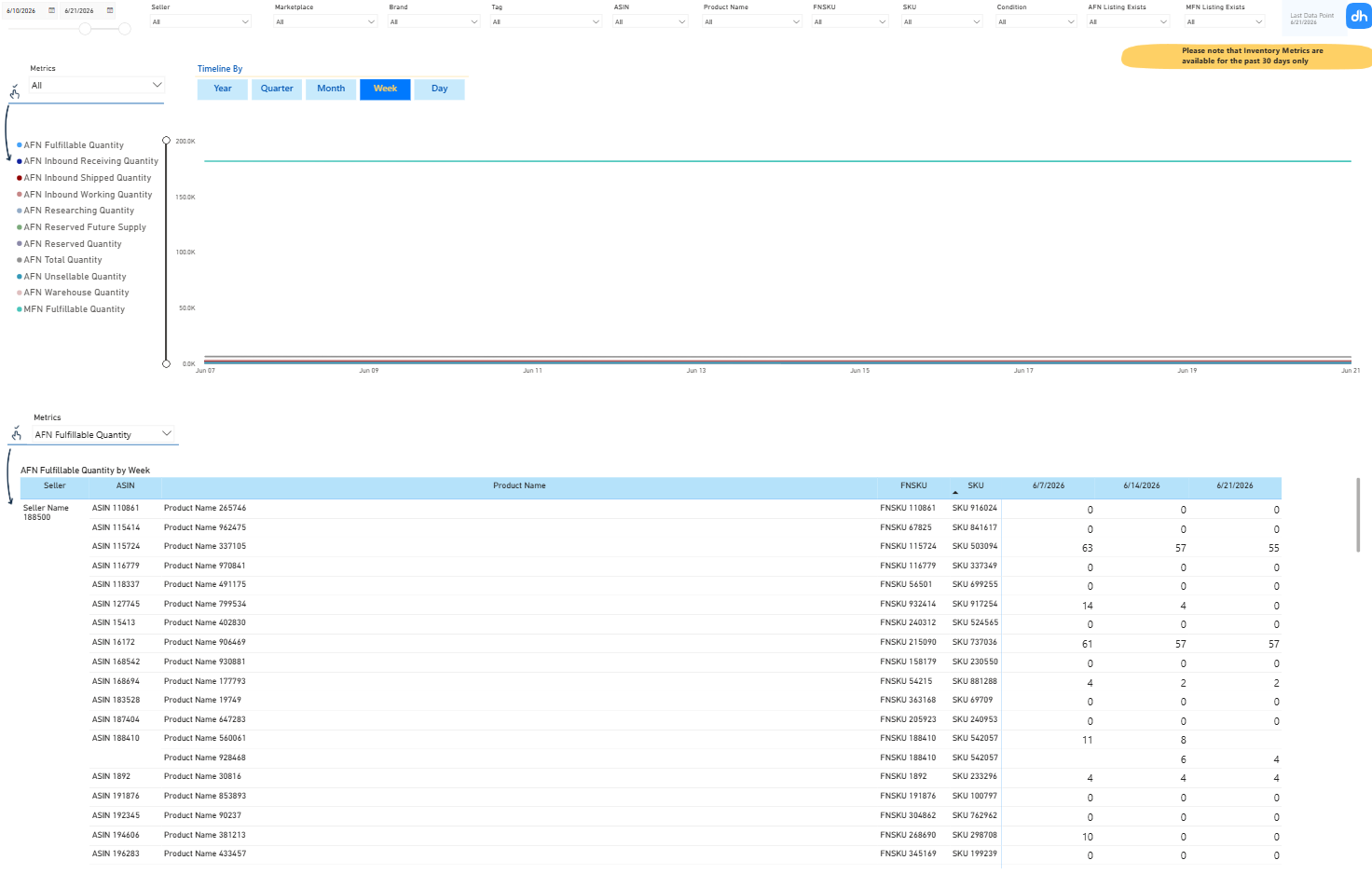 Two sections covering Amazon's restock data and your own custom replenishment logic.
**Summary bar**: Available Units, Shipped Units, Total Units, and Observation Date.
**Amazon Inventory Table**: Raw Amazon data per ASIN; alert, Condition, Total Days of Supply, Days of Supply at Amazon Fulfillment Network, Recommended Ship Date, Recommended Replenishment Quantity, Sales Last 30 Days, Available / Reserved / FC Processing / FC Transfer / Receiving / Shipped / Total / Unfulfillable / Working Units, Price, Supplier, Fulfilled By.
Two sections covering Amazon's restock data and your own custom replenishment logic.
**Summary bar**: Available Units, Shipped Units, Total Units, and Observation Date.
**Amazon Inventory Table**: Raw Amazon data per ASIN; alert, Condition, Total Days of Supply, Days of Supply at Amazon Fulfillment Network, Recommended Ship Date, Recommended Replenishment Quantity, Sales Last 30 Days, Available / Reserved / FC Processing / FC Transfer / Receiving / Shipped / Total / Unfulfillable / Working Units, Price, Supplier, Fulfilled By.
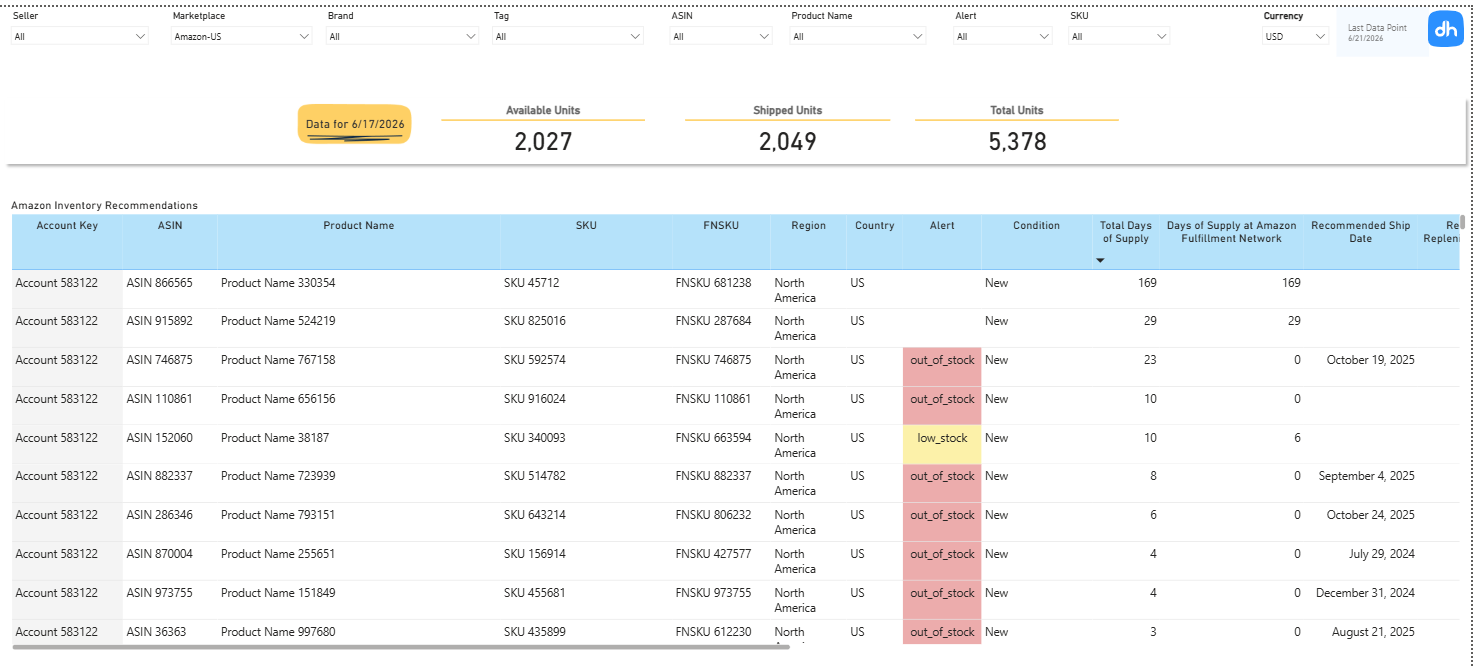 **Custom FBA Recommendations**: tailored restock calculations using three slicers you control:
- **Total Units Custom Include**: Which inventory components count toward your total stock figure.
- **Lead Time (in days)**: Your replenishment lead time.
- **Target Weeks on Hand**: Your desired inventory coverage period.
The resulting table shows: Sales Last 30 Days, Units Sold Last 30 Days, Total Units (Custom), Total Weeks on Hand, OOS Forecast, Replenishment Date, Replenishment Quantity.
**Custom FBA Recommendations**: tailored restock calculations using three slicers you control:
- **Total Units Custom Include**: Which inventory components count toward your total stock figure.
- **Lead Time (in days)**: Your replenishment lead time.
- **Target Weeks on Hand**: Your desired inventory coverage period.
The resulting table shows: Sales Last 30 Days, Units Sold Last 30 Days, Total Units (Custom), Total Weeks on Hand, OOS Forecast, Replenishment Date, Replenishment Quantity.
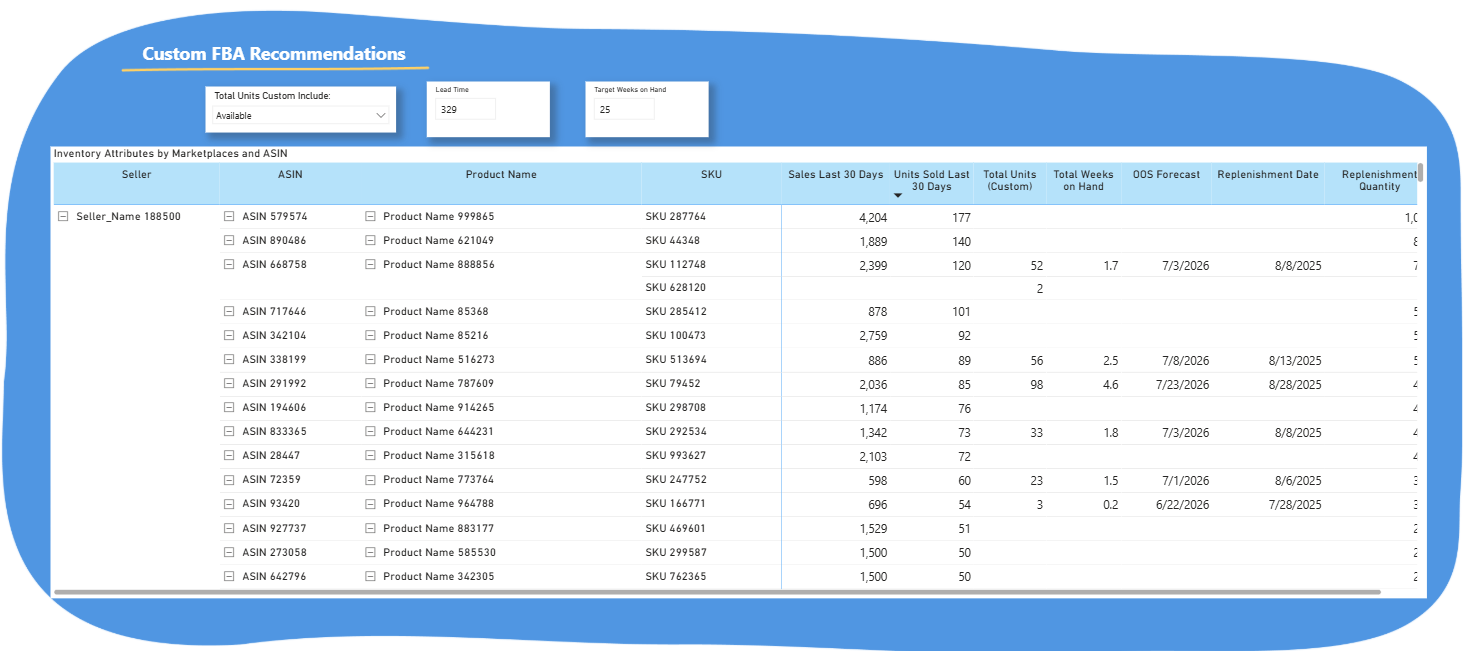 Vendor inventory health covering current stock levels, aging inventory, purchase orders, and Amazon's demand forecast.
**Summary bar**: Open Purchase Qty, Sellable On-Hand Inventory, Sellable On-Hand Units; as of the latest date in the selected period.
**Historical inventory chart**: all inventory attributes plotted over time. Use the cursor at the left of the chart to zoom. A table below duplicates the chart data.
Vendor inventory health covering current stock levels, aging inventory, purchase orders, and Amazon's demand forecast.
**Summary bar**: Open Purchase Qty, Sellable On-Hand Inventory, Sellable On-Hand Units; as of the latest date in the selected period.
**Historical inventory chart**: all inventory attributes plotted over time. Use the cursor at the left of the chart to zoom. A table below duplicates the chart data.
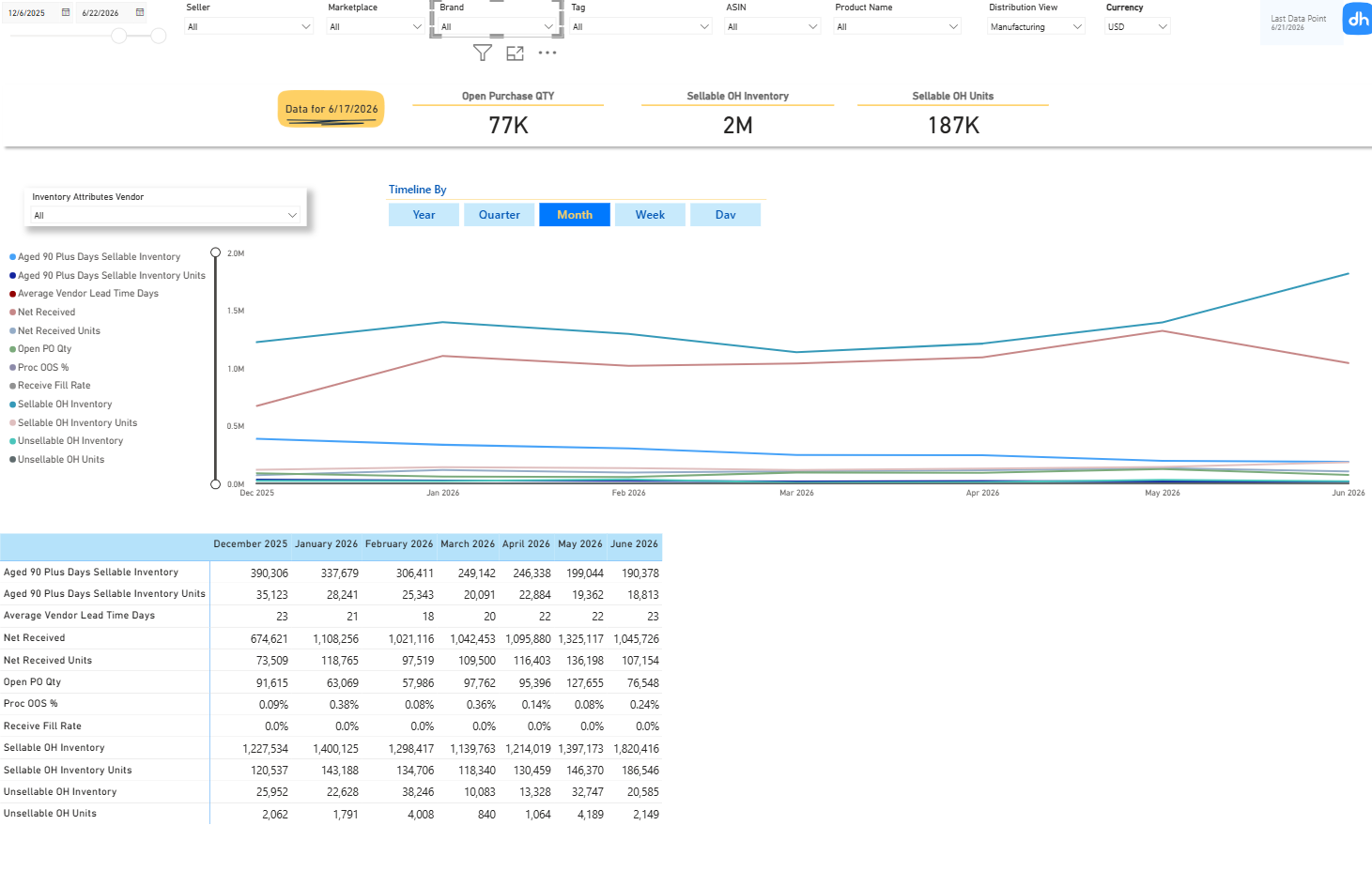 **Inventory attributes table** (by Marketplace): Aged 90+ Days Sellable Inventory, Aged 90+ Days Units, Average Vendor Lead Time Days, Net Received, Open PO Qty, Proc OOS %, Receive Fill Rate, Sellable OH Inventory, Sellable OH Inventory Units, Unsellable OH Inventory, Unsellable OH Units.
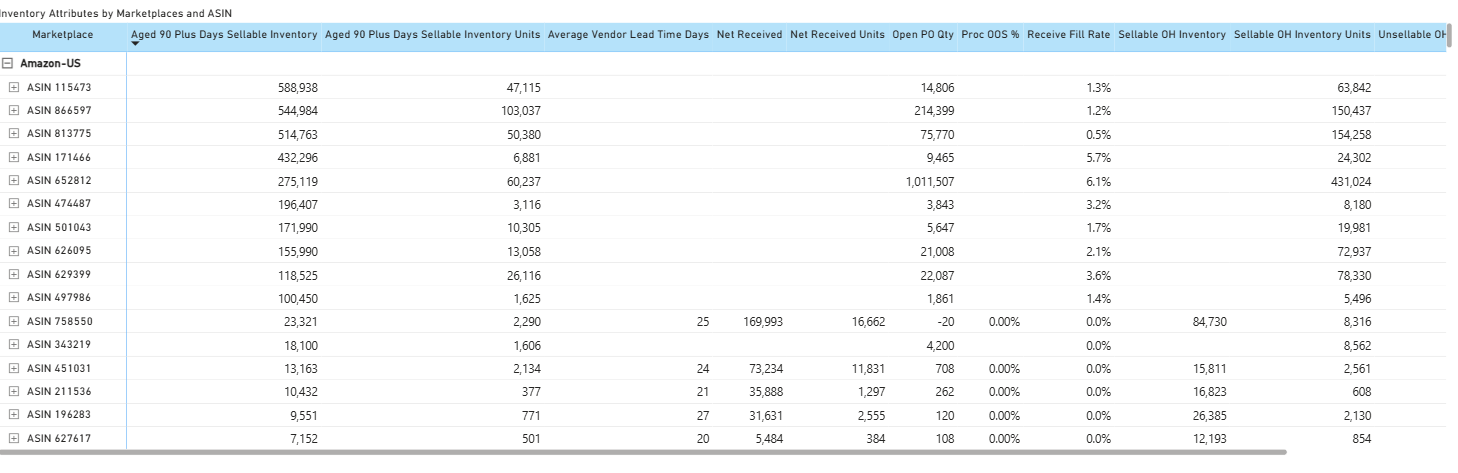 **Forecast graph** (separate timeline slicer): tracks three key metrics and their relationships:
- Weekly Shipped Units alongside Weeks of Cover (based on 6-week moving average)
- Amazon's forecast (selectable: Mean / P70 / P80 / P90) with corresponding Weeks of Cover
- Current Sellable On-Hand Inventory, transitioning to projected inventory depletion (dotted line)
**Forecast graph** (separate timeline slicer): tracks three key metrics and their relationships:
- Weekly Shipped Units alongside Weeks of Cover (based on 6-week moving average)
- Amazon's forecast (selectable: Mean / P70 / P80 / P90) with corresponding Weeks of Cover
- Current Sellable On-Hand Inventory, transitioning to projected inventory depletion (dotted line)
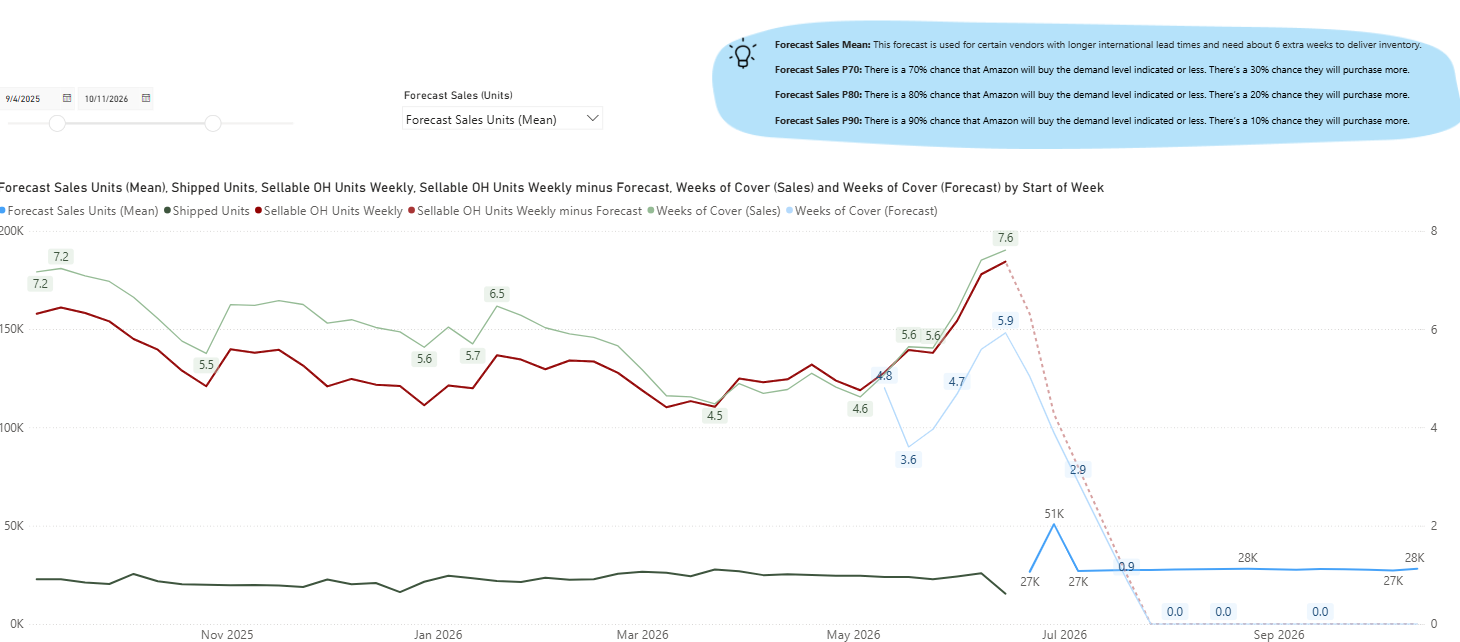 Forecast Sales Mean is used for vendors with longer international lead times requiring approximately 6 extra weeks for delivery. P70 / P80 / P90 represent the probability that Amazon will buy at or below the indicated demand level.
Cross-analyze any two metrics over a custom timeline.
Use the **Metric 1** and **Metric 2** drop-downs to select the metrics to plot on the line chart. Toggle **Single Y axis** on/off at the top right of the chart. Set granularity (Year / Quarter / Month / Week / Day) at the top left.
**Available metrics** include: Sales, Units Sold, Gross Revenue, Gross Margin, Refunds, Net Revenue, COGS, Gross Profit, Amazon Fees, Ad Sales (SP+SD), Ad Spend (SP+SD), Impressions (SP+SD), Clicks (SP+SD), CTR, CVR, ACoS, RoAS, TACoS, Operating Profit, Adjustments, Adjusted Operating Profit and Margin, Tax Expenses, Tax Adjustments, Net Profit and Margin, Page Views, Conversion (Page View to Order), Order Count, ASP, AOV, Shipped COGS, Shipped Revenue, Shipped Units, Ordered Revenue, Ordered Units, Returned Units, Return Rate, Conversion (Glance Views to Shipped Units), Glance Views, plus all prior-year equivalents.
Forecast Sales Mean is used for vendors with longer international lead times requiring approximately 6 extra weeks for delivery. P70 / P80 / P90 represent the probability that Amazon will buy at or below the indicated demand level.
Cross-analyze any two metrics over a custom timeline.
Use the **Metric 1** and **Metric 2** drop-downs to select the metrics to plot on the line chart. Toggle **Single Y axis** on/off at the top right of the chart. Set granularity (Year / Quarter / Month / Week / Day) at the top left.
**Available metrics** include: Sales, Units Sold, Gross Revenue, Gross Margin, Refunds, Net Revenue, COGS, Gross Profit, Amazon Fees, Ad Sales (SP+SD), Ad Spend (SP+SD), Impressions (SP+SD), Clicks (SP+SD), CTR, CVR, ACoS, RoAS, TACoS, Operating Profit, Adjustments, Adjusted Operating Profit and Margin, Tax Expenses, Tax Adjustments, Net Profit and Margin, Page Views, Conversion (Page View to Order), Order Count, ASP, AOV, Shipped COGS, Shipped Revenue, Shipped Units, Ordered Revenue, Ordered Units, Returned Units, Return Rate, Conversion (Glance Views to Shipped Units), Glance Views, plus all prior-year equivalents.
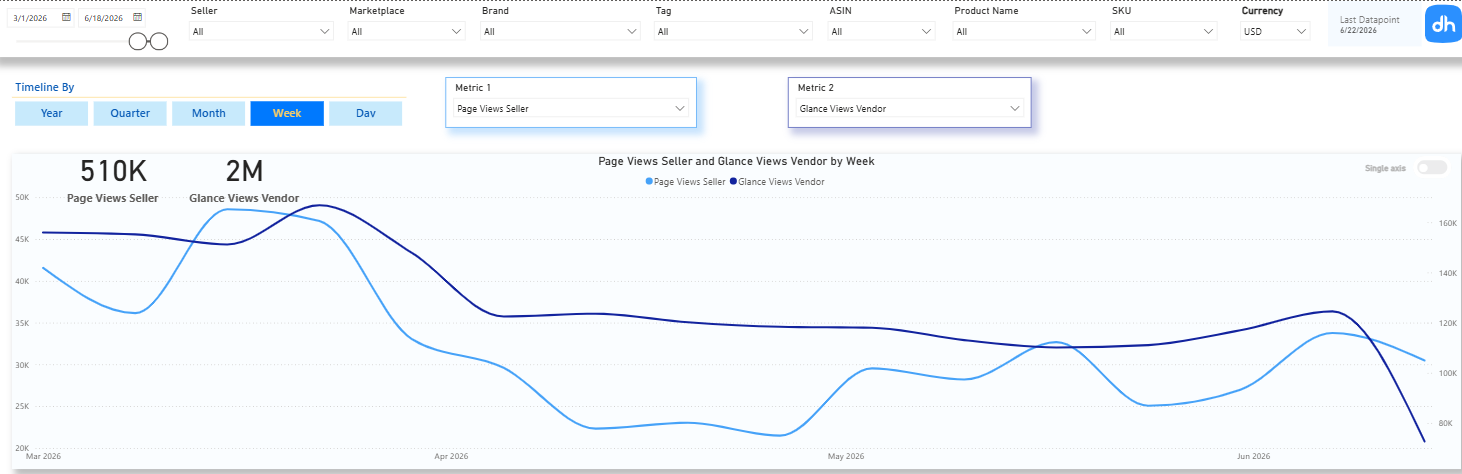 Below the chart: a matrix showing Metric 1 by your chosen grouping, with a visual representation grouped by dimension as the legend.
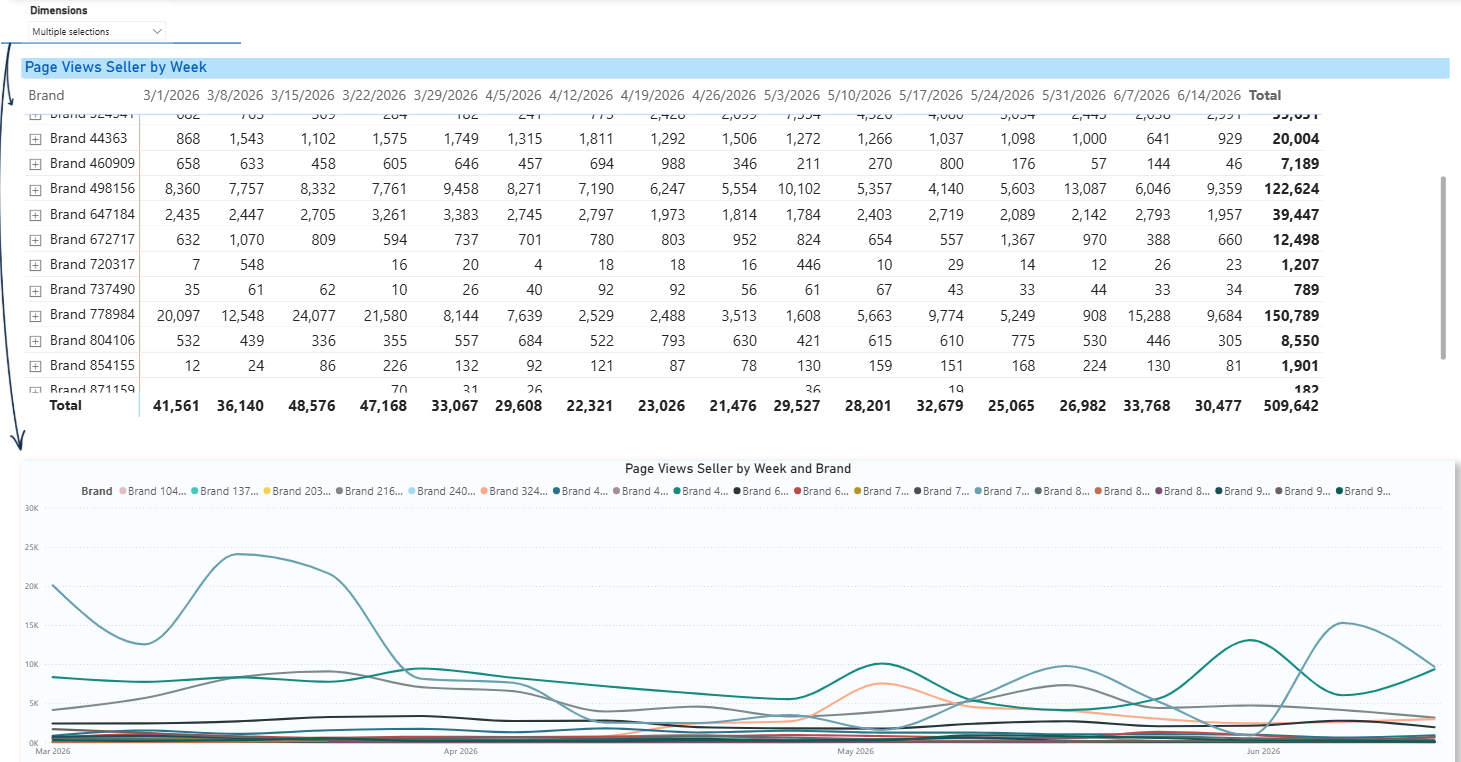 Ad metrics in the Explorer are scoped to SP + SD only. Sponsored Brands are not included.
Build custom data tables for export by selecting rows, columns, and metrics.
**How to use:**
1. **Select Rows**: Define the primary breakdown (e.g. Year, Country, ASIN, Brand, SKU).
2. **Select Columns**: Define comparisons across categories (e.g. Month Year, Selling Program, Account Type).
3. **Select Metrics (Values)**: Choose from the available KPIs relevant to the active dashboard view (Seller or Vendor).
4. **Drill Down**: Navigate hierarchical structures such as Year > Month > Week or Country > Brand > Seller Account.
5. **Export**: Hover over the three dots at the top right of the matrix and select Export data (Excel or CSV via Power BI's built-in export).
Ad metrics in the Explorer are scoped to SP + SD only. Sponsored Brands are not included.
Build custom data tables for export by selecting rows, columns, and metrics.
**How to use:**
1. **Select Rows**: Define the primary breakdown (e.g. Year, Country, ASIN, Brand, SKU).
2. **Select Columns**: Define comparisons across categories (e.g. Month Year, Selling Program, Account Type).
3. **Select Metrics (Values)**: Choose from the available KPIs relevant to the active dashboard view (Seller or Vendor).
4. **Drill Down**: Navigate hierarchical structures such as Year > Month > Week or Country > Brand > Seller Account.
5. **Export**: Hover over the three dots at the top right of the matrix and select Export data (Excel or CSV via Power BI's built-in export).
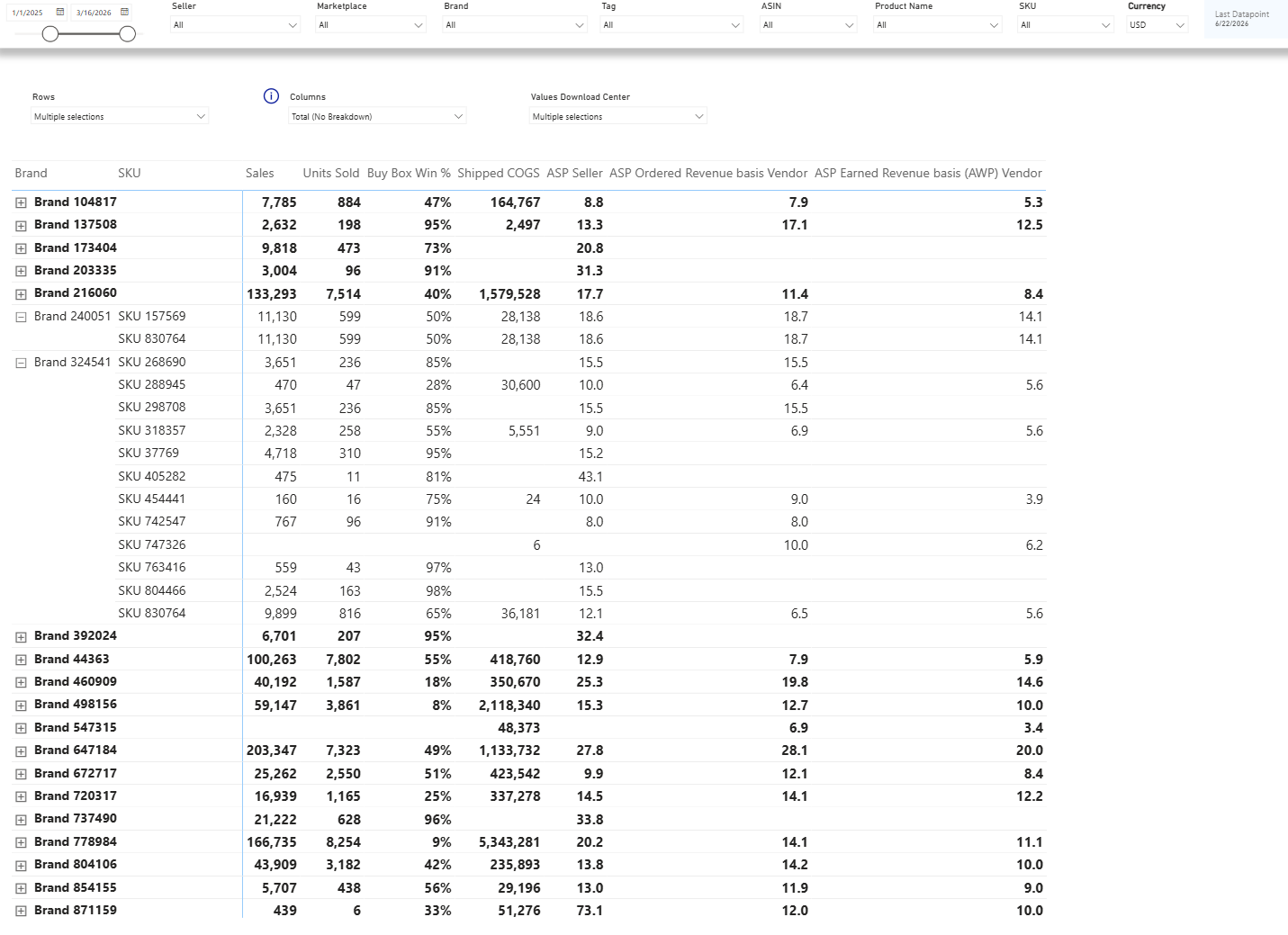 To view multiple dimensions, drill down on rows or columns. Avoid using the same dimension in both rows and columns simultaneously.
Account-level advertising metrics (e.g. Sponsored Brands) are not compatible with product-level dimension breakdowns (Seller, Brand, Tag, ASIN). Switch to product-level ad metrics (SP + SD only) when using product-level breakdowns.
Account-level fees (e.g. FBA storage fees) are not attributed to individual products by Amazon. In a Brand or SKU breakdown, these will appear under "No Brand" or "No SKU". Include these rows when calculating total costs.
## Metrics
Formulas used in this dashboard. Concept-level definitions for acronyms live in the [Glossary](/help-center/glossary).
**Blended revenue and ASP**
| Metric | Formula / definition | Notes |
|---|---|---|
| **Total Earned Revenue** | Seller Ordered Product Sales + Vendor Shipped COGS | Brand's actual earned revenue from Amazon |
| **Total Ordered Revenue (Demand View)** | Seller Ordered Product Sales + Vendor Ordered Revenue | Consumer demand at retail prices |
| **Total Units Ordered** | Seller Units Ordered + Vendor Ordered Units | Across both channels |
| **Total Page Views** | Seller Page Views + Vendor Glance Views | Combined product detail page loads |
| **Unit View Percentage** | Units Sold ÷ Total Page Views × 100 | Conversion proxy |
| **ASP (Seller)** | Ordered Product Sales ÷ Units Ordered | Retail price per unit received by the Seller |
| **ASP Ordered Revenue basis (Vendor)** | Ordered Revenue ÷ Ordered Units | Amazon's retail price per unit: demand view |
| **AWP (Vendor)** | Shipped COGS ÷ Shipped Units | Actual price per unit received by the Vendor from Amazon |
| **Blended ASP (Ordered Revenue basis)** | (Seller Sales + Vendor Ordered Revenue) ÷ Total Units Ordered | Benchmarkable retail ASP |
| **Blended ASP (Earned Revenue basis)** | (Seller Sales + Vendor Shipped COGS) ÷ Total Units | Average price per unit the brand actually receives |
| **Return Rate (Vendor)** | Customer Returns ÷ Shipped Revenue × 100 | Returns applied to original sale date |
**Advertising**
| Metric | Formula / definition | Notes |
|---|---|---|
| **ACoS** | Ad Spend ÷ Ad Sales × 100 | Lower is more efficient |
| **RoAS** | Ad Sales ÷ Ad Spend | Inverse of ACoS, expressed as a multiplier |
| **TACoS (Ordered Revenue basis)** | Ad Spend ÷ Total Ordered Revenue × 100 | Advertising efficiency vs. retail demand, benchmark-comparable |
| **TACoS (Earned Revenue basis)** | Ad Spend ÷ Total Earned Revenue × 100 | Ad spend vs. earned revenue, supplementary and not benchmark-comparable |
| **CTR** | Clicks ÷ Impressions × 100 | |
| **CPC** | Ad Spend ÷ Clicks | |
| **CVR** | Orders from Ads ÷ Clicks × 100 | Attribution per Amazon's 14-day post-click window |
---
## For analysts: data sources & methodology
### Source tables and datasets
This dashboard unions Seller Central, Vendor Central, and Amazon Advertising data. For a full column reference, see the [Exhaustive Column Referential](https://docs.google.com/spreadsheets/d/1gYGqKQP9Z71nz1lOb4y0wJ15i27NvsUzdliIJeIx0HY/edit#gid=175439716).
- **Seller side**: Selling Partner API (Ordered Product Sales, Units Ordered, Page Views, Sessions).
- **Vendor side**: Vendor Central Sales Diagnostic (Shipped Revenue, Shipped COGS, Ordered Revenue, Ordered Units, Glance Views).
- **Advertising**: Amazon Ads API. Ad metrics are unified across Seller and Vendor accounts and can be filtered by account type (1P / 3P).
### Attribution and methodology
- **Period comparison**: The dashboard auto-selects PoP or YoY based on the time granularity you pick (e.g. MoM if you select Month). Don't assume one comparison applies everywhere.
- **Shipped Revenue is derived**, not sourced: Vendor Shipped COGS × (1 + Retail Margin %). Use Shipped COGS for the brand's actual earned revenue from Amazon, and Shipped Revenue for Amazon's retail price view.
- **Ordered Revenue / Ordered Units** represent consumer demand at the moment of order placement, regardless of shipment status. They are the Vendor analog of Seller's Ordered Product Sales.
- **Customer Returns** are applied to the original sale date for both Seller and Vendor sides.
- **Ad attribution** follows Amazon's 14-day post-click window.
### Cross-dashboard differences
The Seller + Vendor view introduces blended revenue metrics that don't exist on the Seller-only or Vendor-only dashboards. When reconciling against those dashboards or against Seller / Vendor Central directly, pick the right basis:
- **Total Earned Revenue** = Seller Ordered Product Sales + Vendor Shipped COGS. Use this for the brand's actual revenue from Amazon.
- **Total Ordered Revenue (Demand View)** = Seller Ordered Product Sales + Vendor Ordered Revenue. Use this for retail-price benchmarking against competitors or category data.
- **TACoS has two flavors here**: Ordered Revenue basis is benchmark-comparable; earned Revenue basis is supplementary and not comparable to industry benchmarks. The Seller-only dashboard uses Ordered Product Sales as the denominator. The Vendor-only dashboard uses Shipped COGS. Always note which basis you are quoting.
- **Blended ASP** likewise has Ordered Revenue and Earned Revenue bases: Pick the one matching the question (retail price per unit vs. Price actually received per unit).
- **AWP (Vendor)** = Shipped COGS ÷ Shipped Units. Vendor-side actual price-per-unit; only meaningful for the Vendor component, not for the blended view.
## Download this template
To view multiple dimensions, drill down on rows or columns. Avoid using the same dimension in both rows and columns simultaneously.
Account-level advertising metrics (e.g. Sponsored Brands) are not compatible with product-level dimension breakdowns (Seller, Brand, Tag, ASIN). Switch to product-level ad metrics (SP + SD only) when using product-level breakdowns.
Account-level fees (e.g. FBA storage fees) are not attributed to individual products by Amazon. In a Brand or SKU breakdown, these will appear under "No Brand" or "No SKU". Include these rows when calculating total costs.
## Metrics
Formulas used in this dashboard. Concept-level definitions for acronyms live in the [Glossary](/help-center/glossary).
**Blended revenue and ASP**
| Metric | Formula / definition | Notes |
|---|---|---|
| **Total Earned Revenue** | Seller Ordered Product Sales + Vendor Shipped COGS | Brand's actual earned revenue from Amazon |
| **Total Ordered Revenue (Demand View)** | Seller Ordered Product Sales + Vendor Ordered Revenue | Consumer demand at retail prices |
| **Total Units Ordered** | Seller Units Ordered + Vendor Ordered Units | Across both channels |
| **Total Page Views** | Seller Page Views + Vendor Glance Views | Combined product detail page loads |
| **Unit View Percentage** | Units Sold ÷ Total Page Views × 100 | Conversion proxy |
| **ASP (Seller)** | Ordered Product Sales ÷ Units Ordered | Retail price per unit received by the Seller |
| **ASP Ordered Revenue basis (Vendor)** | Ordered Revenue ÷ Ordered Units | Amazon's retail price per unit: demand view |
| **AWP (Vendor)** | Shipped COGS ÷ Shipped Units | Actual price per unit received by the Vendor from Amazon |
| **Blended ASP (Ordered Revenue basis)** | (Seller Sales + Vendor Ordered Revenue) ÷ Total Units Ordered | Benchmarkable retail ASP |
| **Blended ASP (Earned Revenue basis)** | (Seller Sales + Vendor Shipped COGS) ÷ Total Units | Average price per unit the brand actually receives |
| **Return Rate (Vendor)** | Customer Returns ÷ Shipped Revenue × 100 | Returns applied to original sale date |
**Advertising**
| Metric | Formula / definition | Notes |
|---|---|---|
| **ACoS** | Ad Spend ÷ Ad Sales × 100 | Lower is more efficient |
| **RoAS** | Ad Sales ÷ Ad Spend | Inverse of ACoS, expressed as a multiplier |
| **TACoS (Ordered Revenue basis)** | Ad Spend ÷ Total Ordered Revenue × 100 | Advertising efficiency vs. retail demand, benchmark-comparable |
| **TACoS (Earned Revenue basis)** | Ad Spend ÷ Total Earned Revenue × 100 | Ad spend vs. earned revenue, supplementary and not benchmark-comparable |
| **CTR** | Clicks ÷ Impressions × 100 | |
| **CPC** | Ad Spend ÷ Clicks | |
| **CVR** | Orders from Ads ÷ Clicks × 100 | Attribution per Amazon's 14-day post-click window |
---
## For analysts: data sources & methodology
### Source tables and datasets
This dashboard unions Seller Central, Vendor Central, and Amazon Advertising data. For a full column reference, see the [Exhaustive Column Referential](https://docs.google.com/spreadsheets/d/1gYGqKQP9Z71nz1lOb4y0wJ15i27NvsUzdliIJeIx0HY/edit#gid=175439716).
- **Seller side**: Selling Partner API (Ordered Product Sales, Units Ordered, Page Views, Sessions).
- **Vendor side**: Vendor Central Sales Diagnostic (Shipped Revenue, Shipped COGS, Ordered Revenue, Ordered Units, Glance Views).
- **Advertising**: Amazon Ads API. Ad metrics are unified across Seller and Vendor accounts and can be filtered by account type (1P / 3P).
### Attribution and methodology
- **Period comparison**: The dashboard auto-selects PoP or YoY based on the time granularity you pick (e.g. MoM if you select Month). Don't assume one comparison applies everywhere.
- **Shipped Revenue is derived**, not sourced: Vendor Shipped COGS × (1 + Retail Margin %). Use Shipped COGS for the brand's actual earned revenue from Amazon, and Shipped Revenue for Amazon's retail price view.
- **Ordered Revenue / Ordered Units** represent consumer demand at the moment of order placement, regardless of shipment status. They are the Vendor analog of Seller's Ordered Product Sales.
- **Customer Returns** are applied to the original sale date for both Seller and Vendor sides.
- **Ad attribution** follows Amazon's 14-day post-click window.
### Cross-dashboard differences
The Seller + Vendor view introduces blended revenue metrics that don't exist on the Seller-only or Vendor-only dashboards. When reconciling against those dashboards or against Seller / Vendor Central directly, pick the right basis:
- **Total Earned Revenue** = Seller Ordered Product Sales + Vendor Shipped COGS. Use this for the brand's actual revenue from Amazon.
- **Total Ordered Revenue (Demand View)** = Seller Ordered Product Sales + Vendor Ordered Revenue. Use this for retail-price benchmarking against competitors or category data.
- **TACoS has two flavors here**: Ordered Revenue basis is benchmark-comparable; earned Revenue basis is supplementary and not comparable to industry benchmarks. The Seller-only dashboard uses Ordered Product Sales as the denominator. The Vendor-only dashboard uses Shipped COGS. Always note which basis you are quoting.
- **Blended ASP** likewise has Ordered Revenue and Earned Revenue bases: Pick the one matching the question (retail price per unit vs. Price actually received per unit).
- **AWP (Vendor)** = Shipped COGS ÷ Shipped Units. Vendor-side actual price-per-unit; only meaningful for the Vendor component, not for the blended view.
## Download this template
---
title: Vendor Analytics Dashboard User Guide
description: Guide to the Vendor Analytics Power BI dashboard; traffic, sales, inventory, advertising, and share of voice for Vendor Central teams.
---
DataHawk's Vendor Analytics Dashboard gives Vendor Central managers a complete view of their business with Amazon, covering traffic, sales, inventory, advertising, and share of voice analysis. It is designed for weekly and monthly reporting, with up to two years of history for trend analysis.
## Questions this dashboard helps answer
- How many glance views did my products receive, and how many converted to shipped units?
- What is my shipped revenue and shipped COGS, and how are they trending year over year?
- What is my current sellable on-hand inventory, and which products are at risk of going out of stock?
- What is my advertising spend as a percentage of my total shipped revenue (TACoS)?
- How is my share of voice evolving for the keywords I'm tracking?
- Which of my purchase orders have low confirmation or fill rates?
- Which brands, products, or markets are driving the biggest changes in my metrics this period?
## Before you start
**What you need:**
- Vendor Central account connected in DataHawk
- Advertising account connected in DataHawk (required for advertising tabs)
**Set up:** Download and configure the Power BI template. See [Connect to Power BI](/help-center/connect-tools/powerbi).
**Data history:** Up to 730 days (2 years) of historical data by default. The dashboard refreshes daily.
## Dashboard tabs at a glance
| Tab | What it shows |
|---|---|
| **Executive Report** | Top KPIs across sales, inventory, and advertising; weekly or monthly |
| **Traffic** | Glance views, conversion rate, and period-over-period traffic trends |
| **Sales** | Shipped revenue, shipped COGS, units, returns, and ordered revenue |
| **Advertising** | Account-level and product-level ad performance (SP + SD + SB) |
| **Inventory Snapshot** | On-hand inventory, purchase order status, and Amazon demand forecast |
| **Search** | Share of voice by brand and keyword across organic and sponsored placements |
| **Explorer** | Custom cross-metric analysis with flexible dimensions |
| **Imported Product Catalog** | Reference table of all tracked products and their attributes |
## Time periods and comparisons
Most tabs support **Weekly**, **Monthly**, and **Quarterly** views (Quarter views with their own formula calculations were added in October 2025). The dashboard holds up to **2 years** of history. Need more? See [Changing the historical lookback window](/help-center/connect-tools/powerbi#changing-the-historical-lookback-window).
Comparisons use:
- **PoP (Period over Period)**: The previous week, month, or quarter, depending on your view
- **YoY (Year over Year)**: The same period in the prior year
- **YTD (Year to Date)**: Cumulative from January 1 to the current period
For simple metrics (e.g. Revenue), changes show as a percentage. For ratio metrics (e.g. Conversion), changes show in **bps** (basis points; 100 bps = 1 percentage point).
## Dashboard filters
All tabs share a common filter panel:
| Filter | What it does |
|---|---|
| **Vendor Account** | Filter to one or more vendor accounts |
| **Marketplace** | Filter to specific marketplaces |
| **Brand** | Filter by brand name |
| **Tags** | Filter to products assigned a specific tag in DataHawk |
| [**Distribution View**](/help-center/data-metrics-guides/foundation/key-concepts#amazon-vendor-views-sourcing-vs-manufacturing) | Switch between Manufacturing and Sourcing views for inventory metrics |
| **Currency** | Choose the display currency for monetary metrics |
## Dashboard reports tab by tab
A high-level summary of KPIs for the selected period. Includes a summary bar with top metrics and their PoP and YTD changes, line charts comparing current vs. prior year, a configurable main table (choose your metrics with the slicer), and a drill-down section that breaks performance changes by Country, Brand, Tag, and ASIN. Note: advertising metrics here are at the account level (SB + SP + SD), but automatically switch to product level when a product filter (Tag, Brand, ASIN, or Vendor Account) is applied.
{/* TODO: add screenshot at /images/help-center/dashboard-templates/power-bi/vendor-analytics-dashboard/vendor-analytics-dashboard-1.gif */}
Shows glance views (GVs) and conversion rate (GVs to shipped units). Includes a summary bar, line charts vs. prior year, a metrics table by period and dimension, a distribution table (% of total GVs and ordered revenue per breakdown row), and a product performance section highlighting the biggest week-over-week movers. Note: GVs are counted at the ASIN level and only when Retail (Amazon) is the featured seller. A value of 0 means there was a sales event but no glance view; a null value means no sales activity at all.
{/* TODO: add screenshot at /images/help-center/dashboard-templates/power-bi/vendor-analytics-dashboard/vendor-analytics-dashboard-2.gif */}
Analysis of shipped revenue, shipped COGS, shipped units, ASP, ordered revenue, ordered units, and net received inventory. Includes PoP and YoY comparisons, distribution breakdowns (% of total COGS per row), and product performance tables for the biggest movers.
{/* TODO: add screenshot at /images/help-center/dashboard-templates/power-bi/vendor-analytics-dashboard/vendor-analytics-dashboard-3.gif */}
Two sections:
1. **Account level**: Ad spend, ad sales, ACoS, RoAS, impressions, and clicks, broken down by country and sponsored type (SB, SP, SD).
2. **Product level**: Same metrics scoped to Sponsored Products and Sponsored Display only. Sponsored Brands are excluded from product-level data.
Includes a custom timeline graph where you can set your own date range and compare any two metrics side by side.
{/* TODO: add screenshot at /images/help-center/dashboard-templates/power-bi/vendor-analytics-dashboard/vendor-analytics-dashboard-4.gif */}
Overview of your current inventory position with Amazon. Shows open purchase order quantities, sellable on-hand inventory, and a historical inventory chart. The forecast section visualizes your projected inventory depletion based on shipped units and a 6-week moving average, alongside Amazon's demand forecast (selectable between Mean, P70, P80, and P90 confidence levels). Useful for planning replenishment before stockouts occur.
{/* TODO: add screenshot at /images/help-center/dashboard-templates/power-bi/vendor-analytics-dashboard/vendor-analytics-dashboard-5.gif */}
Share of voice (SoV) analysis at the brand level, based on your tracked keywords. You can filter by search type, Organic, Sponsored (SB + SP), Sponsored SB only, or Sponsored SP only, and by page range. Charts include: Competitive SoV breakdown for the current month, historical SoV over 12 months by brand, owned brand comparison, and a two-brand comparative chart. A keyword count table at the bottom shows how many distinct keywords were tracked each month. Note: SoV is calculated monthly from daily data and depends on the keywords tracked at the time. Changes in your keyword tracking set will affect how SoV trends are interpreted.
{/* TODO: add screenshot at /images/help-center/dashboard-templates/power-bi/vendor-analytics-dashboard/vendor-analytics-dashboard-6.gif */}
Build a custom chart and table by choosing any two metrics from the available list. Hierarchies go from Country → Tag → Brand → ASIN. Granularity can be set to year, month, week, or day. Metrics are at the product level and include prior-year comparators for each metric.
{/* TODO: add screenshot at /images/help-center/dashboard-templates/power-bi/vendor-analytics-dashboard/vendor-analytics-dashboard-7.gif */}
Reference table of all products being tracked, including ASIN, name, brand, and tags. Not an analytics tab. Use it for product lookups or to verify tracking scope.
{/* TODO: add screenshot at /images/help-center/dashboard-templates/power-bi/vendor-analytics-dashboard/vendor-analytics-dashboard-8.gif */}
## Metrics
Formulas used in this dashboard. Concept-level definitions for acronyms live in the [Glossary](/help-center/glossary).
**Traffic and sales**
| Metric | Formula / definition | Notes |
|---|---|---|
| **Conversion** | Shipped Units ÷ Glance Views | Vendor-side traffic-to-purchase rate |
| **ASP (Ordered Revenue basis)** | Ordered Revenue ÷ Ordered Units | Amazon's retail price per unit: demand view |
| **AWP (Average Wholesale Price)** | Shipped COGS ÷ Shipped Units | Actual price per unit received by the vendor from Amazon |
| **Return Rate** | Customer Returns ÷ Shipped Revenue × 100 | Returns applied to the original sale date |
**Advertising**
| Metric | Formula / definition | Notes |
|---|---|---|
| **ACoS** | Ad Spend ÷ Ad Sales × 100 | Lower is more efficient |
| **RoAS** | Ad Sales ÷ Ad Spend | Inverse of ACoS, expressed as a multiplier |
| **TACoS** | Ad Spend ÷ Shipped COGS × 100 | Calculated at account level (total Shipped COGS) or product level (SP + SD linked to ASINs featured in the ads) |
| **CTR** | Clicks ÷ Impressions × 100 | |
| **CVR** | Orders from Ads ÷ Clicks × 100 | |
| **Ad Sales Ratio** | Ad Sales ÷ Shipped Revenue × 100 | Share of revenue attributed to ads |
**Inventory**
| Metric | Formula / definition | Notes |
|---|---|---|
| **Procurable OOS Rate** | OOS Glance Views on procurable ASINs ÷ Total GVs | Manufacturing view only |
| **Receive Fill Rate** | Received Quantity ÷ Confirmed Quantity | Procurable ASINs only |
| **Vendor Confirmation Rate** | Accepted Quantity ÷ Quantity submitted by Amazon | |
---
## For analysts: data sources & methodology
### Source tables and datasets
This dashboard reads from your connected Vendor Central and Advertising accounts. For a full column reference, see the [Exhaustive Column Referential](https://docs.google.com/spreadsheets/d/1gYGqKQP9Z71nz1lOb4y0wJ15i27NvsUzdliIJeIx0HY/edit#gid=175439716).
- **Traffic**: Vendor Central Glance Views (Retail-featured product detail page views).
- **Sales**: Vendor Central Sales Diagnostic (Shipped Revenue, Shipped COGS, Shipped Units, Ordered Revenue, Ordered Units, Customer Returns).
- **Inventory**: Vendor Central Inventory Health (Sellable On Hand, Unsellable On Hand, Aged 90+ Days, Net Received, Open Purchase Order Units, Unfilled Customer Ordered Units) and PO operations (Average Vendor Lead Time, Receive Fill Rate, Vendor Confirmation Rate).
- **Advertising**: Amazon Ads API daily feeds for Sponsored Products, Sponsored Brands, and Sponsored Display, plus the Ad Clicks Ratio metric added in the October 2025 release.
### Attribution and methodology
- **Manufacturing vs Sourcing view**: Procurable Products Out of Stock Rate (OOS GVs on procurable ASINs ÷ Total GVs) is only populated in the Manufacturing view. Receive Fill Rate also restricts to procurable ASINs.
- **Customer Returns** are applied to the original sale date, not the date of the return.
- **Shipped Revenue vs Shipped COGS**: Shipped Revenue is Amazon's retail price for the units it shipped; shipped COGS is the price Amazon paid the vendor for those units (the brand's earned revenue from Amazon).
- **Ordered Revenue and Ordered Units** capture customer demand at the time the order is placed, regardless of whether Amazon has shipped the unit. Use these for demand-side analysis; use Shipped Revenue / Shipped COGS for revenue recognition.
- **Ad attribution** uses Amazon's 14-day post-click window. Ad Sales split into Same-SKU and Other-SKU.
- **TACoS** is calculable two ways on this dashboard: at the account level using total Shipped COGS, or at the product level using SP + SD ad spend linked to the ASINs featured in the ads.
### Share of Voice calculation
- **Organic SoV** = 1 ÷ rank
- **Sponsored SoV** = (1 ÷ page) × (1 ÷ rank) × sponsored_type_factor
- Sponsored Brands receive a 1.25× factor (25% boost) over Sponsored Products to reflect higher placement impact.
## Download this template
---
title: Amazon Advertising Performance
description: Understand Amazon advertising performance in DataHawk, from spend and sales to campaign, keyword, product, DSP, and Brand Store views.
---
Amazon Advertising Performance helps you understand how paid media affects sales, traffic, and profitability. In DataHawk, Amazon advertising data can be analyzed at several levels, from account-level trends to campaign, keyword, product, Brand Store, and DSP performance.
## What advertising data answers
Use advertising performance when you want to understand:
- How much you spent and what sales were attributed to ads
- Whether ACoS or ROAS is improving or deteriorating
- Which campaigns, keywords, targets, or products are driving changes
- Whether Brand Store or DSP activity is contributing to performance
- How advertising costs affect profit reporting
## Main analysis levels
| Level | Best for |
|---|---|
| Account | Overall spend, attributed sales, ACoS, ROAS, impressions, and clicks |
| Campaign | Budget allocation, campaign trend review, and optimization |
| Keyword or target | Search-term, keyword, and target-level optimization |
| Product or SKU | Understanding which advertised products drive results |
| Brand Store | Store visits, views, orders, sales, and engagement |
| DSP | Upper-funnel and programmatic campaign analysis |
Advertising tables can use different grains. Account, campaign, keyword, product, SKU, and date-level views should not be mixed without checking the technical reference first.
Looking for Search Term Impression Share? Coverage differs by ad type: it's already in DataHawk for Sponsored Brands, but not yet for Sponsored Products, since Amazon doesn't expose it through the Ads API for SP. See [Amazon Advertising Data](/help-center/data-reference/amazon-advertising-data) for details.
## How to choose the right view
If you are reviewing performance with a business audience, start at account or campaign level. If you are optimizing spend, move into keyword, target, product, or placement detail. If you are reconciling numbers or building a custom report, use the technical reference to confirm the exact table and grain.
| Question | Start here |
|---|---|
| Did ad efficiency improve this month? | Account or campaign performance |
| Which campaign caused the spend increase? | Campaign metrics |
| Which keyword is wasting budget? | Keyword metrics or search-term reports |
| Which products receive spend but do not convert? | Product advertising metrics |
| Did the Brand Store drive engagement? | Brand Store metrics |
| How is DSP performing? | DSP campaign metrics |
## Connection requirements
Advertising performance appears after the relevant advertising account is connected. Amazon Ads, Amazon DSP, Brand Store, and other surfaces may have different availability depending on your account, permissions, and the reports exposed by Amazon.
Advertising spend can also affect Profitability Analysis because marketing costs are part of profitability reporting.
## Technical reference
When you need table families, exact table names, grains, freshness notes, or report availability, use the technical reference.
---
title: Walmart Advertising Performance
description: Understand Walmart Connect advertising performance in DataHawk, including item, keyword, placement, platform, and 1P-only reports.
---
Walmart Advertising Performance in DataHawk covers Walmart Connect performance reports. Use this guide when you need to understand what the data is for, which analysis level to start with, and when to move into the technical table reference.
## What Walmart Advertising Performance covers
Walmart Connect data helps you analyze how ads perform across campaigns, items, keywords, placements, platforms, brands, and categories.
| Area | What it helps with |
|---|---|
| Ad group | Compare performance across ad groups and campaign structure |
| Item | Understand which advertised Walmart items drive spend, sales, and engagement |
| Keyword | See how items perform against customer searches and manual targets |
| Placement | Understand where ads appeared and which placements convert |
| Platform | Compare app, desktop, mobile, and other surfaces |
| Brand and category | Analyze 1P supplier performance by brand or category |
| Item health | Identify item issues that may limit campaign delivery or performance |
## When to use it
Use Walmart Advertising Performance data when you want to:
- Review Walmart Connect performance outside the Walmart interface
- Compare item, keyword, placement, and platform performance over time
- Understand which products or ad groups are driving attributed sales
- Investigate weak campaign performance before changing bids or budgets
- Build BI dashboards that combine Walmart ads with other DataHawk data
## 1P and 3P availability
Some Walmart reports depend on whether you are a 1P supplier or 3P seller. Brand and category performance reports are 1P-only. Other core reports, such as item and ad-group performance, are the main starting points for most Walmart advertisers.
Walmart finalizes advertising reports on a delay. DataHawk refreshes daily and performs a later reconciliation pass so finalized numbers can replace early values.
## Recommended reading path
### Start with item and ad-group performance
Use these views to understand which products and campaign structures are responsible for the biggest changes.
### Add keyword and placement context
Review the search terms, manual keywords, and placements that explain where performance came from.
### Check platform and item health
Use device/platform breakdowns and item health diagnostics when performance changes are hard to explain from spend and sales alone.
## Technical reference
When you need table names, v2 keyword fields, deprecated table guidance, refresh timing, or 1P-only report details, use the technical reference.
---
title: Amazon Sales Estimates
description: How DataHawk estimates daily sales for tracked products and competitors; variant-level estimates by default, model methodology and table reference.
---
Sales Estimates give you a daily view of how many units any tracked product sells, including competitors you don't have access to.
**June 15, 2026; V7 model release.** DataHawk now delivers sales estimates at the **variant (child ASIN) level**, with rollups to parent and brand. The full 2024+ history was reprocessed with the V7 algorithm on June 15, 2026.
All V5 and V6 tables are now **deprecated aliases** pointing to V7 data. Existing integrations continue to work, but you should migrate to the active table names below.
## What business decisions can you make?
Combined with market share data, this powers decisions across three areas:
### Product research
- Identify high-demand, low-competition products before entering a category
- Find underserved niches worth entering
- Determine which of your variants actually drives most of the family's sales
### Competitor benchmarking
- Track whether a competitor is gaining or losing ground in your category
- See which brands dominate the top 100 and how that's changing
- Compare your estimated sales against category leaders
- Measure your brand's share of total category volume
### Inventory planning
- Use sales trend data to forecast demand and avoid stockouts or overstock
- Detect seasonality and how much it varies by category
## Getting started
To receive sales estimates, you need to track **at least one of the following:**
- **Track a category** → DataHawk collects Best Sellers Rank (BSR) data and calculates daily estimates for all top 100 products in that category. Past history is included, and this is the primary way to get competitor estimates.
- **Track specific products** *(optional)* → Estimates for individual ASINs you add manually. History starts from the day you begin tracking.
- **Create product segments** *(optional)* → Group products with [tags](/help-center/data-setup/tags) to compare your catalog against a specific competitor set.
- **Connect your Seller account** *(optional but recommended)* → Your actual sales data helps calibrate the model for your own products, improving estimate accuracy.
When you track a category, you also get up to 2 years of past data. DataHawk then keeps estimating it daily, so your history grows the longer you track.
## Related dashboards
| Dashboard | What it shows | Best for |
|---|---|---|
| **Market Intelligence** (Power BI) | Market share trends, brand comparisons, top 100 analysis | Category-level competitive analysis |
| **Product Dashboard** (Power BI) | Individual product performance and estimates | SKU-level and variant-level tracking |
| **Analytics Essentials** (Looker Studio) | Cross-category overview with estimates | High-level monitoring |
## Capabilities overview
### Product tracking vs category tracking
| | Category tracking | Product tracking |
|---|---|---|
| **Coverage** | All top 100 products in the category, including competitors | Only the ASINs you explicitly track |
| **History** | Up to 2 years of past data when you start, then growing every day | From the day you start tracking |
| **Best for** | Market sizing, brand share, competitive landscape | Focused monitoring of a specific competitor set or your own catalog |
### Variant, parent, and brand levels
Amazon products often have multiple variations, such as sizes, colors, or pack counts, grouped under one parent ASIN. Parent-level estimates help with market share, brand comparison, and category sizing. Child-level estimates help with variant and SKU planning when you need to know which exact version of a product is driving sales.
Estimates are computed first at the **family (parent ASIN) level**, using the parent sales rank, which is the most reliable signal in the model. The family total is then allocated to each variant using public purchase signals (see [How it works](#how-it-works)). The data is **delivered at the variant (child ASIN) level**, and rolls up to parent and brand for higher-level analysis.
| Level | What it represents | When to use |
|---|---|---|
| **Variant (child)** | Estimated daily sales for each individual variant | Variant-level decisions, specific SKU planning, understanding which size or color drives sales |
| **Parent** | Sum of all variants in the family | Market share analysis, family-level comparisons, category sizing |
| **Brand** | Sum of all parents owned by a brand | Brand-share and brand-vs-brand benchmarking |
**Partially tracked families.** When you track only one child ASIN from a product family, DataHawk uses the parent ASIN to discover the family structure, but it does not collect sales signals for the untracked children. Estimates for the tracked child rely on that child's own public purchase signals.
If the tracked child has no public purchase signal, DataHawk treats the absence of signals as a low monthly range of 0-50 units, represented as 25 monthly units. That can happen even when the parent family is a bestseller and the full family sells more than 30,000 units per month.
## Data history by marketplace
When you start tracking a category, you get up to 2 years of past data, enough for year-over-year analysis from the start. DataHawk then keeps adding data every day and never drops the oldest: after one year of tracking, you have up to 3 years of data; after two years, up to 4.
## Precision
| Accuracy rating | Marketplaces |
|---|---|
| **High** | US, SA, IE, AE, BR, GB, FR, DE, IN, IT, EG, MX, TR, ES, CA, JP |
| **Moderate** | AU, SE, BE, NL, PL, SG |
Estimates are approximations, not exact figures. Revenue estimates depend on the accuracy of captured price data. Sudden rank changes (flash sales, stockouts) may cause temporary spikes that the model smooths over subsequent days.
## How it works
### Collect Best Sellers Rank data
DataHawk monitors BSR for all products in tracked categories daily.
### Apply the model per category
A rank of #50 in one category can represent a very different sales velocity than #50 in another. DataHawk calibrates estimates by category so rank position is translated into category-specific daily unit estimates.
### Estimate at the family (parent) level
The model first computes the estimate at the **family (parent ASIN) level**, based on the parent sales rank. This is the most reliable signal available and produces the most accurate value in the model.
### Distribute to child variants
The family total is then allocated across the children of the family, guided by the strongest evidence available for that family on that day:
- **Direct purchase signal.** When public purchase evidence exists for a variant, its observed share is used.
- **Conservative fallback.** When some children are covered by the catalog but lack their own signal, a conservative fallback share is applied.
- **Equal split.** When no useful child-level signal is available, the family estimate is split evenly across all known variants.
Child estimates are not computed independently: they are allocated from the family total, so the sum of `UNITS_CHILD` across a complete family reconciles with `UNITS_PARENT`. Brand-level views aggregate parent estimates across a brand.
### Adjust for sales events
Daily adjustments to estimates during high-velocity periods (Prime Day, Black Friday, etc.).
### Fill gaps
When BSR data is temporarily unavailable, DataHawk applies linear extrapolation. Extrapolated rows are flagged (`IS_EXTRAPOLATED = true`).
## Accuracy & reliability
Each row in the dataset carries a `TRUST_INDEX` score indicating model confidence for that product and date. Rows where extrapolation was applied are flagged with `IS_EXTRAPOLATED`. Estimates are most reliable in categories with stable bestseller patterns and strong public purchase-signal coverage.
---
## Technical reference
Need active table names, deprecated aliases, grain, key columns, or migration notes?
---
title: Automated Competitors Detection
description: How DataHawk automatically identifies competing products for your tracked ASINs; weekly scoring, confidence thresholds, and the data table.
---
DataHawk automatically identifies competing products for each of your tracked ASINs. No manual setup required.
## What it does
Every day, DataHawk scans the Amazon marketplace and determines which products are most likely competing with yours. By the end of the week, each of your tracked products has a list of its closest competitors, scored by relevance.
This gives you a continuously updated view of your competitive landscape without having to maintain a list manually.
## How competitors are identified
DataHawk looks at products that appear alongside yours, on your listing pages, in your keyword search results, and within your product categories, over the past 7 days.
Each potential competitor pair is then scored weekly based on several signals:
- How frequently both products appear together (only pairs with 90%+ confidence are included)
- How similar the product titles are
- How close the prices are
- How much category overlap exists
- How many keywords both products share
Only the highest-scoring pairs make the final list. DataHawk favors **accuracy over quantity**: You will see fewer but more relevant competitors rather than a long list of loosely related products.
## What to expect
- Competitor data refreshes daily (track before noon UTC to see results the next day)
- Works for approximately 95% of tracked products
- New competitors are added on a weekly basis as new pairs are scored
## What to do if you don't see competitors
If a product has no competitors listed, DataHawk likely needs more context about it. You can help by:
- Reviewing and refining the product's category assignment
- Tracking more keywords that are relevant to the product
- Ensuring the product appears on enough listing and search pages to generate co-occurrence data
Once more signals are available, competitors will start appearing within the next weekly scoring cycle.
---
## Technical reference
Need the competitor table or scoring-feature details?
---
title: Amazon Product Pricing & Offers Intelligence
description: How DataHawk tracks daily product offers, prices, and Buy Box information, and the data structure behind it.
---
DataHawk tracks daily product offers, prices, and featured offer (Buy Box) information for every product you monitor. This gives you a continuous, historical view of pricing movements and competitive offer dynamics on Amazon.
## What you can use it for
- **Price monitoring and alerts**: Track how your prices and competitors' prices change day to day
- **Buy Box tracking**: See who holds the Buy Box, how often it rotates, and whether it is being suppressed
- **Offer-level competition analysis**: Understand how many sellers are competing on a listing and how their fulfillment methods (FBA vs FBM) differ
- **Long-term trend analysis**: Build a daily snapshot history of pricing and offer conditions for any product on Amazon
- **Integration into BI tools, reporting, or ML models**: Data is structured for direct use in dashboards and automated workflows
## Refresh frequency
Data is delivered **daily by default**. Refresh frequency can be adjusted on demand, for example, twice a day or weekly, depending on your needs.
## Data history
History is collected **moving forward from the date tracking is activated**. There is no backfill of historical data before activation.
## Which products are covered
**Seller-owned products (automatic)**: Products tied to a connected Seller account are auto-snapshotted daily without manual tracking. Enrichment runs for all paid customers' seller-owned products (checking listing, traffic, and order sources), so you get coverage by default when connecting an account.
**Manually tracked products**: Pricing & Offers Intelligence is also enabled for any product you explicitly track in DataHawk, including products outside your own catalog.
## Buy Box and Top Sales Rank semantics
- **Buy Box scope:** DataHawk reports only the **New-condition** featured offer. Used-condition Buy Box information is no longer available.
- **`buy_box_seller_uri` is null**: The field is no longer populated. Use `FEATURED_SELLER_ID` / `FEATURED_SELLER_NAME` on `AMZN_PRODUCT_FEATURED_OFFER` to identify the Buy Box owner instead.
- **Top Sales Rank** is the rank of the **top-level category only**, not the best rank across all ranking categories. This keeps performance monitoring consistent by limiting node switches.
See the [changelog entry](/changelog/2025-11-27-alerting-catalog-featured-offers-source) for context.
---
## Technical reference
Need table names, SP-API source details, or featured-offer columns?
---
title: Listing Quality Analysis
description: Understand Listing Quality Analysis, how LQS is calculated, and how to use it to prioritize Amazon listing improvements.
---
Listing Quality Analysis gives ecommerce teams a structured way to evaluate Amazon product detail pages. It turns daily product-page checks into a score and a set of diagnostics, so teams can move from "this listing looks weak" to a prioritized action list.
## What Listing Quality Analysis Measures
DataHawk analyzes tracked Amazon listings daily and gives each product a **Listing Quality Score (LQS)**, a number from 0 to 100 that reflects how well the listing is optimized for visibility and conversion.
The score is built from 25+ measurable criteria across your title, images, bullet points, and description. Those criteria are evaluated against Amazon's official listing guidelines.
| Area | Weight | What it looks at | Why it matters |
|---|---:|---|---|
| Title | 40% | Length, capitalization, brand inclusion, prohibited content | Helps shoppers and Amazon understand the product quickly |
| Media | 30% | Number of images, video presence, A+ content | Supports trust, conversion, and product comprehension |
| Bullet points | 20% | Count, length, punctuation, capitalization | Communicates the main benefits and specifications |
| Description | 10% | Length, A+ content inclusion | Adds detail for shoppers who need more context |
The score is not a guarantee of ranking or conversion. It is a structured way to find listing issues that are usually worth reviewing.
## What You Can Use It For
Use Listing Quality Analysis when you want to:
- **Find which products need urgent attention** - LQS pinpoints underperforming listings by scoring the elements most tied to purchase behavior, so you know exactly where to focus first.
- **Prioritize listing work by expected impact** - Start with low-scoring products that already have traffic, sales potential, or strategic importance.
- **Catch Amazon policy violations before they cost you** - The analysis flags content that could trigger a listing suppression or penalty, such as prohibited keywords, missing images, or pricing in the title.
- **Check whether important content is missing** - Quickly spot missing images, weak bullet points, incomplete descriptions, or content gaps.
- **Benchmark against competitors** - Compare your LQS against competitor listings to prioritize products with the highest improvement potential.
- **Track whether optimization work improved the listing** - Re-check scores after making changes, because scores update daily when enough listing data is available.
A low score does not always mean the listing is broken. It means DataHawk detected gaps or weak areas that deserve review before you spend time on deeper analysis.
## How The Score Is Calculated
Your score is made up of four sections, each weighted by its impact on conversion: Title, Media, Bullet points, and Description.
Title quality has the biggest impact on your score. Nearly half of the total LQS comes from the title alone, so if you can only focus on one area, start there.
Within each section, individual rules are weighted by their importance according to Amazon's guidelines on a scale of 1-5. A listing that meets all high-importance rules will score significantly better than one that passes only minor criteria.
## How To Read The Score
| Score range | What it means |
|---|---|
| 80-100 | Well-optimized listing with minor improvement opportunities |
| 60-79 | Room for improvement; review the flagged criteria |
| Below 60 | Significant issues; prioritize this listing for focused review |
When you only have time for one area, start with the lowest-scoring high-impact products. A listing with both poor content quality and meaningful sales potential is usually more urgent than a low-volume listing with the same score.
Scores are only calculated when sufficient listing data exists. New products or recently connected accounts may not have a score immediately.
## Good Workflow
### Start with the lowest scores
Review the products with the weakest Listing Quality Score, especially products that already have traffic, sales, or strategic importance.
### Identify the failing section
Check whether the weakness comes from title, media, bullet points, description, or several areas at once.
### Update the listing
Make the listing change in Amazon, then let DataHawk refresh and compare the score after the next update.
### Compare with business results
Use sales, traffic, conversion, advertising, and Buy Box context to decide whether the listing change helped performance.
## What To Watch Out For
- New or recently connected products may not have enough listing data yet.
- Listing quality is one signal, not a full explanation for sales performance.
- Content changes can take time to appear in Amazon data and downstream reports.
- A low-converting product with a low LQS is usually a higher-priority fix than a low-LQS product with little traffic or demand.
- Walmart support is coming soon; the current guidance is Amazon-focused.
## Technical Reference
When you need table names, null-value semantics, rule and criterion fields, or the exact score formula, use the technical reference.
---
title: Ratings and Reviews
description: What DataHawk collects about product ratings on Amazon and Walmart, where to find it, how to read the star-rating breakdown, and its limits.
---
Ratings are one of the first things shoppers check before they buy, and a sudden wave of 1-star ratings often signals a product or listing problem. DataHawk follows the ratings of your products and your competitors' every day. You see the trend, and you can get alerted when something changes.
A **rating** is a star score from 1 to 5. A **review** is a rating with written text. DataHawk collects the ratings side: the average rating, how many ratings a product has, and how they split across star levels. It doesn't collect review text.
## What DataHawk collects
For each product, DataHawk records a daily snapshot of:
- **Average rating**: the star score shown on the product page, like 4.6 stars.
- **Number of ratings**: the total count, written reviews included.
- **Star-rating breakdown**: how the ratings split across 1 to 5 stars.
- Average rating and number of ratings: yes, daily.
- Star-rating breakdown: yes, as the share of ratings at each star level (for example, 64% five-star). It's often missing on recent days: see [Known gap](#known-gap-missing-breakdowns-on-amazon).
- Review text: no. Amazon doesn't make review text available to DataHawk.
- Average rating and number of ratings: yes, daily.
- Star-rating breakdown: yes, as the number of ratings at each star level. For example, a product with 4.8 stars and 2,573 ratings might have 2,266 five-star, 195 four-star, 50 three-star, 16 two-star, and 46 one-star ratings.
- Review text: not available yet. DataHawk doesn't collect review text, or the seller linked to each review.
### Which sources include ratings
| Source | What you get |
|---|---|
| [Tracked products](/help-center/data-setup/products-tracking) | Average rating, number of ratings, and star-rating breakdown |
| [Tracked keywords](/help-center/data-setup/keywords-tracking) | Average rating and number of ratings for every product in the search results |
| [Tracked categories](/help-center/data-setup/categories-tracking) (Amazon only) | Average rating and number of ratings for the top 100 products |
Only tracked products include the star-rating breakdown.
## Where to see ratings
- **[Product dashboard](/help-center/dashboard-templates/power-bi/product-dashboard)**: rating and number of ratings over time, with filters by rating.
- **[Market Intelligence dashboard](/help-center/dashboard-templates/power-bi/market-intelligence-dashboard)**: ratings of the top 100 products in your tracked categories.
- **[Alerts](/help-center/modules/alerts)**: get notified when ratings change (see below).
- **[DataHawk MCP](/help-center/modules/datahawkmcp)**: ask your AI, for example *"Which of my ASINs lost more than 0.2 stars in the last 30 days?"*
- **Your data warehouse**: see [For analysts](#for-analysts-rating-columns) below.
## Get alerted when ratings change
Alerts can watch four rating properties on Amazon and Walmart:
| Property | Uses the breakdown? |
|---|---|
| Rating | No |
| Number of ratings | No |
| % of critical (1–2 star) ratings | Yes |
| % of positive (4–5 star) ratings | Yes |
The preset **Changes in star ratings** trigger fires when the share of 1- and 2-star ratings goes up. To catch a sudden wave of negative ratings, set up a custom alert. [See how](/help-center/modules/alerts/custom-triggers).
The critical and positive rating alerts rely on the star-rating breakdown. On days the breakdown is missing for a product, these alerts have no data to compare for that product. Rating and number-of-ratings alerts aren't affected.
{/* TODO: confirm with Isaac or the Alerts owner what the % critical / % positive triggers do on a day the breakdown is NULL: skip the day, compare with the last known value, or treat it as 0. */}
## How to read the star-rating breakdown
| What you see | What it means |
|---|---|
| Breakdown filled in | DataHawk captured the breakdown that day. |
| Ratings, but no breakdown | The product has ratings, but DataHawk didn't capture the breakdown that day. It doesn't mean 0%. |
| No rating, no ratings count, no breakdown | No rating data that day, for example because the product was unavailable. |
A product with ratings can't have 0% at every star level. So when a product has ratings but every star level shows 0, DataHawk treats the breakdown as missing and shows it as empty (NULL), not 0. A single 0 is still real: a product can have 0% one-star ratings, for example. DataHawk only does this when all five star levels are 0 at once.
### Known gap: missing breakdowns on Amazon
**Known gap (as of October 2026):** on many days, DataHawk captures a product's average rating and number of ratings but not its star-rating breakdown. Those days show no breakdown. DataHawk is improving how it captures it. The improvement applies to new days only, so days already missed won't be filled in. See the [incident note](/incidents/2026-10-07-star-rating-breakdown-stored-as-zero) for the history of this issue.
## FAQ
No. On Amazon, review text isn't available: Amazon doesn't make it available to DataHawk. On Walmart, DataHawk doesn't collect review text yet, or the seller linked to each review. You get the average rating, the number of ratings, and the star-rating breakdown.
DataHawk didn't capture the breakdown that day. If the product still has an average rating and a number of ratings, the ratings exist: only the split by star level is missing. It isn't 0%. See [How to read the star-rating breakdown](#how-to-read-the-star-rating-breakdown).
DataHawk records one snapshot per day, so a rating that changed since the last snapshot shows up the next day. Data from the last 24 hours may be delayed.
No. For tracked products, rating data starts on the day you start tracking. For tracked categories, you get past data too: see [Track Categories](/help-center/data-setup/categories-tracking).
## For analysts: rating columns
The star-rating breakdown is only in `PRODUCT.PRODUCT_DETAILED`, in the `RATING_1_STARS_PERCENT` to `RATING_5_STARS_PERCENT` columns. The average rating (`RATING`) and number of ratings (`RATING_COUNT`) also appear in most product, category, and keyword tables. To find every table that has them, search for these column names in the schema reference. [See how](/help-center/data-reference/find-tables-and-columns#search-by-concept-or-column-name).
When `RATING_COUNT` is above 0 and all five percentage columns are 0, the five columns return NULL. When you build checks on the breakdown (for example, a daily 1-star change), filter out rows where the percentage columns are NULL.
{/* TODO: the schema doc lists only RATING_X_STARS_PERCENT columns (no count columns), while Walmart shows counts per star level. Confirm Walmart counts are converted to percentages in the same columns. Also confirm whether PRODUCT_SALES_ESTIMATES_V5 still exposes RATING: the schema doc lists it, but the Sales Estimates page says V5 now resolves to V7, which has no rating columns. */}
---
## Where to go next
---
title: Profitability Analysis
description: Understand how DataHawk builds Amazon Seller profitability reporting, where to read profit metrics, and when to use the ledger reference.
---
Profitability analysis in DataHawk connects Amazon financial events, advertising costs, refunds, taxes, and your uploaded cost data into a complete view of business performance. Use this guide when you need to understand how margins are built, why some P&L lines appear at account level, and where to go when you need the underlying tables.
## What Profitability Analysis covers
DataHawk's Amazon Seller profitability analysis helps you move from top-line sales to true profitability. It brings together sales revenue, refunds, COGS, Amazon fees, marketing spend, adjustments, and tax treatment.
| Layer | What it answers |
|---|---|
| Revenue | How much customers paid before refunds, costs, and fees |
| Refunds | How returned or reversed orders reduced revenue |
| COGS | How your uploaded product cost affects gross profit |
| Amazon fees | Fulfillment, storage, service, warehousing, and related Amazon charges |
| Marketing | Sponsored ads, coupons, and promotional costs |
| Taxes and adjustments | Tax treatment, corrections, and other financial movements |
## Where to use it
Use Profitability Analysis when you want to:
- Understand whether sales growth is also creating margin
- Compare profitability by brand, product, SKU, or ASIN
- Separate revenue issues from cost, fee, or advertising issues
- Review profitability after a campaign, promotion, price change, or fee increase
- Build weekly or monthly finance reporting from DataHawk tables or dashboards
## What to set up first
Profit reporting needs your Amazon Seller account connection and your product costs.
| Requirement | Why it matters |
|---|---|
| Amazon Seller account | Provides financial events, orders, refunds, and fee information |
| Amazon Advertising account | Adds advertising spend where it needs to affect profitability |
| COGS upload | Lets DataHawk calculate gross profit and downstream margin |
| Product mapping | Helps connect financial events to products, brands, and SKUs |
Without COGS, DataHawk can still show revenue, refunds, Amazon fees, and marketing costs, but it cannot calculate true gross profit or net profit.
## Common reading questions
Some Amazon fees are product-level, while others are account-level. Product-level fees can be attached to a SKU or ASIN. Account-level fees, such as some FBA storage charges or long-term storage fees, are billed by Amazon without a product breakdown.
DataHawk keeps those fees in profitability totals so the P&L remains complete, but it cannot automatically assign them to a product without a custom allocation rule. In the Download Center, account-level fees appear grouped under **"No Brand" / "No SKU"**. They are not missing from your profitability analysis - they are fully accounted for at the account level.
For the support-style explanation and checks, see [Why are fees under No SKU?](/troubleshooting/data-discrepancies/fees-under-no-sku).
Amazon financial events can arrive after the original sale or fulfillment activity. Refunds, deferred transactions, advertising replacements, storage fees, tax adjustments, and settlement updates can all change how a period looks after the first refresh.
For business reporting, DataHawk's default aggregated profit tables use an accrual view, which recognizes events based on when they were incurred. Recorded-basis tables are available when you need to follow Amazon's official posting date instead.
VAT is included in "Sales," "Sales (Orders)," and "Gross Revenue," but not identically: "Sales" and "Sales (Orders)" exclude it for the US marketplace (where sales tax works differently), while "Gross Revenue" currently includes it everywhere, US included. See the [comparison table](/help-center/glossary#sales-vs-sales-orders-vs-gross-revenue-vs-sales-principal) for the full breakdown, including why that's provisional. Because of these differences, avoid mixing "Sales" figures with other profit metrics when you specifically need a net-of-VAT number. They aren't built to reconcile directly.
Instead, use the **Profit Explorer** tab: group by **Category → Subcategory**. Under the **Sales** category, use Sales Principal. This is DataHawk's net-of-VAT, net-of-shipping sales figure (sales tax and shipping charges are both broken out into their own subcategories). Profit Explorer's **Including Tax / Excluding Tax** slicer won't change this number, since Sales Principal is already net of VAT by definition. See [Sales vs Sales (Orders) vs Gross Revenue vs Sales Principal](/help-center/glossary#sales-vs-sales-orders-vs-gross-revenue-vs-sales-principal) if you're unsure which sales figure to use elsewhere.
## Where to read profitability
| Need | Best starting point |
|---|---|
| High-level P&L | Seller Analytics dashboard |
| Profitability by SKU or ASIN | Profit Explorer |
| Brand -> SKU breakdown with fees and ad spend | Download Center |
| Account-level fees such as storage | "No Brand" / "No SKU" row in Download Center |
| Net Sales excluding VAT | Profit Explorer, Sales > Sales Principal |
| Exact tables, metrics, and SQL | Amazon Seller Profit Data technical reference |
Organic vs. paid sales breakdown is not currently available in the Download Center view.
## Where to go next
When you need table names, metric formulas, accrual vs. recorded methodology, deferred transaction fields, or SQL examples, use the technical reference.
---
title: Amazon Return Analysis
description: Analyze Amazon return records, FBA disposition statuses, return reason codes, and return-pattern signals.
---
Amazon returns show more than how many products came back. They help you understand whether customers are unhappy with the product, confused by the listing, receiving damaged items, or returning items for reasons outside your control.
DataHawk gives you access to Amazon customer return records for both FBA and FBM orders. Use this page to understand the business meaning of return dispositions and reason codes before working with the underlying return tables.
## What returns can tell you
- Which products are returned most frequently
- When returns peak and how patterns change over time
- Why customers are returning items, based on Amazon's reason codes
- What condition returned items are in and whether they can be resold
- Whether returns point to listing accuracy, product quality, sizing, logistics, packaging, or pricing issues
## FBA and FBM return records
Amazon return data can come from two fulfillment paths:
| Fulfillment path | What it means | What to watch |
|---|---|---|
| **FBA** | Amazon fulfills the order and handles the customer return process | Return dispositions, fulfillment-center handling, item condition, and customer comments |
| **FBM** | The merchant fulfills the order and handles return operations | Return quantity, reason codes, return date, and order-level context |
The fulfillment path matters because FBA returns include Amazon's disposition assessment, while FBM returns are more focused on the merchant-handled return record.
## Understanding return dispositions
When a customer returns an FBA item, Amazon inspects it and assigns a disposition:
| Disposition | What it means |
|---|---|
| **Sellable** | Item is in good condition and returned to your inventory |
| **Damaged** | Damaged by carrier or fulfillment center. Amazon may reimburse you depending on the case |
| **Customer Damaged** | Packaging opened or item altered by the customer; usually not resellable |
| **Defective** | Product is faulty or non-functional |
| **Expired** | Product is near or past its expiration threshold and may need removal or disposal |
Disposition is most useful when paired with return reason codes. For example, a high number of **Defective** returns points to a different operational issue than a high number of **Sellable** returns caused by buyer's remorse.
## Common return reasons
Amazon assigns a reason code to each return based on the customer's selection. These codes are not perfect, but they are useful directional signals.
| Reason | What it signals |
|---|---|
| Unwanted item | Buyer's remorse; review targeting, pricing, or expectation-setting |
| Not as described | Listing accuracy issue; review title, bullets, images, and detail-page claims |
| Defective item | Product quality issue; investigate supplier, batch, or manufacturing problems |
| Wrong size / Wrong style | Variant confusion; improve size guides, variant naming, or product images |
| Never arrived | Fulfillment or logistics issue |
| Found better price elsewhere | Pricing competitiveness issue |
| Damaged by carrier | Packaging or carrier-handling issue |
## How to use return patterns
Look for patterns before acting on a single return reason. Useful cuts include:
- **By ASIN or SKU:** Find products with unusually high return volume.
- **By reason:** Separate listing issues from quality, logistics, sizing, or pricing issues.
- **By disposition:** Estimate whether returned inventory is recoverable.
- **By time period:** Spot spikes after listing changes, promotions, seasonality, or inventory events.
- **By fulfillment path:** Compare FBA and FBM return behavior separately.
## Dataset details
---
title: How DataHawk Sources Your Data
description: Understand the difference between public and private data in DataHawk, why some data requires account connections, and typical freshness for each data type.
---
DataHawk pulls data from two fundamentally different places: **Amazon and Walmart's public storefront**, and **your private seller or vendor accounts**. Understanding this distinction helps you know what data you have access to, how fresh it is, and why some data requires account connections while other data is available immediately.
This page applies to both Amazon and Walmart unless otherwise noted.
## Two types of data
### Data with no account connection needed
DataHawk collects data across millions of products, such as:
- **Product information**: Titles, descriptions, images, ratings, review counts
- **Pricing**: Listed price, buy box price, competitor pricing
- **Best Seller Rank (BSR)**: Category rankings
- **Sales estimates**: Estimated units sold per ASIN (DataHawk's own model, based on public signals)
- **Keyword search volumes**: Estimated monthly search frequency per keyword
- **Organic and sponsored search rankings**: Where a product appears for a given keyword
- **Category structures**: Amazon's browse node tree
You can access all of this for your own products *and* your competitors' products.
### Data that requires account connection
Other data only exists inside your seller or vendor account; those data can only be accessed with your explicit authorisation via Amazon's or Walmart's API.
Private data includes:
- **Orders and sales**: Actual units sold, revenue, returns (from your account)
- **Inventory levels**: Stock on hand, inbound shipments, FBA storage
- **Advertising data**: Spend, impressions, clicks, ACoS, campaigns
- **Profit and costs**: Fees, COGS, net margin
- **Vendor-specific data**: Purchase orders, shipped cost of goods, vendor metrics
You need to connect your Seller Central, Vendor Central, or Advertising account to DataHawk. See the [Set up data](/help-center/data-setup) section for step-by-step instructions.
## Why some data has a delay
Even after connecting your account, not all data appears instantly. The delay depends on how Amazon or Walmart makes data available through their APIs.
| Data type | Typical freshness | Reason |
|---|---|---|
| Product listings, pricing, BSR | Daily | DataHawk collects public page data daily |
| Keyword rankings | Daily | Collected per keyword, per marketplace |
| Sales estimates | Daily | Model runs on daily collected data |
| Orders (Seller) | Daily (D+1 to D+3) | Amazon SP-API has a settlement delay |
| Inventory | Daily | API snapshot |
| Advertising | Daily (D+2) | Amazon Ads API standard delay |
| Vendor metrics | Weekly | Vendor Central API update cadence |
"D+2" means data for a given day becomes available 2 days later. This is an Amazon-side constraint. DataHawk fetches data as soon as Amazon makes it available.
## What happens if you don't connect an account
You can still use DataHawk without connecting any account. You'll have access to all public data. This is useful for product research, competitor monitoring, and keyword analysis.
However, without an account connection, you will not see:
- Your own sales or revenue figures
- Inventory alerts
- Advertising performance
- Profit and margin data
- Returns and removal data
DataHawk dashboards that display private data will show empty or placeholder values until the relevant account is connected.
## Data collection across marketplaces
If you sell in multiple countries (e.g., US, UK, Germany), DataHawk collects data **per marketplace independently**. Connecting your US Seller account does not automatically pull UK data. Each marketplace requires its own configuration.
---
## Technical reference
Need schema names, source APIs, account requirements, or freshness fields?
---
title: DataHawk Data Concepts
description: Core identifiers, marketplace concepts, Amazon Vendor views, and Walmart equivalents used across DataHawk.
---
A few core concepts come up constantly in DataHawk dashboards and datasets. This page explains them in plain language so you know what each identifier, marketplace concept, and platform-specific view means before reading the analysis guides.
This page applies to both Amazon and Walmart unless otherwise noted.
## ASIN: What it is and why it matters
An **ASIN** (Amazon Standard Identification Number) is Amazon's internal identifier for a product. Every product listed on Amazon has one. Think of it as Amazon's own product ID; separate from any reference you or your supplier use.
ASINs are **marketplace-specific**: the same physical product sold on Amazon.com (US) and Amazon.co.uk (UK) will have different ASINs in each country.
DataHawk uses ASINs as the primary key to identify and track products across all datasets. When you look at sales, keyword rankings, pricing, or inventory data in DataHawk, it's always tied to an ASIN.
## SKU: Your internal product reference
A **SKU** (Stock Keeping Unit) is the product identifier *you* assign. It's your own internal code, not Amazon's. While ASINs are assigned by Amazon and shared across all sellers who list that product, a SKU is specific to your seller account.
One ASIN can be linked to multiple SKUs (for example, if you sell the same product through different fulfillment methods), and one SKU maps to one ASIN.
In DataHawk, SKUs appear in private data (orders, inventory, profit) because they come from your Seller or Vendor account. Public data (rankings, estimates, keyword visibility) is indexed by ASIN only.
## Parent ASINs and Child ASINs: Understanding product variants
Amazon groups product variations together using a **parent/child structure**:
- A **parent ASIN** is a virtual container that groups related variations: It doesn't exist as a buyable product itself. You can't add a parent ASIN to your cart.
- A **child ASIN** is a specific, purchasable version of that product: For example, a blue t-shirt in size M.
**Example:** A t-shirt sold in 3 colors and 4 sizes would have 12 child ASINs, all grouped under one parent ASIN.
This distinction matters in DataHawk because some data is reported at the parent level (e.g., total product visibility in search) and other data at the child level (e.g., individual sales or inventory per variant). The platform will usually indicate which level a metric refers to.
**Amazon Sales Estimates note:** DataHawk now provides sales estimates at the child (variant) level by default. See [Amazon Sales Estimates](/help-center/data-metrics-guides/competition/amz-sales-estimates) for details.
## BSR: Best Seller Rank
**BSR** (Best Seller Rank) is a number Amazon assigns to each product within a category, based on recent sales velocity. A BSR of 1 means the product is the top seller in that category.
A few things worth knowing:
- BSR is updated **hourly** by Amazon, but DataHawk captures it on a **daily** snapshot.
- A product can have **multiple BSRs**: One for its main category and one or more for sub-categories.
- BSR is a **relative ranking**, not an absolute sales figure. A BSR of 500 means 499 products are selling faster than yours *in that category*, but the category size varies enormously.
- BSR drops (numerically higher = worse rank) can indicate lost sales, price increases, or competitor surges. Even if your absolute sales are unchanged.
DataHawk uses BSR as one of the signals in its sales estimation model and surfaces it in product tracking dashboards.
## Marketplace vs Channel
In Amazon's terminology:
- A **marketplace** is a country-level storefront: Amazon.com, Amazon.co.uk, Amazon.de, etc.
- A **channel** (sometimes called a selling channel or fulfillment channel) refers to how products are fulfilled: FBA (Fulfilled by Amazon) vs FBM/MFN (Fulfilled by Merchant).
DataHawk tracks data **per marketplace**. If you sell in multiple countries, each has its own data collection, and metrics are not aggregated across countries by default in the raw datasets.
## Amazon Vendor views: Sourcing vs. Manufacturing
Amazon Vendor Central can expose data through different reporting views. These views are controlled by Amazon's relationship with the ASIN, not by DataHawk. The two most important views are **Sourcing** and **Manufacturing**.
| View | What it represents | Why it matters in DataHawk |
|---|---|---|
| Sourcing | Products Amazon purchases directly from your vendor account | You mainly see your own contribution to sales and inventory |
| Manufacturing | Products that belong to your brand as the producer or brand owner | You can often see broader product performance, including sales, inventory, traffic, orders, and forecasting |
If a product is available only in Sourcing, you may see sales and inventory data but miss traffic, forecasting, or some order-related metrics. If a product is available in Manufacturing, Amazon usually exposes a broader view of the product's total performance, whether Amazon bought the product directly from you or from another vendor.
If you see data in one view but not the other, it usually reflects Amazon's permissions and reporting model, not a DataHawk collection issue. For troubleshooting steps, see [I cannot see data in manufacturing views, but I see it in sourcing](/troubleshooting/data-discrepancies/manufacturing-vs-sourcing-views).
## Walmart equivalents
| Amazon concept | Walmart equivalent |
|---|---|
| ASIN | Item ID |
| SKU | Item Number / Seller SKU |
| Parent/Child ASIN | Item + variant attributes |
| BSR | Best Seller Rank (category-level, similar logic) |
| Marketplace | Walmart.com (US only in DataHawk) |
---
## Technical reference
Need field names, parent/child join guidance, or product-level table notes?
---
title: Inventory & Replenishment
description: Understand Amazon inventory and replenishment data, including stock health, FBA planning, ledger movements, and Subscribe & Save risk.
---
Inventory and replenishment data helps you understand what stock is available, how stock moved, which products may run out, and where recurring demand creates future risk. Use this guide when the question is operational first, then move into the technical pages when you need tables or SQL.
## What this area covers
DataHawk brings together several Amazon inventory views, each with a different job.
| Area | What it helps with |
|---|---|
| Current stock | See available, inbound, reserved, or unavailable inventory |
| Historical inventory | Track how stock levels changed over time |
| Inventory ledger | Investigate movements such as shipments, returns, adjustments, and removals |
| FBA planning | Review restock, aged-stock, and removal recommendations |
| Subscribe & Save | Plan for recurring subscription demand and missed deliveries |
The right view depends on whether you need a snapshot, a historical trend, or a movement-level explanation.
## Common use cases
Use inventory and replenishment data when you want to:
- Detect stockout risk before it affects sales
- Explain why inventory dropped for a product
- Compare available stock with recent demand
- Prioritize aged inventory that may create storage fees
- Plan for upcoming Subscribe & Save demand
- Reconcile operational questions across dashboards and raw tables
## FBA, FBM, and Subscribe & Save
For FBA products, Amazon inventory reports provide fulfillment-network stock, planning, and ledger views. For FBM or MFN products, availability often comes from listing-level data instead of FBA stock reports. Subscribe & Save adds another layer because recurring demand can be missed if stock is unavailable.
Subscribe & Save stockouts can be more damaging than a single missed sale because missed deliveries may weaken recurring customer demand.
## How to investigate an inventory issue
### Start with the current stock view
Check whether the product has available, inbound, reserved, or unavailable units today.
### Review recent movement
If stock changed unexpectedly, use inventory movement or ledger detail to see shipments, returns, removals, adjustments, and warehouse activity.
### Compare against demand
Look at sales, estimated sales, advertising, and Subscribe & Save forecast signals to understand whether demand is rising faster than replenishment.
### Decide the next action
Use restock, removal, and aged-stock signals to decide whether to replenish, transfer, discount, or remove inventory.
## Technical reference
When you need table names, fields, grains, deduplication notes, or SQL examples, use the technical reference pages.
---
title: Subscribe & Save Forecasting
description: Understand Subscribe & Save performance, forecasted demand, key metrics, and inventory-planning use cases.
---
Amazon Subscribe & Save lets customers subscribe to recurring deliveries of a product at a discount. For sellers, it can create predictable recurring revenue, but it is highly sensitive to inventory availability. A stockout does not only mean a missed sale; it can mean a missed subscription delivery, which can trigger cancellations and lost recurring revenue.
DataHawk separates Subscribe & Save into two complementary views:
| View | What it tells you | How to use it |
|---|---|---|
| **Performance** | What actually happened in past subscription periods | Measure shipped units, subscription revenue, active subscriptions, and missed deliveries |
| **Forecast** | What Amazon expects will happen in upcoming periods | Plan inventory before future subscription deliveries are missed |
Both views work at the ASIN level, broken down by marketplace and time period.
## What you can answer
Use subscription revenue and revenue penetration to identify products where recurring orders are becoming a meaningful part of the business.
Track active subscriptions and shipped subscription units over time to see whether recurring demand is expanding, stable, or declining.
Monitor units not delivered due to out-of-stock and the estimated revenue lost as a result. This is usually the most operationally urgent signal in the dataset.
Use forecasted subscription units and revenue to understand upcoming demand before the delivery window arrives.
Use Amazon's projected subscription revenue for the next 30, 60, and 90 days per ASIN.
## How to use Performance and Forecast together
### Plan with Forecast
Use the Forecast view to estimate upcoming subscription demand by ASIN, marketplace, and period.
### Monitor with Performance
Use the Performance view to check what was actually shipped, what was missed due to out-of-stock, and what revenue impact followed.
### Act on the gap
If you see high forecasted demand alongside high out-of-stock losses, you have an urgent replenishment gap. Address it before the next delivery cycle.
## Key metrics at a glance
### Performance metrics
| Metric | What it tells you |
|---|---|
| Shipped Subscription Units | Units successfully delivered through Subscribe & Save |
| Total Subscription Revenue | Revenue generated by Subscribe & Save orders |
| Active Subscriptions | Number of active subscriptions for the ASIN |
| Not Delivered Due to Out of Stock | Subscription units that could not be delivered because inventory was unavailable |
| Lost Revenue Due to Out of Stock | Estimated revenue lost from unfulfilled subscription deliveries |
| Revenue Penetration | Share of total revenue attributable to Subscribe & Save |
| Coupons Revenue Penetration | Share of Subscribe & Save revenue attributed to coupon activity |
### Forecast metrics
| Metric | What it tells you |
|---|---|
| Next 30-day Subscription Revenue | Amazon's projected subscription revenue in the next 30 days |
| Next 60-day Subscription Revenue | Amazon's projected subscription revenue in the next 60 days |
| Next 90-day Subscription Revenue | Amazon's projected subscription revenue in the next 90 days |
| Next 60-day Shipped Subscription Units | Projected subscription units to ship in the next 60 days |
| Next 90-day Shipped Subscription Units | Projected subscription units to ship in the next 90 days |
## Interpretation notes
- Forecast metrics are Amazon projections, not guaranteed demand.
- Out-of-stock losses are especially important for Subscribe & Save because a missed subscription delivery can weaken recurring demand.
- Compare Forecast and Performance together; either view alone can be misleading.
- Use inventory datasets alongside Subscribe & Save data when you need to understand whether missed deliveries came from availability, replenishment timing, or broader stock planning issues.
## Dataset details
---
title: Search Query Performance Analysis
description: Understand Amazon Search Query Performance and Brand Analytics, including search funnels, market baskets, and repeat-purchase signals.
---
Search Query Performance Analysis helps brand-registered sellers and vendors understand how shoppers discover, compare, and purchase products on Amazon. In DataHawk, Amazon Brand Analytics reports help connect search demand, product engagement, market basket behavior, and repeat purchases.
## What Search Query Performance Analysis includes
Brand Analytics is not one report. It is a family of Amazon reports with different business questions.
| Report area | What it helps you understand |
|---|---|
| Search Catalog Performance | How shoppers engage with your products during search and shopping journeys |
| Search Query Performance | How a query moves from impressions to clicks, cart adds, and purchases |
| Search Terms | Which products receive the most clicks for a keyword and department |
| Market Basket | Which products are frequently purchased together |
| Repeat Purchases | How often customers buy your products again |
Search Query Performance is often shortened to SQP. It is especially useful when you need to understand the funnel behind a search term, not just whether your product ranked for it.
## What you can use it for
Use Brand Analytics and SQP when you want to:
- Find search terms where your products get visibility but lose clicks or purchases
- Identify high-intent queries for SEO and advertising work
- Understand whether competitors capture demand on your branded terms
- See which products are often bought together
- Monitor whether repeat purchasing is growing or declining
- Connect organic search behavior with paid search decisions
## Requirements and caveats
Brand Analytics is available for eligible Amazon brand-registered sellers or vendors. Availability depends on Amazon Brand Registry, account connection, report eligibility, and the scope Amazon exposes through SP-API.
Brand Analytics helps explain shopper behavior, but it is not a replacement for advertising performance, ranking, or profit reporting. Use it alongside those views for a complete picture.
## How to interpret SQP
SQP breaks a search journey into funnel stages. A product may have strong impressions but weak clicks, or strong clicks but weak purchases. Those patterns point to different actions.
| Pattern | Possible interpretation |
|---|---|
| High impressions, low clicks | The product appears but may not be attractive enough in search results |
| High clicks, low cart adds | The product page may not answer shopper objections |
| High cart adds, low purchases | Price, availability, reviews, or offer conditions may be blocking conversion |
| Strong branded query competition | Competitors may be capturing demand on your brand terms |
## Technical reference
When you need report requirements, table names, frequency, granularity, or exact data availability, use the technical reference.
---
title: Keyword Research & Search Volume
description: Use DataHawk keyword research, lookup, and Amazon search volume data to find opportunities, prioritize terms, and understand demand.
---
Keyword data in DataHawk combines recommendations, observed ranking signals, and real Amazon demand data. Use this page to decide which keywords to track, which opportunities to prioritize, and how to read search volume once tracking begins.
## What this area covers
| Dataset | What it tells you | Best for |
|---|---|---|
| Keyword Suggestions | AI-generated keyword ideas for tracked products | Finding new organic or paid keyword opportunities |
| Keyword Lookup | Keywords where your products ranked organically in the past 7 days | Understanding your current organic footprint |
| Keyword-Seeded Suggestions | Related keywords from a seed keyword | Researching a market before tracking a product |
| Keyword Placement | Historical listing keyword placement context | Legacy table analysis |
| Search Volume | Real Amazon demand for tracked keywords | Prioritizing high-demand terms and seasonality |
## Keyword research datasets
### Keyword Suggestions
AI-generated keyword ideas for your tracked products, refreshed daily. DataHawk analyzes your competitors, extracts the keywords they rank for, filters out irrelevant terms (brand names, sizes, colors), and scores what remains by relevance and opportunity.
Each suggestion includes:
- **Competitivity Score** (–100 to 100): How your product compares to the top 3 ranked products for that keyword, based on reviews, ratings, and price. A positive score means you are well-positioned to compete.
- **Monthly Reach Potential**: Combines search volume with the competitivity score to indicate how much traffic you could realistically capture.
### Keyword Lookup
A weekly view of every keyword where your products ranked organically in the past 7 days, as detected by DataHawk's tracking system. Useful for understanding your current organic footprint.
### Keyword-Seeded Suggestions *(available on request)*
If you don't have a product to start from, you can enter a seed keyword and DataHawk will surface related and adjacent keywords from its database. Reach out to your DataHawk contact to enable this.
### Keyword Placement
Keyword placement is part of the historical keyword research table family. Collection has been paused since August 2023, so use it only when you need legacy placement context.
## Search volume
DataHawk provides real Amazon search volume for every keyword you track, sourced from Amazon's **Search Terms Performance** report and refreshed weekly. This gives you a historical view of how demand for any keyword evolves over time for each marketplace, using actual Amazon signals rather than estimates.
Use search volume when you want to:
- Track keyword popularity and seasonality
- Identify high-volume keywords for organic SEO and paid advertising
- Measure whether a campaign or listing change moved keyword demand
- Validate whether there is enough search demand before launching a product or entering a category
Each keyword variation is counted separately. For example, "bag" and "bags" are treated as two distinct keywords, each with their own volume. Keep this in mind when comparing keywords or summing volumes across a set.
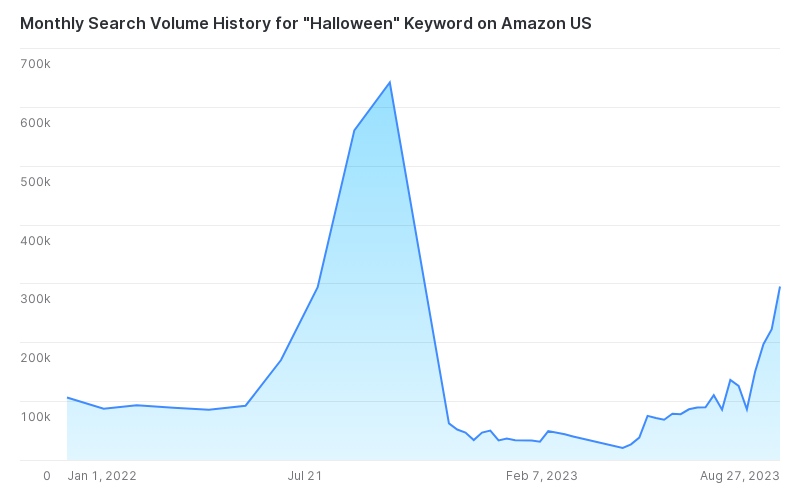 ## Requirements and coverage
Keyword research and search volume have different availability rules.
| Area | Requirements and coverage |
|---|---|
| Keyword Suggestions | Works for approximately 90% of tracked products. Currently available for English-speaking marketplaces only: US, GB, CA, AU, SG, IN, AE. Track products before noon UTC to see updated results the following day at 6am UTC. |
| Keyword Lookup | Requires products and keywords to be tracked so DataHawk can observe organic ranking signals. |
| Keyword-Seeded Suggestions | Available on request. Reach out to your DataHawk contact to enable this dataset. |
| Search Volume | Requires the keyword to be tracked in DataHawk. Volume data does not backfill; collection starts from the day tracking begins. |
Search volume is supported in these regions:
| Region | Coverage |
|---|---|
| North America | All marketplaces |
| Far East | All marketplaces |
| Europe | Spain, United Kingdom, France, Netherlands, Germany, Italy, Sweden, Turkey, United Arab Emirates, India |
**Search volume data available from:**
- Most marketplaces: 1 May 2024
- AE and SG: 15 August 2024
## Available dashboards
Keyword search volume is included in:
- [Search Power BI Dashboard Template](/help-center/connect-tools/powerbi)
- [Analytics Essentials Looker Studio Dashboard](/help-center/dashboard-templates/looker-studio)
## What to do if keyword data is missing
For keyword suggestions, DataHawk needs two types of context about your product: its **browse node category** and **keyword ranking data**. If either is thin, suggestions will be sparse or absent.
To build up that context:
- Refine your product's category assignment so DataHawk can identify the right competitive set
- Track more keywords relevant to the product - as your product accumulates ranking data, suggestion quality improves
For search volume, first confirm that the keyword is tracked. If it was added recently, remember that volume data starts from the tracking date and does not backfill historical periods.
---
## Technical reference
Need keyword table names, refresh cadence, search-volume grain, or rank-table guidance?
## Requirements and coverage
Keyword research and search volume have different availability rules.
| Area | Requirements and coverage |
|---|---|
| Keyword Suggestions | Works for approximately 90% of tracked products. Currently available for English-speaking marketplaces only: US, GB, CA, AU, SG, IN, AE. Track products before noon UTC to see updated results the following day at 6am UTC. |
| Keyword Lookup | Requires products and keywords to be tracked so DataHawk can observe organic ranking signals. |
| Keyword-Seeded Suggestions | Available on request. Reach out to your DataHawk contact to enable this dataset. |
| Search Volume | Requires the keyword to be tracked in DataHawk. Volume data does not backfill; collection starts from the day tracking begins. |
Search volume is supported in these regions:
| Region | Coverage |
|---|---|
| North America | All marketplaces |
| Far East | All marketplaces |
| Europe | Spain, United Kingdom, France, Netherlands, Germany, Italy, Sweden, Turkey, United Arab Emirates, India |
**Search volume data available from:**
- Most marketplaces: 1 May 2024
- AE and SG: 15 August 2024
## Available dashboards
Keyword search volume is included in:
- [Search Power BI Dashboard Template](/help-center/connect-tools/powerbi)
- [Analytics Essentials Looker Studio Dashboard](/help-center/dashboard-templates/looker-studio)
## What to do if keyword data is missing
For keyword suggestions, DataHawk needs two types of context about your product: its **browse node category** and **keyword ranking data**. If either is thin, suggestions will be sparse or absent.
To build up that context:
- Refine your product's category assignment so DataHawk can identify the right competitive set
- Track more keywords relevant to the product - as your product accumulates ranking data, suggestion quality improves
For search volume, first confirm that the keyword is tracked. If it was added recently, remember that volume data starts from the tracking date and does not backfill historical periods.
---
## Technical reference
Need keyword table names, refresh cadence, search-volume grain, or rank-table guidance?
---
title: Best practices for AI Copywriter
description: Habits that get the most out of AI Copywriter, from picking the right product to reviewing before publishing.
---
AI Copywriter's output depends as much on what you feed it as on the model behind it; choosing the right listing, refreshing a few times, and editing before publishing all matter. The sections below cover the habits we see give the biggest lift in conversion and rank.
## Pick the right product
AI Copywriter works best when:
- The product page has accurate info (correct attributes, brand, category)
- The product has at least some sales or search-volume history (so we have keyword data)
- The listing isn't already running an active A/B test that you'd disrupt
## Refresh several times before deciding
AI output varies. The first suggestion is rarely the best. Click **Refresh** two or three times and pick the version that reads best to a human shopper.
## Compare side by side
Use the side-by-side view. If the optimized version doesn't clearly win on:
- Keyword coverage (right-hand panel)
- Readability for a real shopper
- Compliance with Amazon's rules
…then either refresh again or stick with your original.
## Edit before publishing
Don't paste raw AI output into Seller Central. Read it once, fix anything stilted, and only then publish.
## A/B test broad rollouts
If you're considering rewriting many listings:
- Start with one ASIN
- Wait at least 7 days for performance to stabilise
- Compare conversion and rank before/after
- Roll out to similar ASINs only if results are positive
## Keep your originals
Save existing copy somewhere, a sheet, a doc, anywhere, before you publish a change. If performance drops, you'll want to revert quickly.
## When NOT to use AI Copywriter
- **Brand-protected listings** that need exact terms (legal claims, certifications, trademarks)
- **New product launches** where you don't yet know what keywords matter: Start with Keyword Research first
- **Compliance-heavy categories** (medical, supplements) where every claim needs review by your team
---
## What's next
---
title: Amazon compliance & guidelines
description: What AI Copywriter checks automatically and what you should still review manually before publishing to Amazon.
---
AI Copywriter enforces most of Amazon's listing rules at generation time; character counts, capitalization, prohibited promotional phrases. A few things still need a human eye, particularly around trademarks, regulated categories, and translation nuance. This page lays out where the line falls.
## What AI Copywriter checks automatically
**Titles:**
- Character limits per marketplace
- Capitalisation rules (e.g. avoid all-caps)
- Removal of prohibited promotional words (e.g. "best", "100%", "free shipping")
- Brand at the front, key attributes ordered correctly
**Bullet points:**
- Character limits per bullet
- Punctuation conventions
- Sentence structure suitable for mobile readability
**Descriptions:**
- Plain-text description rules
For full Amazon guidelines, see [Amazon's official documentation](https://sellercentral.amazon.com/help/hub/reference/external/202073140).
## What to still check manually
A few things AI can't always catch:
- **Trademark and brand claims**: Make sure you're not infringing or making unverified claims
- **Regulatory phrases**: For restricted categories (supplements, medical, electrical), check claims against your compliance list
- **Localisation nuance**: Translated content needs a native speaker's eye, especially for tone and cultural references
- **Ingredient or material lists**: Keep accuracy over creativity
## What happens if a suggestion violates Amazon's rules
If you spot a suggestion that breaks a rule, report it via the in-app feedback link. We use these reports to improve the model.
---
## What's next
---
title: AI Copywriter FAQ & roadmap
description: Common questions about AI Copywriter and upcoming features on the roadmap.
---
Questions about AI Copywriter tend to cluster around publishing, marketplace coverage, and how suggestions are generated. The answers below cover what's possible today and what's actively on the roadmap.
Not yet. Today, you copy the optimized content from DataHawk and paste it into Seller Central or Vendor Central. Direct publishing is on the roadmap.
AI output varies between runs. Click **Refresh** to generate a different version. If a specific phrase keeps appearing and you'd like a different angle, edit the suggestion in DataHawk before copying.
No, it doesn't at the moment.
All languages for which the marketplaces are covered by Amazon.
It uses DataHawk's Keyword Research data. Keywords are ranked by:
- Monthly search volume on the relevant marketplace
- Relevance to your product
- Competition (so you don't optimize for terms you can't rank for)
No. Reviews are tied to your ASIN, not your listing copy.
Typically 24–48 hours after you save in Seller Central.
A few common causes:
- **Product info isn't fully synced**: Check that all attributes are populated in your tracked product
- **Keywords are sparse for your category**: Niche products with low search volume get less rich suggestions
- **The original listing is already strong**: Sometimes there's not much to improve
Planned enhancements:
- **Batch optimisation** for multiple listings at once
- **Optimisation Potential Score**: Automatically identify which products in your catalog are best candidates for optimisation
Email [support@datahawk.co](mailto:support@datahawk.co).
---
title: Introduction
description: Generate and optimize Amazon product listings, titles, bullet points, and descriptions, using AI and DataHawk's keyword research data.
---
Available only for Amazon users
## What it does
Pick a product. AI Copywriter looks at:
- Your current listing (title, bullets, description)
- High-potential keywords from DataHawk's Keyword Research
- Amazon's content guidelines and SEO best practices
Then it produces an optimized version side-by-side, with a panel showing which keywords were added, expected traffic gains, and how your version compares.
## When to use AI Copywriter
| You want to... | Use AI Copywriter? |
|---|---|
| Write a listing for a new product | Yes |
| Improve an existing title or bullets | Yes |
| Generate variations for A/B testing | Yes |
| Scale listing creation across a large catalog | Yes (with batch limits) |
| Push changes live to Amazon automatically | No. Manual copy/paste into Seller Central needed |
## What you need
- An Amazon **Seller** or **Vendor** account connected to DataHawk
- The product you want to optimize added to your tracked products
---
## What's next
---
title: Limits & quotas
description: How much you can use AI Copywriter; marketplaces supported, rate limits, and what to do when you hit capacity.
---
AI Copywriter shares capacity across your workspace, so heavy use can occasionally hit a wait or a "capacity reached" message. This page covers the marketplaces it supports, what the rate limits look like in practice, and what to do when something goes wrong.
## Marketplaces supported
All marketplaces supported by Amazon are supported by DataHawk.
## Rate limits
AI Copywriter generates each suggestion in under a minute. During peak usage:
- You may see a "capacity reached" message: Wait and retry
- Suggestions may take longer than usual
## Quality variability
AI output isn't deterministic. Different refreshes of the same listing produce different suggestions. This is expected. Refresh until you find a version that reads well.
## When something goes wrong
- **"Suboptimal suggestion"**: Click **Refresh** to regenerate
- **"Capacity limit reached"**: Wait a few minutes and try again
- **"Cannot generate"**: Check that the product is fully synced in DataHawk and has up-to-date data
For persistent issues, email [support@datahawk.co](mailto:support@datahawk.co).
---
## What's next
---
title: Optimize your first listing
description: A 5-minute walkthrough to improve an Amazon listing with AI Copywriter, from picking the product to publishing the change.
---
This walkthrough takes you from opening AI Copywriter to publishing your first optimized listing in Seller Central or Vendor Central. Plan for about five minutes, plus whatever time you'd usually spend reviewing copy before pushing it live.
## Before you start
Make sure you've already:
- Connected your Amazon Seller or Vendor account
- Added the product you want to optimize to your tracked products
## Walkthrough
### Open AI Copywriter
From the left navigation, go to **Apps → AI Copywriter**. You'll see a product picker. Browse or search for the listing you want to optimize.
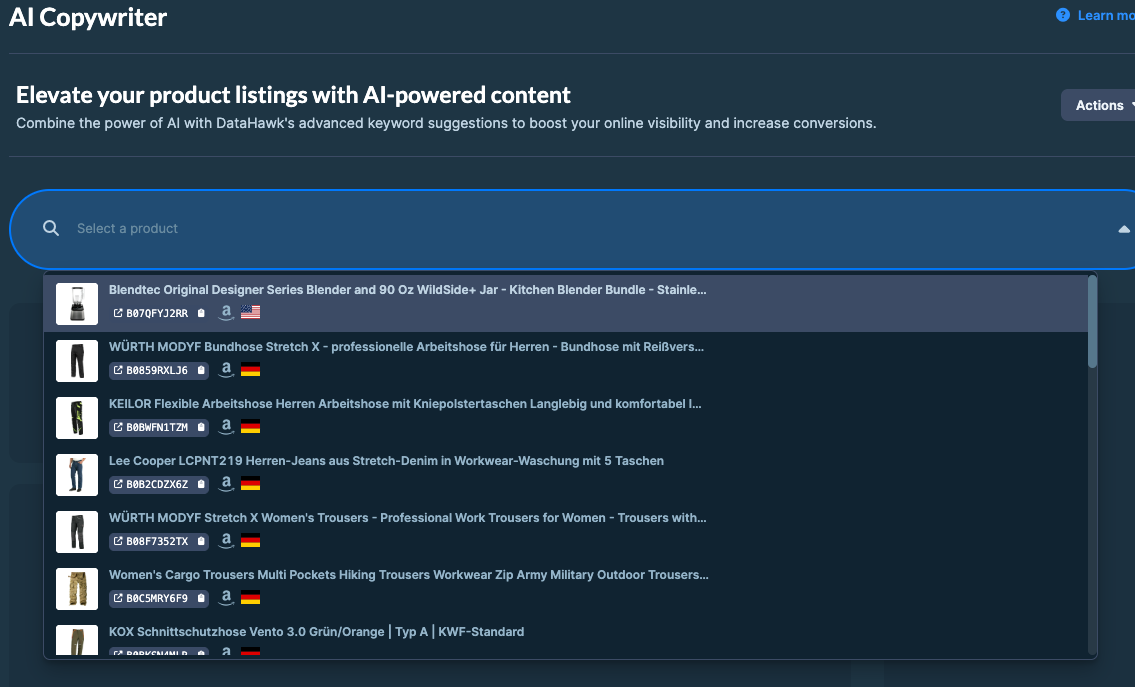 ### Review the AI suggestions
AI Copywriter shows your current listing alongside an optimized version. You'll see suggestions for:
- **Title**: Restructured to include high-potential keywords while staying within Amazon's character limits
- **Bullet points**: Rewritten for clarity and search relevance
- **Description**: Rewritten for readability and keyword coverage
The right-hand panel shows:
- **Curated keywords**: High-potential terms ranked by search volume
- **Keyword occurrences**: How often each appears in the original vs. Optimized version
- **Estimated traffic increase**: Based on the search volume of new keywords added
### Review the AI suggestions
AI Copywriter shows your current listing alongside an optimized version. You'll see suggestions for:
- **Title**: Restructured to include high-potential keywords while staying within Amazon's character limits
- **Bullet points**: Rewritten for clarity and search relevance
- **Description**: Rewritten for readability and keyword coverage
The right-hand panel shows:
- **Curated keywords**: High-potential terms ranked by search volume
- **Keyword occurrences**: How often each appears in the original vs. Optimized version
- **Estimated traffic increase**: Based on the search volume of new keywords added
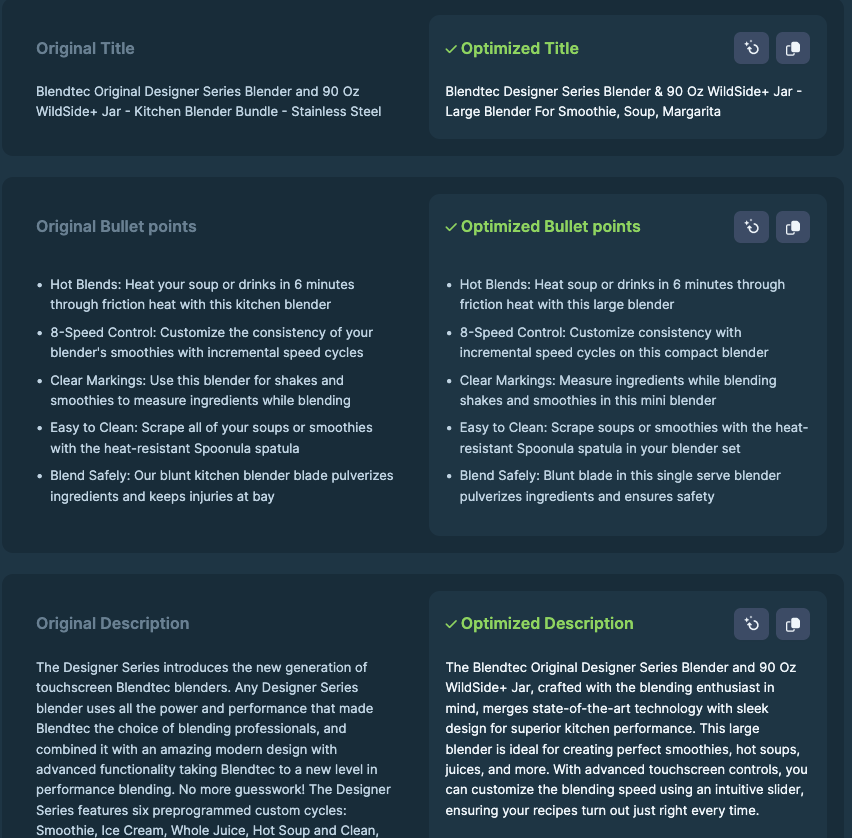 ### Compare and tweak
Read both versions side by side. AI suggestions are a starting point; not a finished product.
Don't like a phrase? Click **Refresh** to generate a new version. Each refresh gives you a different angle.
You can also edit the suggestion directly in DataHawk before copying it out.
### Publish to Amazon
DataHawk doesn't push changes to Amazon for you. Instead:
1. Copy the optimized title, bullets, or description.
2. Paste them into your Seller Central or Vendor Central listing.
3. Save the listing in Amazon.
It usually takes Amazon 24–48 hours to apply listing changes.
## Tips
- **A/B test before rolling out broadly.** If you're not sure a change will help, try it on one ASIN first.
- **Refresh suggestions if the first batch feels off.** AI output varies; a second pass often catches better phrasing.
- **Don't lose your originals.** Save the existing copy somewhere first so you can revert if performance drops.
---
## What's next
### Compare and tweak
Read both versions side by side. AI suggestions are a starting point; not a finished product.
Don't like a phrase? Click **Refresh** to generate a new version. Each refresh gives you a different angle.
You can also edit the suggestion directly in DataHawk before copying it out.
### Publish to Amazon
DataHawk doesn't push changes to Amazon for you. Instead:
1. Copy the optimized title, bullets, or description.
2. Paste them into your Seller Central or Vendor Central listing.
3. Save the listing in Amazon.
It usually takes Amazon 24–48 hours to apply listing changes.
## Tips
- **A/B test before rolling out broadly.** If you're not sure a change will help, try it on one ASIN first.
- **Refresh suggestions if the first batch feels off.** AI output varies; a second pass often catches better phrasing.
- **Don't lose your originals.** Save the existing copy somewhere first so you can revert if performance drops.
---
## What's next
---
title: Create your first alert
description: Walkthrough to create your first DataHawk alert, from picking a product to receiving the email.
---
It takes about 5 minutes.
## Before you start
Make sure you've already:
- Added at least one [product to track](/help-center/data-setup/products-tracking) in your workspace
## Create your alert
### Open the Alerts module
From the left navigation, go to **Apps → Alerts**. If this is your first time, you'll see an empty Alerts list and a **Create alert** button at the top right.
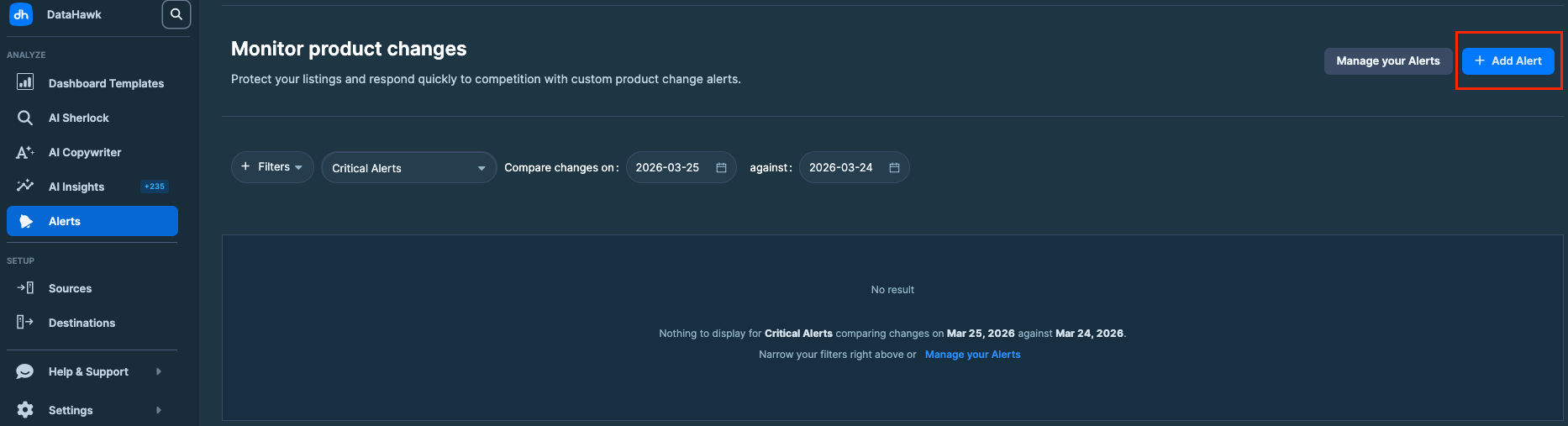 ### Pick what you want to be alerted on
Click **Create alert**. You'll be offered two paths:
**Preset triggers**: DataHawk's most-used templates. Good if you want to get going fast. Examples:
- Going out of stock
- Losing the Buy Box
- Significant price decrease (10%+)
- Becoming a best seller
- Changes in star ratings
### Pick what you want to be alerted on
Click **Create alert**. You'll be offered two paths:
**Preset triggers**: DataHawk's most-used templates. Good if you want to get going fast. Examples:
- Going out of stock
- Losing the Buy Box
- Significant price decrease (10%+)
- Becoming a best seller
- Changes in star ratings
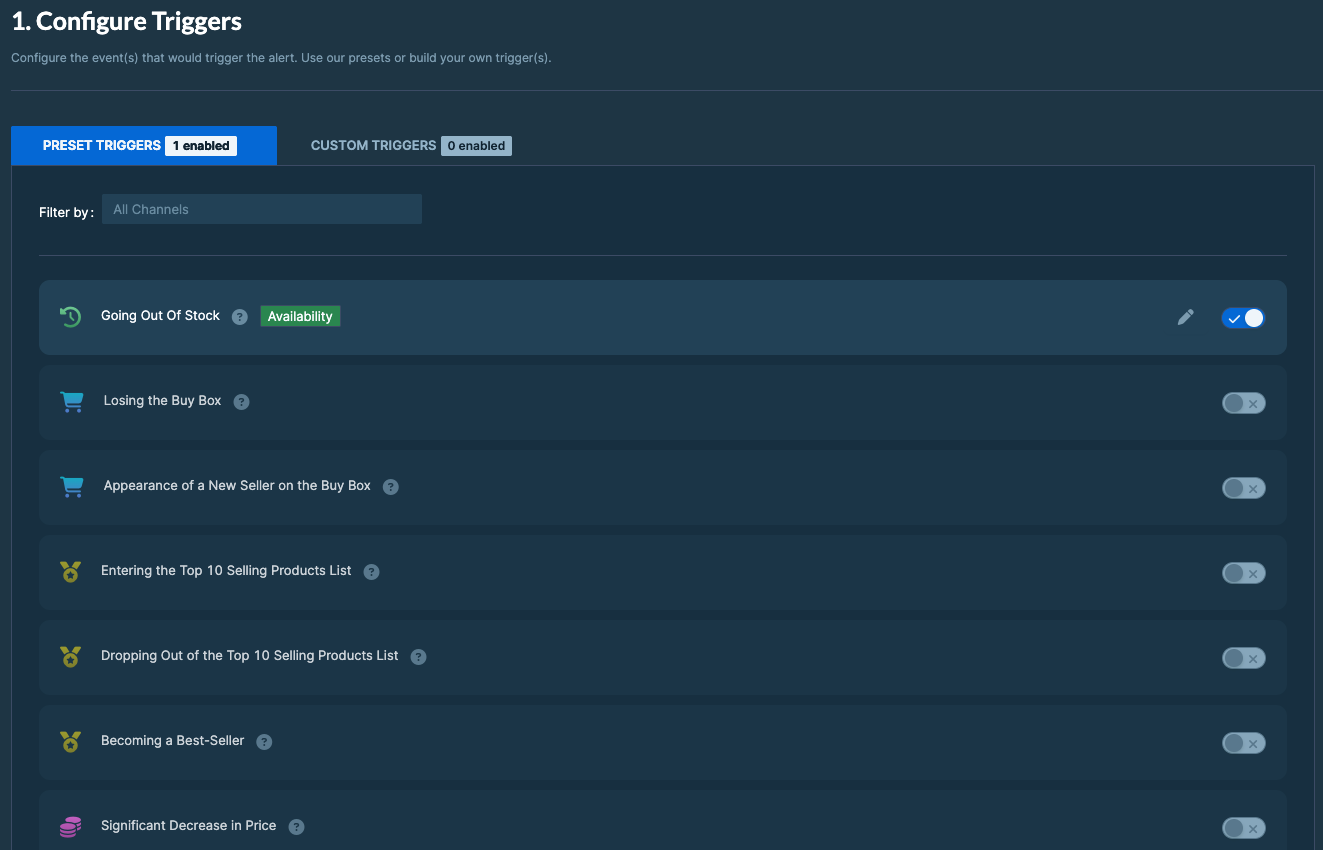 **Custom triggers**: For when you need a specific rule. You'll pick a property, an operator, and a value. See [Custom triggers](/help-center/modules/alerts/custom-triggers) for details.
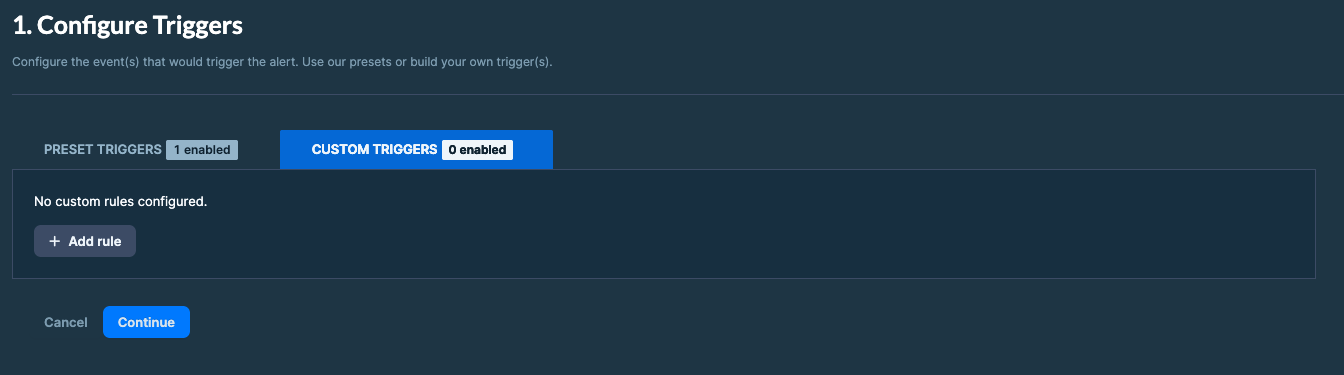 For your first alert, start with a preset. We recommend **Losing the Buy Box**: It's the one most customers find immediate value in.
### Choose the product (or tag)
Select which product or group of products this alert applies to. Options:
- **A specific product**: Paste an ASIN or pick from your tracked list
For your first alert, start with a preset. We recommend **Losing the Buy Box**: It's the one most customers find immediate value in.
### Choose the product (or tag)
Select which product or group of products this alert applies to. Options:
- **A specific product**: Paste an ASIN or pick from your tracked list
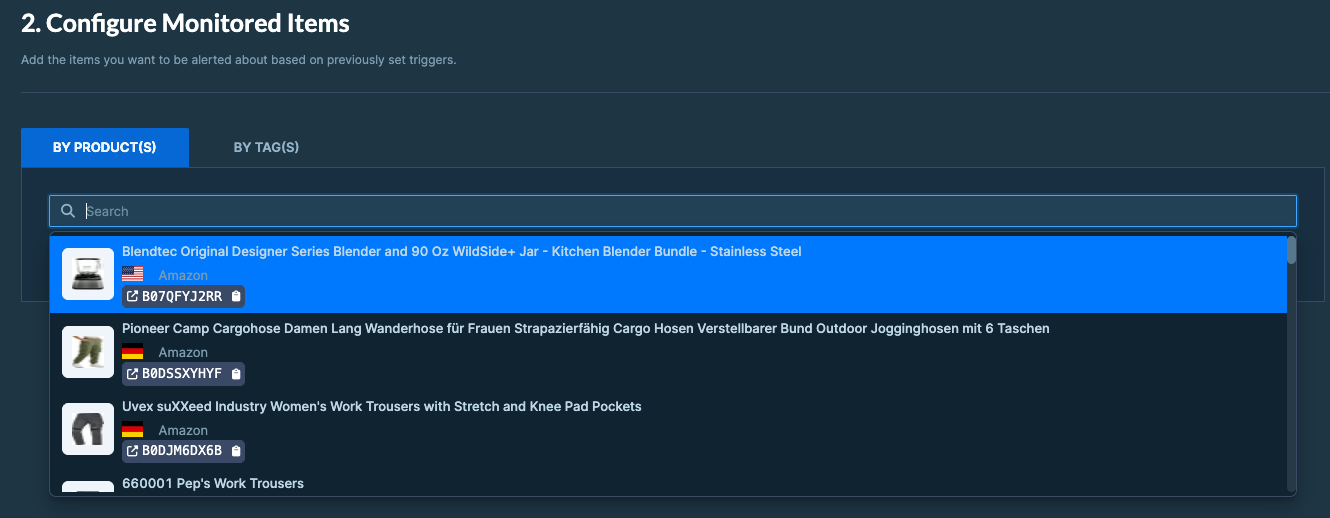 - **All products with a tag**: E.g. "Top sellers" or "Hero ASINs"
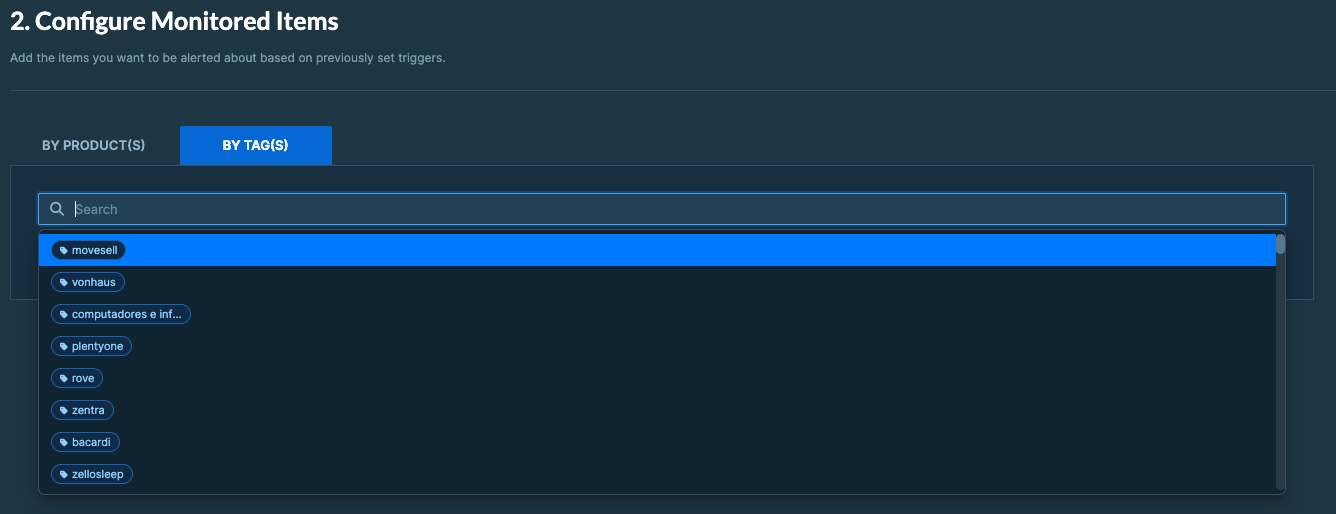 Tags are useful when you want one rule to cover many products. See [Using Tags](/help-center/data-setup/tags).
### Set up the recipient group
Recipient groups decide who gets the email. You can:
- **Use yourself**: Your DataHawk login email, by default
- **Create a group**: Add team members and reuse it for other alerts
Tags are useful when you want one rule to cover many products. See [Using Tags](/help-center/data-setup/tags).
### Set up the recipient group
Recipient groups decide who gets the email. You can:
- **Use yourself**: Your DataHawk login email, by default
- **Create a group**: Add team members and reuse it for other alerts
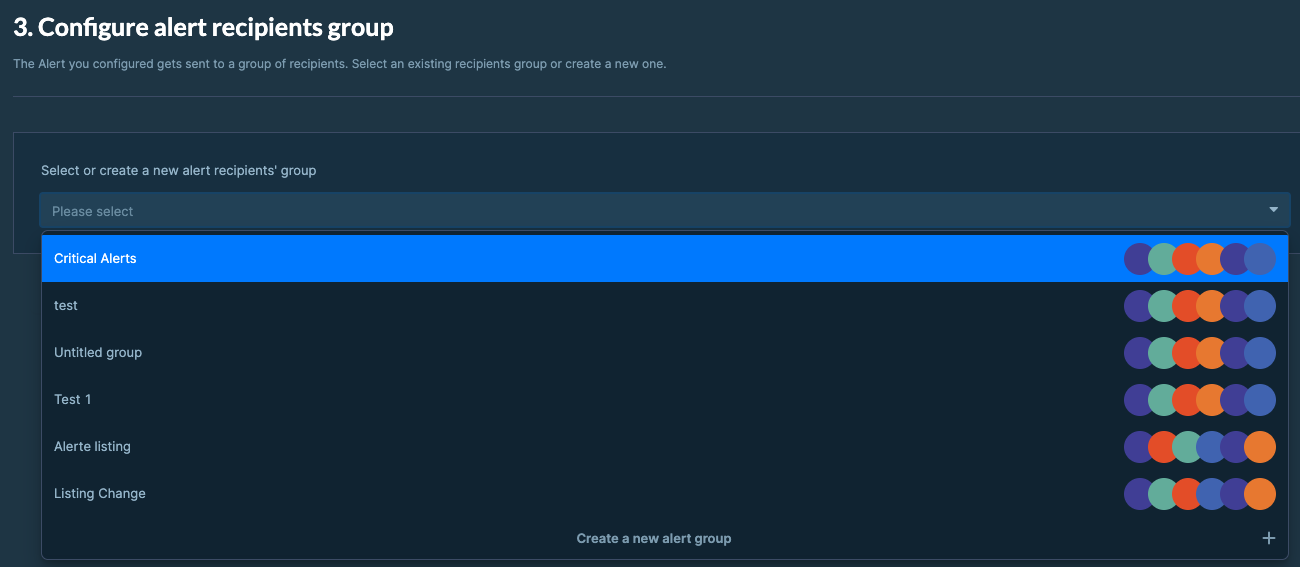 Create one called **"My team"** if you'll share alerts with colleagues. It saves time later.
### Name and save your alert
Give a name to your alert, then click **Create my Alert**. Your alert is now live.
Create one called **"My team"** if you'll share alerts with colleagues. It saves time later.
### Name and save your alert
Give a name to your alert, then click **Create my Alert**. Your alert is now live.
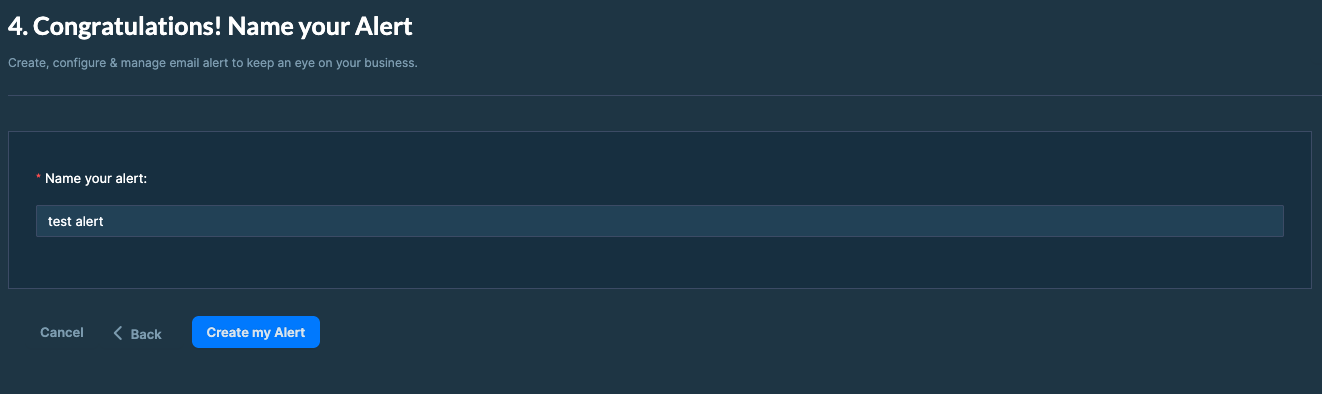 DataHawk checks the conditions daily and sends an email when something matches.
---
## What's next
DataHawk checks the conditions daily and sends an email when something matches.
---
## What's next
---
title: Custom triggers
description: Build your own alert rules from scratch using a property, an operator, and a value; for cases that preset triggers don't cover.
---
Use a custom trigger when no preset matches what you need. Custom triggers let you build a rule from scratch using a property, an operator, and a value.
## When to use a custom trigger
Pick a custom trigger when you need to:
- Watch a specific threshold ("alert me when Buy Box price drops below \$15")
- Apply more granular logic ("alert me when number of sellers increases by more than 3")
- Track properties not covered by presets
For everyday monitoring (Buy Box loss, stock-outs, big price moves), a preset is faster. See [Triggers & properties](/help-center/modules/alerts/triggers).
## How to create one
### Open the Alerts module
Open **Apps → Alerts** and click **Create alert**.
### Choose a custom trigger
Click **Create custom trigger**.
### Pick a property
Choose what to monitor; e.g. Buy Box price, BSR, number of ratings.
### Pick an operator
Choose how it should change; e.g. *decreases by more than X%*.
### Set a value
Set a value appropriate for the operator.
### Pick the product and recipients
Click **Continue**, then choose the product (or tag) and the recipient group.
### Save
Save the alert.
You can stack multiple triggers in the same alert. The daily email will list each event that fired.
## Operators reference
**Global operators**: Work on any property:
- any change
- is known
- is unknown
- is true
- is false
- matches value
- does not match the value
**Numerical operators**: For numeric properties only:
- increases
- decreases
- goes over value
- goes under value
- increases or decreases by more than a relative value (%)
- increases by more than a relative value (%)
- decreases by more than a relative value (%)
- increases or decreases by more than an absolute value (#)
- increases by more than an absolute value (#)
- decreases by more than an absolute value (#)
## Worked examples
**Defend your price floor**
- Property: Buy Box price
- Operator: goes under value
- Value: 14.99
- Why: alerts when a tracked ASIN's Buy Box price drops below your breakeven point.
**Catch a competitor entering your space**
- Property: number of sellers
- Operator: increases by more than an absolute value
- Value: 1
- Why: alerts when 2+ new sellers appear on a product's offer page.
**Spot review-bombs early**
- Property: % of critical ratings (1–2 star)
- Operator: increases by more than a relative value
- Value: 5%
- Why: alerts when negative reviews jump suddenly.
---
## What's next
---
title: Alerts FAQ & troubleshooting
description: Quick answers to the most common Alerts questions, from missing emails to noisy alerts.
---
Most Alerts questions trace back to a handful of patterns; daily check timing, paused rules, recipient groups, or data that simply isn't exposed by the marketplace. Skim the headings for the symptom that matches yours, then jump in.
A few common reasons:
- **The trigger didn't fire**: DataHawk checks once a day. If the change happened *after* the daily check, you'll see it tomorrow.
- **The alert is paused**: Check the Alerts list for status.
- **The recipient group is empty or wrong**: Check the group's members.
- **The email landed in spam**: Whitelist [noreply@datahawk.co](mailto:noreply@datahawk.co)
- **The data isn't available**: Walmart doesn't expose all properties (see [Triggers & properties](/help-center/modules/alerts/triggers)).
- **Triggers are too sensitive**: Tighten the threshold (e.g. "decreases by 5%" → "decreases by 15%").
- **Alert covers too many products**: Narrow it to a tag or specific ASINs.
- **Multiple overlapping alerts**: Consolidate into one alert with multiple triggers and a single recipient group.
DataHawk runs the daily check once per day and emails the recipient group everyday at 12pm CET.
DataHawk Alerts module does not offer this natively. If you need non-email delivery today, build a workflow with [DataHawk MCP](/help-center/modules/datahawkmcp) and a tool like n8n or Make. They can pull your DataHawk data and post anywhere.
No, and there's nothing on the roadmap or in the release notes suggesting this is coming. DataHawk's API configures the **workspace** (which products, keywords, and categories are tracked); it doesn't create, update, retrieve, or delete Alerts, and there's no Alerts table in the Snowflake or BigQuery data share either. See [API Reference](/api-reference) for what the API does cover.
If you need alert-like behavior in another system, your best options today are building your own thresholds on the underlying raw data (via [DataHawk MCP](/help-center/modules/datahawkmcp) or your data share), or forwarding the notification emails DataHawk already sends into your own tooling.
Alert events are retained for **3 months**.
- **Preset**: Pre-built templates for the most common situations. Fast to set up.
- **Custom**: Build your own rule using property + operator + value. More flexible.
See [Custom triggers](/help-center/modules/alerts/custom-triggers).
Yes. You just need to track them in your workspace first. Once tracked, you can attach any alert to them.
Walmart's API doesn't expose every data point Amazon does. The full parity matrix is in [Triggers & properties](/help-center/modules/alerts/triggers). If you need a missing property, tell support; feature requests inform our roadmap.
Email [support@datahawk.co](mailto:support@datahawk.co).
---
title: Introduction
description: The Alerts module monitors your tracked products around the clock and emails you when something changes; price drops, Buy Box losses, stock-outs, and more.
---
This page covers what Alerts is and when to use it. To set one up, jump to [Create your first alert](/help-center/modules/alerts/create).
## What you can monitor
Alerts cover three areas:
- **Listing details**: Title, description, bullets, A+ content, images, videos
- **Reviews and ratings**: Rating, number of ratings, % critical, % positive
- **Buy Box and pricing**: Buy Box price, BSR, number of sellers, Buy Box owner, listing availability
Some properties are Amazon-only. See [Triggers & properties](/help-center/modules/alerts/triggers) for the full Amazon vs. Walmart matrix.
## When to use Alerts
Use Alerts when you want to **react quickly to specific changes** on products you care about.
| You want to... | Use Alerts? |
|---|---|
| Be told when a competitor changes price | Yes |
| Catch a Buy Box loss before it hits sales | Yes |
| Spot inventory dropping below a threshold | Yes |
| Understand *why* something changed | Use [Sherlock](/help-center/modules/sherlock) instead |
Alerts are reactive: it tells you *that* something changed.
## Key concepts
**Property**: A specific data point you can monitor (e.g. Buy Box price, BSR, title).
**Trigger**: A rule that fires when a property changes a certain way. You can use:
- *Preset triggers*: DataHawk's most-used templates (e.g. "losing the Buy Box")
- *Custom triggers*: Your own rules built using operators like "decreases by more than 10%"
**Event**: What happens when a trigger fires. Each event becomes part of the daily email.
**Alert**: A saved trigger (or set of triggers) attached to specific products and recipients.
**Recipient group**: A list of email addresses that receive a particular alert. See [Recipient groups & email setup](/help-center/modules/alerts/recipient-groups).
## How alerts get delivered
DataHawk checks your conditions **once a day** and sends **a single daily email per recipient group**, bundling everything that fired in the last 24 hours.
- Delivery is by email
- Alerts data is retained for the **last 3 months**
- Email is sent everyday at 12pm CET
You can also monitor competitors' products; just track them first.
---
## What's next
---
title: Manage alerts
description: Edit, pause, or delete alerts from the Alerts list in DataHawk.
---
Alerts you've already created live in **Apps → Alerts**, where you can review what's firing, tune triggers, or pause noisy rules. This page walks through each option in the order you'd normally use them: find, edit, pause, then delete.
## Find your alerts
Open **Apps → Alerts**. The main list shows every alert in the workspace, with:
- Alert name
- Triggers attached
- Products or tags it covers
- Recipient group
- Status (active / paused)
- Last fired
 ## Edit an alert
### Open the alert
Click the alert in the list.
### Change the configuration
Adjust any of:
- Triggers (add, remove, modify)
- Products or tags it applies to
- Recipient group
### Save
Save the alert.
Changes take effect on the next daily check.
## Pause an alert
Pausing keeps the alert configured but stops it sending emails. Useful when:
- You're running a planned promotion that would trigger noisy alerts
- You want to investigate a setup without getting flooded
- A product is temporarily out of focus
Click **Pause** on the alert. Click **Resume** when you're ready.
## Delete an alert
If you no longer need an alert, click **Delete**. This removes the alert.
To keep the alert but stop the emails, **pause it** instead.
---
## What's next
## Edit an alert
### Open the alert
Click the alert in the list.
### Change the configuration
Adjust any of:
- Triggers (add, remove, modify)
- Products or tags it applies to
- Recipient group
### Save
Save the alert.
Changes take effect on the next daily check.
## Pause an alert
Pausing keeps the alert configured but stops it sending emails. Useful when:
- You're running a planned promotion that would trigger noisy alerts
- You want to investigate a setup without getting flooded
- A product is temporarily out of focus
Click **Pause** on the alert. Click **Resume** when you're ready.
## Delete an alert
If you no longer need an alert, click **Delete**. This removes the alert.
To keep the alert but stop the emails, **pause it** instead.
---
## What's next
---
title: Recipient groups & email setup
description: Manage who receives which alerts. Create, edit, and delete recipient groups to route alert emails to the right teams.
---
Recipient groups decide who gets which alert email. Setting them up by team, priority, or client is the cleanest way to keep your Buy Box notifications out of the wrong inbox. This page covers when to create a group, how to set one up alongside an alert, and how to edit it later.
## When to use recipient groups
- **Different teams**: Buy Box alerts to your paid-media team, listing alerts to your content team
- **Different priorities**: Top-seller alerts to leadership, full catalog alerts to operations
- **Per-client**: Agencies can route alerts to each client's stakeholders
## Create a group
### Open the Alerts module
Open **Apps → Alerts** and click **+ Alert**.
### Configure the alert basics
Select your triggers, click **Continue**, then pick the product(s) to be alerted on.
### Create a new alert group
Click **Create a new alert group**.
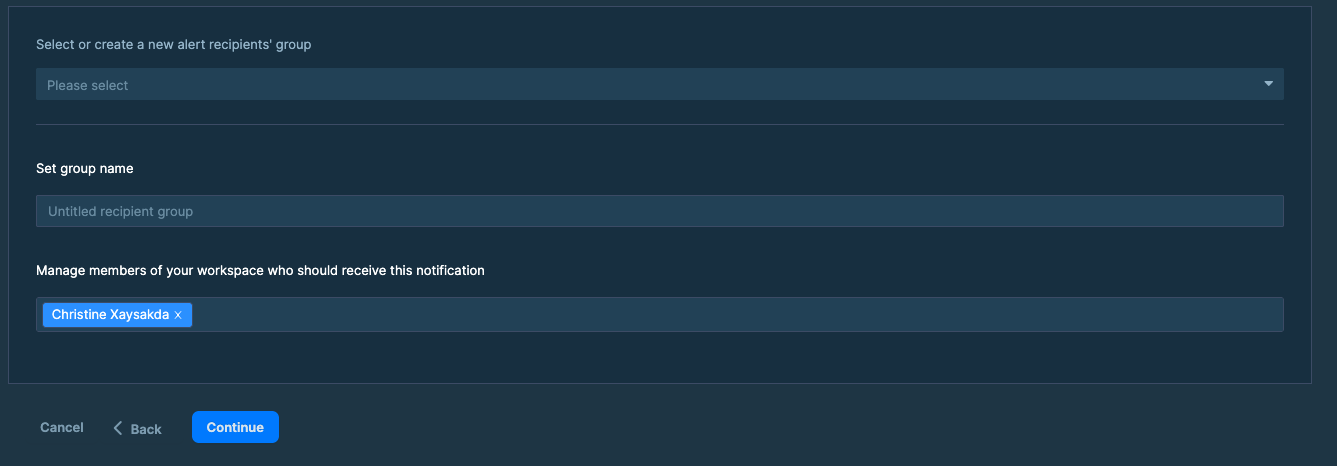 ### Name the group and add members
Add the group name, then select the members of the workspace that should receive notifications.
### Name and save the alert
Name your alert, then click **Create Alert**.
## Edit a group
### Open the Alerts module
Open **Apps → Alerts** and click **Manage your Alerts**.
### Open the group menu
In the list of groups, click the 3 dots next to the group you want to modify.
### Name the group and add members
Add the group name, then select the members of the workspace that should receive notifications.
### Name and save the alert
Name your alert, then click **Create Alert**.
## Edit a group
### Open the Alerts module
Open **Apps → Alerts** and click **Manage your Alerts**.
### Open the group menu
In the list of groups, click the 3 dots next to the group you want to modify.
 ### Edit the group
Click **Edit Group**, then rename the group and add or remove members.
### Edit the group
Click **Edit Group**, then rename the group and add or remove members.
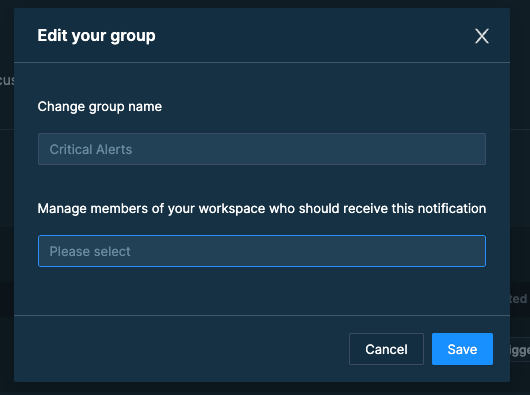 ### Save
Click **Save**.
## Delete a group
### Open the Alerts module
Open **Apps → Alerts** and click **Manage your Alerts**.
### Open the group menu
In the list of groups, click the 3 dots next to the group you want to delete.
### Save
Click **Save**.
## Delete a group
### Open the Alerts module
Open **Apps → Alerts** and click **Manage your Alerts**.
### Open the group menu
In the list of groups, click the 3 dots next to the group you want to delete.
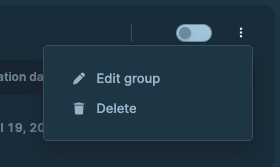 ## What the email looks like
Each daily email contains:
- A summary line per triggered event (max 20)
- If you have more than 20, you can go on "See more changes in app (XXX total changes)"
- The product or tag the event relates to
- A link back to the relevant DataHawk report
## What the email looks like
Each daily email contains:
- A summary line per triggered event (max 20)
- If you have more than 20, you can go on "See more changes in app (XXX total changes)"
- The product or tag the event relates to
- A link back to the relevant DataHawk report
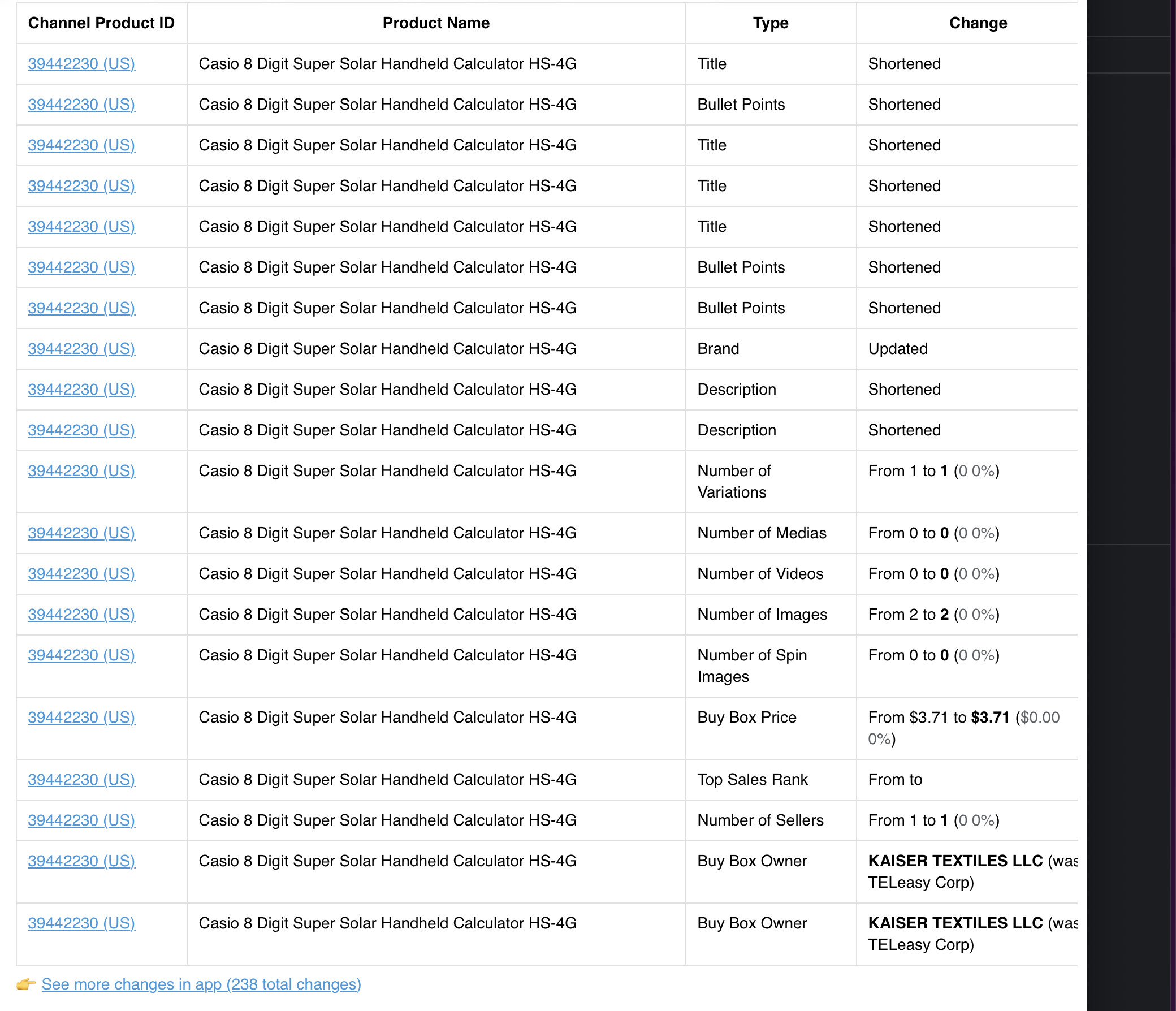 ## When emails are sent
DataHawk runs the trigger checks once per day and bundles all events into a single email.
Every day at 12pm CET.
## Other delivery channels
If you need delivery somewhere other than email today, you can build a workflow with [DataHawk MCP](/help-center/modules/datahawkmcp) and a tool like n8n or Make. They can read your DataHawk data and post to wherever you need.
---
## What's next
## When emails are sent
DataHawk runs the trigger checks once per day and bundles all events into a single email.
Every day at 12pm CET.
## Other delivery channels
If you need delivery somewhere other than email today, you can build a workflow with [DataHawk MCP](/help-center/modules/datahawkmcp) and a tool like n8n or Make. They can read your DataHawk data and post to wherever you need.
---
## What's next
---
title: Triggers & properties reference
description: A complete reference of what the Alerts module can monitor on Amazon and Walmart; preset triggers and all available properties.
---
Looking to set up an alert? Start with [Create your first alert](/help-center/modules/alerts/create). This page is for reference once you know the basics.
## Preset triggers
Preset triggers are DataHawk's most-used templates. Pick one when you want to get going fast.
| Trigger | What it watches |
|---|---|
| Going out of stock | Stock drops, or status changes from "in stock" to "out of stock" |
| Losing the Buy Box | Anyone loses or wins the Buy Box, including price |
| New seller on the Buy Box | A new seller starts competing for the Buy Box |
| Entering top 10 BSR | Products enter the top 10 in sales rank |
| Dropping out of top 10 BSR | Products drop out of the top 10 |
| Becoming a best seller | Product reaches #1 in sales rank |
| Significant price decrease (10%+) | Buy Box price drops by more than 10% |
| Any price change | Any change in Buy Box price (range customisable) |
| Changes in listing details | Any change to the product details page |
| Changes in title | Title text changes |
| Changes in media assets | Number of images or videos changes |
| Changes in star ratings | Increase in % of 1- and 2-star ratings |
| Going offline | Tracked product goes offline |
You can set up as many preset triggers as you like.
## Properties you can monitor
Pick your platform to see the full list of properties available to alert on.
**Listing details**
- Title
- Description
- Bullet points
- A+ content availability
- Number of images
- Number of videos
**Reviews and ratings**
- Rating
- Number of ratings
- % of critical (1–2 star) ratings
- % of positive (4–5 star) ratings
**Buy Box and pricing**
- Buy Box price
- Sales rank (BSR)
- Number of sellers
- Buy Box owner
- Buy Box availability / status
- Listing availability / status
**Listing details**
- Title
- Description
- Bullet points
- A+ content availability
- Number of images
- Number of videos: **not available on Walmart**
**Reviews and ratings**
- Rating
- Number of ratings
- % of critical (1–2 star) ratings
- % of positive (4–5 star) ratings
**Buy Box and pricing**
- Buy Box price
- Sales rank (BSR): **not available on Walmart**
- Number of sellers
- Buy Box owner
- Buy Box availability / status: **not available on Walmart**
- Listing availability / status
Three properties are missing on Walmart, number of videos, sales rank (BSR), and Buy Box availability / status, because Walmart's API doesn't expose them. If a missing property matters to you, let support know; feature requests help us prioritize.
## Limits and retention
- **Alert history**: Retained for the last 3 months
- **Number of alerts per email**: You can see 20 alerts and see more on the DataHawk App
- **Number of recipients per group**: No limit
---
## What's next
---
title: Frequently Asked Questions (FAQ)
description: Common questions about DataHawk MCP, from getting started and security to multiple workspaces, troubleshooting, and the roadmap.
---
Questions about DataHawk MCP cluster around the same themes: setup, what the AI can and can't see, multi-workspace access, and what's coming next. The sections below mirror that order. If you're looking for installation steps, see the [setup guide](/help-center/modules/datahawkmcp/setup) instead.
No. Your AI handles the query construction entirely. The data layer exists so power users can drop down to it via SQL against the Snowflake/BigQuery data share, but conversational users never touch it.
Every number comes from a real `datahawk_load_data` call against your actual data. The validation step catches invalid queries before they run, and the router enforces required filters so you can't accidentally get data from the wrong marketplace or time window. That said, LLMs can still misrepresent results in their prose summary. Always cross-check specific numbers against the tool output in the conversation.
Any client supporting MCP servers with OAuth authentication.
Claude (Desktop, Web, Mobile), ChatGPT (Plus, Team, Enterprise), Windsurf, Lovable, Replit, n8n, Make, and any custom client speaking MCP. See the installation guides on the [setup page](/help-center/modules/datahawkmcp/setup).
Partly. MCP covers Walmart Connect advertising, Walmart keyword rankings, and the latest Walmart product snapshot. Walmart sales, traffic, and inventory aren't available yet. See [Walmart coverage](/help-center/modules/datahawkmcp#walmart-coverage).
DataHawk MCP is native to DataHawk: your AI asks DataHawk, which picks the right data and knows how to use it. It's in beta and covers a curated set of datasets. Snowflake MCP is native to Snowflake: your AI queries every table in your DataHawk Snowflake database and can join your own tables. DataHawk turns it on for your account on request. See [Use AI with your DataHawk data](/help-center/connect-tools/ai-assistants).
Under 2 minutes for any OAuth-based client (Claude, ChatGPT). Slightly longer for token-based clients (n8n, Make) because you also need to generate an API token.
Query results flow to the AI that asked the question. The same AI you're already talking to. DataHawk doesn't send your data anywhere else.
Anyone with an active login to your DataHawk workspace. Admin-only restrictions are on the roadmap; for now, use DataHawk's workspace roles to control who has access.
Yes. All brands connected in one DataHawk workspace are accessible through the MCP.
Access follows your DataHawk workspace roles. If a user can see something in DataHawk, they can query it via MCP. If they can't see it in DataHawk, they can't query it.
Usually one of: (1) your Amazon account isn't connected/syncing in DataHawk, (2) the date range you specified has no data yet, (3) a required filter was rejected by the validator. Ask the AI to show the tool call output. It usually pinpoints the issue.
About 14 months, on a rolling basis. If you don't give a date range, MCP uses the last 90 days. For older data, use your Snowflake or BigQuery data.
Most common causes: a different date range (MCP uses the last 90 days by default), a different marketplace filter, or a different currency (MCP uses local currency, or USD when marketplaces with different currencies are mixed). See [Defaults and limits](/help-center/modules/datahawkmcp/going-further#defaults-and-limits). Ask the AI to show the exact query it ran. Copy the date range and filters and run them in the app to reconcile.
MCP is tuned for interactive use. For high-volume workloads, switch to the BigQuery export or contact [support@datahawk.co](mailto:support@datahawk.co) for elevated limits.
Make sure you're signed into the correct DataHawk workspace in your browser before clicking authorize. If you have multiple workspaces, sign out of all but the target one, then retry.
DataHawk MCP is in beta, so it changes often:
- **Frequent improvements:** query routing and data coverage get better most weeks.
- **Occasional changes:** how questions are interpreted may shift slightly between updates.
- **New data added regularly:** vendor data, brand analytics, and more land on a rolling basis.
Email [support@datahawk.co](mailto:support@datahawk.co) with:
- the exact prompt you ran
- the AI client you used (Claude, ChatGPT, etc.)
- the tool call output (ask the AI to show it)
- what you expected to see
In active development. Watch your emails for the news.
We're continuously expanding. Recent additions: DSP creative-level detail, vendor data, profit ledger line items. Next up: broader brand analytics and finance surfaces.
Yes. Email [support@datahawk.co](mailto:support@datahawk.co) with your use case. If multiple users request the same thing, it moves up the priority list fast.
---
title: Get reliable answers
description: How to get fast, accurate answers from DataHawk MCP. Covers defaults and limits, faster queries, verifying numbers, marketplaces, and investigations.
---
Once MCP is connected and you've asked a few questions, this page helps you trust what comes back. It covers the settings that change your numbers, how to get answers faster, how to check them, and when another tool is the better fit.
Looking for help writing prompts? See the [Prompting guide](/help-center/modules/datahawkmcp/write-prompts). For setup issues, check the [FAQ](/help-center/modules/datahawkmcp/faq-troubleshooting).
## Defaults and limits
Most "that number looks wrong" moments come from a default you didn't know about. Here's what MCP does unless you say otherwise:
| Setting | What MCP does | What to say to change it |
|---|---|---|
| **Date range** | Uses the last 90 days. Goes back about 14 months at most. | *"last 30 days"*, *"March 2026"* |
| **Marketplace** | Includes every connected marketplace. | *"in the US marketplace"* |
| **Currency** | Shows amounts in the marketplace's local currency. When results mix marketplaces with different currencies, uses USD. | *"in USD"* or *"in local currency, by marketplace"* |
| **Data freshness** | Uses data refreshed once a day, at 9 AM PST. A query right at refresh time can catch a partial update. | Wait an hour and ask again. |
| **Ad attribution** | Uses 14-day attribution (sales up to 14 days after the click) when Amazon and Walmart ads are compared together. | Say *"14-day attribution"* when you compare with another tool. |
| **Revenue and refunds** | Has two versions. Recorded counts them when Amazon settles them. Accrual counts them on the order date. | *"on a recorded basis"* or *"on an accrual basis"* |
| **Vendor data** | Has a manufacturing view and a sourcing view. | Name the view your team uses. See [Manufacturing vs sourcing views](/troubleshooting/data-discrepancies/manufacturing-vs-sourcing-views). |
| **Inventory and returns** | Reports them per seller account and region (North America, Europe, Far East). | Name the account and region. |
| **Product names** | Can show product names and brands as they were on each day. | *"the name and brand at the time"* |
## Get faster answers
MCP is built for back-and-forth questions. A few habits keep answers quick.
**Narrow your date range.** The shorter the window, the faster the answer:
- **30 days**: your default for exploring
- **90 days**: for quarterly trends
- **365 days**: for year over year, but expect longer waits
Start small and widen the range once you know which question matters.
**Be specific.** Asking about 20 specific ASINs is faster than asking about "all my ASINs". Same for "brand X" vs. "all brands". The more filters you give, the less DataHawk has to scan.
**Stick to one topic per conversation.** Broad prompts like *"do a complete audit of my business"* can trigger 20+ tool calls and time out. Use one conversation for sales, one for advertising, one for inventory. You'll get cleaner answers and won't hit rate limits.
## Verify your numbers
**Ask to see the tool call.** For any number that matters, ask the AI to show the DataHawk tool call it ran. You'll see the exact filters, dates, and data used. See [How to iterate when the answer looks wrong](/help-center/modules/datahawkmcp/write-prompts#how-to-iterate-when-the-answer-looks-wrong).
**Cross-check against your dashboards or data warehouse.** When a number really matters (a board meeting, a supplier call), run the same date range and marketplace in your dashboards, Snowflake, or BigQuery and compare. If they differ, check the [defaults](#defaults-and-limits) first.
**Reconcile with a screenshot.** Claude and ChatGPT both accept images. Drop in a Seller Central screenshot and ask:
> *"Reconcile this against DataHawk data for the same period."*
## Work across marketplaces, platforms, and workspaces
**Always name the platform and marketplace.** MCP includes every connected marketplace by default, which is rarely what you want. Say it explicitly:
- *"For Amazon US only..."*
- *"Across all my European Amazon marketplaces..."*
- *"On Walmart, last 30 days..."* (advertising and keyword ranks only for now, see [Walmart coverage](/help-center/modules/datahawkmcp#walmart-coverage))
- *"Both Amazon and Walmart combined..."*
Five extra seconds in the prompt saves five minutes of reconciling later.
**Compare marketplaces in one prompt.** Ask for a side-by-side view:
> *"Compare revenue, units, ACOS, and conversion across my US and UK marketplaces, last 30 days."*
When the marketplaces use different currencies, totals come back in USD. Add *"in local currency"* to see each marketplace in its own currency.
**Connect each workspace separately.** If you run separate DataHawk workspaces for different brands or clients, connect each one to your AI client. One conversation can't span several workspaces yet.
## Investigate "why" questions
Questions that start with *"why"*, *"what's driving"*, or *"what changed"* trigger a dedicated investigation flow. For example: *"Why did revenue drop?"* or *"What's driving the ACOS spike?"* The AI builds hypotheses, gathers evidence across domains, and explains its reasoning instead of just listing numbers.
**Redirect it if it goes the wrong way.** Course-correct in plain English:
> *"Skip the catalog analysis. Focus on advertising changes."*
**If a conclusion still feels wrong:**
1. Ask for the raw data: *"Show me the raw sales data for those 7 days, day by day."*
2. Check the same numbers in your dashboards or data warehouse.
3. Email [support@datahawk.co](mailto:support@datahawk.co) if the gap remains.
## Pick the right tool
MCP is great for exploring and for first drafts: generate a weekly summary, then polish it in a Google Doc or wherever you usually write. For some jobs, another tool fits better:
| You need | Use |
|---|---|
| Dashboards shared with people who don't use MCP | The DataHawk app, or Power BI / Looker Studio templates |
| Heavy joins across millions of rows | Your Snowflake or BigQuery data, with your own SQL |
| Scheduled reports with strict SLAs | The DataHawk app's reporting features |
| More than 14 months of history | Snowflake or BigQuery |
| Large CSV exports for offline analysis | Snowflake or BigQuery, or the app |
{/* TODO: confirm the DataHawk app still offers charts, shareable dashboard links, and reporting features after the Insights module was retired (June 2026). The previous version also said: "Use MCP to explore, the app to share: build a chart in the DataHawk app and send the dashboard link." */}
Not sure which to pick? Email [support@datahawk.co](mailto:support@datahawk.co) with what you're trying to do, and we'll point you to the fastest path.
---
## What's next
---
title: Introduction
description: Connect Claude, ChatGPT, n8n, Make, or any AI assistant directly to your Amazon and Walmart data using the Model Context Protocol.
---
DataHawk MCP (Model Context Protocol) lets your AI assistant talk directly to your Amazon and Walmart data. It works with Claude, ChatGPT, n8n, Make, Lovable, Replit, or your own agent. Ask a question in plain English and get an answer based on the real data in your DataHawk workspace. No SQL, no waiting.
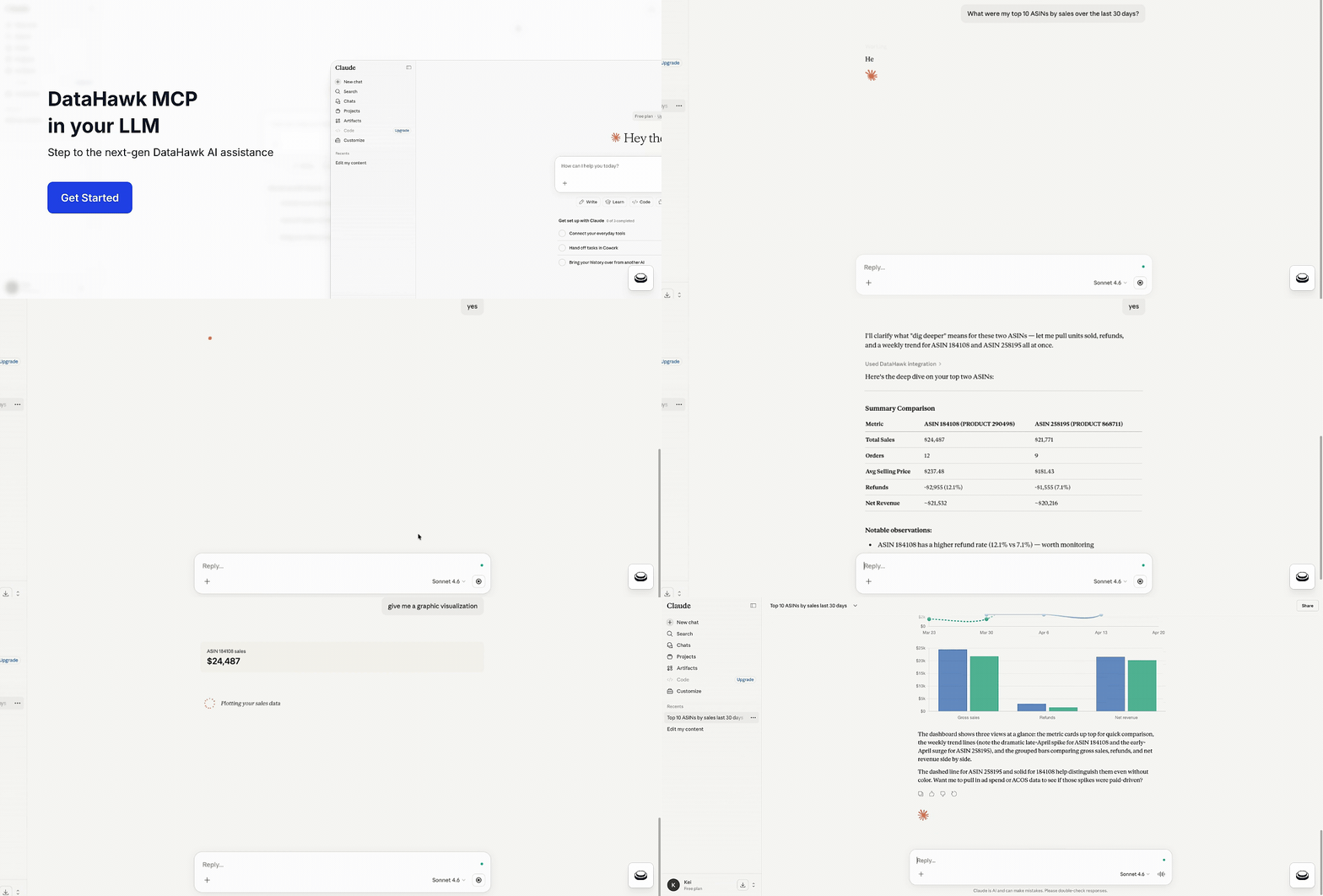 ## What is an MCP?
MCP stands for **Model Context Protocol**: An open standard for connecting AI assistants to external data sources and tools. Think of it as USB-C for AI: one server, every AI client.
For a deeper primer, see [Anthropic's MCP introduction](https://modelcontextprotocol.io).
DataHawk runs an MCP server that exposes your Amazon and Walmart data to any MCP-compatible AI. The AI discovers what's available automatically, picks the right tool for the question, and returns a real answer grounded in your workspace.
## Why it matters for Amazon sellers and agencies
Amazon data lives across SP-API, the Ads API, vendor reports, brand analytics, DSP exports, and a dozen other surfaces. Getting a clean answer to a simple question, *which products drove growth last month?*, normally means stitching reports together, reconciling currencies, and chasing marketplace-specific quirks.
DataHawk already does that stitching. MCP lets you talk to the result in natural language, from whatever AI tool you already use.
Instead of spending weeks building SP-API and Ads API integrations yourself, you plug into DataHawk and get everything, sales, ads, inventory, catalog, SEO, traffic, DSP, finance, vendor, ready to query.
## Before you start
You'll need two things:
- **A DataHawk workspace** with at least one source connected: Amazon (Seller, Vendor, Advertising, or public data) or Walmart (Marketplace, Connect).
- **An AI client that supports MCP**: Claude, ChatGPT, Replit, Lovable, n8n, Make, or your own agent.
**Free Claude and ChatGPT tiers work fine.** You may hit message limits faster on free plans; paid tiers (Claude Pro, ChatGPT Plus, etc.) give you more capacity for back-and-forth conversations.
DataHawk MCP is currently in **beta**. Not sure your plan includes it? Ask your Account Manager or email [support@datahawk.co](mailto:support@datahawk.co).
## What you can do with DataHawk MCP
### Ask questions in plain English
No more writing queries or navigating dashboards. Here's a sample of what your AI can handle:
- **Simple lookups**: *"What was my total revenue yesterday in the US marketplace?"*
- **Rankings**: *"Top 10 ASINs by revenue last 30 days, US marketplace."*
- **Comparisons**: *"Compare my US and UK marketplaces for Q1 2026, revenue, units, ACOS, conversion."*
- **Trends**: *"Weekly revenue for the last 12 weeks in the US, as a trend."*
- **Flags and alerts**: *"Any ASIN currently out of stock that did > \$10,000 revenue last 30 days?"*
- **Diagnostic**: *"Why did my revenue drop last week?"*
- **Multi-step analysis**: *"Find my worst-performing campaigns last 30 days, then show me which specific keywords inside them are pulling ACOS up."*
- **Catalog and competitive**: *"Which of my ASINs have the buy box enabled but I'm not winning it?"*
- **Vendor-specific**: *"Show me aged 90+ days sellable inventory by brand."*
- **Finance**: *"Top 10 fee categories by amount in USD last quarter."*
**These are examples, not finished prompts.** They show what kinds of questions DataHawk MCP can handle. For polished templates, see [Ready-to-use prompts](/help-center/modules/datahawkmcp/ready-prompts). To learn how to write your own effective prompts, see the [Prompting guide](/help-center/modules/datahawkmcp/write-prompts).
### Investigate anomalies, not just pull metrics
DataHawk MCP includes a dedicated investigation flow for diagnostic questions like *why did revenue drop last week?* or *what's driving the ACOS spike on Brand X?*
The server characterizes the anomaly, ranks hypotheses, and walks your AI through evidence-gathering across sales, ads, traffic, catalog, and inventory. It moves from summary signals to drill-downs to detailed evidence.
### Automate the boring stuff
MCP isn't just for chat. You can connect it to automation tools like **n8n**, **Make**, **Replit**, or **Lovable** and set up things like:
- A daily Slack message with yesterday's revenue and top movers
- An email alert when any ASIN runs low on inventory
- A weekly report auto-delivered to your team every Monday morning
- A custom internal dashboard your team can check anytime
Even one daily digest in Slack or email saves a lot of dashboard checking. See [Automate with your data](/help-center/modules/datahawkmcp/setup#automate-with-your-data) to connect n8n or Make.
**Building something heavier?** For large-scale work, pulling years of data, joining DataHawk with your own systems, building custom analytics pipelines, your Snowflake or BigQuery data warehouse export is a better fit than MCP (DataHawk's API is for setting up your workspace, like adding tracked products, not for pulling data). On Snowflake, you can also connect your AI straight to your database with Snowflake MCP: see [Use AI with your DataHawk data](/help-center/connect-tools/ai-assistants). Email [support@datahawk.co](mailto:support@datahawk.co) and we'll point you in the right direction.
### Cover every Amazon marketplace and business model
- **Sellers and vendors**: Dedicated data surfaces for each business model
- **All Amazon marketplaces**: US, CA, MX, UK, DE, FR, ES, IT, NL, SE, PL, JP, AU and beyond
- **Every major data domain**: Sales, advertising (SP/SB/SD + DSP), catalog, inventory, SEO/keyword rankings, traffic, finance, and returns
- About 14 months of history, on a rolling basis
### Walmart coverage
DataHawk MCP covers Walmart advertising (Walmart Connect) and Walmart keyword rankings. Walmart sales, traffic, and inventory aren't available in MCP yet.
| Walmart data | In MCP? |
|---|---|
| Walmart Connect advertising: spend, sales, clicks, impressions, ACOS, ROAS at campaign, keyword, and product level | Yes |
| Organic and sponsored rank for your tracked Walmart keywords | Yes |
| Latest product snapshot: price, rating, rating count, image | Yes |
| Sales, traffic, inventory, daily product page history | Not yet |
**Known gap (as of October 2026):** Walmart sales, traffic, and inventory aren't in MCP yet. Query them from your [Snowflake](/help-center/connect-tools/snowflake) or [BigQuery](/help-center/connect-tools/bigquery) data in the meantime.
**Not sure what's covered?** Ask your AI: *"Which DataHawk datasets are available for Walmart?"* Each dataset is labeled Amazon or Walmart, so the AI can tell you before it runs a query.
### Keep your data safe
Your data lives in your DataHawk workspace and stays there. When you connect an AI client through MCP, only the **answers** to your questions flow back to that AI, and only when you ask.
- **You decide which AI sees your data.** MCP only talks to the AI client you've explicitly connected. You can disconnect any time.
- **Everything's encrypted in transit.**
- **GDPR-aligned.** DataHawk is operated by Worldeye Technologies Europe and complies with GDPR. Email [support@datahawk.co](mailto:support@datahawk.co) to exercise data rights.
## Behind the scenes: what your AI does with your prompt
When you send a prompt, your AI runs a four-step flow against DataHawk:
1. **Plan**: Your question gets routed to the right data view (sales, ads, inventory, etc.) along with required filters.
2. **Discover**: If the view doesn't already have what's needed, the AI inspects the full catalog of metrics and dimensions.
3. **Validate**: Field names, filters, and date ranges get checked server-side before anything runs.
4. **Load**: The query executes against your workspace and returns real numbers.
For diagnostic questions (*"why did X happen?"*), the AI runs a parallel **investigate** flow that ranks hypotheses and gathers evidence across domains.
## What MCP doesn't do (yet)
- **Some Walmart data: Not yet.** Walmart sales, traffic, and inventory aren't in MCP yet. See [Walmart coverage](#walmart-coverage).
- **Read-only.** MCP can answer questions about your data, but it can't update listings, change ad budgets, or take any action on your Amazon accounts.
- **Not a dashboard replacement.** For scheduled reports and visual deep-dives, the DataHawk app and Power BI / Looker dashboards remain the right home.
- **Bounded history.** MCP covers about the last 14 months, on a rolling basis. For older data, use Snowflake or BigQuery.
## Data coverage at a glance
| Domain | What's in it | Platforms |
|---|---|---|
| **Sales** | Ordered product sales, units, average selling price, order-line detail, B2B breakouts, year-over-year comparisons | Amazon |
| **Revenue and refunds** | Sales principal, net proceeds, refunds, units shipped and refunded, on a recorded or accrual basis | Amazon |
| **Advertising** | Sponsored Products / Brands / Display at campaign, product, and keyword level. ACOS, ROAS, TACoS, spend, clicks, impressions, CPC, CTR, attributed sales | Amazon, Walmart |
| **DSP** | Total cost, attributed sales, new-to-brand metrics, detail-page views, eCPM, creative-level detail | Amazon |
| **Brand store** | Store visits, page views, attributed sales and orders | Amazon |
| **Catalog** | Price, list price, rating, review count, buy box state and winner, A+ content flags, variation data, best seller rank, out-of-stock and offline flags | Amazon (Walmart: latest snapshot only) |
| **Offers and pricing** | Featured offer price, number of offers (FBA, FBM, new, used), seller feedback, all offers by seller | Amazon |
| **Market intelligence** | Best seller rank, top 100 presence, estimated daily sales and units | Amazon |
| **Traffic** | Sessions, page views, buy box share, browser vs. mobile-app split | Amazon |
| **SEO** | Organic and sponsored rank, search result page, search volume | Amazon, Walmart (ranks only) |
| **Search performance** | Impressions, clicks, cart adds, and purchases from search; search query volume | Amazon |
| **Inventory** | FBA on-hand, reserved, inbound (shipped/receiving/working), unsellable, MFN fulfillable | Amazon |
| **Returns** | Returned units, return reasons, return status | Amazon |
| **Finance** | Profit ledger line-level detail in marketplace currency and USD | Amazon |
| **Vendor** | Manufacturing and sourcing views; sales, traffic, margin, sell-through, fill rate, lead time, aged inventory | Amazon |
| **Forecasting** | Weekly vendor demand forecast (mean, P70, P80, P90 units) | Amazon |
| **Account health** | Connected accounts, report health, tracked products, keywords, and categories | Amazon, Walmart |
**How fresh is the data?** DataHawk refreshes once a day, at **9 AM PST**. See [How DataHawk Sources Your Data](/help-center/data-metrics-guides/foundation/how-datahawk-sources-data) for the full source-by-source freshness table.
## What's shipping next
- **More Walmart data**: Adding Walmart sales, traffic, and inventory
- **Deeper Amazon data coverage**: Expanding vendor, brand analytics, and market intelligence
- **Native ChatGPT and Claude apps**: Tighter integration with the major AI clients
Have a feature request? Email [support@datahawk.co](mailto:support@datahawk.co).
## Start here
## What is an MCP?
MCP stands for **Model Context Protocol**: An open standard for connecting AI assistants to external data sources and tools. Think of it as USB-C for AI: one server, every AI client.
For a deeper primer, see [Anthropic's MCP introduction](https://modelcontextprotocol.io).
DataHawk runs an MCP server that exposes your Amazon and Walmart data to any MCP-compatible AI. The AI discovers what's available automatically, picks the right tool for the question, and returns a real answer grounded in your workspace.
## Why it matters for Amazon sellers and agencies
Amazon data lives across SP-API, the Ads API, vendor reports, brand analytics, DSP exports, and a dozen other surfaces. Getting a clean answer to a simple question, *which products drove growth last month?*, normally means stitching reports together, reconciling currencies, and chasing marketplace-specific quirks.
DataHawk already does that stitching. MCP lets you talk to the result in natural language, from whatever AI tool you already use.
Instead of spending weeks building SP-API and Ads API integrations yourself, you plug into DataHawk and get everything, sales, ads, inventory, catalog, SEO, traffic, DSP, finance, vendor, ready to query.
## Before you start
You'll need two things:
- **A DataHawk workspace** with at least one source connected: Amazon (Seller, Vendor, Advertising, or public data) or Walmart (Marketplace, Connect).
- **An AI client that supports MCP**: Claude, ChatGPT, Replit, Lovable, n8n, Make, or your own agent.
**Free Claude and ChatGPT tiers work fine.** You may hit message limits faster on free plans; paid tiers (Claude Pro, ChatGPT Plus, etc.) give you more capacity for back-and-forth conversations.
DataHawk MCP is currently in **beta**. Not sure your plan includes it? Ask your Account Manager or email [support@datahawk.co](mailto:support@datahawk.co).
## What you can do with DataHawk MCP
### Ask questions in plain English
No more writing queries or navigating dashboards. Here's a sample of what your AI can handle:
- **Simple lookups**: *"What was my total revenue yesterday in the US marketplace?"*
- **Rankings**: *"Top 10 ASINs by revenue last 30 days, US marketplace."*
- **Comparisons**: *"Compare my US and UK marketplaces for Q1 2026, revenue, units, ACOS, conversion."*
- **Trends**: *"Weekly revenue for the last 12 weeks in the US, as a trend."*
- **Flags and alerts**: *"Any ASIN currently out of stock that did > \$10,000 revenue last 30 days?"*
- **Diagnostic**: *"Why did my revenue drop last week?"*
- **Multi-step analysis**: *"Find my worst-performing campaigns last 30 days, then show me which specific keywords inside them are pulling ACOS up."*
- **Catalog and competitive**: *"Which of my ASINs have the buy box enabled but I'm not winning it?"*
- **Vendor-specific**: *"Show me aged 90+ days sellable inventory by brand."*
- **Finance**: *"Top 10 fee categories by amount in USD last quarter."*
**These are examples, not finished prompts.** They show what kinds of questions DataHawk MCP can handle. For polished templates, see [Ready-to-use prompts](/help-center/modules/datahawkmcp/ready-prompts). To learn how to write your own effective prompts, see the [Prompting guide](/help-center/modules/datahawkmcp/write-prompts).
### Investigate anomalies, not just pull metrics
DataHawk MCP includes a dedicated investigation flow for diagnostic questions like *why did revenue drop last week?* or *what's driving the ACOS spike on Brand X?*
The server characterizes the anomaly, ranks hypotheses, and walks your AI through evidence-gathering across sales, ads, traffic, catalog, and inventory. It moves from summary signals to drill-downs to detailed evidence.
### Automate the boring stuff
MCP isn't just for chat. You can connect it to automation tools like **n8n**, **Make**, **Replit**, or **Lovable** and set up things like:
- A daily Slack message with yesterday's revenue and top movers
- An email alert when any ASIN runs low on inventory
- A weekly report auto-delivered to your team every Monday morning
- A custom internal dashboard your team can check anytime
Even one daily digest in Slack or email saves a lot of dashboard checking. See [Automate with your data](/help-center/modules/datahawkmcp/setup#automate-with-your-data) to connect n8n or Make.
**Building something heavier?** For large-scale work, pulling years of data, joining DataHawk with your own systems, building custom analytics pipelines, your Snowflake or BigQuery data warehouse export is a better fit than MCP (DataHawk's API is for setting up your workspace, like adding tracked products, not for pulling data). On Snowflake, you can also connect your AI straight to your database with Snowflake MCP: see [Use AI with your DataHawk data](/help-center/connect-tools/ai-assistants). Email [support@datahawk.co](mailto:support@datahawk.co) and we'll point you in the right direction.
### Cover every Amazon marketplace and business model
- **Sellers and vendors**: Dedicated data surfaces for each business model
- **All Amazon marketplaces**: US, CA, MX, UK, DE, FR, ES, IT, NL, SE, PL, JP, AU and beyond
- **Every major data domain**: Sales, advertising (SP/SB/SD + DSP), catalog, inventory, SEO/keyword rankings, traffic, finance, and returns
- About 14 months of history, on a rolling basis
### Walmart coverage
DataHawk MCP covers Walmart advertising (Walmart Connect) and Walmart keyword rankings. Walmart sales, traffic, and inventory aren't available in MCP yet.
| Walmart data | In MCP? |
|---|---|
| Walmart Connect advertising: spend, sales, clicks, impressions, ACOS, ROAS at campaign, keyword, and product level | Yes |
| Organic and sponsored rank for your tracked Walmart keywords | Yes |
| Latest product snapshot: price, rating, rating count, image | Yes |
| Sales, traffic, inventory, daily product page history | Not yet |
**Known gap (as of October 2026):** Walmart sales, traffic, and inventory aren't in MCP yet. Query them from your [Snowflake](/help-center/connect-tools/snowflake) or [BigQuery](/help-center/connect-tools/bigquery) data in the meantime.
**Not sure what's covered?** Ask your AI: *"Which DataHawk datasets are available for Walmart?"* Each dataset is labeled Amazon or Walmart, so the AI can tell you before it runs a query.
### Keep your data safe
Your data lives in your DataHawk workspace and stays there. When you connect an AI client through MCP, only the **answers** to your questions flow back to that AI, and only when you ask.
- **You decide which AI sees your data.** MCP only talks to the AI client you've explicitly connected. You can disconnect any time.
- **Everything's encrypted in transit.**
- **GDPR-aligned.** DataHawk is operated by Worldeye Technologies Europe and complies with GDPR. Email [support@datahawk.co](mailto:support@datahawk.co) to exercise data rights.
## Behind the scenes: what your AI does with your prompt
When you send a prompt, your AI runs a four-step flow against DataHawk:
1. **Plan**: Your question gets routed to the right data view (sales, ads, inventory, etc.) along with required filters.
2. **Discover**: If the view doesn't already have what's needed, the AI inspects the full catalog of metrics and dimensions.
3. **Validate**: Field names, filters, and date ranges get checked server-side before anything runs.
4. **Load**: The query executes against your workspace and returns real numbers.
For diagnostic questions (*"why did X happen?"*), the AI runs a parallel **investigate** flow that ranks hypotheses and gathers evidence across domains.
## What MCP doesn't do (yet)
- **Some Walmart data: Not yet.** Walmart sales, traffic, and inventory aren't in MCP yet. See [Walmart coverage](#walmart-coverage).
- **Read-only.** MCP can answer questions about your data, but it can't update listings, change ad budgets, or take any action on your Amazon accounts.
- **Not a dashboard replacement.** For scheduled reports and visual deep-dives, the DataHawk app and Power BI / Looker dashboards remain the right home.
- **Bounded history.** MCP covers about the last 14 months, on a rolling basis. For older data, use Snowflake or BigQuery.
## Data coverage at a glance
| Domain | What's in it | Platforms |
|---|---|---|
| **Sales** | Ordered product sales, units, average selling price, order-line detail, B2B breakouts, year-over-year comparisons | Amazon |
| **Revenue and refunds** | Sales principal, net proceeds, refunds, units shipped and refunded, on a recorded or accrual basis | Amazon |
| **Advertising** | Sponsored Products / Brands / Display at campaign, product, and keyword level. ACOS, ROAS, TACoS, spend, clicks, impressions, CPC, CTR, attributed sales | Amazon, Walmart |
| **DSP** | Total cost, attributed sales, new-to-brand metrics, detail-page views, eCPM, creative-level detail | Amazon |
| **Brand store** | Store visits, page views, attributed sales and orders | Amazon |
| **Catalog** | Price, list price, rating, review count, buy box state and winner, A+ content flags, variation data, best seller rank, out-of-stock and offline flags | Amazon (Walmart: latest snapshot only) |
| **Offers and pricing** | Featured offer price, number of offers (FBA, FBM, new, used), seller feedback, all offers by seller | Amazon |
| **Market intelligence** | Best seller rank, top 100 presence, estimated daily sales and units | Amazon |
| **Traffic** | Sessions, page views, buy box share, browser vs. mobile-app split | Amazon |
| **SEO** | Organic and sponsored rank, search result page, search volume | Amazon, Walmart (ranks only) |
| **Search performance** | Impressions, clicks, cart adds, and purchases from search; search query volume | Amazon |
| **Inventory** | FBA on-hand, reserved, inbound (shipped/receiving/working), unsellable, MFN fulfillable | Amazon |
| **Returns** | Returned units, return reasons, return status | Amazon |
| **Finance** | Profit ledger line-level detail in marketplace currency and USD | Amazon |
| **Vendor** | Manufacturing and sourcing views; sales, traffic, margin, sell-through, fill rate, lead time, aged inventory | Amazon |
| **Forecasting** | Weekly vendor demand forecast (mean, P70, P80, P90 units) | Amazon |
| **Account health** | Connected accounts, report health, tracked products, keywords, and categories | Amazon, Walmart |
**How fresh is the data?** DataHawk refreshes once a day, at **9 AM PST**. See [How DataHawk Sources Your Data](/help-center/data-metrics-guides/foundation/how-datahawk-sources-data) for the full source-by-source freshness table.
## What's shipping next
- **More Walmart data**: Adding Walmart sales, traffic, and inventory
- **Deeper Amazon data coverage**: Expanding vendor, brand analytics, and market intelligence
- **Native ChatGPT and Claude apps**: Tighter integration with the major AI clients
Have a feature request? Email [support@datahawk.co](mailto:support@datahawk.co).
## Start here
---
title: Ready-to-use prompts
description: Finished prompt templates for DataHawk MCP, like weekly reports, deep-dives, and inventory tracking. Fill in the variables and run.
---
Finished prompt templates you fill in and run, for recurring reports, weekly reviews, and one-click deep-dives. Each one produces a polished output you can drop into Slack, email, or a team meeting.
**Use these when** you want a polished, repeatable report. **Write your own** (see [How to write effective MCP prompts](/help-center/modules/datahawkmcp/write-prompts)) when you have a one-off question that doesn't fit any template here.
## How to use a ready-to-use prompt
Each template has three things you'll work with: **Variables to set**, **What to expect**, and **The prompt** itself.
### Open the prompt
Pick the template that matches what you want to know.
### Read the "Variables to set" section
These are the `[FIELD_NAME]` placeholders you'll replace (marketplace, thresholds, ASIN list, etc.).
### Copy the prompt text
Copy the prompt from the code block.
### Replace each placeholder
Swap every `[FIELD_NAME]` with your own values.
### Paste into your AI client and run
Paste into Claude, ChatGPT, or another MCP-connected client and run.
The "What to expect" section in each template tells you what the output will look like, so you'll know whether a run came back the way it should.
## Tune the thresholds for your scale
Most templates include threshold values you'll want to adjust to your business.
A \$500 spend threshold feels like signal at \$50K/week revenue and noise at \$5M/week. Same for ACOS percentages, days of cover, and rank-drop counts. What's a flag for one business is normal for another.
When you first run a template, treat the suggested defaults as a starting point. After a week or two of running it, you'll know which thresholds to tighten or loosen.
## The library
### Routine reports
A once-a-week, copy-paste prompt to generate a complete executive summary of your Amazon business. Designed for Claude and ChatGPT with DataHawk MCP connected.
**Variables to set before running**
- `[MARKETPLACE_SCOPE]`: *e.g., "the US marketplace"; "the US, UK, and DE marketplaces"; "all my active marketplaces"*
- `[ACOS_FLAG]`: ACOS threshold for flagging campaigns. *Start at 40 (%)*
- `[SPEND_FLAG]`: Spend threshold for flagging campaigns. *Tune to your scale: $500 for ~$50K/week sellers, $5,000 for ~$5M/week sellers*
- `[HIGH_SPEND_FLAG]`: Higher spend threshold for ROAS-flag campaigns. *Roughly 2× your `[SPEND_FLAG]`*
**What to expect**
Typical output structure (actual length and formatting vary based on your data and AI client):
- **Topline**: a table showing this week's metrics, last week's, and the percent change for each
- **Marketplace breakdown**: same metrics, one row per marketplace, with any marketplace down >15% flagged
- **Top movers**: two ranked lists of 5 ASINs each (growth and decline), with a one-line reason for each decliner
- **Inventory risk**: A short list of at-risk ASINs: Or "no inventory risks this week", which is a valid result
- **Advertising flags**: A list of campaigns hitting your thresholds: Often empty if nothing crosses them
- **One thing to watch**: a single bolded recommendation at the bottom
**The prompt**
```
Act as my senior analyst. Prepare my weekly Amazon executive summary for the week ending last Sunday.
Scope: [MARKETPLACE_SCOPE].
Use DataHawk MCP. Cite the DataHawk numbers and briefly explain anything that looks anomalous. If any number isn't available from DataHawk, say so rather than estimating.
1. TOPLINE (last 7 days vs. prior 7 days)
- Gross revenue, units ordered, average selling price
- Ad spend, ACOS, ROAS
- Call out any metric that moved more than 10% week-over-week
2. MARKETPLACE BREAKDOWN
- Same metrics split by marketplace
- Flag any marketplace with a week-over-week revenue drop above 15%
3. TOP MOVERS
- Top 5 ASINs by revenue growth (absolute $) last 7 days
- Top 5 ASINs by revenue decline last 7 days
- For each decliner, note whether the issue looks like traffic, conversion, or inventory
4. INVENTORY RISK
- Any ASIN with fewer than 30 days of cover
- Any ASIN currently out of stock that was in stock 7 days ago
5. ADVERTISING FLAGS
- Campaigns with ACOS above [ACOS_FLAG]% and spend above $[SPEND_FLAG] last 7 days
- Campaigns with ROAS below 2x and spend above $[HIGH_SPEND_FLAG] last 7 days
6. ONE THING TO WATCH NEXT WEEK
- Your single highest-priority callout based on the data above
Format as a clean report with section headers. Use tables where helpful.
```
A month-end PPC report split by marketplace, designed for owner or executive reporting on international advertising performance.
**Variables to set before running**
- `[REPORT_MONTH]`: Month to report, *e.g., "March 2026"*
- `[MARKETPLACE_SCOPE]`: *e.g., "all non-US marketplaces"; "all my European marketplaces"; "all my active marketplaces"*
- `[MIN_SPEND_FILTER]`: Exclude marketplaces with less than this spend. *Start at 1,000 ($)*
**What to expect**
Typical output structure (actual length and formatting vary based on your data and AI client):
- **Topline**: total ad spend, ad sales, ACOS, ROAS for the month, plus comparison to the prior month
- **Marketplace breakdown**: same metrics, one row per marketplace, ranked by spend
- **Top campaigns per marketplace**: 3 biggest spenders in each marketplace, with their ACOS and ROAS
- **Notable changes**: marketplaces where spend, ACOS, or ROAS moved more than 20% month-over-month
- **Owner summary**: a 3-sentence non-technical summary suitable for emailing leadership
**The prompt**
```
Act as my senior analyst. Prepare my weekly Amazon executive summary for the week ending last Sunday.
Scope: [MARKETPLACE_SCOPE].
Act as my senior PPC analyst. Prepare a monthly PPC report on my Amazon advertising for [REPORT_MONTH] using DataHawk MCP.
Scope: [MARKETPLACE_SCOPE].
Filter: exclude marketplaces with less than $[MIN_SPEND_FILTER] in ad spend for the month.
Cite the DataHawk numbers. If any number isn't available from DataHawk, say so rather than estimating.
1. TOPLINE
- Total ad spend, ad sales, ACOS, ROAS for the month
- Comparison to the prior month (absolute and percent change)
2. MARKETPLACE BREAKDOWN
- Same metrics by marketplace, ranked by spend
- Flag any marketplace where ACOS moved more than 20% month-over-month
3. TOP CAMPAIGNS BY MARKETPLACE
- For each marketplace included: the top 3 campaigns by spend
- Include each campaign's ACOS and ROAS
4. NOTABLE CHANGES
- Any marketplace with significant performance shifts vs. prior month
- Suggest what to investigate
5. OWNER SUMMARY
- A 3-sentence summary suitable for emailing the owner or leadership team
- Highlight the headline number and any action needed
Format as a clean report with tables. Tone the owner summary at the bottom for a non-technical executive reader.
```
Surface inventory problems before they become stockouts. Run weekly for best results.
**Variables to set before running**
- `[MARKETPLACE_SCOPE]`: *e.g., "the US marketplace"; "the US and UK marketplaces"*
- `[COVER_DAYS_THRESHOLD]`: Days-of-cover threshold to flag low stock. *Start at 30*
- `[UNSELLABLE_PCT_THRESHOLD]`: Unsellable percentage to flag. *Start at 10 (%)*
- `[FULFILLMENT_TYPE]`, *FBA, MFN, or both, pick what applies to your business*
**What to expect**
Typical output structure (actual length and formatting vary based on your data and AI client):
- **Currently out of stock**: A ranked table by lost revenue: Could be empty if nothing's out of stock
- **Low cover**: a table of ASINs approaching stockout with cover days and inbound quantities
- **Inbound bottlenecks**: A short list: Often empty if your supply chain is healthy
- **Unsellable**: top ASINs with trapped inventory, with dollar values
- **Vendor-specific**: Present only if a vendor account is connected: Otherwise skipped
- **Action plan**: 3 specific items to fix this week, each with the dollar value at stake
**The prompt**
```
Act as my inventory planner. Run an inventory risk scan on my Amazon business using DataHawk MCP.
Scope: [MARKETPLACE_SCOPE], [FULFILLMENT_TYPE] inventory.
Cite the DataHawk numbers. If any number isn't available from DataHawk, say so rather than estimating.
1. CURRENT OUT OF STOCK
- All ASINs currently out of stock
- Rank them by last 30 days' revenue (biggest revenue at risk first)
2. LOW COVER (approaching stockout)
- ASINs with on-hand inventory below [COVER_DAYS_THRESHOLD] days of cover, using last 30 days' average daily units
- Include current on-hand quantity, inbound shipped quantity, and inbound working quantity
3. INBOUND BOTTLENECKS
- Any ASIN where inbound working quantity is more than 50% of total inbound and has been stuck for 14+ days
4. UNSELLABLE
- ASINs where unsellable quantity is more than [UNSELLABLE_PCT_THRESHOLD]% of total on-hand
- Flag the top 5 by dollar value trapped
5. VENDOR-SPECIFIC (skip if no vendor account is connected)
- Any ASIN with confirmation rate below 90% or fill rate below 85%
- Aged 90+ days sellable inventory by dollar value
6. ACTION PLAN
- Which 3 items need immediate action
- For each: what action, and what it's worth if resolved
Format as a clean report. Use tables where helpful.
```
Monitor buy box share and competitive pricing pressure across your catalog.
**Variables to set before running**
- `[MARKETPLACE_SCOPE]`: *e.g., "the US marketplace"*
- `[TOP_N_ASINS]`: How many top ASINs to analyze. *Start at 50*
- `[BUY_BOX_DROP_THRESHOLD]`: Percentage-point drop to flag. *Start at 10 (pp)*
- `[LOOKBACK_PERIOD]`: *e.g., "14 days"*
**What to expect**
Typical output structure (actual length and formatting vary based on your data and AI client):
- **Buy box loss**: a table of ASINs that lost buy box share, with the current winning seller and price comparison
- **Price changes**: your recent price moves, plus any that didn't have the expected impact on buy box share
- **New competitors**: ASINs where new sellers appeared in the period
- **Rating / review shifts**: Any ASINs trending down: Could be empty if your reviews are stable
- **Recommended actions**: 3 specific pricing moves with predicted impact on buy box percentage
**The prompt**
```
Act as my pricing strategist. Analyze buy box and competitive pricing for my top [TOP_N_ASINS] ASINs by revenue (last 30 days) using DataHawk MCP.
Scope: [MARKETPLACE_SCOPE], [LOOKBACK_PERIOD] lookback.
Cite the DataHawk numbers and explain your reasoning briefly. If any number isn't available from DataHawk, say so rather than estimating.
1. BUY BOX LOSS
- ASINs where buy box percentage dropped more than [BUY_BOX_DROP_THRESHOLD] percentage points over the lookback period
- For each: who's winning the buy box now, their price vs. mine
2. PRICE CHANGES
- My price changes during the lookback period: Which ASINs, up or down, by how much
- Any ASIN where I lowered the price but my buy box percentage still dropped?
3. NEW COMPETITORS
- ASINs where the number of competing sellers increased by 2 or more in the last 30 days
4. RATING / REVIEW SHIFTS
- Any of my top ASINs with a rating drop greater than 0.2 points in the last 30 days
- Any with review count growing less than 1 per day (potentially declining interest)
5. RECOMMENDED ACTIONS
- Top 3 pricing moves to consider, with expected impact on buy box percentage
- Any product that should go into defensive mode (matching the lowest competitor)
Format as a clean report. Use tables where helpful.
```
### Deep-dives and diagnostics
A once-a-week, copy-paste prompt to generate a complete executive summary of your Amazon business. Designed for Claude and ChatGPT with DataHawk MCP connected.
**Variables to set before running**
- `[MARKETPLACE_SCOPE]`: *e.g., "the US marketplace"*
- `[ANALYSIS_PERIOD]`: *e.g., "last 28 days"*
- `[ACOS_DRILL_THRESHOLD]`: Campaigns above this ACOS get flagged for review. *Start at 35 (%)*
- `[TOP_N_CAMPAIGNS]`: How many campaigns to drill into. *Start at 10*
**What to expect**
Typical output structure (actual length and formatting vary based on your data and AI client):
- **Overall ACOS trend**: a small table of weekly ACOS plus a one-line attribution (driven by spend, sales, or both)
- **ACOS by ad type**: a table comparing Sponsored Products, Brands, and Display
- **Campaign-level drill**: a table of the top N campaigns with current ACOS, week-over-week change, and any flags
- **Keyword investigation**: smaller tables for the 3 worst campaigns, listing top-spending keywords
- **Recommended actions**: a bulleted list of specific campaigns and keywords to pause, reduce, or investigate
**The prompt**
```
Act as my senior PPC analyst. Do an ACOS deep-dive on my Amazon advertising using DataHawk MCP.
Scope: [MARKETPLACE_SCOPE], [ANALYSIS_PERIOD].
Cite the DataHawk numbers and briefly explain your reasoning. If any number isn't available from DataHawk, say so rather than estimating.
1. OVERALL ACOS TREND
- Weekly ACOS for the analysis period, compared to the equivalent prior period
- Was the change driven primarily by spend, sales, or both?
2. ACOS BY AD TYPE
- Split ACOS by Sponsored Products, Sponsored Brands, and Sponsored Display
- Which ad type moved the most?
3. CAMPAIGN-LEVEL DRILL
- Top [TOP_N_CAMPAIGNS] campaigns by spend
- For each: ACOS, week-over-week change, units attributed
- Flag any campaign with ACOS above [ACOS_DRILL_THRESHOLD]% that grew spend week-over-week
4. KEYWORD INVESTIGATION (for the 3 worst campaigns from step 3)
- Top spending keywords and their ACOS
- Any keyword with CPC up more than 20% but conversion rate down?
5. RECOMMENDED ACTIONS
- What to pause, what to reduce bids on, what to investigate further
- Be specific: Name campaigns and keywords
Format as a clean report. Use tables where helpful.
```
Find organic rankings you're losing and what to do about it.
**Variables to set before running**
- `[MARKETPLACE_SCOPE]`: *e.g., "the US marketplace"*
- `[TOP_N_ASINS]`: How many top ASINs to analyze. *Start at 20*
- `[RANK_DROP_THRESHOLD]`: Positions dropped to flag. *Start at 5*
- `[LOOKBACK_PERIOD]`: *e.g., "14 days"*
**What to expect**
Typical output structure (actual length and formatting vary based on your data and AI client):
- **Lost rankings**: a table per ASIN of dropped keywords with old rank, new rank, and search volume
- **Sponsored vs. Organic gap**: Keywords where you have paid visibility but not organic. Listed as opportunities
- **Competitor gains**: who took your rankings, by keyword, with any pattern noted
- **Possible causes**: cross-referenced findings across catalog, review velocity, inventory, and price changes
- **Action plan**: top 3 keywords to recover with the lever to pull for each (content, ads, pricing, or inventory)
**The prompt**
```
Act as my SEO analyst. Do a keyword rank recovery analysis on my top [TOP_N_ASINS] ASINs by revenue using DataHawk MCP.
Scope: [MARKETPLACE_SCOPE], [LOOKBACK_PERIOD] lookback.
Cite the DataHawk numbers and explain your reasoning briefly. If any number isn't available from DataHawk, say so rather than estimating.
1. LOST RANKINGS
- For each top ASIN: keywords where organic rank dropped [RANK_DROP_THRESHOLD] or more positions during the lookback period
- Include the keyword, current rank, rank at the start of the lookback, and search volume if available
2. SPONSORED VS. ORGANIC GAP
- Keywords where I rank in the top 10 sponsored but not in the top 30 organic
- These are opportunities to convert paid visibility into organic rank
3. COMPETITOR GAINS
- For the 5 keywords with the biggest drops, who's moved up to take the ranking?
- Is there a pattern (same brand repeatedly, or scattered)?
4. POSSIBLE CAUSES
- Cross-reference with: catalog changes on each ASIN (title, bullets, images), review velocity drop, inventory stockouts in the period, and price changes
5. ACTION PLAN
- Top 3 keywords to prioritize recovering, and why
- What lever to pull for each (content, ads, pricing, or inventory)
Format as a clean report. Use tables where helpful.
```
A comprehensive snapshot of one product: sales, traffic, rank, reviews, buy box, listing health, keyword performance. Useful before product review meetings, account check-ins, or any deep-dive.
**Variables to set before running**
- `[ASIN]`: The product you want to profile
- `[MARKETPLACE_SCOPE]`: *e.g., "the US marketplace"*
- `[LOOKBACK_PERIOD]`: Analysis window, *e.g., "last 90 days"*
**What to expect**
Typical output structure (actual length and formatting vary based on your data and AI client):
- **Header**: ASIN, title, brand, current price, rating, review count, plus a health flag (healthy / watch / issue)
- **Sales & traffic over time**: weekly trended units, revenue, sessions, conversion rate
- **Ranking & visibility**: BSR trend, top keywords ranking organic and sponsored, gap opportunities
- **Buy box**: win rate and price over time, top competing sellers currently on the listing
- **Listing health**: content completeness signals (title length, bullets, A+, images, video, variations)
- **Headline & action**: one-paragraph summary plus the single most impactful next action
**The prompt**
```
Act as my product manager. Give me a complete product profile for ASIN [ASIN] using DataHawk MCP.
Scope: [MARKETPLACE_SCOPE], [LOOKBACK_PERIOD].
Show me the ASIN's title alongside the ASIN in every table. Cite the DataHawk numbers. If any number isn't available from DataHawk, say so rather than estimating.
1. HEADER
- ASIN, product title, brand, current price, rating, review count
- Single-line health flag: healthy, watch, or issue
2. SALES & TRAFFIC OVER TIME
- Weekly units ordered, revenue, sessions, conversion rate
- Day-over-day change for the most recent week
3. RANKING & VISIBILITY
- Current BSR and BSR trend
- Top 10 keywords this ASIN ranks for organic (with current rank and 7-day change)
- Top 10 keywords this ASIN ranks for sponsored (same)
- Keywords where I rank in sponsored but not organic (gap opportunities)
4. BUY BOX
- Buy box win rate over the lookback period
- Daily price trend
- Top 3 competing sellers currently appearing on the listing, with their prices
5. LISTING HEALTH
- Content completeness: title length, bullet count, A+ content present, image count, video present, variation count
- Flag anything that looks below standard
6. HEADLINE & ACTION
- One-paragraph summary of how this ASIN is performing
- The single most impactful action to take next
Format as a clean report. Use tables for all comparative data. Always show ASIN + product title side by side.
```
Measure how sales, traffic, and buy box moved after a price change on a specific SKU. Run 7+ days after the change to give it time to take effect.
**Variables to set before running**
- `[ASIN]`: The SKU you changed
- `[MARKETPLACE_SCOPE]`: *e.g., "the US marketplace"*
- `[CHANGE_DATE]`: When the price changed, *YYYY-MM-DD format*
- `[LOOKBACK_DAYS]`: How many days before vs. After to compare. *Start at 7*
**What to expect**
Typical output structure (actual length and formatting vary based on your data and AI client):
- **Price change confirmation**: the change date(s) DataHawk can see, with old and new price
- **Before vs. after metrics**: side-by-side table of units, revenue, sessions, conversion, buy box %, ad spend, ACOS
- **Daily breakdown**: a line-by-line view through the change date so you can see how quickly the change took effect
- **Cause attribution**: did price alone explain the movement, or did something else change at the same time?
- **Recommended action**: Hold the new price, revert, or push further: With one-line reasoning
**The prompt**
```
Act as my pricing analyst. Track the impact of a recent price change on ASIN [ASIN] using DataHawk MCP.
Scope: [MARKETPLACE_SCOPE].
Price change date: [CHANGE_DATE].
Compare: the [LOOKBACK_DAYS] days before vs. the [LOOKBACK_DAYS] days after the change.
Cite the DataHawk numbers and briefly explain your reasoning. If any number isn't available from DataHawk, say so rather than estimating.
1. PRICE CHANGE CONFIRMATION
- Confirm the price change date(s) you can see in DataHawk for this ASIN
- Note the old price, new price, and percent change
2. BEFORE VS. AFTER METRICS
- Side-by-side table: Units ordered, revenue, sessions, conversion rate, buy box %, ad spend, ACOS; for the period before and after
- Highlight any metric that moved more than 15%
3. DAILY BREAKDOWN
- Day-by-day table through the change date so I can see how quickly the change took effect
4. CAUSE ATTRIBUTION
- Did price alone explain the movement, or did something else change at the same time (ad spend shift, buy box loss, new competitor, stock-out)?
5. RECOMMENDED ACTION
- Based on the data: hold the new price, revert, or push further?
- One-line reasoning
Format as a clean report. Use tables where helpful.
```
### Launch and growth
Track a new product launch against expectations, and catch issues early when you can still course-correct.
**Variables to set before running**
- `[ASIN]`: The ASIN you're tracking
- `[LAUNCH_DATE]`: *YYYY-MM-DD format, e.g., 2026-03-15*
- `[MARKETPLACE_SCOPE]`: *e.g., "the US marketplace"*
- `[CONVERSION_FLAG]`: Percentage of running average to flag low-conversion days. *Start at 50 (%)*
**What to expect**
Typical output structure (actual length and formatting vary based on your data and AI client):
- **Daily performance**: a day-by-day table from launch to today, with conversion-flag markers
- **Traffic quality**: prose summary plus a session-trend table (ad vs. organic split)
- **Ad performance**: weekly ad metrics since launch, plus the top campaigns driving attributed sales
- **Keyword rankings**: a list of keywords this ASIN ranks for, with rank progression over the launch period
- **Rating & reviews**: current state plus review velocity (per week)
- **Red flags / green flags**: Two bulleted lists: Things working and things to investigate
**The prompt**
```
Act as my launch manager. Give me a launch tracker for ASIN [ASIN] using DataHawk MCP.
Scope: [MARKETPLACE_SCOPE].
Launch date: [LAUNCH_DATE].
Cite the DataHawk numbers and briefly explain anything that looks off. If any number isn't available from DataHawk, say so rather than estimating.
1. DAILY PERFORMANCE SINCE LAUNCH
- Units ordered, revenue, sessions, and conversion rate, each day
- Flag any day where conversion rate was less than [CONVERSION_FLAG]% of the running average
2. TRAFFIC QUALITY
- Session trend: growing, flat, or declining?
- Buy box percentage over the launch period
- Ad sessions vs. organic sessions
3. AD PERFORMANCE
- Ad spend, ad sales, ACOS by week since launch
- Which campaigns and keywords are driving the bulk of attributed sales?
4. KEYWORD RANKINGS
- Which keywords is this ASIN ranking for?
- Rank progression over the launch period
- Keywords where we appear in sponsored but not organic (opportunity)
5. RATING & REVIEWS
- Current rating, review count, review velocity (reviews per week)
6. RED FLAGS / GREEN FLAGS
- Anything that looks off compared to a healthy launch pattern
- Anything tracking better than expected
Format as a clean report. Use tables where helpful.
```
### Brand protection and market intelligence
A scan for Minimum Advertised Price violations across your protected SKUs. Critical for regulated or brand-protected categories: tires, electronics, pharmaceuticals, premium goods.
**Variables to set before running**
- `[ASIN_LIST]`: Your MAP-protected ASINs (comma-separated, or a brand name)
- `[MARKETPLACE_SCOPE]`: *e.g., "the US marketplace"*
- `[LOOKBACK_PERIOD]`: How far back to check, *e.g., "last 7 days"*
- **MAP prices**: You'll paste these into the prompt (one ASIN + price per line)
**What to expect**
Typical output structure (actual length and formatting vary based on your data and AI client):
- **Current violations**: ASINs where any seller is currently below MAP, with seller name and price gap
- **Recent violation history**: all violations seen during the lookback period (current and resolved)
- **Repeat offenders**: sellers who violated MAP more than once during the period
- **Duplicate listings**: any duplicate or alternate ASIN that appears to carry the product below MAP
- **Action list**: specific takedown or right-to-sell escalations to issue
**The prompt**
```
Act as my brand protection analyst. Run a MAP compliance check across my protected SKUs using DataHawk MCP.
Scope: [MARKETPLACE_SCOPE], [LOOKBACK_PERIOD].
Protected ASINs: [ASIN_LIST].
MAP prices (replace with your actual MAP for each ASIN):
[ASIN_1]: $[PRICE_1]
[ASIN_2]: $[PRICE_2]
... (one per line)
Cite the DataHawk numbers. If any number isn't available from DataHawk, say so rather than estimating.
1. CURRENT VIOLATIONS
- ASINs where any current seller is below MAP
- Per violation: ASIN, product title, MAP price, current selling price, seller name, gap %
2. RECENT VIOLATION HISTORY
- All violations seen during the lookback period (both current and resolved)
- Per violation: same fields as above plus date observed
3. REPEAT OFFENDERS
- Sellers who appeared in violations more than once during the lookback period
- Total violations per seller
4. DUPLICATE OR ALTERNATE LISTINGS
- Any duplicate listing variants for these products with potentially different ASINs
- Flag any that appear to be carrying the product below MAP
5. ACTION LIST
- Specific takedown requests to issue
- Specific sellers to revoke right-to-sell from
- Any patterns worth escalating to Amazon brand support
Format as a clean report with tables. Always show ASIN + product title side by side.
```
A category-level share-of-market report showing where your brand sits versus competitors. Designed for category management, brand strategy reviews, or internal "share-of-shelf" reporting.
**Variables to set before running**
- `[CATEGORY]`: Amazon category or browse node, or a set of keywords defining the category
- `[MARKETPLACE_SCOPE]`: *e.g., "the US marketplace"*
- `[PERIOD]`: Analysis window, *e.g., "last 30 days"*
- `[MY_BRAND]`: Your brand name
- `[TOP_N_COMPETITORS]`: How many competitors to surface. *Start at 10*
**What to expect**
Typical output structure (actual length and formatting vary based on your data and AI client):
- **Category overview**: total estimated category sales, number of products, average price, average rating
- **Top brands by estimated sales**: ranked table including your brand, with share % and ASIN count
- **Share trend**: how your share moved over the period vs. top 3 competitors
- **Top products per brand**: top 3 ASINs per top-5 brand by estimated sales
- **Headline shifts**: brands gaining or losing share noticeably
- **Strategic takeaways**: where you're winning, where you're losing ground, what to watch
**The prompt**
```
Act as my category strategist. Give me a market share snapshot for [CATEGORY] using DataHawk MCP.
Scope: [MARKETPLACE_SCOPE], [PERIOD].
My brand: [MY_BRAND].
Surface the top [TOP_N_COMPETITORS] competitors.
Use DataHawk's catalog and sales estimate data. Cite the numbers. If any number isn't available from DataHawk, say so rather than estimating.
1. CATEGORY OVERVIEW
- Total estimated category sales for the period
- Number of products tracked
- Average price, average rating
2. TOP BRANDS BY ESTIMATED SALES
- Ranked table: [MY_BRAND] plus the top [TOP_N_COMPETITORS] competitors
- Estimated sales, share %, number of ASINs, average rating per brand
3. SHARE TREND
- How [MY_BRAND]'s share has moved over the period (start vs. end)
- Compare to the top 3 competitors
4. TOP PRODUCTS PER BRAND
- For each of the top 5 brands: top 3 ASINs by estimated sales (ASIN + product title side by side)
5. HEADLINE SHIFTS
- Brands gaining share noticeably during the period
- Brands losing share noticeably
6. STRATEGIC TAKEAWAYS
- Where [MY_BRAND] is winning
- Where [MY_BRAND] is losing ground
- The single most important thing to watch next month
Format as a clean report with tables. Always show ASIN + product title side by side.
```
### Maintenance
Surface stale ASINs and keywords no longer worth tracking, plus new ASINs and keywords you might be missing. Run quarterly to keep tracking lean.
**Variables to set before running**
- `[MARKETPLACE_SCOPE]`: *e.g., "the US marketplace"*
- `[STALE_THRESHOLD_DAYS]`: Days of low or no activity to flag a tracked item as stale. *Start at 90*
- `[NEW_ASIN_REVENUE_FLOOR]`: Minimum revenue an untracked ASIN must have to be worth adding. *Tune to your scale: $1,000 for ~$50K/week sellers, $10,000 for ~$5M/week sellers*
**What to expect**
Typical output structure (actual length and formatting vary based on your data and AI client):
- **Stale tracked ASINs**: ASINs in your DataHawk that had low or no activity in the threshold period
- **Untracked but earning ASINs**: ASINs not tracked in DataHawk but generating real revenue
- **Stale tracked keywords**: tracked keywords with no rank movement or recorded activity
- **Missing keywords**: high-traffic keywords where your products appear but the keyword isn't tracked
- **Recommended cleanup**: top 10 to remove and top 10 to add
**The prompt**
```
Act as my catalog manager. Run a hygiene audit on my DataHawk tracking using MCP.
Scope: [MARKETPLACE_SCOPE].
Stale threshold: [STALE_THRESHOLD_DAYS] days of low or no activity.
Revenue floor for new ASINs: $[NEW_ASIN_REVENUE_FLOOR] over the last 90 days.
Cite the DataHawk numbers. If any number isn't available from DataHawk, say so rather than estimating.
1. STALE TRACKED ASINS
- ASINs being tracked that had no orders or fewer than $100 revenue in the last [STALE_THRESHOLD_DAYS] days
- Rank by lowest activity first
2. UNTRACKED BUT EARNING ASINS
- ASINs generating more than $[NEW_ASIN_REVENUE_FLOOR] in the last 90 days that aren't being tracked in DataHawk
- List with revenue contribution
3. STALE TRACKED KEYWORDS
- Keywords being tracked that have shown no rank movement or recorded clicks in the last [STALE_THRESHOLD_DAYS] days
- Likely candidates to remove
4. MISSING KEYWORDS
- High-traffic keywords where my products appear in organic or sponsored results but the keyword isn't being tracked
- Rank by traffic potential
5. RECOMMENDED CLEANUP
- Top 10 items to remove from tracking
- Top 10 items to add to tracking
- Estimated impact on tracking coverage and cost
Format as a clean report. Use tables for the lists. Always show ASIN + product title side by side.
```
## Pin them for one-click use
Most AI clients let you save a prompt so you don't have to paste it every time:
- **Claude**: Create a Project, paste the template as your custom instructions
- **ChatGPT**: Create a custom GPT with the template baked in
- **Lovable, Replit, n8n, Make**: Save in your prompt library or call from a workflow
Once pinned, running your weekly summary is one click.
**Make it a habit.** Block 30 to 60 minutes once a week to run your standard templates: weekly summary, inventory check, ACOS review. Most users find it pays for itself within the first month.
---
## What's next
---
title: Set up DataHawk MCP
description: How to connect DataHawk MCP to AI clients like Claude, ChatGPT, n8n, Make, and more.
---
Setting up DataHawk MCP means adding one link, the DataHawk MCP endpoint, to your AI tool, then signing in with your DataHawk account. Once connected, your AI can answer questions about your Amazon and Walmart data. It works with chat assistants, code editors, and automation platforms.
**Not sure which to pick?** Most people start with **Claude** or **ChatGPT**. They're the fastest to set up (under 2 minutes) and the best fit for everyday questions. Use a code editor or app builder if you're building apps, or n8n or Make to schedule automations.
## Before you start
### Check that your plan includes MCP
DataHawk MCP is in beta. It's enabled by default on active DataHawk workspaces. Not sure your plan includes it? Ask your Account Manager or email [support@datahawk.co](mailto:support@datahawk.co).
### Copy the DataHawk MCP endpoint
You'll paste this link into your AI tool in the next section:
```
https://mcp.datahawk.co/mcp
```
### Check your data sources
MCP only returns data from the accounts you've connected in DataHawk. Before you start, check that these are listed on the Sources page:
- **Amazon:** your Seller Central or Vendor Central account, your Advertising account, and (optional) DSP.
- **Walmart:** your Walmart Marketplace and Walmart Connect accounts.
Don't see a source there? Connect it first. Without it, MCP has no data to answer from. Its first sync takes about 24 hours, so wait for it to finish before you ask your first question. MCP doesn't cover every Walmart dataset yet: see [Walmart coverage](/help-center/modules/datahawkmcp#walmart-coverage).
## Connect your AI tool
### Chat with your data
For more detail, see Anthropic's [custom connector guide](https://support.claude.com/en/articles/11175166-get-started-with-custom-connectors-using-remote-mcp).
On a Claude Team or Enterprise plan, your Claude admin adds the connector for your organization.
### Open your connectors
In Claude, go to **Customize → Connectors**.
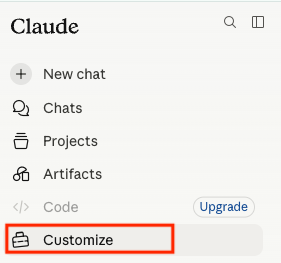 ### Add a custom connector
Click **Add custom connector**.
### Add a custom connector
Click **Add custom connector**.
 ### Name it and paste the endpoint
Name the connector `DataHawk` and paste the endpoint:
```
https://mcp.datahawk.co/mcp
```
### Name it and paste the endpoint
Name the connector `DataHawk` and paste the endpoint:
```
https://mcp.datahawk.co/mcp
```
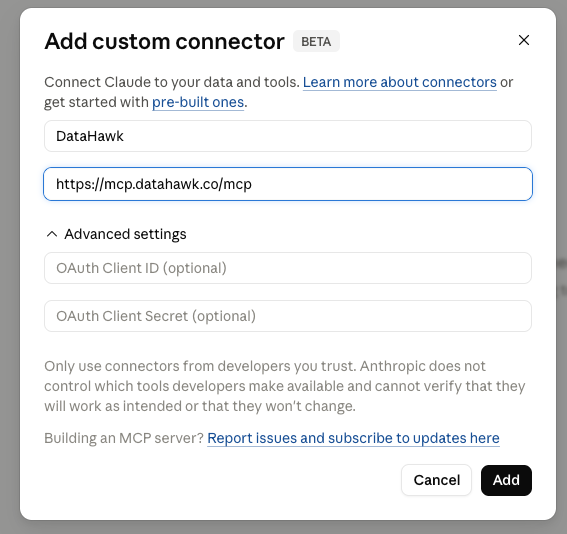 ### Connect
Click **Connect**.
### Connect
Click **Connect**.
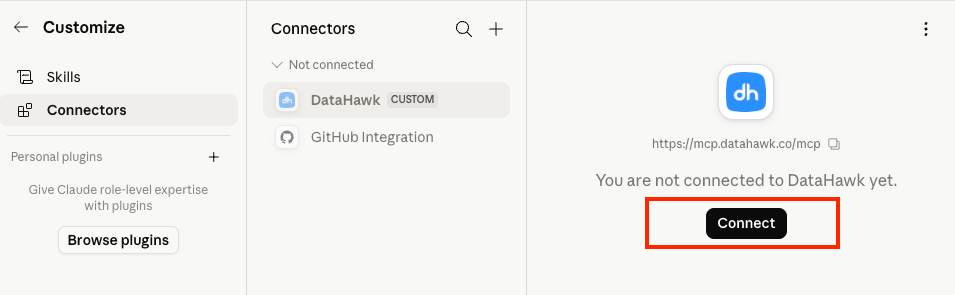 ### Sign in to DataHawk
Claude sends you to DataHawk. Sign in with your DataHawk account.
### Sign in to DataHawk
Claude sends you to DataHawk. Sign in with your DataHawk account.
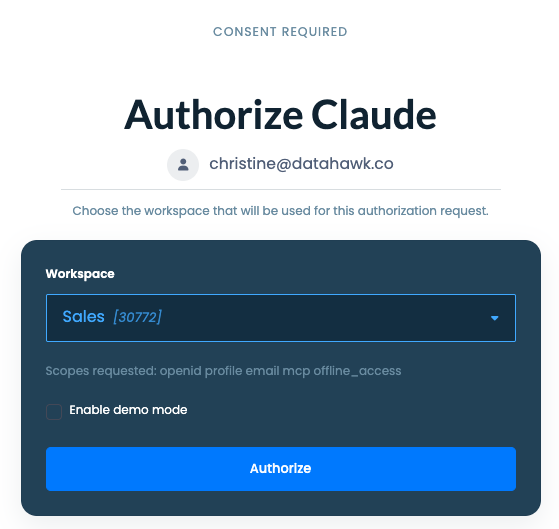 ### Approve the permissions
Approve the permissions screen. DataHawk now shows in your connectors list with a green status.
For more detail, see OpenAI's [apps in ChatGPT guide](https://help.openai.com/en/articles/11487775-apps-in-chatgpt).
### Open the Apps settings
In ChatGPT, click your profile, then **Settings → Apps**.
### Open the custom MCP server option
Click **Advanced settings → Custom MCP server**.
### Approve the permissions
Approve the permissions screen. DataHawk now shows in your connectors list with a green status.
For more detail, see OpenAI's [apps in ChatGPT guide](https://help.openai.com/en/articles/11487775-apps-in-chatgpt).
### Open the Apps settings
In ChatGPT, click your profile, then **Settings → Apps**.
### Open the custom MCP server option
Click **Advanced settings → Custom MCP server**.
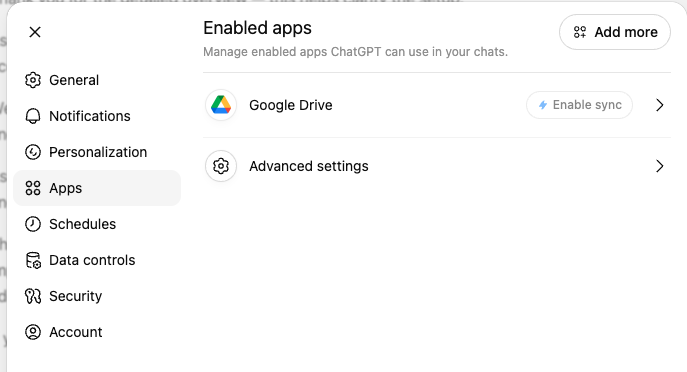 ### Turn on developer mode
Turn on **Developer mode**.
### Turn on developer mode
Turn on **Developer mode**.
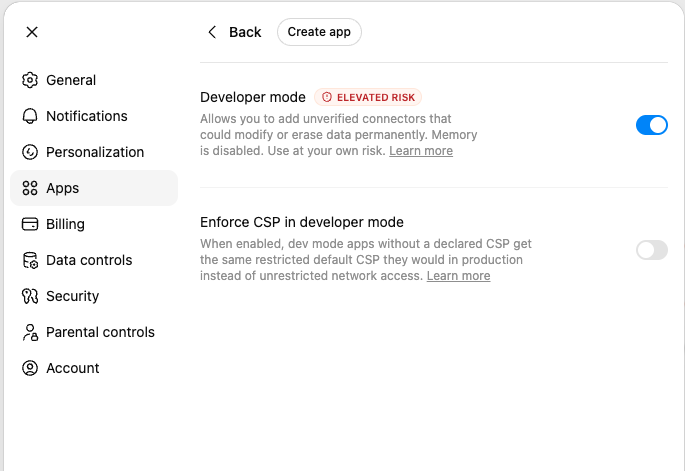 ### Create the app
Click **Create app** and fill in the form:
- **Name:** `DataHawk`
- **MCP Server URL:** `https://mcp.datahawk.co/mcp`
### Create the app
Click **Create app** and fill in the form:
- **Name:** `DataHawk`
- **MCP Server URL:** `https://mcp.datahawk.co/mcp`
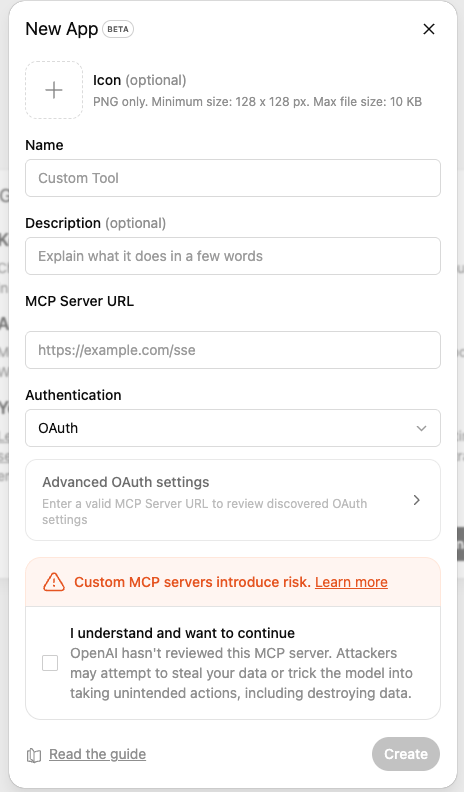 ### Confirm
Tick **I understand and want to continue**, then click **Create**. Sign in with your DataHawk account when asked.
### Check it's connected
DataHawk now shows in your enabled apps with a green status.
### Confirm
Tick **I understand and want to continue**, then click **Create**. Sign in with your DataHawk account when asked.
### Check it's connected
DataHawk now shows in your enabled apps with a green status.
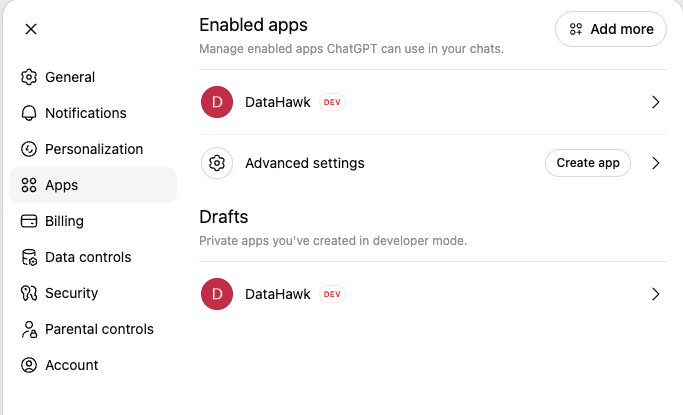 ### Build with your data
For code editors and AI app builders, follow the tool's own MCP guide and use the DataHawk endpoint: `https://mcp.datahawk.co/mcp`.
Follow [Windsurf's MCP guide](https://docs.devin.ai/desktop/cascade/mcp#admin-controls-teams-&-enterprises).
Follow [Lovable's MCP guide](https://docs.lovable.dev/integrations/mcp-servers).
Follow [Replit's MCP guide](https://docs.replit.com/platforms/mcp-server).
### Automate with your data
For workflow tools, follow the tool's own MCP guide and use the DataHawk endpoint: `https://mcp.datahawk.co/mcp`.
Follow [n8n's MCP guide](https://docs.n8n.io/advanced-ai/mcp/accessing-n8n-mcp-server/).
Follow [Make's connection guide](https://developers.make.com/custom-apps-documentation/app-components/connections/oauth2).
## Once you're connected
### Build with your data
For code editors and AI app builders, follow the tool's own MCP guide and use the DataHawk endpoint: `https://mcp.datahawk.co/mcp`.
Follow [Windsurf's MCP guide](https://docs.devin.ai/desktop/cascade/mcp#admin-controls-teams-&-enterprises).
Follow [Lovable's MCP guide](https://docs.lovable.dev/integrations/mcp-servers).
Follow [Replit's MCP guide](https://docs.replit.com/platforms/mcp-server).
### Automate with your data
For workflow tools, follow the tool's own MCP guide and use the DataHawk endpoint: `https://mcp.datahawk.co/mcp`.
Follow [n8n's MCP guide](https://docs.n8n.io/advanced-ai/mcp/accessing-n8n-mcp-server/).
Follow [Make's connection guide](https://developers.make.com/custom-apps-documentation/app-components/connections/oauth2).
## Once you're connected
---
title: How to write effective MCP prompts
description: How to phrase DataHawk MCP prompts so you get the right answer the first time. Covers anatomy, domain vocabulary, patterns, and iteration tips.
---
Your AI assistant is only as good as the question you give it. This guide shows you how to phrase prompts so DataHawk MCP returns the right answer the first time.
**New to DataHawk MCP?** Start with [Ready-to-use prompts](/help-center/modules/datahawkmcp/ready-prompts) to get a feel for what's possible, then come back here to learn how to write your own.
## The anatomy of a good prompt
Most disappointing answers come from a vague prompt. A solid DataHawk MCP prompt usually names six things:
1. **The metric**: What you want to measure (revenue, ACOS, units, sessions, on-hand inventory, rating…)
2. **The dimension**: How to break it down (by ASIN, by campaign, by keyword, by marketplace, by day…)
3. **The time range**: Be explicit ("March 2026", "last 30 days", "Q1 2026")
4. **The platform and marketplace**: "Amazon US", "all European marketplaces", "Walmart", "US + UK", etc.
5. **The filter**: Narrow the scope ("Sponsored Products only", "vendor brand X", "spend > \$500")
6. **The output format**: Table, ranked list, trend chart, short summary
You won't need all six every time, but the more you include, the closer the first answer lands.
**Vague prompt:**
> *"How are my ads doing?"*
**Sharper prompt:**
> *"Show me ACOS by campaign for Sponsored Products in the US marketplace over the last 30 days, as a table ranked by spend, filtered to campaigns with spend above \$500."*
The sharper version names every element. The AI has nothing to guess.
## Domain vocabulary cheat sheet
DataHawk organizes data into domains. Using the right vocabulary for each domain helps your AI pick the right data view on the first try.
| Domain | Words that work |
|---|---|
| Sales | revenue, ordered product sales, units ordered, average selling price (ASP), B2B sales, year over year |
| Revenue and refunds | sales principal, net proceeds, refunds, units shipped, accrual, recorded |
| Advertising | ACOS, ROAS, TACoS, ad spend, ad sales, impressions, clicks, CPC, CTR, Sponsored Products / Brands / Display, campaign, portfolio, Walmart Connect |
| DSP | total cost, attributed sales, new-to-brand, detail-page views, eCPM, creative |
| Catalog | price, rating, review count, buy box, A+ content, variation, browse node |
| Traffic | sessions, page views, buy box %, browser vs. mobile-app split |
| Offers and pricing | featured offer, buy box winner, number of offers, FBA vs FBM offers, landed price |
| Market intelligence | best seller rank, top 100, estimated sales, estimated units |
| SEO | organic rank, sponsored rank, search result page, search volume |
| Search performance | search impressions, clicks, cart adds, purchases, search query volume |
| Inventory | FBA on-hand, reserved, inbound, unsellable, MFN fulfillable |
| Returns | returned units, return reason, return status |
| Finance | profit ledger, fee category, refund, reimbursement |
| Vendor | manufacturing, sourcing, margin, sell-through, fill rate, lead time, aged inventory, demand forecast |
| Account health | connected accounts, report health, tracked products, tracked keywords |
If you're not sure what to call something, ask the AI: *"What metrics does DataHawk have for advertising?"* It'll list what's available.
## Prompt patterns that work
### The "explain your work" pattern
Add this to any analysis prompt to cut down on hallucinations:
> *"Cite the numbers from DataHawk and briefly explain your reasoning."*
You'll get answers that show their math, making them easy to verify.
### The "threshold" pattern
Tell the AI what counts as a signal so you don't drown in noise:
> *"Flag only campaigns with ACOS > 40% AND spend > \$500 in the last 7 days."*
Without thresholds, you get every campaign. With them, you get a punch list.
### The "take action" pattern
Once you have an analysis, ask for the next step:
> *"Draft the Slack message I should send to my PPC team about this."*
> *"Turn this into a one-paragraph email for my supplier."*
> *"What's the single highest-priority thing to do next?"*
This turns insight into output you can use today.
### The "role priming" pattern
Set the AI's persona before asking. It changes the depth and tone of the answer:
> *"Act as my senior PPC analyst. Review my Sponsored Products performance for the last 14 days in the US, flag anything that needs attention, and suggest fixes."*
Works well for: PPC analyst, inventory planner, brand manager, financial controller.
### The "chained analysis" pattern
When one question depends on another, chain them in a single prompt:
> *"First, find my 10 worst-performing campaigns by ROAS last 30 days. Then, for each, list the top 3 keywords pulling ACOS up. Finally, recommend which keywords to pause."*
The AI will run the steps in order, using each result as input to the next.
## How to iterate when the answer looks wrong
If a number looks off, don't start over. Use this short diagnostic loop:
**Step 1: Ask to see the query.**
> *"Show me the DataHawk tool call you ran."*
The AI will surface the exact filters, date range, and view it used. Most issues are visible at a glance: wrong marketplace, wrong date, missing filter.
**Step 2: Narrow the scope.**
If the result is empty or strange, shrink the question. Try one ASIN, one marketplace, one week. Once you see real numbers, expand back out.
**Step 3: Cross-check with the DataHawk app.**
Run the same date range and marketplace inside the DataHawk web app. If the numbers match, you're good. If they don't, ask the AI: *"Why might my answer differ from the DataHawk dashboard?"*. Usually it's a currency or filter difference.
**Step 4: Retry with sharper phrasing.**
Once you know what went wrong, rewrite the prompt with the missing element added. Don't ask the AI to "try again". Give it the new information directly.
## Common mistakes and quick fixes
| Mistake | Fix |
|---|---|
| "Recently…" or "lately…" | Use an explicit range: "March 2026", "last 30 days" |
| No marketplace specified | Add "in the US marketplace" or "across all European marketplaces" |
| "All my data" | Pick one domain (sales, ads, or inventory). Broad scans hit timeouts. |
| Vague metric ("performance") | Use a real metric name: revenue, ACOS, units, sessions |
| Asking for raw data, getting a summary | Add "Return as a markdown table with columns X, Y, Z" |
| Asking why something happened but getting a list | Use diagnostic language: "Why did X drop?" triggers the investigation flow |
| Trusting a number with no tool call shown | Always ask: "Show me the DataHawk tool call you ran" |
## Advanced techniques
### Combine multiple domains in one prompt
The AI can join data across domains in a single question:
> *"For my top 10 ASINs by revenue last 30 days, show me sales, ad spend, ACOS, sessions, and current FBA on-hand: all in one table."*
### Set defaults for a session
If you're going to ask 10 questions about the same brand or marketplace, tell the AI upfront:
> *"For the rest of this chat, assume US marketplace, last 30 days, and brand 'Acme' unless I say otherwise."*
Saves you from repeating the same filters in every question.
### Save your best prompts
When a prompt works well, save it so you don't rewrite it. See [how to pin prompts](/help-center/modules/datahawkmcp/ready-prompts#pin-them-for-one-click-use).
## Why specific prompts work better
Before it loads any numbers, your AI plans the query: it picks a data view, adds the required filters, and checks the query (see [how MCP handles your prompt](/help-center/modules/datahawkmcp#behind-the-scenes-what-your-ai-does-with-your-prompt)). When you name a domain ("advertising"), a marketplace ("US"), and a time range ("last 30 days"), you give that planning step exactly what it needs. That's why the answer comes back faster and more accurate.
---
## What's next
---
title: Ad Spend Drop
description: Spot quiet ad pullbacks; sherlock's Ad Spend Drop case flags products where ad spend fell ≥10% week-over-week, pulling traffic and revenue with it.
---
Ad Spend Drop is one of Sherlock's investigation cases. It looks for products where ad delivery quietly stepped down week-over-week: the kind of slowdown that's easy to miss until weekly revenue dips. Use this page to find the biggest pullbacks, confirm the cause, and decide whether to relaunch campaigns or rebudget elsewhere.
## What's on the page
At the top:
- **The rule:** *"Products where ad spend fell ≥10% WoW, pulling traffic and revenue down with it."*
- **Total opportunity**: The combined revenue at stake across every flagged product.
- **Refresh**: Re-run the check with the latest data.
Below, the table:
| Column | What it means |
|---|---|
| **Product** | Image, title, marketplace flag, ASIN (with copy icon), and brand |
| **Revenue drop** | Week-over-week revenue change |
| **Traffic drop** | Week-over-week traffic (sessions) change |
| **Ad spend drop** | Week-over-week ad spend change |
| **Prev week traffic** | Sessions in the previous week, for context |
| **Opportunity** | Estimated revenue you could recover by restoring ad delivery |
The list is sorted by **Opportunity**, biggest first.
## How to read a row
> *Revenue drop: –56.0% · Traffic drop: –55.2% · Ad spend drop: –46.7% · Prev week traffic: 8,403 · Opportunity: \$15,209*
It tells you:
- Last week you spent ~47% less on this product's ads.
- Traffic fell almost in lockstep (−55%), and revenue followed (−56%).
- The previous week had 8,403 sessions, so this isn't a small, low-volume item.
- If you restore ad delivery to roughly where it was, Sherlock estimates ~\$15k in recoverable revenue.
## Open the product investigation
Click any row to open the same investigation view used by Signals (*Overview*, *Timeline*, *Metrics*).
For ad spend drops, the most useful places to look:
- The **Overview** explanation, which usually pinpoints whether the drop came from a budget cap, lost auction, or paused campaign.
- The **Metrics** heatmap → *Advertising* group. Red cells across *Ad spend*, *Ad clicks*, and *Ad impressions* confirm the pullback.
- The **Timeline** tab. Recent product or campaign changes show up here.
## What to do about it
1. **Budget hit.** Daily budget capped out before peak hours. Raise it or shift it.
2. **Lost auctions.** Bids no longer competitive. Increase bids on the top-performing keywords.
3. **Paused or archived ad group.** Someone (or auto-rule) turned it off.
4. **Auto-targeting drift.** SP Auto stopped matching the right queries. Review the targeting report.
## Tips
- Cross-check with **Zombie Ad Spend**: If the same product is wasting on some keywords *and* under-spending on others, the issue is a campaign-level imbalance.
- Pay attention to **Prev week traffic**: A 70% drop on a 200-session item is less urgent than a 30% drop on a 10,000-session hero.
---
## Where to go next
---
title: Buy Box Loss
description: Find listings priced off the Buy Box with Sherlock flags for products where ASP rose ≥5% and Buy Box share dropped ≥10pp.
---
Buy Box Loss is one of Sherlock's investigation cases. It surfaces listings where a price increase coincided with a sudden drop in Buy Box share: the classic "we priced ourselves off the box" pattern. Use this page to confirm a price move was the cause and decide whether to walk the price back.
## What's on the page
At the top:
- **The rule:** *"Listings where ASP rose ≥5% WoW and buy box dropped ≥10pp: Price likely pushed us off the buy box."*
- **Total opportunity**: The combined revenue at stake.
- **Refresh**: Re-run the check with the latest data.
Below, the table:
| Column | What it means |
|---|---|
| **Product** | Image, title, marketplace flag, ASIN (with copy icon), and brand |
| **Buy box drop** | Change in Buy Box percentage, in percentage points (pp). The detail in parentheses shows *prev% → now%* |
| **Price (prev → now)** | Previous and current ASP, with the % change |
| **Revenue prev week** | Revenue from the previous week, for context |
| **Opportunity** | Estimated revenue you could recover by walking the price back |
The list is sorted by **Opportunity**, biggest first.
## How to read a row
> *Buy box drop: –66.7pp (100.0% → 33.3%) · Price: \$10.56 → \$14.99 (+41.9%) · Revenue prev week: \$1,954 · Opportunity: \$1,303*
It tells you:
- You raised the price by ~42%.
- Buy Box share crashed from 100% to 33%.
- The previous week earned ~\$2k.
- Walking the price back should recover ~\$1.3k.
## Open the product investigation
Click any row to open the same investigation view used by Signals (*Overview*, *Timeline*, *Metrics*).
For Buy Box loss tied to price, the most useful places to look:
- The **Overview**: The metrics table will show ASP up, Buy Box down.
- The **Metrics** heatmap → *Pricing* group and *Buy Box Percentage*.
- The **Timeline** tab: Look for any pricing rule, repricer change, or competitor activity.
## What to do about it
1. **Price moved past the Buy Box threshold.** Walk it back until you regain Buy Box share.
2. **Competitor undercut you.** Check competing offers and decide whether to match or differentiate.
3. **Repricer misfire.** Your repricer ratcheted up against a competitor that paused. Reset the floor and ceiling.
4. **Shipping cost change.** Landed price went up even if your listed price didn't.
## Tips
- Buy Box is winner-take-most. A 10pp loss can translate to a 30–60% revenue loss.
- Cross-check with **Price CVR Drop** and **FBA Stockout**: If the same product is in multiple Cases, treat the highest *Opportunity* one first.
---
## Where to go next
---
title: FBA Stockout
description: React fast when FBA goes empty with Sherlock flags for products that lost the Buy Box and saw revenue collapse.
---
FBA Stockout is one of Sherlock's investigation cases. It catches products that ran out of inventory on FBA long enough to lose the Buy Box and bleed revenue: the situations where every extra day out costs the most. Use this page to spot the worst stockouts fast and prioritize replenishment by recoverable revenue.
## What's on the page
At the top:
- **The rule:** *"Products where FBA went out of stock this week (≥2 days), buy box dropped ≥10pp, and revenue fell ≥10%."*
- **Total opportunity**: The combined revenue at stake.
- **Refresh**: Re-run the check with the latest data.
Below, the table:
| Column | What it means |
|---|---|
| **Product** | Image, title, marketplace flag, ASIN (with copy icon), and brand |
| **Revenue drop** | Week-over-week revenue change |
| **Buy box drop** | Change in Buy Box percentage, in percentage points (pp). The detail in parentheses shows *prev% → now%* |
| **FBA OOS days** | Number of days out of stock this week. "(was 2d)" notes mean the count went up vs the previous week |
| **Opportunity** | Estimated revenue you could recover by replenishing |
The list is sorted by **Opportunity**, biggest first.
## How to read a row
> *Revenue drop: –99.2% · Buy box drop: –66.7pp (100.0% → 33.3%) · FBA OOS days: 7d · Opportunity: \$1,954*
It tells you:
- The product was out on FBA every day this week (7d).
- Buy Box collapsed from 100% to 33%.
- Revenue is effectively zero this week (–99%).
- Replenishing should recover ~\$2k in the coming weeks.
*Was 2d* means OOS days **got worse** week over week. *7d (was 2d)* signals the stockout is deepening, not recovering.
## Open the product investigation
Click any row to open the same investigation view used by Signals (*Overview*, *Timeline*, *Metrics*).
For FBA stockouts, the most useful places to look:
- The **Overview**: It usually identifies the date the stockout started.
- The **Metrics** heatmap → *Is Out Of Stock* row, *Buy Box Percentage*, and *Avg FBA on hand*.
- The **Timeline** tab: Any inbound shipments or transfers should appear here.
## What to do about it
1. **Replenish FBA fast.** Send a same-day shipment if you can, or create an FBM backup listing to bridge the gap.
2. **Audit forecasting.** If this product stocks out repeatedly, the safety stock is too low.
3. **Pause ads.** Don't pay for traffic to an OOS listing. It burns cash and hurts CVR.
4. **Watch the recovery.** Re-check the next 2 weeks. Rank usually takes a hit and needs paid pushes to recover.
## Tips
- Stockouts compound: every day out of stock also hurts organic rank, so the loss outlives the stockout itself.
- Cross-check with **Buy Box Loss**: If the Buy Box loss is from a stockout *and* a price hike, both need fixing.
---
## Where to go next
---
title: Introduction
description: DataHawk's AI-powered diagnostic engine for Amazon sellers; watch your business daily, spot what changed, explain why, and recommend what to do next.
---
Think of Sherlock as your always-on analyst. It reads your data, spots what changed, explains *why*, and recommends a next step in plain English.
## What Sherlock detects
Sherlock has two surfaces in the left sidebar: **Investigate** and **Cases**.
### Investigate
- **Signals**: Your daily starting point. A single, filterable list of every product whose sales moved in a meaningful way week-over-week. Pick a *Momentum* (Growing, Recovering, Slowing, Declining, Sudden spike, Sudden drop), filter by *Tier* (Hero / Core / Meaningful), brand, or marketplace, and Sherlock will rank the list by dollar impact so the biggest problems sit at the top.
### Cases
Cases are **curated shortcuts**, each built around a single, well-defined risk pattern. They run on the same engine as Signals but pre-filter the list to one story at a time.
- **Zombie Ad Spend**: Ad groups spending for 10+ days without a single conversion. Pause them or fix them before they drain the budget.
- **Return Anomalies**: Products whose return rate has jumped at least 50% above the 90-day baseline. Often the first sign of a listing mismatch, sizing issue, or quality problem.
- **Ad Spend Drop**: Products where ad spend fell ≥10% week-over-week, pulling traffic and revenue down with it.
- **Price CVR Drop**: Products where ASP rose ≥5%, conversion fell, and revenue followed. The classic *"we priced ourselves out"* pattern.
- **FBA Stockout**: Products that went out of stock on FBA this week, lost the Buy Box, and saw revenue collapse.
- **Buy Box Loss**: Listings where ASP rose ≥5% and Buy Box dropped ≥10pp.
## How Sherlock works
Every investigation runs through the same 5-step pipeline:
**Fetch metrics**
Pull 30 days of daily data: revenue, sessions, CVR, Buy Box, ads, inventory, price, rank.
**Compute evidence**
Compare the last 7 days vs the previous 7, and the last 3 vs the previous 3. Build deltas, decomposition, and scored root causes.
**Fetch events**
Pull external events (Prime Day, holidays), seller annotations you've logged, and product changes.
**Load the knowledge playbook**
Apply DataHawk's library of diagnostics and causality rules.
**Present**
A single LLM call combines all of the above and produces three outputs: Summary, Explanations, Suggestions.
## Chat with Sherlock
Every investigation has an **assistant** built in. Open it to:
- Ask follow-up questions in plain English.
- **Log a seller annotation** (e.g. "we launched a media campaign 7 days ago") that will appear in the Timeline and feed every future investigation.
- Give thumbs-up or thumbs-down feedback so Sherlock improves over time.
You can also open the assistant from any page in aim menu of Signals to deep-dive into your full DataHawk data layer.
## What you need to get started
Sherlock works out of the box once your DataHawk workspace is connected to **Amazon Seller Central** and/or **Amazon Advertising**. No extra setup required.
Sherlock is **Amazon-only for now**. Walmart support isn't available yet.
---
## Where to go next
---
title: Price CVR Drop
description: Catch price-driven conversion drops with Sherlock flags for products where ASP rose ≥5% and conversion rate fell.
---
Price CVR Drop is one of Sherlock's investigation cases. It looks for products where a price increase coincided with a fall in conversion rate. The listings where the new price scared shoppers off rather than just losing the Buy Box. Use this page to weigh the revenue you'd recover by reverting the price.
## What's on the page
At the top:
- **The rule:** *"Products where ASP rose ≥5% WoW, conversion rate fell, and revenue declined as a result."*
- **Total opportunity**: The combined revenue at stake across every flagged product.
- **Refresh**: Re-run the check with the latest data.
Below, the table:
| Column | What it means |
|---|---|
| **Product** | Image, title, marketplace flag, ASIN (with copy icon), and brand |
| **Revenue drop** | Week-over-week revenue change |
| **Price (prev → now)** | Previous and current ASP, with the % change |
| **CVR (prev → now)** | Previous and current conversion rate |
| **Opportunity** | Estimated revenue you could recover by walking the price back |
The list is sorted by **Opportunity**, biggest first.
## How to read a row
> *Revenue drop: –78.9% · Price: \$14.24 → \$16.60 (+16.6%) · CVR: 15.3% → 11.2% · Opportunity: \$1,396*
It tells you:
- ASP went up ~17%, and conversion fell from 15.3% to 11.2%.
- Revenue dropped almost 80% on this product.
- Walking the price back toward \$14.24 would likely recover ~\$1.4k.
## Open the product investigation
Click any row to open the same investigation view used by Signals (*Overview*, *Timeline*, *Metrics*).
For price-driven CVR drops, the most useful places to look:
- The **Overview** metrics table: ASP and CVR will be the headline movers.
- The **Metrics** heatmap → *Pricing* group and *Traffic & Engagement* (CVR).
- The **Timeline** tab: Promotions ending, lightning deals, or price tests often show up here.
## What to do about it
1. **Coupon or promo ended.** A 10% off coupon expired. The effective price jumped.
2. **Cost-based price hike.** You raised the price to protect margin and CVR took the hit.
3. **Shipping price change.** Landed price rose even if your listing price stayed flat.
4. **Competitor moved.** A rival cut their price, making yours look high.
Make the call: walk the price back, run a targeted coupon, or accept the trade-off if margin is healthier.
## Tips
- Cross-check with **Buy Box Loss**: If you also lost the Buy Box, the price hike was likely too aggressive.
- Compare *prev* vs *now* CVR drop against the price drop. A small price bump with a big CVR drop suggests something else is going on (reviews, stock, content).
---
## Where to go next
---
title: Return Anomalies
description: Catch return rate spikes early; sherlock's Return Anomalies case flags products whose return rate jumped at least 50% above the 90-day baseline.
---
Return Anomalies is one of Sherlock's investigation cases. It compares each product's last 30 days of returns against its prior 90-day baseline so you can spot quality, sizing, or fulfillment issues before they show up in margin reports. Use this page to triage the spikes worth investigating with operations or your supplier.
## What's on the page
At the top:
- The rule: *"Products where last 30-day return rate is at least 50% above the previous 90-day baseline, with 3+ returns and positive impact."*
- **Total potential leak**: The combined dollar impact of every flagged product.
- **Refresh**: Re-run the check with the latest data.
Below, the table:
| Column | What it means |
|---|---|
| **Product** | Product image, title, marketplace flag, ASIN (with copy icon) and brand |
| **Summary** | Plain-English description of the jump, plus the marketplace and baseline date range |
| **30d rate** | Return rate over the last 30 days |
| **Baseline** | Return rate over the prior 90 days |
| **Returns** | Number of returns in the last 30 days |
| **Net impact** | Dollars lost to the spike |
The list is sorted by **Net impact**, biggest first.
## How to read a row
> *Return rate rose from 1.8% to 15.7% with 19 returns.*
> *Amazon-US · Baseline 2026-01-12 to 2026-04-11*
> *30d rate: 15.7% · Baseline: 1.8% · Returns: 19 · Net impact: \$220.99*
The product's return rate is almost 9× its usual rate, costing about \$221 in lost sales over the last month.
## Open the product investigation
Click any row to open the same investigation view you get from Signals (*Overview*, *Timeline*, *Metrics*).
For return spikes specifically, the most useful places to look:
- The **Metrics** heatmap → *Sales Performance → Units Refunded* row. Red cells show you when the returns clustered.
- The **Timeline** tab. Recent product changes often line up with the spike.
- The **Suggestions** in the Overview tab.
## What to do about it
When a product is flagged, the cause is usually one of these:
1. **Listing mismatch.** Images, title, or bullets don't match what the customer receives.
2. **Quality issue.** A bad batch, damaged packaging, or a recent supplier change.
3. **Sizing or fit.** Common with apparel and home goods.
4. **Wrong customer.** Ad targeting or keywords are bringing in shoppers who aren't a fit.
Use Sherlock's data to narrow it down:
- Read review and feedback comments in Seller Central to see *why* people are returning.
- Check the **Timeline** in the investigation for recent changes.
- Compare *Units Refunded* against ad spend pushes: If returns spiked after an ad ramp, the targeting may be off.
If you push out a fix (e.g., updated images, supplier change), open the **Sherlock assistant** and save a seller annotation. Future investigations will see that note in the Timeline and weigh it in their reasoning.
## Tips
- A high return rate on a low-volume product can look alarming. Use **Returns** and **Net impact** to focus on items that actually move the needle.
- Re-check after each fix. Sherlock recalculates with every refresh.
---
## Where to go next
---
title: Signals
description: Sherlock's daily starting point; products with meaningful sales movement ranked by dollar impact, filterable by Momentum, Tier, brand, and marketplace.
---
Sherlock is in active development. If something on screen doesn't match this page, drop a note via the assistant and we'll catch up.
## How the app is organized
The left sidebar has two groups:
- **Investigate** → *Signals*. The full, filterable list of every meaningful product movement.
- **Cases** → *Zombie Ad Spend*, *Return Anomalies*, *Ad Spend Drop*, *Price CVR Drop*, *FBA Stockout*, *Buy Box Loss*. Each Case is a curated shortcut for a specific risk pattern.
If you don't know where to start, open **Signals**. If you already have a hunch ("I think we have an ad-spend issue"), jump straight to the matching Case.
## What's on the Signals page
When you open Signals, you'll see a list of products with these columns:
| Column | What it means |
|---|---|
| **Product** | Product title, marketplace flag, parent and child ASIN (each with a copy icon) |
| **Trend** | A small sparkline of the metric Sherlock is flagging |
| **Growth** | % change; toggle the header between **WoW** and **MoM** to switch the view. Green = up, red = down |
| **\$ Impact** | Absolute revenue difference between the current period and the prior equivalent period, in the product's sales currency. Follows the WoW / MoM toggle. Click the header to sort |
| **Rev Share** | Product's contribution to your total revenue over the last 6 months (USD) |
At the top, you'll see how many products are showing (e.g., *"Showing 1–50 of 184 products"*).
The small flask icon at the far right of each row means **"Recent analysis available."** Sherlock has cached the investigation, so it'll open instantly. Rows without the icon will generate a fresh analysis on first click (a few seconds, sometimes longer).
## Filter to find what matters
The filter bar sits just above the table. Each filter has an in-app tooltip that explains the exact rule.
### Momentum
*Filter by revenue trend (WoW vs MoM).*
| Option | Exact rule |
|---|---|
| **All** | Show all products regardless of revenue trend |
| **Growing** | Revenue up week-over-week AND month-over-month (both > +10%) |
| **Recovering** | Revenue up this week (WoW > +10%) but still below last month (MoM < −10%) |
| **Slowing** | Revenue down this week (WoW < −10%) but still above last month (MoM > +10%) |
| **Declining** *(default)* | Revenue down week-over-week AND month-over-month (both < −10%) |
| **Sudden spike** | Revenue jumped this week well above the monthly trend; something changed recently |
| **Sudden drop** | Revenue fell this week well below the monthly trend; something may have broken |
### Tier
*Filter by L6M revenue contribution.* Use this when you want to focus only on products that move the needle.
| Option | Exact rule |
|---|---|
| **All** | Include all products regardless of revenue contribution |
| **Meaningful** | Top 50% of products by total revenue over the last 6 months |
| **Core** | Top 25% of products by total revenue over the last 6 months |
| **Hero** | Top 10% of products; your highest-revenue ASINs over the last 6 months |
### Brand
Multi-select dropdown with a *Search brands* input. Tick one or several to narrow the list.
### Marketplace
Multi-select dropdown listing every marketplace you have data for.
### Min. 10 units
Toggle button. *Hides products with fewer than 10 units sold in the last 30 days. Avoids noisy % swings on near-zero volume ASINs.* Most teams leave this on for the weekly review.
### Reset
Appears whenever at least one filter is active. Clears every filter in one click.
**Quick recipe for your weekly review:** Momentum = *Declining*, Tier = *Core* or *Hero*, Min. 10 units = on, sort by *\$ Impact*. That's usually the shortest list of the most expensive problems.
## Top-right icons
In the top-right of the page:
- **Refresh**: Re-runs the analysis with the latest data.
- **Settings**: Opens the period and pre-generation panel.
- **Search products**: Slides out a search field. Type a keyword or ASIN to filter the list.
## Open an investigation
Click any product to open its **investigation**. The header tells you the date the investigation covers and, once cached, when it was last updated.
You'll find three tabs:
### Overview
The main story. Sherlock always produces three outputs: **Summary**, **Explanations**, and **Suggestions**. From top to bottom:
- **Summary**: One-paragraph plain-English explanation.
- **Explanations**: A deeper breakdown of what moved.
- **Metrics table**: Side-by-side comparison of the two 7-day windows.
- **Causal chain**: The cause-and-effect logic Sherlock followed.
- **Suggestions**: Concrete actions to take.
- **Was this helpful?**: Thumbs up or down to help us improve.
Below, an **Overview** dashboard shows sparkline charts for the metrics most relevant to this product.
### Timeline
A chronological list of events that may have affected this product:
- **Product changes** (parent ASIN swap, title change, etc.)
- **Shopping events** (e.g., Prime Day)
- **Seller annotations**: Notes your team has logged via the Sherlock assistant
### Metrics
A heatmap of every key metric over the analyzed period, grouped by:
- **Sales Performance**: Orders, units, refunds, shipments
- **Pricing**: Selling, listing, landed, shipping price
- **Traffic & Engagement**: buy box %, sessions, conversion
- **Advertising**: Ad sales, ad spend, ACOS, ad orders, ad units
Green cells sit above baseline, red cells below. Use the **T0 / T1 / All** toggle to focus on a single window or compare both.
## Share or chat about an investigation
Top-right of any investigation:
- **Share**: Copy link (live) or copy link at current date (locked)
- **Open assistant**: Opens the Sherlock assistant in a side panel
### Two modes for the assistant
- **Product-scoped** *(inside an investigation)*: The assistant already knows the product. Ask follow-ups, log feedback, or save a seller annotation.
- **Workspace-scoped** *(from any page)*: Deep-dive into your full DataHawk data layer for broader questions.
## Tips
- Always start with **\$ Impact**: The biggest dollars are at the top.
- Use **Min. 10 units** to cut low-volume noise.
- Use **Pre-generate top 10** in Settings before your weekly review so investigations open instantly.
- Drop seller annotations into the assistant as you go: They give every future investigation more context.
## Under the hood (for the curious)
Every Sherlock investigation runs through the same 5-step pipeline:
1. **Fetch metrics**: Pull 30 days of daily arrays from Snowflake: Revenue, sessions, CVR, Buy Box, ads, inventory, price, rank.
2. **Compute evidences**: Compare the last 7 days vs the previous 7, and the last 3 vs the previous 3. Build deltas, decomposition, event start dates, and scored root causes.
3. **Fetch events**: External events (Prime Day, holidays), seller annotations, and product changes.
4. **Load knowledge playbook**: Apply DataHawk's library of diagnostics and causality rules.
5. **Present**: A single LLM call combines all of the above and produces the *Summary*, *Explanations*, and *Suggestions*.
---
title: Zombie Ad Spend
description: Find ad groups spending without conversions; sherlock's Zombie Ad Spend case surfaces wasted ad dollars so you can pause or fix them.
---
Zombie Ad Spend is one of Sherlock's investigation cases. It surfaces ad groups that keep spending without producing conversions; quiet leaks that drag ACoS up without anyone noticing. Use this page to decide what to pause, what to fix, and where to shift the freed-up budget.
## What's on the page
At the top:
- A short description of the rule: *"Ad groups spending with no conversions for at least 10 days, checked across the last 30 days."*
- **Total potential leak**: The total ad dollars at risk across all flagged ad groups.
- **Refresh**: Re-run the check with the latest data.
Below, a table with three columns:
| Column | What it means |
|---|---|
| **Campaign / ad group** | Campaign name, ad group **type tag**, and campaign total spend |
| **Summary** | What Sherlock found: how many days without conversions, the **diagnosis**, and the list of **targets** (keywords or product targets) responsible |
| **\$ Impact** | The dollars wasted on this ad group |
The list is sorted by impact, biggest first.
## How to read a row
Each row tells a small story:
> *No conversions for 24 days while spending \$67.26.*
> *Diagnosis: Clicks without conversions*
> *Targets:*
> *Keyword: cruise shirts (\$37.99, 90 clicks, 0 conversions)*
> *Keyword: cruise tshirts (\$9.49, 22 clicks, 0 conversions)*
This tells you:
- The ad group has burned \$67.26 with zero sales over the last 24 days.
- The **diagnosis** describes the type of failure: *Clicks without conversions* means people click but don't buy.
- The **targets** list shows which keywords are wasting money, with spend, clicks, and conversions for each.
## What to do about it
1. **Pause underperformers.** Keywords with high spend and zero conversions are usually safe to pause.
2. **Check intent.** If a keyword is irrelevant, add it as a negative.
3. **Adjust bids.** If a keyword has potential but bids are too high, lower them and give it another week.
4. **Audit the listing.** Clicks but no conversions? The issue may be on the product page; price, images, reviews, or stock.
Make the change in Amazon Ads. Sherlock will reflect the impact on the next refresh.
Want a second opinion? Open the **Sherlock assistant** (chat icon, top-right) and ask things like *"Should I pause cruise shirts on this ad group?"*. The assistant has access to your full DataHawk data layer.
## Tips
- The page updates daily. Check it once a week as part of your ad routine.
- Click **Refresh** after big bid changes to see the updated leak total.
- Cross-check with **Signals**: If a product appears in both, the ad waste is likely a symptom of a bigger issue (out of stock, poor listing, etc.).
---
## Where to go next
---
title: Account & billing
description: Subscription questions, payment failures, invoice issues, plan changes, or trial expiration.
---
For most account and billing questions, the fastest path is to contact your account manager directly. They have the full context on your contract and can resolve most issues without a support ticket.
## Common scenarios
### Subscription & plan changes
| Question | Where to go |
|---|---|
| Upgrade or downgrade your plan | Workspace → Settings → Subscription (self-serve via [Stripe Subscription Management](/help-center/datahawk-app/subscription-management)) |
| Mid-contract product/keyword limit change | Email your account manager |
| End trial early | Workspace → Settings → Subscription |
| Cancel renewal | Workspace → Settings → Subscription, or notify your account manager |
### Payments & invoices
| Issue | Fix |
|---|---|
| Payment failed | Update payment method in Workspace → Settings → Billing |
| Need a past invoice | Workspace → Settings → Billing → Invoice history |
| ACH payment confirmation | Email [support@datahawk.co](mailto:support@datahawk.co) with proof of payment and the expected amount |
| Tax/VAT documentation | Email [support@datahawk.co](mailto:support@datahawk.co) with your tax ID |
### Quotas
| Question | Answer |
|---|---|
| Why isn't there a hard limit on product quota when I upload via CSV? | Currently no hard limit is enforced on CSV uploads. Soft alert appears when over quota. This is being reviewed. |
| When does my keyword count refresh after I add new keywords? | Total count updates immediately when added via the UI; data collection follows the standard 24-hour first cycle. |
---
## Still stuck?
For billing questions: email [support@datahawk.co](mailto:support@datahawk.co) with **"Billing"** in the subject and your workspace ID.
For contract or plan changes: Contact your account manager directly. They'll get back to you faster than the general support queue.
---
title: Dashboard issues
description: Power BI or Looker Studio dashboards that won't load, show empty results, have broken filters, or numbers that look unexpected.
---
Power BI or Looker Studio dashboards aren't behaving as expected. Most issues are filter-related, currency-related, or a known limitation of a specific dashboard template.
## Quick checks first
1. **Did you refresh the data?** Right-click the dataset in Power BI → Refresh. The dashboard reads from a cached extract.
2. **Are all filters set correctly?** Marketplace, currency, account, tag, and brand filters can each silently filter to zero.
3. **Have you opened the latest version of the template?** Templates get updated regularly. See the [Changelog](/changelog) for recent dashboard updates.
4. **Want more history than the tab is showing?** Many tabs cap their default lookback window to keep the report fast. See [Changing the historical lookback window](/help-center/connect-tools/powerbi#changing-the-historical-lookback-window) before assuming data is missing.
## Common scenarios
### Dashboard won't load
| Symptom | Likely cause | Fix |
|---|---|---|
| "Failed to test the connection" | Snowflake/BigQuery credentials wrong | See [Connection failures](/troubleshooting/connection-failures) |
| Empty visuals across the whole dashboard | Data source not refreshed | Refresh the dataset in Power BI / Looker Studio |
| Visual shows error icon | Field renamed in DataHawk's schema | Update the visual's field reference. Check the [Changelog](/changelog) for schema changes |
### Empty results with filters applied
| Symptom | Likely cause | Fix |
|---|---|---|
| Vendor Analytics → Best Seller Product is empty | Filter combination has no data | Loosen filters one at a time until results appear; common culprits are Distribution View (sourcing/manufacturing) and Selling Program |
| Sales appear but Ads don't | Ad account not linked to the same marketplace as the Seller account | Check Workspace → Integrations |
### Numbers look wrong
| Symptom | Likely cause | Fix |
|---|---|---|
| Ad sales > total sales | Multi-account attribution issue, or expected attribution behavior | Filter to one account at a time to verify. If it persists, this can be normal. See [why Ad Sales can exceed Total Sales](/troubleshooting/data-discrepancies#ad-spend-or-ad-sales-look-inflated-or-wrong) |
| BSR (or other tabs) limited to less history than expected, e.g. 12 months | Template's lookback parameter is set lower than the data actually available | You can raise this yourself. See [Changing the historical lookback window](/help-center/connect-tools/powerbi#changing-the-historical-lookback-window). No need to query raw tables. |
| Profit Explorer P&L doesn't match pivot export | Different aggregation logic | The pivot export uses raw ledger data; the dashboard rolls up by category. They should match at marketplace+month grain but can differ at finer grain |
| Currency picker shows wrong values | Currency conversion bug (Analytics Essentials Looker Studio dashboard) | Known issue. Confirm the currency parameter on the dashboard's data source matches the visual filter |
### Specific dashboard versions
- **Seller Analytics (Power BI)**: Refreshed November 2025 with tax-mode slicer
- **Vendor Analytics (Power BI)**: Refreshed October 2025 with quarterly views
- **Market Intelligence (Power BI)**: Refreshed January 2026 (new data source)
- **Advertising (Power BI)**: Refreshed January 2026 with Brand Store + DSP tabs
- **Search (Power BI)**: Refreshed January 2025
- **Ads DSP (Power BI)**: Refreshed May 2025
If you're on an older version, [download the latest template](https://datahawk.notion.site/Download-Power-BI-Templates-72b20d0f42904086aae9fbe485883dfb).
---
## Still stuck?
Email [support@datahawk.co](mailto:support@datahawk.co) with:
- The dashboard name and version (look at the bottom-right of any Power BI tab for the version date)
- The specific visual or tab that's broken
- A screenshot showing the issue and the active filters
- Your workspace ID
---
title: Introduction
description: Hit a snag? Find quick fixes for the most common DataHawk issues here.
---
Something not working as expected? You're in the right place. Most issues fall into one of seven categories below. Find yours and follow the steps.
## Find your issue
---
## Still stuck?
**Before contacting support, gather:**
- Your workspace ID
- Context: what you want to do and how you proceed
- Screenshots that may help
This information cuts our investigation time by ~80%. Send us all information needed to [support@datahawk.co](mailto:support@datahawk.co)
---
title: Uploads & bulk imports
description: CSV upload fails, hangs, or times out on large files, including Tags importer performance limits and how to work around them.
---
Bulk CSV imports (Tags, COGS, and similar uploads) can fail, hang, or time out when the file is large. The most commonly reported case so far is the Tags importer.
## Common scenarios
### Tags: CSV upload fails or hangs on large files
**What I can observe**
- Uploading a large Tags CSV (roughly 10,000+ rows) gets stuck after you click confirm, or fails without a clear error message.
- Smaller files (a few thousand rows) upload without issue.
- This isn't specific to one workspace. It's been reported more than once.
**Why is this happening?**
DataHawk validates every row of your file before importing it. On very large files, that validation step can take too long, and the upload times out or appears to hang after confirmation.
{/* TODO: the CSV upload was rebuilt in-house on Aug 6, 2026 (see changelog). Confirm with engineering whether the 3,000-4,000 row limit below still applies, then update or remove the warning. */}
**Known limitation (as of April 2026, before the August 2026 upload rebuild): reliable uploads topped out around 3,000-4,000 rows.** DataHawk has looked at optimizing the validation step but hasn't shipped a fix as of this writing. If you're reading this later, check with support whether larger files now upload successfully before splitting yours.
**What can I do?**
### Split your CSV into smaller files
Break your file into chunks of roughly 3,000 rows or fewer. A 17,000-row file, for example, needs at least 5–6 chunks to stay safely under that ceiling.
### Upload the first chunk with your intended import mode
Pick whichever [import mode](/help-center/data-setup/tags) matches what you're trying to do: **Add New Only**, **Replace Matching**, or **Replace All**.
### If you're using Replace All, switch modes after the first chunk
**Do not use Replace All on more than one chunk.** Replace All wipes your entire workspace tag set before applying the file. Running it again on a second chunk erases the tags you just uploaded from the first chunk, leaving only the last chunk's tags at the end.
If your goal is to fully replace your tag catalog across multiple chunks:
1. Upload the **first** chunk with **Replace All**. This clears old tags and sets the first chunk's tags.
2. Upload every **subsequent** chunk with **Add New Only**. Since those items have no tags left after the wipe, this correctly adds each chunk's tags without touching what you already uploaded.
`[TO CONFIRM with Sylvain/support: this sequencing is inferred from how the three import modes are documented; it hasn't been explicitly confirmed for a multi-chunk upload. Verify before pointing a customer at it.]`
If you're using **Add New Only** or **Replace Matching** for the whole file, you can use the same mode consistently across all chunks. Neither one wipes the full tag set, so there's no ordering risk.
### Upload each remaining chunk the same way
Repeat until every chunk is uploaded.
**Still stuck?**
Email [support@datahawk.co](mailto:support@datahawk.co) with:
- Your workspace ID
- The total row count and how many chunks you split it into
- A screenshot of where the upload got stuck, or the error you saw
### Tags: upload succeeded but tags don't show
**What I can observe**
- Your tag upload completed, but the tags don't appear in Sources or in your dashboards.
**Why is this happening?**
Usually one of these:
- **Timing.** Tag uploads are processed every 3 hours, and each run takes about 40 minutes. Tags can take up to 3 hours 40 minutes to reach your data, then dashboards need to refresh.
- **Wrong source.** You used the **Products** source, which adds products to tracking. Tags for your own catalog go through **Product Tags**.
- **Product not in the file.** Tags only apply to the exact ASINs listed in your file.
**What can I do?**
Wait for the next run, then check again. If tags are still missing, follow the checklist in [Use Tags](/help-center/data-setup/tags) and contact [support@datahawk.co](mailto:support@datahawk.co) with your file.
---
## Where to go next
---
title: I want to restrict DataHawk Access to Specific DSP Profiles
description: How to limit DataHawk's access to only specific Amazon DSP profiles when connecting your advertising account.
---
When connecting an Amazon DSP account to DataHawk, all profiles linked to that DSP account become accessible. But you want to restrict access to specific profiles only.
## What I can observe
- I can see the data of all the profiles of your DSP account on the dashboard.
## Why is this happening?
This is how the Amazon DSP API works. DataHawk can access all profiles available to the connected user.
## What can you do
Create a dedicated Amazon Ads user with access only to the profiles you want DataHawk to retrieve.
Then make sure this user is also invited to the **global DSP manager account** for the relevant region.
### How to verify the setup
1. Log in to Amazon DSP Campaign Manager
2. Use the region switcher in the top-left corner
3. Confirm that the manager account is visible in the relevant region
If the manager account is not visible, the user is probably not linked to the global manager account. Add the user to that account, then try connecting again.
## Amazon How-to
- [Understand Manager accounts](https://advertising.amazon.ae/help/GU3YDB26FR7XT3C8)
- [Create a manager account](https://advertising.amazon.ae/help/G69CDSR9MNSWJH95)
- [Add accounts to your Manager account](https://advertising.amazon.ae/help/G23QYEJNEX3FJFH5)
- [Manage users in a Manager account](https://advertising.amazon.ae/help/G4M4JGKGV2VAY9JC)
---
title: Access & permissions
description: Can't log in, password reset not working, missing workspace access, or user permission errors.
---
You or a teammate can't get into DataHawk, or you can see the app but data is missing because of permission settings. This page covers the common patterns.
## Quick checks first
1. **Is the user invited to the right workspace?** Workspace membership is per-workspace, not per-account. Check Workspace → Members.
2. **Is two-factor authentication blocking?** Some users forget their authenticator after re-installing their phone. Recovery codes solve this.
3. **Did you click the password reset link within 24 hours?** Reset links expire.
## Common scenarios
### Can't log in
| Symptom | Likely cause | Fix |
|---|---|---|
| Password reset email never arrives | Email landed in spam, or email mismatch | Check spam, confirm the email matches your DataHawk account |
| Password reset email arrives but link fails | Link expired (24h) | Request a fresh reset link |
| 2FA code rejected | Phone clock out of sync | Sync phone time settings; or use a recovery code |
| Stuck on impersonation page | Internal admin issue | Sign out fully, clear cookies for the DataHawk domain, sign back in |
### Workspace access
| Symptom | Likely cause | Fix |
|---|---|---|
| Invited user doesn't appear in workspace | Invite expired | Re-send invite from Workspace → Members |
| User in workspace can't see specific data | Per-source permissions in DataHawk app | Workspace admin can grant per-source access |
### Multi-workspace customers
If you have several workspaces under one account:
- The top-left workspace switcher is the canonical place to move between them
- Permissions are isolated per workspace: A member of Workspace A is not automatically a member of Workspace B
## Specific problems
---
## Still stuck?
Email [support@datahawk.co](mailto:support@datahawk.co) with:
- Your workspace ID
- The email of the affected user
- The exact error message you see (or a screenshot)
- What the user is trying to do (log in, access a dashboard, etc.)
---
title: Accessing our Snowflake Database from Behind a Firewall
description: Hostnames and ports to whitelist to access DataHawk's Snowflake environment from behind a corporate firewall or private network.
---
If you are operating behind a corporate firewall or within a private network, you must **explicitly whitelist certain hostnames and ports** to ensure uninterrupted access to our Snowflake environment.
This document lists the endpoints required to connect and operate securely with our Snowflake instance.
## Required Hostnames and Ports to Allow
Add the following hostnames to your firewall or proxy whitelist:
| Type | Hostname | Port |
|---|---|---|
| SNOWFLAKE_DEPLOYMENT | `mj13008.west-europe.azure.snowflakecomputing.com` | 443 |
| SNOWFLAKE_DEPLOYMENT_REGIONLESS | `datahawk-dh_data_connectors_prod.snowflakecomputing.com` | 443 |
| STAGE | `kej3jkesfcb1stg.blob.core.windows.net` | 443 |
| SNOWSQL_REPO | `sfc-repo.snowflakecomputing.com` | 443 |
| OUT_OF_BAND_TELEMETRY | `client-telemetry.snowflakecomputing.com` | 443 |
| OCSP_CACHE | `ocsp.snowflakecomputing.com` | 80 |
| DUO_SECURITY | `api-00b5905e.duosecurity.com` | 443 |
| DUO_SECURITY | `uw2.devicemanagement.duosecurity.com` | 443 |
| DUO_SECURITY | `ec1.devicemanagement.duosecurity.com` | 443 |
| SPCS_REGISTRY_REGIONLESS | `DATAHAWK-DH-DATA-CONNECTORS-PROD.registry.snowflakecomputing.com` | 443 |
| SPCS_REGISTRY_REGIONLESS | `DATAHAWK-DH_DATA_CONNECTORS_PROD.registry.snowflakecomputing.com` | 443 |
| OCSP_RESPONDER | `ocsp.rootg2.amazontrust.com` | 80 |
| OCSP_RESPONDER | `ocsp.sca1b.amazontrust.com` | 80 |
| OCSP_RESPONDER | `oneocsp.microsoft.com` | 80 |
| OCSP_RESPONDER | `ocsp.r2m01.amazontrust.com` | 80 |
| OCSP_RESPONDER | `ocsp.digicert.com` | 80 |
| OCSP_RESPONDER | `ocsp.rootca1.amazontrust.com` | 80 |
| OCSP_RESPONDER | `ocsp.r2m03.amazontrust.com` | 80 |
| OCSP_RESPONDER | `ocsp.r2m02.amazontrust.com` | 80 |
| SNOWSIGHT_DEPLOYMENT | `apps-api.c1.westeurope.azure.app.snowflake.com` | 443 |
| SNOWSIGHT_DEPLOYMENT | `app.snowflake.com` | 443 |
## Security Notes
- All traffic must be allowed over **HTTPS (port 443)** unless otherwise noted.
- OCSP (Online Certificate Status Protocol) responders use **HTTP (port 80)** for certificate validation.
- Ensure your firewall or proxy does not block these domains or downgrade the TLS/SSL connections.
## References
- [Snowflake Hostname Allowlist Documentation](https://docs.snowflake.com/en/user-guide/hostname-allowlist)
---
title: Connection failures
description: Errors when connecting Amazon/Walmart accounts, Snowflake/BigQuery warehouses, or Power BI to your data.
---
You're trying to wire up an integration, Amazon Seller, Walmart, Snowflake, BigQuery, Power BI, and getting an error. Most connection failures fall into one of three patterns: Expired credentials, missing permissions, or network restrictions.
## Quick checks first
1. **Are you the account owner on the source side?** Some integrations (Amazon Advertising DSP, Vendor Central) require owner-level access on the source. Read-only or marketing-user roles often fail.
2. **Is your IP allowlisted?** If you or your customer enforces a firewall, DataHawk's IPs may need to be added to the allow list.
3. **Are you reconnecting an old account?** OAuth tokens have a lifetime. If the integration has been disconnected for over 30 days, full re-auth (not "refresh") is required.
## Specific problems
## Common error patterns
### Snowflake / BigQuery warehouse connections
| Error | Likely cause | Fix |
|---|---|---|
| "Failed to test the connection to your data source" (in Power BI) | Snowflake credentials copy-paste error or expired | Re-copy from Setup → Destinations → Snowflake → See Credentials and paste fresh |
| "We couldn't authenticate with the credentials provided" (in Excel), while the ODBC Administrator test passes | Snowflake driver installed with the ODBC option instead of DSII | Reinstall the driver and pick DSII. See [Connect to Excel](/help-center/connect-tools/excel#troubleshooting) |
| "Data Set Configuration Error" (Looker Studio with BigQuery) | Service account permissions missing | Grant `BigQuery Data Viewer` role to the service account |
| "Access Denied: Permission `bigquery.tables.create` denied" | Read-only role assigned where write needed | Upgrade service account role or work in a project where you have write access |
| "BigQuery only support Google Account. Please use a Google Account email instead." | The email you're adding under BigQuery access isn't a Google Account yet | Turn the email into a Google Account. See [Managing user access](/help-center/connect-tools/bigquery#managing-user-access) |
**Known gap (as of April 2026):** in at least one case, this error appeared for an email that turned out to already be a genuine Google Account. That was a detection issue on our side, not a real account problem. If you're confident the email is already a Google Account and still see this error, don't try to recreate the account. Contact support with your workspace ID instead.
### Amazon DSP
| Error | Likely cause | Fix |
|---|---|---|
| "No Profile" after successful auth | The connecting user has no DSP entity access | Connect with a user that has explicit DSP advertiser access |
| 300+ advertisers added unexpectedly | Connecting user has access to too many entities | Create a dedicated DataHawk user with access only to your specific DSP profiles |
### OAuth flow failures
| Error | Likely cause | Fix |
|---|---|---|
| Stuck on "Connecting..." | Browser blocked the OAuth popup | Disable popup blockers and retry |
| Auth succeeds but immediately disconnects | Account permission revoked on source side | Check Seller Central → User Permissions for any "Remove DataHawk" actions |
---
## Still stuck?
Email [support@datahawk.co](mailto:support@datahawk.co) with:
- Your workspace ID
- The integration you're trying to connect (Snowflake / BigQuery / DSP / etc.)
- The exact error message (screenshot helpful)
- Whether this is a first connection or a reconnect
---
title: I don't see Data after connecting my DSP Account
description: Troubleshooting steps when no DSP data appears in DataHawk after connecting your Amazon DSP account.
---
After connecting your Amazon DSP account to DataHawk, no data is displayed.
## What I can observe
- No DSP data appears in DataHawk after connection
- Dashboards remain empty
- You expect data but nothing is retrieved
## Why is this happening?
This is usually due to a **permission or account setup issue**, not a problem with the connection itself.
## What can I do?
### 1. Check access to the DSP manager account
- Log in to **Amazon DSP Manager Account**
- Use the **region switcher** (top-left)
- Confirm the **manager account** is visible in at least one region (Americas, EMEA, or APAC)
- If the manager account is **not visible**, your user is not linked correctly
- Ask your admin or Amazon representative to add your user to the **global DSP manager account (important)**
### 2. Confirm the correct user is connected
Make sure the same Amazon Ads user is used for:
- Connecting to DataHawk
- Accessing DSP in the Amazon Ads interface
- This user must have access to the DSP manager account.
**Note on connecting specific advertisers only:** It is not currently possible to select individual advertisers under shared credentials; all linked accounts will be connected. To limit scope, create separate credentials per advertiser.
If you wish to give restricted access to specific DSP profiles, [you can check how](/troubleshooting/access-permissions/i-want-to-restrict-datahawk-access-to-specific-dsp-profiles).
### 3. Reconnect the account (if changes were made)
If you updated permissions:
- Reconnect your DSP account in DataHawk to refresh access
## What DataHawk handles
DataHawk automatically:
- Detects the correct API region
- Retrieves available DSP profiles
- Handles API requests
If no data is returned after completing the checks above, the issue may be related to **API access or account configuration**, which requires further investigation.
## Amazon How-to
- [Understand Manager accounts](https://advertising.amazon.ae/help/GU3YDB26FR7XT3C8)
- [Create a manager account](https://advertising.amazon.ae/help/G69CDSR9MNSWJH95)
- [Add accounts to your Manager account](https://advertising.amazon.ae/help/G23QYEJNEX3FJFH5)
- [Manage users in a Manager account](https://advertising.amazon.ae/help/G4M4JGKGV2VAY9JC)
---
## Still not working?
Please contact DataHawk support and provide:
- Confirmation that the manager account is visible in DSP UI
- The email/login used for the connection
- The DSP region (if known)
We will investigate API access and account configuration with you.
---
title: Ads data appearing under the wrong Account Type (Seller vs Vendor)
description: How to investigate and resolve advertising data appearing under the wrong account type (Seller vs Vendor) in DataHawk dashboards.
---
You may spot some **data discrepancies** in your advertising dashboard vs Seller Analytics or Vendor Analytics dashboards. It is linked to the fact that Seller and Vendor ads data is filtered to seller or vendor account type accordingly, while Ads Dashboard consolidates all your accounts.
If **data appears under a different account type than expected** (e.g. Vendor instead of Seller), we invite you to make a first step of verification.
## What DataHawk shows
DataHawk surfaces the account classification returned by Amazon's API. DataHawk does not manually determine whether an account is Seller or Vendor. The account type is part of the account data model returned and stored as a classification field.
- Share the identifier returned by Amazon
- Confirm the classification returned by Amazon's Advertising API
- Help review Amazon's response once you receive it
- Reclassify an Amazon account
- Override Amazon's account registration
- Confirm internal ownership structure inside Amazon on your behalf
## What to check first
1. Copy the Entity ID or profile identifier shown by DataHawk App (hover on top of the connected advertising account) or copy the account key from one of the dashboards
2. Log into the Amazon environment used for advertising management
3. Switch to the relevant marketplace
4. Locate the matching advertising profile
5. Try to confirm:
- Whether the profile exists in your account structure
- Whether it is linked to a **Seller** or **Vendor** environment
- Whether multiple profiles or business entities exist for the same marketplace
6. If Amazon's own environment or API identifies the account differently from what your team expects, please contact **Amazon Advertising support directly**. Only Amazon can confirm how a profile is registered in their backend systems.
**Message to send to Amazon:**
> We are reviewing advertising account Entity ID [ENTITY ID]. Amazon Advertising API identifies it as a [Vendor/Seller] account, while our internal understanding is different. We are specifically reviewing the [MARKETPLACE] account and would like clarification on how this profile is linked to our organization.
>
> Please confirm how this Entity ID is registered in your systems and explain why it is classified this way.
## Common reasons for a mismatch
It is possible for a company to believe it operates only Seller accounts, while Amazon returns a specific advertising profile as Vendor.
This can happen when:
- Your organization has multiple Amazon account relationships
- A Vendor account exists historically but is not actively used
- Access was granted through another entity, region, or team
- An agency or partner connected the profile previously
- Amazon's backend registration differs from your internal understanding of the account structure
In these cases, DataHawk can only surface what Amazon returns.
## If the result does not match what you observe on DataHawk
Please re-engage with us once you have completed the checks above and please include:
- The original account identifier
- The marketplace
- A screenshot or forward of Amazon's reply
This will allow us to review the case efficiently.
---
title: Why are fees under No SKU?
description: Why Amazon Seller fees can appear under No SKU or No Brand in DataHawk, and how to tell whether anything is missing.
---
Use this guide when Amazon Seller profit fees are grouped in a row without a product or brand identifier. In most cases, the fees are not missing or duplicated. Amazon reported them at account level instead of attaching them to a specific product.
A SKU only appears on a fee line when Amazon sends product-level attribution with the charge. If Amazon does not, DataHawk preserves the fee in an account-level row.
## What I can observe
- Fees appear under **No Brand** or **No SKU** in the Download Center
- Storage fees, long-term storage fees, or service charges are not visible on individual product rows
- The total P&L includes the fees, but the product-level breakdown does not distribute them
- Product profitability looks higher than expected when account-level fees are ignored
## Why is this happening?
Amazon reports profit-related fees in two different ways.
**SKU-level fees** are charges Amazon attributes directly to a specific SKU or ASIN. For example, FBA fulfillment fees per unit shipped can usually be tied to a product, so DataHawk can show them on the product row.
**Account-level fees** are charges Amazon bills to the seller account without a product breakdown. Storage fees and long-term storage fees often work this way. Amazon does not tell DataHawk which product caused the charge, so DataHawk cannot assign it to a SKU automatically.
The fee is still included in your P&L total. The **No Brand** or **No SKU** row means the fee has no reliable product attribution from Amazon.
## What to check
### Confirm the fee category
Check whether the line is a fulfillment fee, storage fee, long-term storage fee, service fee, adjustment, or another Amazon charge. Fulfillment fees are more likely to be product-level; storage and account service fees are more likely to be account-level.
### Compare product rows with the account-level row
Review the product-level rows first, then include the **No Brand** or **No SKU** row when checking total profit. If the total looks correct only after including that row, the issue is attribution, not a missing fee.
### Match the reporting view
Use the same date range, marketplace, account, and currency when comparing DataHawk to Amazon Seller Central. Some Amazon financial events can arrive after the original sale or fulfillment date.
## Can DataHawk allocate these fees by SKU?
DataHawk cannot automatically split account-level fees without a rule because Amazon does not provide the product-level breakdown. A custom allocation can be discussed if your team needs one for reporting.
Common allocation approaches include:
- Revenue share
- Unit volume
- Storage volume or cubic space
- A finance-owned manual rule
## What to send support
If the fees still look wrong after these checks, contact **[support@datahawk.co](mailto:support@datahawk.co)** with:
- Your workspace ID
- The marketplace and seller account
- The date range
- A screenshot of the **No Brand** or **No SKU** row
- The Amazon Seller Central report you are comparing against
- Whether you want to reconcile totals or allocate fees by product
## Related articles
---
title: Data discrepancies
description: Numbers in DataHawk don't match Seller Central, Vendor Central, your BI tool, or your accounting system. Find the most common causes and fixes.
---
Numbers in DataHawk look different from another source you trust? This is the most common issue category and usually has a known explanation. Most discrepancies fall into one of eight categories below. Find yours and follow the checks.
## Run these four checks first
Most "discrepancy" cases are actually mismatched filters between the two reports you're comparing.
1. **Same date range?**: Including / excluding today matters. Try expanding by one day on each side.
2. **Same time zone?**: Amazon reports are typically UTC. Your local timezone in the DataHawk app might be different.
3. **Same currency?**: DataHawk converts to your workspace's display currency. Native amounts in source reports differ.
4. **Same marketplace + account scope?**: Multi-account customers sometimes compare "All accounts" in DataHawk against a single account in Seller Central.
Still off after those four? Check [recent incidents](/incidents) - a known issue can leave specific dates too high or too low.
## Find your discrepancy
**Common symptoms:**
- DataHawk sales totals lower or higher than Seller Central by 5-30%
- Vendor sales in DataHawk are missing recent days or undercount specific marketplaces
- Sales in DataHawk match for some marketplaces but not others (e.g. matches UK but not BE/PL/NL)
**Most likely causes:**
1. **Sourcing vs Manufacturing (Vendor accounts).** If your product is only *sourcing* in Vendor Central (not *manufacturing*), DataHawk only sees partial data via Amazon's sourcing view. Read [I can't see data in Manufacturing views, but I see it in Sourcing](/troubleshooting/data-discrepancies/manufacturing-vs-sourcing-views) for the full explanation.
2. **Vendor data lag.** Vendor reports take 4–7 days to stabilize at Amazon. If your comparison date range includes the last week, DataHawk numbers may legitimately be lower until Amazon backfills.
3. **Deferred transactions.** DataHawk's `finance_orders` and `finance_profit_ledger` distinguish deferred sales (B2B, Delivery Date +7) from released ones. Seller Central often shows the released amount only.
4. **Refunds inclusion.** Some Seller Central reports show net (sales − refunds); others gross. DataHawk separates them.
**Investigation steps:**
### Confirm the comparison view in Seller Central / Vendor Central
Take note of the exact report name and any filters (date, marketplace, fulfillment type, currency). DataHawk's reconciliation is only as good as the inputs.
### Run the same query in the relevant DataHawk table
For Seller orders: `FINANCE.FINANCE_ORDERS_SUCCESS`
For Seller profit: `FINANCE.FINANCE_PROFIT`
For Vendor sales: `SELLING_PARTNER.VENDOR_SALES_*`
Filter by the exact same date range, marketplace, and account.
### Check the transaction status
In `FINANCE_PROFIT_LEDGER`, filter to `transaction_status = 'RELEASED'` to match what Seller Central typically shows. If your number now matches, deferred transactions are the cause.
### For Vendor specifically: check selling program
In `VENDOR_SALES_*`, filter by `selling_program`. If a marketplace appears empty but the customer has activity there, it's likely a sourcing-only marketplace where DataHawk has limited visibility.
**If still stuck:** email `support@datahawk.co` with your workspace ID, the marketplace, the date range, the exact Seller/Vendor Central report name, and a screenshot of both numbers side-by-side.
**Common symptoms:**
- Ad spend in seller/vendor dashboards is way higher than what you see in Amazon Ads Console
- Ad sales > total sales (nonsensical)
- Walmart `WMT_SP_AD_ITEM` shows AD_SPEND that includes Brand and Video, not just Sponsored Products
- Same campaign appears with different metrics in the Advertising dashboard vs the Seller dashboard
- Ad data appears under the wrong account type (Vendor vs Seller)
For ad data showing under the wrong account type specifically, see the dedicated article: [Ads data appearing under the wrong account type](/troubleshooting/data-discrepancies/ads-data-appearing-under-the-wrong-account-type).
**Most likely causes:**
1. **Sponsored type mixing (Walmart).** In `WMT_SP_AD_ITEM`, the AD_SPEND column previously included all sponsored types, Products, Brands, and Video, even though every row was labeled `SPONSORED_TYPE = 'SponsoredProducts'`.
- **Fix:** Use `advertising.wmt_ad_item` instead (released May 12, 2026), which correctly attributes spend by sponsored type. The old `wmt_sp_ad_item` is now deprecated. See the [changelog entry](/changelog/2026-05-12-walmart-wmt-ad-item) for details.
2. **Cross-dashboard rounding / aggregation.** The Advertising dashboard uses a different aggregation level (campaign) than the Seller/Vendor dashboards (account / ASIN). For accurate ad performance, always trust the **Advertising dashboard**: It pulls directly from `advertising.amzn_*` tables and matches Amazon Ads Console.
3. **Multi-account attribution.** If you have multiple ad accounts under the same Seller, ad spend may be summing across all of them while you're comparing to a single account in Amazon Ads.
4. **Ad Sales exceeding Total Sales for the same ASIN and period (expected behavior, not a bug).** This one looks alarming but is usually correct. Two attribution differences explain it:
- **Ad Sales covers all SKUs, Total Sales doesn't.** Amazon credits Ad Sales to any purchase made within the attribution window of an ad click, regardless of which product was bought. A shopper who clicks an ad for Product A and buys Product B counts toward Product A's Ad Sales (see Ad Sales Other SKU in the glossary). Total Sales only counts actual purchases of that specific product.
- **The two metrics use different reference dates.** Ad Sales is attributed to the date of the ad *click*; Total Sales is recorded on the date of *purchase*. A click and its resulting purchase can land in different reporting periods, especially near period boundaries, which shifts the numbers further apart.
- Because of this, Ad Sales for one ASIN in one period can legitimately be higher than that ASIN's Total Sales for the same period.
**Investigation steps:**
### Start from the Advertising dashboard, not the Seller/Vendor dashboard
The Advertising dashboard is the source of truth for ads. If you started from Seller Analytics, switch to the Advertising dashboard first.
### Match filters exactly
Amazon Ads Console defaults: date range = "Last 30 days," currency = account default. DataHawk: customizable. Reconcile both to the same date and currency before comparing.
### Check sponsored type
For Walmart, confirm you're using `advertising.wmt_ad_item` (not the deprecated `wmt_sp_ad_item`). For Amazon, confirm whether you want Sponsored Products only or all types combined.
**Common symptoms:**
- Refund total in `FINANCE_PROFIT_LEDGER` differs from `FINANCE_EVENTS`
- An order shows a sale event for one product and a refund event for another, even though the order had two of the same product
- Seller Central Transaction Report differs from DataHawk's refund total
- Sellerboard refunds different from DataHawk
**Most likely causes:**
1. **Different tables, different purposes.** DataHawk has three layers:
- `FINANCE_EVENTS`: Raw events from Amazon, kept for completeness
- `FINANCE_PROFIT_LEDGER`: Events deduplicated, categorized for profit calculation (this is the **canonical refund source**)
- `FINANCE_PROFIT`: Daily aggregations
Use the **ledger** for refund reconciliation.
2. **Deferred refunds.** Like sales, refunds can be deferred. Filter `transaction_status` to compare apples-to-apples.
3. **Recorded date vs accrual date.** Since July 2025, DataHawk supports both Accrual and Recorded methodologies. `FINANCE_PROFIT_LEDGER` exposes both `accrual_date` and `recorded_date`. Seller Central's Transaction Report uses recorded date. Match accordingly.
- For matching Seller Central → use `recorded_date`
- For matching purchase-aligned reporting → use `accrual_date`
**Investigation steps:**
### Use `FINANCE_PROFIT_LEDGER` as the source of truth
```sql
SELECT SUM(amount)
FROM finance.finance_profit_ledger
WHERE event_category = 'Refund'
AND recorded_date BETWEEN '2026-05-01' AND '2026-05-31'
AND marketplace_key = 'Amazon-US'
AND workspace_id = YOUR_WSID;
```
### Pick the right date field
Match `recorded_date` for Seller Central comparisons; match `accrual_date` for purchase-aligned reporting.
### Check transaction_status
Add `WHERE transaction_status = 'RELEASED'` if you want only finalized refunds.
**Known edge case:** if a single order contains two units of the same product and you see one "sale" and one "refund" with different ASIN keys, there may be a ledger bug. Email support with the order ID. This is the kind of case Anna debugs case-by-case.
**Common symptoms:**
- Profit lower in DataHawk than expected because tax was treated as a fee
- Sales Tax Charge appears to include VAT
- "Adjustments" category amount unclear
- Marketing metric ≠ Ad Spend + Coupons + Promotions
- Shipped COGS in `VENDOR_SALES_MANUFACTURING_SRC` doesn't match Vendor Central
**Most likely causes:**
1. **November 2, 2025 tax breakdown change.** DataHawk now separates tax from fees. Tax portions are marked `is_tax = TRUE` in the ledger and the related fee marked `is_tax = FALSE`. If your custom queries assumed taxes were part of fees, **net profit is now slightly higher** because tax is extracted. See [the breaking change entry](/changelog/2025-11-02-tax-management-profit).
2. **VAT inclusion in Seller Central but not in raw amounts.** Some EU Sales reports in Seller Central are tax-inclusive by default. DataHawk's `FINANCE_PROFIT.NET_REVENUE` excludes VAT. For matching EU sales, ensure both reports are on the same tax treatment.
3. **Marketing metric scope.** The "Marketing" category in the profit ledger = Ad Spend + Coupons + Promotions. In confirmed cases, this does reconcile once you compare the same scope, one investigated case matched exactly (Ads + Coupons + Promotions = Marketing) once both numbers were pulled for the same account, marketplace, and period. **Ad Spend appearing higher than Marketing is almost always a scope mismatch, not a calculation bug**: the two numbers are commonly pulled from different dashboards, tabs, or filters (for example, an Advertising-dashboard Ad Spend figure filtered to one sponsored type or account, compared against a Marketing figure from a different filter set). Use `ADVERTISING.ADVERTISING_ACCOUNT_METRICS` for an unfiltered Ad Spend total to compare against.
**Investigation steps:**
### Check if your custom queries assume old tax behavior
If your queries summed fees including tax, you're now double-counting tax. Update queries to filter `is_tax = TRUE` separately.
### For Vendor Shipped COGS
Query `SELLING_PARTNER.VENDOR_SALES_MANUFACTURING_SRC` directly:
```sql
SELECT marketplace_key, SUM(shipped_cogs_amount)
FROM SELLING_PARTNER.VENDOR_SALES_MANUFACTURING_SRC
WHERE YEAR(start_date) = 2025
GROUP BY marketplace_key;
```
If a marketplace shows much less than expected, check whether your products are in sourcing-only mode for that marketplace.
### For Tax Liability metric specifically
In `FINANCE_PROFIT_METRICS`, the *Tax Liability* and *Net Profit* metrics were recalculated in November 2025. If you cached older snapshots, they won't match current values.
### For Marketing vs Ad Spend specifically
Before assuming a bug, pin down exactly where each number comes from: which dashboard, tab, and filters (marketplace, account, sponsored type) for Ad Spend, and which category/subcategory view for Marketing. Comparing both at the account level for the same marketplace and period is the fastest way to confirm whether they actually reconcile.
**Common symptoms:**
- Storage fees or long-term storage fees are grouped under **No Brand** or **No SKU**
- Product-level profit does not show all Amazon fees
- Total P&L looks correct only when the account-level row is included
**Most likely cause:** Amazon billed the fee at account level without sending a product or brand breakdown. DataHawk keeps the fee in the P&L total, but cannot assign it to a product without a custom allocation rule.
For the full explanation and checklist, read [Why are fees under No SKU?](/troubleshooting/data-discrepancies/fees-under-no-sku).
**Common symptoms:**
- `RAW_INVENTORY.RAW_INVENTORY_FBA` shows different totals than Manage Inventory in Seller Central
- Reserved / FC Transfer / Receiving inventory missing
- Restock recommendations show different reserved qty than the raw inventory table
- All listings report shows `ITEM_NAME = NULL` when product names are set in Seller Central
**Most likely causes:**
1. **Snapshot vs live.** `RAW_INVENTORY_FBA` is a daily snapshot taken at Amazon's report timestamp, not real-time. Comparing to Seller Central's live counts will always show some drift.
2. **Status-specific exclusions.** Some snapshots may exclude items in Reserved or FC Transfer status until they're acknowledged. This was a regression noticed in May 2026 (Campman's report).
3. **All Listings report fields.** `SELLER_INVENTORY_ALL_LISTINGS` had a regression in May 2026 returning `ITEM_NAME = NULL`. This was tracked and fixed. If you still see nulls, file a ticket.
4. **`ASIN` vs `ASIN1` column.** In `SELLER_INVENTORY_ALL_LISTINGS`, you'll see both `ASIN` and `ASIN1`. The `ASIN` column is DataHawk's normalized ID; `ASIN1`, `ASIN2`, `ASIN3` come from Amazon's All Listings Report. They should match for primary listings; differ for multi-ASIN bundles.
**Investigation steps:**
### Use country-level ledgers for reconciliation
For accurate country-level inventory analysis, use:
- `SELLING_PARTNER.SELLER_INVENTORY_LEDGER_DETAIL`
- `SELLING_PARTNER.SELLER_INVENTORY_LEDGER_SUMMARY`
These were introduced in November 2025 and are the recommended source. For fulfillment-center analysis, use `SELLING_PARTNER.SELLER_INVENTORY_LEDGER_SUMMARY_BY_FC`. Don't sum its rows to get country totals: Amazon builds the two reports separately, so they can differ.
### Check observation date
`SELLER_INVENTORY_ALL_LISTINGS_HISTORY` should have one row per day per SKU. If you see multiple observations on a single day (Mar 21 was a known issue), that's a data pipeline anomaly. Report it.
**Common symptoms:**
- Added N keywords in the DataHawk UI, fewer than N appear in BigQuery/Snowflake
- Some tracked ASINs have no `seo_product_organic_rank` data
- Brand-specific keywords don't appear, but generic ones do
- Newly added products show no data for 24+ hours
**Most likely causes:**
1. **Initial collection delay.** Newly added products and keywords are collected on a 24-hour cycle. Data only starts appearing 24 hours after addition. There's no retroactive backfill.
2. **Marketplace coverage.** Some keyword volumes aren't supported in every marketplace. `SEO_KEYWORD_VOLUME_V3` covers a specific marketplace list (NA, EU, Far East subset). If your marketplace isn't in the list, you'll see no keyword data.
3. **Marketplace launch delays.** Some marketplaces support `REPORTS_SEO_PRODUCT_ORGANIC_RANK` and `SEO_KEYWORD_VOLUME_V3` later than others. Amazon Ireland and Amazon Belgium, for example, have been on a delayed timeline.
4. **Keyword filtering.** DataHawk filters out keywords with insufficient search volume signal. Brand-specific or highly niche keywords may be dropped if their signal is too weak.
5. **Sponsored Ranks retired (July 8, 2025).** Amazon Standard Sponsored Rank data was retired in July 2025 due to quality issues; **Premium Keywords is now the only way to collect Amazon sponsored rank data**. If your workspace is not on Premium, the `SEO.SEO_PRODUCT_SPONSORED_RANK` table is empty for Amazon (Walmart sponsored ranks are unaffected). See the [Premium Keywords add-on](/help-center/data-setup/premium-keywords-tracking) for the upgrade path.
**Investigation steps:**
### Wait 24 hours after adding
If you just added keywords/products today, check again tomorrow.
### Check marketplace coverage
For keyword volume, supported marketplaces are: NA (`US`, `CA`, `MX`, `BR`), EU (`GB`, `DE`, `FR`, `ES`, `IT`, `NL`, `SE`, `IN`, `TR`), Far East (`AU`, `JP`, `AE`, `SG`).
### Verify the keywords were actually saved
In the DataHawk UI, go to the keyword tracking section and confirm your batch is listed.
**Common symptoms:**
- Sales Estimates show 2-3x more than your real Vendor sales
- Or 50% less than expected
- Estimates inconsistent between months
**Most likely causes:**
1. **Parent vs child ASIN granularity.** As of the [Sales Estimates V7 release (June 2026)](/changelog/2026-06-15-sales-estimates-v7), DataHawk delivers estimates at the **child (variant) level** by default. The older parent-level rollup is no longer the default. Make sure you're comparing the same granularity on both sides: Child-to-child or parent-to-parent. If you're querying a legacy report that still aggregates at parent level, the rolled-up number will look much bigger than a single child's actuals. See [DataHawk Data Concepts](/help-center/data-metrics-guides/foundation/key-concepts) for the parent/child distinction.
2. **Model updates.** Sales Estimates were re-modeled in March 2025 (2024+ data reprocessed) and again upgraded to V7 in June 2026 with broader catalog coverage and variant-level forecasts. Historical comparisons across these model boundaries won't match exactly by design.
3. **Coverage improvements (November 2025).** Daily estimations include ranks 1–100 for tracked categories, with missing products estimated via the category's weekly median price. This can shift totals up or down vs older snapshots taken before this change.
**Investigation steps:**
### Confirm you're comparing the same ASIN granularity
V7 delivers child-level estimates by default. Make sure your actuals data is also at child level (most Vendor reports are). If you're comparing to a parent-level rollup from a legacy report, aggregate one side to match the other.
### Use `REPORTS.REPORT_MARKET_BEST_SELLER_RANK_AND_ESTIMATES`
This is the current recommended view. The older `REPORT_MARKET_PRODUCT_SALES_RANK_AND_ESTIMATES` is being deprecated.
### Don't compare sub-month windows
The model is calibrated for at least weekly windows. Daily-level comparisons against real sales will be noisy by design.
**Common symptoms:**
- All sellers showing identical Buy Box metrics (bug from before July 2025)
- `SELLER_INVENTORY_ALL_LISTINGS` returning NULL prices despite Seller Central having prices
- "Competitive Price" from Seller Central not visible in DataHawk
- Featured Offer / Buy Box owner inconsistent across reports
**Most likely causes:**
1. **Product Dashboard bug (fixed July 2, 2025).** Before this date, the Product Dashboard returned the same Buy Box metrics for all sellers due to a join bug. If you cached older results, you may still see this pattern. Refresh from current data.
2. **NULL prices in `SELLER_INVENTORY_ALL_LISTINGS`.** Known issue. The table can return NULL prices for some active listings. Workaround: Use `PRODUCT.AMZN_PRODUCT_FEATURED_OFFER` (released November 25, 2025) for accurate Buy Box and offer data.
3. **Competitive Price not collected.** DataHawk doesn't currently collect the "Competitive Price" field from the Manage Inventory screen. Use Featured Offer pricing instead.
**Investigation steps:**
### Switch to Featured Offer dataset
For price monitoring and Buy Box tracking, prefer:
```sql
SELECT * FROM PRODUCT.AMZN_PRODUCT_FEATURED_OFFER
WHERE asin = 'B00F9X725Y'
ORDER BY observation_date DESC LIMIT 7;
```
### Check Alerts data freshness
Alerts on Buy Box-related fields are now sourced from Catalog + Featured Offer datasets (as of Nov 27, 2025). Older alerts based on legacy sources may differ.
## Specific problems
If you have a more specific scenario, jump directly to the article:
---
## Still stuck?
**Before contacting support, gather:**
- Your workspace ID
- The exact two reports being compared (DataHawk table/dashboard name + the source-of-truth report name)
- Date range, marketplace, account, and currency for both
- The two numbers with the exact difference
- Screenshots of both sides (cropped to show filters and totals)
This information cuts our investigation time by ~80%. Send to **[support@datahawk.co](mailto:support@datahawk.co)** with "Discrepancy" in the subject.
**For active production reports**: If a customer-facing dashboard is showing wrong numbers right now, add "production issue" to your email subject for priority handling.
---
title: I cannot see data in manufacturing views, but I see it in sourcing
description: Why some Vendor products appear in Sourcing but not Manufacturing view, and what to do about it.
---
Use this guide when Vendor Central data appears in Sourcing views but not Manufacturing views. The issue is usually tied to Amazon's account relationship, brand ownership, or manufacturing permissions for the ASIN.
## What I can observe
- Sales data is visible on my dashboard
- Glance Views are missing on my dashboard
- ASIN appears only in some reports
## Why is this happening?
Amazon Vendor Central can expose data through two different reporting views:
| View | What it represents | What DataHawk can usually show |
|---|---|---|
| Sourcing | Products Amazon purchases directly from your vendor account | Your contribution to sales and inventory |
| Manufacturing | Products that belong to your brand as the producer or brand owner | Broader product performance, often including sales, inventory, traffic, orders, and forecasting |
If a product appears only in **Sourcing**, it usually means:
- Amazon **does not recognize your account as the manufacturer for this ASIN**, or
- The ASIN is not linked to your **brand/manufacturing scope** in Vendor Central
This can cause DataHawk dashboards to show sales or inventory while traffic, forecasting, or some order-related metrics stay empty. That does not necessarily mean DataHawk failed to collect the data; it often means Amazon did not expose that metric for your account relationship.
## What you can check
If you expect the ASIN to be in Manufacturing:
- Verify that the ASIN is correctly linked to your **brand/manufacturer account**
- Confirm your **manufacturing permissions** for that ASIN in Vendor Central
## Contact Your Amazon Support
Should your problem persist, we recommend contacting your Amazon Support to unlock the relationship of your products.
---
title: My finance events look stale in Power BI
description: How to troubleshoot when FINANCE_EVENTS in Power BI appears to stop updating. Usually a query filter issue (sync_time vs posted_time), not a sync issue.
---
You're querying `FINANCE.FINANCE_EVENTS` from Power BI and the data appears frozen. Recent transactions (FBA fees, refunds, settlement events) aren't showing up even though they should. In most cases this is a query problem inside Power BI, not a refresh issue on DataHawk's side.
## What I can observe
- A Power BI report against `FINANCE.FINANCE_EVENTS` shows no rows past a certain date
- The "stuck" date can be days or weeks old
- The DataHawk app's finance dashboard shows fresh data for the same workspace
- A specific row type (for example `Order-ItemFee-FBAPerUnitFulfillmentFee` in the `DESCRIPTION` column) has no recent entries
- Other tables in the same database refresh normally
## Why is this happening?
The most common cause is **filtering on `SYNC_TIME`** in the Power BI query. `SYNC_TIME` is a technical column that records when DataHawk loaded a specific row into the warehouse; NOT when the financial event happened. If your incremental-refresh policy uses `SYNC_TIME` as the time boundary, rows whose event dates fall before that boundary appear missing, even though they're present in the table.
The correct field for business-meaningful filtering is **`POSTED_TIME`** (or `POSTED_DATE` for date-only filtering): the time Amazon posted the event. That's also what drives the visible "last updated" date on DataHawk dashboards.
## What can I do?
### Confirm Power BI has actually refreshed
Open the Power BI report and check the "Last refresh" timestamp at the bottom-left of the workspace view, or go to **File → Options → Data Source → Refresh**.
If the last refresh is hours or days old, refresh manually (**Home → Refresh**) and recheck before going further. A surprising number of "stale data" reports come down to an unrefreshed Power BI file.
### Review your Power BI query for `SYNC_TIME` filters
Open your query in Power Query (**Transform Data → select the query**). Look for `Table.SelectRows` steps that reference `SYNC_TIME`:
```text title="Power Query M"
Table.SelectRows(Source, each [SYNC_TIME] >= RangeStart and [SYNC_TIME] < RangeEnd)
```
Replace `SYNC_TIME` with `POSTED_TIME` (or `POSTED_DATE` if you need date-only granularity):
```text title="Power Query M"
Table.SelectRows(Source, each [POSTED_TIME] >= RangeStart and [POSTED_TIME] < RangeEnd)
```
`POSTED_TIME` is the field Amazon attributes the event to. `SYNC_TIME` only reflects DataHawk's ingestion order and is not suitable for date filtering or incremental refresh boundaries.
### Query the DataHawk database directly to verify the data is there
To rule out a real sync problem, run this query directly in Snowflake (or BigQuery) against your DataHawk database:
```sql
SELECT posted_date, SUM(amount_usd)
FROM finance.finance_profit_ledger
WHERE workspace_id =
AND event_signature ILIKE '%Financial Events | Order | Item Fee | FBA Per Unit Fulfillment Fee%'
AND posted_date > CURRENT_DATE() - 30
GROUP BY ALL;
```
Replace `` with your WSID (find it in the DataHawk app under **Setup → Workspace**). Adjust the `event_signature` filter to match the row type you're investigating.
If this query returns recent rows, the data IS in the warehouse, the issue is in your Power BI query (go back to Step 2). If the query returns no recent rows, contact support, that's a real sync problem.
## Recommendation: prefer `FINANCE_PROFIT_LEDGER` over `FINANCE_EVENTS`
For most finance reporting, **`FINANCE.FINANCE_PROFIT_LEDGER` is the recommended table.** It's a profit-oriented version of `FINANCE_EVENTS` with cleaner attribution, deduplication already applied, and consistent semantics across event types. The same view DataHawk's own finance dashboards use.
If your Power BI report was built on `FINANCE_EVENTS` directly, consider migrating to `FINANCE_PROFIT_LEDGER`. See [Amazon Seller Profit Data](/help-center/data-reference/amz-seller-profit-data) for the side-by-side and how the two tables relate.
## Still not working?
If you've confirmed all three of:
- Power BI has refreshed recently
- Your query filters on `POSTED_TIME`, not `SYNC_TIME`
- The direct warehouse query returns no recent rows for the affected event signature
…then it's a real sync issue. Email [support@datahawk.co](mailto:support@datahawk.co) with:
- Your WSID
- The exact `DESCRIPTION` value or `event_signature` you're missing
- The date range you expected data for
- A screenshot of the warehouse query result showing zero recent rows
## Related articles
- [Amazon Seller Profit Data](/help-center/data-reference/amz-seller-profit-data): When to use `finance_profit_ledger` vs `finance_events`
- [My advertising data is not populating](/troubleshooting/data-not-refreshing/my-advertising-data-is-not-populating)
- [I don't see traffic data for my ASIN](/troubleshooting/data-not-refreshing/no-traffic-data-for-asin)
---
title: Data not refreshing
description: Stale numbers, missing recent days, refresh delays, or data that hasn't appeared yet after connecting an account.
---
Data in DataHawk hasn't updated when you expected it to. This is the second-most common issue category and usually resolves itself within 24 hours, but here's how to confirm.
## Quick checks first
These resolve about half of all "not refreshing" reports.
1. **Did you connect the source within the last 24 hours?** First ingestion takes up to 24 hours. There is no retroactive backfill before the connection date.
2. **Is the source account still healthy?** OAuth tokens expire. Check Workspace → Integrations → status indicator on the affected account.
3. **Is this specific to one dataset?** Some datasets refresh on different cadences (advertising = daily, vendor = weekly, SQP = monthly).
4. **Have you checked the [Changelog](/changelog) for recent breaking changes?** Methodology updates sometimes cause a one-time discontinuity.
5. **Is there a logged incident covering those dates?** [Recent incidents](/incidents) lists the datasets and date ranges we know were affected, and flags any data we could not recover.
## Typical refresh cadences
| Data type | Refresh cadence | First availability |
|---|---|---|
| Amazon Seller orders, finances, inventory | Multiple times daily | ~24 h after connection |
| Amazon Vendor sales, manufacturing | Weekly (Amazon-side delay) | Up to 7 days after connection |
| Amazon Advertising | Daily | ~24 h after connection |
| Walmart Marketplace | Daily | ~24 h after connection |
| Search Query Performance (weekly) | Weekly | One week after connection |
| Search Query Performance (monthly) | Monthly | One month after connection |
| Sales Estimates | Daily, D-1 at 8 AM CEST | Immediately for tracked categories |
| Catalog & Product details | Daily | ~24 h |
| Public market data (SoV, ranks) | Daily | ~24 h |
If a dataset is older than its typical cadence + 24h grace period, it's worth investigating.
## Common causes
1. **OAuth token expired.** Most common cause after a few months of usage. Reconnect from Workspace → Integrations.
2. **Permissions revoked by a teammate.** Someone in your org may have removed DataHawk's access during a routine permission cleanup. Verify in Amazon Seller Central → Settings → User Permissions.
3. **Amazon-side outage or slow report generation.** Some Amazon reports take longer to stabilize, especially after Prime Day or quarterly closes. DataHawk surfaces the latest available data. If Amazon hasn't released it, neither can we.
4. **Marketplace launch delays.** Some marketplaces have later support timelines (e.g. Amazon Ireland, Amazon Belgium for `SEO_KEYWORD_VOLUME_V3` and `REPORTS_SEO_PRODUCT_ORGANIC_RANK`).
5. **Sponsored Ranks retired (July 2025).** Amazon Standard Sponsored Ranks data was retired due to quality issues. If you're missing `SEO.SEO_PRODUCT_SPONSORED_RANK` data, the Premium Keywords add-on is now required.
## Specific problems
If you have a more specific scenario, jump directly to the article:
---
## Still stuck?
Email [support@datahawk.co](mailto:support@datahawk.co) with:
- Your workspace ID
- The affected dataset name or dashboard
- The date you expected the data
- A screenshot of the "Last refreshed" timestamp in the app
---
title: My advertising data is not populating
description: Steps to troubleshoot missing advertising data in DataHawk after connecting your Amazon Advertising account.
---
After connecting your Amazon Advertising account to DataHawk, you notice that some or all advertising data is not appearing.
## What I can observe
- No advertising data appears in DataHawk after connection
- Dashboards remain empty or show incomplete data
- Specific campaign types are missing (Sponsored Products, Sponsored Brands, or Sponsored Display)
- You expect data but nothing is retrieved
## Why is this happening?
This is usually due to **campaign status, data availability on Amazon's side, or API sync timing**: Not a problem with the DataHawk connection itself.
## What can I do?
### Step 1: Verify campaigns are active
Before investigating further, confirm that your campaigns are not paused or archived.
- Log in to **Amazon Advertising Console**
- Navigate to **Campaign Manager**
- Check the status of your campaigns
- If campaigns are **Paused**, **Archived**, or **Ended**, no new data will be generated
- Ensure at least some campaigns are in **Enabled** or **Running** status
**Note:** Paused campaigns will not generate new data. Historical data from when the campaign was active should still be available, but no new metrics will appear.
### Step 2: Check data availability on Amazon's side
Confirm that data exists in Amazon's native reporting.
- Log in to **Amazon Advertising Console**
- Go to **Reports → Sponsored Ads Reports**
- Download a report for the relevant **date range** and **campaign type**
- Verify that metrics appear in the downloaded file
If the Amazon report is **empty or shows no data**, the issue originates from Amazon, not DataHawk.
### Step 3: Wait for sync completion
DataHawk syncs advertising data on a regular schedule. After connecting a new account or after Amazon processes new campaign data:
- Allow **24–48 hours** for initial data to appear
- Check back to confirm data is populating
---
## Still not working?
If data is available on Amazon's side but not appearing in DataHawk, please contact DataHawk support and provide the following information:
**Account Identification:**
- DataHawk Account ID or Workspace Name
- Email address used for the connection
**Account Type:** Is this a Seller or Vendor advertising account?
**Marketplace:** Which marketplace(s) are affected? (e.g., US, UK, DE, FR, etc.)
**Campaign Type:** Which campaign type(s) are not showing data?
- Sponsored Products
- Sponsored Brands
- Sponsored Display
**When contacting support,** please attach a screenshot of the Amazon Advertising report showing that data exists for the affected period. This helps us investigate faster.
## What DataHawk handles
DataHawk automatically:
- Retrieves advertising data via Amazon Advertising API
- Syncs campaign, ad group, keyword, and targeting data
- Handles API requests and rate limits
If no data is returned after completing the checks above, the issue may be related to **API access, account permissions, or Amazon-side data availability**, which requires further investigation.
---
## Related articles
- [I don't see Data after connecting my DSP Account](/troubleshooting/connection-failures/no-data-after-dsp-connect)
- [Ads data appearing under the wrong Account Type (Seller vs Vendor)](/troubleshooting/data-discrepancies/ads-data-appearing-under-the-wrong-account-type)
---
title: I don't see traffic data for my ASIN
description: How to investigate missing traffic data for an ASIN in DataHawk; checking account type, data source, and API coverage.
---
If traffic data (sessions, page views, Buy Box %) is not appearing for your ASIN in DataHawk, this may be related to how your account type is classified by Amazon.
## What to check
1. Copy the Entity ID or profile identifier shown by DataHawk App
2. Confirm whether your account is classified as Seller or Vendor in Amazon's Advertising API
3. Verify that your Seller Central account is connected and syncing: Traffic data requires a Seller Central connection
**Note:** Traffic data (Glance Views) for Vendor accounts requires that the ASIN is visible in Manufacturing view, not just Sourcing view. If your ASIN is Sourcing-only, traffic data may not be available.
See [I cannot see data in manufacturing views, but I see it in sourcing](/troubleshooting/data-discrepancies/manufacturing-vs-sourcing-views) for more details.
## If your account is correctly connected
- Allow up to 24 hours for data to sync after connecting
- Verify that the ASIN is tracked in your workspace
- Check that the date range selected includes days after the account was connected
## Still not seeing data?
Contact [support@datahawk.co](mailto:support@datahawk.co) with:
- The ASIN(s) affected
- Your marketplace
- The account type (Seller / Vendor)
- Screenshot of what you see in DataHawk
---
title: API Reference
description: What the DataHawk API configures, what it doesn't, and where to go for data instead.
---
The DataHawk API (`api.datahawk.co`) is a **workspace-configuration API**, not a data-retrieval one. Use it to manage the sources a workspace tracks; use [DataHawk MCP](/help-center/modules/datahawkmcp) or your Snowflake/BigQuery data share to pull actual data, dashboards, or feature-level information such as Alerts.
**Known gap (as of August 2026):** this page covers what the API is *for* and its current capability coverage. Full endpoint, authentication, and integration documentation is not yet published here. [TO CONFIRM] whether this section is publicly linked in navigation yet.
## What the API is for
The API configures a **workspace**: which products, keywords, and categories DataHawk tracks. It does not retrieve business data (sales, ads, inventory, profit, etc.) and it does not manage or expose most in-app features. If a chatbot or teammate is asked "is [feature] available via the API," the default answer is no unless that feature is specifically about tracked-entity configuration, listed below.
## Capability coverage
| Capability | Available via the API today |
|---|---|
| Add, remove, or update tracked products | Yes |
| Add, remove, or update tracked keywords | Yes |
| Add, remove, or update tracked categories | [TO CONFIRM] |
| Connect or manage Amazon Seller Central accounts | No |
| Connect or manage Amazon Vendor Central accounts | No |
| Connect or manage Amazon Advertising accounts | No |
| Connect or manage Walmart accounts | [TO CONFIRM] |
| Retrieve sales, finance, inventory, or advertising data | No. See [DataHawk MCP](/help-center/modules/datahawkmcp) or [Source Systems & Freshness](/help-center/data-reference/source-systems-freshness) |
| Retrieve dashboard metrics | No |
| Create, update, retrieve, or delete Alerts | No |
For anything marked "No" above, the closest programmatic options today are [DataHawk MCP](/help-center/modules/datahawkmcp) for conversational or automated data pulls, or your Snowflake/BigQuery data share for direct SQL access.
## Common questions
Start from the capability table above. If the feature is about which products, keywords, or categories a workspace tracks, it's likely already covered. If it's about retrieving data, viewing results, or managing a feature such as Alerts, the answer today is no; the API's purpose is workspace configuration, not data access or feature management. Ask what the underlying goal is (what would they do with API access?) before proposing a workaround, since the right alternative (MCP vs. the data share vs. a manual setup) depends on it.
No, and nothing on the roadmap or in the release notes suggests this is coming. Alerts can't be created, updated, retrieved, or deleted via the API, and there's no Alerts table in the Snowflake or BigQuery data share. See [Alerts FAQ & troubleshooting](/help-center/modules/alerts/faq-troubleshooting) for workaround options.
No. This API only configures tracked sources. For data, either connect an AI client through [DataHawk MCP](/help-center/modules/datahawkmcp), or query your Snowflake/BigQuery data share directly, see [Find Tables and Columns](/help-center/data-reference/find-tables-and-columns).
Not through a self-serve API endpoint today. [TO CONFIRM: current process for connecting these accounts on a customer's behalf without the standard OAuth flow in the app] Contact [support@datahawk.co](mailto:support@datahawk.co) if you have a use case that needs this.
## Where to go next
---
title: Listing Quality Analysis module replaces deprecated tables
description: LQA module replaces product_listing_quality_score tables. Migration guide available.
date: 2025-03-28
tags: [breaking]
---
We launched last year the Listing Quality Analysis module to help you optimize your Amazon product listings with data-driven insights.
It has now officially replaced the following tables, that have been deprecated:
- `product.product_listing_quality_score`
- `product.product_listing_quality_score_breakdown`
To help with this change, check the [migration guide](https://datahawk.notion.site/Listing-Quality-Score-Migration-1ce4aa5f57fa8031bdb9c758e69cc0f2) that outlines how to move to the LQA module and access the latest data ([LQA Module docs](https://datahawk.notion.site/Listing-Quality-Analysis-4b7aff84bea94949bc82f554c6fbfc06)).
---
title: Worldeye acquires DataHawk
description: DataHawk has been acquired by Worldeye Technologies. No service disruption; team and workflows remain intact.
date: 2025-04-15
tags: [company]
---
DataHawk has been acquired by Worldeye ([press release](https://www.techdogs.com/tech-news/business-wire/datahawk-acquired-by-worldeye-technologies-to-expand-e-commerce-solutions-portfolio)), opening a new chapter of growth and opportunity.
Existing DataHawk customers will experience no disruption to their services. Account access, workflows, and points of contact will remain unchanged. The DataHawk team will remain intact under Worldeye Technologies' ownership and is dedicated to maintaining the highest level of service customers have come to expect.
---
title: COGS documentation enriched
description: COGS documentation now explains how COGS values are used in the datasets.
date: 2025-06-30
tags: [improvement]
---
The COGS documentation has been enriched with information on how COGS is used in the datasets.
---
title: Product Dashboard bug fix
description: Buy Box metrics now accurate per seller. Issue causing identical values across sellers is resolved.
date: 2025-07-02
tags: [fix, dashboard]
---
Bug fix to ensure accurate Buy Box metrics and seller-specific data. The issue causing identical values for all sellers is resolved.
---
title: Quarterly product enrichment from Search Catalog Performance
description: Products sourced from the Search Catalog Performance report are now enriched quarterly with brand, parent ASIN, and other attributes.
date: 2025-07-04
tags: [improvement]
---
We are now enriching products sourced from the **Search Catalog Performance** report on a quarterly basis.
This unveils brand, parent ASIN, and other attributes for sellers' catalogs. Previously we relied on sales/traffic data to list products.
---
title: Profit dataset adds Accrual and Recorded methodology alternatives
description: Profit now exposes both accrual and recorded date methods, with new tables for daily profit aggregated on recorded date.
date: 2025-07-04
tags: [improvement, new]
---
Following the migration to accrual, some customers asked to roll back to the previous recorded/posted based method. While we want to keep the new default to accrual, we are releasing alternative tables to provide both methodologies.
**Profit methods:**
- `Accrual Profit` / Order Date / Profit is recognized when the customer places the order. Best for forecasting and tracking business activity. *This is our new default.*
- `Posted or Recorded Profit` / Posted Date / Profit is recognized when Amazon officially posts the transaction to your ledger. This reflects Amazon's internal accounting timeline. *This was our previous default.*
- `Cash Profit` / Disbursement Date / Profit is recognized when funds are actually transferred to your bank account. *We do not support this method.*
**Changes:**
- No breaking change to current behavior.
- **Changes to existing models:**
- `FINANCE_PROFIT_LEDGER`: Addition of `accrual_date` and `recorded_date` (each reflecting events date depending on the method type). `posted_date` remains as an alias of `accrual_date`.
- `FINANCE_PROFIT`: Addition of `date_day` (alias of `posted_date`).
- `FINANCE_PROFIT_METRICS`: Addition of `date_day` (alias of `posted_date`).
- **New models:**
- `FINANCE_PROFIT_RECORDED_BASIS`: Daily profit aggregated on recorded date.
- `FINANCE_PROFIT_METRICS_RECORDED_BASIS`: Daily profit aggregated on recorded date.
With this change, the ledger exposes both dates, and we provide pre-aggregated profit analysis models for each method.
---
title: Standard Sponsored Rankings retired, Premium Keywords add-on launched
description: Standard Sponsored Ranks data is retired on July 8 due to quality issues; a paid Premium Keywords alternative is now available.
date: 2025-07-04
tags: [breaking, new]
---
**Standard Sponsored Ranks Data is being retired on July 8th** due to quality issues.
We track where products appear in Amazon search results for specific keywords. This includes both **organic rankings** (natural placement) and **sponsored rankings** (ads like Sponsored Products and Sponsored Brands).
**TLDR:**
- **Amazon Standard Sponsored Ranks Data is being retired** due to quality issues on **July 8th.**
- An optional premium **alternative** for Sponsored Keywords is now available as a paid add-on.
- Your current subscription **continues with all other features** and improvements intact.
- **Impacted datasets/dashboards**: Search Power BI Dashboard, Analytics Essentials Looker Studio Dashboard, `SEO.SEO_PRODUCT_SPONSORED_RANK` table, any custom report built on top of this data
- **Walmart** Sponsored Ranks are **not impacted**
## **What Changed**
Amazon has recently made it significantly more complex and expensive to collect sponsored rank data accurately, due to evolving content policies and increased detection mechanisms. As a result, the quality and consistency of sponsored rankings in Standard Keywords has declined.
## **Our Response**
[**Introducing Premium Keywords**](/help-center/data-setup/premium-keywords-tracking)
To address this, we've upgraded our sponsored ranking systems to ensure accuracy, but this comes with much higher technical costs. To maintain quality and sustainability, we are now offering two types of keyword tracking:
| **Unit Type** | **Organic Ranks** | **Sponsored Ranks** | **Search Depth** | **Notes** |
| --- | --- | --- | --- | --- |
| **Standard Keywords** | Yes | Best-effort only (being deprecated on July 8th) | 5 Pages | Cost-efficient organic tracking only. Sponsored ranks are being retired. |
| **Premium Keywords** | Yes | Sponsored Products & Sponsored Brands | Organic: 5 Pages
Sponsored: 2 Pages | Accurate and fully supported. Ideal for complete visibility. |
We kept **Standard Keywords** focused on organic results to keep tracking cost-effective when paid data isn't necessary. For advertisers and teams needing **complete visibility**, **Premium Keywords** are now available as a paid add-on.
## Impact on Dashboards & Data Tables
As of **July 8th**, standard sponsored rank data will be **fully removed** from the following datasets and dashboards:
- **Search Power BI Dashboard**
- **Analytics Essentials Looker Studio Dashboard**
- **`SEO.SEO_PRODUCT_SPONSORED_RANK` table** in the database
- Any **custom dashboard, query, or report** built using the sponsored rank fields in Standard Keywords
You will continue to see **organic rankings** as normal. If you wish to continue tracking sponsored rankings, you will need to enable Premium Keywords.
---
## What's Next
**Important**: You cannot mix Standard and Premium Keywords within the same workspace. The upgrade to Premium happens at the **workspace level**.
Reach out to us if you'd like a quote to convert your current volume into Premium, or if you have any questions about how this change may affect your reports or dashboards.
---
title: Market Intelligence dashboard limits brands to top 5
description: The Market Intelligence dashboard now limits brands to the top 5 for the graph to be more readable.
date: 2025-07-21
tags: [improvement, dashboard]
---
A small change for the Market Intelligence Dashboard is released and published on the Notion page. [Demo version](https://app.powerbi.com/groups/ffec9c8f-af23-4cb3-b808-236cd4c07565/reports/8af28e84-72bd-410a-ac14-1de30d414cba?ctid=17aedcac-99e3-435e-8469-5c9bf0cf8a50&pbi_source=linkShare).
**Improvements:**
- Limited Brands to top 5 for the graph to be more readable.
---
title: Updated COGS date range policy
description: COGS uploads are now limited to 5 years in the past and 1 year into the future, down from 10 years of history.
date: 2025-07-22
tags: [breaking]
---
For cost optimization purposes, the COGS date range that's possible to upload has changed.
- **Before:** 10 years of history
- **Now:** possible to upload COGS data for **up to 5 years in the past and up to 1 year into the future**
Customer documentation is updated.
---
title: Seller Analytics Dashboard released
description: A new Power BI Seller Analytics dashboard is available, with documentation and a demo workspace.
date: 2025-08-07
tags: [new, dashboard]
---
The Seller Analytics Dashboard is released.
- [Documentation](https://datahawk.notion.site/seller-analytics-dashboard-user-guide)
- [Demo version](https://app.powerbi.com/groups/ffec9c8f-af23-4cb3-b808-236cd4c07565/reports/f8abc740-cf12-42ee-9183-9dcd2c9da1e7?ctid=17aedcac-99e3-435e-8469-5c9bf0cf8a50&pbi_source=linkShare)
- Link to the dashboard file is on the [Notion page](https://datahawk.notion.site/datahawk-power-bi-template-links)
---
title: New fba_removal_shipment_detail dataset
description: An FBA removal shipment dataset has been available for about a month with D+15 and D+30 lookbacks.
date: 2025-08-19
tags: [new]
---
A new dataset is available: `selling_partner.fba_removal_shipment_detail`.
- Lookbacks: D+15, D+30
- See the [documentation](/help-center/data-reference/amz-removal-data).
---
title: Amazon All Listings Report integrated into data sharing
description: Two new tables expose Amazon's GET_MERCHANT_LISTINGS_ALL_DATA - a latest snapshot and a historical record of seller listings.
date: 2025-08-21
tags: [new]
---
Amazon's **All Listings Report** (`GET_MERCHANT_LISTINGS_ALL_DATA`) has been integrated into the data sharing.
Two new tables are now available in the `selling_partner` schema:
- `seller_inventory_all_listings`: Latest snapshot of seller listings (active + inactive).
- `seller_inventory_all_listings_history`: Full historical record of listings over time.
Both contain detailed listing attributes (SKU, ASIN, product IDs, price, quantity, condition, fulfillment channel, etc.).
---
title: Seller Analytics Dashboard 1.2 - SKU display and performance
description: Prev Year fix, SKU-level display and filtering, and overall performance improvements in Seller Analytics 1.2.
date: 2025-08-21
tags: [improvement, dashboard]
---
Seller Analytics Dashboard 1.2 is released
**Improvements:**
- Corrected Prev Year calculations on the Explorer and Download Center tabs.
- Enabled SKU-level display and filtering where applicable (PPR request).
- For SKU referential, among other sources, uses the `_all_listings_` report.
- Improved overall performance.
---
title: Vendor Analytics Prev Year calculation fix
description: Prev Year calculations corrected on the Explorer and Download Center tabs of the Vendor Analytics dashboard.
date: 2025-08-22
tags: [fix, dashboard]
---
A fixed version of the Vendor Analytics Dashboard is released
**Improvements:**
- Corrected Prev Year calculations on the Explorer and Download Center tabs.
---
title: Profit Ledger ServiceFee categorization fix
description: Non-categorized ServiceFee events were misclassified under Refunds > Other; they are now correctly under Others > ServiceFee.
date: 2025-09-17
tags: [fix]
---
**Profit Ledger (Old) bug fix.**
Non-categorized ServiceFee events were categorized in Refunds > Other. They are now correctly categorized in the Others > ServiceFee category.
**Impacted tables:**
- `finance_profit`
- `finance_profit_ledger`
- `finance_profit_metrics`
---
title: Ads DSP Dashboard fix for Line Item Type
description: Null Line Item Type values are now displayed as "Undefined" in the Ads DSP dashboard.
date: 2025-09-24
tags: [fix, dashboard]
---
A fixed version of the Ads DSP Dashboard is released.
**Improvements:**
- Line Item Type, when null, is replaced by "Undefined".
---
title: Profit Dataset improvements with deferred transactions and expanded fees
description: Profit reports now include deferred transactions and more event coverage; profit may shift but accuracy improves. No schema-breaking changes.
date: 2025-09-26
tags: [improvement]
---
Major enhancements to the Profit dataset: your reports and dashboards now include more complete transaction data, with no changes required on your side.
**What you can expect:**
- **Profit dataset now shows most recent Amazon transactions**: Reports and dashboards include these previously hidden amounts, giving a truer picture of profitability.
- **Your Profit metrics might evolve**: Profit metrics now include deferred transactions and new cost events, which can make reported profit lower but more accurate.
**Impacted tables:**
- `finance_profit`
- `finance_profit_metrics`
- `finance_profit_ledger`
- `finance_profit_metrics_recorded_basis`
- `finance_profit_recorded_basis`
- Any dashboard or workflow built on this data, including the Seller Analytics Power BI Dashboard Template.
**Technical highlights:**
- **Visibility on deferred (delayed) transactions with new columns (Ledger table only):**
- New `transaction_status` column with values: `DEFERRED`, `DEFERRED_RELEASED`, `RELEASED`
- New `deferral_reason` column with values: `DD7` (Delivery Date +7), `B2B`
- **Expanded event coverage:**
- Promotion Discount events now captured in Events (previously only in Orders)
- More coverage for these FBA fees: Inbound Defect Fee, Per Unit Fulfillment Fee, Disposal Fee (may be delayed in Financial Events)
- Customer Return Per Unit Fee (may be delayed in Financial Events)
- **Richer product and marketplace data:**
- ASIN now available alongside SKU for every Order/Refund event
- More marketplace details on fees for better clustering
- More `order_id` coverage for grouping by Orders
No schema-breaking changes. Existing queries will continue to work.
---
title: product_detailed enriched from ASIN Data API as fallback
description: When classic collection methods can't retrieve a value, product_detailed now falls back to ASIN Data API for several key fields.
date: 2025-09-29
tags: [improvement]
---
The `product_detailed` dataset is now updated with the following fields from the ASIN Data API when we are not able to get the value from our classic public-data collection:
- rating
- rating_count
- price
- buy_box_price
- shipping_price
- description_text
- with_a_plus
Starting from today's data.
---
title: Seller Analytics PL Explorer seller relationship fix
description: Fixed missing relationship between sellers and finance profit that affected the PL Explorer tab when grouped by Seller.
date: 2025-10-06
tags: [fix, dashboard]
---
A fix to the Seller Analytics dashboard is released.
- There were missing relationships between sellers and finance profit. This influenced the **PL Explorer** tab when Seller was selected in grouping. By default only Category & Subcategory were selected, which is probably why we didn't get complaints.
---
title: New referential_advertising_account_reports dataset
description: New referential dataset surfaces Amazon Advertising report status (category level) per account, marketplace, and workspace.
date: 2025-10-09
tags: [new]
---
A new dataset `referential_advertising_account_reports` is available in data sharing.
```
select *
from REFERENTIAL.referential_advertising_account_reports
```
**Columns:**
- `account_key`: Account identifier
- `seller_name`: Name of the seller
- `marketplace_key`: Marketplace identifier
- `ads_category`: Advertising report category (aliased for Sponsored Type)
- `can_collect_data`: Data collection permission flag (can be driven by several factors)
- `min_date`: Earliest report date (aggregated minimum)
- `max_date`: Latest report date (aggregated maximum)
- `latest_extract_time`: Most recent sync timestamp (aggregated maximum)
- `workspace_id`: Workspace identifier
---
title: Vendor Analytics dashboard adds Quarter views and Ad Clicks Ratio
description: New Vendor Analytics version with Quarter views and an Ad Clicks Ratio metric.
date: 2025-10-09
tags: [improvement, dashboard]
---
A new version of the Vendor Analytics dashboard is released.
**Improvements:**
- Added Quarter views with corresponding formula calculations
- Added Ad Clicks Ratio metric
---
title: Platform updates - Advertising refresh schedule, Profit dataset, Best Seller Rank fixes
description: Improved ads report refresh cadence, Promotions Taxes categorization, product enrichment fixes, and BSR category path fix.
date: 2025-10-17
tags: [improvement, fix]
---
A batch of platform updates.
**Advertising:**
- Key Ads Reports now follow an improved refresh schedule: Days 1, 2, 3, 5, 8, 15, 58.
- Fixed a minor issue where less than 0.01% of reports were missed.
**Profit Dataset:**
- **Promotions Taxes** are now correctly categorized under taxes.
- Improved **product enrichment** (e.g. brand), fixing rare edge cases where enrichment was delayed.
**Best Seller Rank:**
- Fixed category path extraction after Amazon changed their page structure (top-level categories now included again).
---
title: Keyword Search Volume now powered by real Amazon signals
description: SEO_KEYWORD_VOLUME_V2 now uses real Amazon search volume from the search terms performance report, with less missing data.
date: 2025-10-31
tags: [improvement]
---
Starting Monday midday, the dataset `DATAHAWK_SHARE_V2.SEO.SEO_KEYWORD_VOLUME_V2` is powered with new estimation models.
We are now directly using real Amazon Search Volume coming from a subset of keywords we can access using the **search terms performance** report.
**To be aware of:**
- Due to limited history access, the data is available **starting May 1, 2024**.
- For `AE` and `SG`, data is available **starting August 15, 2024**.
- There is **no change in marketplace coverage** compared to the previous version.
- There is **less missing data** compared to the previous version (a smoothing is applied).
**Covered marketplaces:**
- North America: `US`, `CA`, `MX`, `BR`
- Europe: `GB`, `DE`, `FR`, `ES`, `IT`, `NL`, `SE`, `IN`, `TR`
- Far East: `AU`, `JP`, `AE`, `SG`
---
title: Improved tax management in Profit data
description: Refined tax breakdown in Profit datasets. Tax portions extracted into separate lines with is_tax=true.
date: 2025-11-02
tags: [breaking, improvement]
---
A refined tax breakdown will be added to Profit datasets and dashboards, improving transparency in how taxes affect reported profits.
**Data Model Changes:**
- In `finance_profit_ledger` and `finance_profit`, taxes previously embedded within fees are extracted into separate tax lines, and tax portions are now marked with `is_tax = true`
- Category, subcategory hierarchies and event signatures remain unchanged
- In `finance_profit_metrics`, *Tax Liability* and *Net Profit* metrics are recalculated
If you apply custom computations on these metrics to account for fees taxes, make sure to remove them from your reporting.
**Operational Impact:**
- Reporting compatibility is fully maintained
- Reported profit may increase slightly due to exclusion of tax amounts
---
title: 30-minute default timeout on Snowflake Data Sharing queries
description: A new default 30-minute timeout protects customers from runaway queries that over-consume Snowflake credits.
date: 2025-11-03
tags: [breaking, maintenance]
---
A new default timeout of 30 minutes is applied to all Snowflake Data Sharing queries.
This prevents customers from consuming too many credits from erroneous queries.
---
title: EMS Market improvements for complete top-100 coverage
description: Sales estimates now cover the full top-100 ranks per category, with weekly median price fallback when product info is missing.
date: 2025-11-06
tags: [improvement]
---
The EMS market dataset is now more accurate by always covering the best sellers top 100.
We sometimes struggled to collect the entire best sellers top 100 (list of products), which led to partial market sales estimation when products were missing.
**What has been implemented:**
- Sales estimations are run every day for all tracked categories for the first 100 ranks (regardless of product presence). Result: we have the units sold for all ranks without holes.
- Then we map the rank to the observed product, if present:
- If we have a product: sales are computed with **product price**, and the data is enriched with product info.
- If we don't have a product: sales are computed with the **weekly median price** of the category, and product info is set to null or "Unknown".
This methodology ensures complete coverage of the top 100, especially for the past, where bestsellers collection was sometimes missing.
**Impacted views:**
- `REPORTS.REPORT_MARKET_BEST_SELLER_RANK_AND_ESTIMATES`
- `REPORTS.REPORT_MARKET_PRODUCT_SALES_RANK_AND_ESTIMATES`
**Fallback values** when product info is missing:
- `product_key`: Null
- `channel_product_id`: Null
- `group_channel_product_id`: Null
- `name`: Unknown
- `brand`: Unknown
- `brand_catalog`: Unknown
- `price`: Weekly median price of the category
- `rating`: Null
- `rating_count`: Null
- `picture_url`: Null
- `is_membership_program`: Null
---
title: Advertising Product Metrics now aggregate correctly across SKUs
description: Fixed multi-SKU/ASIN aggregation in Advertising Product Metrics and added a new asin+sku level dataset.
date: 2025-11-13
tags: [fix, new]
---
In the Amazon Advertising `product_metrics` table, there was an issue for accounts that have multiple `sku` for the same ASIN. The aggregated table in the data sharing randomly skipped one of those SKUs instead of aggregating all the data at ASIN level.
**What has been done:**
- The `sku` column on the `product_metrics_source` table has been added.
- The `advertising_product_metrics` dataset now produces correct aggregations at the ASIN level, summing all metrics.
- A new dataset `advertising_product_sku_metrics` is now available, displaying product metrics aggregated at the `asin`+`sku` level.
**Why we discovered this now:** we are now relying on `product_metrics_source` to provide correct campaign-level metrics (aligned with the Amazon Ads Console). Checking for improvements revealed that some accounts still had incorrect figures, which led to the investigation and the issue discovery.
---
title: Ads Aggregated Tables better aligned with Ads Console
description: Underlying data source adapted to better match the Ads Console; duplicates and skipped data fixed.
date: 2025-11-18
tags: [fix, improvement]
---
The Ads Aggregated Tables have been updated.
- Underlying source of data was adapted to better match the Ads Console
- Various fixes were implemented to remove duplicates and skipped data
---
title: Country-level Inventory Ledgers replace FC-level legacy tables
description: New country-level seller inventory ledger tables replace the FC-level legacy tables, which had an unreliable Country column.
date: 2025-11-18
tags: [new, breaking]
---
We are adding **country-level inventory ledgers**:
- `SELLING_PARTNER.SELLER_INVENTORY_LEDGER_DETAIL`
- `SELLING_PARTNER.SELLER_INVENTORY_LEDGER_SUMMARY`
These replace the old **fulfillment-center-level** ledgers:
- `RAW_INVENTORY.RAW_INVENTORY_LEDGER_DETAIL`
- `RAW_INVENTORY.RAW_INVENTORY_LEDGER_SUMMARY`
The FC-level ledgers are marked as legacy (not removed for new users yet). They should not be used anymore; their Country column is not reliable.
---
title: New Product Pricing & Offers Intelligence dataset
description: A streamlined dataset to monitor product offers, prices, and featured offer information, powered by SP-API.
date: 2025-11-25
tags: [new]
---
A new streamlined dataset is available to monitor product offers, prices, and featured offer information.
- **Main model:** `PRODUCT.AMZN_PRODUCT_FEATURED_OFFER`
- Focuses only on NEW featured offers at the moment (meaning used buybox = no buybox)
- Seller Name & Rating require an extra enrichment that will be done later
- This data relies on SP-API, so it's more reliable than its public-data tracking counterpart and more cost efficient. It can be seen as a light product tracking.
**Product Scope:**
- By default, daily for tracked products
- On demand, daily for Seller Listings (possible to enable for other product sources, like vendor products)
---
title: Alerting moved to catalog and featured_offers sources
description: In-app alerts now use catalog and featured_offers datasets, with semantic changes to Top Sales Rank and buybox fields.
date: 2025-11-27
tags: [breaking, improvement]
---
In-app alerting has new sources (`catalog` and `featured_offers` datasets) for the following fields:
- Buybox Enabled
- Buybox Seller Id
- Buybox Owner (97% coverage)
- Price
- Number Of Sellers
- Top Sales Rank
- Item Name
- Brand
Some fields are now null since we don't have the data in the catalog / pricing tables:
- `buy_box_seller_uri`
We only have "New" buybox information, and no longer "Used" buybox like we did with public-data collection.
**Semantic change of Top Sales Rank:**
- Before, we picked the best rank among all ranking categories.
- Now, we pick the rank of the top-level category.
This keeps things consistent for performance monitoring by limiting node switches.
---
title: Amazon Advertising Brand Store Metrics
description: New ADVERTISING.amzn_brand_store_metrics dataset with daily brand store sales, units, orders, views, and visits.
date: 2025-12-12
tags: [new]
---
- New dataset available: `ADVERTISING.amzn_brand_store_metrics`
- Provides daily brand store metrics: `sales`, `units`, `orders`, `views`, `visits`
- Includes brand entity ID (Amazon ID) and store name
- Contains 90 days of historical data; daily ingestion begins as of Dec 12, 2025
---
title: EMS v6 introduces a daily units-sold methodology
description: Four experimental EMS v6 datasets in data sharing, with a new daily ratio between observed sales and units bought per product.
date: 2025-12-16
tags: [new]
---
Four experimental datasets are now (or soon) available in data sharing, updating EMS with a new daily units-sold methodology.
**PRODUCT schema:**
```
DATAHAWK_SHARE_V2.PRODUCT.product_sales_estimates_v6_child
DATAHAWK_SHARE_V2.PRODUCT.product_sales_estimates_v6_raw
DATAHAWK_SHARE_V2.PRODUCT.product_sales_estimates_v6
```
**MARKET schema:**
```
DATAHAWK_SHARE_V2.MARKET.product_sales_estimates_v6_raw
```
Each mirrors its `_v5` counterpart but with new logic, so the content differs.
**TL;DR**
We've introduced a daily ratio comparing observed sales to units bought for each product. It's an early step toward a seasonality-aware EMS. The ratio isn't perfect yet; coverage depends on available sales data and will expand as we gather more. We plan to improve it by clamping extreme values, testing alternate calculations (sum/avg/median), incorporating Amazon calendar events (Black Week, Prime Day), and boosting unit-bought coverage.
---
title: Advertising Power BI Dashboard adds Brand Store and DSP tabs
description: Brand-level insights, a DSP Overview tab, custom filters, and New-to-Brand metrics for Sponsored Brands and Display.
date: 2026-01-08
tags: [improvement, dashboard]
---
The Advertising Power BI Dashboard has been updated.
**Improvements:**
- Added Brand Store Overview & History tabs for brand-level insights
- Introduced a DSP Overview tab with DSP metrics, filters, and exploration tools
- Enabled Custom Filters in Campaign Overview & History
- Expanded campaign reporting with New-to-Brand metrics for Sponsored Brands & Display
- Added New-to-Brand DPV metrics for Sponsored Display
---
title: Market Intelligence Power BI Dashboard updates
description: New dashboard version aligned with the latest database model update.
date: 2026-01-09
tags: [dashboard]
---
- New dashboard version available
- Updated data source to align dashboard with the latest database model update
- From `report_market_product_sales_rank_and_estimates`
- To `report_market_best_seller_rank_and_estimates`
---
title: New Amazon Replenishment (Subscribe & Save) datasets
description: New experimental datasets for FBA replenishment SnS performance and forecast, with 1 year of history.
date: 2026-01-21
tags: [new, breaking]
---
New Amazon Replenishment (Subscribe & Save) datasets are available.
- [Customer documentation](/help-center/data-reference/amz-replenishment)
**New models** (experimental, including 1 year of history):
- `SELLING_PARTNER.FBA_RESPLENISHMENT_SNS_PERFORMANCE`
- `SELLING_PARTNER.FBA_RESPLENISHMENT_SNS_FORECAST`
Old reports are no longer to be used (empty and marked obsolete):
- `SELLING_PARTNER.FBA_SNS_FORECAST_SRC`
- `SELLING_PARTNER.FBA_SNS_PERFORMANCE_SRC`
---
title: Profit Ledger and All Listings schema updates
description: settlement_id added to Profit Ledger. ASIN and PARENT_ASIN added to ALL LISTINGS tables.
date: 2026-01-22
tags: [maintenance]
---
**Profit Ledger Update**
- `settlement_id` added to the Profit Ledger table
**New Fields in ALL LISTINGS Tables**
Added `ASIN` and `PARENT_ASIN` to:
- `SELLING_PARTNER.SELLER_INVENTORY_ALL_LISTINGS`
- `SELLING_PARTNER.SELLER_INVENTORY_ALL_LISTINGS_HISTORY`
---
title: "New table: Amazon Products Daily View"
description: reports.amzn_products_daily combines order-based sales, transaction revenue, and refunds into a single daily product-level table.
date: 2026-01-28
tags: [new]
---
- New dataset: **`reports.amzn_products_daily`**
- Combines **order-based sales**, **Amazon transaction-based revenue**, and **refunds** into a single, daily, product-level table
- Designed to align sales activity with **actual earned revenue** based on Amazon's settlement logic
[Learn more →](/help-center/data-reference/amz-datahawk-reports)
---
title: FBA Removal Shipment deduplicated
description: The unique key in fba_removal_shipment_detail is now fully reliable and historical duplicates have been removed.
date: 2026-01-28
tags: [fix]
---
`SELLING_PARTNER.FBA_REMOVAL_SHIPMENT_DETAIL` no longer contains duplications.
The definition of the `_unique_key` of the table has been changed after we discovered that the `shipment_date` can change over time. The `_unique_key` is now fully reliable and the dataset has been fully refreshed to remove all duplicated keys.
**Concerned table:** `SELLING_PARTNER.FBA_REMOVAL_SHIPMENT_DETAIL`
---
title: Walmart Advertising Item Keyword v2
description: New ADVERTISING.WMT_SP_ITEM_KEYWORD_V2 dataset with updated v2 metrics. Legacy switches over after 2026-01-01.
date: 2026-01-30
tags: [new]
---
- New dataset: `ADVERTISING.WMT_SP_ITEM_KEYWORD_V2`
- Includes updated v2 metrics (sales, units, engagement)
- Legacy `WMT_SP_ITEM_KEYWORD` switches to v2 source after **2026-01-01**
- `WMT_SP_ITEM_HEALTH` migrated to v2 without breaking changes
---
title: Automated daily enrichment of seller-owned products
description: Daily snapshots of all seller-owned products are now collected automatically, with no manual tracking required.
date: 2026-02-13
tags: [improvement]
---
Moving forward, daily snapshots of all sellers' owned products are automatically collected, mostly surfaced in these tables:
- `PRODUCT.AMZN_CATALOG_ITEM_DETAILS`
- `PRODUCT.AMZN_PRODUCT_FEATURED_OFFER`
Previously, a product needed to be manually tracked to unlock this data.
**Scope:** enrichment runs for all paid customers' seller-owned products (checking listing, traffic, and order sources).
**Outcome:** better data coverage by default when connecting an account.
---
title: Seller Analytics dashboard page views fix
description: Page view counts now match Seller Central by using the ASIN-level traffic source instead of the SKU-level one.
date: 2026-02-26
tags: [fix, dashboard]
---
The Seller Analytics dashboard has been released with a fix.
**Fix:**
- Now using `seller_retail_traffic_by_asin_src` instead of `seller_retail_traffic_by_sku_src` so the number of page views matches Seller Central.
---
title: Amazon Advertising DSP data reliability and account visibility
description: DSP data is no longer filtered by marketplace, and connected DSP accounts are now clearly surfaced in the WebApp.
date: 2026-04-03
tags: [improvement]
---
Two improvements have been made to Amazon Advertising DSP.
- Since DSP data isn't marketplace-related, **data is no longer filtered by the marketplace of the related account.** This lets customers leverage more data than before.
- **Clearer information about connected accounts** in the Web Application:
- More details about connected accounts (account type, account id, marketplace, advertiser name). This information is now available by clicking the account name from the accounts list; a modal opens instead of a tooltip.
- DSP accounts connected are now surfaced (they weren't listed before). The **DSP Advertiser ID** is surfaced, in addition to the related advertising account.
- The user that did the connection is also surfaced.
---
title: Self-serve Stripe subscription management in the WebApp
description: DataHawk customers with a Stripe subscription can now access and manage it directly from the WebApp settings.
date: 2026-04-08
tags: [new]
---
DataHawk customers with a Stripe subscription can now access it directly from the WebApp.
When a subscription is active, a **Manage Subscription** link appears in the **Settings** section. This link redirects directly to the Stripe portal.
---
title: Market Intelligence Dashboard released
description: New Power BI Market Intelligence dashboard with Top N Brands, Price Bands slicer, and Min/Med/Max Price by Brand visual.
date: 2026-04-22
tags: [new, dashboard]
---
The Market Intelligence Power BI Dashboard is released.
**Improvements:**
- Added Top N Brands by Market Share slicer
- Added Price Bands Slicer to allow filtering by price
- Added a graph displaying Min, Med, Max Prices by Brand (works better when Top N Brands slicer is set)
---
title: New Walmart Advertising dataset
description: New advertising.wmt_ad_item alias with proper sponsored_type attribution. wmt_sp_ad_item now deprecated.
date: 2026-05-12
tags: [new, breaking]
---
- New dataset `advertising.wmt_ad_item` introduced as an **alias** for `advertising.wmt_sp_ad_item`
- `advertising.wmt_sp_ad_item` is now **deprecated**
- Both datasets now correctly attribute ad item data to the corresponding `sponsored_type` (Sponsored Products / Sponsored Brands / Video), driven by campaign-level configuration
Please migrate to `advertising.wmt_ad_item` at your earliest convenience.
---
title: New version of Market Intelligence Dashboard
description: Adds Parent/Child ASIN filters, Price Bands, Top N Brands slicer, 5 new market visuals, and 4 new metrics.
date: 2026-05-20
tags: [improvement, dashboard]
---
A new version of the Market Intelligence Power BI Dashboard is released.
**Improvements:**
- Added Parent/Child ASIN filters and aggregations, Price Min-Max slider, Price Bands slicer, and Top N Brands by Market Share slicer
- Expanded Market Charts tab with 5 new visuals:
- Min/Med/Max Prices by Brand
- Min/Max Price by Brand & Price Band
- Market share by price band (pie)
- Price segment share by brand (pie)
- Stacked price segment breakdown
- Introduced 4 new metrics:
- Est. Market Size (Category & Price Segment)
- Est. Market Share (Total Category & Price Segment)
- Rank Score (1/BSR) for easier aggregation and trend tracking
The documentation is updated. The lead-facing link stays the same; the report itself is updated.
---
title: Seller Analytics dashboard tax filter fix
description: Fixed version of the Seller Analytics Power BI dashboard with corrected Tax view filtering at the measure level.
date: 2026-05-21
tags: [fix, dashboard]
---
A fixed version of the Seller Analytics Power BI dashboard has been released.
**Fix:**
- Fixed Tax view filter: The filtering now happens at the measure level.
---
title: New Amazon Competitive Pricing dataset
description: Amazon's competitive price and was-price benchmarks now available for any product, daily for tracked items.
date: 2026-06-01
tags: [new]
---
A new dataset surfaces Amazon's competitive pricing benchmarks.
- **Data Sharing Path:** `PRODUCT.AMZN_PRODUCT_COMPETITIVE_PRICES`
- **Granularity:** Daily / ASIN
- **Source:** SP-API, Product Pricing v2022-05-01, `getCompetitiveSummary`. Collected for any product, not just owned.
**Key fields:**
- `Competitive Price`: Amazon's benchmark price for competitive positioning. Reflects what Amazon considers the current legitimate going rate for the product in new condition across eligible sellers.
- `Was Price`: The pre-promotion baseline Amazon uses for strikethrough pricing (e.g. "Was $18.49"). Reflects the price that appeared on the detail page before a discount was applied, derived from the product's own pricing history.
**Collection:**
- Snapshot report (no backfilling)
- Quarterly updates for almost all product sources (any product connected to DataHawk will be quarterly enriched)
- Daily updates for tracked products and seller listings (when enabled on the workspace)
Additional fields like `referencePrices`, `featuredBuyingOptions`, `lowestPricedOffers`, and `similarItems` are collected and may be exposed in the future.
---
title: FBA Planning reserved quantity columns and inventory updates
description: Four new reserved quantity columns added to FBA Planning, plus unrounded Raw Inventory values and a new Market Intelligence metric.
date: 2026-06-01
tags: [improvement, dashboard]
---
Several product changes shipped together.
**`seller_inventory_fba_planning`**: Four new reserved quantity columns have been added:
- `Reserved FC Transfer`
- `Reserved FC Processing`
- `Reserved Customer Order`
- `Reserved Staging`
A calculated column `reserved_including_transfer` has also been added as the sum of all four above. This exists because for some marketplaces Amazon includes FC Transfer in the `reserved_quantity` column (Amazon-IN, Amazon-SA, Amazon-AE, Amazon-BR, Amazon-AU), while for all other marketplaces it does not.
**Documentation update**: Two new pages added to give customers guidance on:
- FBA Planning dataset: Use this for FBA stock
- All Listings dataset: Use this for FBM
**Raw Inventory FBA & Raw Inventory FBA History**: `price` and `per_unit_volume` are no longer rounded.
**Market Intelligence Dashboard**: Added Rank Score (1/BSR) for easier aggregation and trend tracking.
---
title: New Amazon Listing Issues dataset
description: Query product compliance and catalog issues, search suppressed, missing offer, pricing issues, and more, directly from Snowflake.
date: 2026-06-04
tags: [new]
---
A new dataset surfaces Amazon's listing issues, compliance problems, catalog errors, and other flags from the Listings Items API, directly in Snowflake.
- [Customer documentation](/help-center/data-reference/product-data-reference#listing-issues-compliance--catalog-problems)
**New table:**
- `SELLING_PARTNER.LISTING_ITEMS`
This is a raw table today; a dedicated view or dashboard is planned to make it easier to filter and browse. Until then, see the linked documentation for a ready-to-use query.
---
title: "Sales Estimates V7: Improved model & accuracy"
description: "Upgraded model: variant-level forecasts by default, broader catalog coverage, and historical data reprocessed from June 2024 onward."
date: "2026-06-15"
tags: ["improvement", "breaking"]
---
This release improves DataHawk sales estimates by expanding catalog coverage, moving estimates to the variant level, and reprocessing historical data from June 2024 onward.
## What's improved
- Sales estimations now consider **more market signals** to reflect better demand
- Upgraded our algorithm to **enhance the precision** of our estimates
- New algorithm allows the **estimation of more products** on the market than before
- **Historical estimates** benefit from improvements and removed abnormal spikes
- Estimates are now delivered at **the variant level** and can be rolled up to the parent or brand
## Data impact
On **June 15, 2026**, the full 2024+ history is replaced at once with V7 data. If you need to retain current estimate values, back them up before that date.
Full history (June, 2024+) will be replaced on June 15, 2026. Back up current estimate values if needed.
## Table changes
Deprecated tables remain live and automatically point to the new data. Existing integrations won't break. We recommend migrating to the active table names above.
### PRODUCT
| Table | Status |
|---|---|
| `PRODUCT_SALES_ESTIMATES` | Active; child-level estimates |
| `PRODUCT_SALES_ESTIMATES_V5` | Deprecated alias → points to V7 data |
| `PRODUCT_SALES_ESTIMATES_V5_CHILD` | Deprecated alias → points to V7 data |
| `PRODUCT_SALES_ESTIMATES_V5_RAW` | Deprecated alias → points to V7 data |
| `PRODUCT_SALES_ESTIMATES_V6` | Deprecated alias → points to V7 data |
| `PRODUCT_SALES_ESTIMATES_V6_CHILD` | Deprecated alias → points to V7 data |
| `PRODUCT_SALES_ESTIMATES_V6_RAW` | Deprecated alias → points to V7 data |
### MARKET
| Table | Status |
|---|---|
| `PRODUCT_SALES_ESTIMATES` | Active (new) |
| `PRODUCT_SALES_ESTIMATES_V5_RAW` | Deprecated alias → points to V7 data |
| `PRODUCT_SALES_ESTIMATES_V6_RAW` | Deprecated alias → points to V7 data |
### REPORTS
| Table | Status |
|---|---|
| `REPORT_MARKET_BEST_SELLER_RANK_AND_ESTIMATES` | Active |
| `REPORT_MARKET_BEST_SELLER_RANK_AND_ESTIMATES_V6` | Deprecated alias → points to V7 data |
| `REPORT_MARKET_PRODUCT_SALES_RANK_AND_ESTIMATES` | Deprecated alias → points to V7 data |
---
title: "New Power BI Dashboard: Seller + Vendor Analytics"
description: "New Power BI dashboard combining Seller and Vendor analytics into one executive view for revenue, advertising, P&L, and inventory."
date: "2026-06-23"
tags: ["new", "dashboard"]
---
DataHawk is releasing a new Power BI template, the **Seller + Vendor Analytics Dashboard**, designed for brands operating on both Seller Central (3P) and Vendor Central (1P) simultaneously. It consolidates traffic, sales, advertising, P&L, and inventory into a single view, with blended metrics that account for the structural differences between the two revenue models.
## What's in the dashboard
The dashboard covers 11 report pages:
- **Overview**: Combined executive summary with Total Earned Revenue, Total Ordered Revenue, blended ASP, TACoS (on both Ordered and Earned Revenue bases), and a channel revenue split
- **Sales (Seller)**: Ordered Product Sales, units, orders, ASP, AOV, page views, and conversion
- **Sales (Vendor)**: Shipped COGS, Shipped Revenue, Ordered Revenue, Ordered Units, Glance Views, and conversion
- **Advertising**: Consolidated SP, SB, and SD performance across both channels with campaign and product breakdowns
- **P&L (Seller)**: Full profit and loss from Gross Revenue to Net Profit, with waterfall chart and flexible matrix views
- **P&L (Vendor)**: Full profit and loss from Shipped Revenue to Net Profit
- **Inventory Timeline**: 30-day FBA inventory history across all fulfillment stages (Seller)
- **FBA Recommendations**: Amazon's restock suggestions and custom replenishment calculations (Seller)
- **Inventory Snapshot**: Vendor inventory health, aging, purchase orders, and Amazon demand forecast (P70/P80/P90)
- **Explorer**: Custom cross-metric analysis with any two metrics over a configurable timeline
- **Download Center**: Build and export custom data tables
## What you need
- Seller Central account connected in DataHawk
- Vendor Central account connected in DataHawk
- Advertising account (Seller and/or Vendor) connected in DataHawk
- COGS uploaded to DataHawk for accurate P&L figures
See the full setup and user guide: [Seller + Vendor Analytics Dashboard](/help-center/dashboard-templates/power-bi/seller-vendor-analytics-dashboard).
---
title: "Amazon Products: Frequently Returned badge"
description: "Amazon product badge data now identifies the Frequently Returned badge when it appears on product pages."
date: "2026-06-27"
tags: ["new"]
---
Starting **June 27, 2026**, Amazon product badge data will include a new badge signal when Amazon marks a product as **Frequently Returned**.
## What's new
DataHawk will now capture Amazon's **Frequently Returned** badge as a product badge. This helps teams identify products Amazon is flagging for higher-than-typical return behavior and track that signal over time.
## Where to find it
The new badge is available in:
| Schema | Table | Column | Value |
|---|---|---|---|
| `PRODUCT` | `PRODUCT_BADGES` | `BADGE_NAME` | `Frequently Returned` |
| `PRODUCT` | `PRODUCT_BADGES` | `BADGE_TYPE` | `Frequently Returned Badge` |
Use `BADGE_NAME` for the badge label shown on Amazon and `BADGE_TYPE` to group this signal with the corresponding badge category in product badge analysis.
---
title: "Walmart Products: About the Brand feature section"
description: "Walmart product data now identifies the About the Brand section when a page's marketing module is active."
date: "2026-06-27"
tags: ["new"]
---
Starting **June 27, 2026**, Walmart product data will include a new feature signal for pages where the marketing module is active: `about_the_brand`.
## What's new
When a Walmart product page has an active marketing module, DataHawk will now identify the **About the Brand** section as an activated product feature.
## Where to find it
The new signal is available in:
| Schema | Table | Column | Value |
|---|---|---|---|
| `PRODUCT` | `PRODUCT_DETAILED` | `FEATURES` | `about_the_brand` |
The `FEATURES` column lists every activated feature detected for a product, so `about_the_brand` will appear alongside other active product-page features when available.
---
title: "Insights module retired"
description: "Insights has been retired as we prepare a stronger replacement module for automated analysis."
date: "2026-06-30"
tags: ["breaking"]
---
As of **June 30, 2026**, the DataHawk Insights module has been retired.
We are working on a stronger, more powerful module to replace it. The new experience will be designed to help teams surface meaningful changes, understand what deserves attention, and act faster from their DataHawk data.
## What changes
- The Insights module is no longer available in the DataHawk app.
- Insights documentation has been removed from the Help Center.
We will share more details about the replacement module when it is ready.
---
title: "New documentation site"
description: "DataHawk's help content moved to a new documentation site with a clearer structure and site-wide search."
date: "2026-07-01"
tags: ["company", "improvement"]
---
As of **July 1, 2026**, all DataHawk help content lives on a new documentation site.
## What changes
- **Clearer structure:** content is grouped into Welcome, Help Center, Troubleshooting, and Changelog.
- **Site-wide search:** find any page, table, or metric from the search bar.
- **Feedback on every page:** tell us if a page helped, or what's missing, using the widget at the bottom.
## What to expect
- No action required on your side.
Questions? Contact [support@datahawk.co](mailto:support@datahawk.co).
---
title: "FBA Planning: finer aged-inventory buckets"
description: "Six new fields in Seller Inventory FBA Planning cover the 366-455 and 456+ day aging buckets Amazon uses in US, DE, UK, FR, IT, and ES."
date: "2026-07-06"
tags: ["improvement"]
---
For **US, DE, UK, FR, IT, and ES**, Amazon leaves the 365+ day aging fields empty. It splits that bucket into **366 to 455 days** and **456+ days** instead. You can now see those buckets in DataHawk.
## What changes
We added six fields to `SELLER_INVENTORY_FBA_PLANNING`:
| Field | What it shows |
|---|---|
| `inv_age_366_to_455_days` | Units aged 366 to 455 days |
| `inv_age_456_plus_days` | Units aged 456+ days |
| `quantity_to_be_charged_ais_366_455_days` | Units that will incur the aged-inventory surcharge, 366 to 455 days |
| `quantity_to_be_charged_ais_456_plus_days` | Units that will incur the aged-inventory surcharge, 456+ days |
| `estimated_ais_366_455_days` | Estimated surcharge, 366 to 455 days |
| `estimated_ais_456_plus_days` | Estimated surcharge, 456+ days |
## What to do
- **US, DE, UK, FR, IT, or ES:** switch your aged-inventory reports and queries to the new fields.
- **All other marketplaces:** keep using the 365+ fields. Nothing changes for you.
See [Seller Inventory FBA Planning](/help-center/data-reference/fba-seller-inventory-fba-planning) for details.
Questions? Contact [support@datahawk.co](mailto:support@datahawk.co).
---
title: "Market Intelligence: fewer Unknown brands and history on day one"
description: "Category sales estimates and ranks now show more real brand names and load category history as soon as you start tracking."
date: "2026-07-07"
tags: ["improvement"]
---
We improved the category sales estimates and ranks behind Market Intelligence.
## What changes
- **Better brand coverage:** more products now show their real brand instead of "Unknown". Brand-level market share is more accurate as a result.
- **History on day one:** when you start tracking a category, its history loads too. No more starting from an empty chart.
## What to expect
- No action required on your side.
- Brand shares in existing reports may shift slightly as "Unknown" products move to their real brand.
See the [Market Intelligence Dashboard](/help-center/dashboard-templates/power-bi/market-intelligence-dashboard) for how to use this data.
Questions? Contact [support@datahawk.co](mailto:support@datahawk.co).
---
title: "Walmart Connect: nine attributed-sales metrics retired by Walmart"
description: "Walmart retired its brand, direct, and related attributed-sales metrics on July 15, 2026. Use the advertised SKU and other SKU sales fields instead."
date: "2026-07-15"
tags: ["breaking"]
---
Walmart deprecated several Walmart Connect snapshot report metrics on **July 15, 2026**. From that date, these fields are empty in new data.
## What changes
**Retired fields** (empty from July 15):
- `brandAttributedSales3days`, `brandAttributedSales14days`, `brandAttributedSales30days`
- `directAttributedSales3days`, `directAttributedSales14days`, `directAttributedSales30days`
- `relatedAttributedSales3days`, `relatedAttributedSales14days`, `relatedAttributedSales30days`
**Replacement fields** (recommended by Walmart, already in your data):
- `advertisedSkuSales3days`, `advertisedSkuSales14days`, `advertisedSkuSales30days`
- `otherSkuSales3days`, `otherSkuSales14days`, `otherSkuSales30days`
This affects campaign, ad group, item, keyword, brand, category, placement, platform, page type, and video reports.
## What to do
- Update any query or dashboard that uses the retired fields.
- Data collected before July 15 doesn't change, so your history stays intact.
See [Walmart Advertising Data](/help-center/data-reference/wmt-advertising-data) for the full table reference.
Questions? Contact [support@datahawk.co](mailto:support@datahawk.co).
---
title: "Rebuilt CSV upload for bulk operations"
description: "We rebuilt the CSV upload in the DataHawk app. Same steps, refreshed look."
date: "2026-08-06"
tags: ["improvement"]
---
We rebuilt the CSV upload in the DataHawk app from scratch. It powers bulk operations such as adding tags.
## What changes
- **Built in-house:** the upload no longer relies on a third-party tool.
- **Refreshed look:** the screens got a visual update.
- **Same steps:** you upload your file the same way as before.
## What to expect
- No action required on your side.
- More upload improvements followed in September.
See [Tags](/help-center/data-setup/tags) for how to upload a CSV.
Questions? Contact [support@datahawk.co](mailto:support@datahawk.co).
---
title: "Power BI dashboards: Product and Seller + Vendor Analytics updates"
description: "The Product Dashboard now includes redirected products. The Seller + Vendor Analytics Dashboard gets an exact date range and prior-year fixes."
date: "2026-08-06"
tags: ["improvement", "fix", "dashboard"]
---
New versions of two Power BI templates are available. We released both on August 3 and shipped a follow-up fix on August 6.
## Product Dashboard
Products that Amazon marks as redirected in `PRODUCT_DETAILED` used to drop out of the dashboard. They're now included, using sales estimates and catalog data instead. Your product counts and totals are more complete as a result.
See the [Product Dashboard](/help-center/dashboard-templates/power-bi/product-dashboard) page for details.
## Seller + Vendor Analytics Dashboard
- **Exact date range:** pick a start and end date instead of "last X months".
- **Prior-year weekly figures:** calculations are now correct.
- **Prior-year dates when filtering by ASIN:** some dates went missing. Fixed on August 6.
- **Matrix:** small tweaks to the metrics shown.
See the [Seller + Vendor Analytics Dashboard](/help-center/dashboard-templates/power-bi/seller-vendor-analytics-dashboard) page for details.
## What to do
- Download the latest versions from the [Power BI templates library](/help-center/connect-tools/powerbi-templates-library).
- **Product Dashboard:** expect product counts and totals to rise slightly if some of your products are redirected.
- **Seller + Vendor Analytics Dashboard:** if you compared periods with the old version, check your prior-year weekly figures again.
Questions? Contact [support@datahawk.co](mailto:support@datahawk.co).
---
title: "Amazon DSP: correct account names"
description: "DSP accounts now show their own advertiser account name instead of the Manager Account name in AMZN_DSP_CAMPAIGNS."
date: "2026-08-27"
tags: ["fix"]
---
For DSP accounts, `seller_name` in `ADVERTISING.AMZN_DSP_CAMPAIGNS` showed the Manager Account name instead of the DSP advertiser account name. Separate DSP accounts could look like duplicates.
## What changes
Each DSP advertiser ID now maps to its own account name.
## What to expect
- No action required on your side.
- If you grouped or filtered by `seller_name`, your DSP accounts now appear under their own names.
See [Amazon Advertising Data](/help-center/data-reference/amazon-advertising-data) for the table reference.
Questions? Contact [support@datahawk.co](mailto:support@datahawk.co).
---
title: "Category tracking: no more duplicates"
description: "Category tracking now relies on each category's unique ID, so the same category reached through different paths is tracked only once."
date: "2026-09-23"
tags: ["improvement"]
---
On Amazon, one category can sit under several parent paths. For example, category X can be reached through `A > B > X` and `A > C > X`.
## What changes
Category tracking now relies on each category's unique ID, not the path you took to reach it.
- **No duplicates:** track X from two different paths and you get one tracked category, not two.
- **Faster:** category data processes more quickly.
## What to expect
- No action required on your side.
- If you tracked the same category through several paths, it now appears once in your tracked categories.
See [Categories tracking](/help-center/data-setup/categories-tracking) for how tracking works.
Questions? Contact [support@datahawk.co](mailto:support@datahawk.co).
---
title: "WebApp scheduled maintenance"
description: "The DataHawk WebApp will be briefly unavailable on September 29, 2026 for maintenance to improve reliability and performance."
date: "2026-09-29"
tags: ["maintenance"]
---
On **Tuesday, September 29, 2026**, the DataHawk WebApp will be taken offline for a short maintenance window. The service will be back online by 10:30 AM CEST at the latest.
## Maintenance window
- **Start:** 9:00 AM CEST
- **Duration:** 30 min to 1h30 max
- **Back online:** 10:30 AM CEST at the latest
## What to expect
- Your data is not affected and will remain accessible
- The WebApp is unavailable for the duration of the window.
- No action is required on your side.
Questions? Contact [support@datahawk.co](mailto:support@datahawk.co).
---
title: "September 2026 minor updates"
description: "A faster CSV upload with clearer errors, and more complete product attributes for Amazon Italy."
date: "2026-09-30"
tags: ["improvement", "fix"]
---
Smaller improvements and fixes shipped in September.
## Faster CSV upload with clearer errors (September 1)
Following [last month's rebuild](/changelog/2026-08-06-csv-upload-rebuilt), the CSV upload for bulk operations got three upgrades:
- **Faster:** large files upload more quickly.
- **Clearer errors:** you see what's wrong and where.
- **Flexible dates:** we now normalize date formats on upload.
## Amazon Italy: more complete product attributes (September 21)
We fixed a collection issue that left some product attributes incomplete for Amazon-IT. No action needed.
Questions? Contact [support@datahawk.co](mailto:support@datahawk.co).
---
title: "Data collection engine upgrade"
description: "Upgraded our data collection engine for greater reliability and scalability."
date: "2026-10-12"
tags: ["improvement", "maintenance"]
---
Smarter prioritization, automatic recovery, and dataset-tailored scheduling strengthen our infrastructure, paving the way for upcoming agentic workflows, advanced automations, and self-driving features.
## What changes
- **Smarter prioritization:** time-sensitive data is collected first, historical refreshes run in the background.
- **Automatic recovery:** failed reports are detected and retried automatically.
- **Dataset-tailored scheduling:** each dataset is collected on the schedule that fits it, down to the marketplace's local time zone.
- **Scalability:** the new engine handles growing data volumes without slowing down collection.
## Coverage
- Amazon: catalog, pricing, finances, Seller and Vendor reports, inventory, traffic.
- Walmart: Marketplace and Connect.
- Amazon Advertising: moving to the new engine in the coming days.
## What to expect
- No action required on your side.
- Refresh times may shift slightly per marketplace.
Questions? Contact [support@datahawk.co](mailto:support@datahawk.co).
---
title: "New view: inventory ledger summary by fulfillment center"
description: "SELLER_INVENTORY_LEDGER_SUMMARY_BY_FC tracks daily stock movements per Amazon fulfillment center, without the legacy table's mixed rows."
date: "2026-10-14"
tags: ["new"]
---
Want to see how your stock is spread across Amazon fulfillment centers (FCs), and how it moves day to day? You can now get it from a dedicated view:
- `SELLING_PARTNER.SELLER_INVENTORY_LEDGER_SUMMARY_BY_FC`
It holds one row per day, product (FNSKU), disposition and fulfillment center.
## Why we added it
Since November 2025, `SELLER_INVENTORY_LEDGER_SUMMARY` is our recommended ledger. It's reliable, but it only shows totals by country.
Until now, the only FC-level option was the legacy `RAW_INVENTORY.RAW_INVENTORY_LEDGER_SUMMARY`. That table mixes country rows and FC rows, and its `COUNTRY` column isn't reliable. The new view fixes both: it holds FC rows only, so there's nothing to filter out.
## What's in it
It has the same columns as `SELLER_INVENTORY_LEDGER_SUMMARY`, with one swap: `COUNTRY` becomes `FULFILLMENT_CENTER`.
| Group | Columns |
|---|---|
| Account and date | `ACCOUNT_KEY`, `WORKSPACE_ID`, `SELLER_NAME`, `REGION_SELLER_NAME`, `REGION_NAME`, `DATE` |
| Product | `ASIN`, `FNSKU`, `MSKU`, `TITLE`, `DISPOSITION` |
| Fulfillment center | `FULFILLMENT_CENTER`, `LOCATION` (both hold the FC code, for example `SCK6`) |
| Balances | `STARTING_WAREHOUSE_BALANCE`, `ENDING_WAREHOUSE_BALANCE`, `IN_TRANSIT_BETWEEN_WAREHOUSES` |
| Events | `RECEIPTS`, `CUSTOMER_SHIPMENTS`, `CUSTOMER_RETURNS`, `VENDOR_RETURNS`, `WAREHOUSE_TRANSFER_IN_OUT`, `FOUND`, `LOST`, `DAMAGED`, `DISPOSED`, `OTHER_EVENTS`, `UNKNOWN_EVENTS` |
| Technical | `INVENTORY_LEDGER_SUMMARY_EVENT_KEY`, `SYNC_TIME`, `_SYNC_TIME` |
## Which ledger should I use?
| You want to... | Use |
|---|---|
| Report inventory totals by country | `SELLER_INVENTORY_LEDGER_SUMMARY` |
| See which FCs hold each product, and how stock moves between them | `SELLER_INVENTORY_LEDGER_SUMMARY_BY_FC` |
| Find the reason behind a specific stock change | `SELLER_INVENTORY_LEDGER_DETAIL` |
Don't add up FC rows to get country totals. Amazon builds the FC and country reports separately, so the sums can differ. For country totals, use `SELLER_INVENTORY_LEDGER_SUMMARY`.
## What to do
- If you pull FC-level data from `RAW_INVENTORY.RAW_INVENTORY_LEDGER_SUMMARY`, switch to the new view.
- If you only need country totals, no action needed.
See [Amazon inventory data](/help-center/data-reference/amz-inventory-data) for the full list of inventory datasets.
## For SQL users: count the FCs holding each product
```sql
SELECT DATE,
FNSKU,
COUNT(DISTINCT FULFILLMENT_CENTER) AS fc_count,
SUM(ENDING_WAREHOUSE_BALANCE) AS sellable_units
FROM SELLING_PARTNER.SELLER_INVENTORY_LEDGER_SUMMARY_BY_FC
WHERE DISPOSITION = 'SELLABLE'
AND ENDING_WAREHOUSE_BALANCE > 0
AND DATE = '2026-10-12'
GROUP BY DATE, FNSKU
ORDER BY sellable_units DESC;
```
Questions? Contact [support@datahawk.co](mailto:support@datahawk.co).
---
title: "New dataset: FBA Inventory Summaries"
description: "New daily FBA stock dataset per SKU and marketplace, split into available, inbound, reserved, researching and unfulfillable units."
date: "2026-10-28"
tags: ["new"]
---
Two new inventory tables are available in the `SELLING_PARTNER` schema.
**FBA Inventory Summaries** is now the recommended source for following your FBA stock. It takes a full daily snapshot for every connected seller account and marketplace, and splits each SKU into available, inbound, reserved, researching and unfulfillable units, with a detailed breakdown of each status.
- `SELLER_INVENTORY_FBA_SUMMARIES`: latest snapshot, for current stock
- `SELLER_INVENTORY_FBA_SUMMARIES_HISTORY`: every daily snapshot, for stock trends
FBA Inventory Planning remains the source for inventory age, storage fees, sales velocity and Amazon's recommendations. See [Amazon Inventory Data](/help-center/data-reference/amz-inventory-data) for which table to use when.
Read more: [FBA Inventory Summaries Data](/help-center/data-reference/fba-seller-inventory-fba-summaries).
---
title: "Amazon cloud outage delayed data availability"
description: "A major outage on Amazon's own systems delayed data availability across DataHawk for one day, with no data lost."
date: "2025-10-21"
dateRangeImpacted: "Oct 20, 2025"
datasetsImpacted: ["All datasets sourced from Amazon"]
status: "resolved-no-data-impact"
severity: "minor"
---
Amazon had a major cloud outage that affected some of its own systems. Because DataHawk depends on Amazon for data collection, this caused delays in data availability on our side.
## What this means for you
The issue was entirely on Amazon's end, not ours. Once Amazon resolved the outage, all delayed data was caught up the same day.
## What we are doing about it
Nothing was lost and no action is needed - all delayed data arrived the same day, so your history for that date is complete.
---
title: "Weekend outage caused permanent loss of snapshot-based data"
description: "A data collection outage over August 30 and 31 permanently affected snapshot-based datasets, including FBA inventory."
date: "2026-08-31"
dateRangeImpacted: "Aug 30 - Aug 31, 2026"
datasetsImpacted: ["Raw Inventory (FBA)", "other snapshot-based datasets"]
status: "resolved-data-unrecoverable"
severity: "major"
---
Over the weekend of August 30 and 31, DataHawk had a data collection outage. A deployment went out missing one of its configuration files, which caused the jobs that collect data to fail repeatedly through the weekend. We picked this up on the morning of August 31 and rolled the change back the same morning. Collection is back to normal now, but snapshot-based data from that weekend could not be recovered.
## What this means for you
Snapshot-based datasets capture a single point-in-time view of your data. When collection stops, that snapshot is skipped, and there is no way to reconstruct it after the fact. This is different from data that gets refreshed on the next run - here, the gap stays in your history.
The Raw Inventory (FBA) dataset was affected. If your reports or dashboards pull FBA inventory data for August 30 or 31, expect a gap for those two days.
## What we are doing about it
We rolled back the deployment and restarted collection the same morning, and everything collected since is complete. The gap itself cannot be backfilled.
If a specific report or query depends on that date range, reach out to your account team and we will help you work around the gap.
---
title: "Snowflake login links stopped working for some accounts"
description: "A Snowflake authentication change broke existing login links for some customers; access was restored the same day."
date: "2026-09-10"
dateRangeImpacted: "Sep 10, 2026"
datasetsImpacted: ["Snowflake Data Sharing access (no datasets affected)"]
status: "resolved-no-data-impact"
severity: "minor"
---
Snowflake enforced a new authentication method that broke existing login and password links for some customers using Snowflake Data Sharing.
## What this means for you
This affected access to Snowflake, not the data itself. If your team could not log in on September 10, that is why. No data was lost or delayed by this issue.
## What we are doing about it
We restored access account by account the same day, and we are working with Snowflake on a smoother path to the new authentication method so this does not repeat.
---
title: "Order data temporarily double-counted for two days"
description: "A migration bug briefly double-counted some orders on Sep 11 and 12, inflating sales figures until it was fixed the same day."
date: "2026-09-14"
dateRangeImpacted: "Sep 11 - Sep 12, 2026"
datasetsImpacted: ["Order and daily sales data (BigQuery Data Sharing)"]
status: "resolved-no-data-impact"
severity: "minor"
---
We detected an unusual variation in order metrics on September 11 and 12 that looked too high compared to Seller Central. We traced it to a migration of our order collection system: some orders were briefly counted twice, which inflated sales and units-sold figures for those two days.
## What this means for you
If you pulled order or sales data for September 11 or 12 through BigQuery Data Sharing before the fix went live, those figures may have been overstated. Nothing was lost - the underlying order data was correct throughout, only the shared, duplicated copy was wrong.
## What we are doing about it
We shipped a fix the same day and corrected the affected figures. We have also added safeguards so this type of duplication cannot happen again during future migrations.
---
title: "Sales rank and Best Seller Rank data delayed, not lost"
description: "A stalled processing job delayed Sales Rank and Best Seller Rank data from Sep 12 to Sep 14, then caught up in full."
date: "2026-09-14"
dateRangeImpacted: "Sep 12 - Sep 14, 2026"
datasetsImpacted: ["MARKET.PRODUCT_SALES_RANK", "REPORT_MARKET_BEST_SELLER_RANK_AND_ESTIMATES_V7"]
status: "resolved-no-data-impact"
severity: "minor"
---
On September 14, we noticed Sales Rank and Best Seller Rank data had stopped updating since September 11. The cause was a processing job that failed to start correctly, which meant new data was not being produced for those datasets.
## What this means for you
If you checked either dataset between September 12 and 14, you would have seen no new data for that stretch. No data was lost - it just had not been produced yet.
## What we are doing about it
We fixed the job the same day. Processing completed and the missing days flowed through on the next pipeline run, so your history for this period is now complete.
---
title: "US and Canada finance product metrics arrived late for one day"
description: "Finance product metrics for Sep 21 were incomplete for US and Canada until the morning of Sep 22, then caught up in full. No data was lost."
date: "2026-09-22"
dateRangeImpacted: "Sep 21, 2026"
datasetsImpacted: ["FINANCE.FINANCE_PRODUCT_METRICS_DAILY"]
status: "resolved-no-data-impact"
severity: "low"
---
Finance product metrics for September 21 were incomplete for the US and Canada
until late morning (CEST) on September 22, when the missing rows caught up in
full. Other marketplaces and other dates were not affected, and no data was lost.
If you queried or exported `FINANCE.FINANCE_PRODUCT_METRICS_DAILY` for
September 21 before then, pull it again. Otherwise no action is needed.
---
title: "Incomplete FBA inventory and planning data for one day"
description: "Some products were missing from FBA inventory and planning data for September 20, 2026. The missing data has since been recovered."
date: "2026-09-22"
updated: "2026-09-22T16:50:24+02:00"
dateRangeImpacted: "Sep 20, 2026"
datasetsImpacted: ["Raw Inventory (FBA)", "Seller Inventory FBA History Daily", "Seller Inventory FBA Planning"]
status: "resolved-no-data-impact"
severity: "minor"
---
FBA inventory and planning data for September 20, 2026 came in with about half
the usual number of products. We spotted it on September 21 and recovered the
missing records on September 22. September 21 and 22 were complete throughout.
Update, September 22: the missing September 20 data has been recovered and
reloaded. Nothing was lost.
## What this means for you
September 20 was complete. If you queried Raw Inventory (FBA), Seller
Inventory FBA History Daily, or Seller Inventory FBA Planning for that date
before the recovery, you may have seen a gap in product coverage, most visibly in
North America. The figures that were present were correct, so this was missing
products rather than wrong numbers.
## What we are doing about it
Amazon's daily inventory reports for September 20 reached us late and incomplete,
so the snapshot we stored for that day was short. We have since retrieved the
full reports and reloaded them. If you pulled September 20 before the recovery,
run your query again and you will get complete coverage.
---
title: "Finance order and product metrics data was briefly incomplete"
description: "Finance order and product data for September 29, 2026 was incomplete in North America and Europe. The missing data has since been collected."
date: "2026-10-01"
dateRangeImpacted: "Sep 29, 2026"
datasetsImpacted: ["FINANCE.FINANCE_ORDERS_SUCCESS", "FINANCE.FINANCE_PRODUCT_METRICS_DAILY"]
status: "resolved-no-data-impact"
severity: "minor"
---
Finance figures for September 29 came out well below actual volumes. We collect a day's finance data the following morning, so the run that gathered September 29 only picked up part of it.
Our quality monitoring identified the shortfall on the morning of September 30, first on European marketplaces and then on NorthAmerican ones later the same day.
## Cause
The cause was a release of an updated version of our collection system, which delayed collection.
September 29 was recollected and confirmed complete on the morning of October 1.
## What this means for you
If you pulled finance data for September 29 before the morning of October 1, sales, order and daily product metrics for that date were understated, in places by around half the expected rows.
Both European and North American marketplaces were affected, across Snowflake and BigQuery delivery. Vendor data for the same date was also delayed and has since been delivered.
No other dates were affected, and nothing was lost: the figures were incomplete while collection caught up.
## What we are doing about it
We recollected September 29 and verified the finance datasets against expected volumes before closing this out.
If you exported that date before October 1, pull it again. The numbers are now correct.
---
title: "Inventory Ledger Summary is missing two days of North America data"
description: "The Inventory Ledger Summary report was missing September 18 and 19 for some North America accounts. Both days have been recovered."
date: "2026-10-01"
updated: "2026-10-29T10:25:00+01:00"
dateRangeImpacted: "Sep 18 - Sep 19, 2026"
datasetsImpacted: ["RAW_INVENTORY.RAW_INVENTORY_LEDGER_SUMMARY (Inventory Ledger Summary)"]
status: "resolved-no-data-impact"
severity: "minor"
---
**Data update - Resolved**
**Issue type:** Partial
**Period:** Sep 18 - Sep 19, 2026
**Scope:** North America (US and Canada), some accounts. `RAW_INVENTORY.RAW_INVENTORY_LEDGER_DETAIL` stayed complete throughout.
**Datasets:** `RAW_INVENTORY.RAW_INVENTORY_LEDGER_SUMMARY`
**Cause:** A confirmed issue with Amazon affected source data.
**Progress:** Resolved.
**Historical data:** All affected data has been restored or corrected.
**Action:** If you exported Sep 18 or Sep 19 before the fix, pull those dates again.
Update, Oct 29, 2026: September 18 and 19 have been recovered, and no data was lost.
---
title: "Sales and traffic report missing some parent ASINs for one day"
description: "Sales and traffic data for Oct 3, 2026 was missing some parent ASINs for some accounts until Oct 6. The data is now complete."
date: "2026-10-06"
dateRangeImpacted: "Oct 3, 2026"
datasetsImpacted: ["reports.report_amzn_sales_and_traffic"]
status: "resolved-no-data-impact"
severity: "minor"
---
**Data update - Resolved**
**Issue type:** Partial
**Period:** Oct 3, 2026
**Scope:** Some accounts
**Datasets:** `reports.report_amzn_sales_and_traffic`
**Cause:** Amazon's report wasn't complete when we first collected it, and an internal processing issue delayed the refresh.
**Progress:** Resolved.
**Historical data:** All affected data has been restored or corrected.
**Action:** If you queried Oct 3 data before Oct 7, you can now run your query again to get every parent ASIN.
---
title: "Star-rating breakdown stored as 0 for Amazon products"
description: "The 1- to 5-star percentage columns in PRODUCT.PRODUCT_DETAILED came through as 0 for many rated Amazon products. New data is fixed; history is under review."
date: "2026-10-07"
dateRangeImpacted: "From May 2026"
datasetsImpacted: ["PRODUCT.PRODUCT_DETAILED"]
status: "in-progress"
severity: "major"
---
**Data update - Identified**
**Issue type:** Incorrect data
**Period:** From May 2026
**Scope:** Amazon products with ratings, a share of rows (most rows since May 2026). Walmart isn't affected.
**Datasets:** `PRODUCT.PRODUCT_DETAILED` (`RATING_1_STARS_PERCENT` to `RATING_5_STARS_PERCENT`)
**Cause:** An Amazon page change stopped us from reading the star-rating breakdown, and the missing values were stored as 0. `RATING` and `RATING_COUNT` were correct.
**Progress:** Fixed for new data from Oct 7, 2026. Missing breakdowns are updated and when no data comes through, it is now NULL, not 0.
**Historical data:** We're reviewing how far back we can correct it.
**Action:** We are working on restoring the historical data. If you queried this dataset for Amazon products with ratings, you may have seen 0s in the star-rating breakdown columns.
Before Oct 7, 2026, you can treat old all-zero breakdowns as missing for now while we restore them, not 0%. From Oct 7, NULL means Amazon shows no breakdown for that product.
---
title: "FBA inventory and restock recommendations delayed for some accounts"
description: "FBA inventory, planning and restock data for Oct 7, 2026 was late for some North America and Far East accounts. It is now complete."
date: "2026-10-08"
updated: "2026-10-09"
dateRangeImpacted: "Oct 7, 2026"
datasetsImpacted: ["RAW_INVENTORY.RAW_INVENTORY_FBA_HISTORY", "RAW_INVENTORY.RAW_INVENTORY_RESTOCK_RECOMMENDATIONS_HISTORY", "SELLING_PARTNER.SELLER_INVENTORY_FBA_HISTORY_DAILY", "SELLING_PARTNER.SELLER_INVENTORY_FBA_PLANNING"]
status: "resolved-no-data-impact"
severity: "minor"
---
**Data update - Resolved**
**Issue type:** Delayed
**Period:** Oct 7, 2026
**Scope:** Some accounts in North America and Far East marketplaces. Europe was complete for Oct 7.
**Datasets:**
- `RAW_INVENTORY.RAW_INVENTORY_FBA_HISTORY`
- `RAW_INVENTORY.RAW_INVENTORY_RESTOCK_RECOMMENDATIONS_HISTORY`
- `SELLING_PARTNER.SELLER_INVENTORY_FBA_HISTORY_DAILY`
- `SELLING_PARTNER.SELLER_INVENTORY_FBA_PLANNING`
**Cause:** The cause is still under investigation.
**Progress:** Resolved.
**Historical data:** All affected data has been restored or corrected.
**Action:** If you queried these tables for Oct 7 before 18:00 CEST on Oct 8, run your queries again.
Update, Oct 9, 2026: the delayed data arrived on Oct 8, 2026 at 18:00 CEST. Oct 7 is complete for all affected accounts and nothing was lost.
---
title: "Advertising, vendor, and inventory data delayed in North America"
description: "Several North America datasets for Oct 9 to Oct 12 arrived late or incomplete. All missing data was reloaded on Oct 13."
date: "2026-10-14"
dateRangeImpacted: "Oct 9 - Oct 12, 2026"
datasetsImpacted: ["ADVERTISING.ADVERTISING_CAMPAIGN_METRICS", "ADVERTISING.ADVERTISING_PRODUCT_METRICS", "SELLING_PARTNER.SELLER_RETAIL_TRAFFIC_BY_ASIN_SRC", "SELLING_PARTNER.VENDOR_SALES_MANUFACTURING_SRC", "SELLING_PARTNER.VENDOR_SALES_SOURCING_SRC", "SELLING_PARTNER.VENDOR_INVENTORY_MANUFACTURING_SRC", "SELLING_PARTNER.VENDOR_INVENTORY_SOURCING_SRC", "SELLING_PARTNER.SELLER_INVENTORY_FBA_PLANNING", "RAW_INVENTORY.RAW_INVENTORY_RESTOCK_RECOMMENDATIONS_HISTORY"]
status: "resolved-no-data-impact"
severity: "minor"
---
Several North America datasets arrived late or incomplete for data dates between
October 9 and October 12. We identified the delay on October 13 at 17:00 CEST
and reloaded all missing data by 22:00 CEST the same day. Other regions weren't
affected, and no data was lost.
## What this means for you
If you queried North America data before 19:00 CEST on October 13, you may have
seen these gaps:
- **Advertising, Oct 12:** `ADVERTISING.ADVERTISING_CAMPAIGN_METRICS` and
`ADVERTISING.ADVERTISING_PRODUCT_METRICS` had no data.
- **Retail traffic, Oct 11:** `SELLING_PARTNER.SELLER_RETAIL_TRAFFIC_BY_ASIN_SRC`
had no data.
- **Vendor reports, Oct 9:** the four vendor sales and inventory tables
(manufacturing and sourcing views) held only a small share of the usual rows.
- **FBA planning and restock, Oct 12:** `SELLING_PARTNER.SELLER_INVENTORY_FBA_PLANNING`
and `RAW_INVENTORY.RAW_INVENTORY_RESTOCK_RECOMMENDATIONS_HISTORY` were missing
about 12 to 14% of their usual rows.
## What we are doing about it
All affected tables are now complete for these dates. If you exported any of
them before 19:00 CEST on October 13, pull them again. Otherwise, no action is
needed: your history is complete.
---
title: "Advertising and vendor inventory data delayed"
description: "Amazon Advertising data for Oct 15 and vendor inventory data for Oct 12 arrived late, mainly in North America. All data has been recovered."
date: "2026-10-16"
updated: "2026-10-16T17:42:00+02:00"
dateRangeImpacted: "Oct 12 - Oct 15, 2026"
datasetsImpacted: ["ADVERTISING.ADVERTISING_CAMPAIGN_METRICS", "ADVERTISING.ADVERTISING_PRODUCT_METRICS", "SELLING_PARTNER.VENDOR_INVENTORY_MANUFACTURING_SRC"]
status: "resolved-no-data-impact"
severity: "minor"
---
**Data update - Resolved**
**Issue type:** Delayed
**Period:** Oct 12 - Oct 15, 2026
**Scope:** Advertising data for Oct 15: missing in North America, partial in other regions. Vendor inventory data for Oct 12: partial, North America only.
**Datasets:**
- `ADVERTISING.ADVERTISING_CAMPAIGN_METRICS`
- `ADVERTISING.ADVERTISING_PRODUCT_METRICS`
- `SELLING_PARTNER.VENDOR_INVENTORY_MANUFACTURING_SRC`
**Cause:** The cause is still under investigation.
**Progress:** Resolved.
**Historical data:** All affected data has been restored or corrected.
**Action:** If you exported these tables for Oct 12 or Oct 15 before the fix, pull those dates again.
Update, Oct 16, 2026: all delayed data has been delivered, and no data was lost.
---
title: "Amazon Advertising data delayed in Europe"
description: "Amazon Advertising data for EU marketplaces arrived late for Oct 26. All data has been delivered and no data was lost."
date: "2026-10-27"
updated: "2026-10-27T10:21:00+01:00"
dateRangeImpacted: "Oct 26, 2026"
datasetsImpacted: ["Amazon Advertising data (EU marketplaces)"]
status: "resolved-no-data-impact"
severity: "minor"
---
**Data update - Resolved**
**Issue type:** Delayed
**Period:** Oct 26, 2026
**Scope:** EU marketplaces only. Other regions weren't affected.
**Datasets:** Amazon Advertising data
**Progress:** Resolved.
**Historical data:** All affected data has been restored or corrected.
**Action:** If you pulled EU advertising data for Oct 26 before the fix, pull that date again.
Update, Oct 27, 2026: the delayed Oct 26 data has been delivered, and no data was lost.
---
title: "Advertising and vendor sales data delayed outside North America"
description: "Amazon Advertising and vendor sales data for Oct 28 arrived late outside North America. All data has been delivered and no data was lost."
date: "2026-10-29"
updated: "2026-10-29T16:17:00+01:00"
dateRangeImpacted: "Oct 28, 2026"
datasetsImpacted: ["ADVERTISING.ADVERTISING_CAMPAIGN_METRICS", "ADVERTISING.ADVERTISING_PRODUCT_METRICS", "SELLING_PARTNER.VENDOR_SALES_SOURCING_SRC"]
status: "resolved-no-data-impact"
severity: "minor"
---
**Data update - Resolved**
**Issue type:** Delayed
**Period:** Oct 28, 2026
**Scope:** Marketplaces outside North America. Advertising tables held almost no data for Oct 28 until the fix. Vendor sales held about 84% of its usual rows. North America wasn't affected.
**Datasets:**
- `ADVERTISING.ADVERTISING_CAMPAIGN_METRICS`
- `ADVERTISING.ADVERTISING_PRODUCT_METRICS`
- `SELLING_PARTNER.VENDOR_SALES_SOURCING_SRC`
**Cause:** An internal processing issue affected updates.
**Progress:** Resolved.
**Historical data:** All affected data has been restored or corrected.
**Action:** If you pulled these tables for Oct 28 before the fix, pull that date again.
Update, Oct 29, 2026: the delayed Oct 28 data has been delivered, and no data was lost.