
BigQuery
Connect DataHawk to BigQuery, Google's cloud data warehouse, for use with Looker Studio, Google Sheets, Python, and other tools.
BigQuery is Google's cloud data warehouse; serverless, scalable, and natively integrated with Google's ecosystem (Looker Studio, Google Sheets, Python, etc.). DataHawk uses BigQuery as the hosted database for users who work primarily in Google's tools.
Your DataHawk BigQuery database
When you set up a BigQuery destination, DataHawk creates and manages a dedicated database containing all your collected data. You don't need to configure or maintain anything. We handle it.
What's included:
- Daily updated datasets covering all your tracked data
- Analysis-ready views, cleaned and enriched by DataHawk
- Zero infrastructure management on your side
DataHawk refreshes your BigQuery database every day. Not all data arrives at the same time. Some datasets are populated later in the day depending on when Amazon's API makes them available. See the individual dataset pages in the Knowledge Hub for dataset-specific freshness details.
Option 1: DataHawk-hosted BigQuery (recommended for most users)
This is the default setup. DataHawk creates and hosts the BigQuery database for you.
How to find your credentials
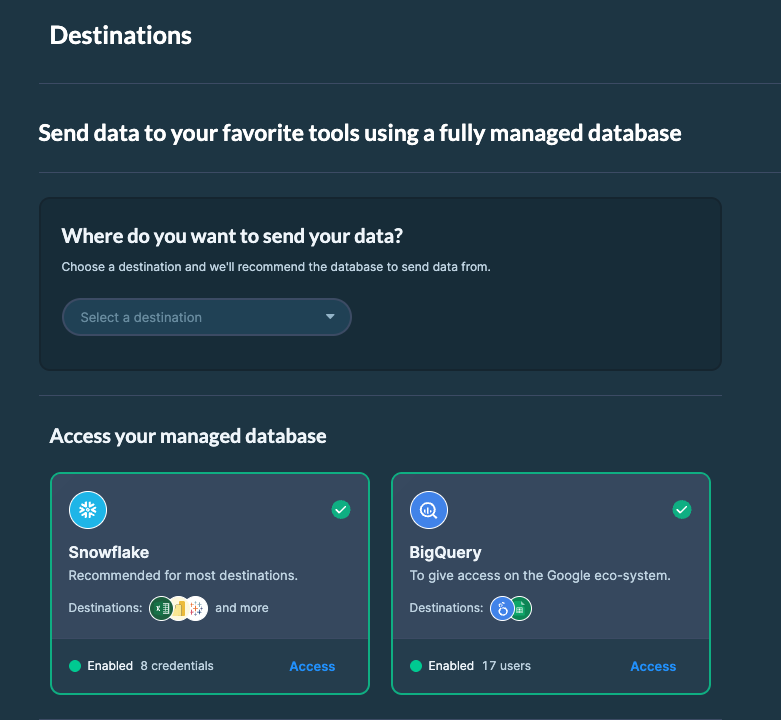
BigQuery credentials in DataHawk app
Managing user access
Navigate to Setup > Destinations > BigQuery > Access.
The database is accessible to the Google email addresses listed on this page. Each email must be added individually.
- Ready: The user has active access
- You can add or remove users at any time by clicking Add User
You can also connect via Service Account for automated workflows and integrations (advanced).
The email needs to be a Google Account, but it doesn't need to be a @gmail.com address. Any email, including a work email on your own company's domain, can be turned into a Google Account. If you try to add an email that isn't one yet, you'll see: "BigQuery only support Google Account. Please use a Google Account email instead."
Turning an existing email into a Google Account
If the email you want to grant access to isn't a Google Account yet:
Choose to use your current email instead of creating a new one
Google's sign-up form defaults to creating a new @gmail.com address. Look for an option to use an existing email address instead, and enter the work email you want to grant BigQuery access to.
Verify the email and set a password
Google sends a verification code to that email address. Enter it, then set a password for signing in to Google with this account. Your day-to-day use of the email (inbox, sending mail, etc.) doesn't change.
Add the email in DataHawk
Once the email is a Google Account, add it under Setup > Destinations > BigQuery > Access as usual.
Already sure this email is a Google Account and still getting the error? This can happen even for genuine Google Accounts in rare cases. See BigQuery access errors in Troubleshooting, and contact [email protected] with your workspace ID rather than trying to recreate the account.
Option 2: Self-hosted BigQuery (advanced)
If you already use Google Cloud Platform (GCP) and prefer to host the database yourself, you can connect your own BigQuery project to DataHawk. DataHawk will write your data into your project directly.
This option assumes you are already familiar with GCP and have an active project with billing enabled. If you are new to GCP, we recommend starting with the DataHawk-hosted option.
Before starting, contact your DataHawk representative to receive a dedicated service account in the form:
<company>@<projectid>.iam.gserviceaccount.com
Create your Google Cloud Project
Go to https://console.cloud.google.com/ and sign in.
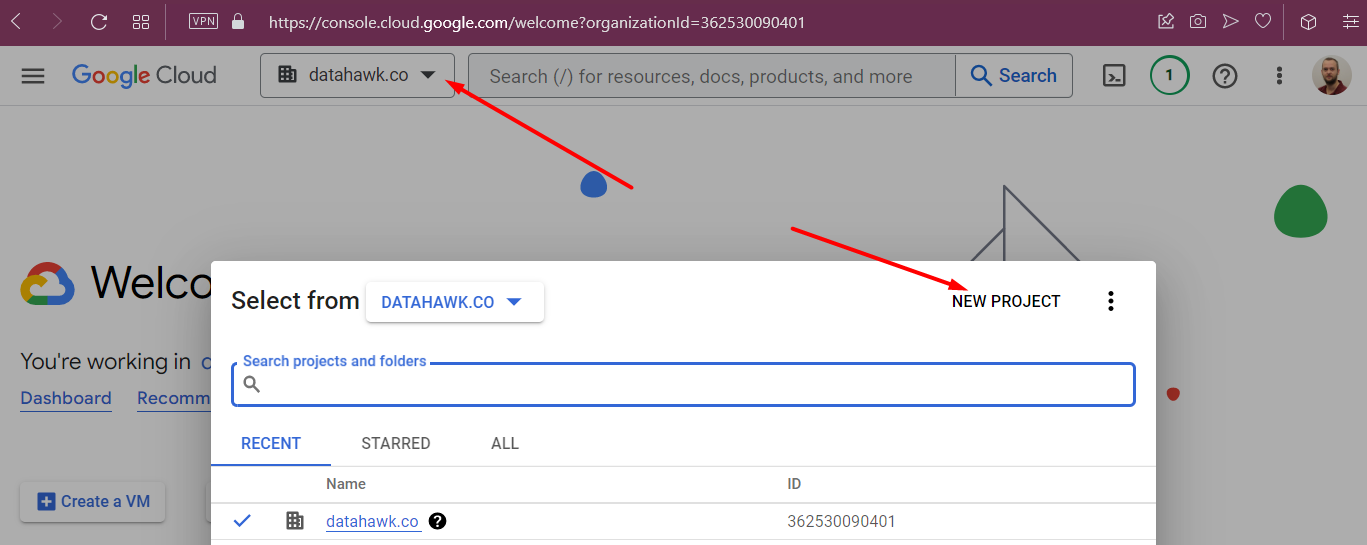
Click the project selector and choose New Project. Name it as you like. We suggest something like <company>-datahawk-bigquery. Note that the Project ID may differ from the project name.

Grant DataHawk access
In your project, navigate to IAM & Admin > IAM.
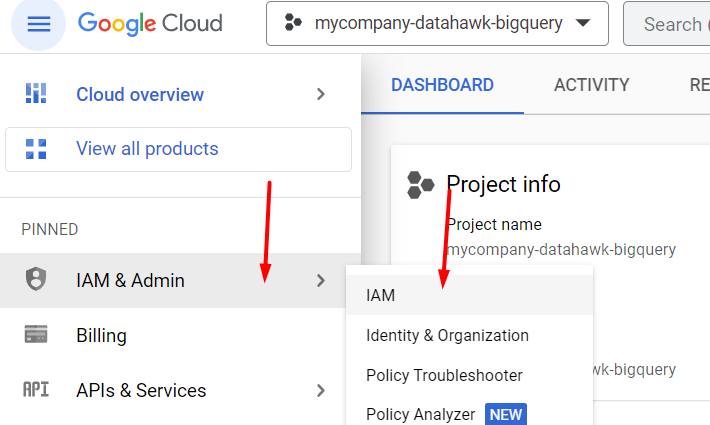
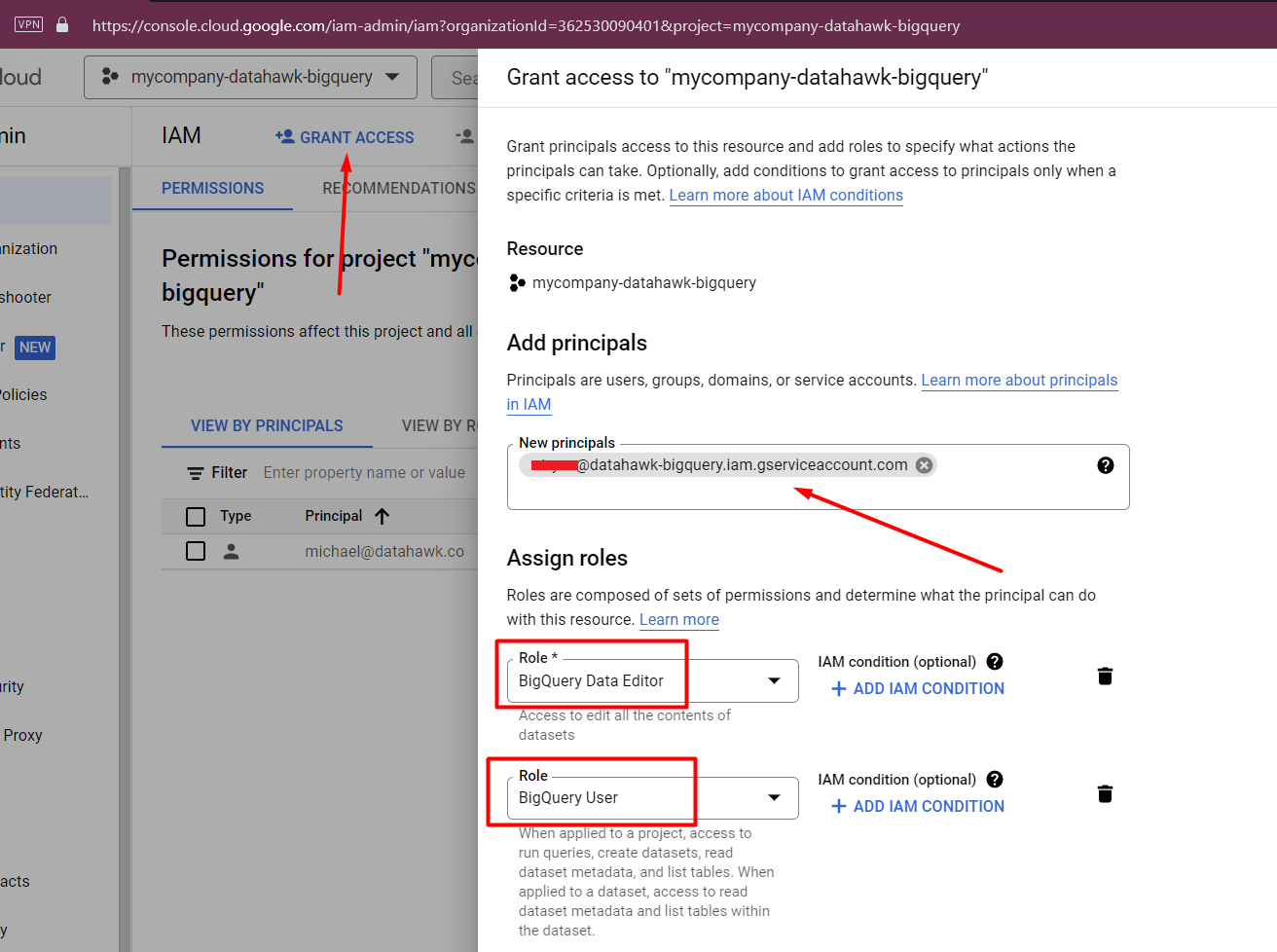
Grant the following roles to the service account provided by your DataHawk representative:
- BigQuery Data Editor
- BigQuery User
Share your project details with DataHawk
Send the following to your DataHawk representative:
- Project ID (differs from Project name)
- Preferred GCP region (default:
europe-west4) - Email addresses to grant access to
Compatible tools
BigQuery connects natively to most modern data tools. Common examples:
| Category | Tools |
|---|---|
| Business Intelligence | Looker Studio, Tableau, Google Sheets, Looker |
| Data Science & Analytics | Python (google-cloud-bigquery), R (bigrquery), Jupyter Notebooks, Apache Spark |
| ETL & Data Pipelines | Google Cloud Dataflow, Airflow, Fivetran, Stitch Data |
Where to go next
Connect to Looker Studio
Build live dashboards on your BigQuery data with Google's free reporting tool.
Connect to Google Sheets
Link BigQuery tables directly into a sheet for auto-refreshed analyses.
Looker Studio Template
Pre-built Analytics Essentials dashboard covering products, keywords, ads, and finance.